

Helpdesk
by Viindoo
| Lines of Code | 6582 |
| Technical name | viin_helpdesk |
| License | OPL-1 |
| Website | https://viindoo.com/apps/modules/17.0/viin_helpdesk |
| Read description for | v 13.0 v 14.0 v 15.0 v 16.0 v 18.0 v 19.0 |
| Required Apps | Discuss (mail) |
| Included Dependencies | Viindoo Base |
| Extensions | Viindoo AI - Helpdesk Connector Viindoo Brain - Helpdesk Zalo Helpdesk Template Pack Website Helpdesk Integration Helpdesk Dashboard Helpdesk Livechat Helpdesk & Sale Integrator Helpdesk & Human Resources Integration Helpdesk Project Integration Helpdesk & Odoo Version Helpdesk CRM Integration Helpdesk Ticket Severity |

A helpdesk your customers can see into, with SLAs that actually bite
Tickets from email, the portal, live chat or the phone, routed to the right team, measured against a service level per priority, and answered where the whole history already lives.
Helpdesk (technical name viin_helpdesk) is an Odoo 17.0 app for Odoo Community and Odoo Enterprise and Viindoo Cloud, built for support agent, team leader, customer, account manager.

At a Glance
The facts of Helpdesk, version 1.0.7, in one place. Published by Viindoo.
Key Features
This app turns support requests into records a team can run a week on: teams with their own stages, ticket types and visibility, SLA policies per priority, a customer portal where the requester follows their own ticket, and a satisfaction rating collected after the ticket is resolved. It is built on the same stack as the rest of your Odoo, so a ticket sits next to the customer, the sale order, the project task and the timesheet it is about - not in a separate tool you have to reconcile.
Ticket types that belong to a team
Each team declares the types it accepts. A type that is not on the team is refused with a clear message rather than quietly mis-filed.
Stages you control
Stages are per team, with their own kanban legends for blocked, in progress and done - the desk's own vocabulary, not a fixed one.
The desk at a glance
One overview per team: what is open, what is assigned to me, what breached, so a team leader does not build a spreadsheet on Monday.
SLA reporting
Compliance measured on the tickets themselves, sliced by team, priority and period.
How It Works
Four steps from an inbox nobody owns to a support desk with numbers on it.
Set up the teams
A team owns an email alias, a set of stages, the ticket types it accepts, how tickets are assigned, and who may see them. Two teams can work completely differently in the same database - an internal IT desk that nobody outside sees, and a customer desk with a public portal.

Write the service levels
An SLA is a promise you can measure: for this team and this priority, reach this stage within this many hours. Every ticket then carries its own clock, and the SLA report tells you where the promise held and where it did not.

Let the tickets arrive
Tickets arrive by email to the team alias, from the portal, from live chat, or typed by an agent on the phone. The kanban shows the whole desk at a glance: who is waiting, who is assigned, what is on hold and what was resolved.
Answer, resolve, and hear back
The conversation happens on the ticket, so the next agent reads the same history. When the ticket is resolved the customer is asked to rate it, and those ratings roll up per team and per agent instead of living in a survey tool nobody opens.

What You Get
Teams with their own stages, allowed ticket types, assignment method and privacy - internal-only teams and customer-facing teams live side by side
SLA policies per team and per priority: a target stage and a number of hours, with the clock shown on every ticket card
A customer portal: the requester creates, follows and comments on their ticket without an internal user account
Satisfaction ratings after resolution, aggregated per team and per agent
Ticket types restricted per team, so a billing question cannot be filed as a technical incident by accident
Reporting on tickets and on SLA compliance, from the same records the agents work in
More Screens
Everything below was taken on a database seeded with real business data, on this series - not a mock-up and not a screenshot from an older version.

Every ticket as a list, with the columns a team leader sorts on

My tickets - the view an agent lives in

Assigned to me, filtered from the same records

A ticket: customer, type, priority, SLA and the whole conversation

SLA policies per team and priority

The teams, each with its own way of working

A stage with its kanban legends

Tags for the cross-cutting things stages cannot express

Ratings rolled up per team

Ticket reporting, on the records agents work in
What This App Does Not Do
Read this before you buy. Everything below is something the app deliberately leaves to another app or to you.
Calls are logged as tickets by the agent. Recording, queues and IVR belong to your telephony provider.
The timesheet and sale bridges add billable time on a ticket; this app records the work, not the invoice.
Installing both causes conflicting menus. Uninstall Odoo's Helpdesk first - the listing says so because support tickets about it were the most common ones.
A four-hour target counts four hours. Contractual calendars per customer are not modelled here.
Works Well With
Apps from the same stack, built to fit this one:
Helpdesk + CRM
Open a ticket from an opportunity, and see a customer's tickets before the renewal call.
Helpdesk CRM IntegrationHelpdesk + Project
Escalate a ticket into a project task when it becomes work rather than support.
Helpdesk Project IntegrationHelpdesk + Timesheet
Record the time spent on a ticket, and bill it where the contract allows.
Helpdesk Timesheet IntegrationHelpdesk + Live Chat
Turn a chat into a ticket with the transcript attached, from the /ticket command.
Helpdesk LivechatHelpdesk + Sales
Raise a ticket from a sale order, and see what the customer actually bought.
Helpdesk & Sale IntegratorHelpdesk severity
Add a severity axis beside priority, for teams that triage on impact and urgency separately.
Helpdesk Ticket SeverityWho Should Use Helpdesk?
Support agent
Works a kanban of their own tickets, sees the SLA clock, answers in the ticket, and moves it to Resolved.
Team leader
Sets the stages, the SLA policies and the assignment method, and reads the SLA report on Monday morning.
Customer
Opens a ticket by email or in the portal, follows it there, and rates it when it is resolved.
Account manager
Sees the customer's open tickets from the customer record, before the renewal call.
Frequently Asked Questions
What does Helpdesk do?
Tickets from email, the portal, live chat or the phone, routed to the right team, measured against a service level per priority, and answered where the whole history already lives.
What does Helpdesk not do?
It is not a phone system. Calls are logged as tickets by the agent. Recording, queues and IVR belong to your telephony provider. It does not bill support time on its own. The timesheet and sale bridges add billable time on a ticket; this app records the work, not the invoice. It does not replace Odoo's own Helpdesk in Enterprise. Installing both causes conflicting menus. Uninstall Odoo's Helpdesk first - the listing says so because support tickets about it were the most common ones. SLA is measured in hours, not in a working calendar per customer. A four-hour target counts four hours. Contractual calendars per customer are not modelled here.
Who is Helpdesk for?
Support agent: Works a kanban of their own tickets, sees the SLA clock, answers in the ticket, and moves it to Resolved. Team leader: Sets the stages, the SLA policies and the assignment method, and reads the SLA report on Monday morning. Customer: Opens a ticket by email or in the portal, follows it there, and rates it when it is resolved. Account manager: Sees the customer's open tickets from the customer record, before the renewal call.
Which Odoo version and editions does it support?
Odoo 17.0 - Odoo Community, Odoo Enterprise, Viindoo Cloud. Upgrades to a newer Odoo series are a separate purchase for that series.
What does it depend on?
It installs on top of: mail, base_setup, portal, rating, digest, resource, to_base. Odoo installs them with it.
How do I set it up?
Four steps from an inbox nobody owns to a support desk with numbers on it.
What works well with it?
Helpdesk + CRM (viin_helpdesk_crm): Open a ticket from an opportunity, and see a customer's tickets before the renewal call. Helpdesk + Project (viin_helpdesk_project): Escalate a ticket into a project task when it becomes work rather than support. Helpdesk + Timesheet (viin_helpdesk_timesheet): Record the time spent on a ticket, and bill it where the contract allows. Helpdesk + Live Chat (viin_helpdesk_livechat): Turn a chat into a ticket with the transcript attached, from the /ticket command. Helpdesk + Sales (viin_helpdesk_sale): Raise a ticket from a sale order, and see what the customer actually bought. Helpdesk severity (viin_helpdesk_severity): Add a severity axis beside priority, for teams that triage on impact and urgency separately.
Can I try it before buying?
Yes - the Live Preview button at the top of this page opens the module's own screen on a working database.
How do I get support?
Write to apps.support@viindoo.com with your Odoo version and the technical name viin_helpdesk; pre-sales questions go to sales@viindoo.com.
See Helpdesk in Action
A helpdesk your customers can see into, with SLAs that actually bite
Need help with Helpdesk?
For questions, implementation support, or consulting services, contact Viindoo.
Pre-Sales & Partnership
sales@viindoo.comWhen contacting us, please include:
- Odoo/Viindoo version (Odoo CE / Viindoo Editions).
- Number of users and business scope.
- Other modules currently in use.
Technical Support
apps.support@viindoo.comFor faster troubleshooting, please provide:
- Order number or app reference.
- Odoo/Viindoo version & edition.
- Steps to reproduce the issue.
- Screenshots/logs if available.
Upgrades to a newer Odoo series are a separate purchase for that series.
Technical Requirement
Changes log
1.0.7 - Latest on the 17.0 line
- Ticket types are validated against the team, with a message that says which team and which type.
- Ratings are aggregated per team and per agent, not only per ticket.
- Portal access to a ticket no longer leaks tickets of other customers on the same commercial entity.
- Team overview counts read from stored fields, so a desk with tens of thousands of tickets still opens.
Installation
- Navigate to Apps.
- Search with keyword viin_helpdesk.
- Press Install.
How it works
Instruction video: Helpdesk
1. Configuration
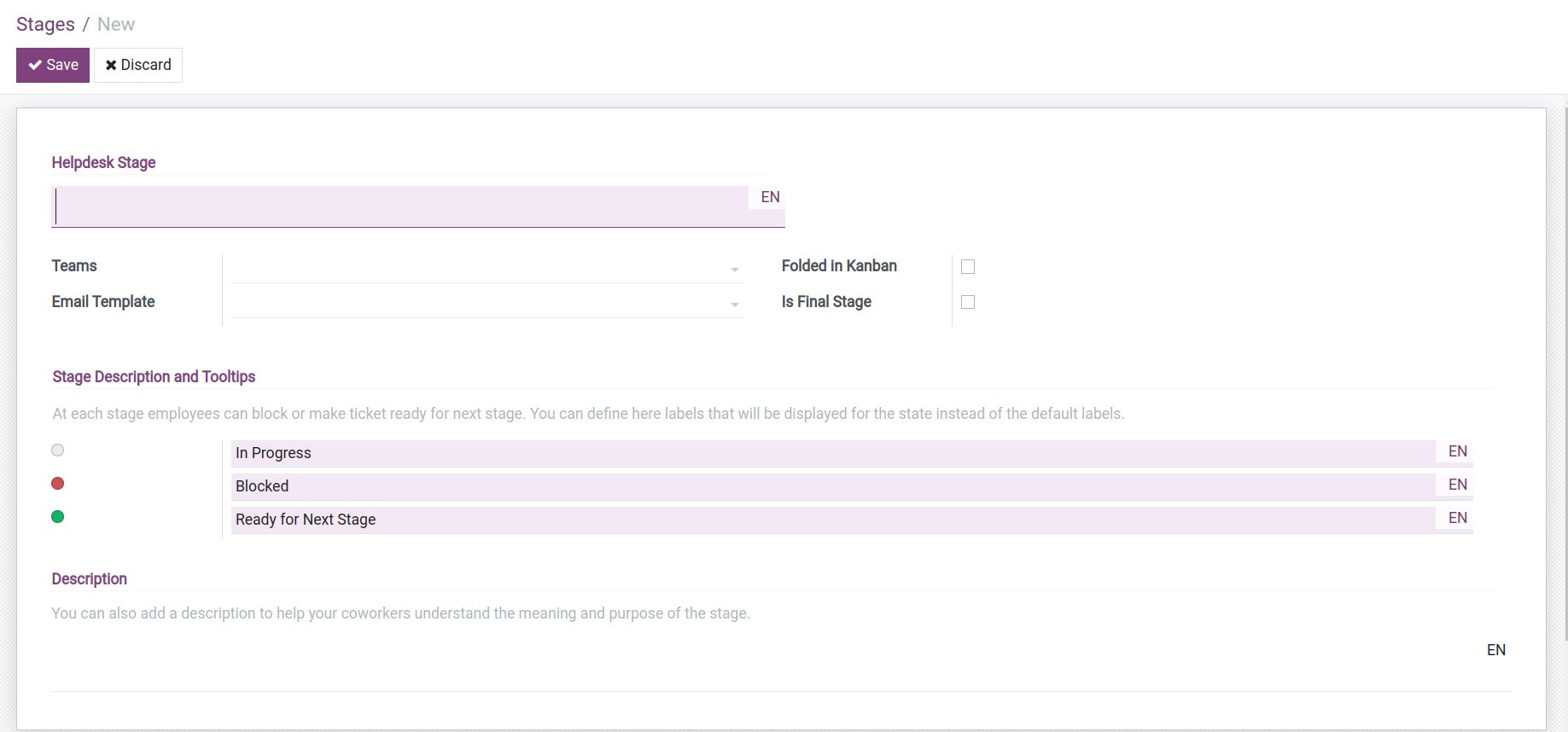
Step 1: Set up Stages: This is the stages to process the support tickets. To set up, navigate to Helpdesk > Configuration > Stages.
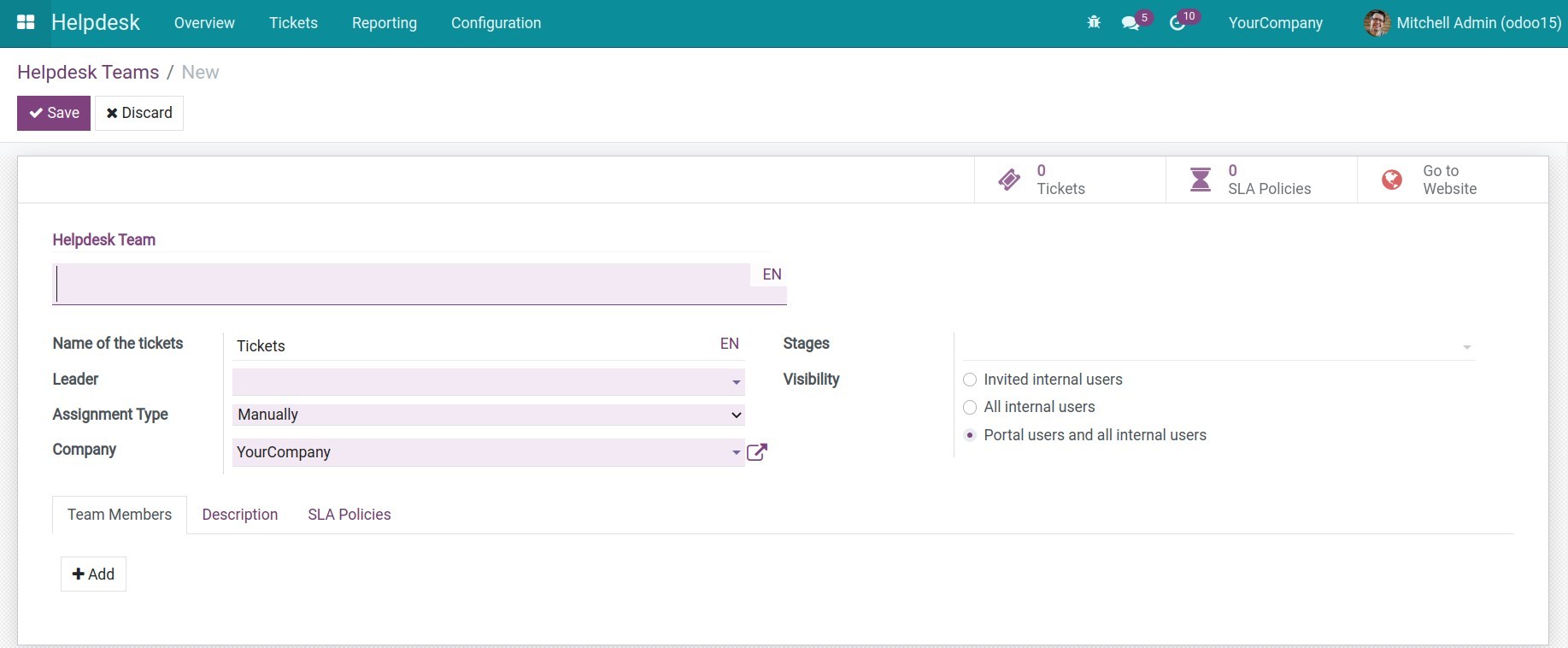
Step 2: Set up Helpdesk team: To set up helpdesk team, navigate to Helpdesk Team > Configuration > Helpdesk Teams.
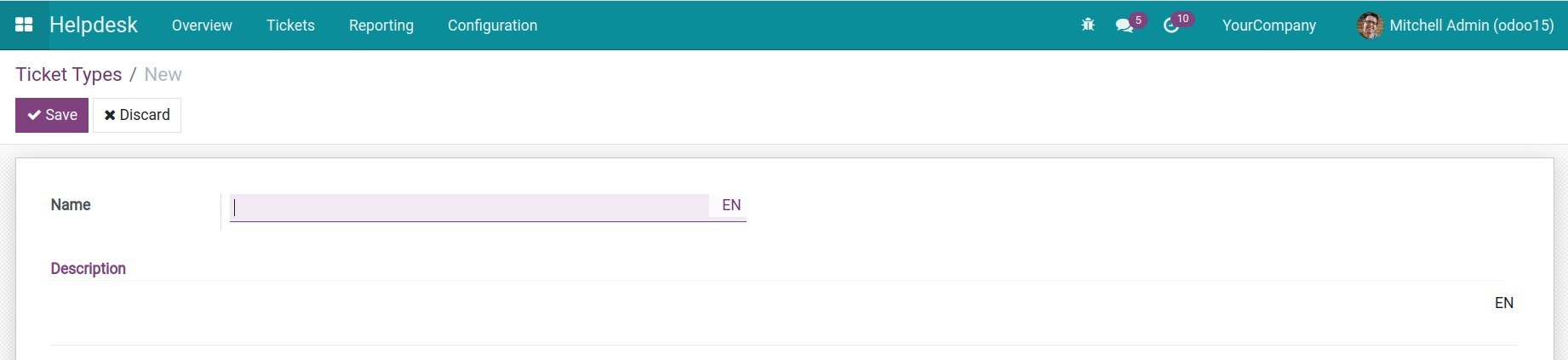
Step 3: Set up Ticket types: Ticket types help desk team categorize the content of their tickets. To set up ticket types, navigate to Helpdesk > Configuration > Ticket Types.
Step 4: Set up Tags: Besides categorizing tickets by ticket types, users can also use tags to categorize the ticket, make it easier to filter, search the ticket. To set up tags, navigate to Helpdesk > Configuration > Tags.

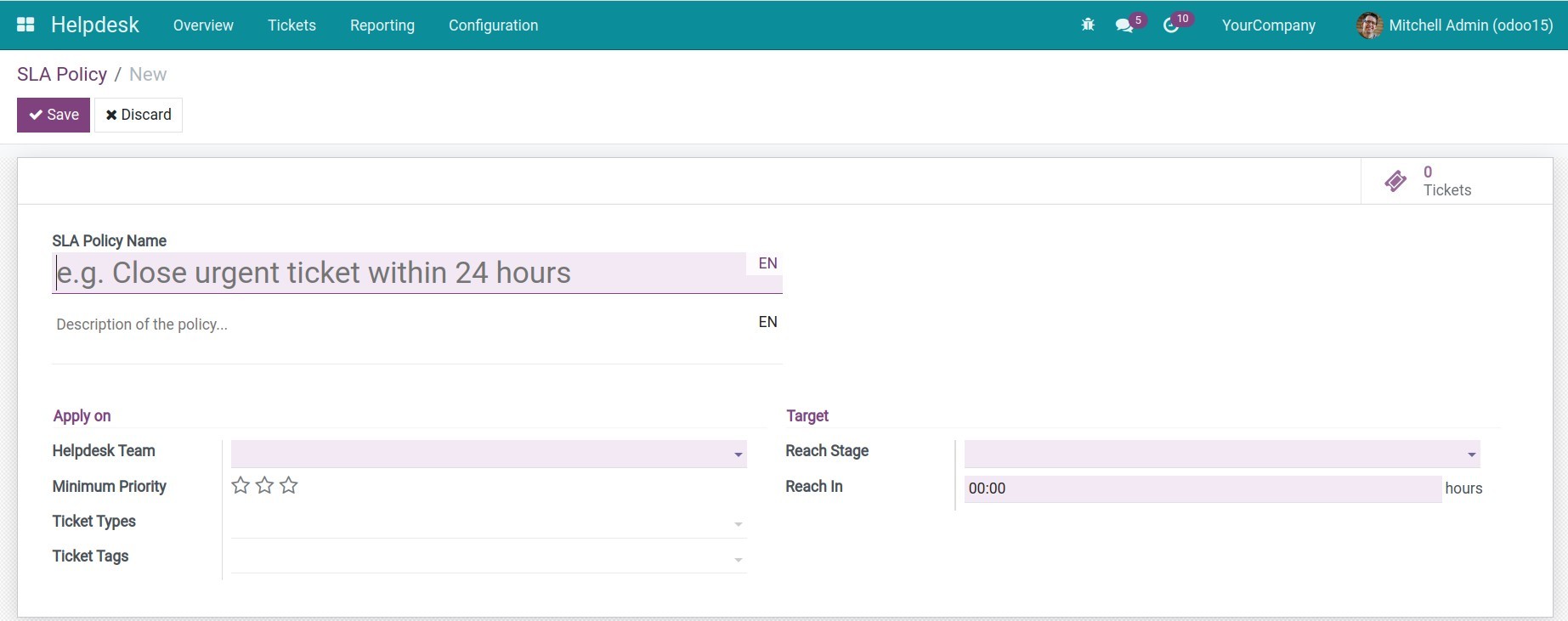
Step 5: Set up SLA policy: The SLA policy measure of the effectiveness of an employee's work when supporting a ticket. To set up, navigate to Helpdesk > Configuration > SLA policy.
2. Create a support ticket
From the Helpdesk Overview, press Create to create a new ticket.
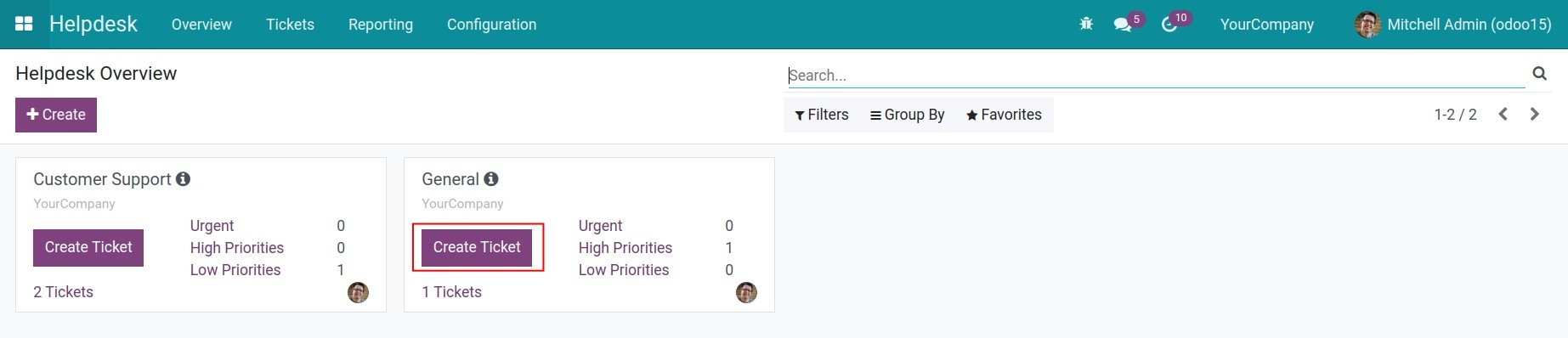
The following information will appear:
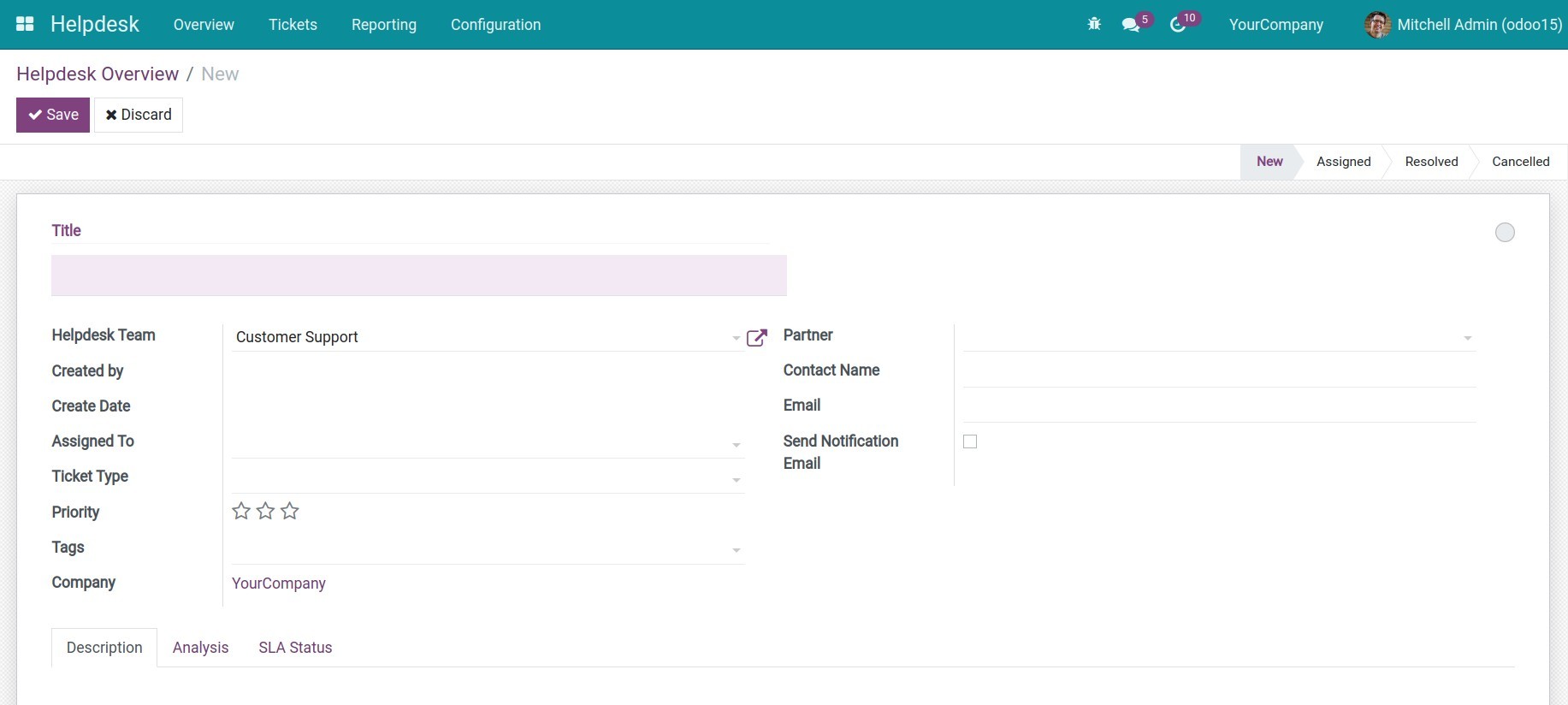
- Title: A short description of the issue, this is the same as an email title.
- Helpdesk Team: The group you selected will be set as default, but you can change to another group.
- Create by: The person who creates the ticket.
- Create Date: The date the ticket is created.
- Assigned To: The user in charge of this ticket.
- Ticket Type: Used to categorize the tickets based on specific subjects. For example, Questions, Issues, Feature Requests, etc.
- Priority: Priority levels of this ticket.
- Tags: Another way to identify the ticket, for searching.
- Company: The company in charge of this ticket (this field will appear if you use the multi-company feature).
- Partner: You can choose a partner if you want them to follow this ticket.
- Contact Name: The contact name of the partner. This field will disappear if you select a partner on the Partner field.
- Email: Partner’s email.
- Send Notification Email: If checked, the system will send an email every time the ticket changes to the stage where the email template was set up.
- The Description tab, Analysis tab, SLA Status tab: Detail of the ticket.
After filling in the information, press Save to save the ticket.
3. Change the ticket's stage
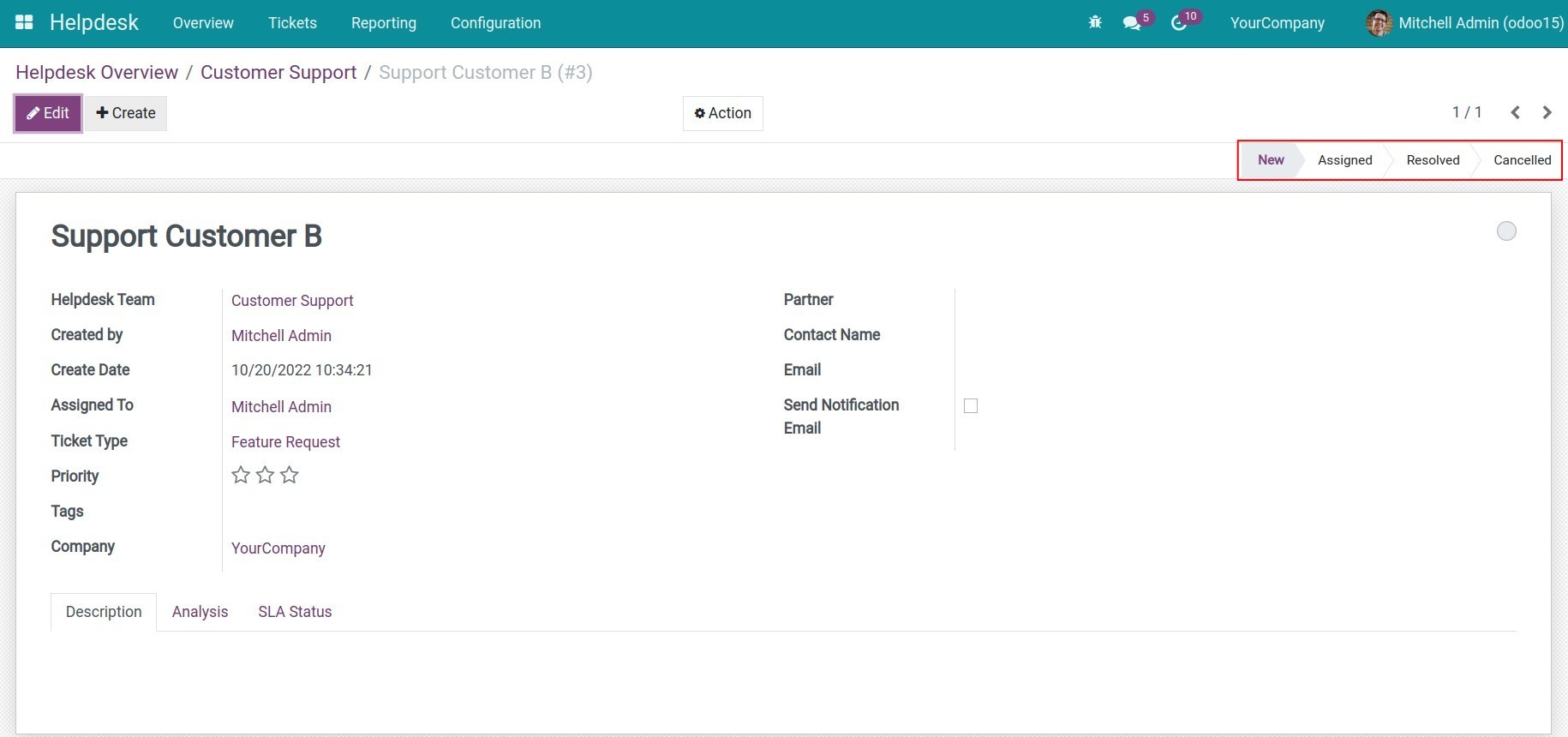
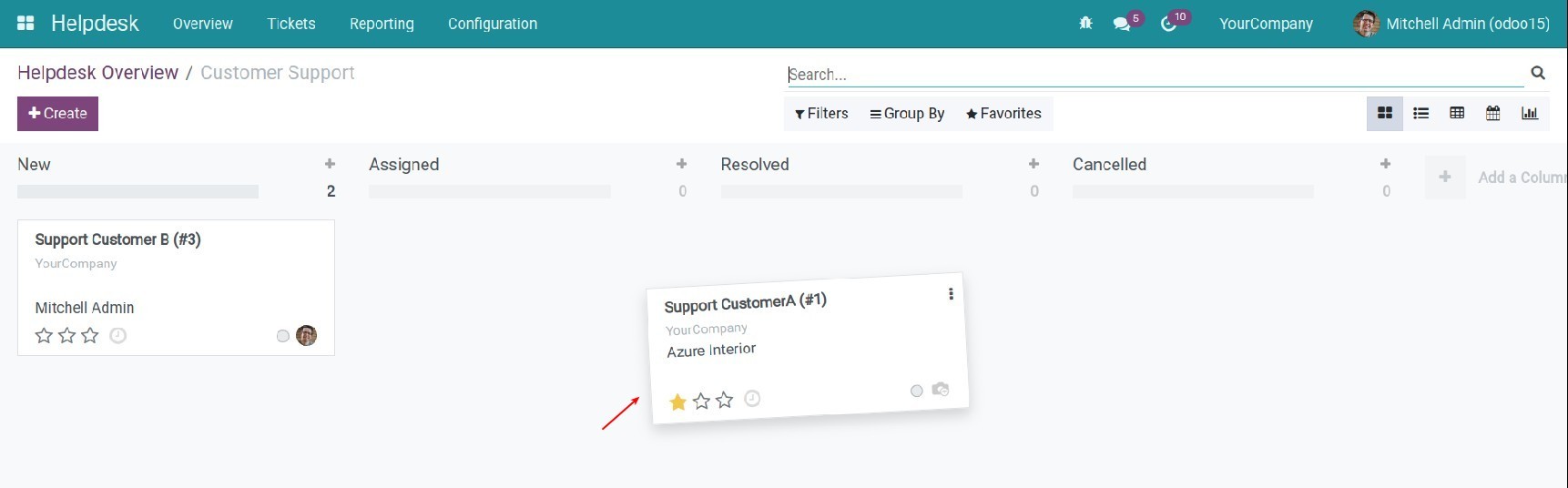
There are 2 ways to change the Ticket stage:
Option 1: Select the stage on the ticket view.
Option 2: Drag and drop on the Kanban view.
4. Customer rating
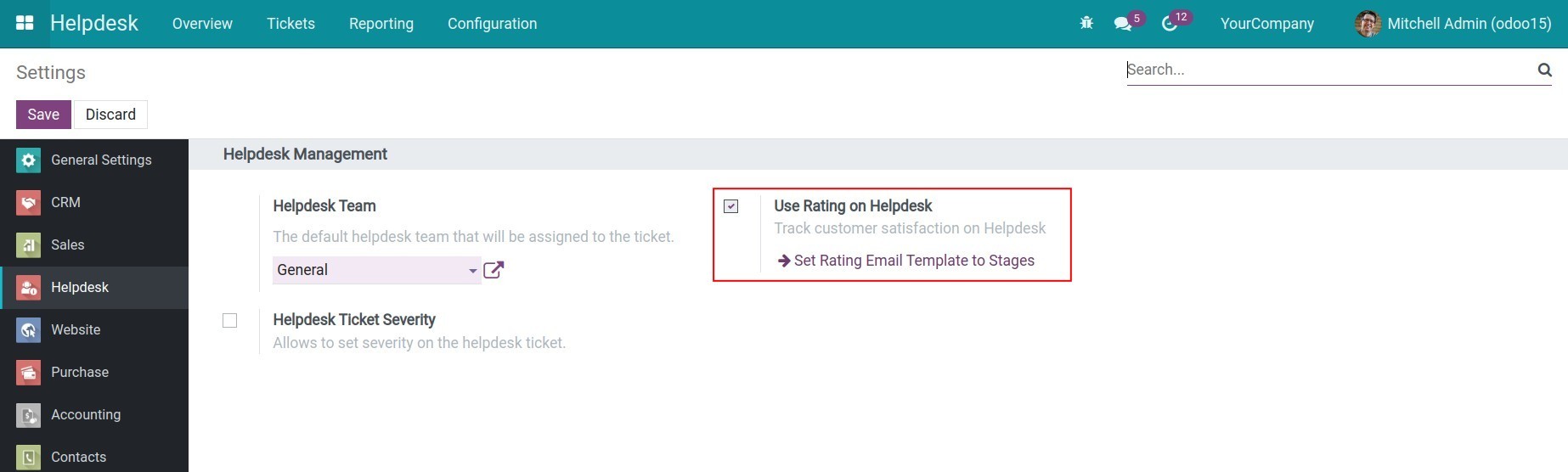
Step 1: Navigate to Helpdesk > Configuration > Settings, check on the Use Rating on Helpdesk field.
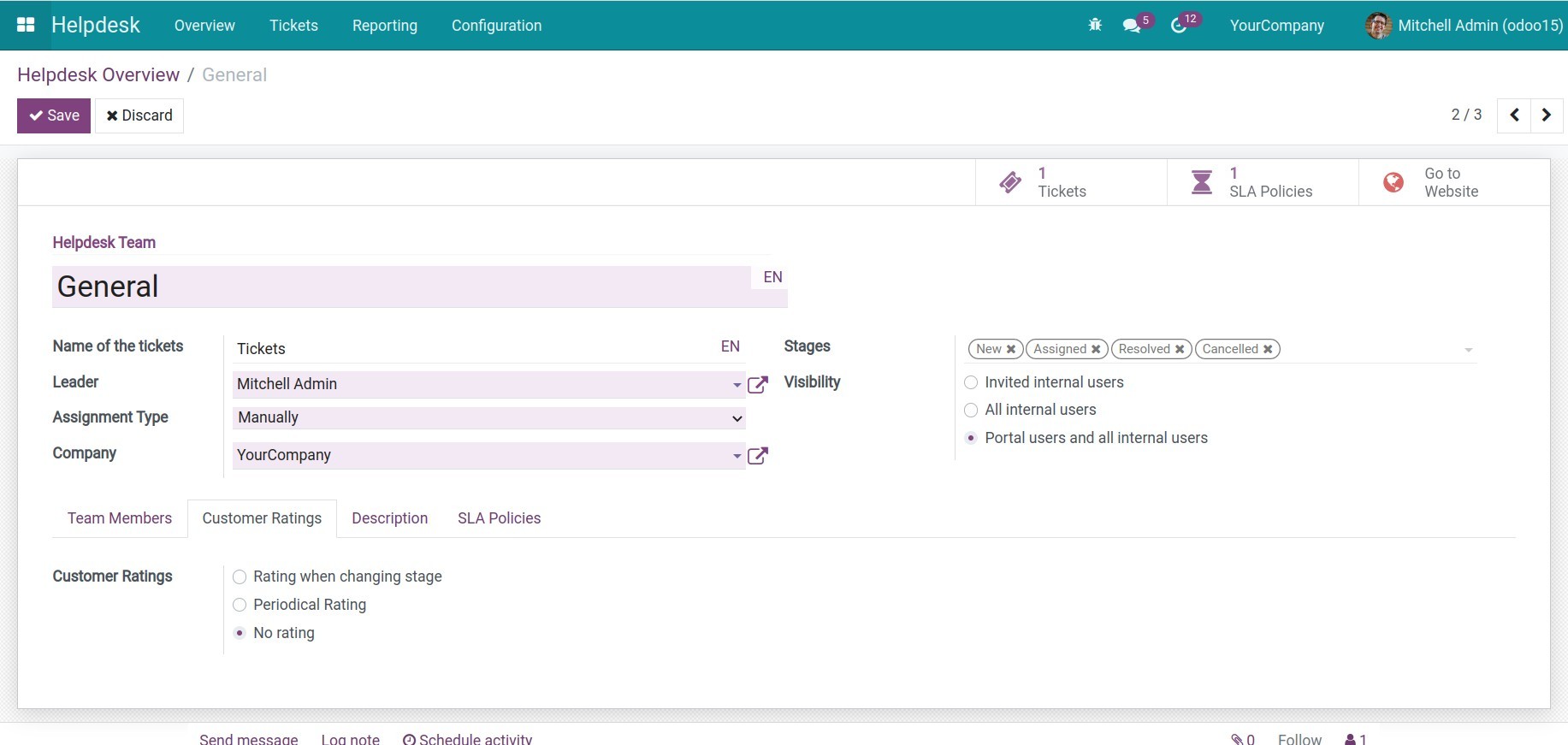
Step 2: After activating, the Customer Rating field will appear on the Ticket view.
5. View reports
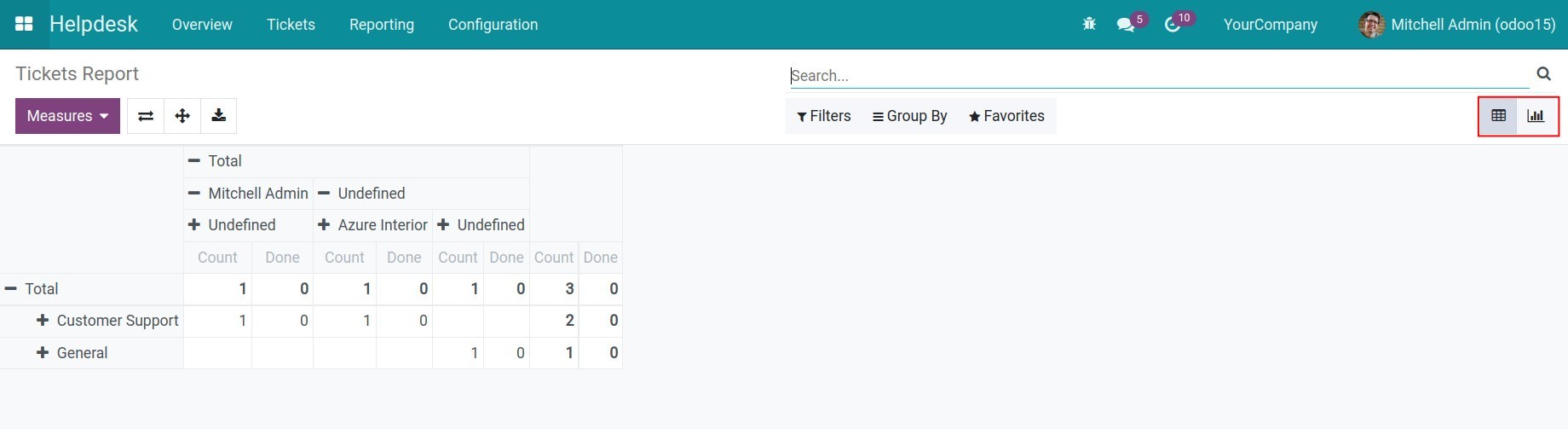
Tickets Report: The report provides users with visual information about the Tickets in the charts and the Pivots view. To view the report, go to Reporting > Tickets Report.
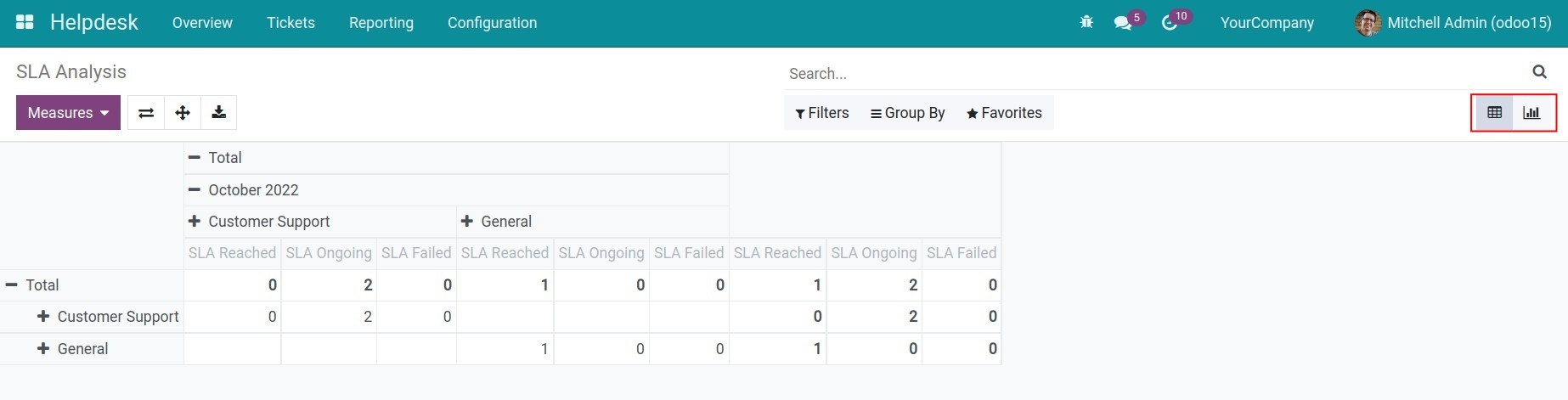
SLA Analysis: Allows users to see an overview of SLA policies by each measure such as support team, support request or company, etc. To view the report, go to Reporting > SLA Analysis.
You can refer to the Guidance for ticket management article.
This software and associated files (the "Software") may only be used (executed, modified, executed after modifications) if you have purchased a valid license from the authors, typically via Odoo Apps, or if you have received a written agreement from the authors of the Software (see the COPYRIGHT file).
You may develop Odoo modules that use the Software as a library (typically by depending on it, importing it and using its resources), but without copying any source code or material from the Software. You may distribute those modules under the license of your choice, provided that this license is compatible with the terms of the Odoo Proprietary License (For example: LGPL, MIT, or proprietary licenses similar to this one).
It is forbidden to publish, distribute, sublicense, or sell copies of the Software or modified copies of the Software.
The above copyright notice and this permission notice must be included in all copies or substantial portions of the Software.
THE SOFTWARE IS PROVIDED "AS IS", WITHOUT WARRANTY OF ANY KIND, EXPRESS OR IMPLIED, INCLUDING BUT NOT LIMITED TO THE WARRANTIES OF MERCHANTABILITY, FITNESS FOR A PARTICULAR PURPOSE AND NONINFRINGEMENT. IN NO EVENT SHALL THE AUTHORS OR COPYRIGHT HOLDERS BE LIABLE FOR ANY CLAIM, DAMAGES OR OTHER LIABILITY, WHETHER IN AN ACTION OF CONTRACT, TORT OR OTHERWISE, ARISING FROM, OUT OF OR IN CONNECTION WITH THE SOFTWARE OR THE USE OR OTHER DEALINGS IN THE SOFTWARE.