
OmniApproval™ - Timesheet Approvals
| Lines of Code | 1243 |
| Technical name | viin_approval_hr_timesheet |
| License | OPL-1 |
| Website | https://viindoo.com/apps/modules/19.0/viin_approval_hr_timesheet |
| Read description for | v 13.0 v 14.0 v 15.0 v 16.0 v 17.0 v 18.0 |
| Required Apps | Time Off (hr_holidays) Project (project) Discuss (mail) Calendar (calendar) Employees (hr) |
| Included Dependencies | Viindoo Base OmniApproval™: One platform. Every approval. Advanced HR Management HR Contracts (Viindoo) HR Timesheet Timer Base Addendum Viindoo Holiday & WorkDay Manager OmniApproval™ - Analytic Accounting Approvals Safe IR Metadata Proxies OmniApproval™ - Project & Task Approvals Countup Timer Widget |
| Extensions | Overtime Timesheet Approval |
Timesheets that someone actually approved
For teams that bill, pay or review performance on logged hours
Ensure accurate timesheet records by allowing managers to review and approve employees' logged work hours, improving transparency and accountability in workload tracking.
Builds on HR Timesheet Timer and runs on the OmniApproval engine.
Is this you?
Hours are typed in and used for payroll or billing before anyone has checked them.
Approvers chase single entries instead of reviewing a period in one place.
Hours change after sign-off, so the approved total and the invoiced total drift apart.
Not every employee needs sign-off, yet one blanket rule slows everyone down.
When hours are sent back, nobody remembers why or how to correct them.
What changes
Hours are used before anyone checked them
→ Every hour is approved by a named approver first, and its state - draft, to approve, approved, refused - shows on the line.
Approvers chase single entries
→ Select the hours, choose Get Approved, and one request carries them all. The approver reviews and decides once.
Hours change after sign-off
→ Hours under approval and approved hours are locked. A refused edit names the request that holds them and the way out.
One rule for everyone
→ Switch approval on per contract, department or job position. Hours that need none are approved the moment they are logged.
Sent-back hours get lost
→ A refusal carries a reason on the request. The employee cancels, resets to draft, adjusts and submits again.
How it works
Log
Employee logs hours as usual. Hours that need no approval are approved at once; all others stay Draft.
Submit
Employee selects the draft hours, chooses Get Approved and submits the request. The hours become To Approve and are locked.
Decide
Team lead approves or refuses the request, or one line of it. Approved hours stay locked; refused ones go back to the employee.
Correct
Employee after a refusal, cancels the request, resets it to draft, adjusts the hours and submits again.
Key Features
One approval type per company
Groups the timesheets of an employee in a single request and sets who approves, in which order.
Approval where you decide it
Decide per contract whether the hours of an employee need approval or are approved at once. Give a whole team the same rule through its department or job position.
Automatic approval by contract dates
Hours dated inside a contract that does not require approval, time off and holiday entries are approved when logged.
Get Approved on selected hours
Send many timesheets for approval in one request.
Locked while approvers decide
Hours that approvers decide on cannot change; a refused change names the holding request and the way out.
Decide on a single line
An approver refuses or cancels one line without deciding on the whole request.
Who it is for
Finance and payroll owners
Bill and pay from hours a named person signed for.
Team leads
Review the hours of the team in one request instead of line by line.
Employees
See where every hour stands and know what to do when one is sent back.
HR officers
Decide per contract, job position or department which hours need approval.
Administrators
Set up who approves and in which order once, in the approval type.
Best for: Teams that bill, pay or review performance on logged hours and want a named approver before the numbers are used.
Set who approves and in which order
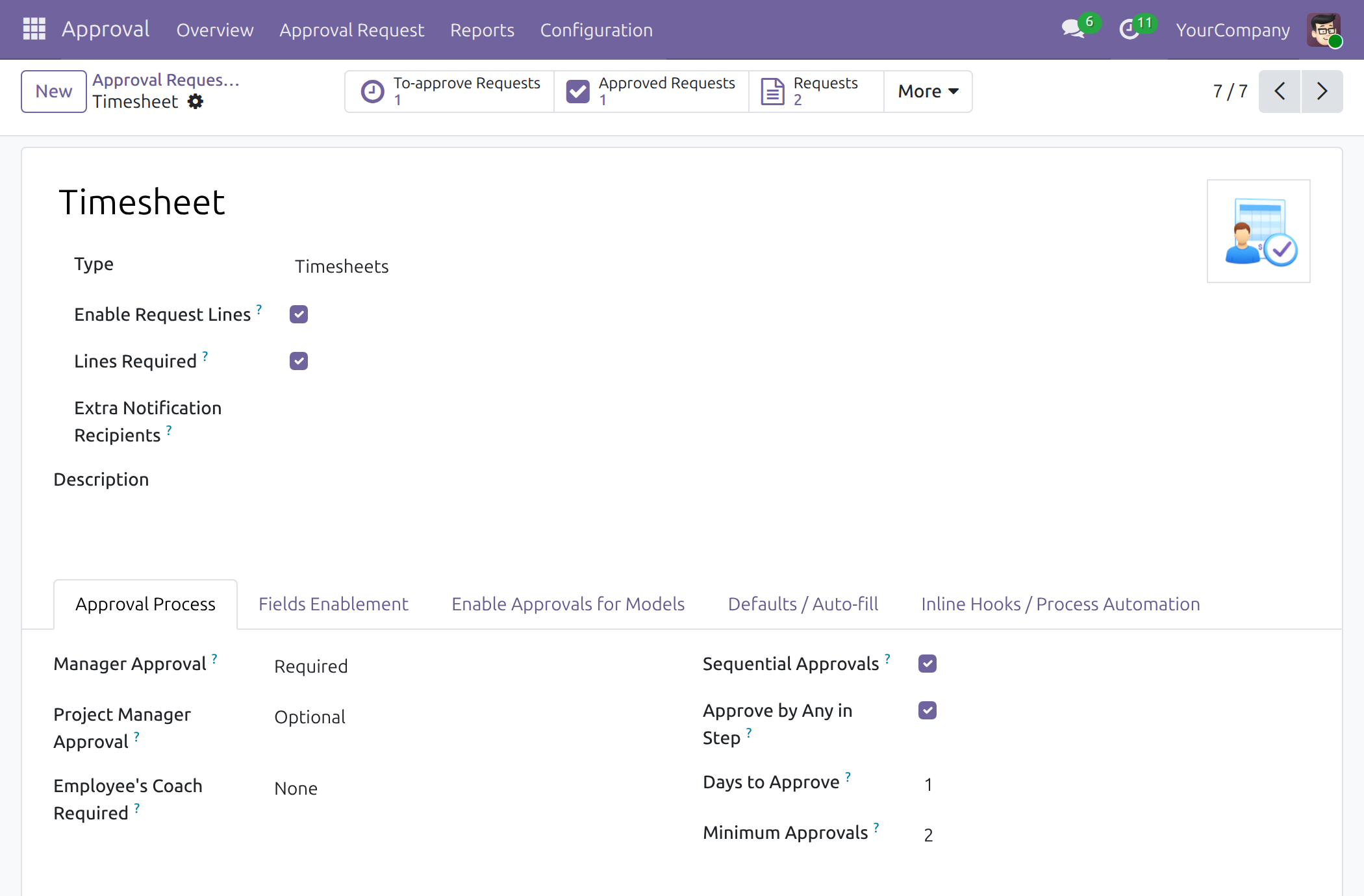
The Timesheet approval type of the company: manager approval, optional project manager approval, sequential steps and minimum approvals.
Decide which hours need approval
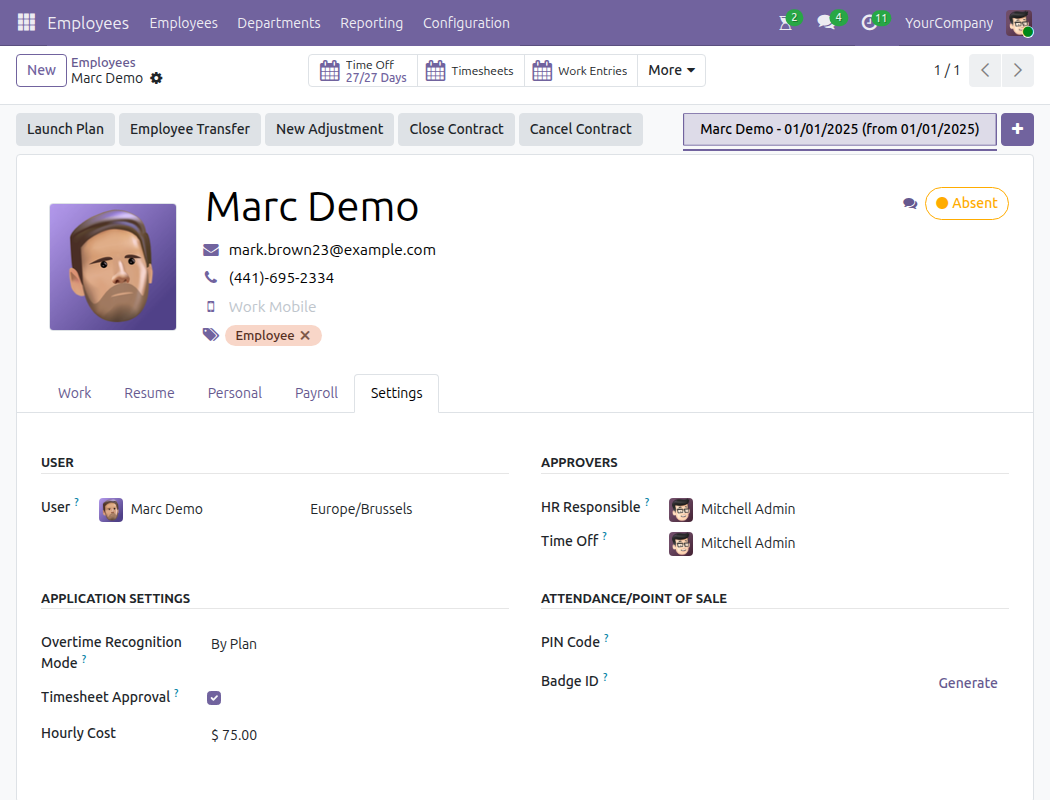
The Timesheet Approval checkbox on the contract of an employee.
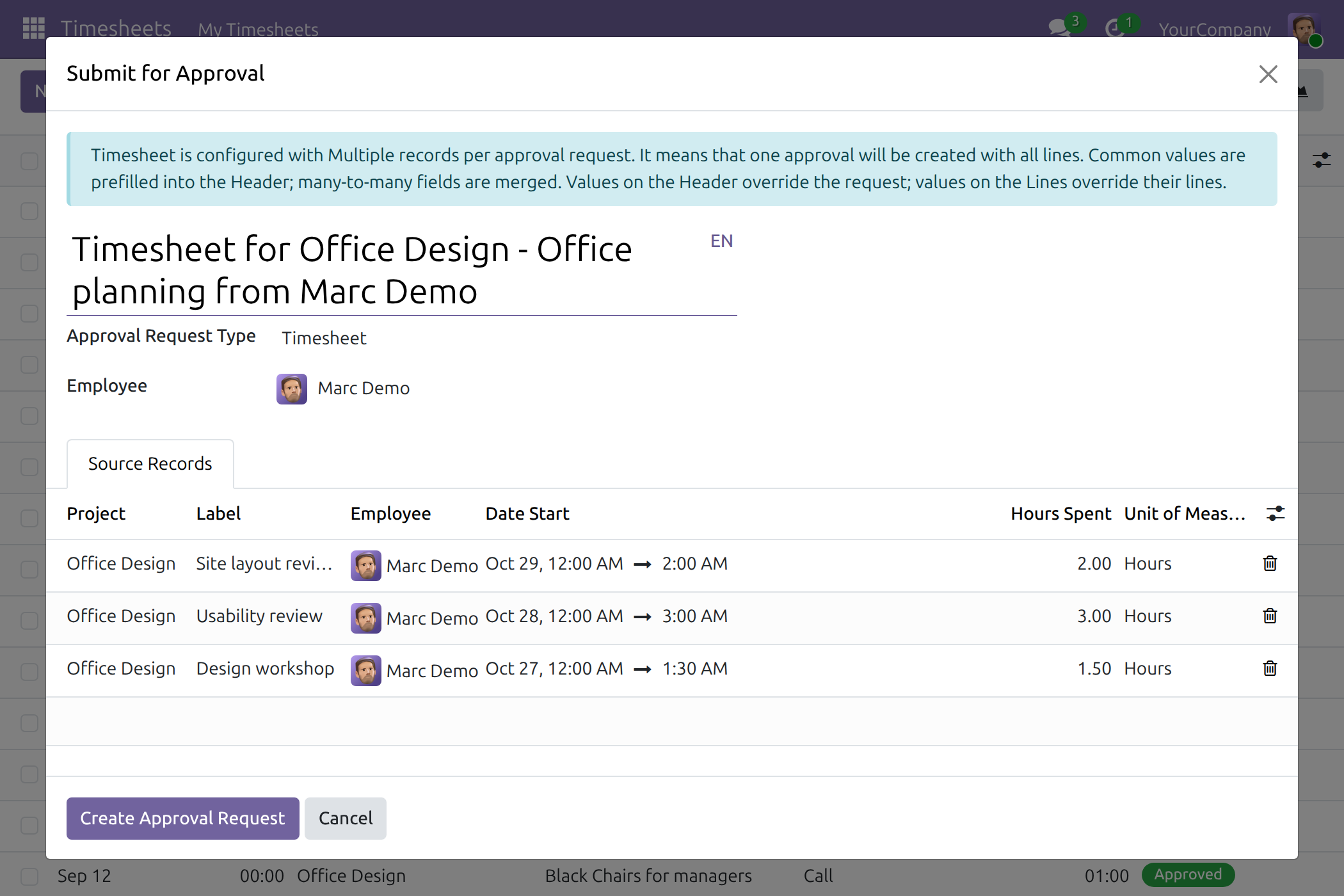
Send hours for approval in one request
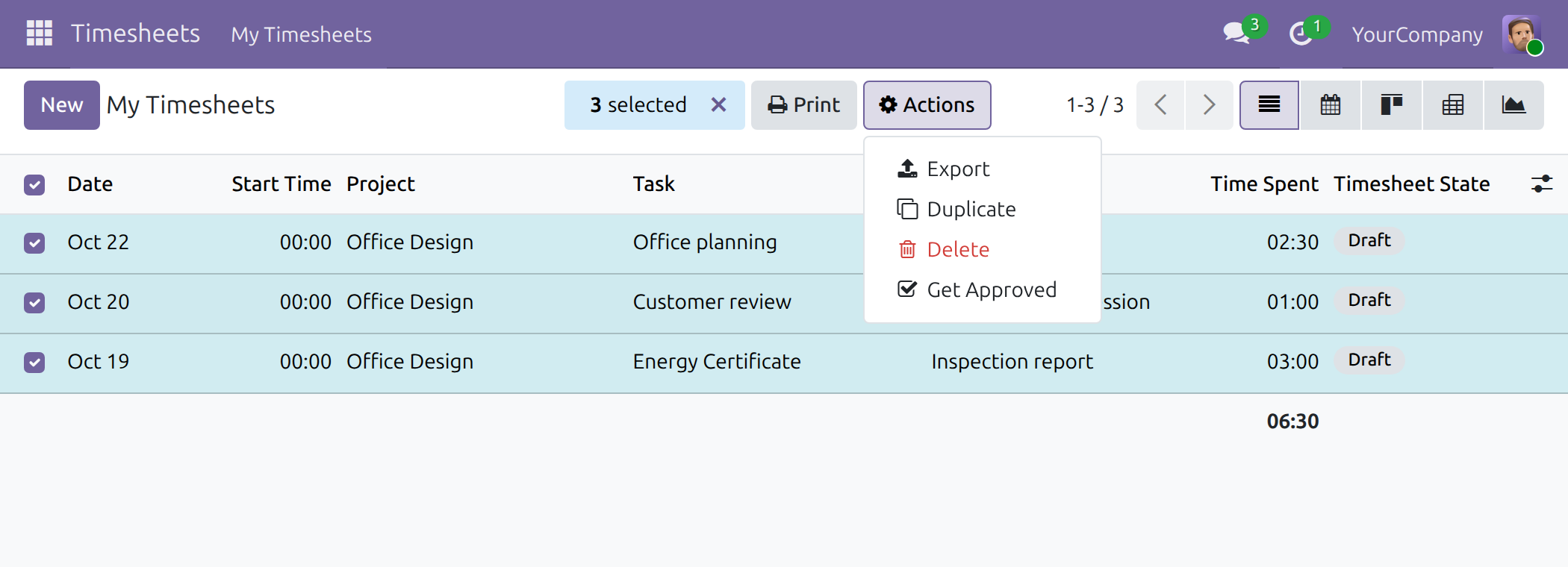
The selected draft timesheets, ready to become one approval request.
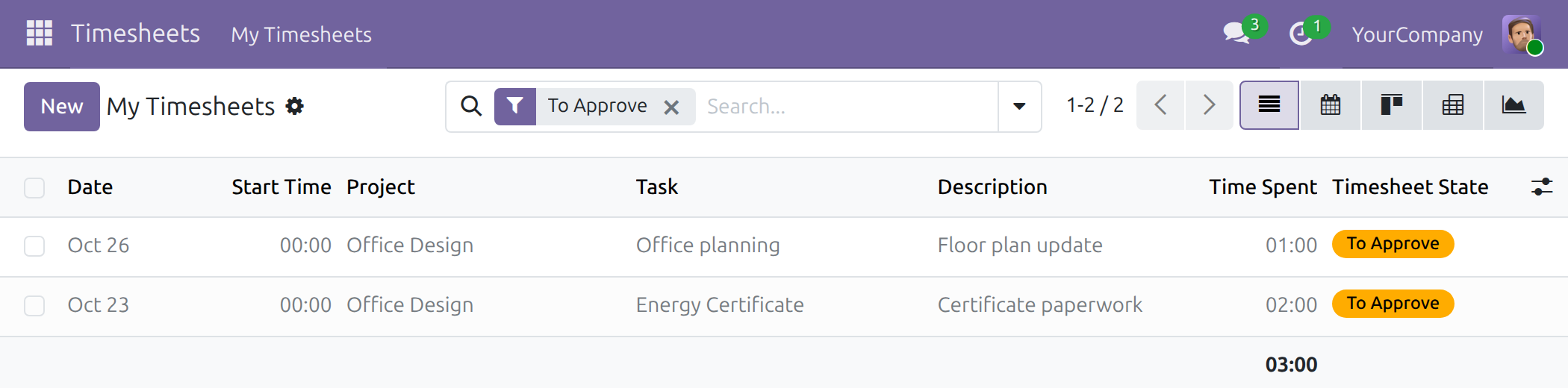
See what is waiting
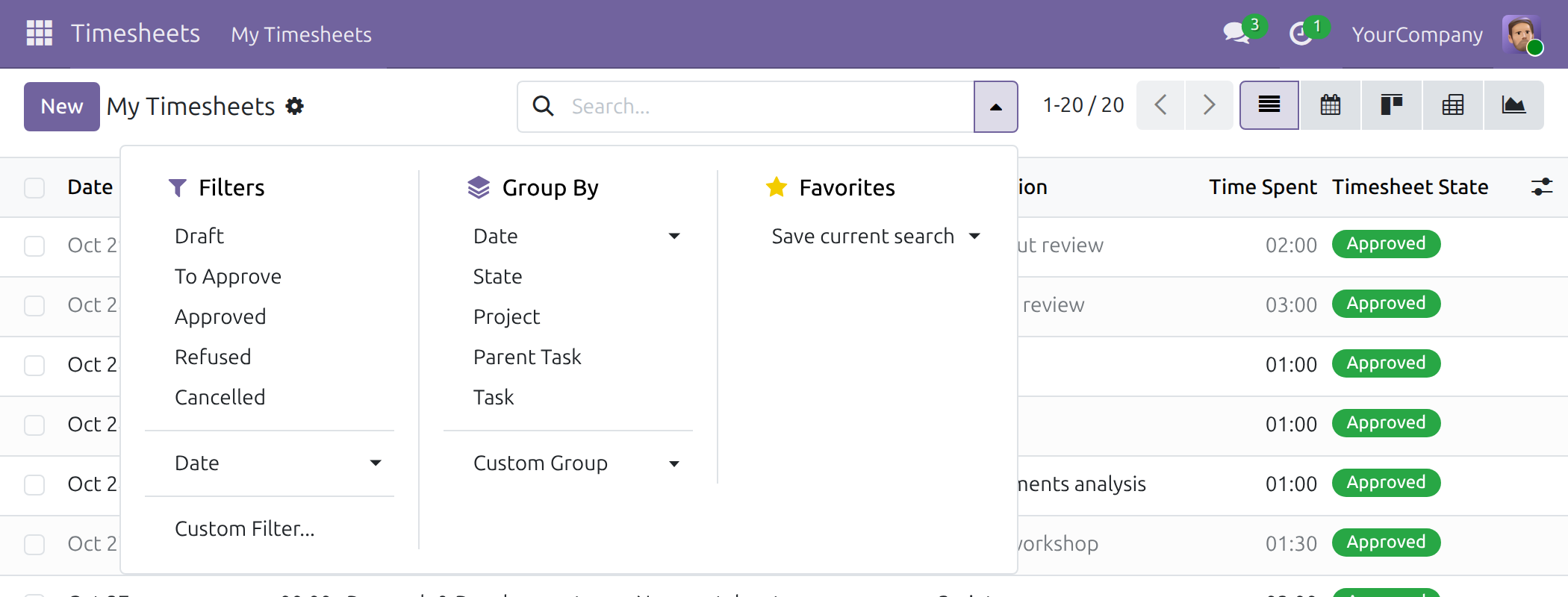
My Timesheets filtered on To Approve, with the Timesheet State of each line.
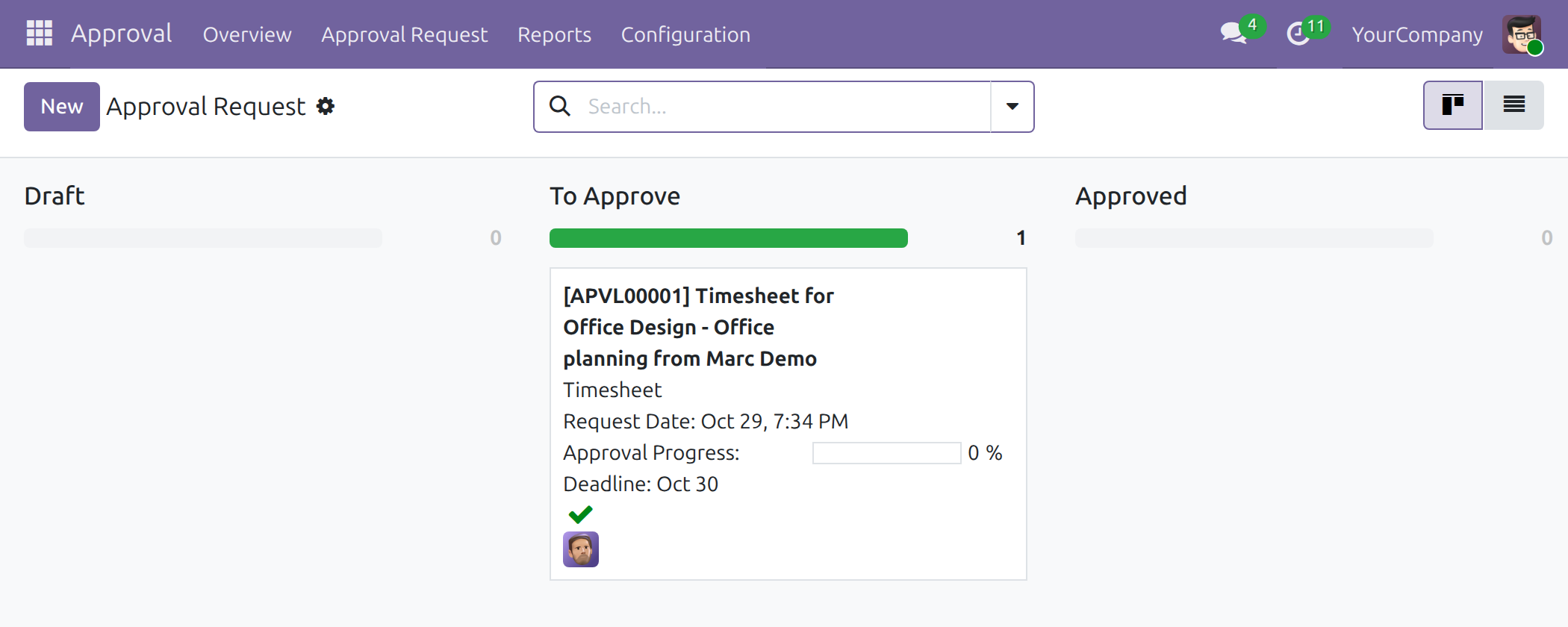
Follow every request
Requests by status: draft, to approve, approved.
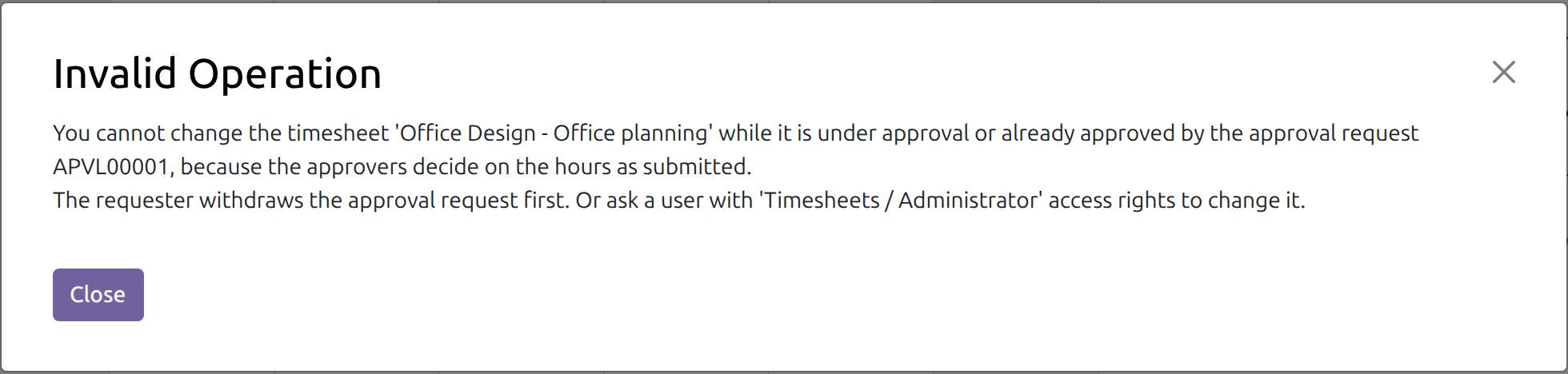
Locked hours name the request that holds them
A change to an approved or waiting timesheet is refused with the request and the way out.
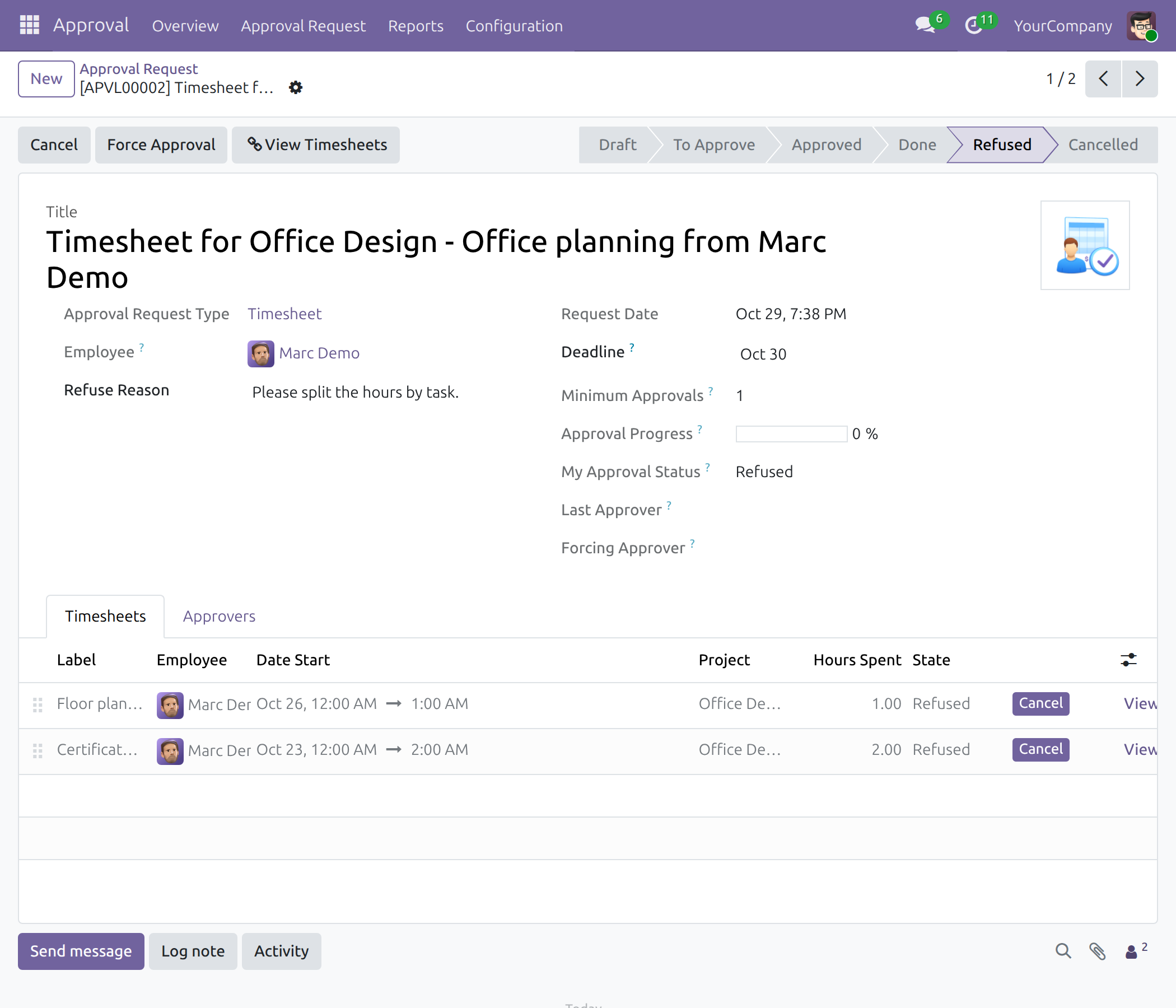
A refusal carries its reason
The refused request shows the reason; the employee cancels it, resets it to draft and submits again.
Frequently Asked Questions
Which hours need approval?
It is a setting of the contract of the employee. An employee without a contract follows the job position and the department. Hours dated inside a contract that does not require approval are approved when logged. Time off and public holiday entries, and entries without an employee or project, are always approved and never locked.
Can approved hours still be changed?
No. Hours that are waiting for a decision or approved are locked. A refused change names the request that holds the line and the way out: the requester withdraws the request first, or a user with the Timesheets / Administrator access right changes it.
What happens when an approver refuses?
The request and its timesheets are Refused and the reason shows on the request. The employee cancels the request, resets it to draft, adjusts the hours and submits again. An approver can also refuse or cancel a single line.
Who can approve?
Users with the Timesheets / User: all timesheets access right approve or refuse a request. Who decides, in which order and how many approvals are needed is set in the Timesheet approval type.
Which Odoo version and editions does it support?
Odoo 19.0 - Odoo Community and Odoo Enterprise.
What does it need?
It installs on top of the OmniApproval engine, HR Timesheet Timer, Project & Task Approvals, HR Contracts and the standard timesheet apps; Odoo installs them with it. The Technical Requirement tab lists them.
Need help with OmniApproval™ - Timesheet Approvals?
Questions about setting it up or using it? Reach us through the pages below.
Pre-Sales & Partnership
viindoo.com/contactusTechnical Support
viindoo.com/ticketTechnical Requirement
- Odoo version: 19.0
- Editions: Odoo Community, Odoo Enterprise
- Required modules: HR Contracts (Viindoo), Task Logs, OmniApproval, HR Timesheet Timer, OmniApproval™ - Project & Task Approvals, Timesheet when on Time Off
- License: OPL-1
Changelog
- 2026-10-29ImprovedRequests run on the OmniApproval engine: one request holds the timesheets and locks them, a refused change names the request that holds the line, and a request can be withdrawn, refused, cancelled or reset to draft.
- 2026-10-29ImprovedAutomatic approval follows the contract dates of the employee.
Extend it further
Add the overtime side when approved hours must match an overtime plan.
Overtime Timesheet Approval
Only approved timesheets are matched against the overtime plan, so overtime pay rests on hours that were signed off.
For: employees who log hours, team leads who approve them, and the HR and project administrators who decide which hours need approval.
Note
Extends HR Timesheet Timer - see its documentation. Approval requests run on the OmniApproval engine.
Overview
Timesheet Approvals lets a manager check the hours employees log before those hours are used for payroll, billing or performance reviews. An employee sends the hours of a period in one approval request, the approvers approve or refuse it, and approved hours are locked so that nobody changes them afterwards.
The process, step by step:
- Log - the employee logs hours as usual. Hours that need no approval are approved at once; all others stay Draft.
- Submit - the employee selects the draft timesheets, chooses Get Approved and submits the request. The request and its timesheets become To Approve and the timesheets are locked.
- Decide - the team lead approves or refuses the request. Approved timesheets are Approved and stay locked; refused ones are Refused.
- Correct - after a refusal, the employee cancels the request, sets it back to draft, adjusts the hours and submits again.
Each timesheet shows where it stands in its Timesheet State: Draft, To Approve, Approved, Refused or Cancelled.
| Role | What they do | Access right to assign |
|---|---|---|
| Employee | Logs hours, sends them for approval and follows the result. | Timesheets / User: own timesheets only |
| Team lead | Reviews the requests of the team and approves or refuses them. | Timesheets / User: all timesheets |
| Timesheet administrator | Corrects a locked timesheet when a request cannot be reopened. | Timesheets / Administrator |
| Approval administrator | Sets up the approval type, forces or cancels a decision. | Approvals / Administrator |
| HR officer | Decides, per contract, job position or department, whether hours need approval. | Employees / Officer: Manage all employees |
Installation
- Navigate to Apps.
- Search with keyword viin_approval_hr_timesheet.
- Press Install.
Setup (for the Administrator)
Give each person their access right
Navigate to Settings ‣ Users & Companies ‣ Users, open the user and, on the Access Rights tab, set Timesheets to the right shown in the role table above: User: own timesheets only for employees and User: all timesheets for the team leads who approve. A team lead approves or refuses a request only with User: all timesheets; the right also makes the user an Approvals / Officer.
Check the approval type
When the module is installed, a Timesheet approval type is created for every company. Navigate to Approval ‣ Configuration ‣ Approval Types, open Timesheet and adjust it to your policy:
- Manager Approval is Required: the manager of the employee approves the request.
- Project Manager Approval is Optional.
- Sequential Approvals, Approve by Any in Step, Days to Approve and Minimum Approvals set how many approvers decide, in which order and within how many days.
A timesheet approval type always puts several timesheets in one request; it does not accept another way of grouping.
Decide which hours need approval
Whether the hours of an employee need approval is a setting of the employee's contract. Open the employee (Employees ‣ Employees), go to the Settings tab and, in the Application Settings group, use the checkbox Timesheet Approval. Changing it needs the access right Employees / Officer.
- For an employee without a contract, the setting follows the job position and the department: it is on when one of them has Timesheet Approval on. A department starts with the value of its parent department and a job position with the value of its department. Set Timesheet Approval on a department (Employees ‣ Departments) or on a job position to give a whole team the same rule. Once the employee has a contract, the contract keeps its own value, even if the department changes later.
- Hours are approved automatically when the timesheet is logged if its date falls in the period of a contract where Timesheet Approval is off. The period starts on the contract start date and ends on the contract end date; without an end date it ends with the trial period when there is one, and is otherwise open-ended.
- Every other timesheet needs approval: the employee has no contract, the contract requires approval, or the date is outside the contract period.
- Time off and public holiday timesheets, and entries without an employee or without a project, are always approved automatically and are never locked.
Employee: log hours and get them approved
Log your hours
Log hours as usual in Timesheets ‣ My Timesheets: press New, fill the date, the project, the task, a description and the time spent. The Timesheet State column shows Draft for hours that need approval and Approved for hours that need none. Use the filters Draft, To Approve, Approved, Refused and Cancelled, or group by State, to see where your hours stand.
Send your hours for approval
In Timesheets ‣ My Timesheets, filter on Draft and select the timesheets to send.
Open the Actions menu and choose Get Approved.
In the Submit for Approval window, check the timesheets and press Create Approval Request. One request carries all the selected timesheets.
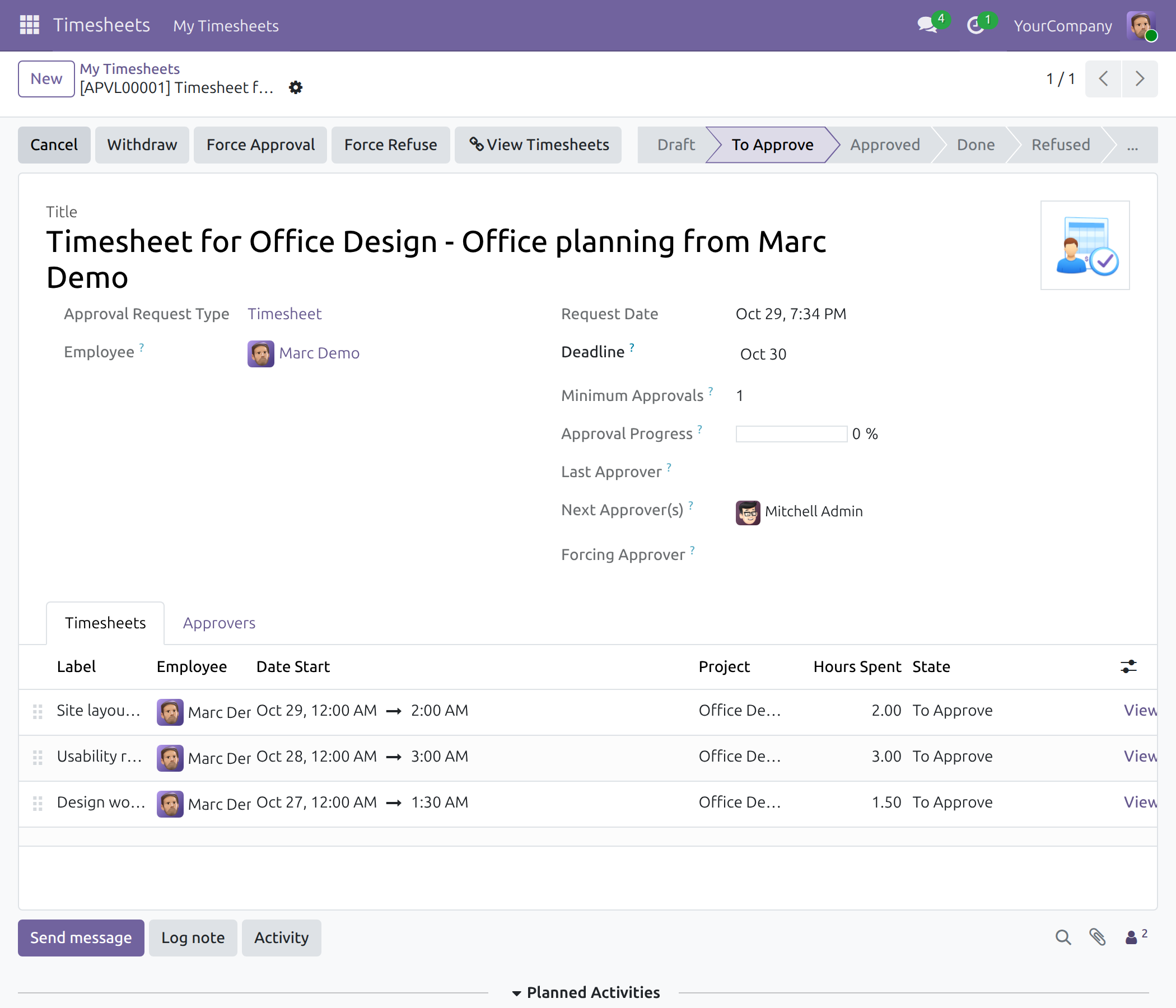
The request opens in Draft. Check the timesheets on its Timesheets tab and press Submit.
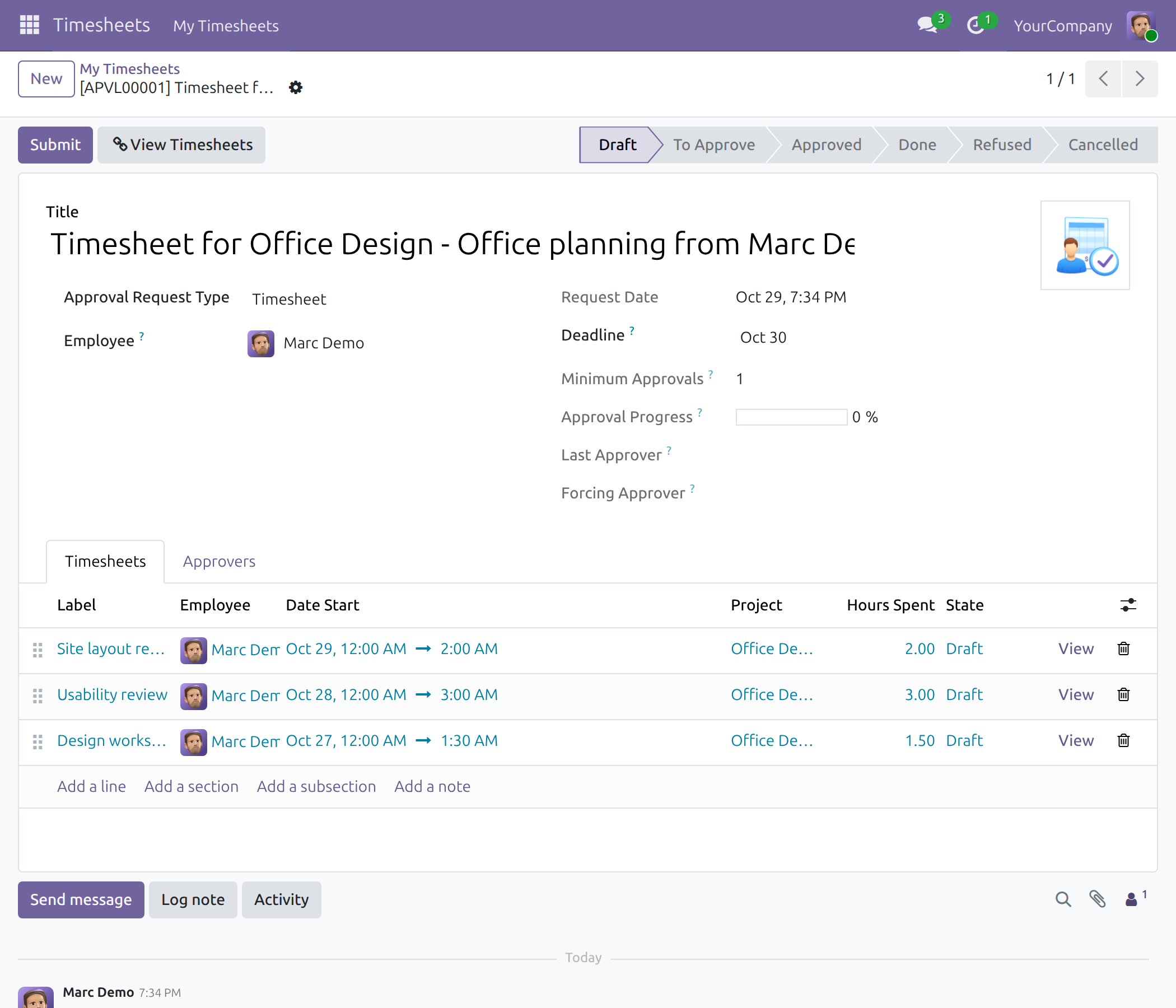
The request becomes To Approve. Next Approver(s) names the person who decides and the timesheets are To Approve.
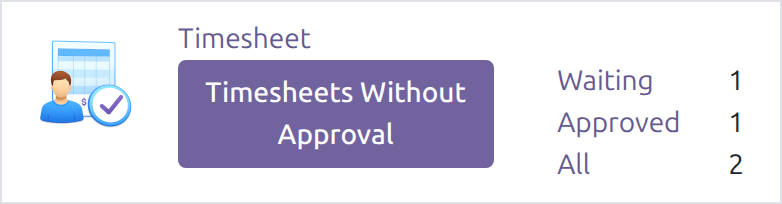
You can also start from Approval ‣ Overview: the Timesheet card has the button Timesheets Without Approval, which opens the timesheets that are not in a request yet.
Locked timesheets
While a request waits for approval, and once it is approved, its timesheets are locked: their fields are read-only and a change made another way, such as dragging a timesheet to another day in the calendar, is refused with a message that names the request.
The message tells you how to get out of the lock:
- The request is To Approve: open the request and press Withdraw. The request goes back to Draft and the timesheets can be changed.
- The request is Refused: cancel the request (see the next section).
- The request is Approved or Done: ask an approval administrator to cancel the request, or a user with the access right Timesheets / Administrator to change the timesheet.
A timesheet that is linked to a request cannot be deleted.
If the request is refused
The request shows the refusal reason and its timesheets are Refused.
Press Cancel on the request. The request and its timesheets are Cancelled.
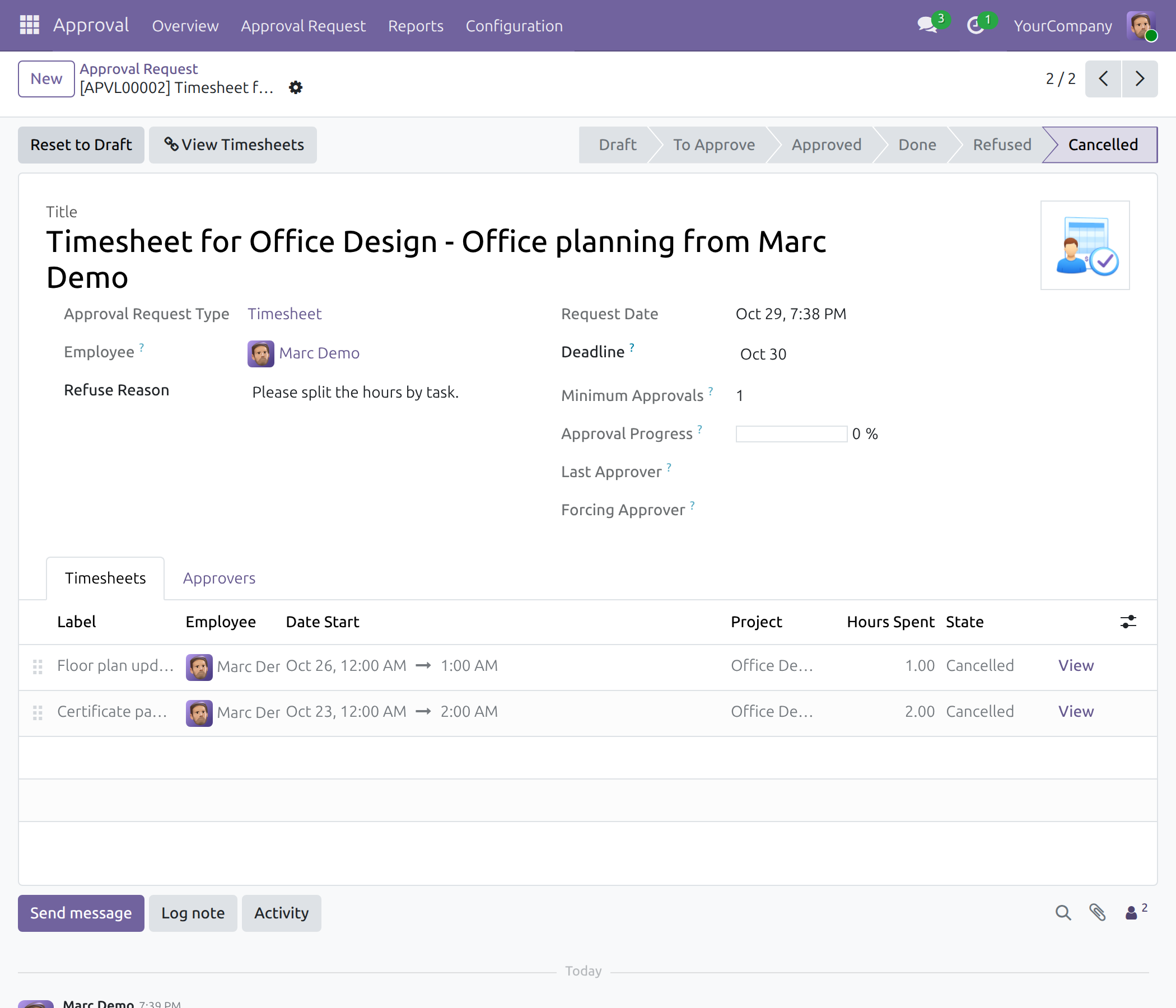
Press Reset to Draft. The request and its timesheets are Draft again.
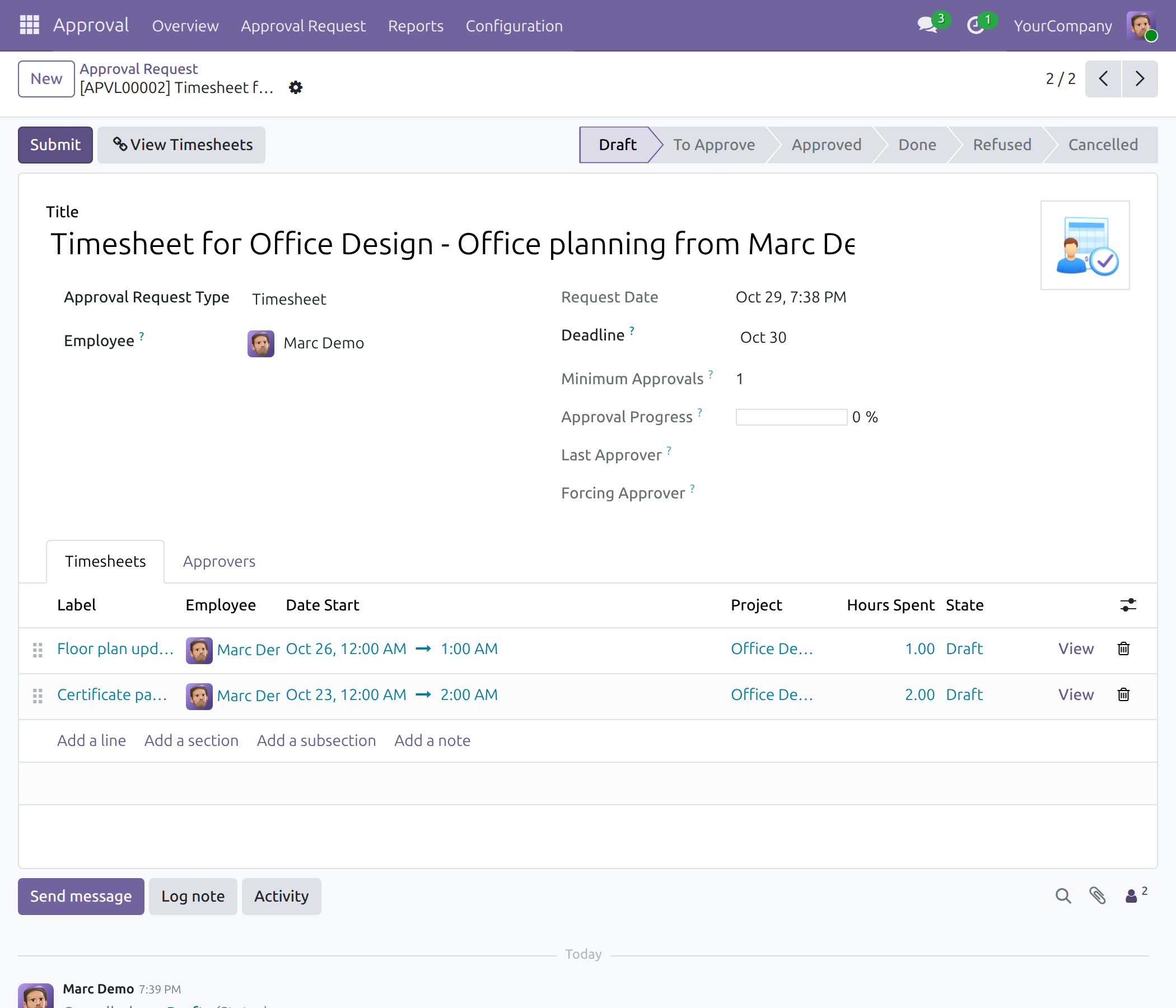
Adjust the hours if the approver asked for it, then press Submit again.
Team lead: decide on requests
Find the requests to approve
Navigate to Approval ‣ Approval Request ‣ Request. The requests are grouped by status; the requests waiting for you are in the To Approve column. The filter For My Approval keeps only the requests you have to decide.
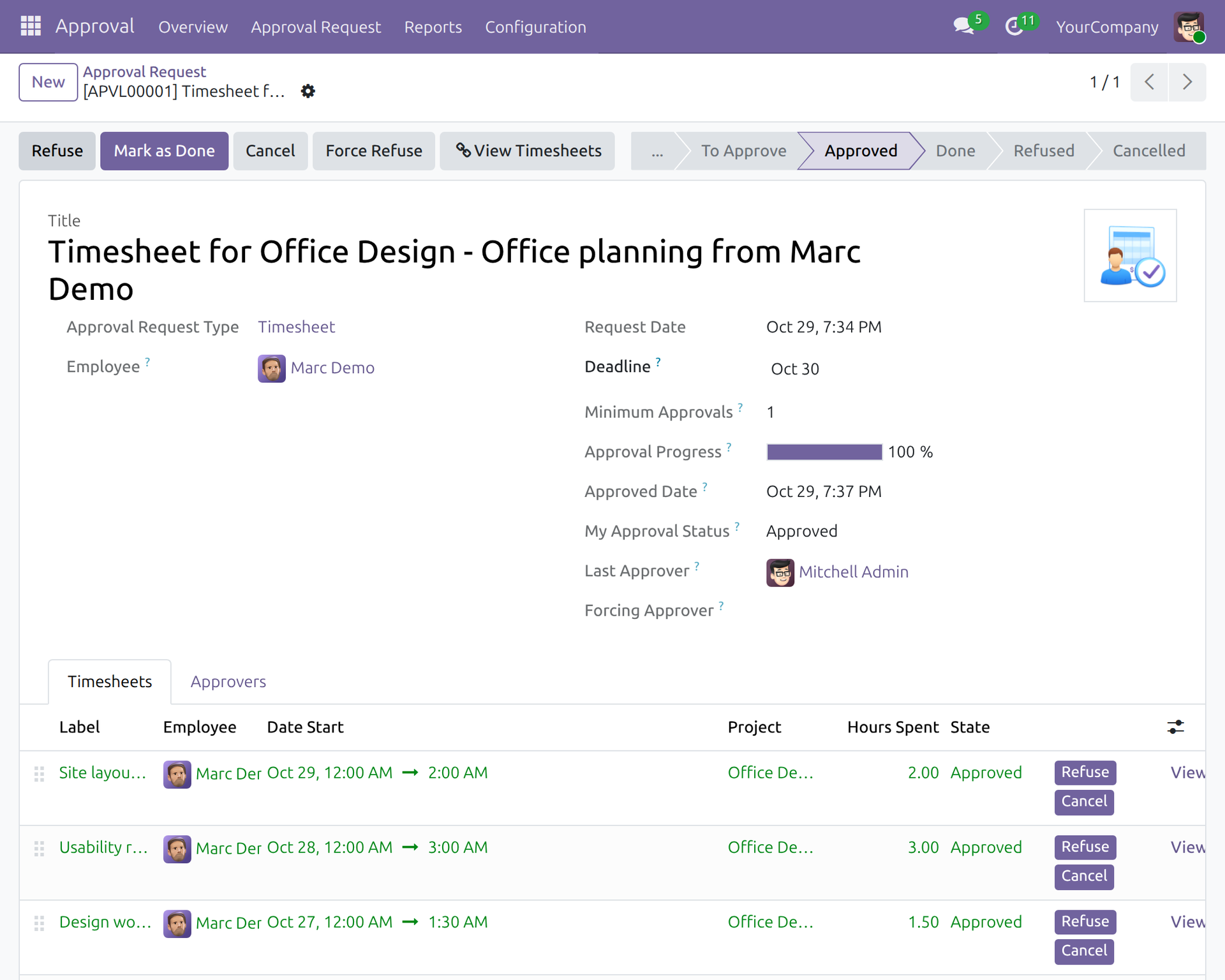
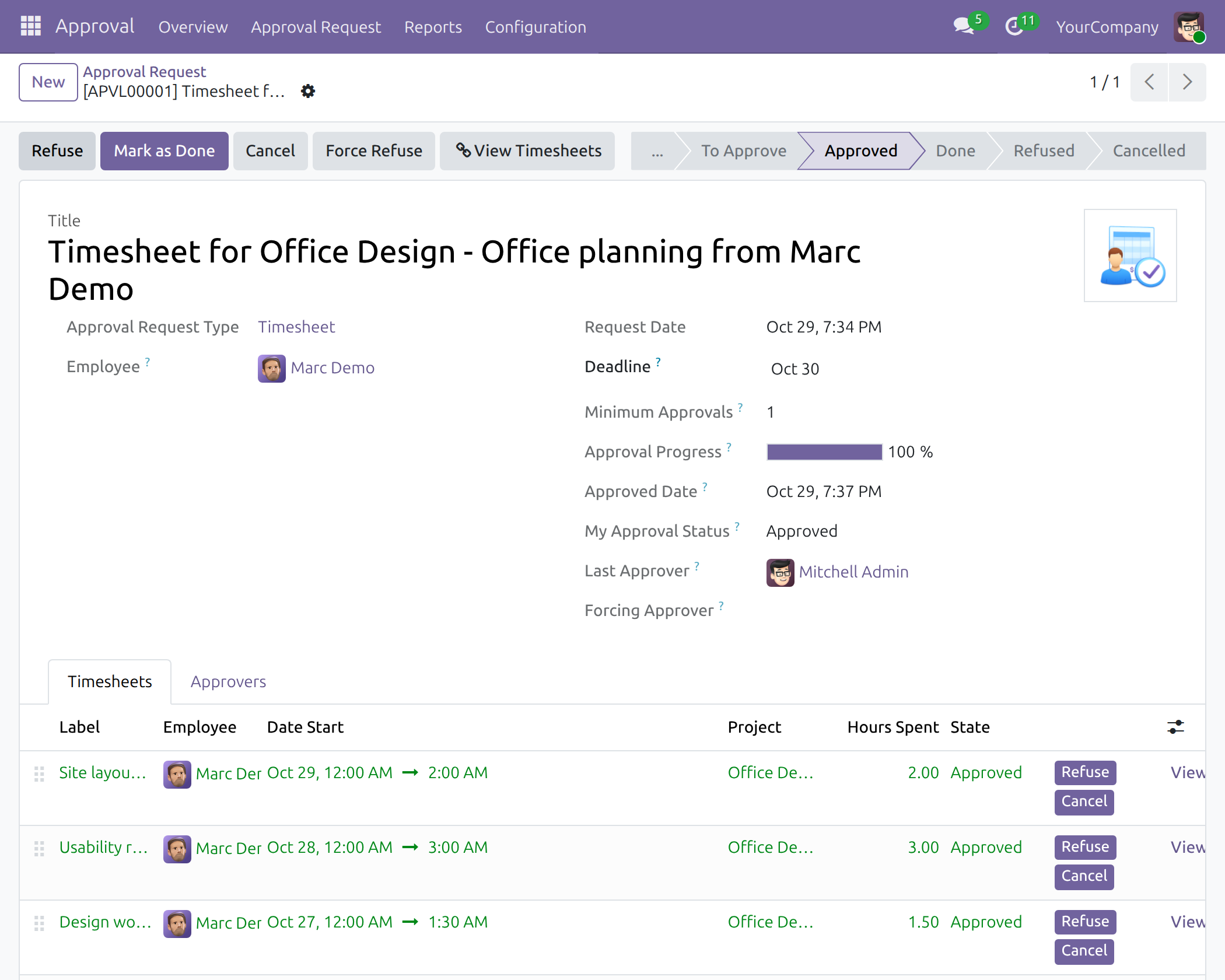
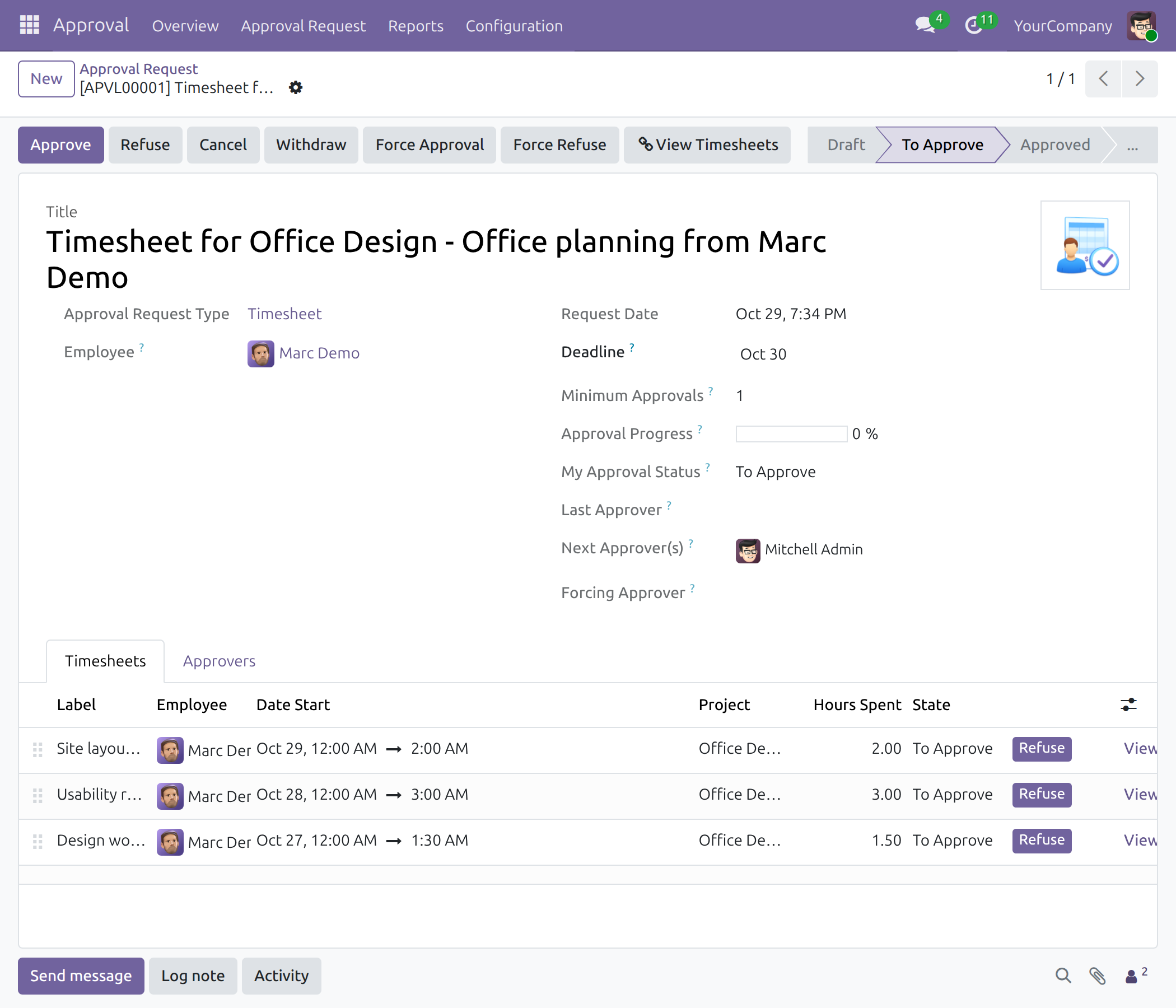
Open a request to see the employee, the approvers and, on the Timesheets tab, every timesheet with its date, project and hours. View Timesheets opens the same timesheets in the timesheet list.
Approve a request
Press Approve. When the minimum number of approvals is reached, the request is Approved and every timesheet in it is Approved and locked. Mark as Done then closes the request (Done).
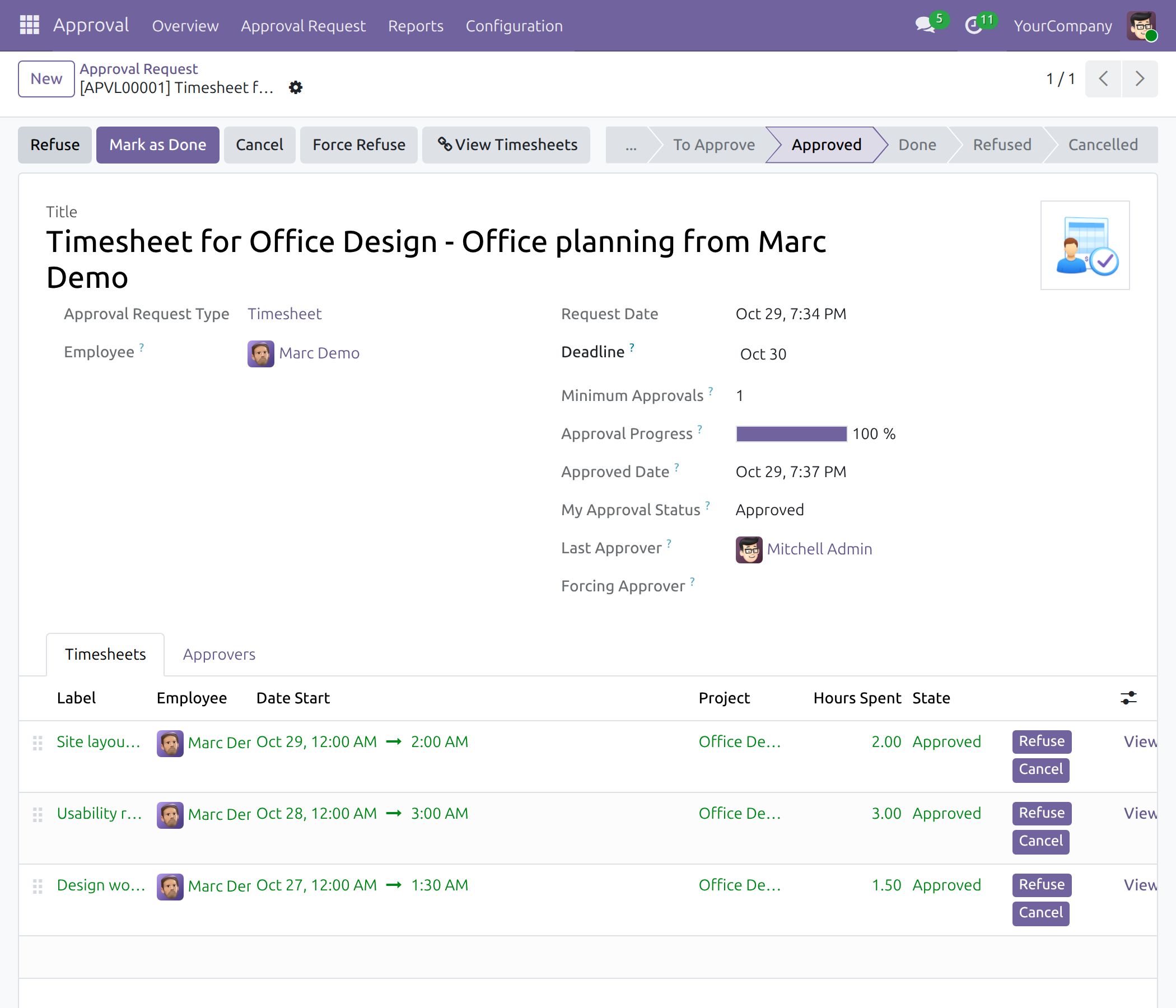
An approval administrator can also use Force Approval or Force Refuse to decide without waiting for the other approvers; the system asks for a confirmation and logs the action.
Refuse a request
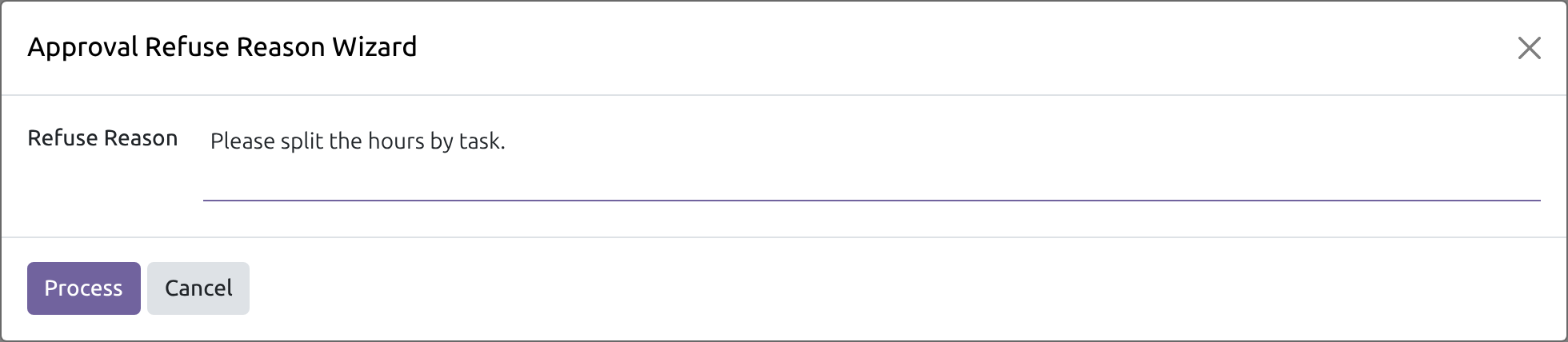
Press Refuse, write the Refuse Reason and press Process. The request and its timesheets become Refused and the reason is shown on the request for the employee.
On the Timesheets tab, the buttons Refuse and Cancel of a line decide on that single timesheet.
This software and associated files (the "Software") may only be used (executed, modified, executed after modifications) if you have purchased a valid license from the authors, typically via Odoo Apps, or if you have received a written agreement from the authors of the Software (see the COPYRIGHT file).
You may develop Odoo modules that use the Software as a library (typically by depending on it, importing it and using its resources), but without copying any source code or material from the Software. You may distribute those modules under the license of your choice, provided that this license is compatible with the terms of the Odoo Proprietary License (For example: LGPL, MIT, or proprietary licenses similar to this one).
It is forbidden to publish, distribute, sublicense, or sell copies of the Software or modified copies of the Software.
The above copyright notice and this permission notice must be included in all copies or substantial portions of the Software.
THE SOFTWARE IS PROVIDED "AS IS", WITHOUT WARRANTY OF ANY KIND, EXPRESS OR IMPLIED, INCLUDING BUT NOT LIMITED TO THE WARRANTIES OF MERCHANTABILITY, FITNESS FOR A PARTICULAR PURPOSE AND NONINFRINGEMENT. IN NO EVENT SHALL THE AUTHORS OR COPYRIGHT HOLDERS BE LIABLE FOR ANY CLAIM, DAMAGES OR OTHER LIABILITY, WHETHER IN AN ACTION OF CONTRACT, TORT OR OTHERWISE, ARISING FROM, OUT OF OR IN CONNECTION WITH THE SOFTWARE OR THE USE OR OTHER DEALINGS IN THE SOFTWARE.