
Countup Timer Widget
by Viindoo
| Lines of Code | 390 |
| Technical name | viin_web_countup_timer |
| License | OPL-1 |
| Website | https://viindoo.com/apps/modules/19.0/viin_web_countup_timer?force_show=1 |
| Read description for | v 13.0 v 14.0 v 15.0 v 16.0 v 17.0 v 18.0 |
| Extensions | HR Timesheet Timer |

See at a glance how long the work has been running
For Odoo developers and administrators of timesheet deployments
Count up timer widget for datetime fields
Is this you?
A task is being worked on, but the form shows only a start time - nobody can tell how long it has been going.
Showing elapsed time in a view means writing a custom component for each screen.
Your team does date arithmetic in their heads to know how long an activity has lasted.
What changes
The form shows only a start time.
→ See the elapsed time as a clock that ticks every second, with no refresh.
Every screen needs its own code.
→ Declare one widget on a Datetime field and the clock appears.
Elapsed time is mental arithmetic.
→ Read hours, minutes and seconds in one glance, for example 00:01:30.
How it works
Three steps for a developer; nothing to configure for an administrator.
Depend on the module
List it in the dependencies of your own module's manifest, so the widget is available in the web client.
'depends': ['viin_web_countup_timer'],Declare the widget in a view
Put it on any Datetime field of a form view. Add class and style attributes to size, colour and place the clock like any field.
<field name="a_datetime_field" widget="countup_timer"/>Read the clock
The field shows the time elapsed since its value as hours, minutes and seconds (00:01:30) and updates every second. An empty field reads 00:00:00.
Key Features
A live clock
Shows a live clock that counts up from a stored date and time, so a running activity shows how long it has been going without any manual refresh.
One attribute to use it
Name the widget on a Datetime field. There is no menu, setting or access right to configure.
Always readable
Hours, minutes and seconds are shown in two digits (00:01:30). Hours keep counting past 24, and the clock never shows a negative time.
Styled like any field
Size, colour and placement come from the view, so the clock fits the screen it sits on.
Follows the user's language
Digits are written according to the language and number format of the signed-in user.
Stays in step with the record
When the start value changes, the clock restarts from the new moment; it stops ticking when the form is closed.
Who it is for
Odoo developers
Want a running clock in their own forms without writing a component. Gain: one widget name on a Datetime field.
Administrators of timesheet deployments
Want the timer to work out of the box. Gain: nothing to set up - it arrives with the timesheet timer.
People who log time
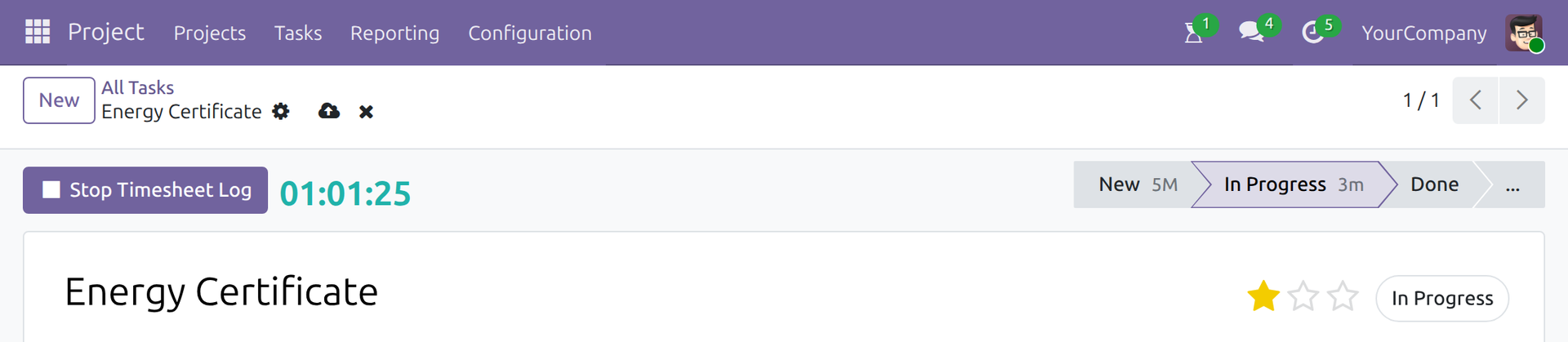
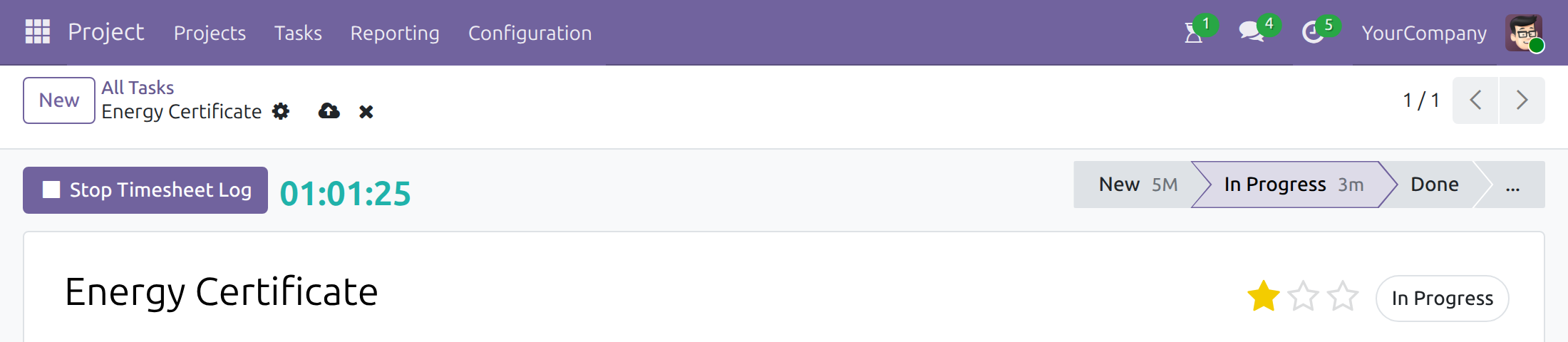
Want to see how long they have been on a task. Gain: the elapsed time next to the Stop Timesheet Log button.
Best for: teams that track working time on tasks and developers who build screens around a start moment.
Frequently Asked Questions
Does it record time?
No. It displays time. Starting and stopping is the job of the app that owns the timer, such as the Timesheet Timer app.
What does it need to count from?
A Datetime field with a stored value. An empty field shows 00:00:00, and a start in the future shows 00:00:00 until it is reached.
What happens when I reload the page?
The clock is worked out from the stored value and your device's clock, so it shows the same elapsed time after a reload.
Where does it appear in the timesheet timer?
On the task form, next to the Log Timesheet and Stop Timesheet Log buttons, for users with timesheet access.
Which editions and series does it support?
Odoo 19.0, Odoo Community and Odoo Enterprise.
What does it depend on?
Only the Odoo web client.
Need help with Countup Timer Widget?
Pre-Sales & Partnership
viindoo.com/contactusTechnical Support
viindoo.com/ticketTechnical Requirement
- Odoo version: 19.0
- Editions: Odoo Community, Odoo Enterprise
- Required modules: Odoo Web (core)
- License: OPL-1
Changelog
- 2026-10-29ImprovedThe clock shows hours, minutes and seconds as HH:MM:SS, for example 00:01:30.
Extend it further
Add start and stop buttons to your tasks and see the running clock next to them.
HR Timesheet Timer
Adds Log Timesheet and Stop Timesheet Log buttons on tasks to make timesheet entry easy, and helps resolve forgotten timers safely.
This software and associated files (the "Software") may only be used (executed, modified, executed after modifications) if you have purchased a valid license from the authors, typically via Odoo Apps, or if you have received a written agreement from the authors of the Software (see the COPYRIGHT file).
You may develop Odoo modules that use the Software as a library (typically by depending on it, importing it and using its resources), but without copying any source code or material from the Software. You may distribute those modules under the license of your choice, provided that this license is compatible with the terms of the Odoo Proprietary License (For example: LGPL, MIT, or proprietary licenses similar to this one).
It is forbidden to publish, distribute, sublicense, or sell copies of the Software or modified copies of the Software.
The above copyright notice and this permission notice must be included in all copies or substantial portions of the Software.
THE SOFTWARE IS PROVIDED "AS IS", WITHOUT WARRANTY OF ANY KIND, EXPRESS OR IMPLIED, INCLUDING BUT NOT LIMITED TO THE WARRANTIES OF MERCHANTABILITY, FITNESS FOR A PARTICULAR PURPOSE AND NONINFRINGEMENT. IN NO EVENT SHALL THE AUTHORS OR COPYRIGHT HOLDERS BE LIABLE FOR ANY CLAIM, DAMAGES OR OTHER LIABILITY, WHETHER IN AN ACTION OF CONTRACT, TORT OR OTHERWISE, ARISING FROM, OUT OF OR IN CONNECTION WITH THE SOFTWARE OR THE USE OR OTHER DEALINGS IN THE SOFTWARE.