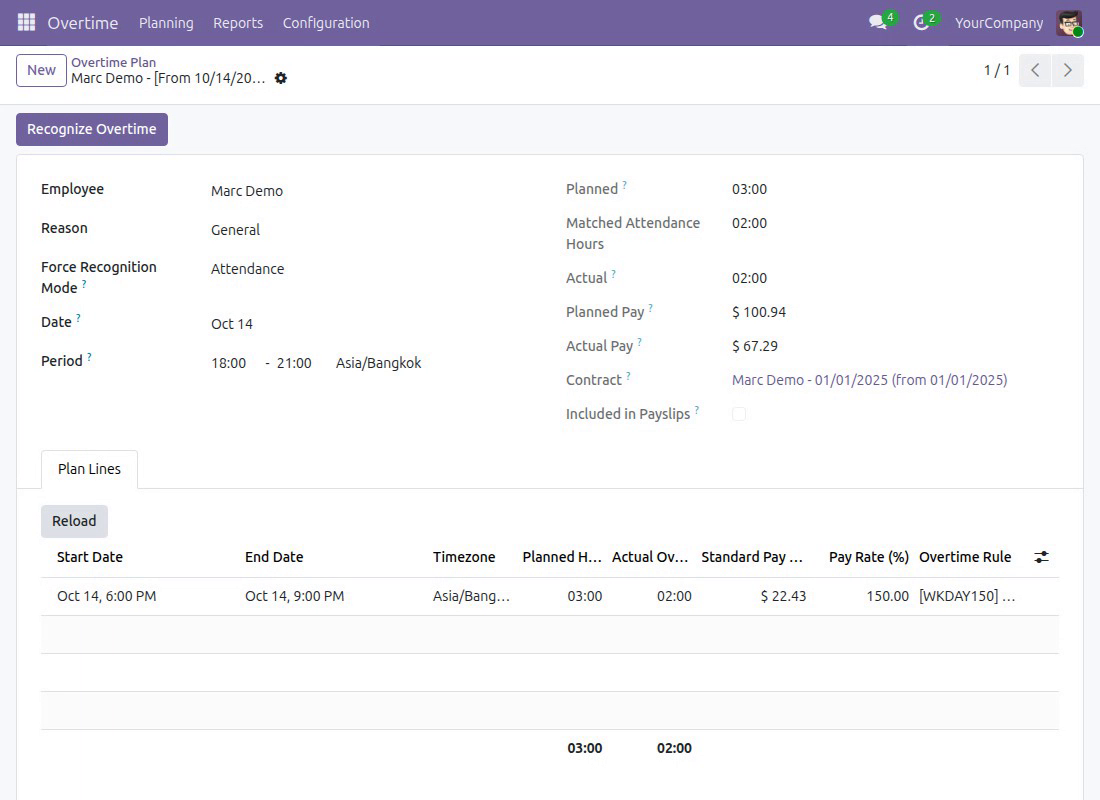
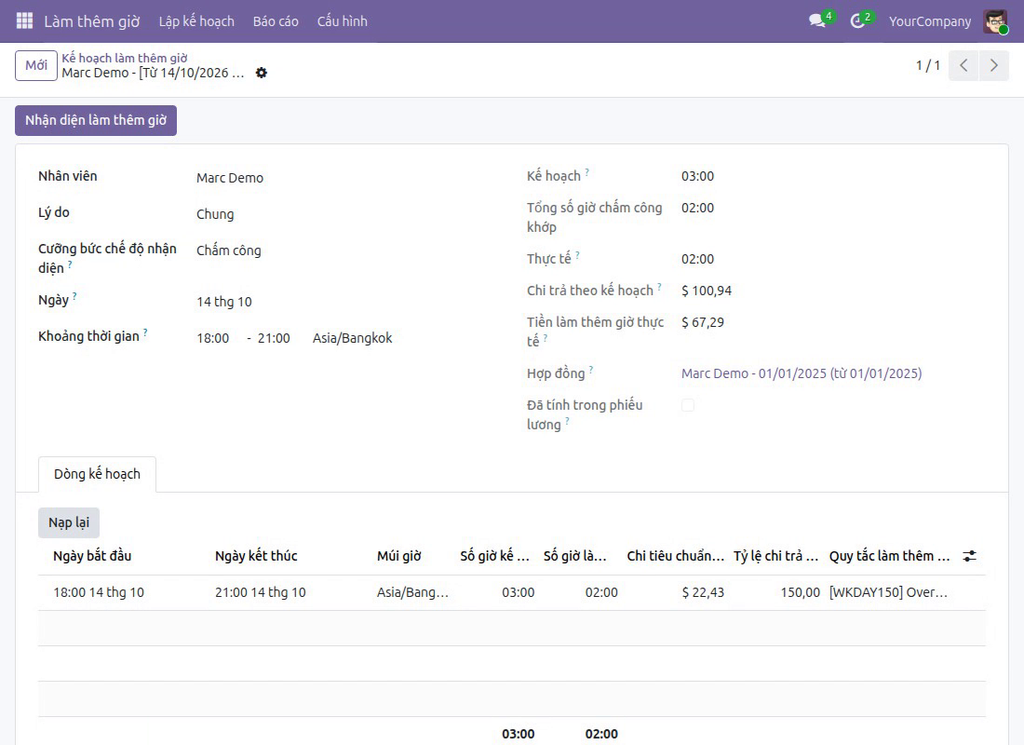

Overtime Attendance
by Viindoo
| Lines of Code | 820 |
| Technical name | viin_hr_overtime_attendance |
| License | OPL-1 |
| Website | https://viindoo.com/apps/modules/19.0/viin_hr_overtime_attendance |
| Read description for | v 13.0 v 14.0 v 15.0 v 16.0 v 17.0 v 18.0 |
| Required Apps | Attendances (hr_attendance) Discuss (mail) Employees (hr) |
| Included Dependencies | Viindoo Base Overtime Advanced HR Management HR Contracts (Viindoo) Work Entry Attendance Data Validation (HR) Work Entry - Contract Base Addendum Work Entry - Attendance Viindoo Holiday & WorkDay Manager Safe IR Metadata Proxies |
| Extensions | Overtime Management With Attendance & Timesheets |

Pay overtime for the hours people were really at work
For payroll teams, HR officers and team leads
Automate actual overtime recognition by integrating Overtime Management with Attendance logs
Builds on Overtime: the plans stay where they are, the clock decides which hours count.
Is this you?
A plan says 18:00 to 21:00, and nobody can say whether the employee was really there.
Payroll copies hours from an attendance export every month and fixes the mismatches by hand.
Employees question paid overtime because the clock and the plan tell different stories.
The extra hours shown at the kiosk and the hours of the plan look alike, and people mix them up.
What changes
The plan and the clock disagree
→ Recognise the hours the employee was present inside the planned period, automatically.
Hours are re-typed every month
→ Let every check-in and check-out update the plan as it happens, with Rematch one click away.
Disputes about paid overtime
→ Show planned, matched and unmatched hours per attendance, so every figure can be explained.
Two kinds of extra hours
→ Keep the extra hours of Attendances and the hours of the plan as two separate figures, each with its own owner.
How it works
Choose the mode
The overtime administrator sets Attendance as the recognition mode for the company, a reason or an employee contract.
Plan the overtime
The team lead plans overtime for the team, as before.
Check in and out
Employees use the kiosk or the Attendances app. Each record is matched to the plan lines it crosses.
Review and pay
The overtime officer reads the matched and unmatched hours, rematches when needed, and payroll uses the recognised hours.
Key Features
Recognition from the clock
Attendance becomes a recognition mode next to the plan: the actual hours of a line are the hours present inside it. Set it per company, reason or employee contract.
Match and Rematch
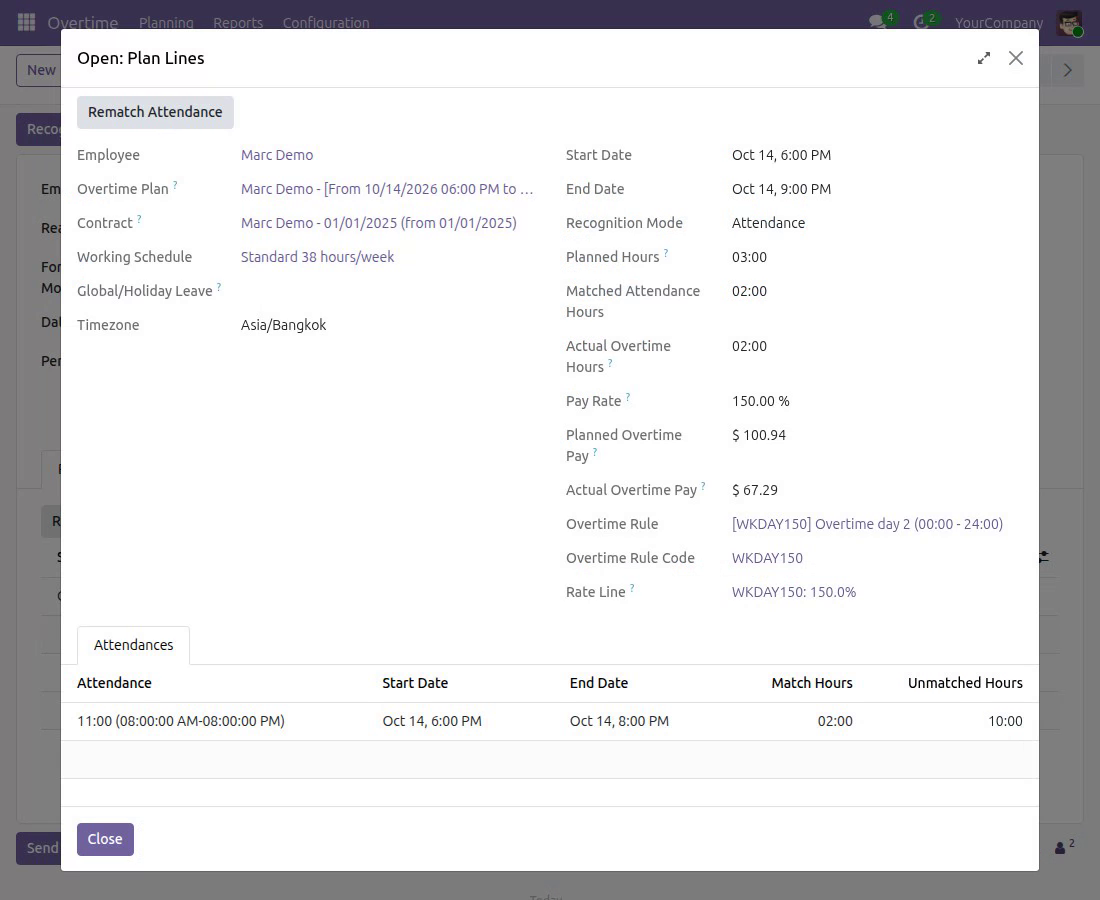
Every attendance record is matched to the plan lines it crosses and re-matched when it changes. The Match Attendance and Rematch Attendance buttons do it on demand.
Matched and unmatched hours
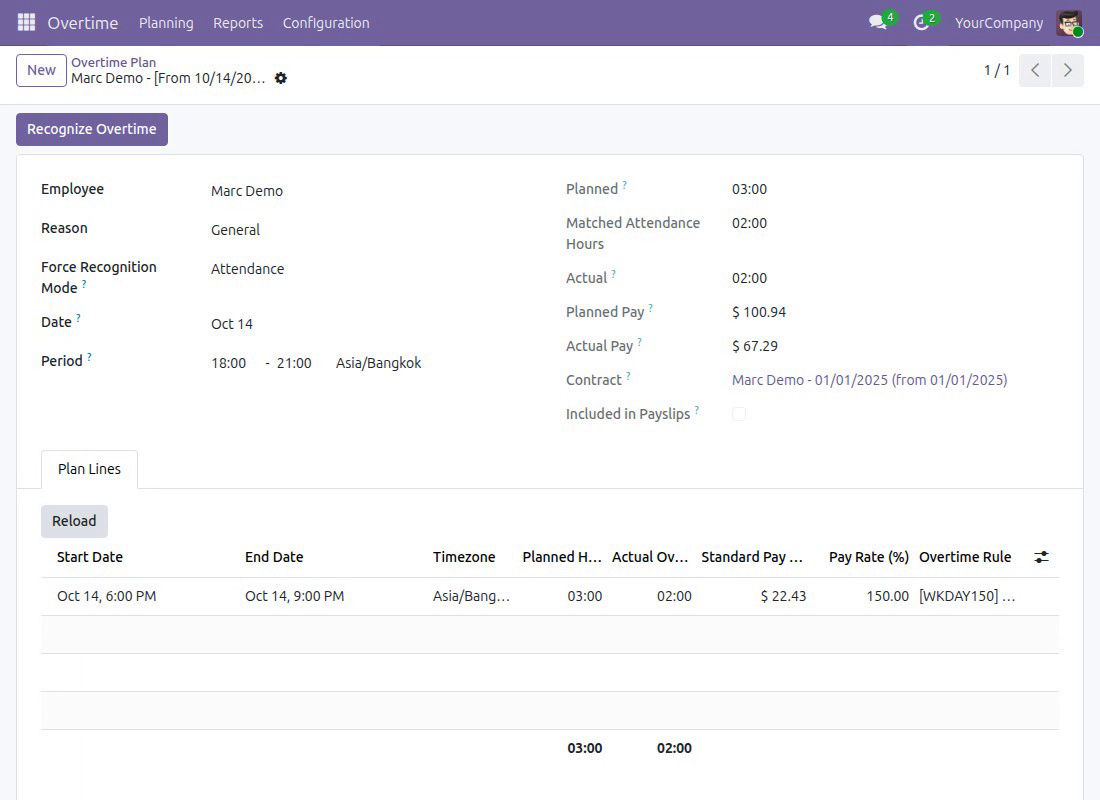
Each plan line lists its attendance records with the matched and unmatched hours, and the plan shows the matched total next to the planned hours.
Plan hours kept apart from extra hours
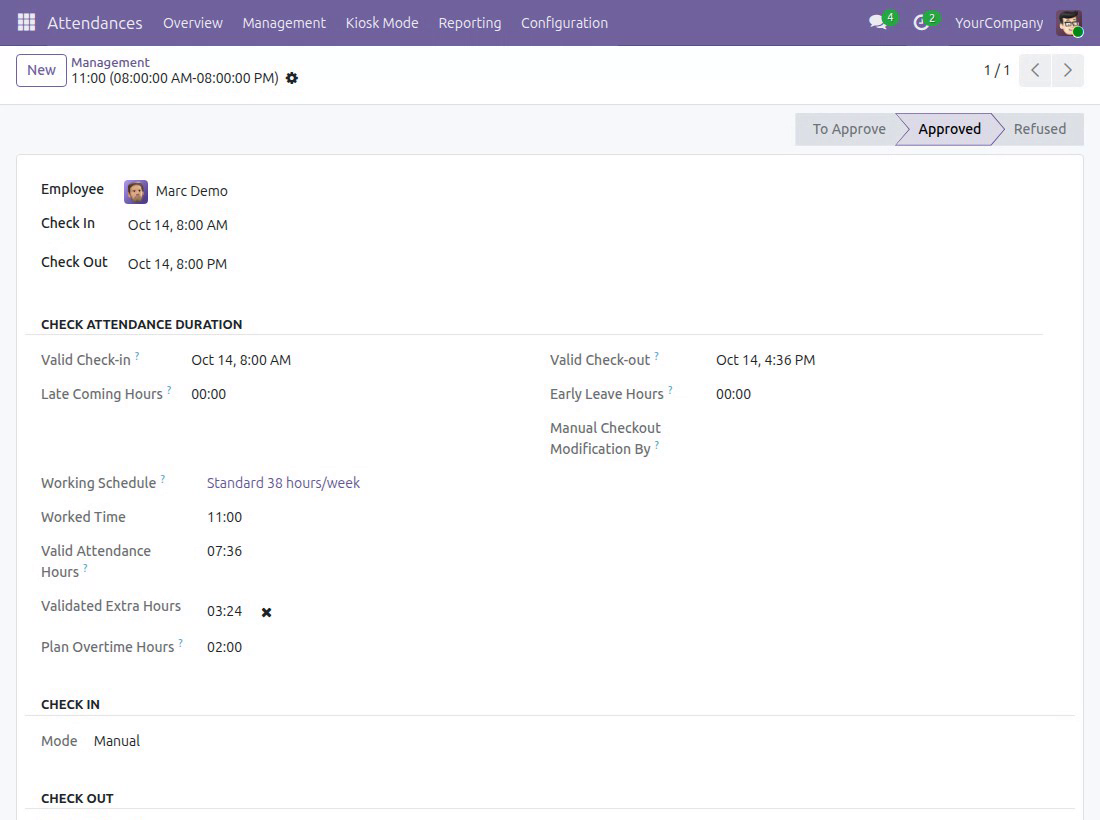
Attendance records show Plan Overtime Hours next to the extra hours of Attendances. Approving or refusing those extra hours does not change the plan's recognised hours or pay.
Check-in kept for the plan
With automatic check-out on, an employee stays checked in until the overtime plan ends: no second check-in.
Overtime Analysis
The report adds matched and unmatched attendance to planned and actual overtime.
Who it is for
Payroll
Pays hours measured by the clock instead of retyping them.
HR and overtime officers
See where plans and reality diverge, and rematch when a record changes.
Team leads
Plan the next period from what the team really worked.
Attendance managers
Approve or refuse extra hours without touching the plan.
Employees
Are recognised for the time the clock recorded.
Best for: companies that already track check-in and check-out and pay overtime from planned hours.
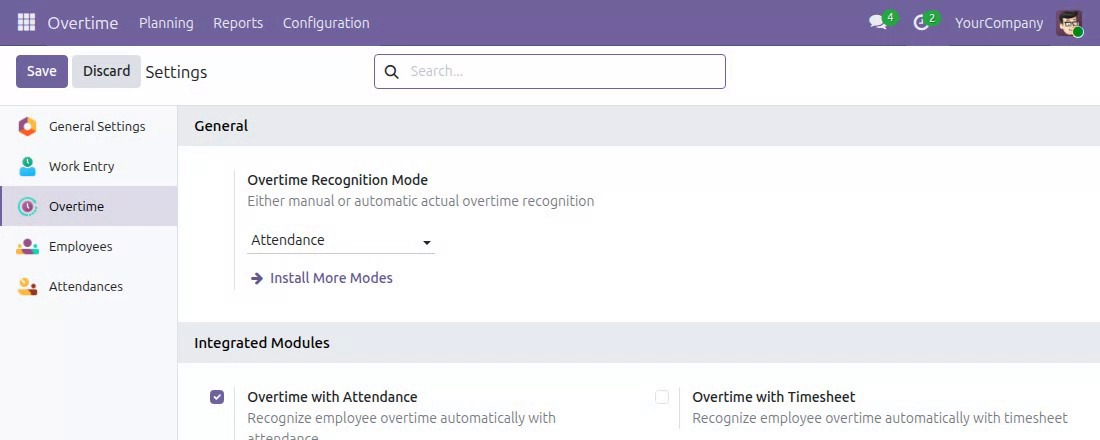
Choose Attendance as the recognition mode
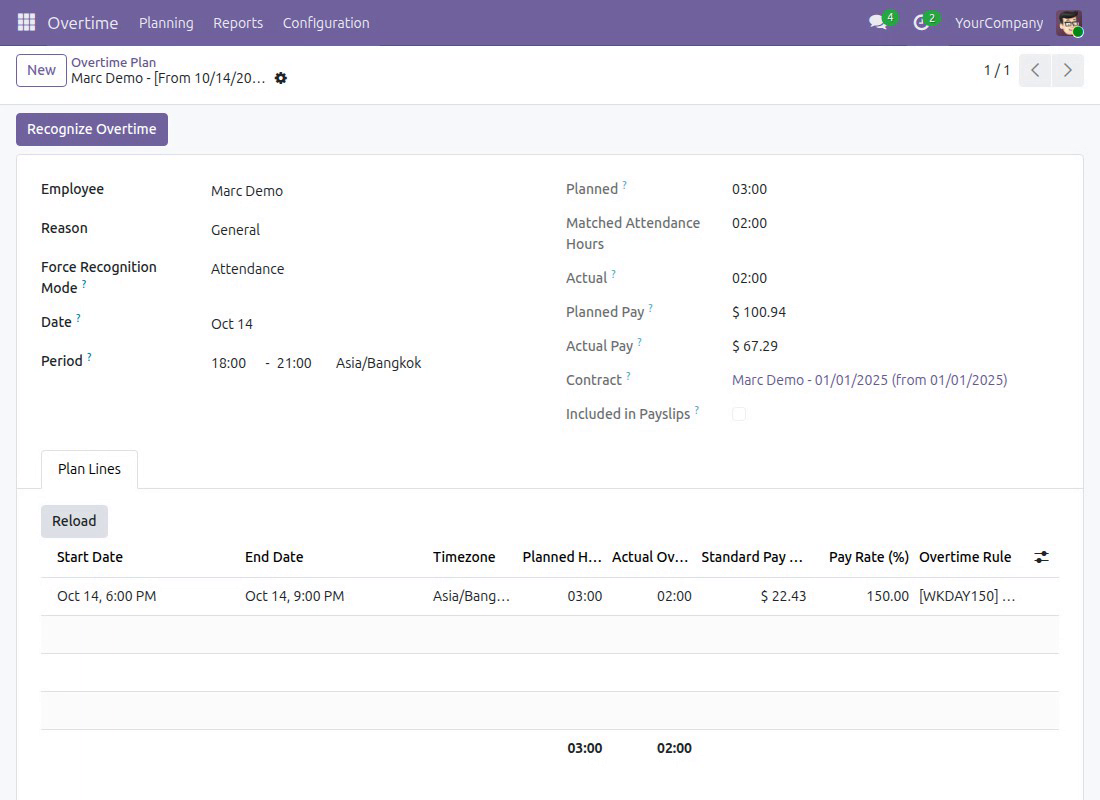
See planned and matched hours on a plan
Check which attendance each plan line was matched to
Read plan hours beside the extra hours of an attendance
See Overtime Attendance in Action
Live demo: https://v19demo-int.viindoo.com/web#action=viin_hr_overtime.action_hr_overtime_plan
Frequently Asked Questions
Does approving extra hours in Attendances change the recognised overtime?
No. The extra hours of Attendances are approved or refused by attendance managers; the hours of the plan come from matching. Approving or refusing the extra hours changes neither the plan's recognised hours nor the pay.
Which records are matched?
Closed attendance records of the same employee that cross a plan line. A plan with no attendance recognises no hours in this mode.
What happens when an attendance is edited later?
Creating, moving, deleting or changing the employee of an attendance, or changing a plan line, matches again. The Rematch Attendance button does it on demand.
Where do I choose the mode?
Overtime > Configuration > Settings, under Overtime Recognition Mode. A reason or an employee contract can override the company choice.
Who can press Match Attendance?
Users who may edit the plan: its owner or an overtime officer. Employees need no right on plans for their attendance to be matched.
Does it create attendance or compute pay?
No. The kiosk or the Attendances app records the time, and the Overtime Payroll apps pay it.
How does it work with compensatory time off?
Need help with Overtime Attendance?
Pre-Sales & Partnership
https://viindoo.com/contactusTechnical Support
https://viindoo.com/ticketTechnical Requirement
- Odoo version: 19.0
- Editions: Odoo Community, Odoo Enterprise
- Required modules: Attendances, Attendance Data Validation (HR), Overtime, Work Entry - Attendance
- Licence: OPL-1
Changelog
- 19.0ImprovedThe kiosk greeting and the employee profile show the extra hours of Attendances. Approving or refusing them does not change the plan's recognised hours or pay.
- 19.0ImprovedThe check-in is kept while an overtime plan is pending.
- 19.0ImprovedAttendance records are matched to plan lines, with Match Attendance and Rematch Attendance.
Extend it further
Add timesheets to the same picture.
Overtime Management With Attendance & Timesheets
Comprehensive overtime management for attendance and timesheet data.
This guide is written for overtime administrators, overtime officers, attendance managers and HR officers: the people who decide how actual overtime is recognised, follow it up and approve attendance extra hours.
Note
Extends Overtime - see the documentation of Overtime.
Installation
- Navigate to Apps;
- Search with keyword viin_hr_overtime_attendance;
- Press Install.
Instruction
Instruction video: Overtime Attendance
1. Recognise actual overtime from attendance
With the Overtime application alone, the actual overtime of a plan is its planned overtime. This module adds the recognition mode Attendance: the actual overtime of a plan is the time the employee was checked in during the planned period.
Go to Overtime ‣ Configuration ‣ Settings and, in Overtime Recognition Mode, select Attendance. The mode applies to the plans of the company. A plan takes the mode of its reason when the reason has one, else the one of the employee's contract, else the one of the company, so an overtime administrator can keep another mode for some reasons or some employees.
2. Follow the recognised hours on an overtime plan
Go to Overtime ‣ Planning ‣ Planning and open a plan whose mode is Attendance. Besides Planned and Actual, the plan shows:
- Matched Attendance Hours: the part of the employee's attendances that falls inside the planned period. Actual is equal to this figure, and the pay of the plan follows it.
The plan is matched on its own: when an attendance of the employee is created, or its employee, check-in or check-out changes, or it is deleted, and when the period of the plan changes, the matched hours are brought up to date. An attendance without a check-out is not matched until the employee checks out.
Open a line of the Plan Lines tab to see how each attendance was matched. The Attendances tab of the line lists, per attendance, the Start Date and End Date of the part inside the plan, Match Hours (the hours recognised) and Unmatched Hours (the hours of the same attendance outside the plan, for example the normal working hours of the day).
The optional columns Matched Attendance Hours, Unmatched Attendance Hours and Related Attendance can be shown in the plan line list, and Matched Attendance Hours in the plan list. The overtime analysis report (Overtime ‣ Reports ‣ Overtime Analysis) adds the measures Matched Attendance and Unmatched Attendance.
3. Match again
In a plan line, the button Match Attendance is shown while no attendance is matched and Rematch Attendance once some are. Press it to recognise the attendances of the plan again; a message tells how many attendances were matched and how many hours were recognised. The button Recognize Overtime on the plan does the same for all its lines.
You can use these buttons on the plans you may edit; otherwise a message asks you to turn to the owner of the plan or to an overtime officer. A plan included in a payslip that is no longer a draft keeps the hours it was paid on: neither the buttons nor a change of attendance alter it.
4. Attendance extra hours and plan hours are two separate figures
The Attendances application computes its own extra hours from the working schedule of the employee, and an attendance manager approves or refuses them. They stay as they are, and they are not the overtime of the plans:
- On an attendance (Attendances ‣ Management), Worked Extra Hours and Validated Extra Hours come from the Attendances application. Pressing Approve Extra Hours or Refuse Extra Hours, or the check mark and cross next to Validated Extra Hours, changes Validated Extra Hours only;
- Plan Overtime Hours is the new figure of this module: the hours of that attendance inside the plans in mode Attendance. Approving or refusing extra hours does not change it, the actual hours of the plan, or the overtime pay. The column can be shown in the attendance list through the optional columns;
- The kiosk greeting and the employee profile show the extra hours of the Attendances application when Display Extra Hours is ticked in the settings of Attendances. They do not show the plan hours.
5. The check-in is kept while an overtime plan is waiting
When Automatic Check Out is ticked in the settings of Attendances, the application closes an attendance left open once the working day of the employee is over, after the tolerance set there. This module keeps such an open attendance when a plan in mode Attendance of the employee ends after that time and starts within the tolerance: the employee does not have to check in again for the overtime. Once the plan has ended and the tolerance has passed, the attendance is closed at the end of the plan, its Out Mode is Automatic Check-Out and its chatter says that it was checked out at the end of the overtime plan. A check-out that the employee or a manager asks for is never held.
6. Who sees what
- Employees read the matches of their own overtime plans, and team leads those of their team;
- Overtime officers read all the matches and manage attendances, as the Overtime / Officer access right includes the attendance officer right;
- Overtime administrators also get the Attendances / Administrator access right.
An employee or an attendance officer who creates or changes an attendance does not need any right on overtime plans: the matching of the plans follows by itself.
This software and associated files (the "Software") may only be used (executed, modified, executed after modifications) if you have purchased a valid license from the authors, typically via Odoo Apps, or if you have received a written agreement from the authors of the Software (see the COPYRIGHT file).
You may develop Odoo modules that use the Software as a library (typically by depending on it, importing it and using its resources), but without copying any source code or material from the Software. You may distribute those modules under the license of your choice, provided that this license is compatible with the terms of the Odoo Proprietary License (For example: LGPL, MIT, or proprietary licenses similar to this one).
It is forbidden to publish, distribute, sublicense, or sell copies of the Software or modified copies of the Software.
The above copyright notice and this permission notice must be included in all copies or substantial portions of the Software.
THE SOFTWARE IS PROVIDED "AS IS", WITHOUT WARRANTY OF ANY KIND, EXPRESS OR IMPLIED, INCLUDING BUT NOT LIMITED TO THE WARRANTIES OF MERCHANTABILITY, FITNESS FOR A PARTICULAR PURPOSE AND NONINFRINGEMENT. IN NO EVENT SHALL THE AUTHORS OR COPYRIGHT HOLDERS BE LIABLE FOR ANY CLAIM, DAMAGES OR OTHER LIABILITY, WHETHER IN AN ACTION OF CONTRACT, TORT OR OTHERWISE, ARISING FROM, OUT OF OR IN CONNECTION WITH THE SOFTWARE OR THE USE OR OTHER DEALINGS IN THE SOFTWARE.