
Fleet Operations
| Lines of Code | 6112 |
| Technical name | viin_fleet_planning |
| License | OPL-1 |
| Website | https://viindoo.com/apps/modules/17.0/viin_fleet_planning |
| Read description for | v 10.0 v 11.0 v 12.0 v 13.0 v 14.0 v 15.0 v 16.0 v 18.0 |
| Required Apps | Discuss (mail) Employees (hr) Fleet (fleet) |
| Included Dependencies | Fleet Drivers Management Fleet Booking & Trip Management Fleet Loading Capacity Employee Documents Viindoo Unified Routing Framework QR Code Mixin Viindoo Base Advanced HR Management Viin Fleet API Request Logger Partner Working Calendar |
| Extensions | Fleet Pickup and Delivery Planning Fleet Route Accounting - Cost by Geographical Route Fleet Planning - Driver Expense Reimbursement Viin Fleet Planning Map |

Every vehicle, every driver, every route on one dispatch board
Requests for a vehicle become trips, trips get a route and a driver, and the board shows the whole week - on a real map, with the distance and duration each trip actually took.
Fleet Operations (technical name viin_fleet_planning) is an Odoo 17.0 app for Odoo Community and Odoo Enterprise and Viindoo Cloud, built for dispatcher, driver, requester, fleet manager.

At a Glance
The facts of Fleet Operations, version 1.0.9, in one place. Published by Viindoo.
Key Features
This is the operations half of a fleet: not the maintenance log, but the daily question of which vehicle goes where, with whom, and whether it came back on time. A booking is a request - from an employee, a department or a customer. A trip is what the dispatcher builds from it: a vehicle, a driver, an ordered list of waypoints, a route with real road distance, and a planned window. The board shows every trip on a map and on a week calendar, and the same records feed the analysis at the end of the month.
Routes you can reuse
A route is a named sequence of sections between addresses, with its own distance and duration. The runs you repeat every week are configured once.
Booking analysis
Requests by purpose, by requester and by period - which is how a fleet manager argues for another vehicle, or against one.
Trips in progress
What is on the road right now, with the driver and the vehicle, as its own screen rather than a filter someone has to remember.
Transport mode providers
Road, sea, air or rail, each with its own provider - the same trip model serves a van and a container.
How It Works
Four steps from a request for a vehicle to a trip you can report on.
Take the request
A booking records the pickup and drop-off address, the time window, the purpose and whether the vehicle is exclusive to this request. Goods bookings carry their items; passenger bookings carry the people. Nothing is assigned yet - this is the demand side.

Build the trip
The dispatcher assigns a vehicle and a driver and orders the waypoints. The route between them is computed as a real road route - distance, duration and the line drawn on the map - so the planned end date is a calculation, not a guess.

Dispatch the week
The board is the dispatcher's desk: the map view for where, the calendar view for when. Confirming a trip that overlaps another on the same vehicle is refused outright, so a double-booking cannot leave the office.

Run it and count it
The driver starts the trip, registers costs that come up on the road, and finishes it. Actual start and end are recorded against the plan, so the deviation is a number rather than an opinion, and the trip analysis reports on distance, duration and cost per vehicle.

What You Get
A dispatch board on OpenStreetMap: every planned trip drawn as its real routed line, not a straight line between two pins
A week calendar of trips filtered by driver, so a dispatcher sees the overlap before promising a vehicle
Trips built from waypoints in sequence, each waypoint an address, each segment carrying its own distance and duration
A vehicle cannot be double-booked: confirming a trip that overlaps another one on the same vehicle is refused, with the conflicting trip named
Trip lifecycle with the buttons the people involved actually press - confirm, driver start, register cost, finish - and odometer readings captured at both ends
Bookings for passengers and for goods, with pickup and drop-off windows, waiting time, and an exclusive-transport flag
QR code per trip, so a printed manifest opens the trip on a phone
More Screens
Everything below was taken on a database seeded with real business data, on this series - not a mock-up and not a screenshot from an older version.

Requests for a vehicle, before anyone is assigned

Planned trips, ready for the road

A trip in operation, with its waypoints and segments

Trip analysis: distance and duration per vehicle and period

A route built from sections between addresses

Route sections with their own distance and duration

Waypoints - the places a trip is allowed to stop

Drivers, and what each of them is scheduled to drive

Booking purposes, which the analysis groups by

What a goods booking is carrying

Waypoint areas for grouping stops by zone
What This App Does Not Do
Read this before you buy. Everything below is something the app deliberately leaves to another app or to you.
There is no GPS feed. The board shows the planned route and what the driver recorded, not a moving dot. A telematics integration is a separate project.
A dispatch optimisation hook exists and can be driven by a solver, but out of the box the dispatcher decides the order.
Services, contracts and odometer history belong to Odoo Fleet, which this app builds on rather than replaces.
The map and the distances come from a routing service you configure. Without one, trips still work but distances are what you type.
Costs are recorded against the trip; turning them into a customer invoice is the freight and logistics apps' job.
Works Well With
Apps from the same stack, built to fit this one:
Fleet Booking
The request side on its own, if you need bookings before you need dispatching.
Fleet Booking & Trip ManagementRouting framework
Routes, sections and waypoint areas shared by every Viindoo app that moves something.
Viindoo Unified Routing FrameworkLoading capacity
Payload and volume per vehicle, so a goods booking cannot be put on a van that cannot carry it.
Fleet Loading CapacityFreight Forwarding
When the trip is a shipment you sell, with costs, documents and customers attached.
Freight Forwarder ManagementWho Should Use Fleet Operations?
Dispatcher
Turns requests into trips, assigns vehicle and driver, and watches the board for overlaps and gaps.
Driver
Starts the trip, follows the waypoints, records costs on the road and finishes it - with odometer readings at both ends.
Requester
Asks for a vehicle with a pickup point, a drop-off point and a time window, then follows the request.
Fleet manager
Reads distance, duration and cost per vehicle and per driver at the end of the month.
Frequently Asked Questions
What does Fleet Operations do?
Requests for a vehicle become trips, trips get a route and a driver, and the board shows the whole week - on a real map, with the distance and duration each trip actually took.
What does Fleet Operations not do?
It does not track vehicles live. There is no GPS feed. The board shows the planned route and what the driver recorded, not a moving dot. A telematics integration is a separate project. It does not optimise a whole day's routes by itself. A dispatch optimisation hook exists and can be driven by a solver, but out of the box the dispatcher decides the order. It is not the maintenance module. Services, contracts and odometer history belong to Odoo Fleet, which this app builds on rather than replaces. Road distances need a routing provider. The map and the distances come from a routing service you configure. Without one, trips still work but distances are what you type. It does not invoice the trip. Costs are recorded against the trip; turning them into a customer invoice is the freight and logistics apps' job.
Who is Fleet Operations for?
Dispatcher: Turns requests into trips, assigns vehicle and driver, and watches the board for overlaps and gaps. Driver: Starts the trip, follows the waypoints, records costs on the road and finishes it - with odometer readings at both ends. Requester: Asks for a vehicle with a pickup point, a drop-off point and a time window, then follows the request. Fleet manager: Reads distance, duration and cost per vehicle and per driver at the end of the month.
Which Odoo version and editions does it support?
Odoo 17.0 - Odoo Community, Odoo Enterprise, Viindoo Cloud. Upgrades to a newer Odoo series are a separate purchase for that series.
What does it depend on?
It installs on top of: to_geo_routes, viin_fleet_booking, viin_partner_calendar. Odoo installs them with it.
How do I set it up?
Four steps from a request for a vehicle to a trip you can report on.
What works well with it?
Fleet Booking (viin_fleet_booking): The request side on its own, if you need bookings before you need dispatching. Routing framework (to_geo_routes): Routes, sections and waypoint areas shared by every Viindoo app that moves something. Fleet Drivers (to_fleet_driver): Driver records, licences and the history of who drove what. Loading capacity (viin_fleet_loading_capacity): Payload and volume per vehicle, so a goods booking cannot be put on a van that cannot carry it. Freight Forwarding (viin_freight_management): When the trip is a shipment you sell, with costs, documents and customers attached.
Can I try it before buying?
Yes - the Live Preview button at the top of this page opens the module's own screen on a working database.
How do I get support?
Write to apps.support@viindoo.com with your Odoo version and the technical name viin_fleet_planning; pre-sales questions go to sales@viindoo.com.
See Fleet Operations in Action
Every vehicle, every driver, every route on one dispatch board
Need help with Fleet Operations?
For questions, implementation support, or consulting services, contact Viindoo.
Pre-Sales & Partnership
sales@viindoo.comWhen contacting us, please include:
- Odoo/Viindoo version (Odoo CE / Viindoo Editions).
- Number of users and business scope.
- Other modules currently in use.
Technical Support
apps.support@viindoo.comFor faster troubleshooting, please provide:
- Order number or app reference.
- Odoo/Viindoo version & edition.
- Steps to reproduce the issue.
- Screenshots/logs if available.
Upgrades to a newer Odoo series are a separate purchase for that series.
Technical Requirement
Changes log
1.0.9 - Latest on the 17.0 line
- Dispatch board draws each trip as its routed line on the map, and groups the calendar by driver.
- Confirming a trip that overlaps another trip on the same vehicle is refused, naming the conflicting trip.
- A trip cannot be confirmed without at least one waypoint - the check that used to let empty trips onto the board.
- Odometer readings are captured by the start and finish wizards instead of being typed afterwards.
Fleet Operations
Note
Extends viin_fleet_booking (Fleet Booking & Trip Management) - see its documentation.
Fleet Operations turns your Fleet Booking data into a real dispatch cockpit: a drag-and-drop board that auto-plans vehicle routes with an OR-Tools-based solver, a keyboard/touch-friendly manual assignment flow, live route optimization on the trip form, and a mobile-first My Trips screen so drivers can execute their stops - and report problems - from their phone.
Installation
- Open Apps.
- Search for Fleet Operations (technical name viin_fleet_planning).
- Click Install.
Odoo installs the required apps automatically together with Fleet Operations:
- Fleet Booking & Trip Management - bookings, drivers and the base vehicle trip document.
- Viindoo Unified Routing Framework - reusable Routes, Waypoints and Route Sections.
- Partner Working Calendar - working-hours calendars used by the auto-planner.
Once installed, a new Fleet Operations app tile appears alongside the existing Fleet Booking tile, and drivers get a dedicated My Trips tile.
Configuration
Access rights
Assign each user one role from Settings > Users, under the Fleet category:
- Fleet Driver (Execution) - a field driver who only sees and executes their own assigned trips from My Trips.
- Fleet Planning Operator - plans and dispatches trips across the whole fleet (Dispatch board, Trips, Fleet, day-to-day bookings).
- Fleet Planning Administrator - full access to the whole Fleet Operations app, including Configuration and Reporting.
Master data
- Vehicles - Fleet Operations > Fleet > Fleet. On each vehicle you may want to set the Warning Volume, Max. Volume, Warning Payload and Max. Payload so the dispatch board's capacity bars are meaningful.
- Drivers - Fleet Operations > Fleet > Drivers, and their licenses under Drivers > Licenses.
- Routes & Waypoints - Fleet Operations > Configuration > Routes & Waypoints. Set up your common origin/destination pairs here so they can be picked from the Route field on a trip.
Vehicle routing settings
The auto-planner needs a few settings on every vehicle it may assign work to. Open Fleet Operations > Fleet > Fleet, select a vehicle, and fill in the VRP / Routing section (on the Model tab):

- Route End Depot - the address the vehicle returns to at the end of its route.
- Working Schedule - the working-hours calendar the vehicle (and its driver) follows.
- Max. Route Duration - the longest a single route may run.
- Default Service Time - the time spent at each stop when no other value is set.
A vehicle without these settings, or whose own address has no map coordinates, is skipped by the auto-planner.
Usage
Plan a route-optimized trip
Use this when you already know the vehicle, driver and route and just want the trip's stops and distances filled in automatically.
Go to Fleet Operations > Trips > Planning and click an empty slot on the calendar (or New) to open a blank trip.
Fill in Vehicle and Driver. Add one or more Assistants if needed.
Select a Route - the list only shows routes that match the vehicle's transport mode.
Click Optimize Route to rebuild the trip's stops from the selected route's addresses.
Click Get Distance Matrix to fetch distance/duration between the stops.
Click Get Directions to fetch the turn-by-turn route and refresh the average speed and estimated duration.
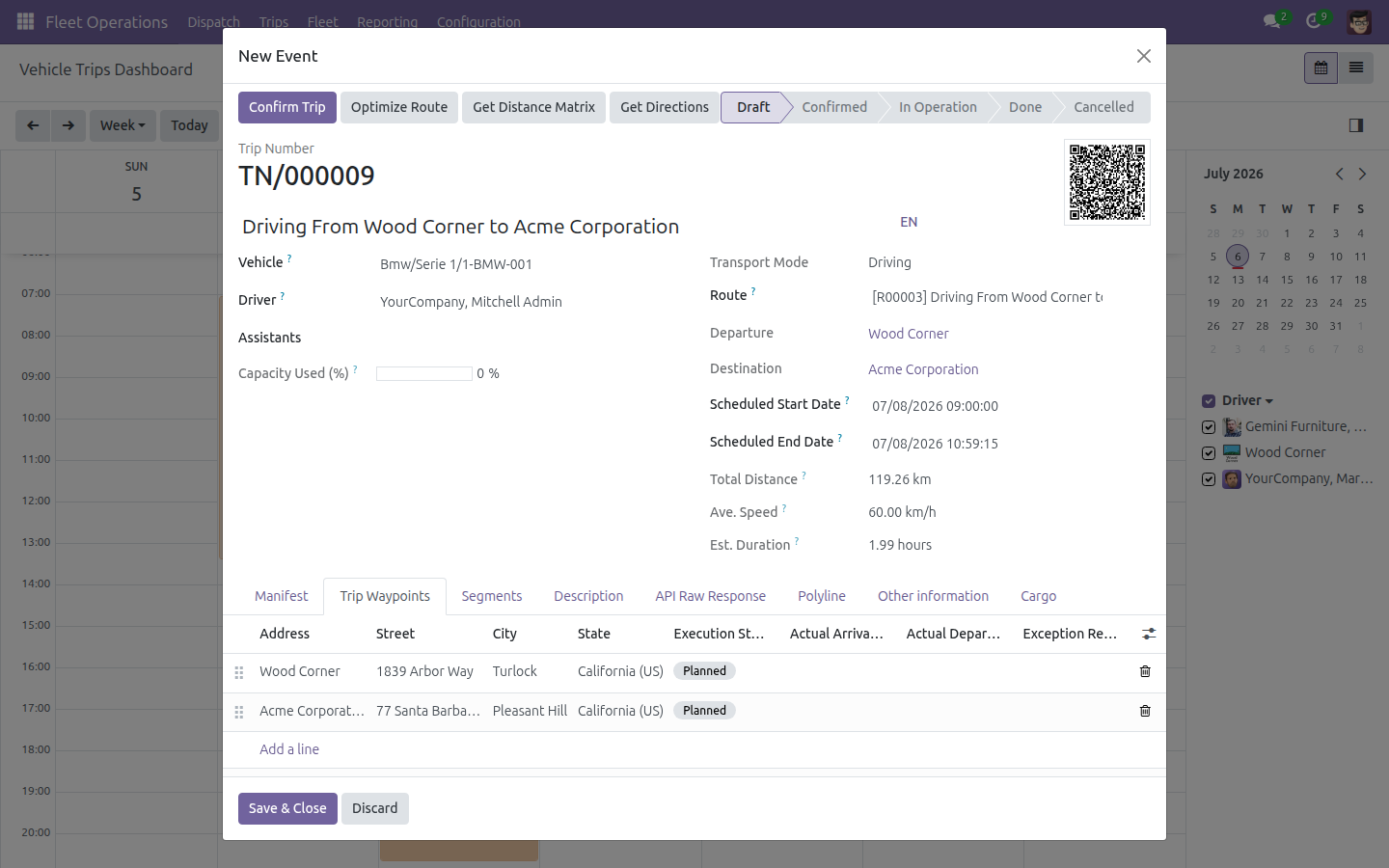
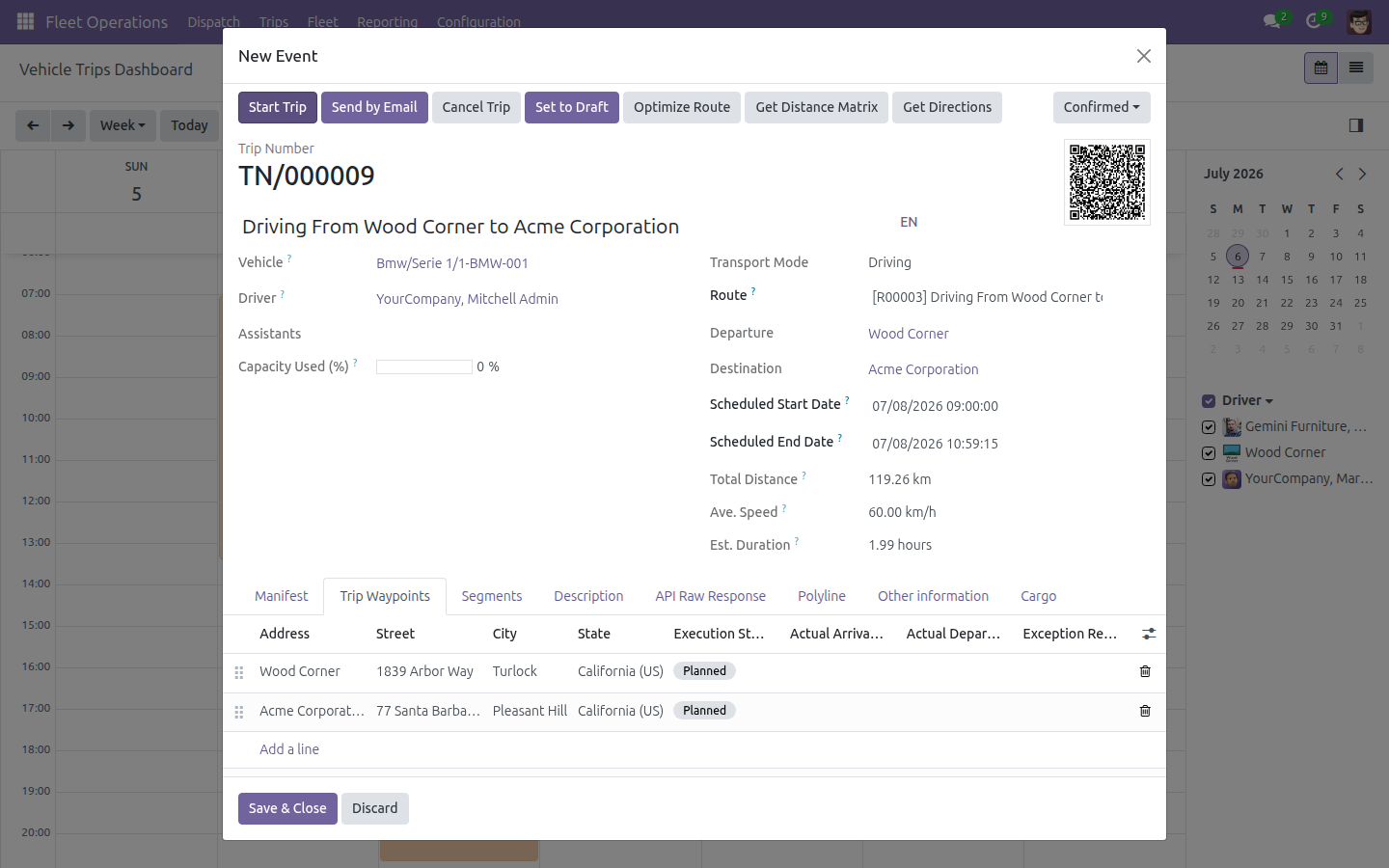
Click Confirm Trip. The trip moves to Confirmed and appears under Fleet Operations > Trips > Trips Confirmed.
Auto-plan bookings on the Dispatch Board
Use the Dispatch Board to let the route-optimization engine propose vehicle assignments for every booking that has not been assigned to a trip yet.
Go to Fleet Operations > Dispatch. The Unassigned Bookings panel lists booking items waiting to be planned; the trip list on the right is grouped by vehicle.
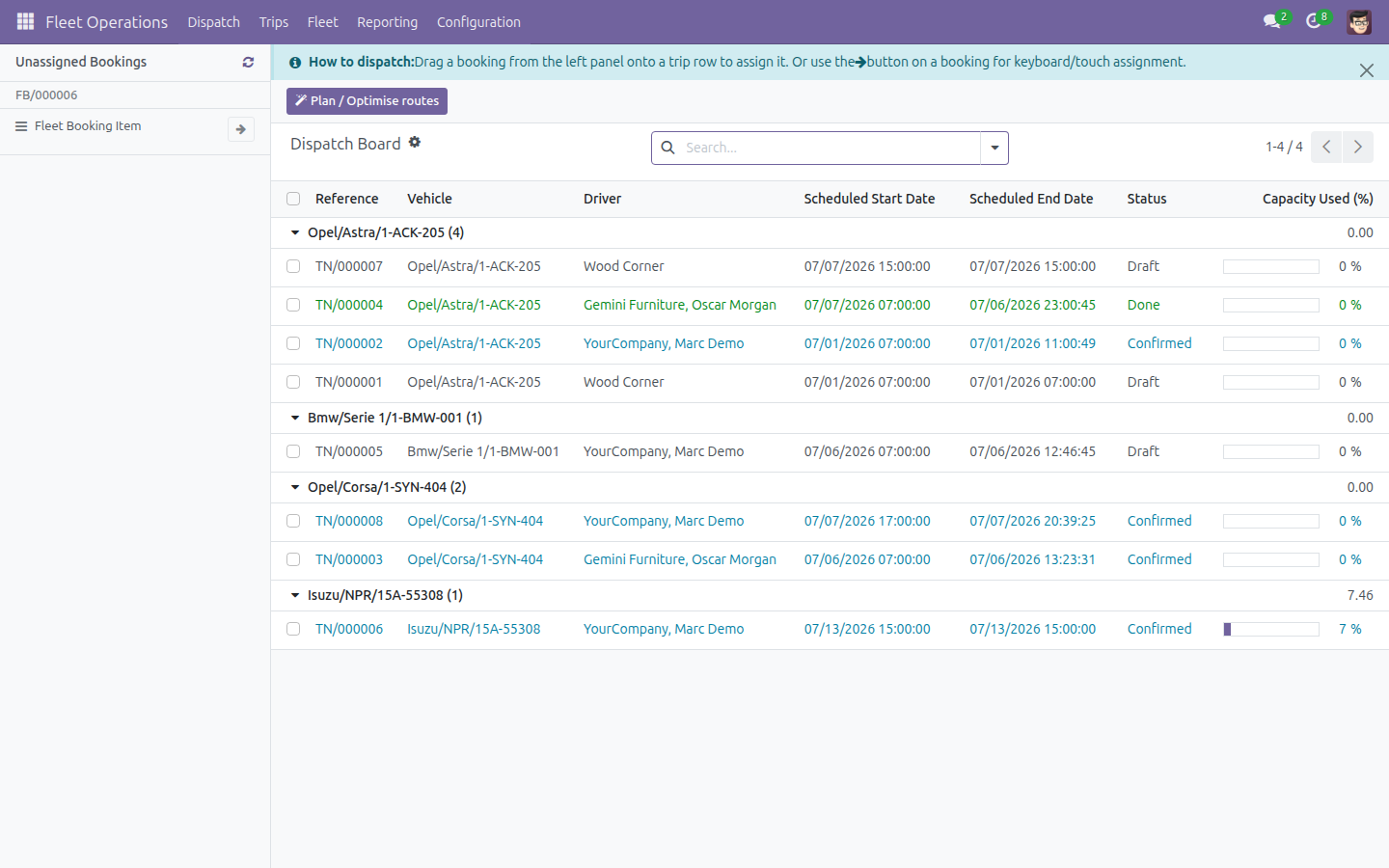
Click Plan / Optimise routes in the toolbar. The engine reviews every vehicle configured for routing (see Configuration above) and every unassigned booking, then opens a Route optimisation review dialog listing one proposed route per vehicle, with distance, duration and load-utilisation bars, plus a Could not be planned section for any booking it could not fit anywhere.
Review the proposal, then click Accept all to create or update a trip per vehicle and assign the booking items in one action - or click Fix next to an unplaced item to assign it yourself.
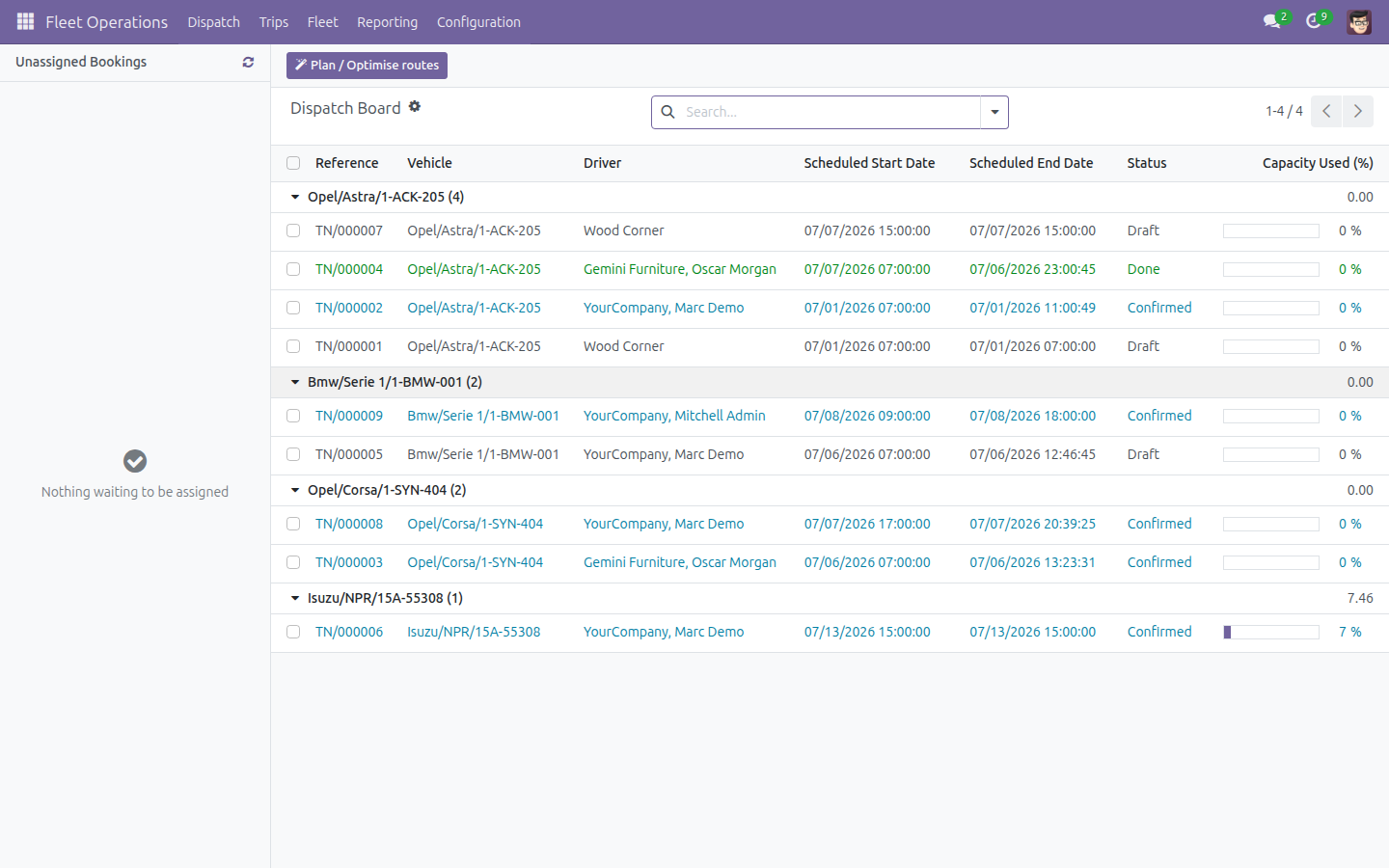
The dialog closes and the board refreshes: assigned bookings disappear from Unassigned Bookings and each affected vehicle's capacity bar updates.
Note
The auto-planner only proposes a route when it can find at least one vehicle whose Route End Depot, Working Schedule and own address all have map coordinates, and whose free time overlaps the booking's pickup/drop-off window. See Troubleshooting below if a booking keeps landing in Could not be planned.
Manually assign a booking to a trip
Use this to assign one booking item yourself - useful on a touchscreen, with the keyboard, or when you want a specific vehicle rather than the auto-planner's suggestion.
Go to Fleet Operations > Dispatch.
On the booking card in Unassigned Bookings, click the Assign to trip button (the arrow icon) - a keyboard/touch-friendly alternative to dragging the card onto a trip row.
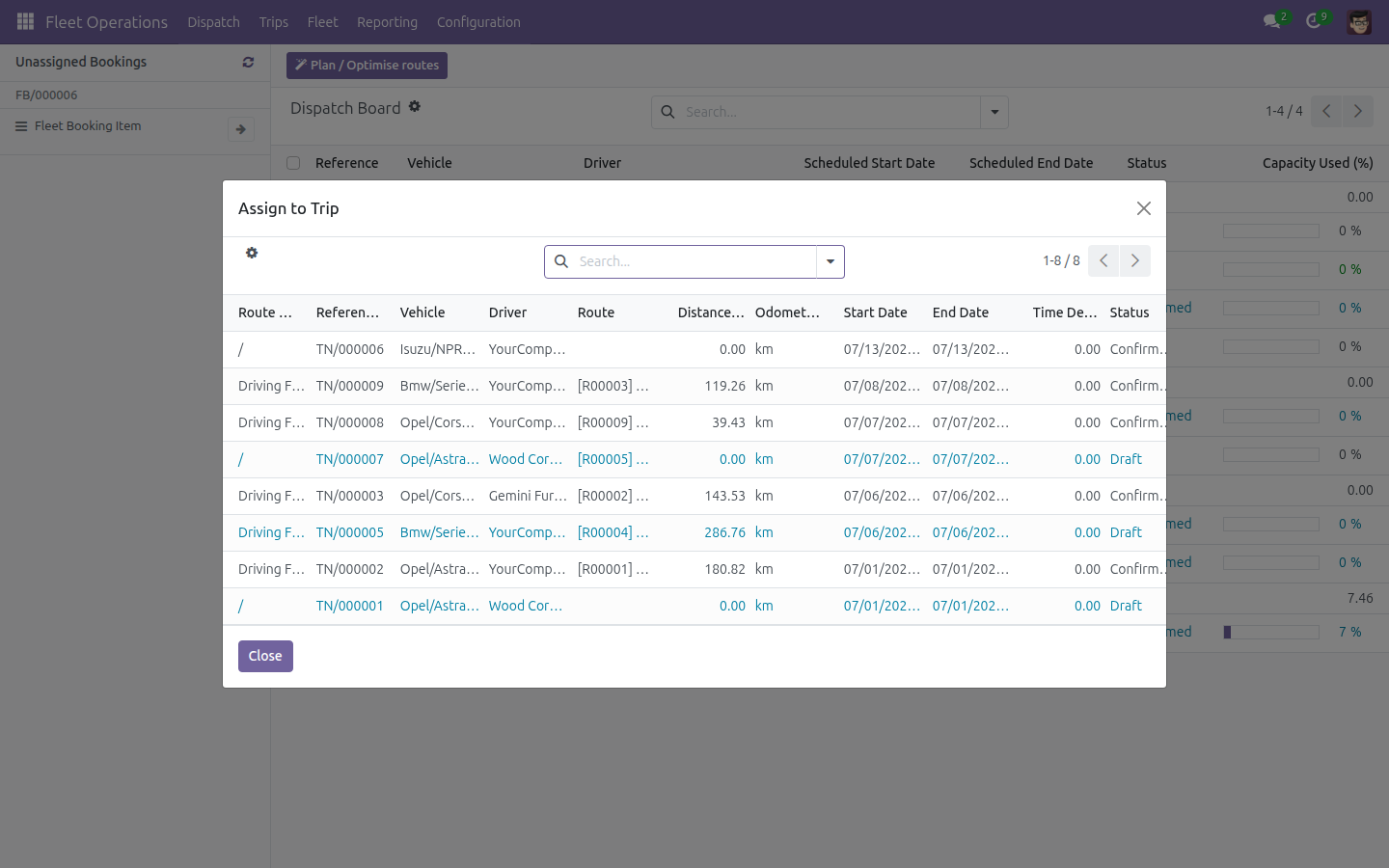
Click the row of the trip you want to assign the booking to. The dialog closes immediately and the booking is linked to that trip.
The card disappears from Unassigned Bookings and now shows up among that vehicle's assigned bookings, with the trip's capacity bar updated.
Note
Only the trip's own driver, or a Fleet Planning Administrator, can add stops to a confirmed trip. If you dispatch on behalf of a colleague, ask them (or an administrator) to confirm the assignment, or set yourself as the trip's driver before assigning bookings to it.
Execute a trip as a driver (My Trips)
Drivers use My Trips - a single mobile-first screen with no other menu - to work through their assigned trip stop by stop.
Open My Trips. Your currently assigned trip (Confirmed or already In Progress) loads automatically.
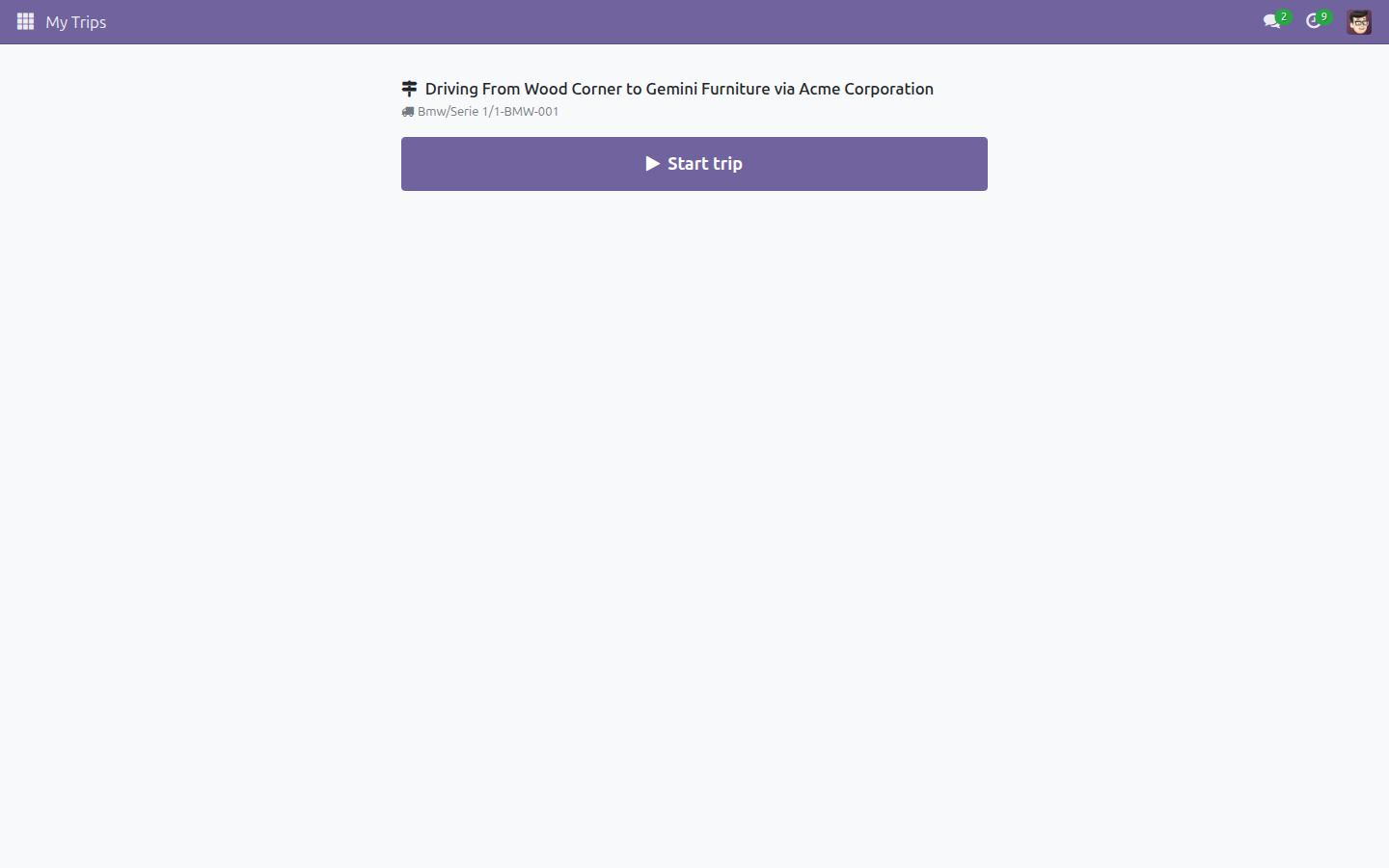
Click Start trip. The trip moves to In Progress and the ordered list of stops appears, with one primary button on the current stop.
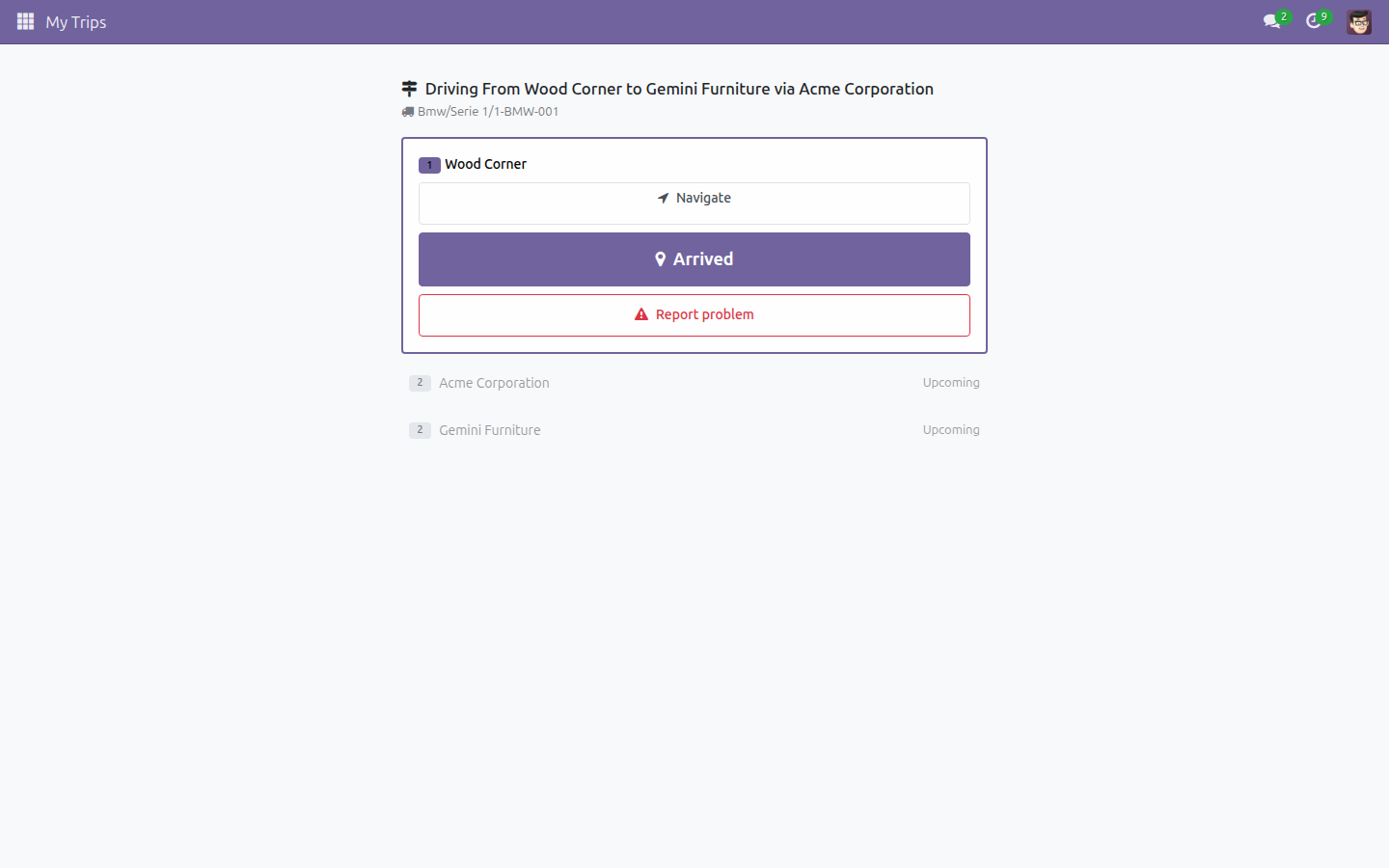
At each stop, click Navigate to open the address in Google Maps, then work through the button that appears for that stop: Arrived, then Loaded (pickup stop) or Delivered (drop-off stop), then Depart. Every tap stamps the time (and GPS position, when available) on that stop.
Once every stop is terminal (departed or reported as failed), click Finish trip.
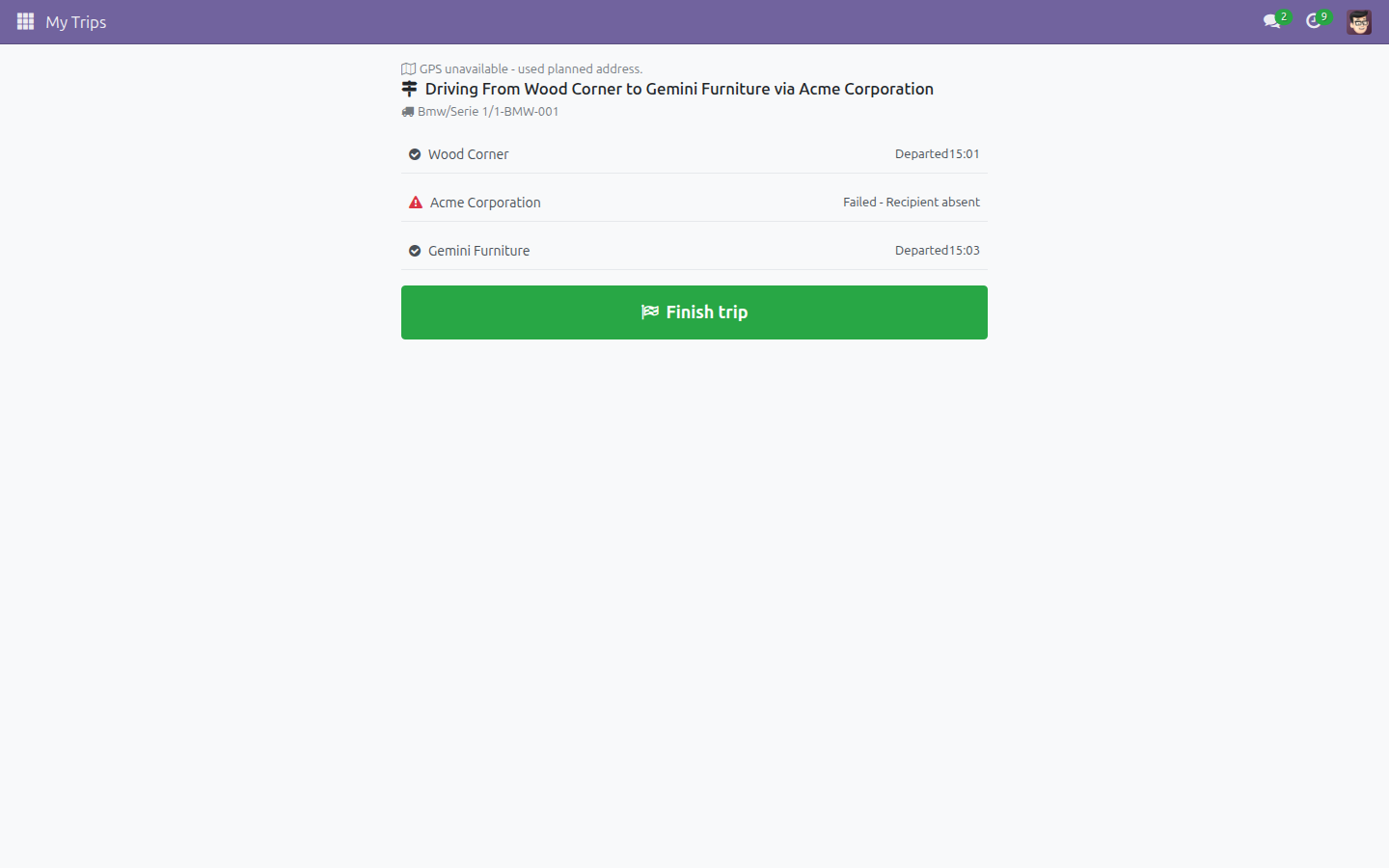
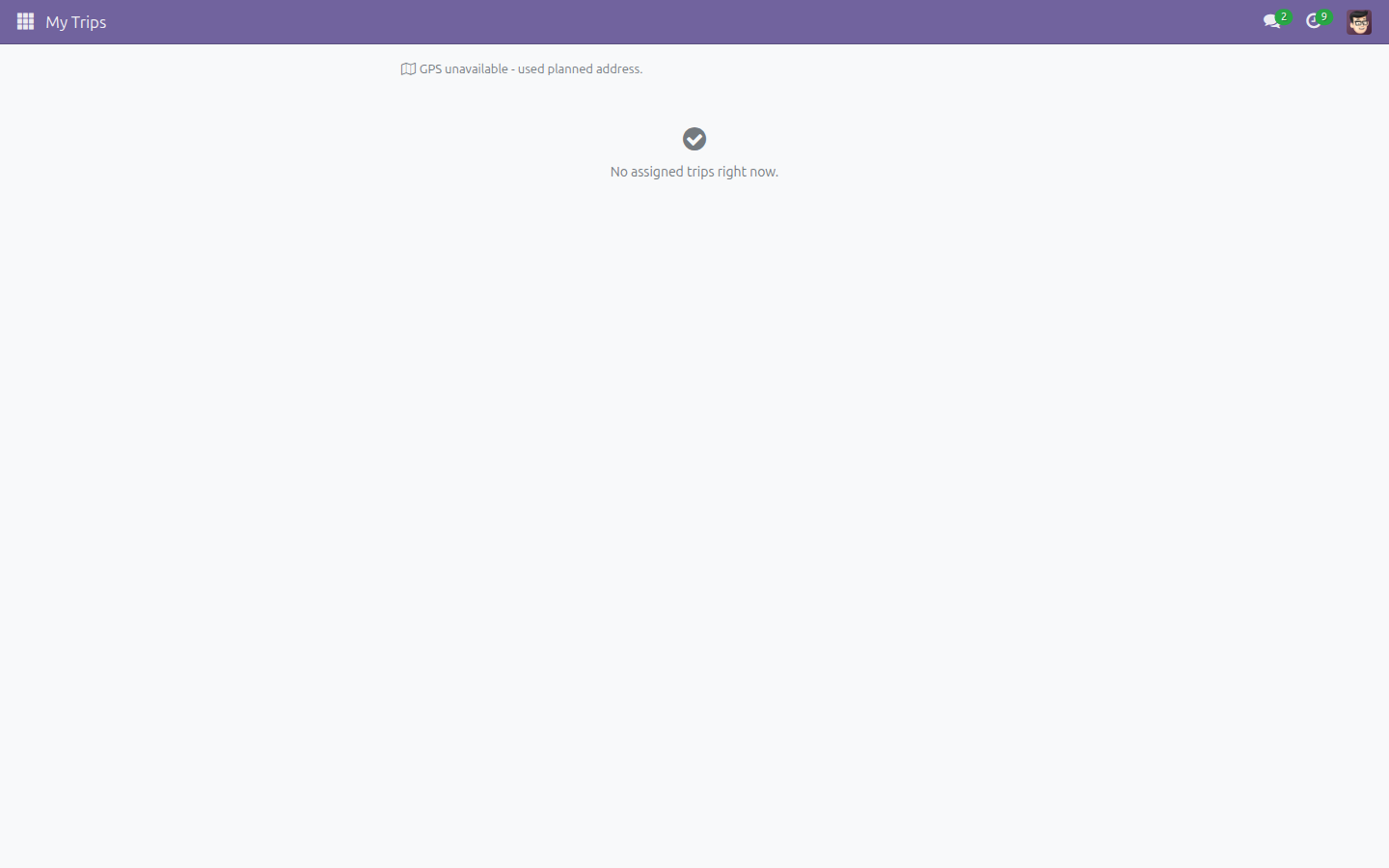
You return to the empty My Trips screen ("No assigned trips right now.") and the trip's actual arrival/departure times are all recorded.
Report a problem at a stop
Use this when a stop cannot be completed as planned - for example the recipient is not there.
On the active stop card in My Trips, click Report problem.
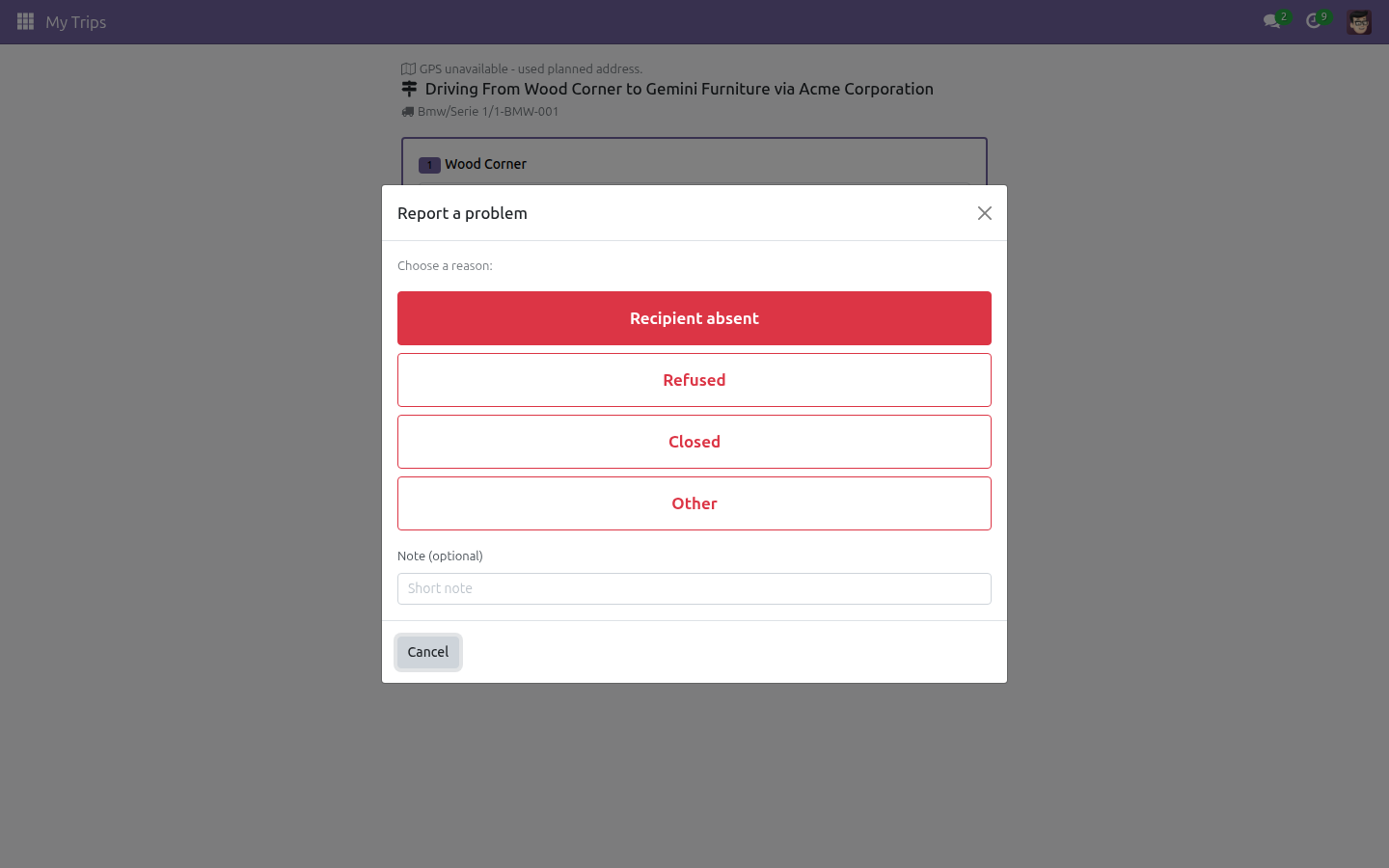
Tap the matching reason - Recipient absent, Refused, Closed or Other - and optionally add a short note.
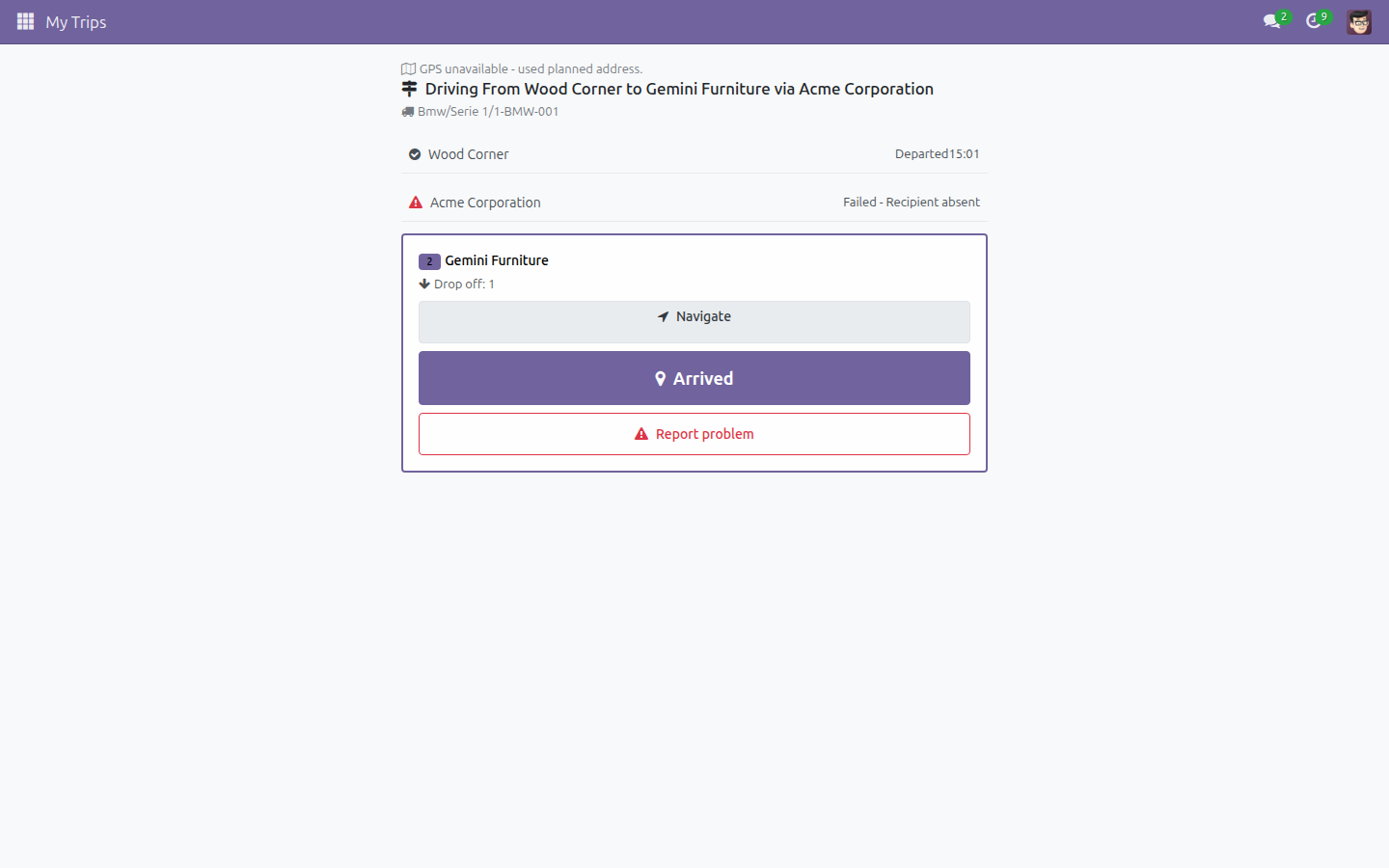
The stop is marked Failed with the reason shown next to it, and the next stop (or Finish trip, if it was the last one) becomes active.
Start and end a trip from the trip form
You can also drive a trip from the back office instead of (or in addition to) My Trips:
- Go to Fleet Operations > Trips > Trips Confirmed, open the trip, and click Start. The Trip Starting Wizard lets you confirm or change the Driver, Assistants, Odometer, Start time and Vehicle before the trip moves to in operation.
- While the trip is running, go to Fleet Operations > Trips > Trips in Operation, open the trip and click Register Cost to record a cost through the Trip Cost Registration Wizard (Date, Amount, Cost Type, and the Trip Waypoint or Trip Section the cost belongs to).
- To close the trip, open it from Trips in Operation and click Done. The Trip Ending Wizard records the End Time, Odometer and Fuel Consumption.
Troubleshooting
A booking keeps landing in "Could not be planned" after Plan / Optimise routes. Check that: the booking's pickup and drop-off addresses have map coordinates; at least one vehicle has its Route End Depot and Working Schedule filled in and its own address is geocoded; and the booking's pickup/drop-off time falls inside a vehicle's working hours.
I assigned a booking to a trip, but nothing changed on the board. Only the trip's own driver or a Fleet Planning Administrator can add stops to that trip. If you dispatch trips that are not driven by you, ask an administrator to make the assignment, or have them add you as the trip's driver first.
The Route field on a trip shows no matches for a route I know exists. The Route field only lists routes whose transport mode matches the vehicle's own transport mode (Driving, Truck, Waterway, and so on). Change the vehicle or create a route for that mode.
My Trips shows "GPS unavailable - used planned address." The browser/device did not provide a GPS location for that stamp, so the stop's planned address was recorded instead. Location permission can be granted from the device settings for next time.
FAQ
Does clicking "Accept all" overwrite trips I already confirmed by hand? No. The auto-planner only proposes new assignments for bookings that are not yet linked to a trip; it reviews the proposal with you before anything is written.
What route-optimization engine does the Dispatch Board use? A server-side Google OR-Tools vehicle-routing solver, run over the vehicles and bookings you configure - no external mapping subscription is required for the solve itself.
Can a driver see other drivers' trips in My Trips? No. My Trips only ever shows the confirmed or in-progress trip currently assigned to the logged-in driver.
Can I still register a cost against a specific stop or route section? Yes - the Register Cost wizard, opened from a trip in operation, lets you pick the exact Trip Waypoint or Trip Section the cost belongs to.
Instruction video
This software and associated files (the "Software") may only be used (executed, modified, executed after modifications) if you have purchased a valid license from the authors, typically via Odoo Apps, or if you have received a written agreement from the authors of the Software (see the COPYRIGHT file).
You may develop Odoo modules that use the Software as a library (typically by depending on it, importing it and using its resources), but without copying any source code or material from the Software. You may distribute those modules under the license of your choice, provided that this license is compatible with the terms of the Odoo Proprietary License (For example: LGPL, MIT, or proprietary licenses similar to this one).
It is forbidden to publish, distribute, sublicense, or sell copies of the Software or modified copies of the Software.
The above copyright notice and this permission notice must be included in all copies or substantial portions of the Software.
THE SOFTWARE IS PROVIDED "AS IS", WITHOUT WARRANTY OF ANY KIND, EXPRESS OR IMPLIED, INCLUDING BUT NOT LIMITED TO THE WARRANTIES OF MERCHANTABILITY, FITNESS FOR A PARTICULAR PURPOSE AND NONINFRINGEMENT. IN NO EVENT SHALL THE AUTHORS OR COPYRIGHT HOLDERS BE LIABLE FOR ANY CLAIM, DAMAGES OR OTHER LIABILITY, WHETHER IN AN ACTION OF CONTRACT, TORT OR OTHERWISE, ARISING FROM, OUT OF OR IN CONNECTION WITH THE SOFTWARE OR THE USE OR OTHER DEALINGS IN THE SOFTWARE.