
Viindoo AI
by Viindoo
| Lines of Code | 60607 |
| Technical name | viin_ai |
| License | OPL-1 |
| Website | https://viindoo.com/apps/app/17.0/viin_ai |
| Read description for | |
| Required Apps | Discuss (mail) |
| Included Dependencies | Viindoo Base API Request Logger |
| Extensions | Viindoo AI - Voice Assistant Viindoo AI - Operating Layer Viindoo AI - Live Chat Viindoo AI - Website Viindoo AI Suite Viindoo AI - Test/Demo Module (mock provider) Viindoo AI - Brain Bridge |

Ask in your own words. See every step. Approve what goes out.
For teams that run their daily work in Odoo
One AI conversation that reads your company's data and works in any installed app, under your rights.
Odoo 17.0 · Community, Enterprise, Viindoo Cloud · OPL-1
What changes for your team
Nothing goes out before you approve
Copying figures into an email and attaching the PDF by hand.
→ The assistant drafts the email, note or activity from the record and waits on a card for your decision.
Forms open filled in from your templates
Finding the template, the customer and the lines by hand.
→ The app's own form opens unsaved, filled in from your company's template, in any installed app. You review and save.
Documents and charts arrive as files
Exporting figures, building a chart, formatting pages.
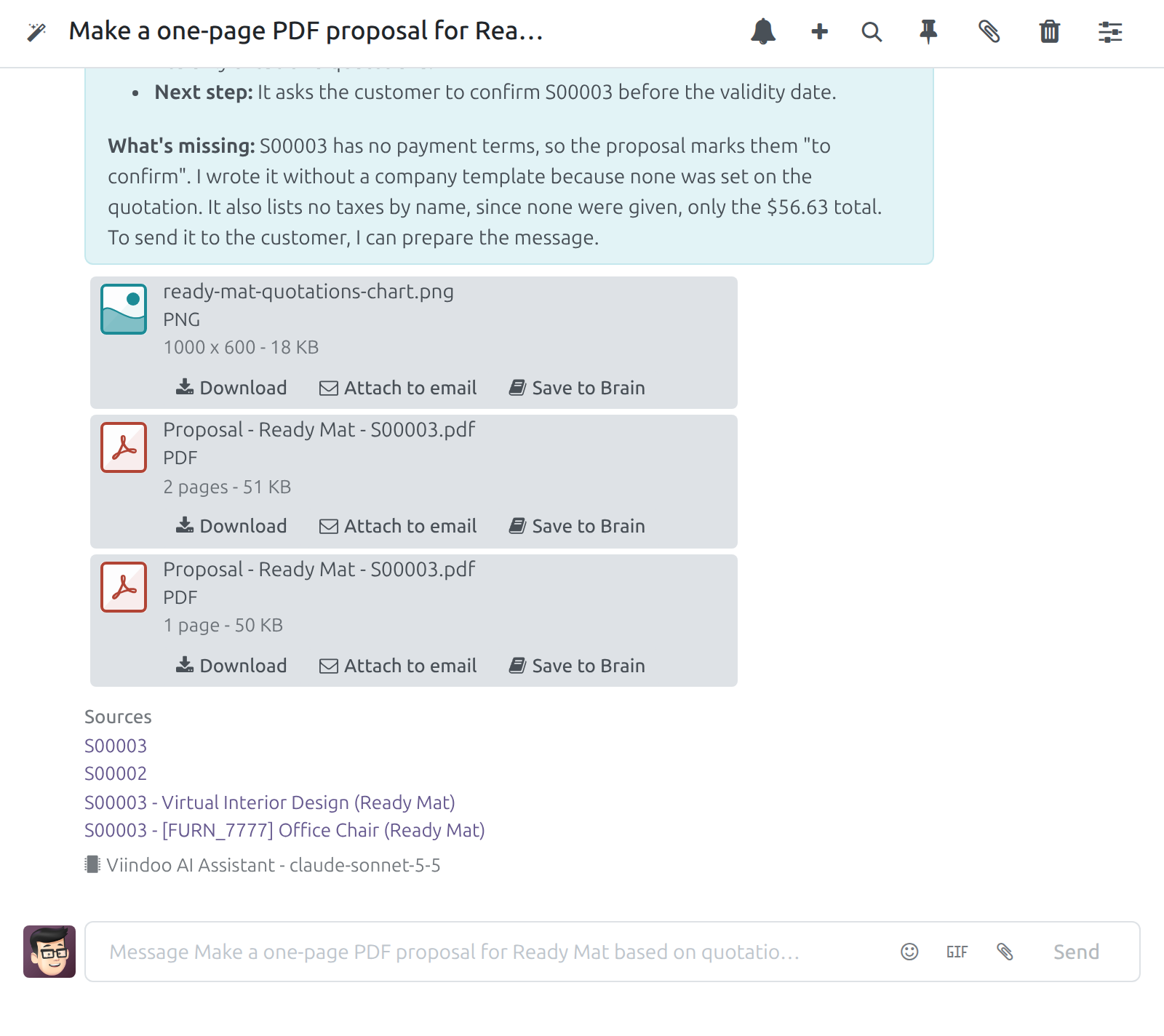
→ A PDF in your company's layout and a chart drawn from your records, ready to download or attach to an email.
Ready on day one
Daily Work skills
Briefings, triage, messages, hand-offs, documents, figures, plans, checks, decisions, research, period close, whole processes. Skills are text you can edit and add.
Every app you install
The assistant reaches its screens and records the same way, with the rights of the person asking. No AI add-on per app.
Your AI vendor
OpenAI, Anthropic, Google Gemini, Mistral AI, DeepSeek and more, or your own server. Add a key and set the limits.
What is included
Conversations, skills, approvals, files, filled-in forms, knowledge sources, vendor connections, spend limits and call records.
Optional extensions
Viindoo AI - Operating Layer
Records created and changed after your approval.
Viindoo AI - Brain Bridge
Your knowledge base searched, and files saved to it.
Viindoo AI - Voice Assistant
Speak your question, hear the answer.
Viindoo AI - Live Chat
An AI chatbot for website visitors, with hand-off to a person.
Before you decide
Where does our data go?
Only to the vendor you connect. Each connection shows its region: EU, US, Asia-Pacific or self-hosted. Call records mask the keys.
How is cost kept in check?
Your vendor bills the usage. Daily caps per person and per company stop a request before it is sent; the dashboard shows each call's cost.
Who sees what?
The assistant has the rights of the person asking. Conversations are private. An administrator decides which actions ask for approval.
Which languages?
It answers in the language of the question. The screens ship in English and Vietnamese.
Which model does this work?
The ready Viindoo connection runs a small model that answers short questions and shows the steps. Templates, files and approvals need a stronger model; these screens use Anthropic Sonnet.
Try it, then ask us
The Documentation tab walks through the screens, role by role.
Pre-sales & partnership
viindoo.com/contactusTechnical support
viindoo.com/ticketTechnical requirements
- Odoo version: 17.0
- Editions: Odoo Community, Odoo Enterprise, Viindoo Cloud
- Required modules: Base, Discuss, IM Bus, Web, Web Editor, Viindoo Base, API Request Logger
- Database: PostgreSQL with the pgvector extension
- Python package: lingua-language-detector
- License: OPL-1
- Languages: English, Vietnamese
Viindoo AI
This guide is for employees, who ask the assistant to read their company's data and do routine work for them, for system administrators, who connect the AI vendor and keep spending, data location and approvals under control, and for buyers who want to know what the platform does.
Overview
Viindoo AI puts one conversation surface in front of everything your company runs. You ask in your own words; the assistant reads your company's own records and documents, finds the skill or specialist assistant that fits the task, and reaches the screens, records and actions of the apps you have installed. It always works with your own access rights: it sees what you may see and does what you may do, and nothing is sent, scheduled or saved without your approval unless an administrator has switched that approval off.
Four ideas shape the platform:
- One conversation. Ask from the top bar of any screen, from the AI app or from Discuss. The conversation is private to you.
- It reads your company's data. Answers come from your records and from the documents, texts and web pages you add, and list their Sources.
- Skills are data. What the assistant knows how to do is written as skills that an administrator reads, edits and adds, grouped in packs. Twelve general Daily Work skills cover work in any app: documents, messages to customers and suppliers, hand-offs, briefings, triage, figures, planning, checks, decisions, research, period close and whole business processes.
- No add-on per app. The assistant discovers the apps you have installed and reaches their screens, records and buttons through the same generic actions, so a newly installed app is usable at once.
You always see what it is doing. While it works, every skill it loads, every specialist it asks and every action it takes shows live as one plain line; after the answer these fold into one summary line that opens on a click. A line under each answer names the assistant and the model that answered.
The work happens in four steps:
- The system administrator connects an AI vendor and chooses the models, spend limits and data location.
- Employees ask in the conversation.
- The assistant prepares emails, notes, activities, documents and filled-in records; the employee reviews and approves or sends.
- Administrators and AI operators follow cost, quality and the record of each call.
| Role | What they do | Access right to assign |
|---|---|---|
| System administrator | Installs the app, connects AI vendors and keys, chooses the default models, sets spend limits and data location, adds knowledge sources, and decides which actions ask for approval first. Only this role opens Settings, Knowledge Sources, Feedback and Feedback Categories. | Administration: Settings |
| AI Administrator | Opens the AI ‣ Configuration menu: providers, models, skills and skill packs, capabilities, agents, topics, external tool servers. The API key and the endpoint stay with the system administrator. | AI: AI Administrator |
| AI Operator | Opens Operations and Reporting: the cost dashboard, quality and cost, the navigation log, memory, media and website crawls, for the whole company. | AI: AI Operator |
| AI Content Manager | Has write access to knowledge sources and website crawls. | AI: AI Content Manager |
| API log reader | Opens the raw HTTP record of an AI call. | Technical: API Log Viewer |
| Employee | Asks the assistant, reviews what it prepares, approves what it proposes, and sees their own questions and spending on the Overview screen. | Internal user (no extra right) |
Note
The ready-to-use Viindoo connection is meant for a quick start: it answers short questions and shows the live step list, on a small model with daily token limits. Longer chains of work, such as a quotation from a template, a PDF with a chart, a note with an activity, or an email with an approval card, need a more capable model. Every flow in this guide was run on an Anthropic connection with a Sonnet model.
Setup (for the system administrator)
Install Viindoo AI
- Open Apps, search for Viindoo AI and click Install. The apps it needs, such as Discuss and API Request Logger, are installed with it.
- Make sure your database offers the pgvector extension of PostgreSQL, which Viindoo AI requires. Your hosting provider can confirm this.
Give people the right access
Every internal user can chat with the assistant. The extra rights of the table above are assigned per user.
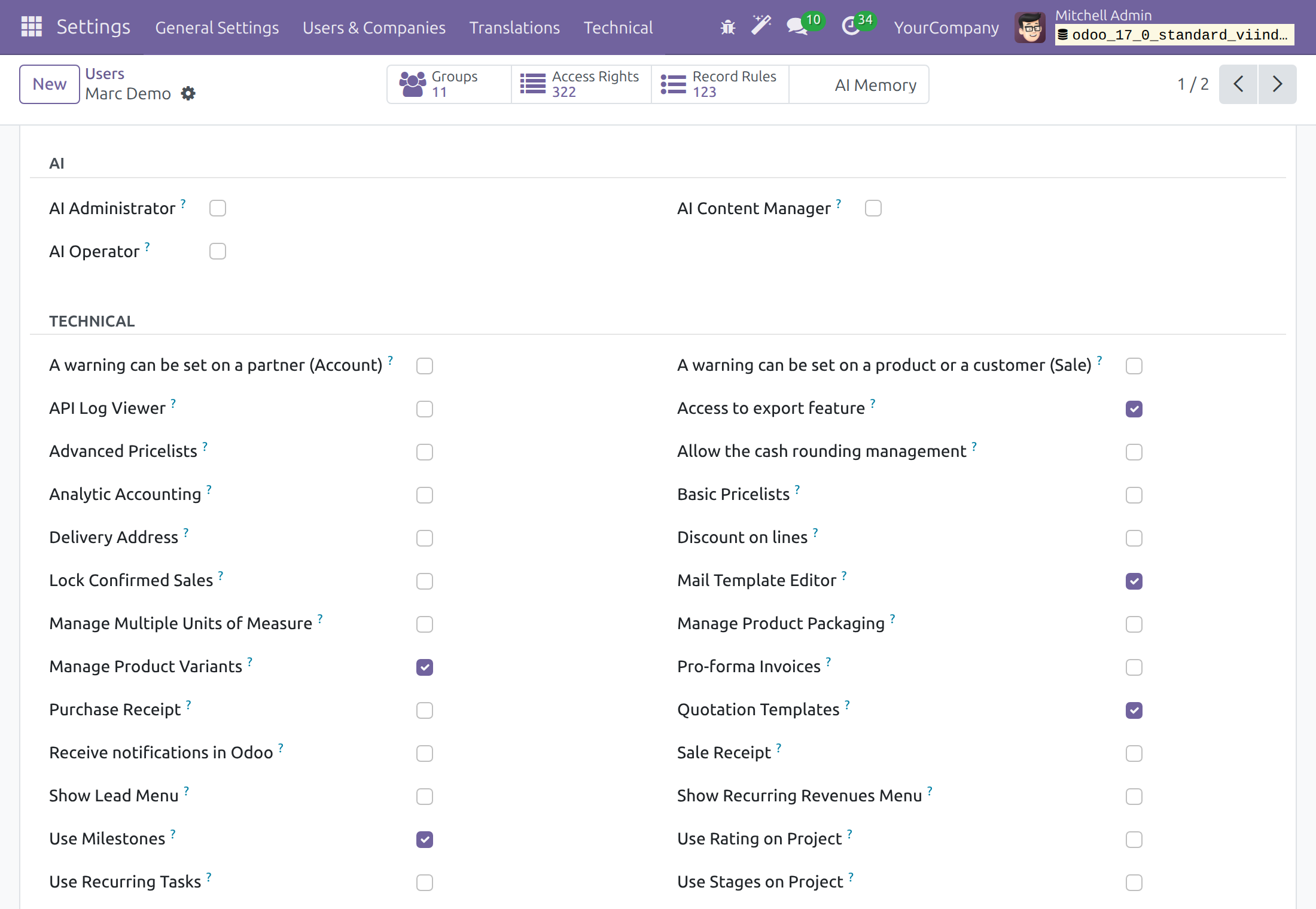
Open Settings ‣ Users & Companies ‣ Users and open the user.
Open the Access Rights tab. The AI section lists AI Administrator, AI Operator and AI Content Manager; API Log Viewer is under Technical. These sections appear when developer mode is active. Tick the right and save.
Find your way in the AI app
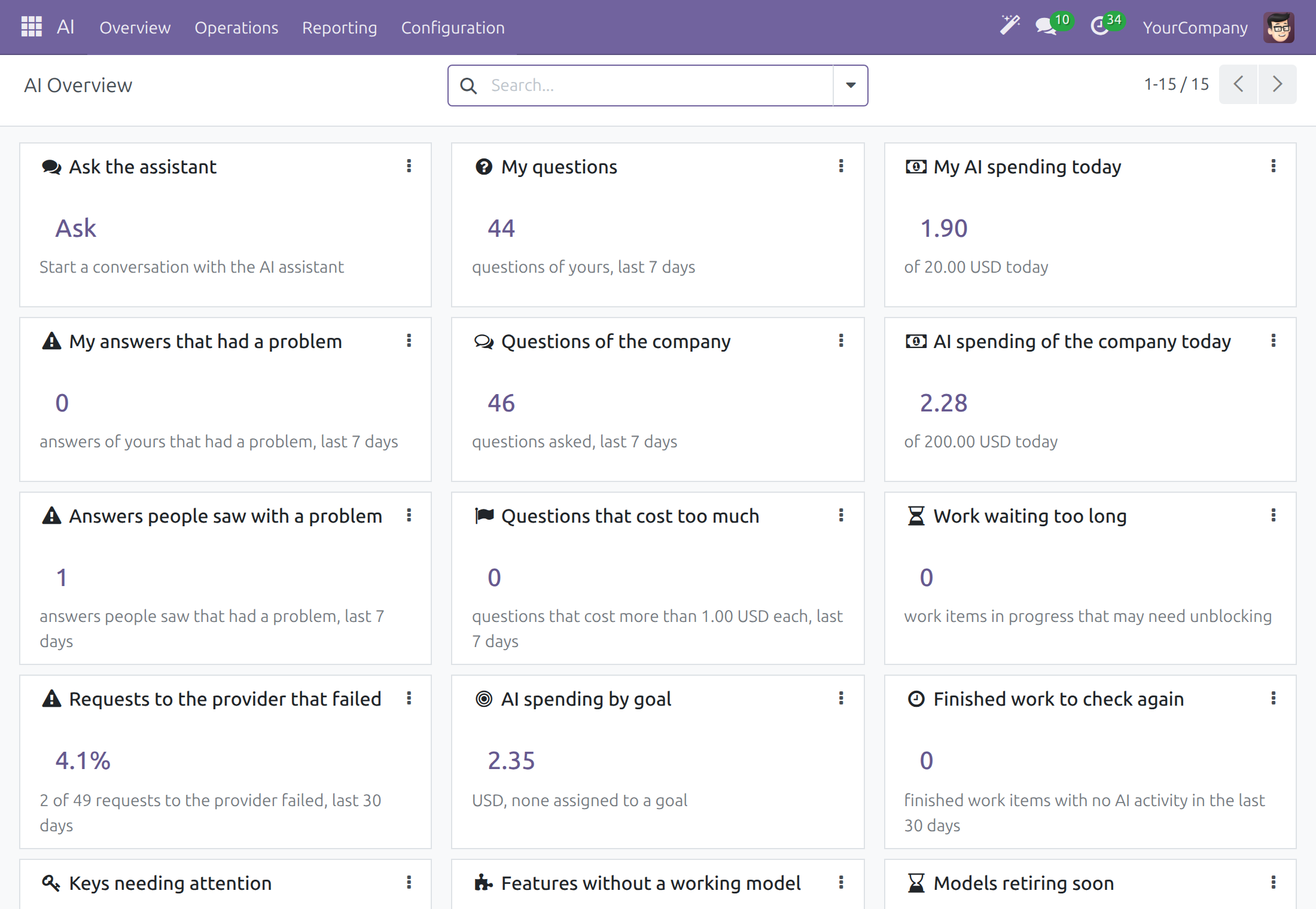
The AI app has up to four menus, depending on your rights: Overview (every internal user), Operations and Reporting (AI Operator) and Configuration (AI Administrator and system administrator). Everything an administrator configures lives under Configuration.
An employee sees Overview: cards with their questions of the last 7 days, their spending against the daily limit, the answers that had a problem, and Ask the assistant, which starts a conversation. A system administrator sees more cards for the whole company, such as the spending of the company today, requests to the provider that failed, and keys that need attention.
System administrator: connect and govern AI
Connect your AI vendor
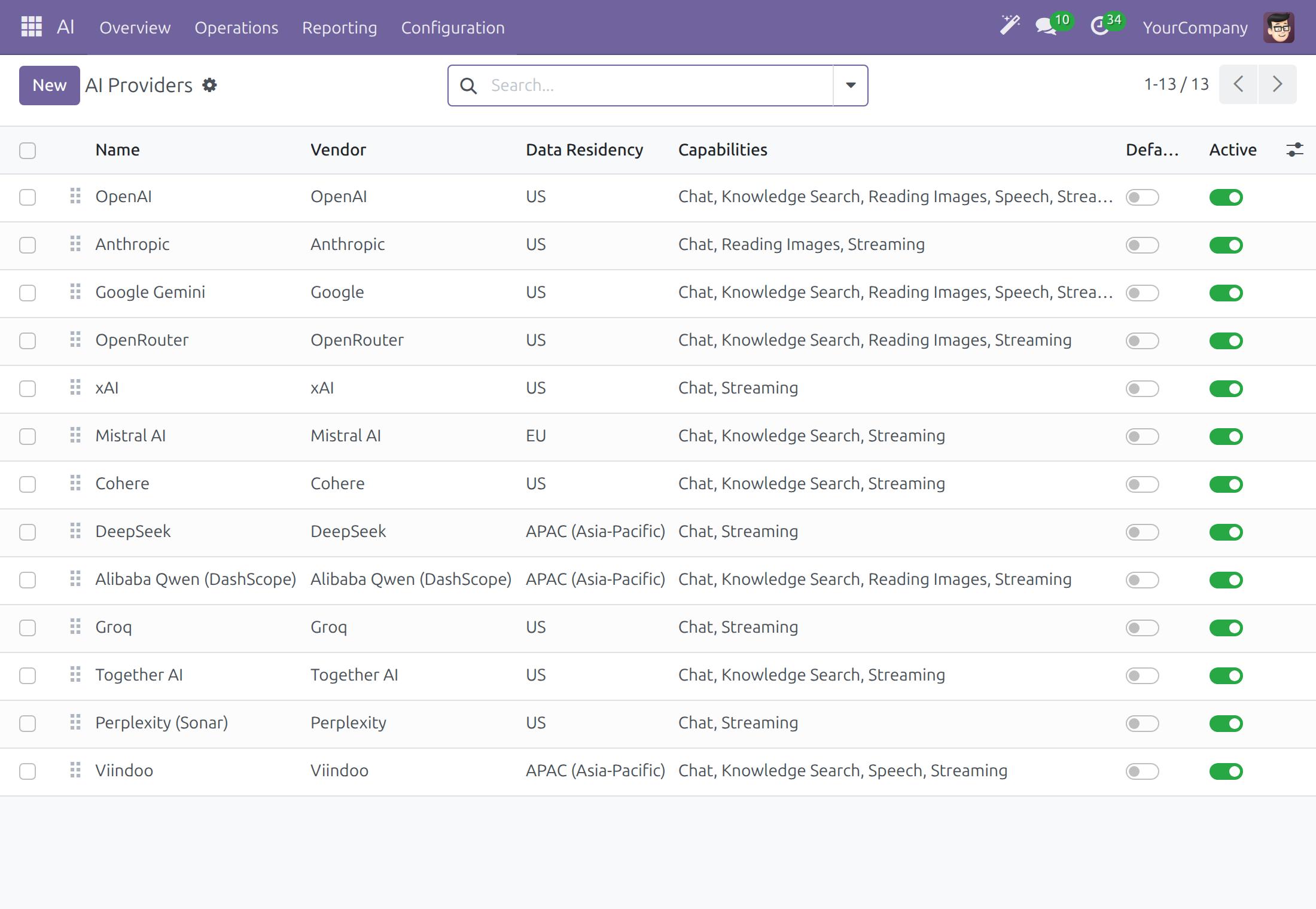
Thirteen connections are ready to use: OpenAI, Anthropic, Google Gemini, OpenRouter, xAI, Mistral AI, Cohere, DeepSeek, Alibaba Qwen (DashScope), Groq, Together AI, Perplexity (Sonar) and Viindoo. Each connection holds one or more keys; you add each provider once and its keys, and nothing is typed again for the models.
- Open AI ‣ Configuration ‣ Providers. Each row is a connection, with its Vendor, Data Residency and Capabilities.
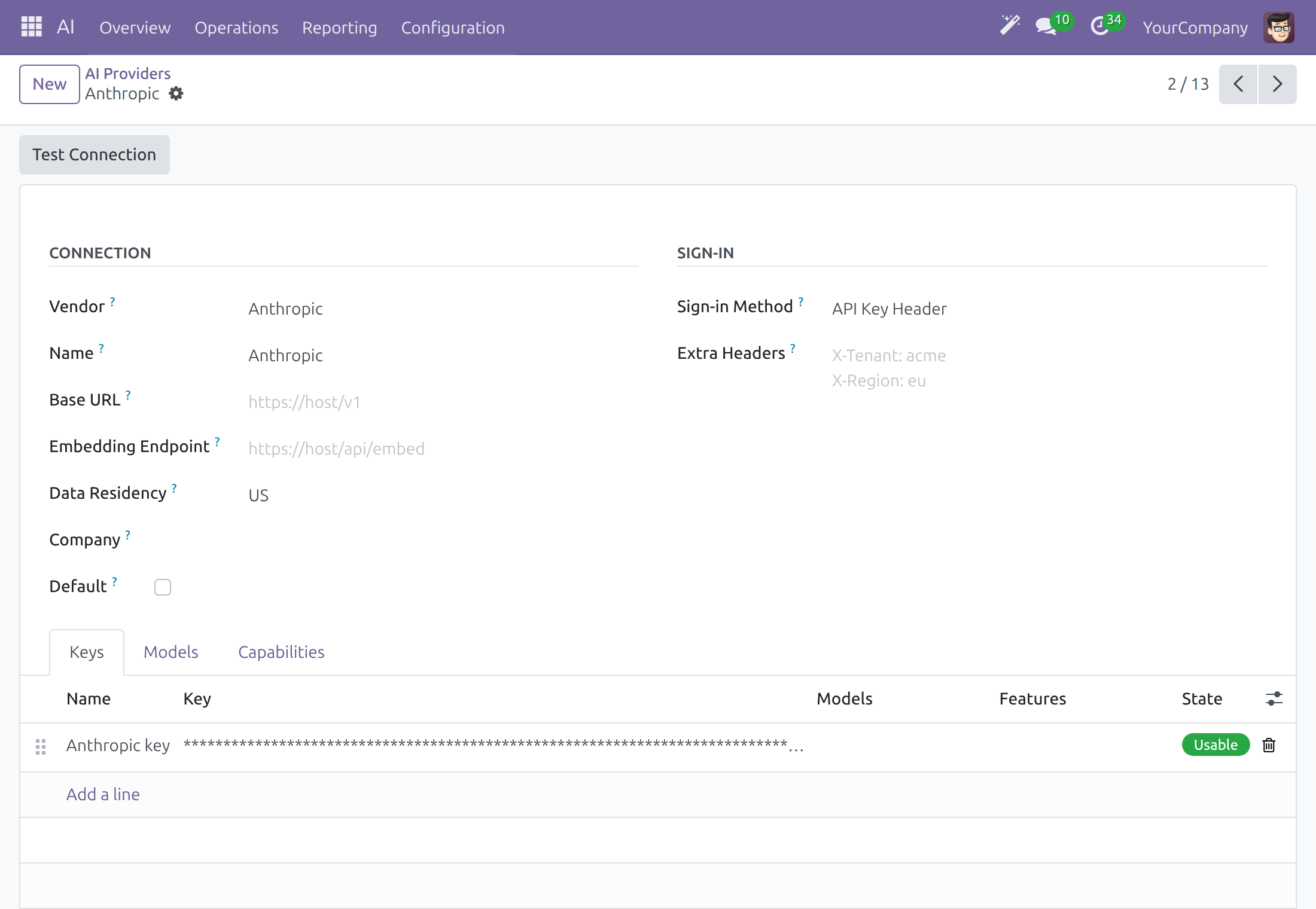
- Open the connection of your vendor, for example Anthropic, and go to the Keys tab. Click Add a line, type a Name and paste the vendor's key in Key, then click Save. The key shows as dots from then on, and its State reads Usable.
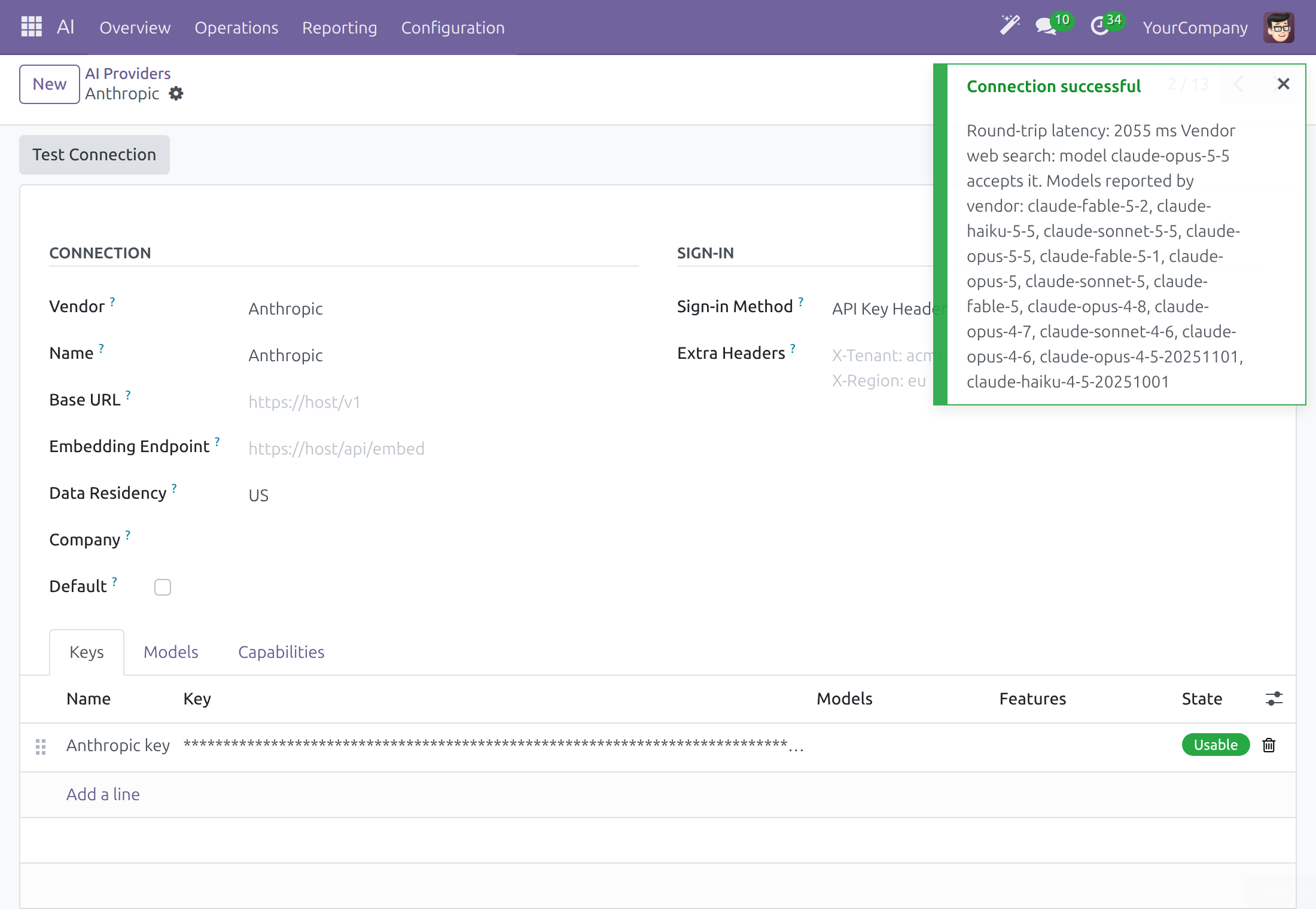
- Click Test Connection. A green Connection successful message shows the round-trip time and the models the vendor reports. The test sends a tiny request through the connection, which the vendor bills under that key.
- Open AI ‣ Configuration ‣ Settings. In Default Models, choose the model in Chat: one AI model, or a model line that follows its newest model. People can still choose another model for a conversation. Choose a model of the vendor you just connected, then click Save.
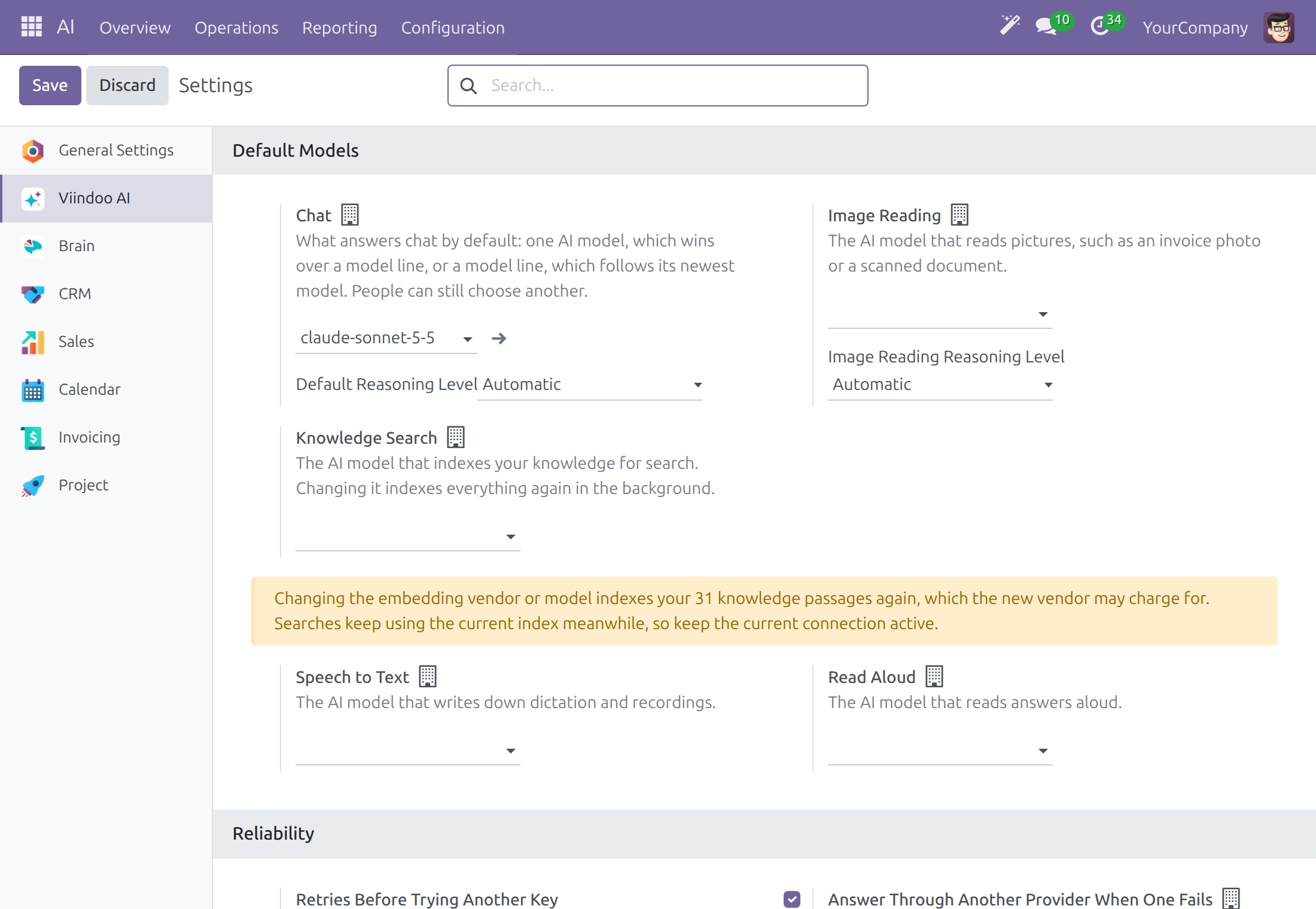
- Use the same section for Image Reading, Knowledge Search, Speech to Text and Read Aloud. Changing the Knowledge Search model indexes your knowledge again in the background, which the vendor may charge for; the screen says how many passages are affected.
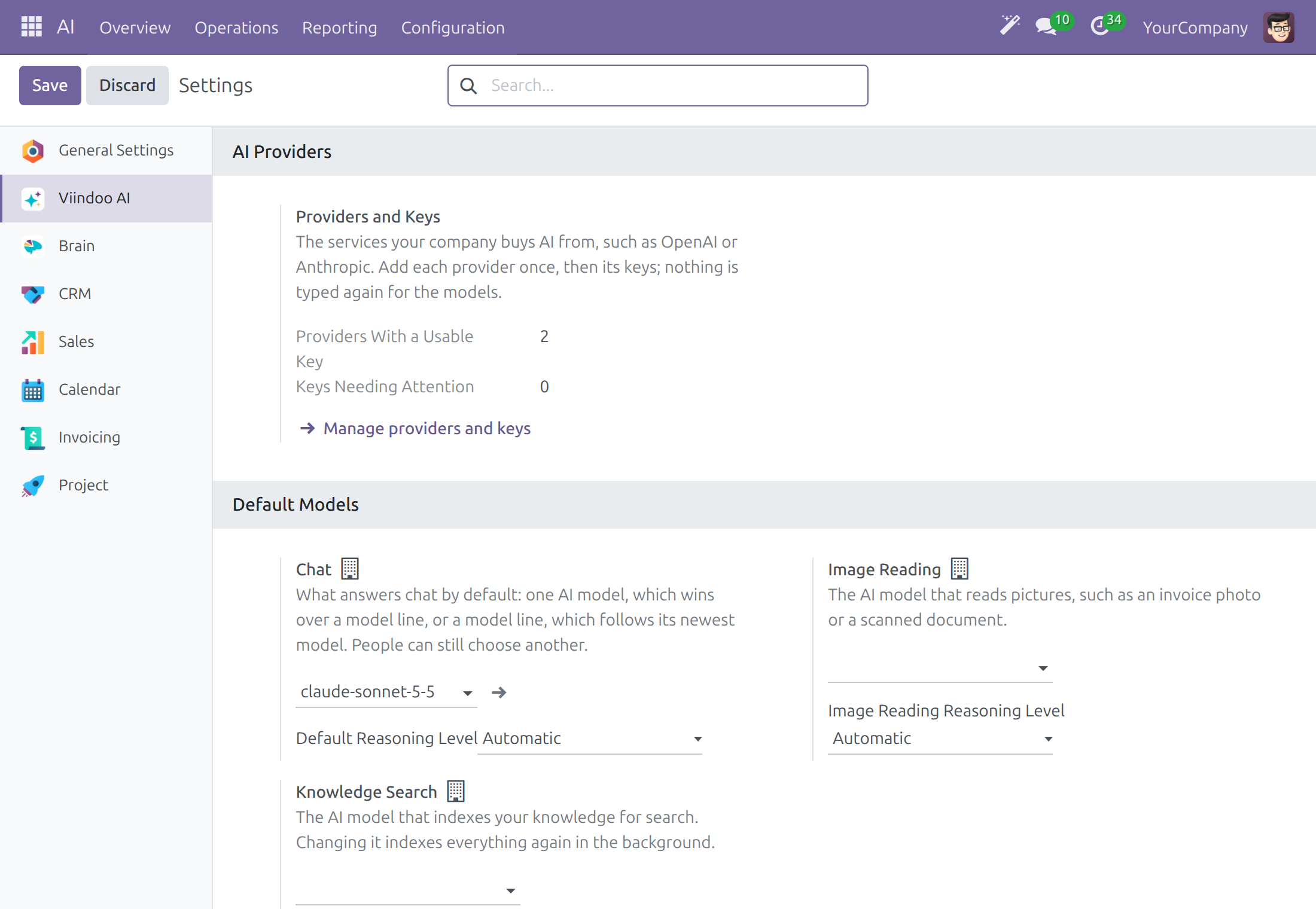
The section AI Providers at the top of the settings counts the providers with a usable key and the keys that need attention, and links to the provider list with Manage providers and keys.
Note
Fields marked with a small building icon apply to the current company, so each company of a multi-company database can use its own vendor. A vendor that has no ready connection, for example an Ollama server or Azure OpenAI, is added with New in AI ‣ Configuration ‣ Providers: pick the Vendor, fill in Base URL and add a key.
In Reliability, Retries Before Trying Another Key sets how many times the same key is tried again when a provider fails for a moment, and Answer Through Another Provider When One Fails is off by default: turn it on only when another vendor may receive the request.
Choose where data may go
Each connection declares where its vendor processes data. Use it to match your own policy, for example to keep data of European customers with a vendor in the EU, or to keep everything on your own servers.
Open AI ‣ Configuration ‣ Providers and read the Data Residency column: EU, US, APAC (Asia-Pacific) or Self-Hosted (on-premise). In the ready-made list Mistral AI is EU, OpenAI is US.
Open a connection to see its Data Residency. Picking a vendor fills it with the vendor's typical region; you can change it, and your choice is kept. Choose Self-Hosted (on-premise) only for a server on your own infrastructure.
For a self-hosted server, fill in Base URL with your own endpoint. A connection set to Self-Hosted (on-premise) with no private endpoint refuses to send requests to the vendor's public service.
Choose a model of the connection that fits your policy in Chat (see Connect your AI vendor).
In AI ‣ Configuration ‣ Settings, Answer Through Another Provider When One Fails is off by default. Turn it on to let a failed request continue on another connection of the same company in the same data region; it stays off when you do not want another vendor to receive the request.
Allow External Provider for Memory Summarization, in the Privacy and Data section of the same screen, is off by default: the daily summary of assistant memory then uses only a self-hosted connection, and that data stays on your infrastructure.
Set spend limits
- Open AI ‣ Configuration ‣ Settings.
- Go to the Cost Control section and change a limit, for example Hard Cost Cap per User per Day (USD).
- Click Save. The page reloads and shows the limits as saved.
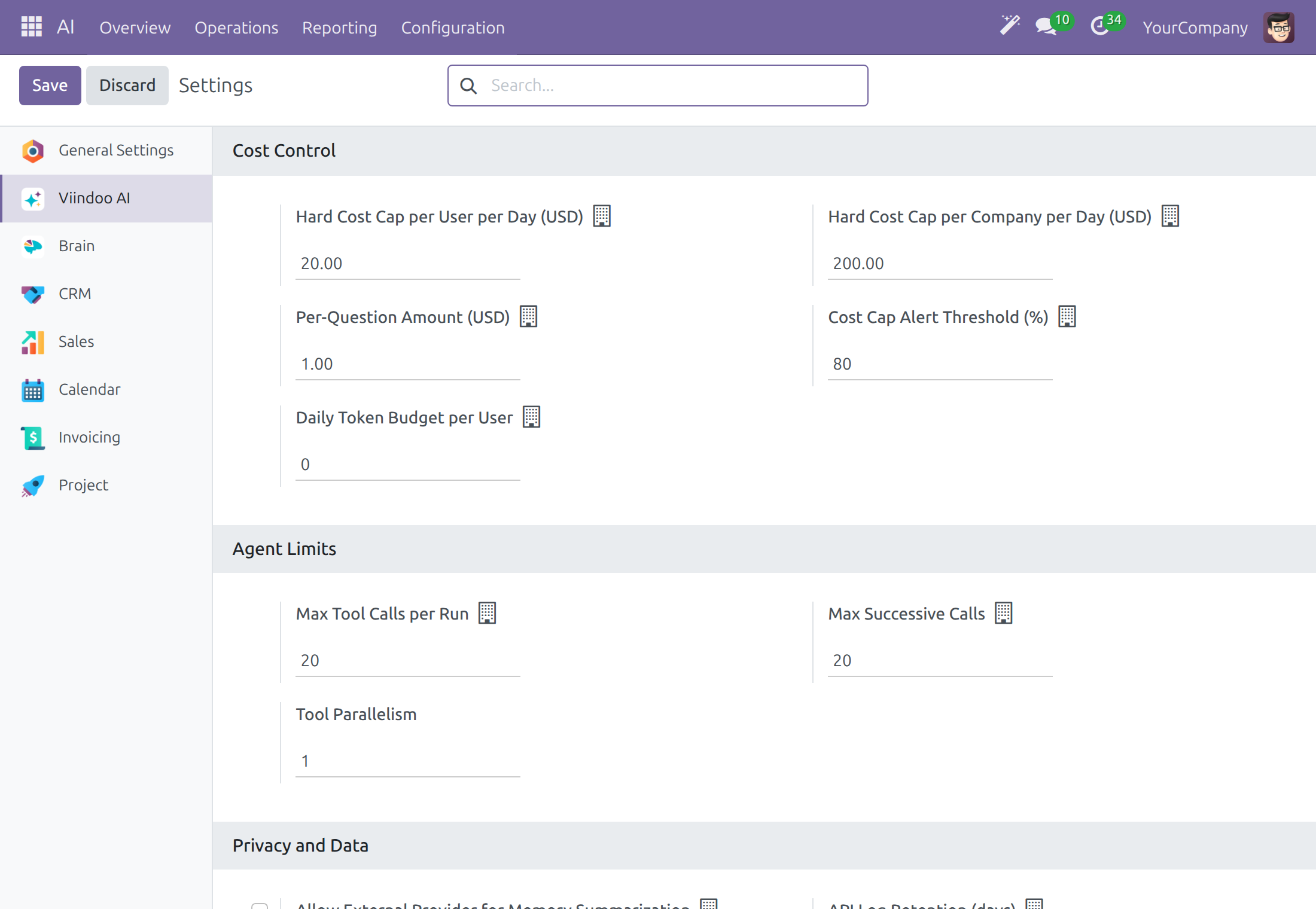
| Setting | What it does | Value on a fresh install |
|---|---|---|
| Hard Cost Cap per User per Day (USD) | Blocks requests above this daily spend of one person. | 20.00 |
| Hard Cost Cap per Company per Day (USD) | Blocks requests above this daily spend of the company. | 200.00 |
| Per-Question Amount (USD) | Most one question may spend. | 1.00 |
| Cost Cap Alert Threshold (%) | Warns when spending reaches this percentage (0-100) of the hard cap. | 80 |
| Daily Token Budget per User | Warns once a person passes this many tokens in a day; never blocks. 0 turns it off. | 0 |
For the hard limits, -1 means unlimited and 0 is not accepted. A request that would exceed a hard limit is refused before anything is sent to the vendor, and the person sees a clear message that the daily cost cap is exceeded. The Agent Limits section next to it caps the tool calls and consecutive AI calls of one run (20 each) and sets Tool Parallelism.
The Modules section at the bottom of the same screen offers the optional add-on app Viindoo Brain - Knowledge OS, which you can turn on from here.
See what AI costs and find the record of what was sent
Open AI ‣ Reporting ‣ Dashboard. The table has one row per assistant and one column per month, with the tokens, Cost (USD), duration, tool calls and web searches of its calls.
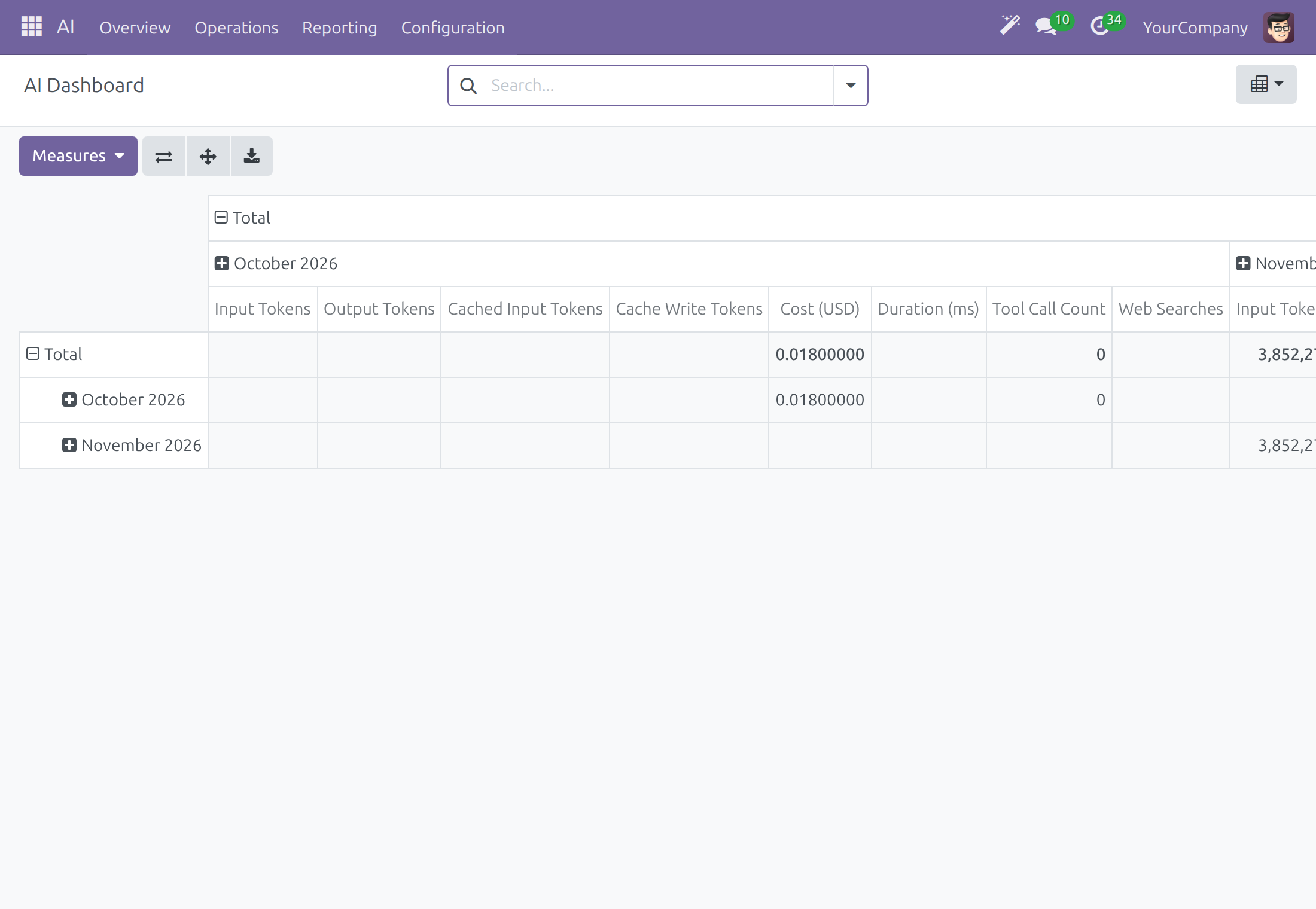
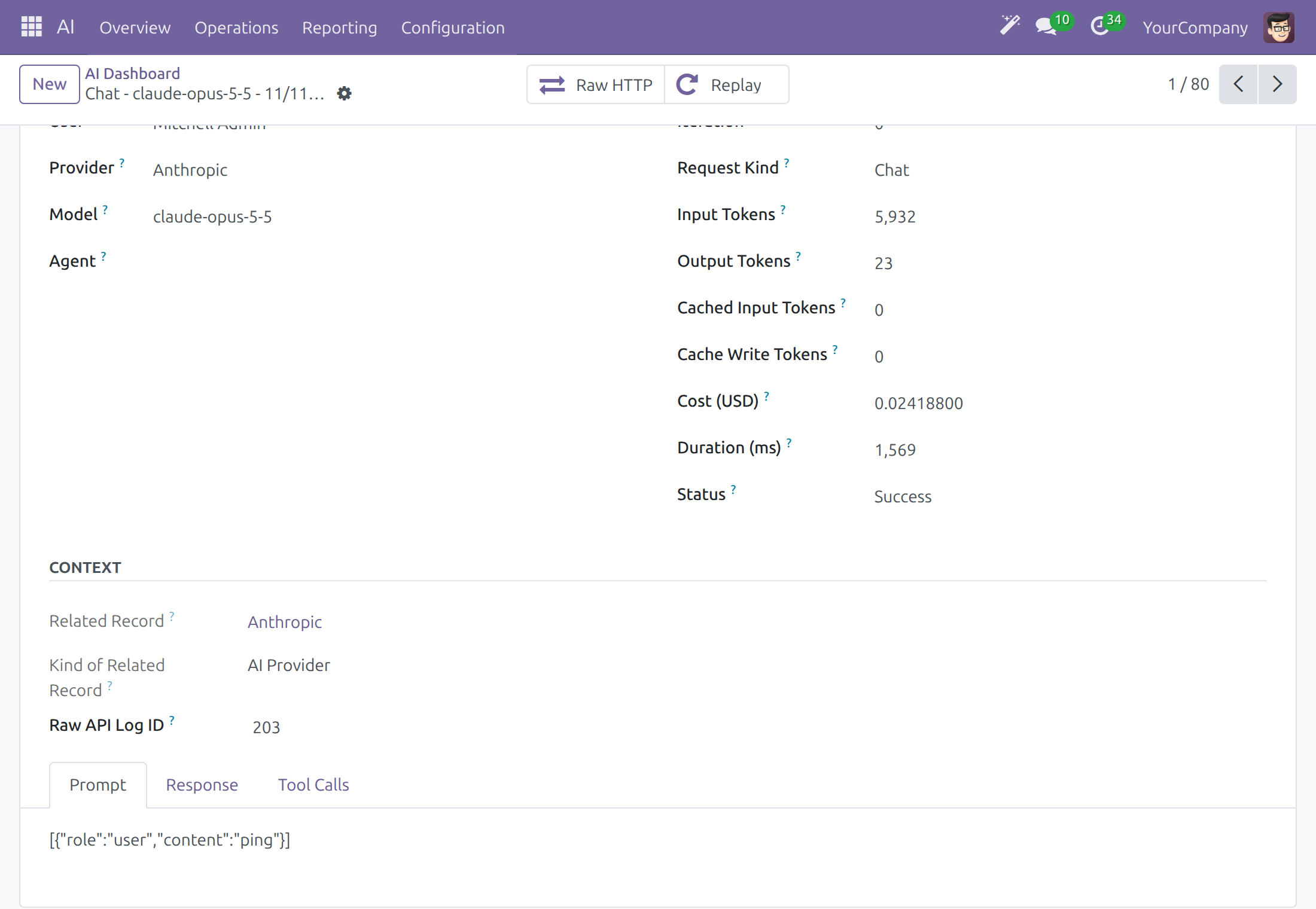
Switch to the List view with the view switcher at the top right and expand the month. Each row is one call to a vendor, with the date, user, provider, model, request kind, tokens, cost and Status (Success or Error).
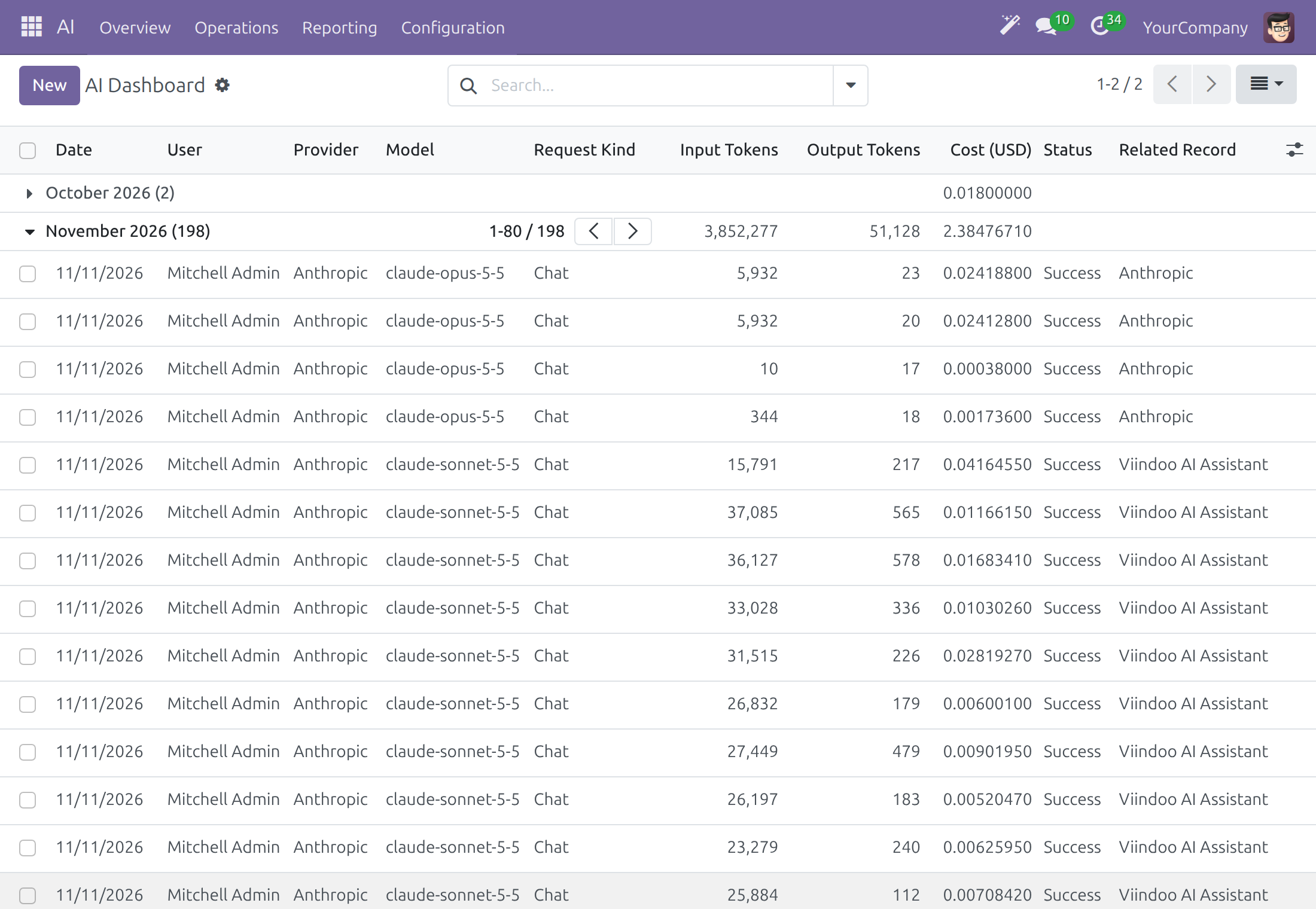
Open a row. The Prompt tab shows what was sent to the vendor, Response what came back and Tool Calls the actions the assistant ran.
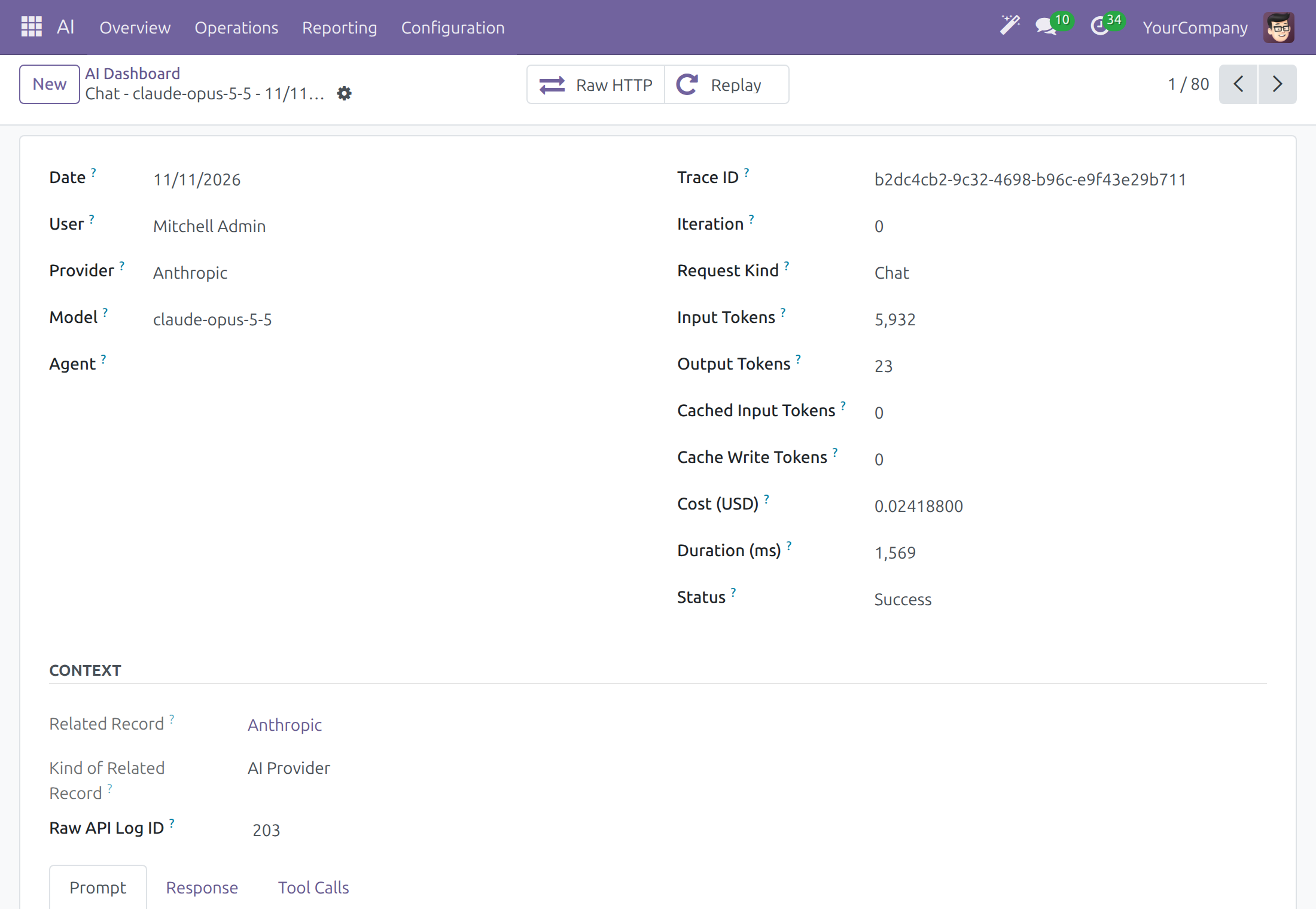
Scroll to the notebook and open Prompt to read the exact messages of the call.
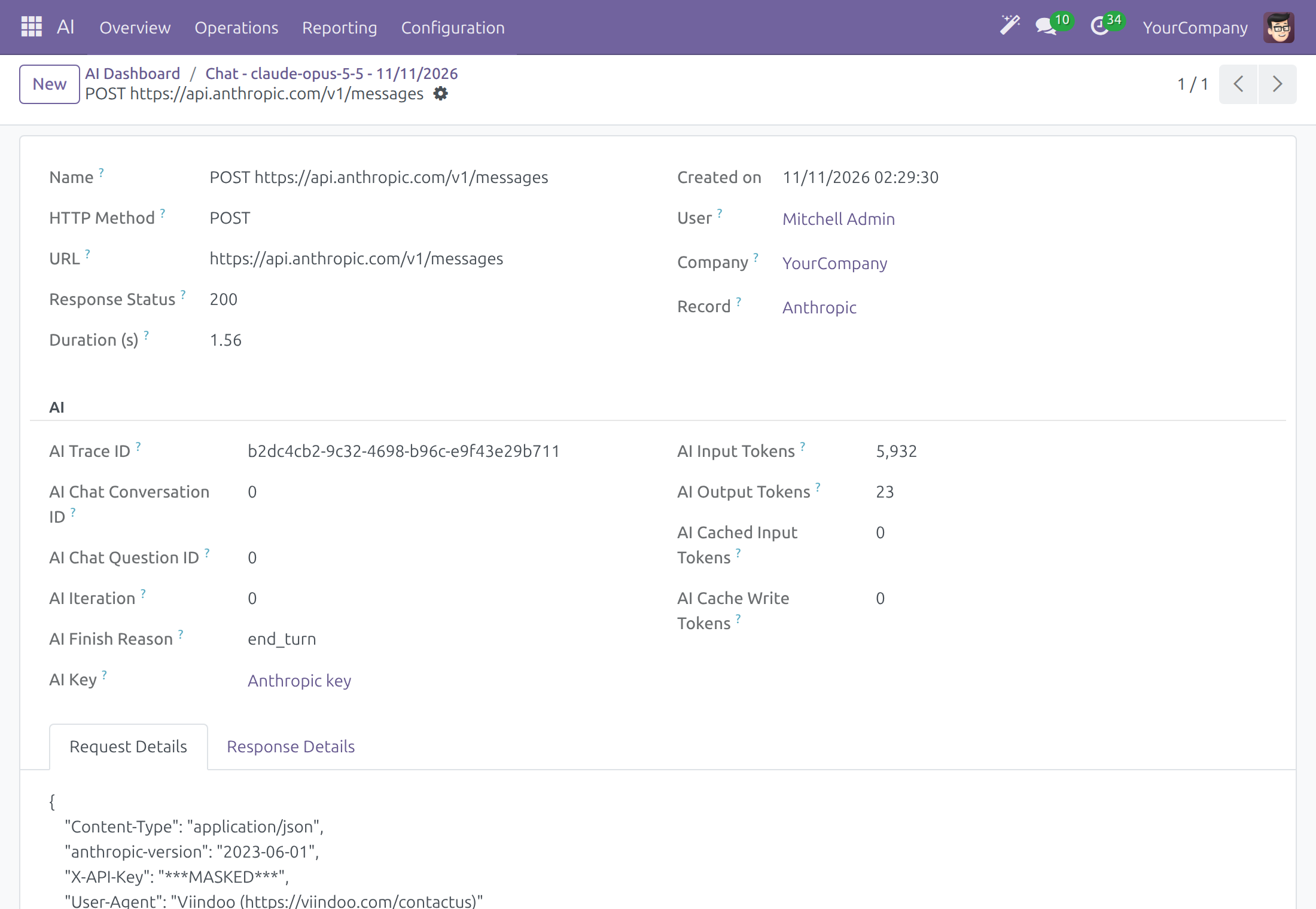
Click Raw HTTP to open the HTTP record of the call: method, URL, response status, duration, and in Request Details the headers and the body. The header that carries the key shows ***MASKED***, so keys are never readable here.
Note
Raw HTTP opens for a system administrator or a user with API Log Viewer. The same records are listed in the API Logs app under API Request Logs. The Replay button sends the stored request to the vendor again and counts as a new request; only a system administrator sees it.
An AI Operator or a system administrator sees the calls of the whole company in the Dashboard. In AI ‣ Configuration ‣ Settings, API Log Retention (days) (30 by default) and Trace Retention (days) (90 by default) set how long the records are kept before they are deleted.
Follow every request of one answer
An answer can take several requests to the vendor, one for each step the assistant takes. Use this list to follow them together. It is for a system administrator, in developer mode.
Open Settings ‣ Technical ‣ Database Structure ‣ AI Request Logs. Each row is one request of an AI answer, with the date, the whole AI Trace ID, the AI Iteration (the step of the answer), AI Finish Reason, the tokens sent and received, Response Status and Duration (s). The rows of one answer follow each other in step order and share the same AI Trace ID.
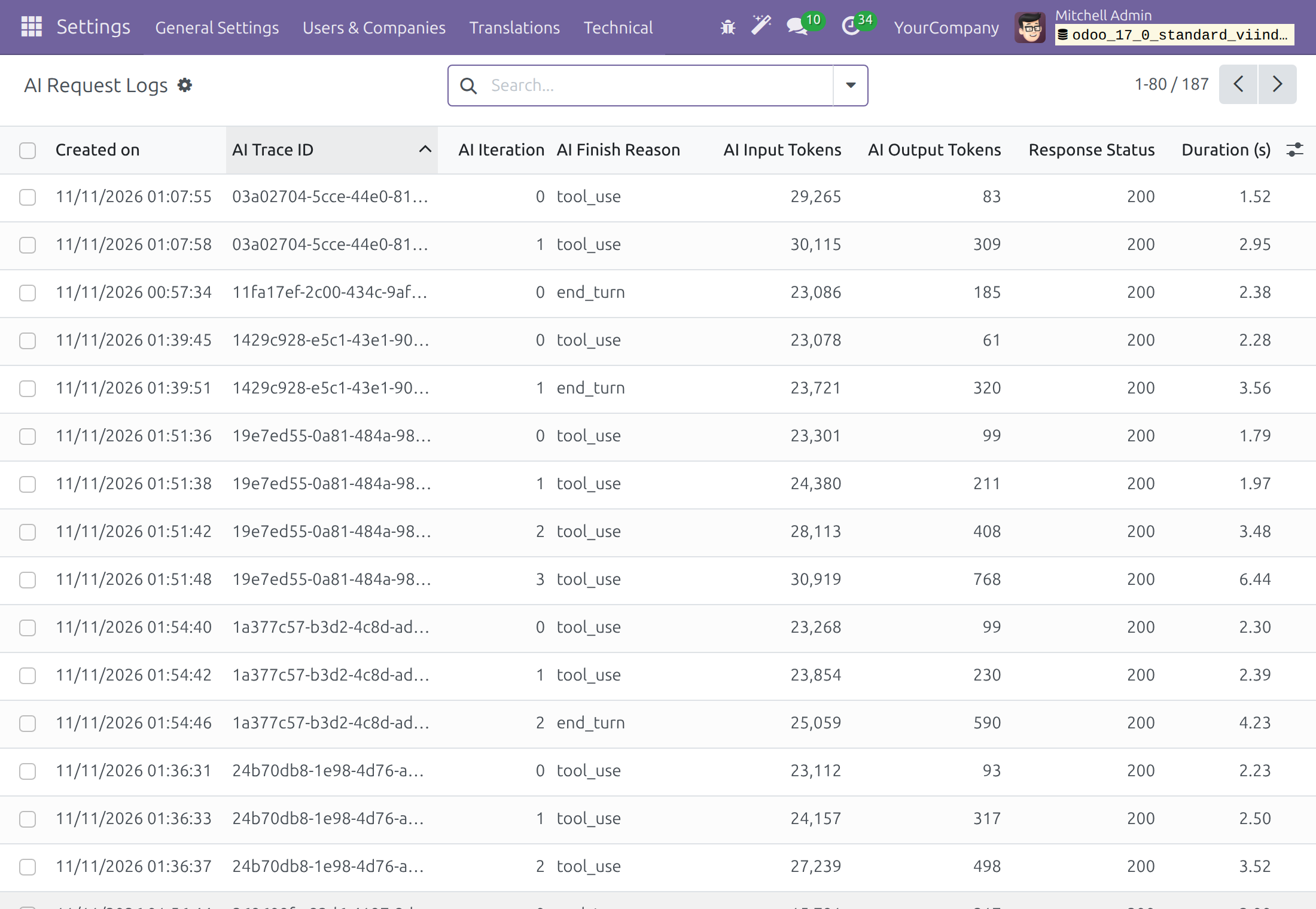
Open a row to read the request and the response of that step. The form is the one of API Request Logs.
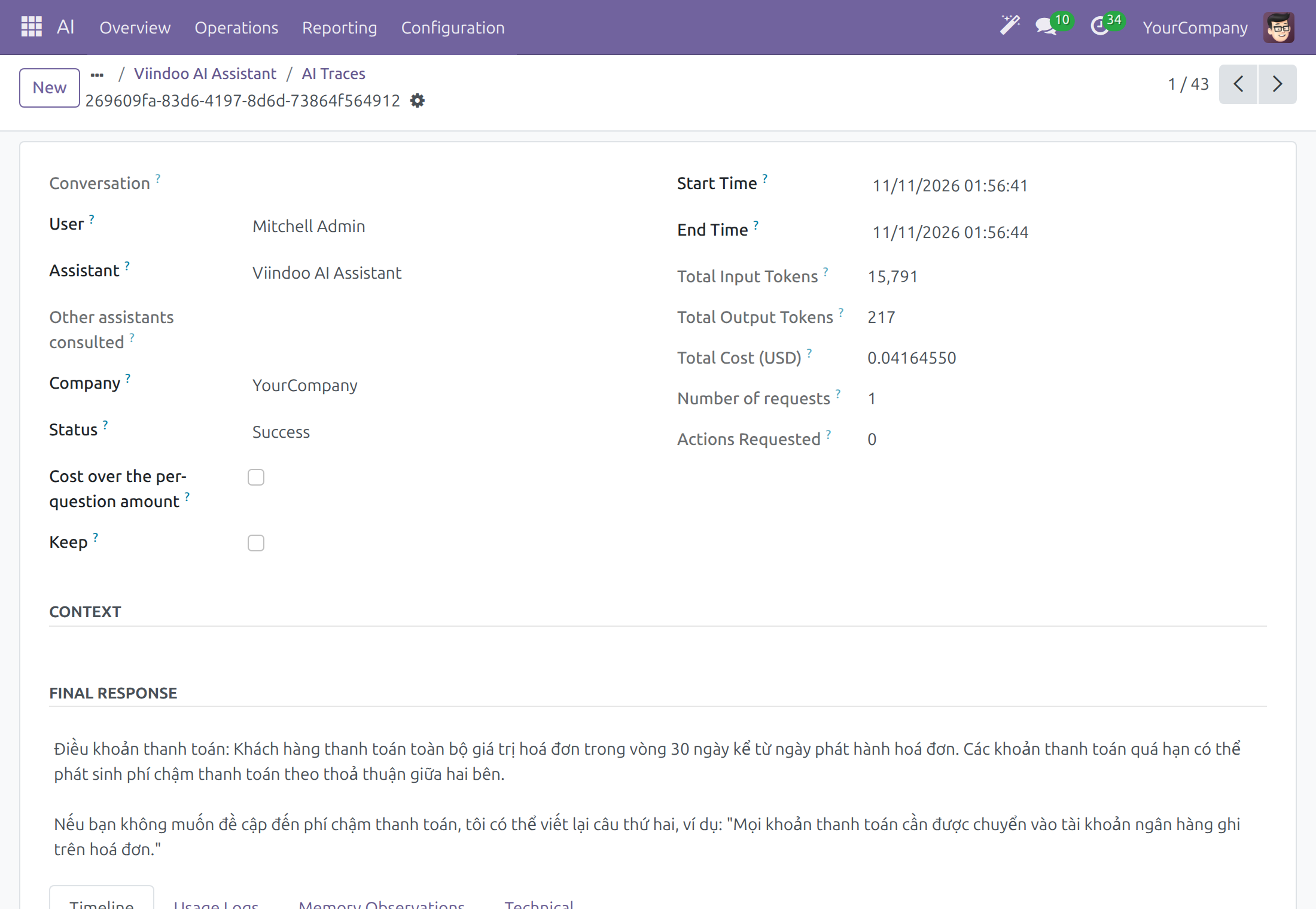
To see how an answer ended, open AI ‣ Configuration ‣ Agents, open the assistant and click Traces. The Status of a trace is Success, Provider Error, Spending Limit Reached, Timed Out, Answer Cut Off, Stopped by Content Filter or Window Full. Window Full means the model's context window had no room left for more tool results, so the assistant answered from what the turn had gathered.
Employee: talk to the assistant
Start a conversation
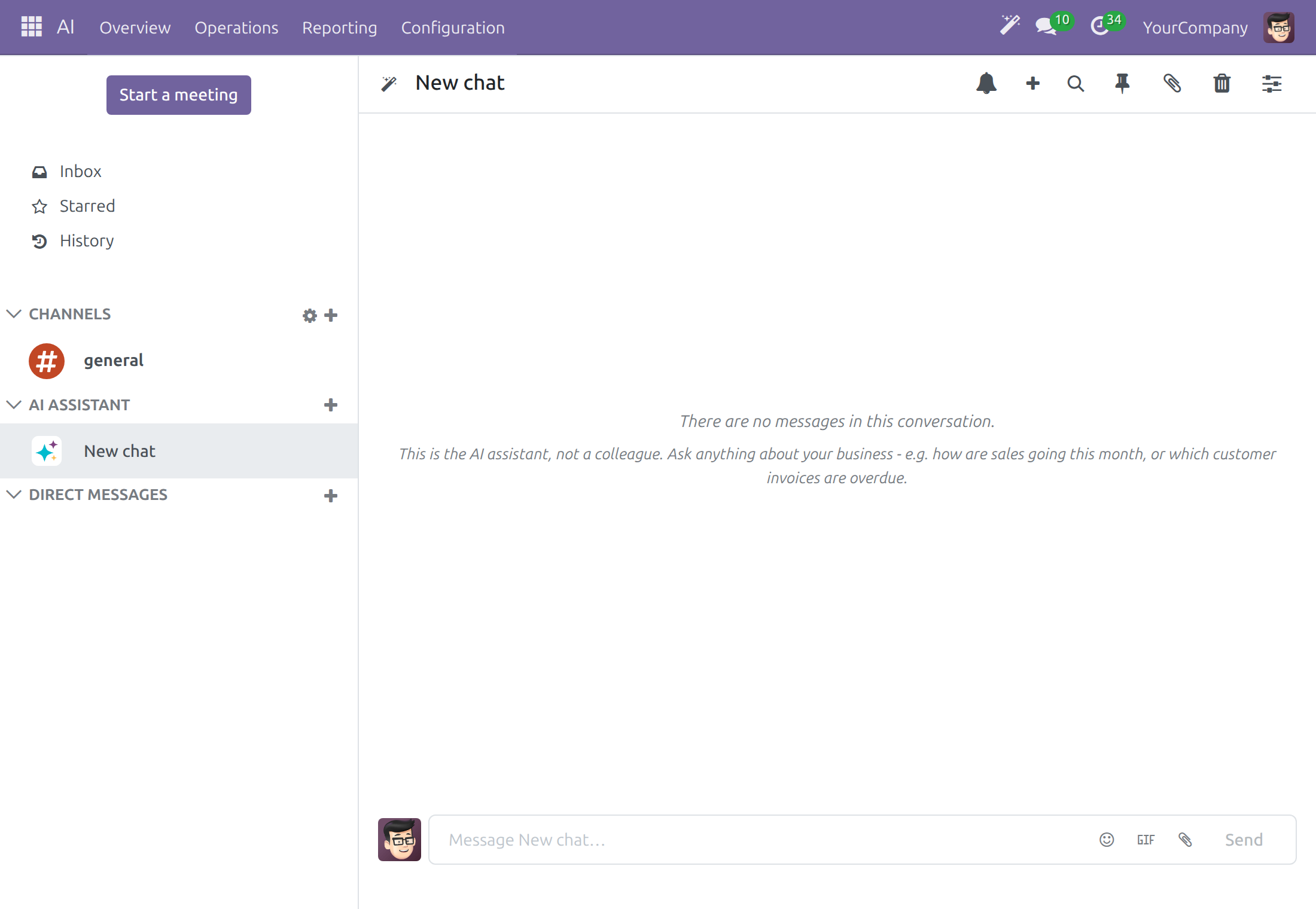
Click the wand button AI Assistant in the top bar, or open AI ‣ Overview and click Ask on the card Ask the assistant. In Discuss, click + next to AI ASSISTANT and then New chat.
Type your question in the message box and press Enter. Your conversations are listed under AI ASSISTANT in the left column of Discuss; each takes the title of its first question.
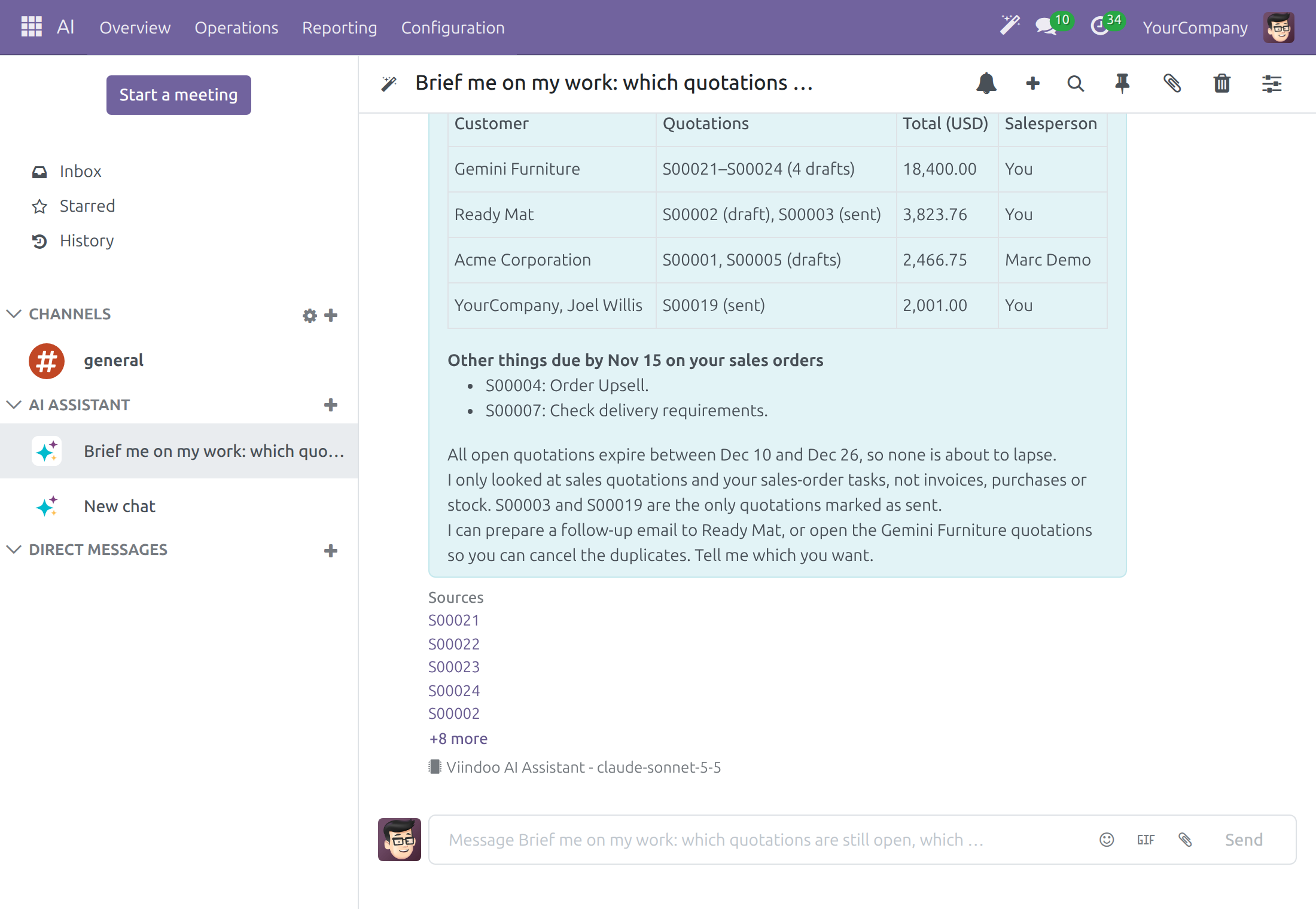
The answer appears under your question. A line below it names the assistant and the model that answered, for example Viindoo AI Assistant - claude-sonnet-5-5.
The assistant answers in the language of your question, using your company's records and documents under your own access rights. Check important answers.
When you open the assistant from a record, the record is the context: ask "summarize this quotation" and it reads that quotation.
Follow what the assistant does
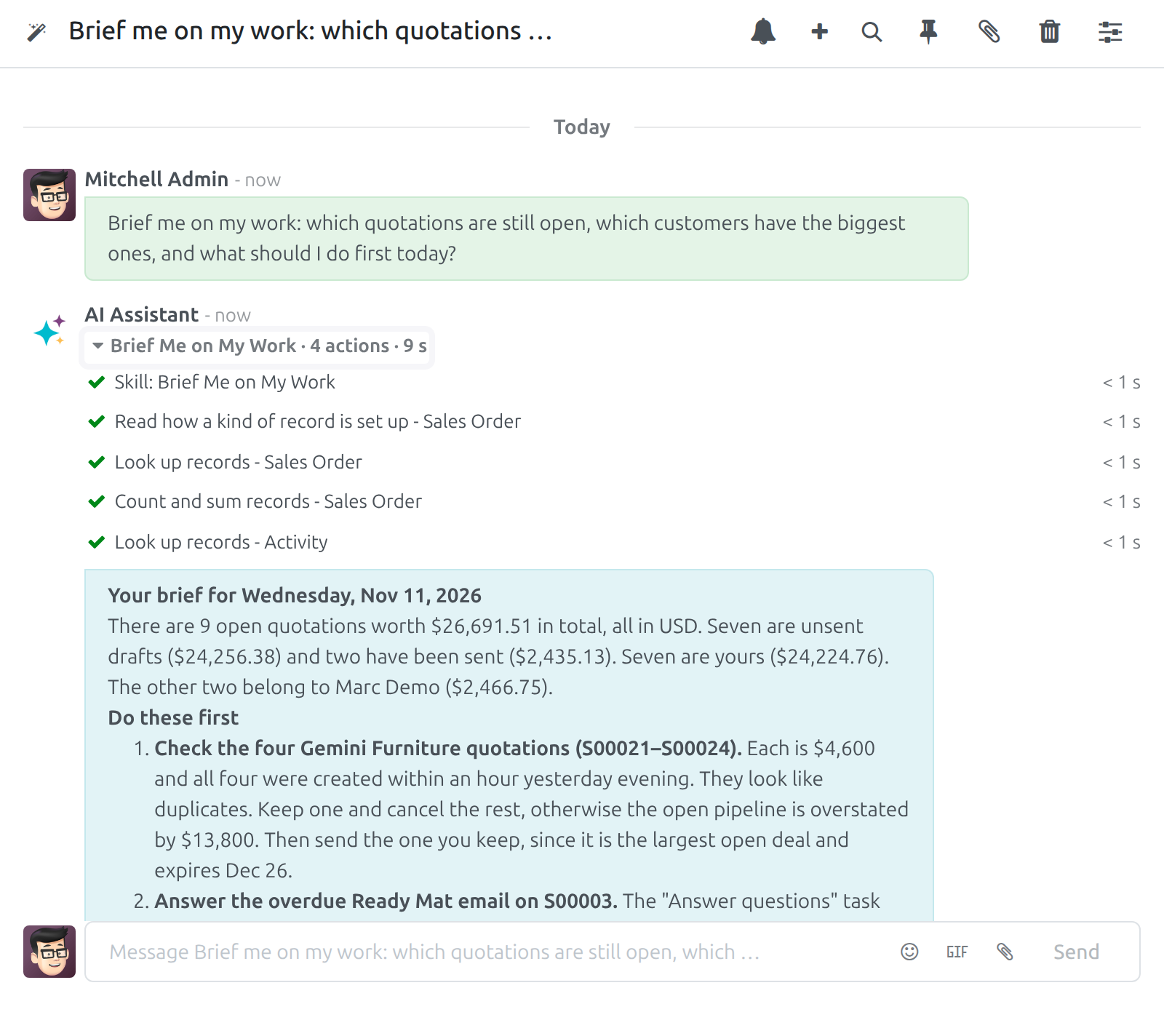
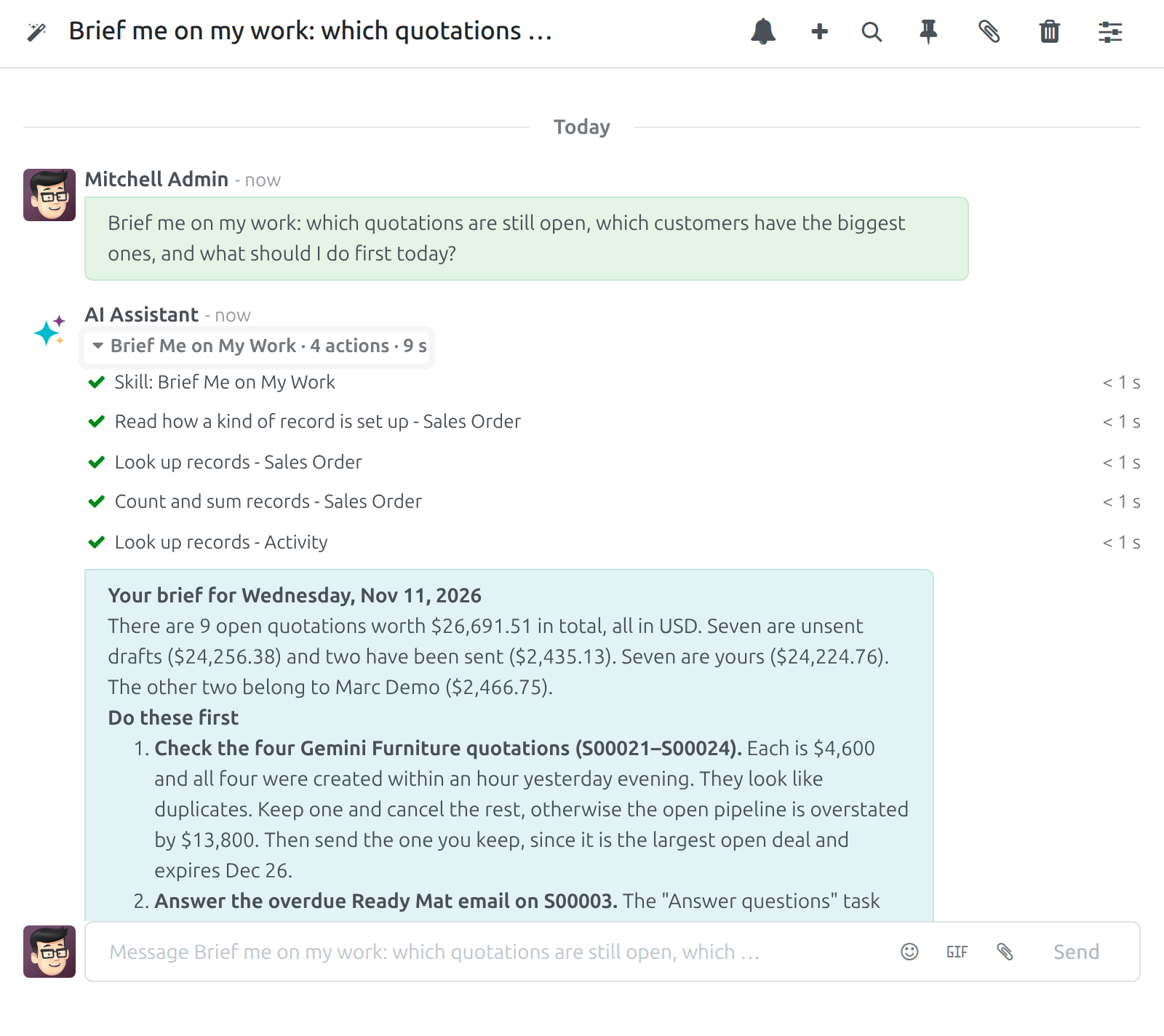
While the assistant works, the answer area shows a header Working with the elapsed seconds and a Stop button, then one plain line per step: Skill: <name> when it loads a skill, one line per action (for example Look up records - Sales Order), a line for each specialist assistant it asks, and Thinking while the model writes. Every step shows its duration.
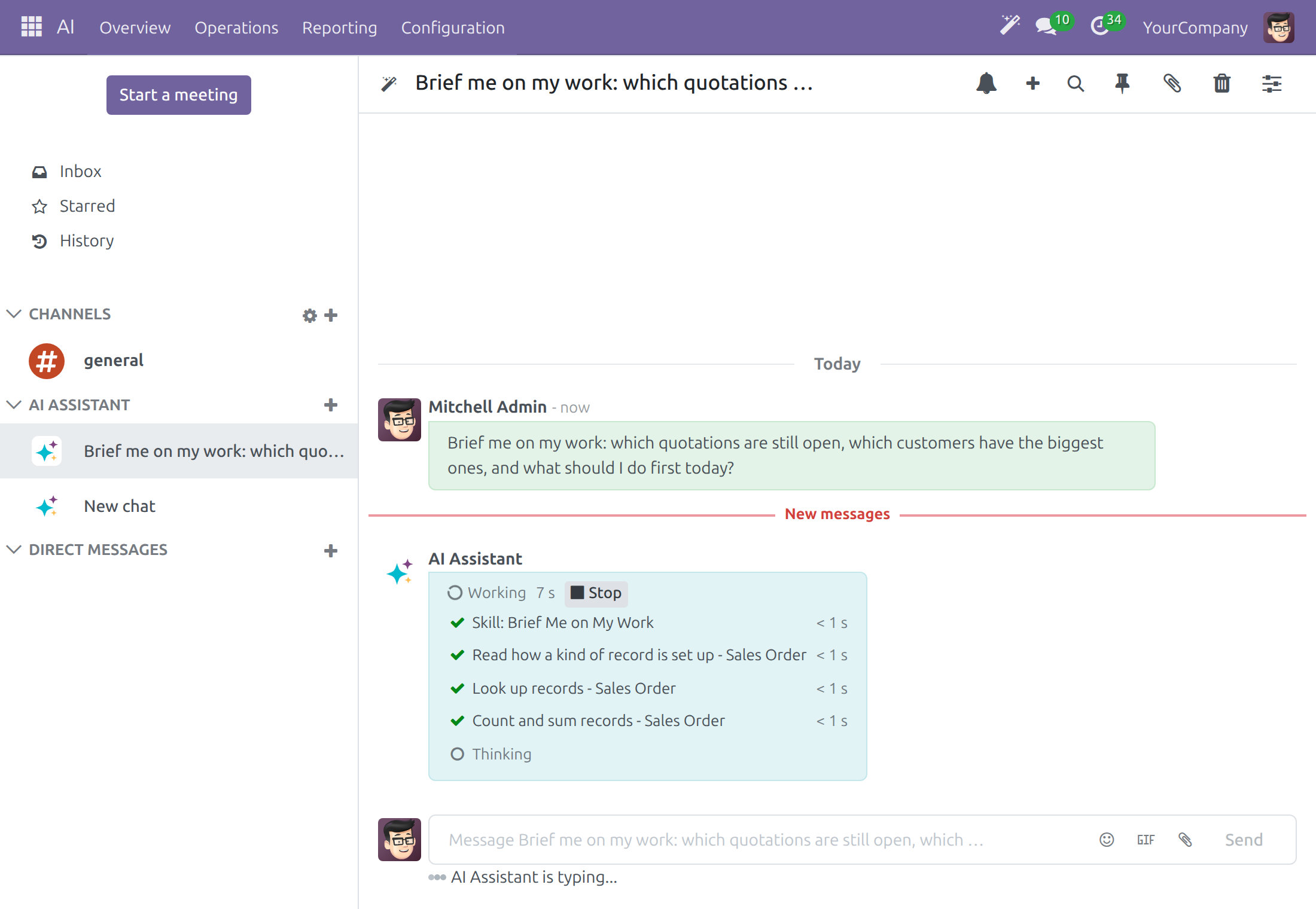
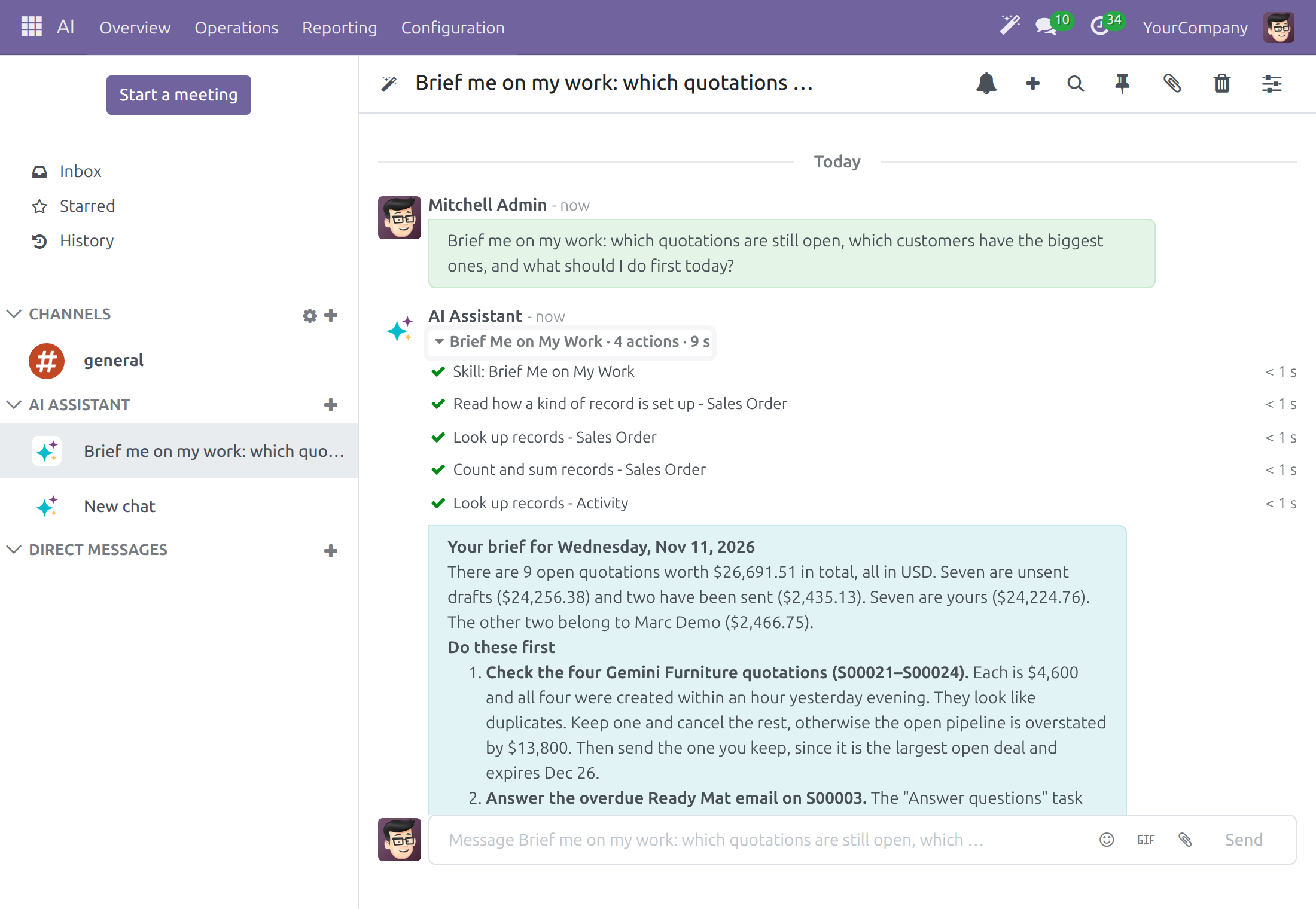
When the answer is ready, the steps fold into one summary line made of the skill and assistant names, the number of actions and the total time, for example Brief Me on My Work · 4 actions · 10 s. Click it to open the steps again.
Click Stop to end the work early. If a step fails, its line shows a short red reason in plain words. Developer mode (activate it with ?debug=1 in the address) adds the technical detail of each step: the tool-loading rows, the provider and the reasoning effort of the answer and the raw questions and results.
Brief yourself on your work
- Open a conversation and type, for example, Brief me on my work: which quotations are still open, which customers have the biggest ones, and what should I do first today?
- The assistant loads the skill Brief Me on My Work, reads your activities and records in the apps you use, and answers with a ranked list: what needs attention first, with the record and the next action.
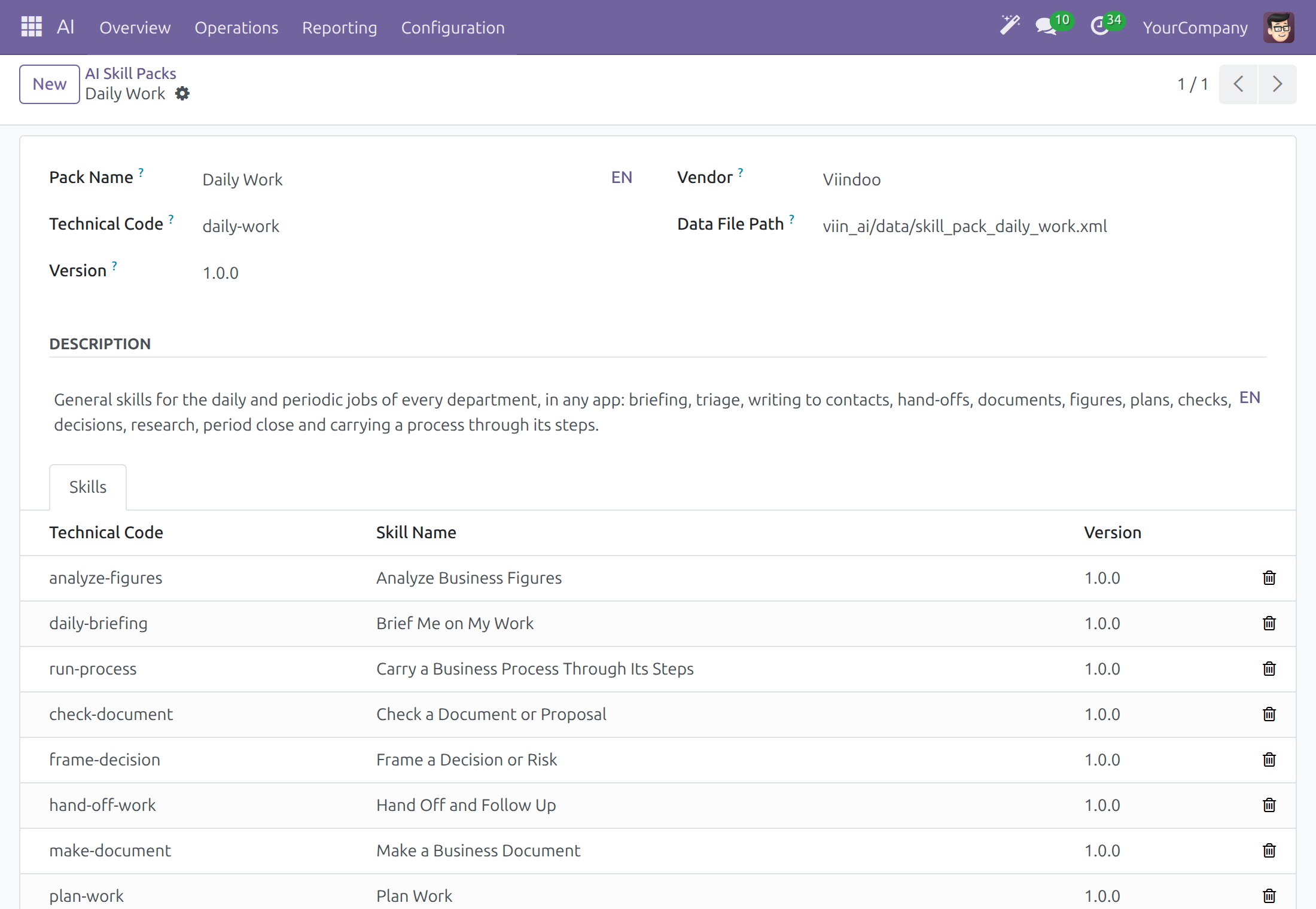
The same way, name the job and the assistant loads the skill for it. The twelve Daily Work skills are:
| Skill | What it does |
|---|---|
| Make a Business Document | Writes a proposal, letter, report, plan, minutes or procedure as a file. |
| Write to a Customer, Vendor or Partner | Writes an outside message from the record and opens it for you or proposes the send. |
| Hand Off and Follow Up | A note that mentions colleagues and an activity with a due date. |
| Brief Me on My Work | Ranks what needs your attention now, with the next action. |
| Triage an Incoming Request | Classifies, prioritises and routes an item and checks duplicates. |
| Analyze Business Figures | Totals, trends, variances and forecasts, with an optional chart. |
| Plan Work | Builds a plan from tasks, deadlines, owners and capacity and flags conflicts. |
| Check a Document or Proposal | Checks a document against rules or a named law and lists findings by severity. |
| Frame a Decision or Risk | Options, trade-offs and a recommendation. |
| Research a Company or Topic | Combines the web, your records and your knowledge, with sources. |
| Prepare a Period Close | Lists open items, drafts what is missing and hands items to their owners. |
| Carry a Business Process Through Its Steps | Finds the steps of a process in the app itself, starts each record from your company's template, opens each step's form filled in or carries it out after approval, hands a step to a colleague when you lack the right, and changes a state only through the app's own button. |
Prepare an email or a note
When you want to read and finish the message yourself, ask the assistant to prepare it.
Open the record, for example a quotation, click the wand button and type Write an email to the customer of this quotation offering to answer any question, and attach the quotation PDF. Let me review it before it is sent.
The assistant opens the record's composer, Send message or Log note in the chatter, or the full email composer, filled in with the recipients, the subject, the text, the mentions and the files.
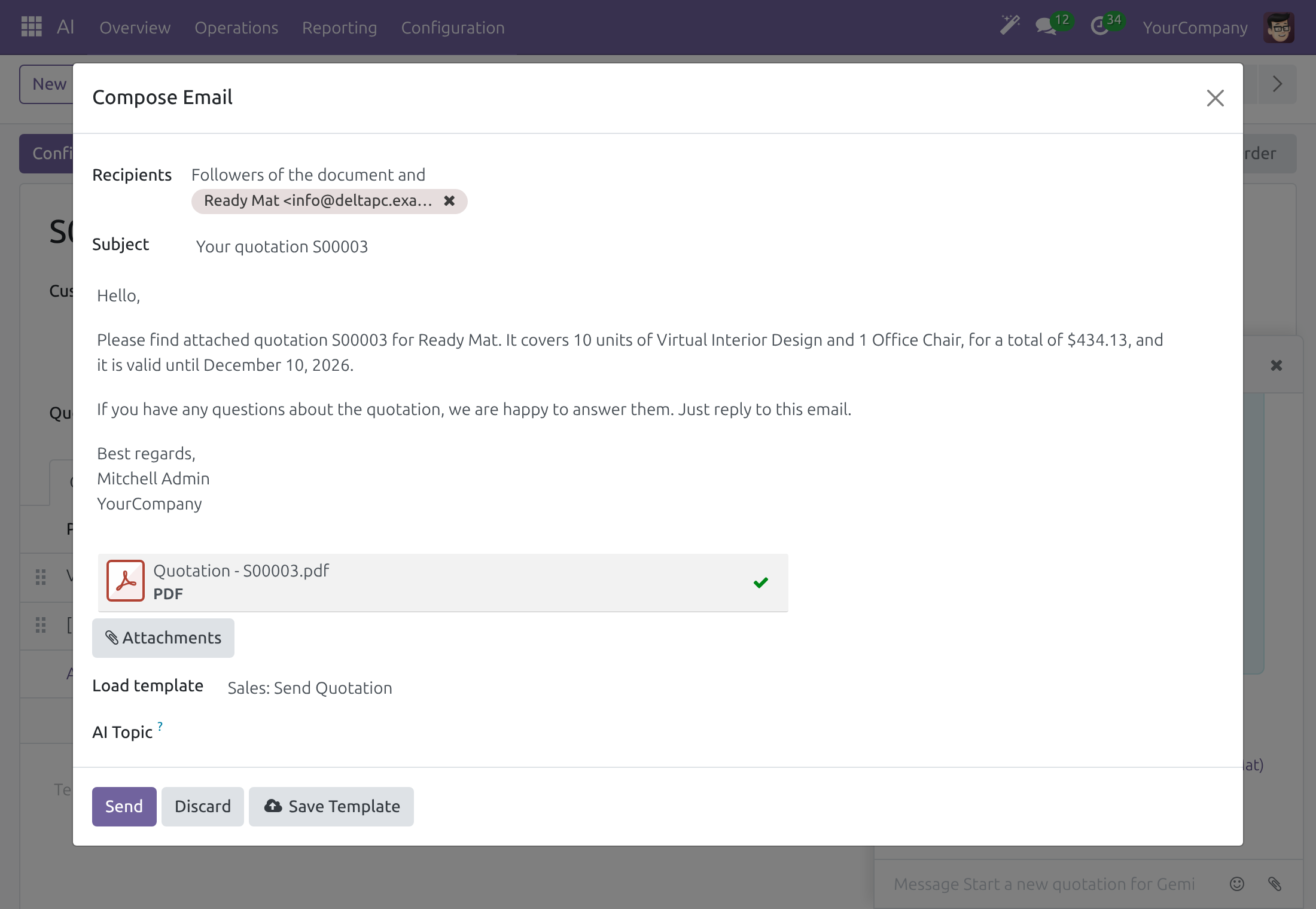
Edit anything you like and click Send. Nothing is sent until you do; Discard closes the composer and the answer tells you that nothing was sent.
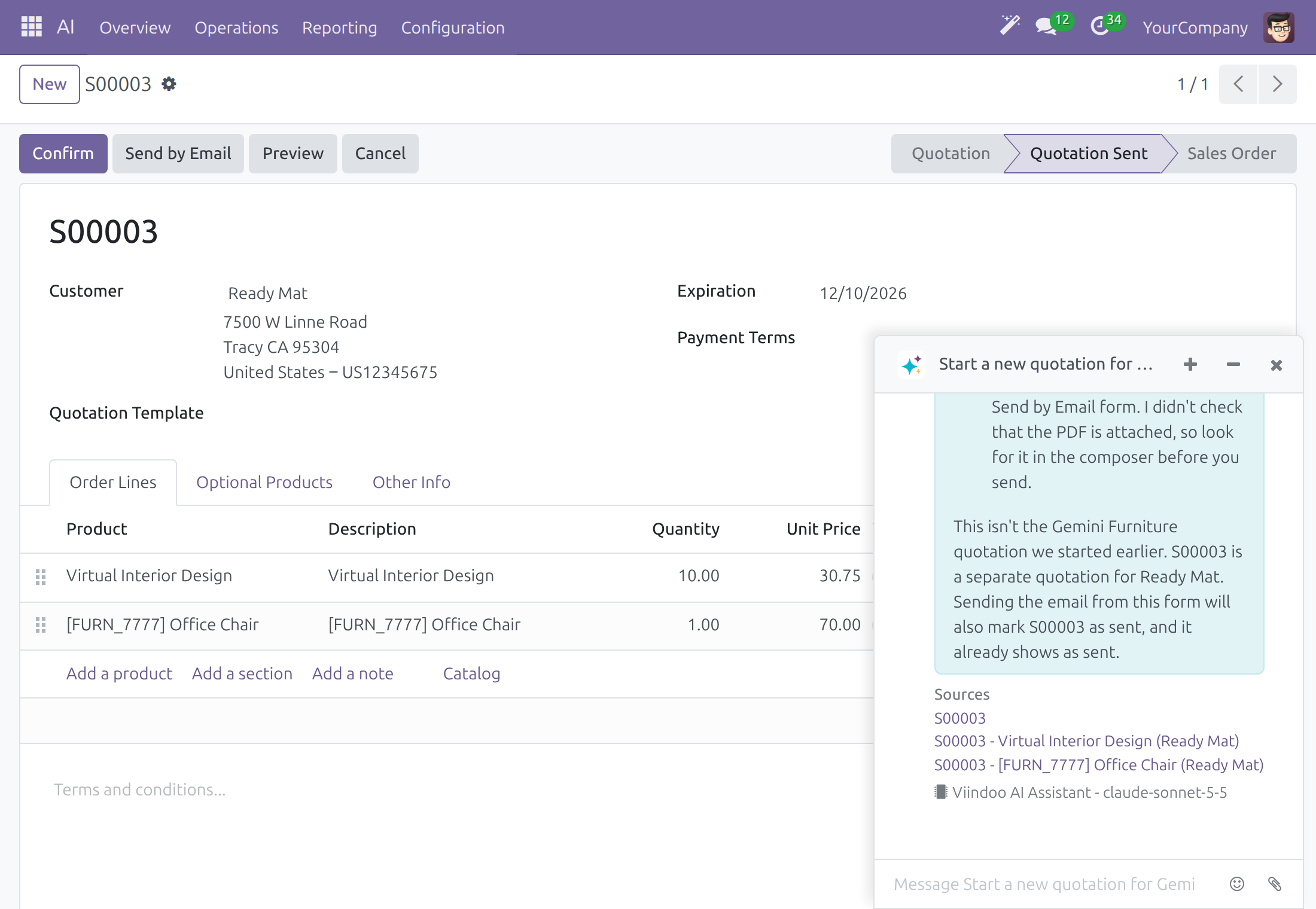
In the same way the assistant can prepare an activity for a colleague: it opens the activity dialog with the type, the person, the due date and the summary filled in, and you save it.
Approve before anything goes out
When you ask the assistant to do it for you, it shows a card and waits. Nothing is sent, posted or scheduled until you decide.
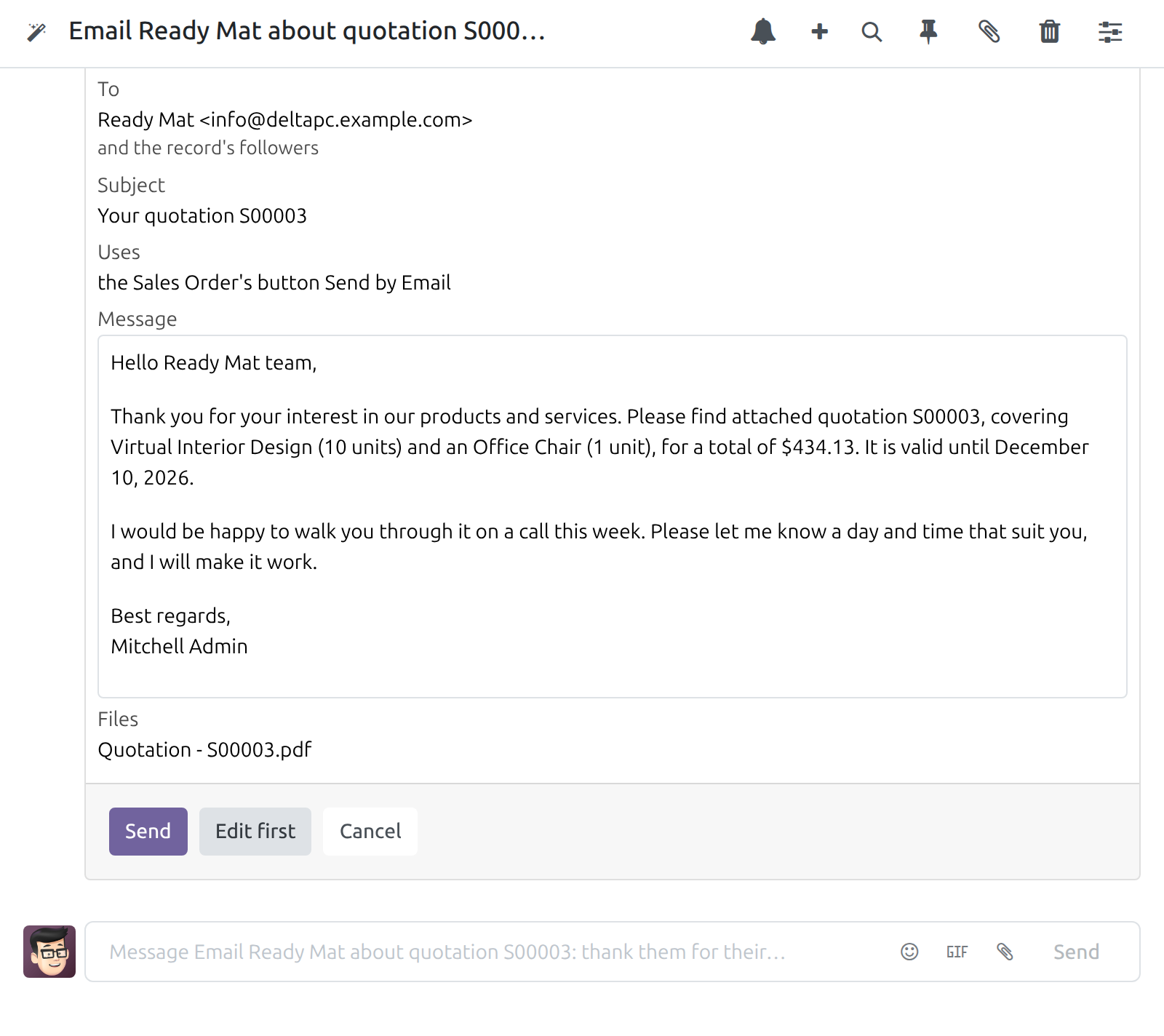
Type, for example, Email Ready Mat about quotation S00003: thank them for their interest and offer a call this week. Send it with the quotation PDF attached.
The answer names the step it waits on, for example Send an email on S00003 - approve it on the card below. The card lists the record, the recipients with their addresses, the subject, the message, the files and which button of the record it will use: when the record has its own Send by Email button, the email goes through it, so the app's template, official PDF and state change apply. A new address becomes a contact.
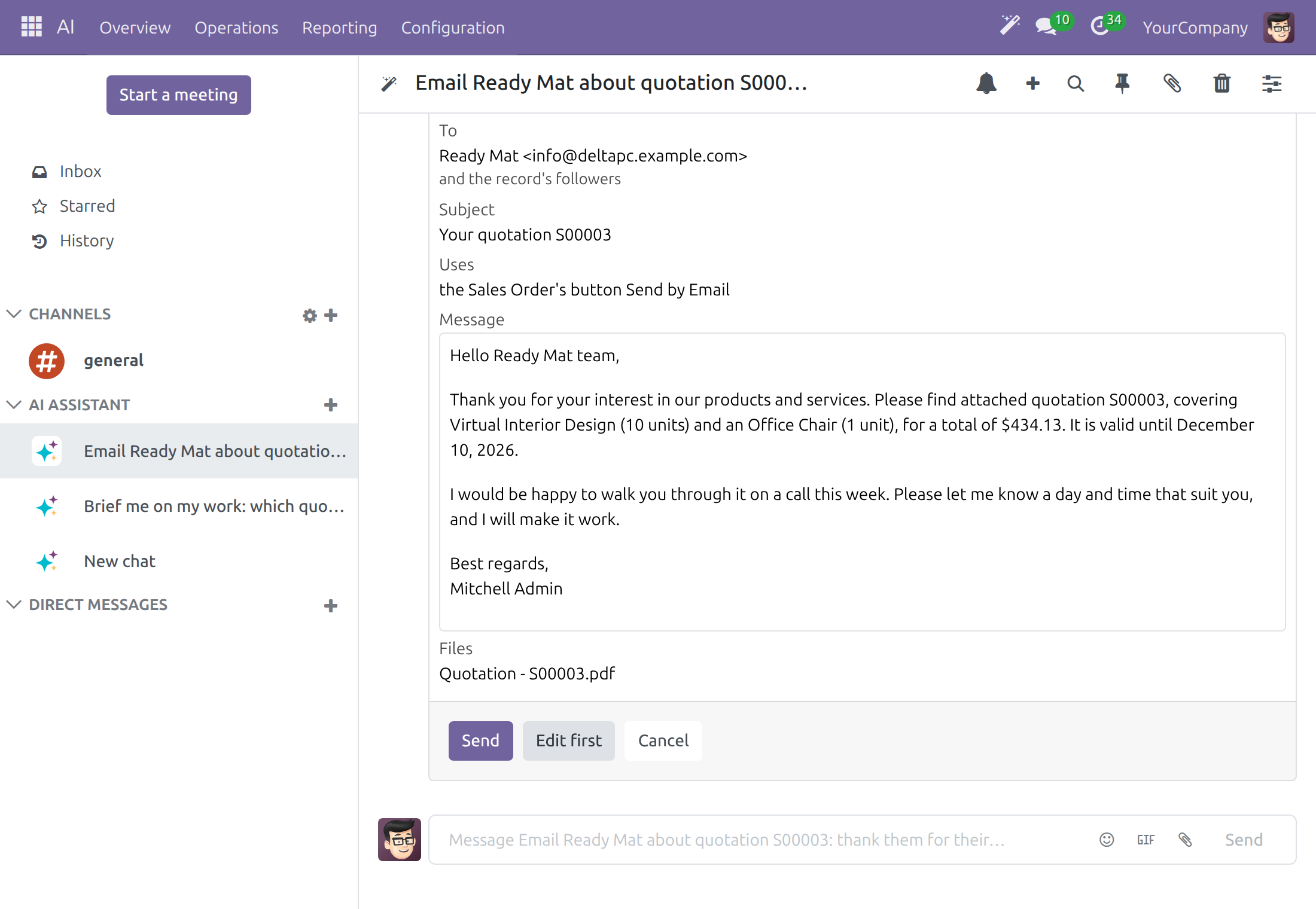
Click Send to approve, Edit first to open the message in the full composer and finish it yourself, or Cancel. The card then shows its state (Sent, Posted, Scheduled, Cancelled, Opened in the composer or Expired), and the answer continues in the same words: it says what became of the step.
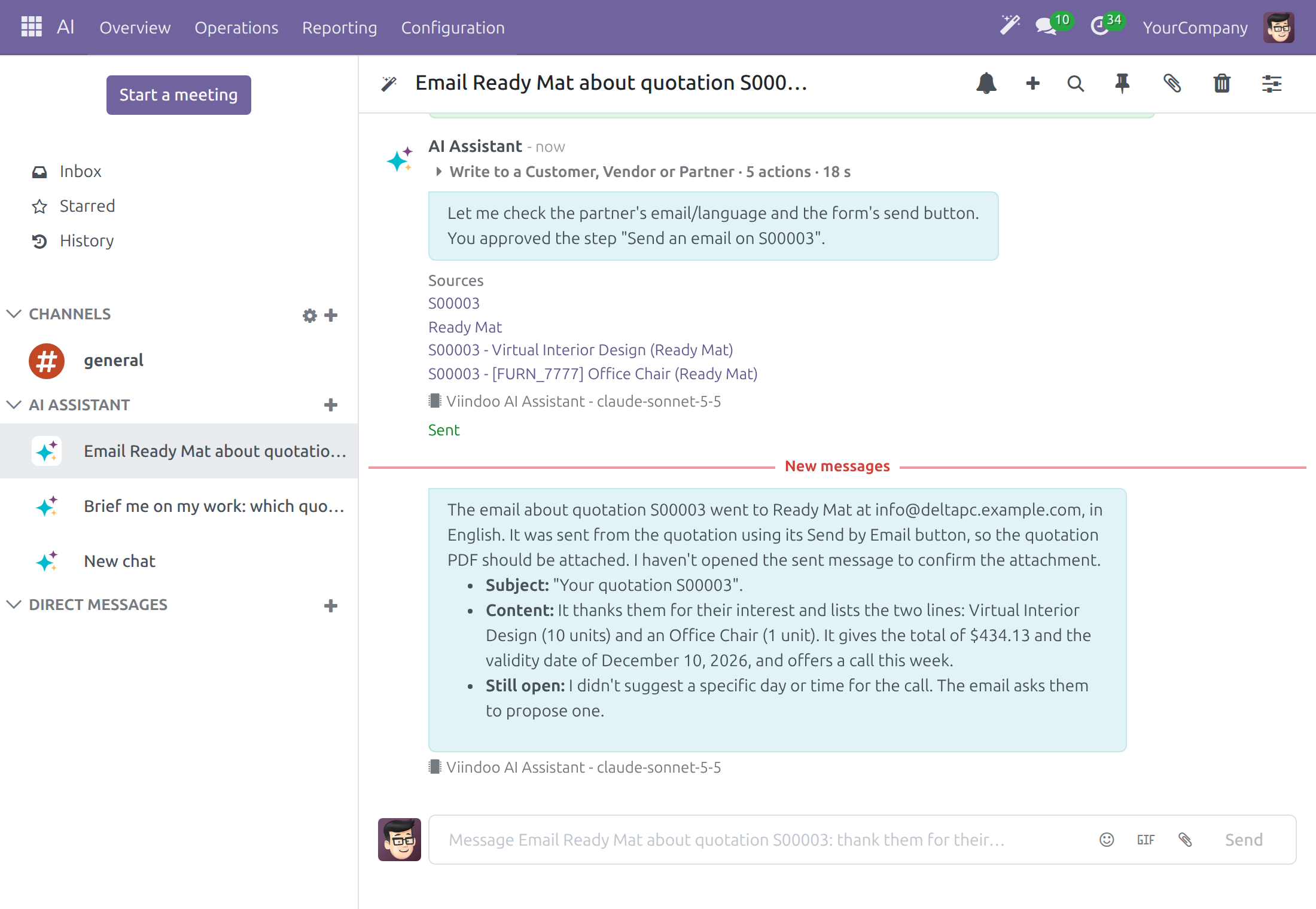
A note works the same way: the card shows Post a note, who is mentioned and the message, with Post, Edit first and Cancel. An activity shows the activity type, who it is assigned to, the due date, the summary and the details, with Schedule, Edit first and Cancel.
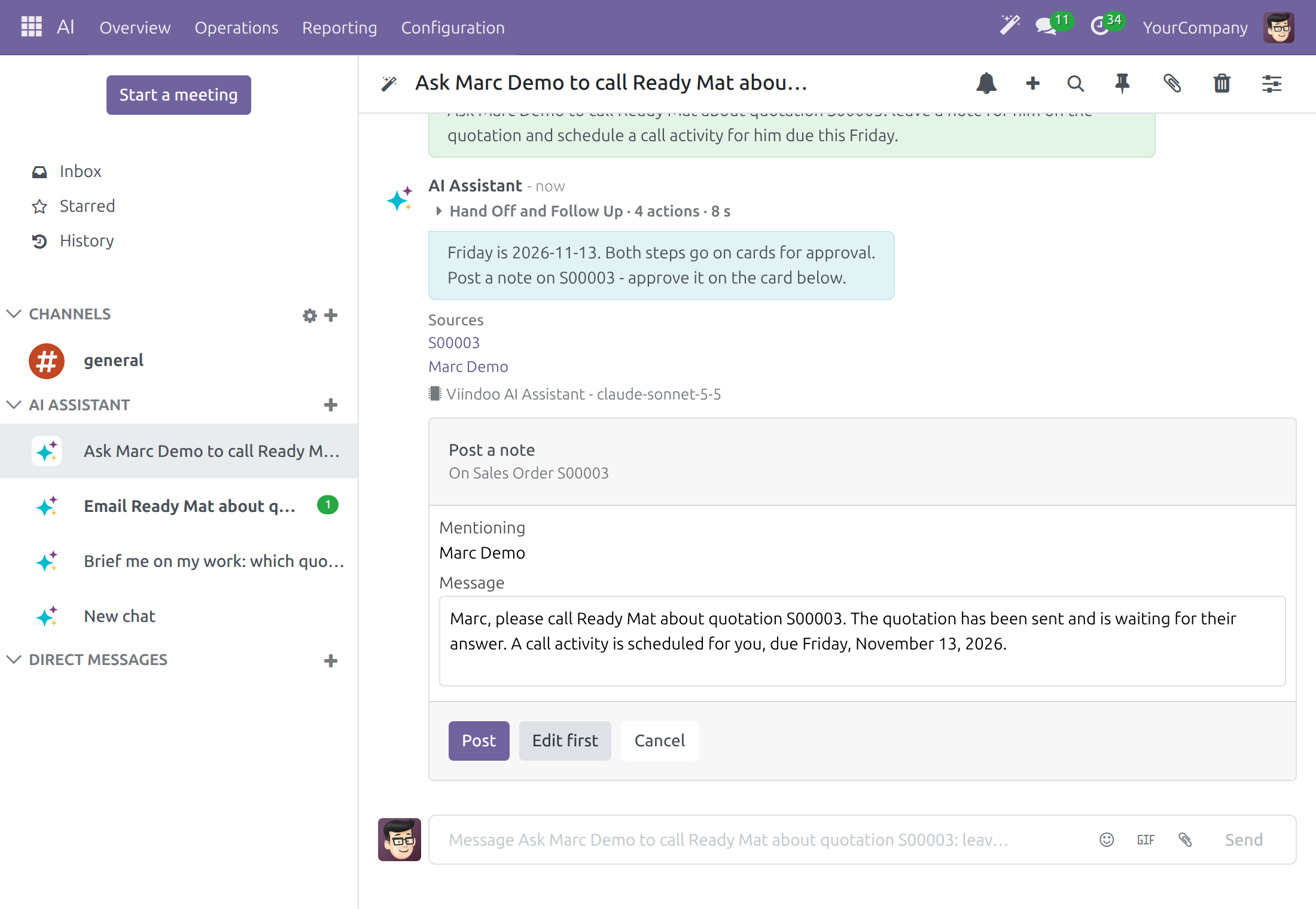
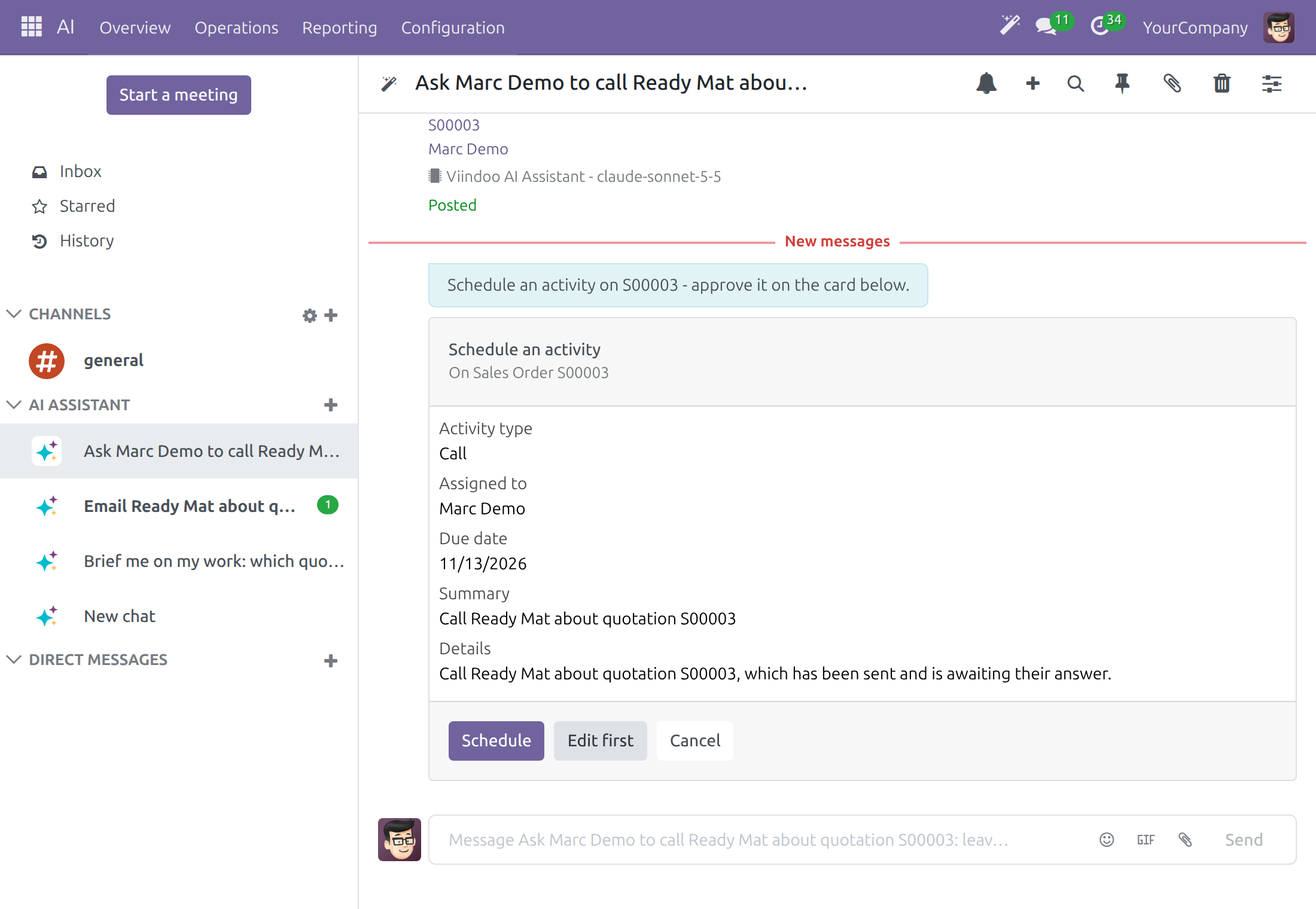
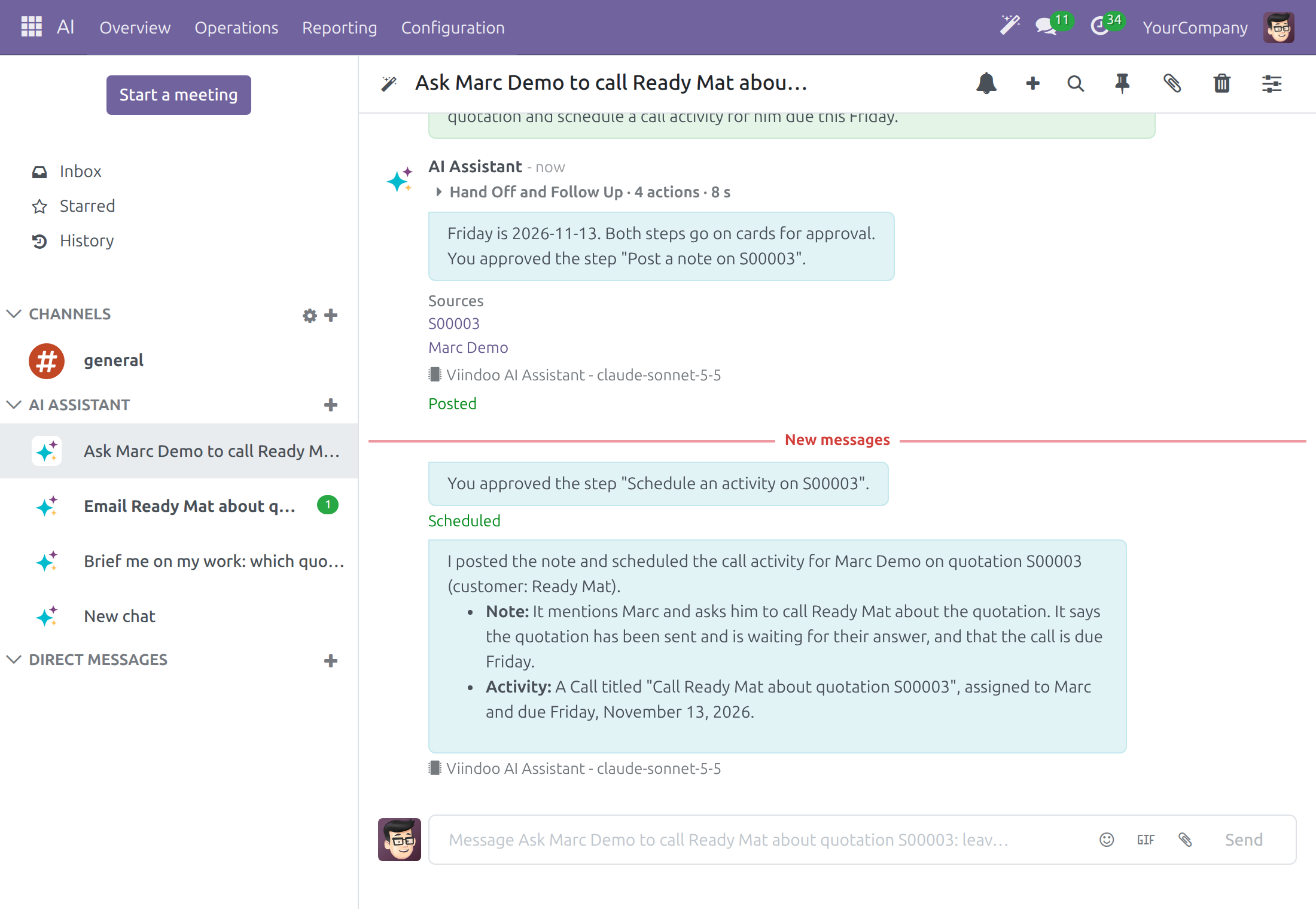
An administrator chooses which actions ask first (see Choose which actions ask first). A step waits on a card only when its action asks first. When an action is switched off, the step runs at once, whoever runs the assistant, a scheduled assistant included.
Make a document or draw an image
Type, for example, Make a one-page PDF proposal for Ready Mat based on quotation S00003, with a bar chart of the amount of each of their quotations.
The assistant writes the document as a PDF in the company layout of the record's company, and draws the chart as a PNG. Each file appears under the answer as a card with its name, type and size or pages, and the actions Download and Attach to email.
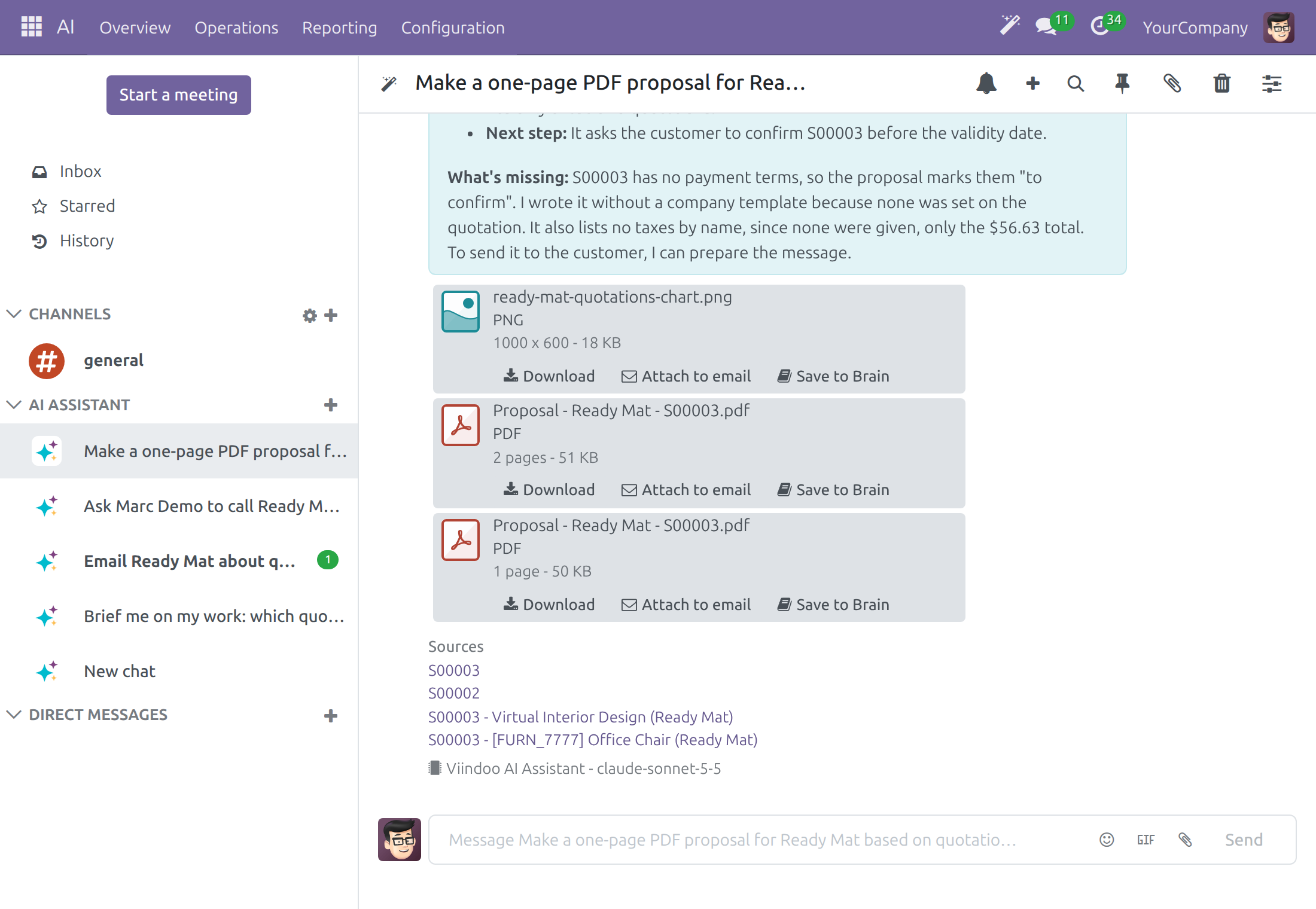
Click Download to keep the file, or Attach to email to put it in a message. A file is private to the person who asked until it is sent or saved; the assistant never attaches it to a record by itself.
The assistant can also take a record's own printed report and fillable PDF forms and give them to you as files, with the values filled in.
Open a record to fill in
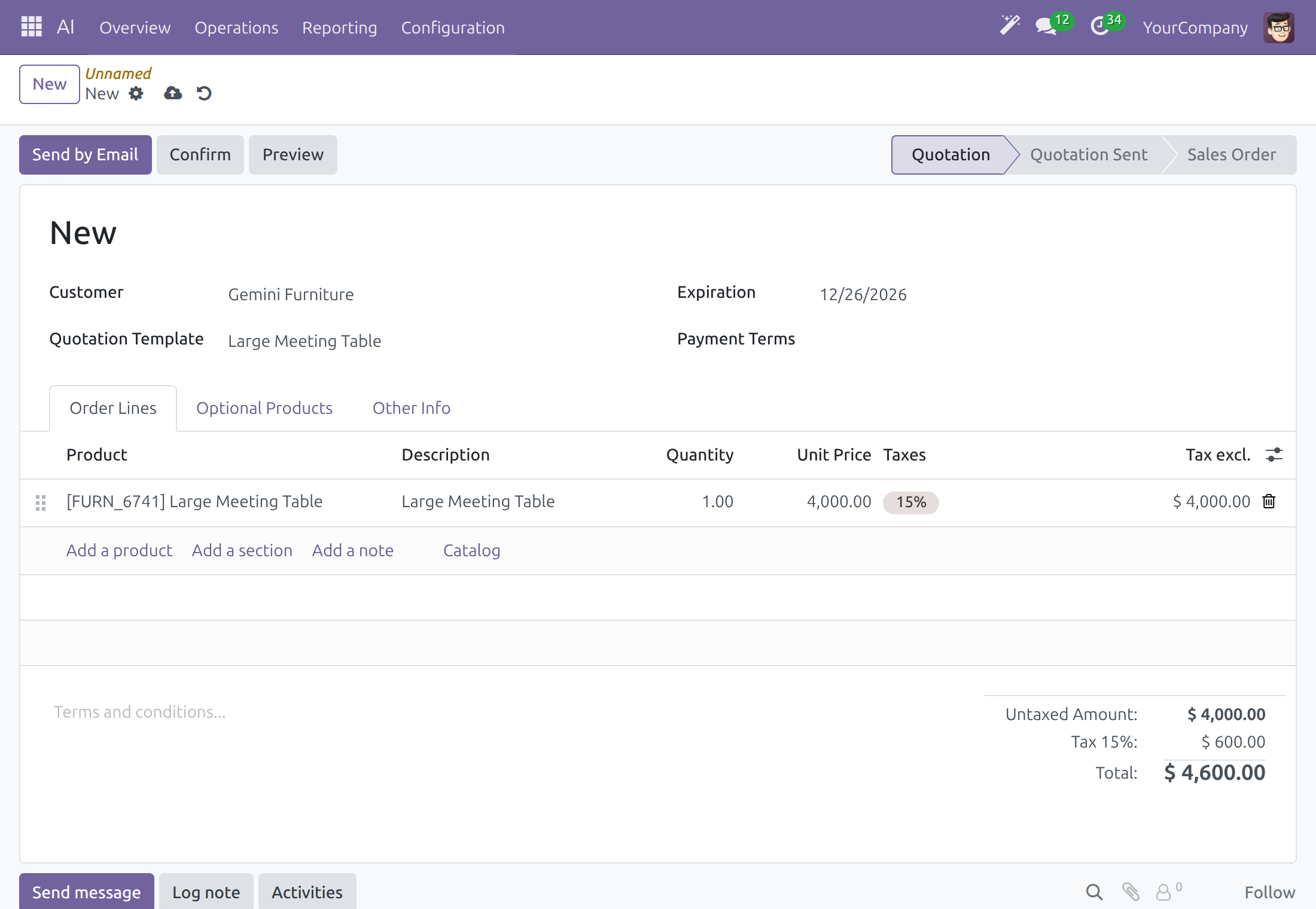
Type, for example, Start a new quotation for Gemini Furniture from one of our quotation templates and open it for me to review.
The assistant opens the form of the app, new, with the customer and the template's lines already filled in and the app's own fill-ins applied. It is not saved.
Review the form, then save it or press the app's own button, such as Send by Email or Confirm.
The assistant starts records and files from your company's templates: quotation templates, email templates and similar. It does the same for any app's form or wizard, including apps installed after Viindoo AI.
Go anywhere by asking
Ask for a screen, a record or a filtered list: Show me the sales orders that are still quotations, biggest first. The assistant reads the records you may open and answers with a list that links to each record, or opens the screen itself. A record you may not read is neither used nor listed.
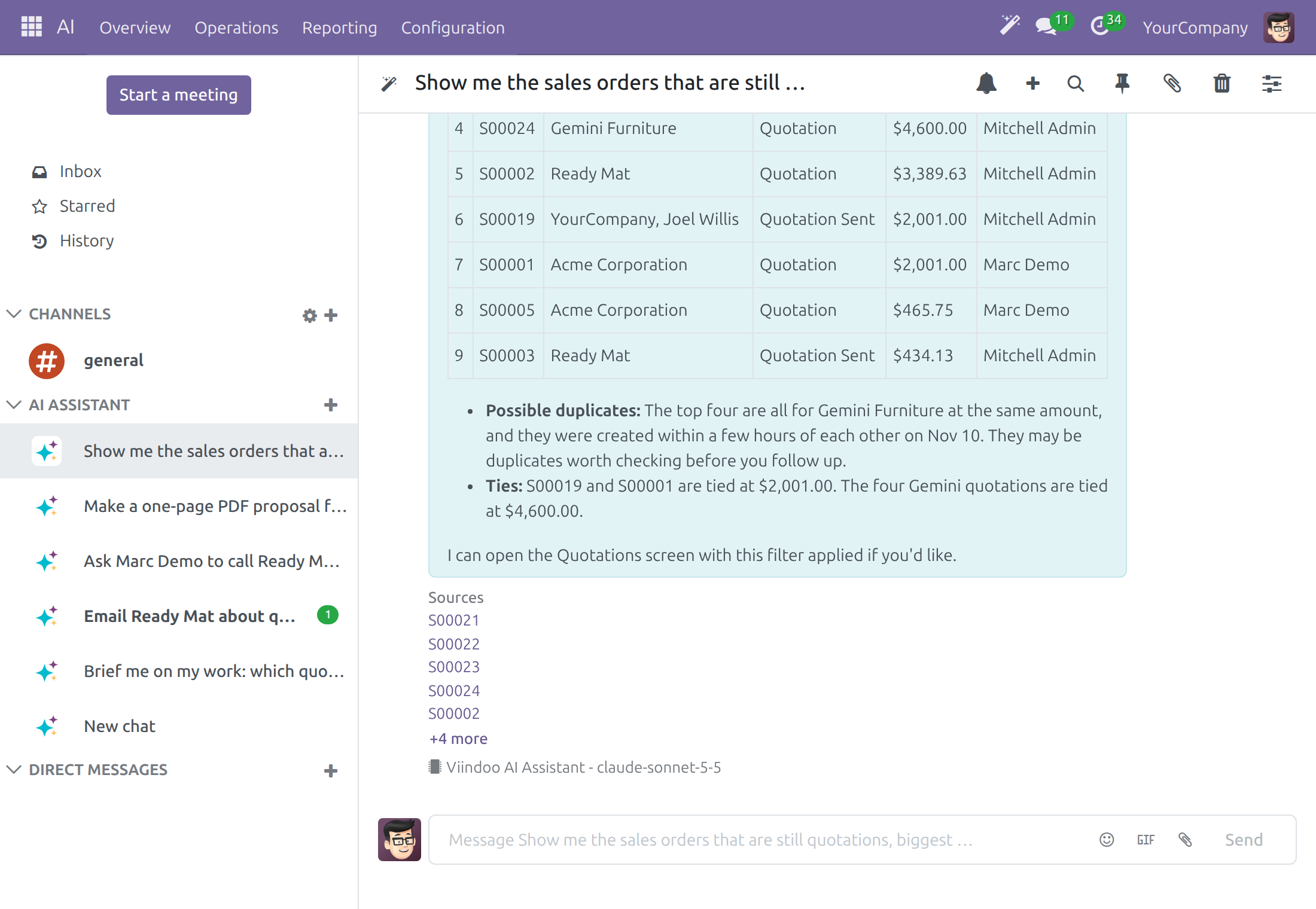
Each screen the assistant opens for you is written to your AI Navigation Log, which an AI Operator reads (see Review where the assistant took you).
Hide a conversation and find it again
Your AI conversations are yours alone: nobody else sees them. Hide the ones you have finished with in the left column, the way you hide a direct chat. A hidden conversation keeps its messages, its name, its assistant and its model choice.
Point at a conversation under AI ASSISTANT. Two icons appear on its row: the gear AI Settings and the cross Unpin Conversation.
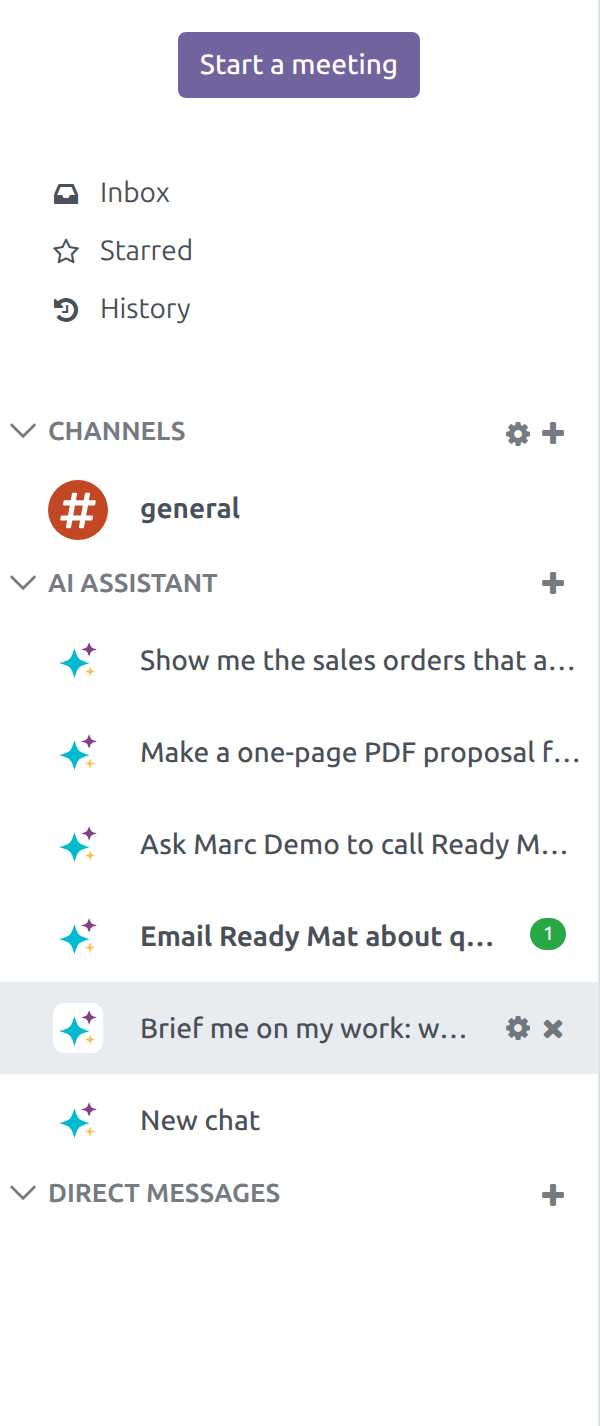
Click the cross. Discuss confirms that you unpinned the conversation and the row leaves the column. The cross is missing while the conversation holds an answer you have not read yet; read the answer first. The gear opens the conversation with its AI Settings panel.
To bring a hidden conversation back, click + next to AI ASSISTANT and type a word of its name. The list offers New chat first, then your own conversations that match, hidden ones included, each with the date of its last message.
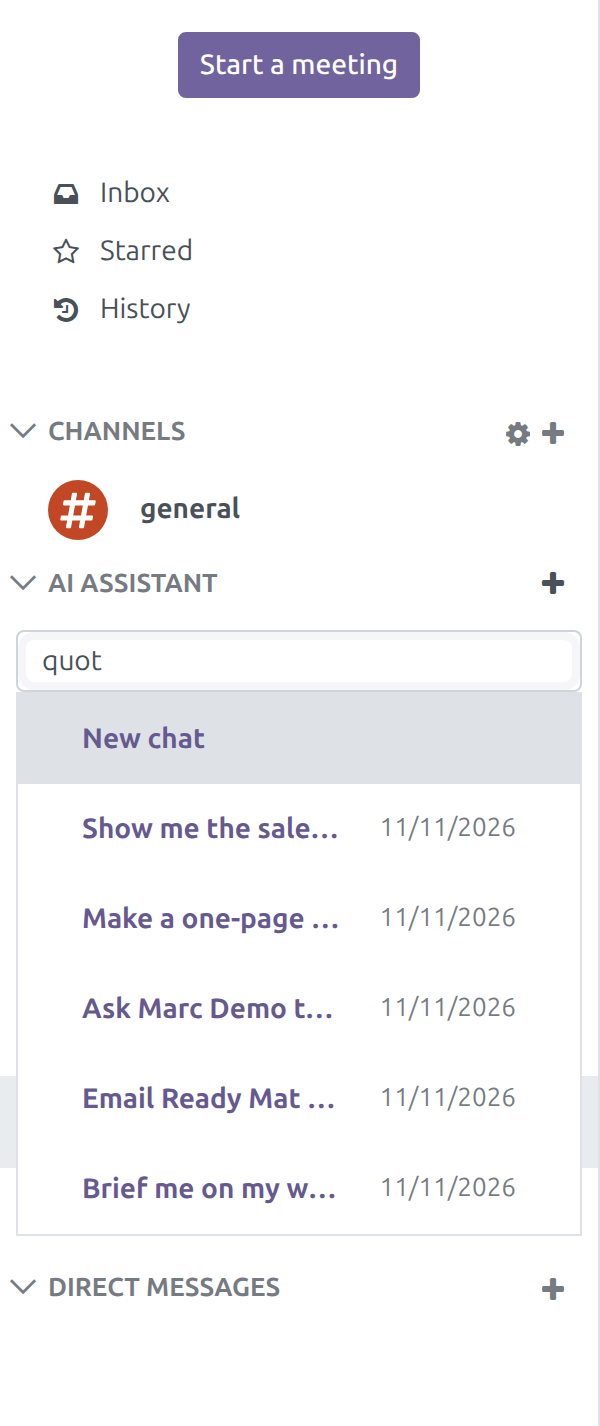
Choose a conversation. It opens with its messages and returns to your left column, also after you reload the page and on your other devices.
A hidden conversation also comes back by itself when the assistant posts an answer in it, for example an answer that finishes after you hid the conversation. An unread AI answer is counted like any other unread message, with the badge on every open tab. The heading AI ASSISTANT and its + stay in the column when every conversation is hidden. The trash icon Delete this chat in the header of a conversation deletes it for good.
Use AI conversations on a phone
Open Discuss on your phone and tap the Chat tab at the bottom. Your AI conversations are listed under the buttons Start a conversation and AI chat.
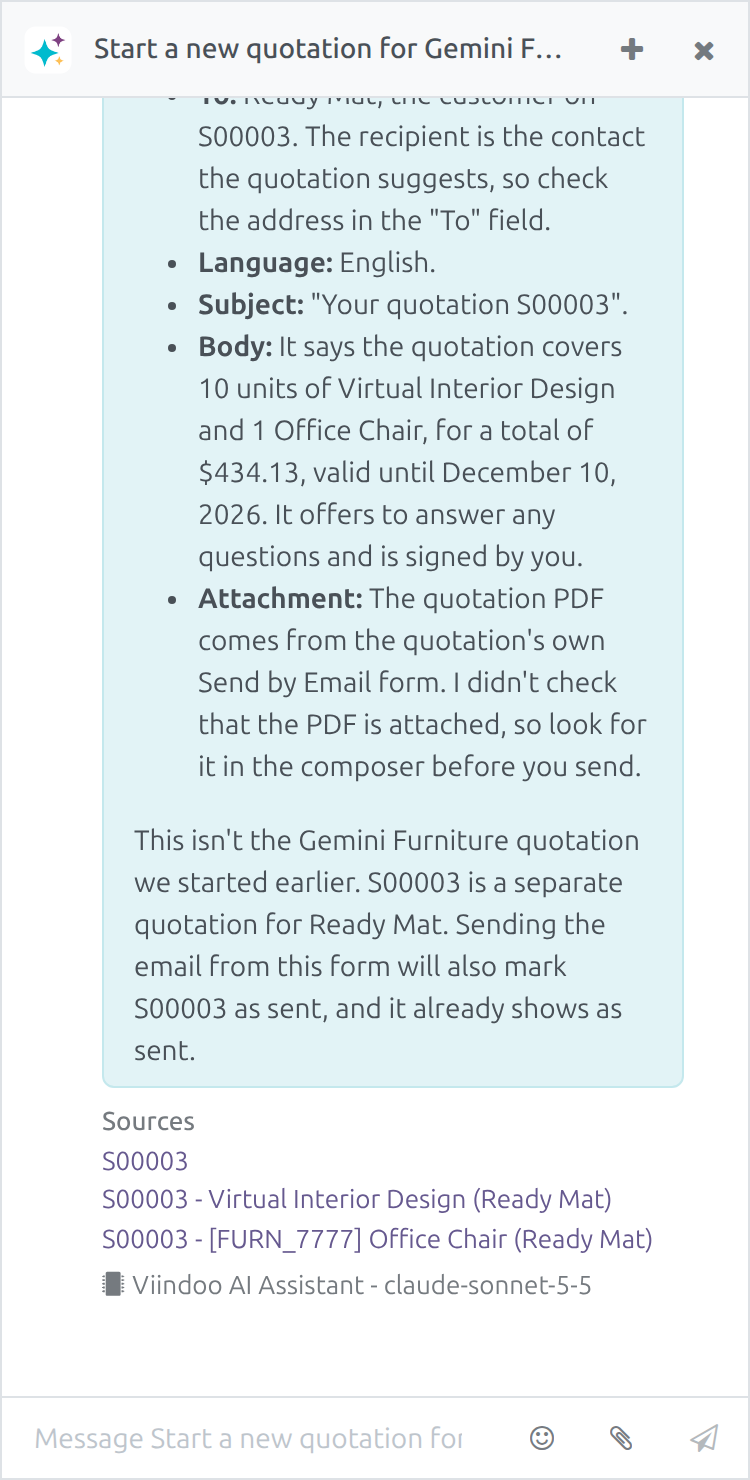
To find a hidden conversation or start a new one, tap AI chat, type a word of its name and choose from the list, the same list as on a computer.
Ask from any screen
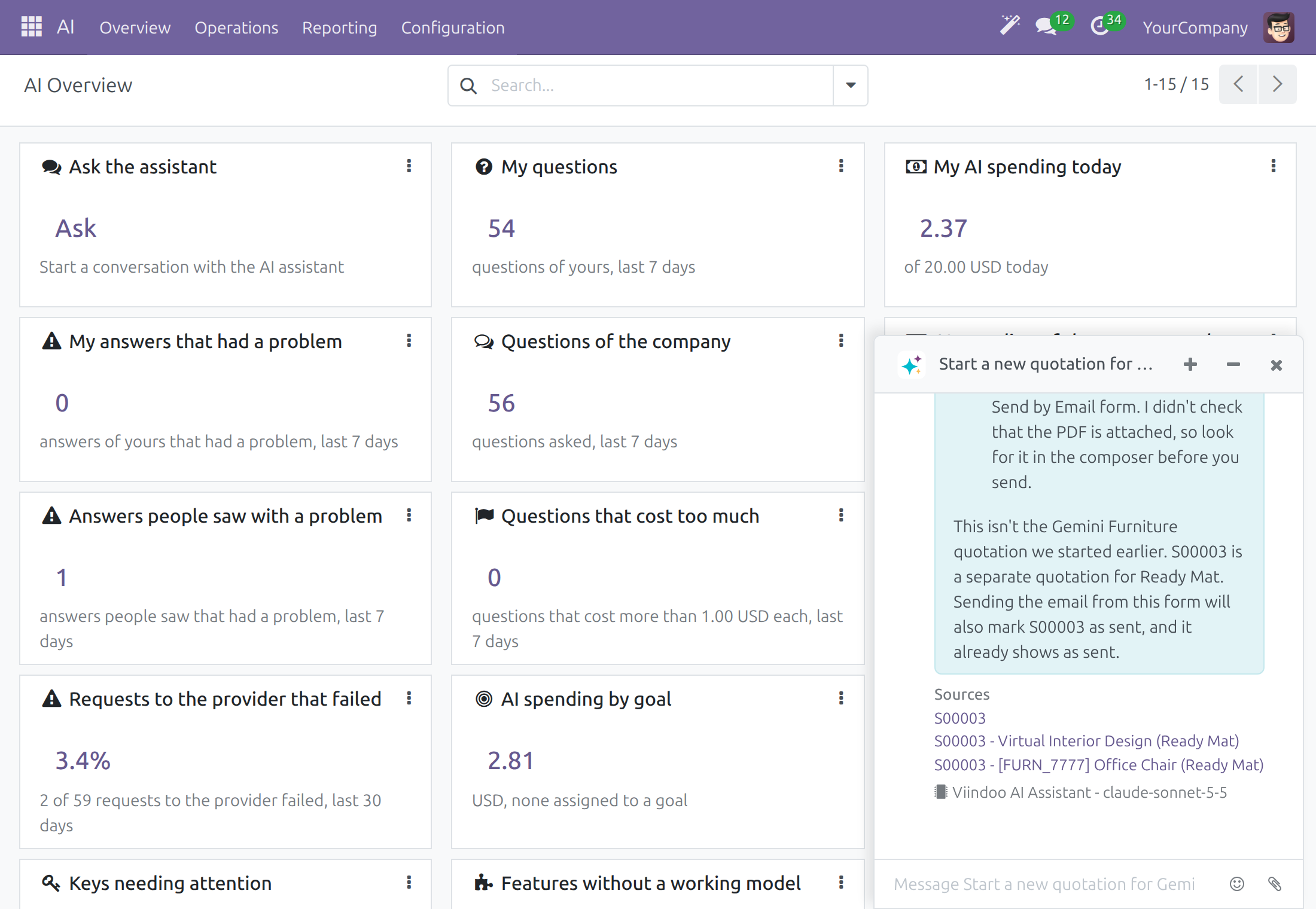
Click the wand button AI Assistant in the top bar of any screen.
A chat window opens at the bottom right with your latest conversation. Type your question there, minimise it with the minus button or close it with the cross.
Choose the model for one conversation
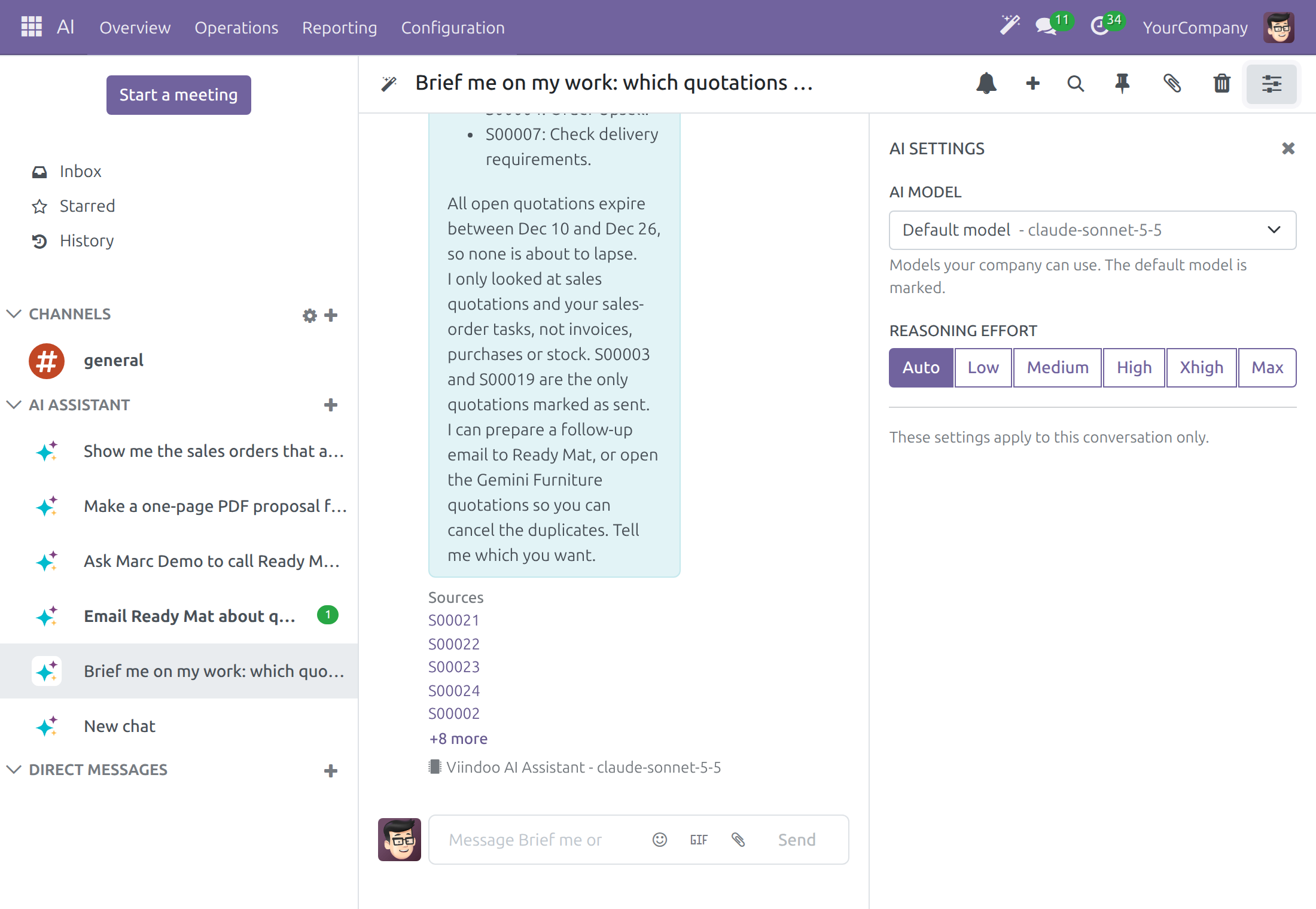
In a conversation, click AI Settings, the right-most icon of the header.
In AI model, the model the assistant answers with, keep Default model or pick another of the models your company can use. The choice applies to this conversation only.
See where an answer comes from
When the assistant builds an answer from records or from knowledge, a Sources list sits under the answer. It names what the answer was built from, one link per record: the quotations it listed, a page it read, or a knowledge source such as a typed text.
Read the answer and look for Sources under it. Up to five links show.
When more records were used, click the line +3 more (the number is how many are still hidden). The rest of the list opens in place.
Click a link. The record opens in a new browser tab, so the conversation stays where it is.
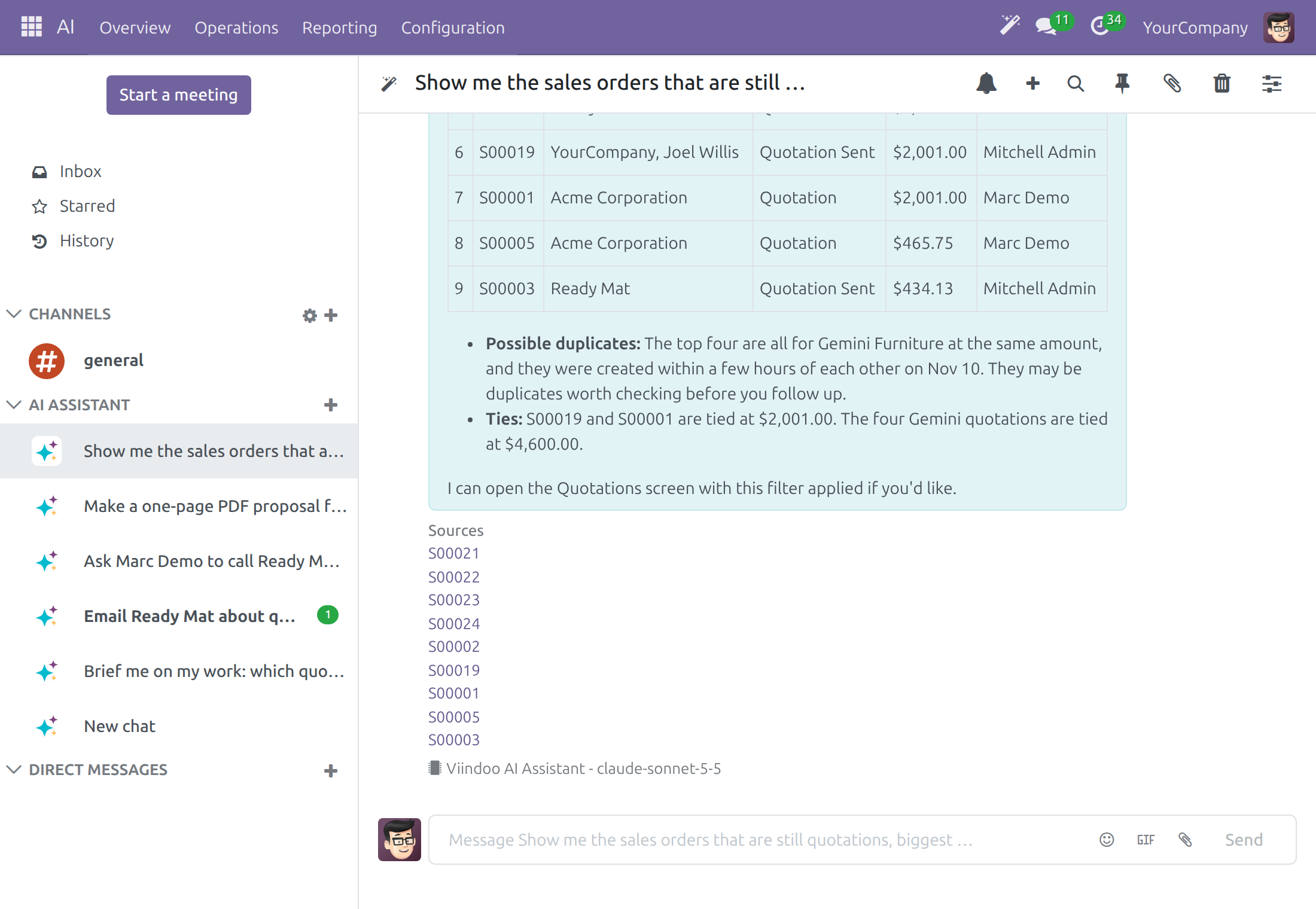
The list holds only records you may open: a record you cannot read is neither used for your answer nor listed. The list is saved with the answer, so it is the same after you reload the page or open the conversation on another device.
Write text in a document with the AI command
Every text field with the editor, such as Terms and conditions on a quotation, offers an AI command.
Click in the field, type /ChatGPT and choose ChatGPT (Generate or transform content with AI). The dialog Generate Text with AI opens.
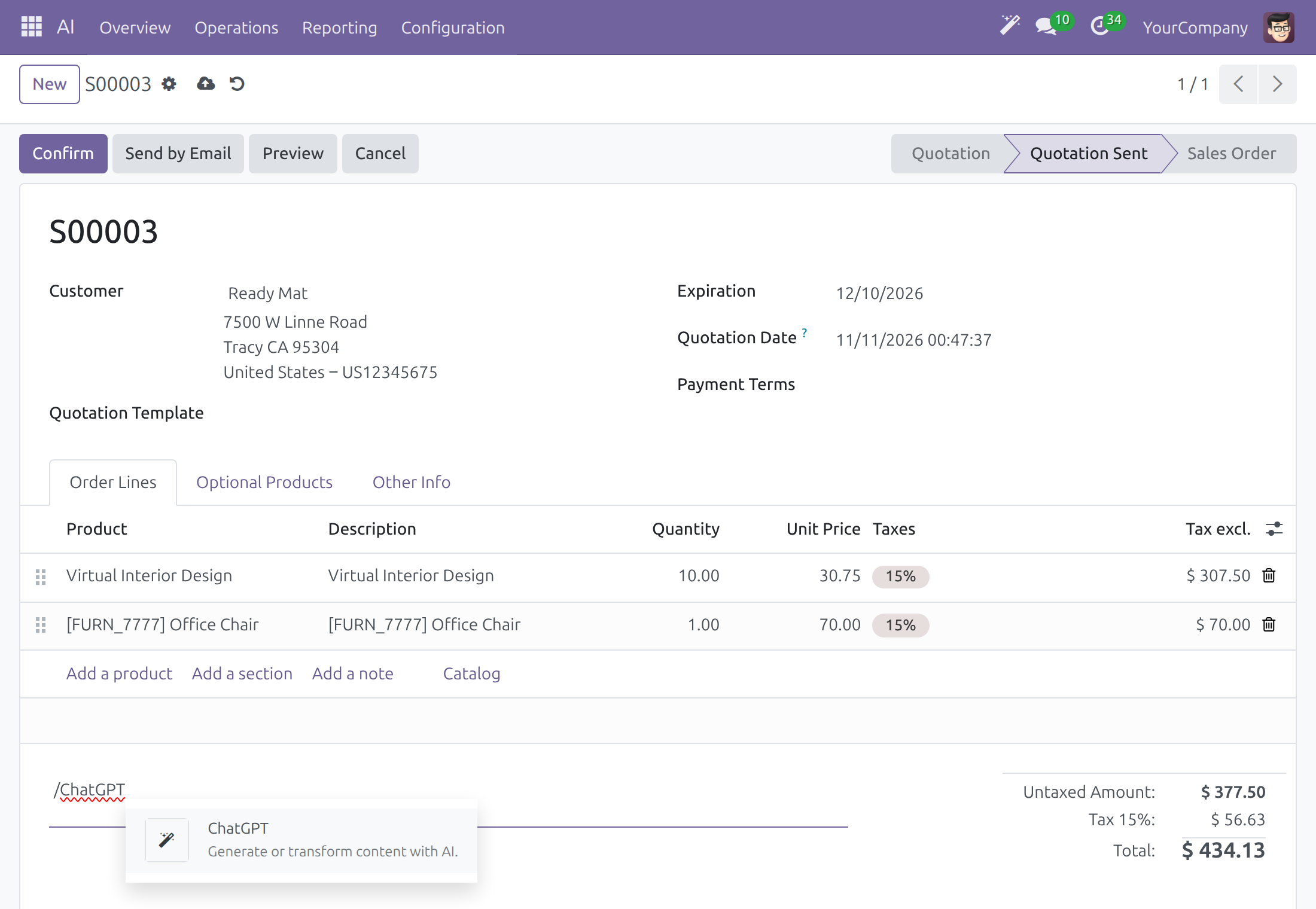
Type what you want written and press Enter. The reply appears with the button Insert. Click it to put the text in the field; nothing is inserted until you do.
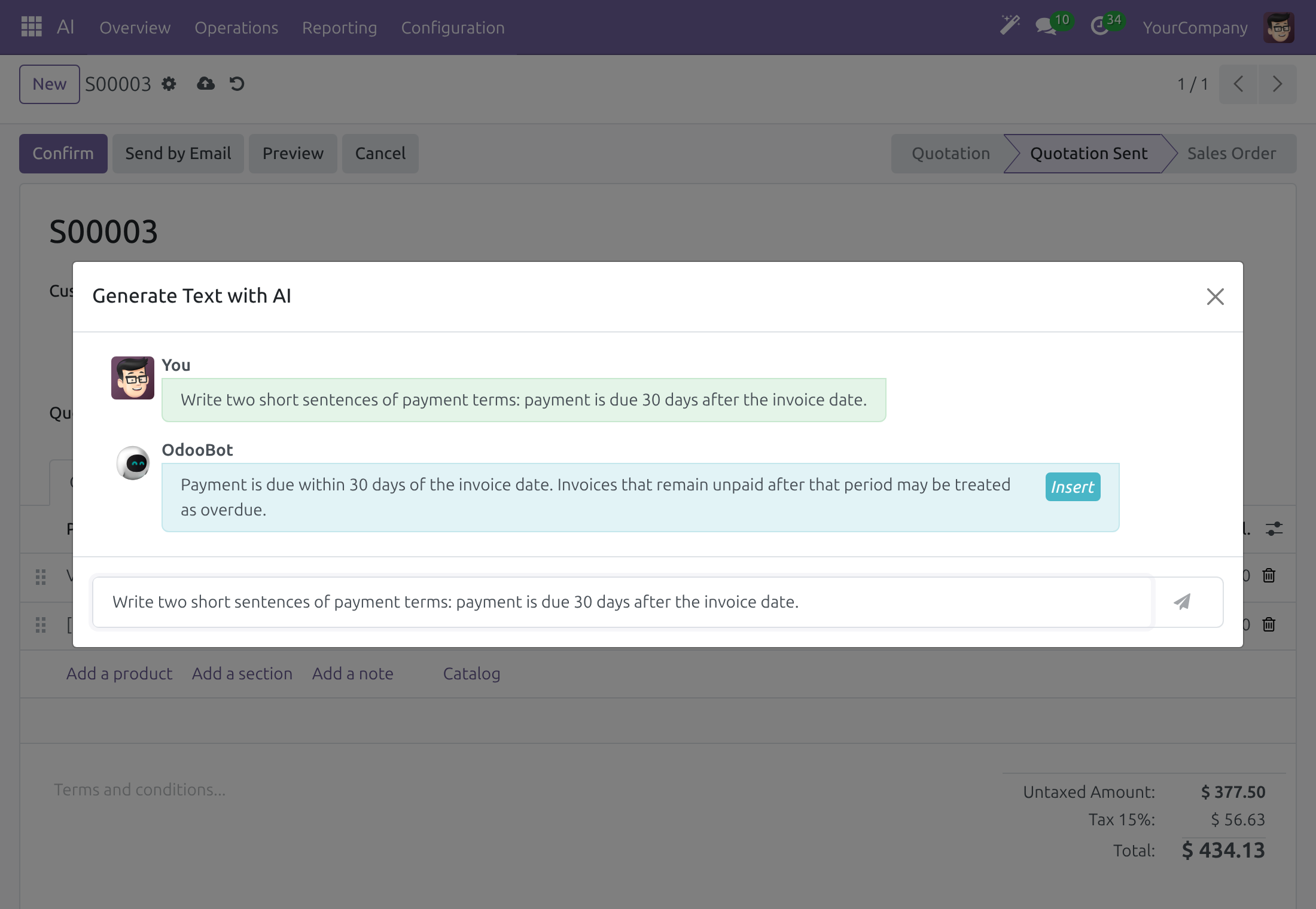
The text is written through your company's AI connection, the connection of the Chat model in AI ‣ Configuration ‣ Settings. The command is named ChatGPT and the reply is signed OdooBot.
Which assistant answers
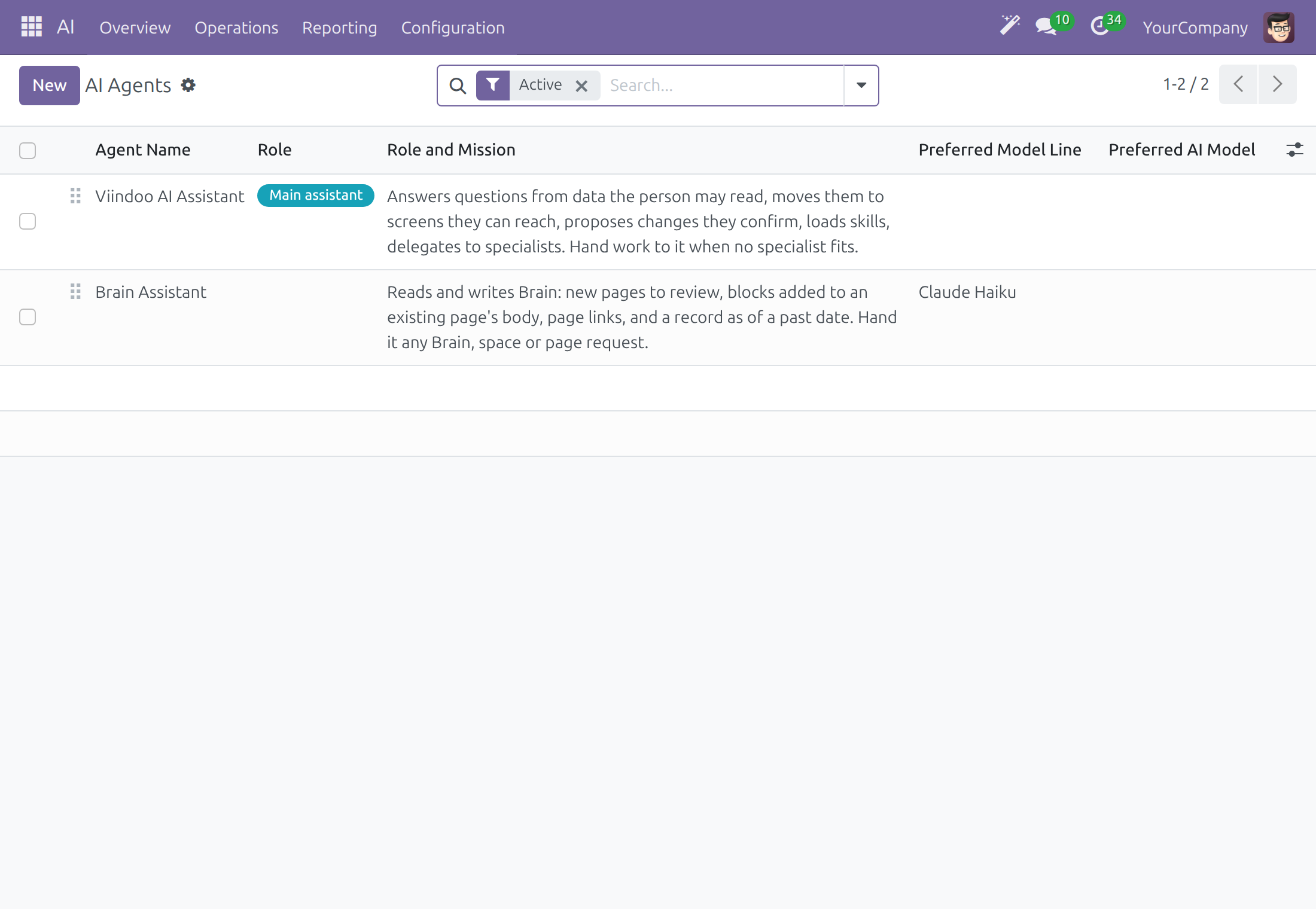
You never choose an assistant: the Viindoo AI Assistant answers everyone of the company, employees, portal users and website visitors, and asks a specialist assistant when a task needs one. A specialist's name and the time it took show in the step list. An administrator sets up assistants in AI ‣ Configuration ‣ Agents (see Set up an assistant).
See what the assistant remembers
The assistant keeps short notes about you, so you do not repeat yourself. They are private to you.
Open AI ‣ Operations ‣ AI Memory. Each line is one note, with its Layer, User, Topic, Summary and Last Referenced. Notes of the L0 Identity and L1 Essential layers are given to the assistant with every question.
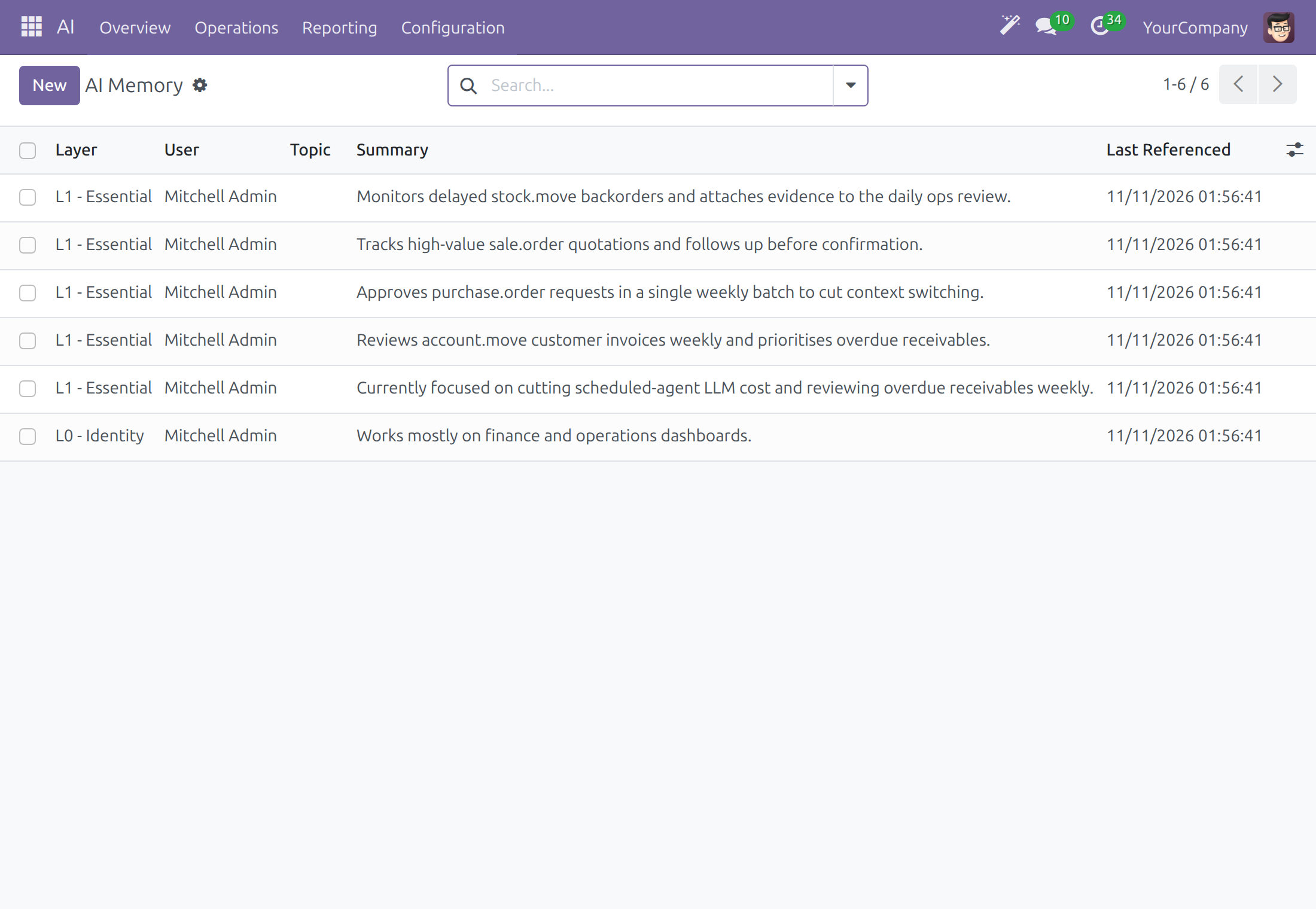
Open a note and edit its Summary when it is wrong, then save. When you have no notes yet, the list shows No AI memory yet; notes appear as the assistant recalls and summarizes your conversations.
To remove a note from the list, open it and use Action ‣ Archive; an archived note shows the ARCHIVED ribbon and is no longer given to the assistant. The Archived filter lists archived notes, and Action ‣ Unarchive restores one. Each note carries a readable name, the start of its summary, in the list and in the breadcrumb.
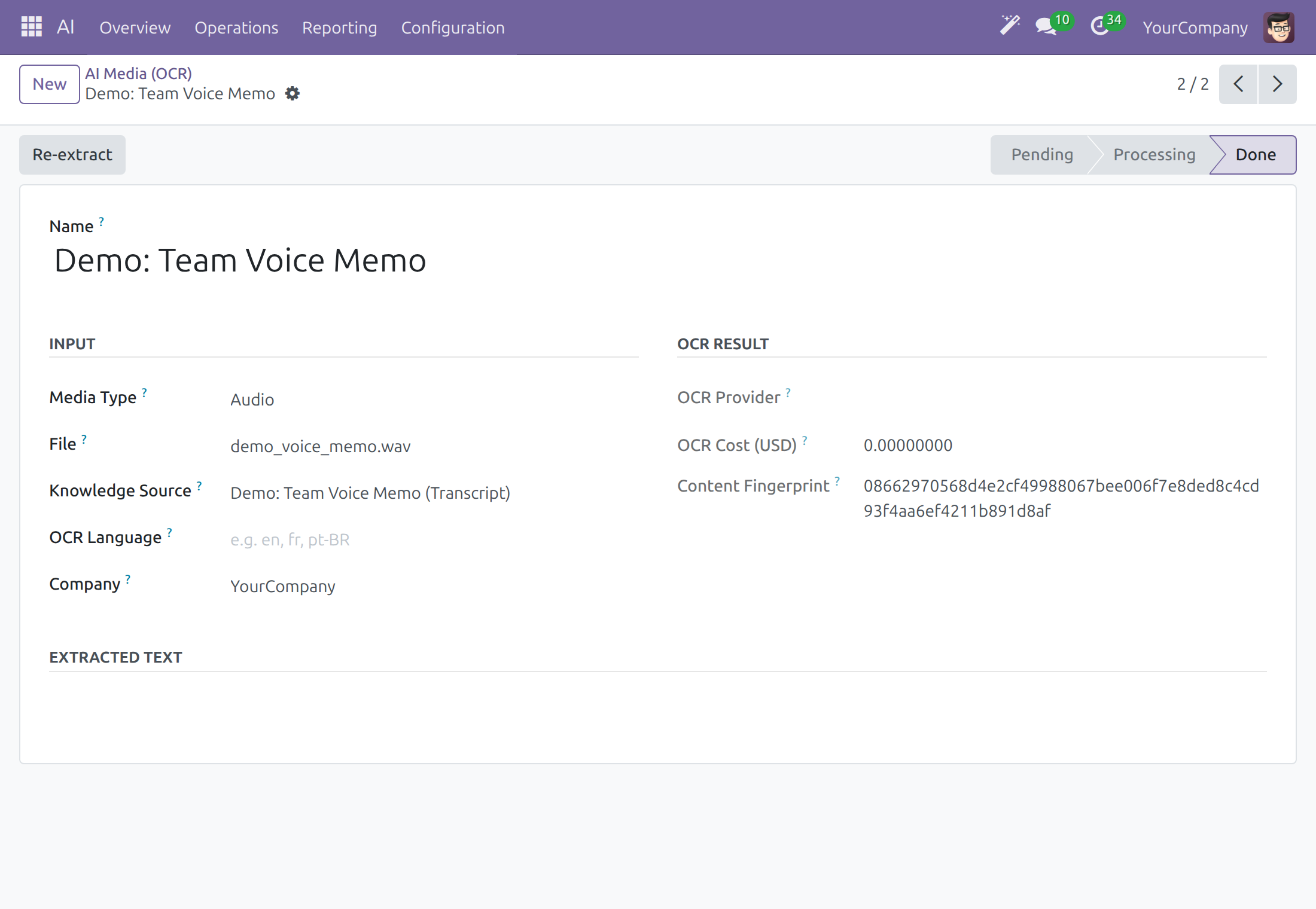
See what the AI read from a file
Open AI ‣ Operations ‣ AI Media. Each line is a file the AI read, with its Media Type, Knowledge Source, OCR Provider and Status: Pending, Processing, Done or Error.
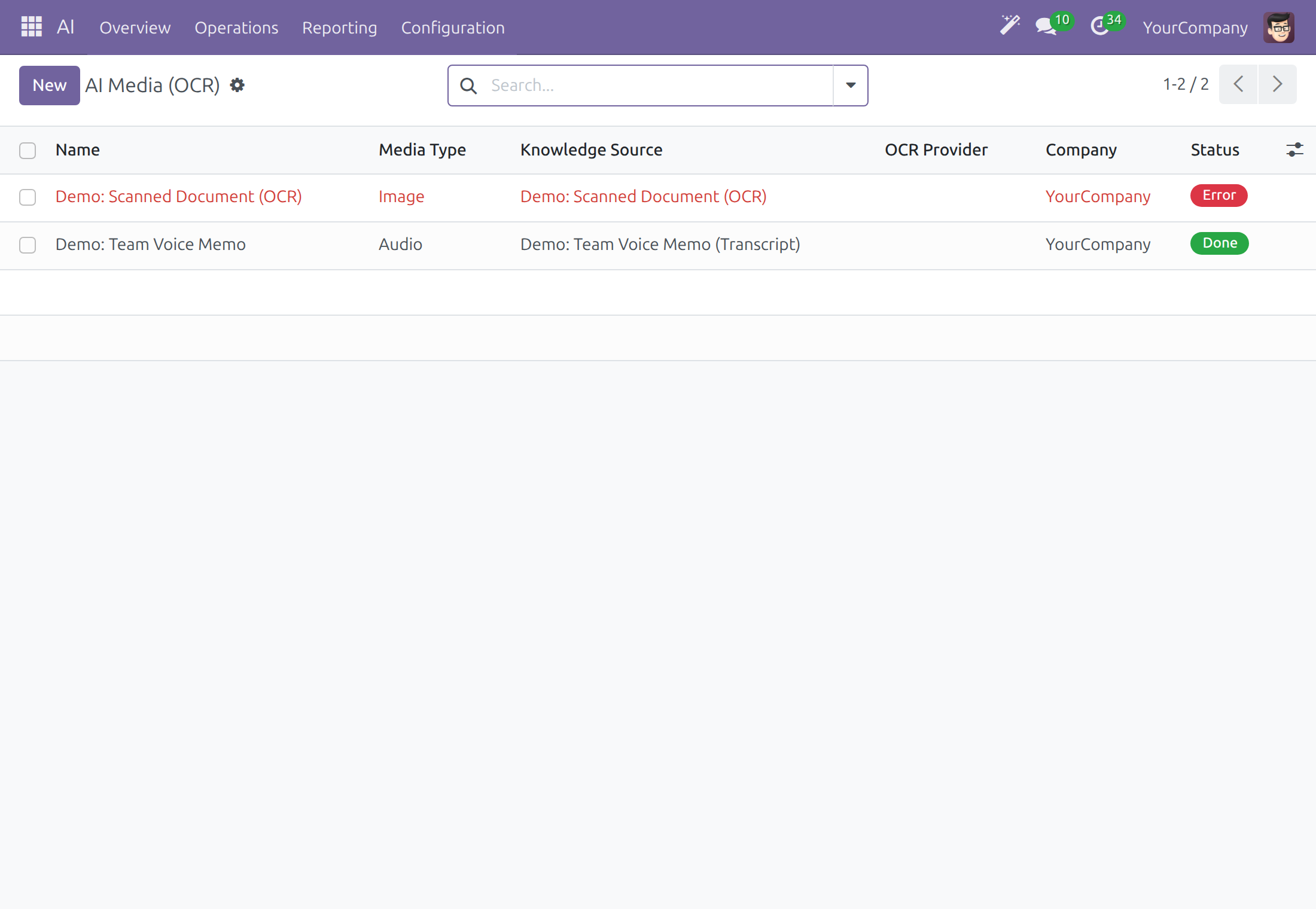
Open a line to see the File, the OCR Language, the OCR Cost (USD) and, under Extracted Text, the text the AI read. When the status is Error, click Re-extract after you fix the cause.
Review where the assistant took you
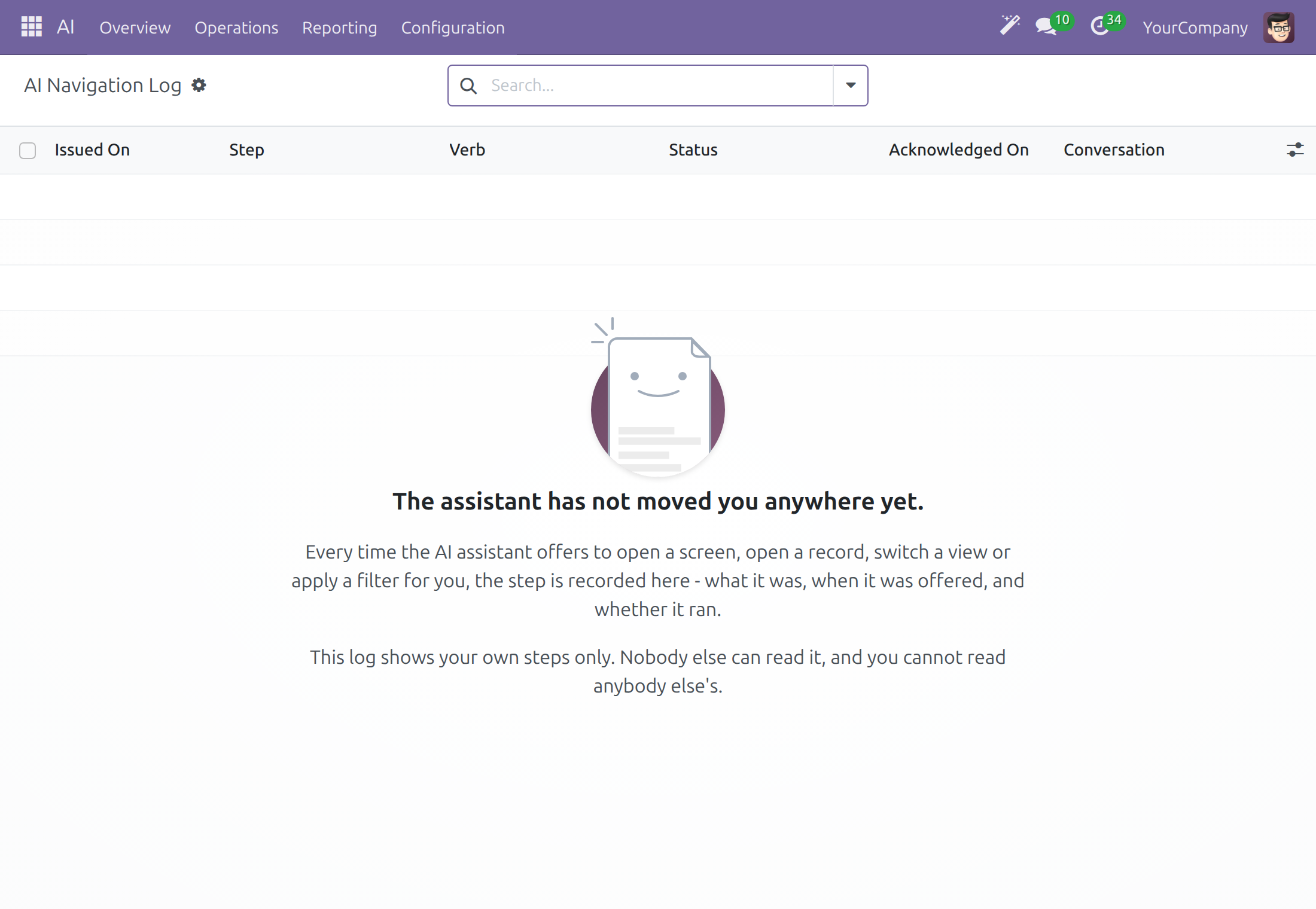
When the assistant opens a screen for you, it writes one line in a log. An AI Operator reads it.
Open AI ‣ Operations ‣ AI Navigation Log. Each line shows Issued On, the Step, the Verb (for example Open Form or Open Composer), the Status (for example Executed), Acknowledged On and the Conversation it came from.
Compare AI cost with how answers were rated
Open AI ‣ Reporting ‣ Quality & Cost. The table groups Cost (USD), Input Tokens, Output Tokens and LLM Calls of the last 30 days by Rating: Thumbs up (helpful), Thumbs down (not helpful), Flag for review (problematic content) or none.
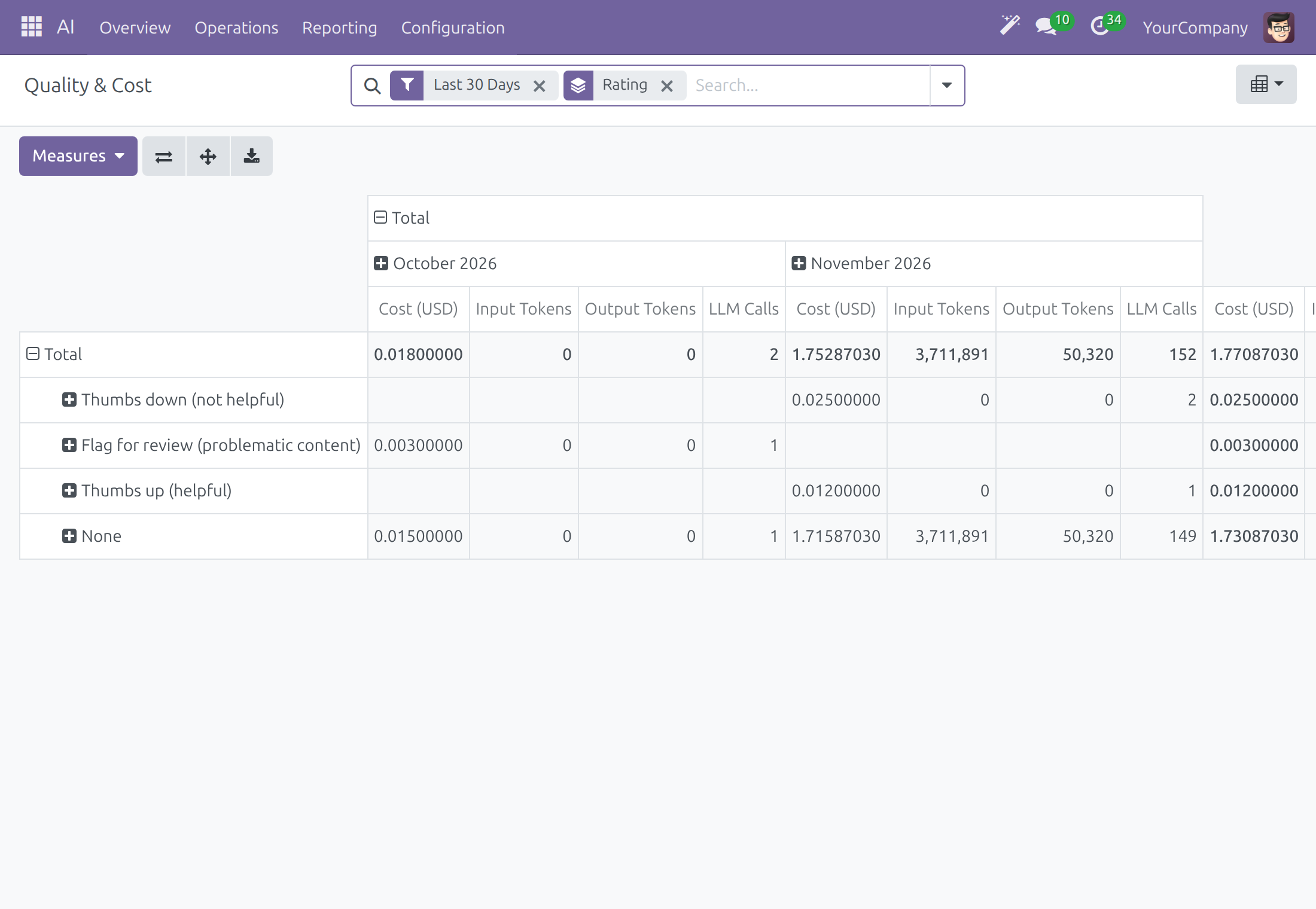
You see your own interactions; an AI Operator or a system administrator sees the whole company.
System administrator: teach the assistant what your business knows
Add a knowledge source
A knowledge source is a document, page or recording the assistant may use to answer. Only system administrators see this menu.
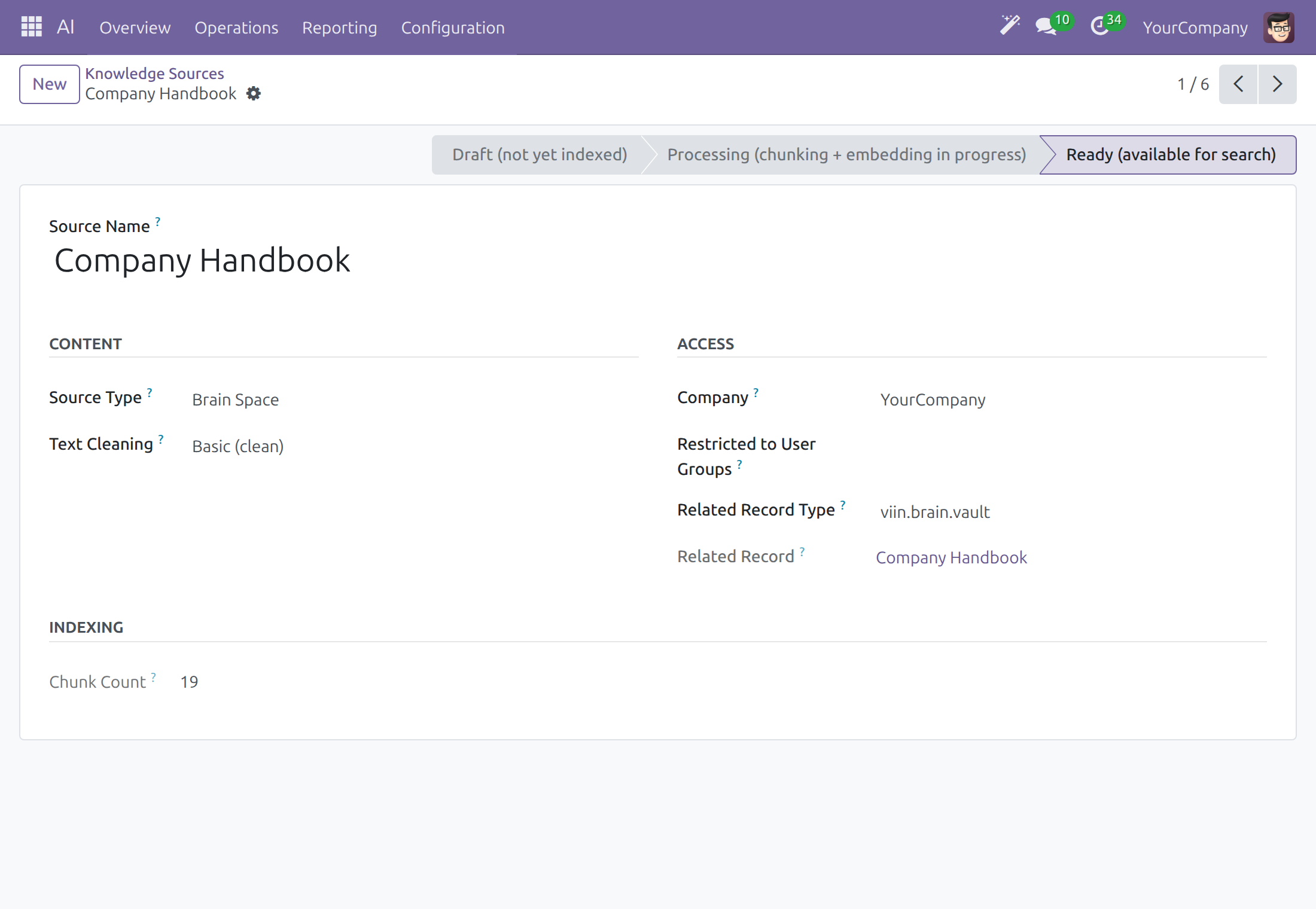
Open AI ‣ Configuration ‣ Knowledge Sources. Each line shows the Source Name, the Source Type, the Status and the Company.
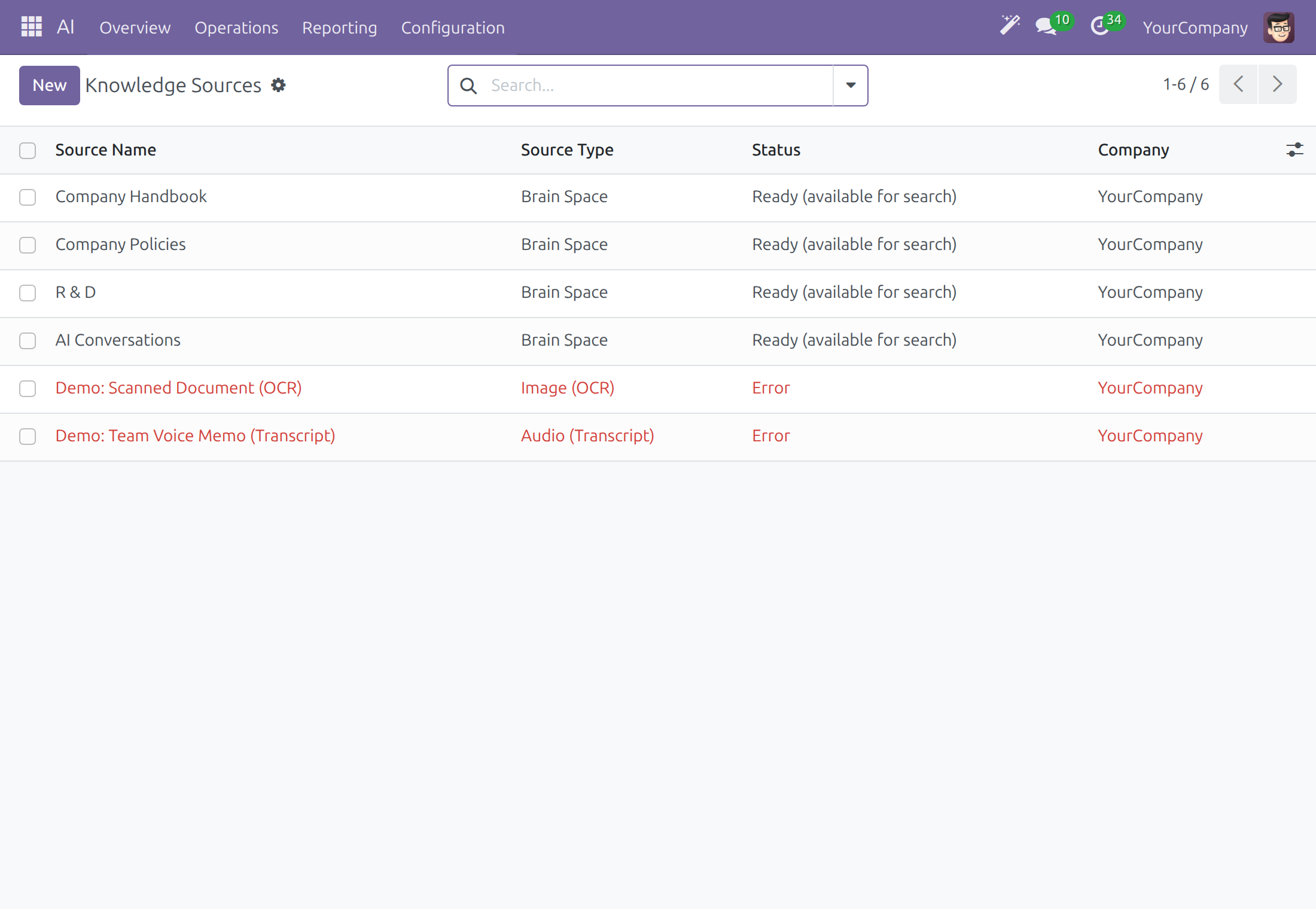
Click New and type the Source Name.
Choose the Source Type: PDF File, Web Page, Typed Text, Image (OCR), PDF (OCR), Audio (Transcript), Brain Page or Brain Space (the last two when Viindoo Brain is installed). Then give the content the type asks for: the Attached File for a PDF, image or audio source, the Web Page URL for a web page, or the Text Content for typed text.
Choose Text Cleaning: None (keep original) or Basic (clean). Set Restricted to User Groups when only some people may see answers drawn from the source.
Click Save. The status bar runs Draft (not yet indexed), Processing (chunking + embedding in progress), then Ready (available for search); indexing runs in the background. When it stops at Error, the Error section gives the reason.
Choose who can find a knowledge source
The assistant searches your knowledge by meaning with the tool Search the company's sources. It searches every knowledge source the person who asks may read, of any type, and gives back the closest passage of each record. It can also narrow the search to one kind of record, for example the pages of one space.
A source a person may read is searchable by every assistant that answers that person, including a source you attached to one assistant in its Knowledge Sources tab. Attaching a source does not make it private to that assistant. To keep a source private, set Restricted to User Groups on the source: only the members of those groups find it, whichever assistant they ask.
The tool belongs to the topic Data Questions of the Viindoo AI Assistant.
Open AI ‣ Configuration ‣ Agents, open the assistant and go to the Topics tab.
Click the topic Data Questions. The dialog shows the Topic Name, the Display Order and, below them, the actions of the topic by their business names: Search the company's sources is listed beside the others.
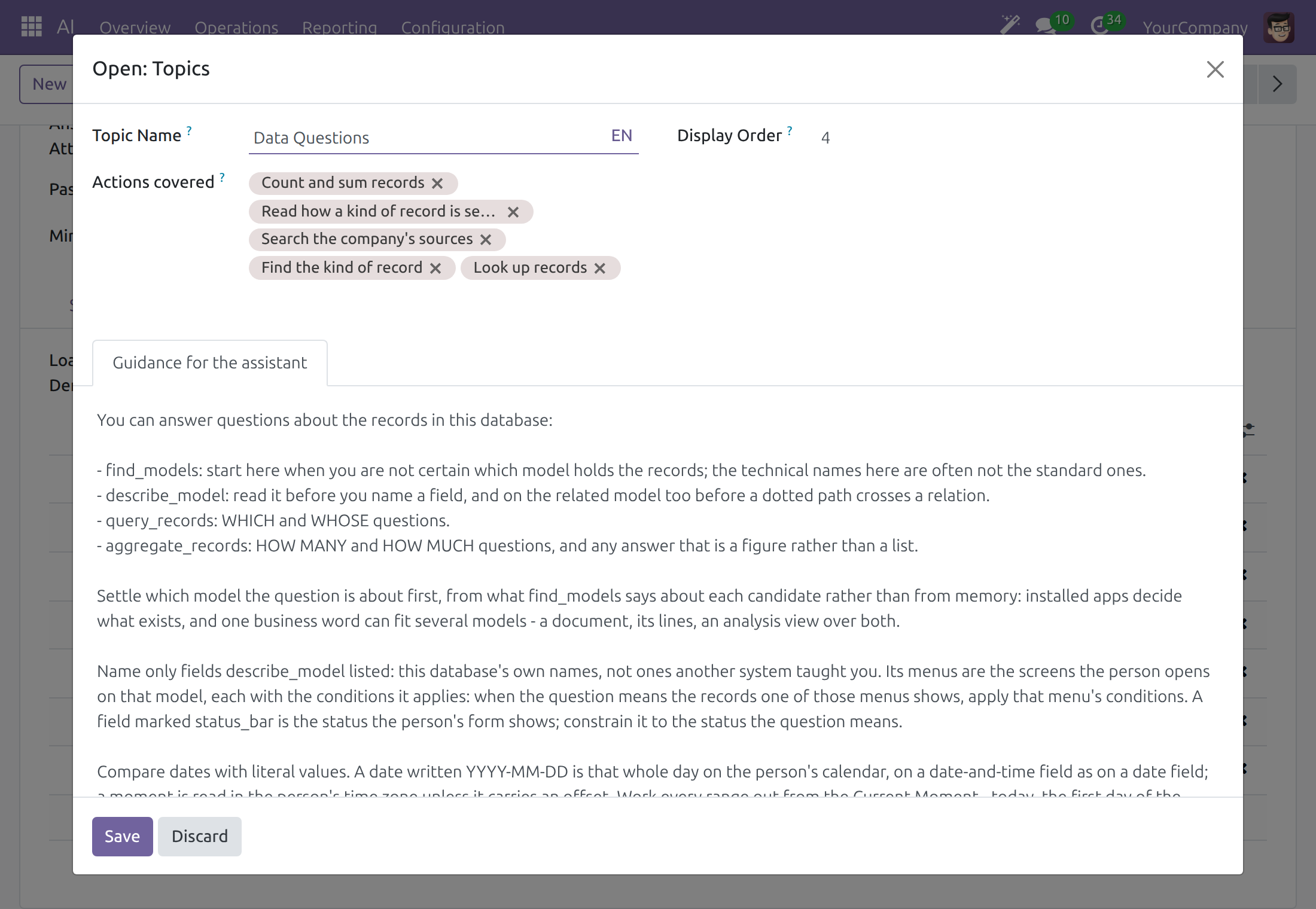
Every internal user reads a topic; a system administrator changes it. The tab Guidance for the assistant, which holds the instructions the assistant follows for the topic, is visible to system administrators only. Removing Search the company's sources from the actions stops the assistants that carry this topic from searching knowledge by meaning, and adding it again puts it back.
Set how close a passage must be
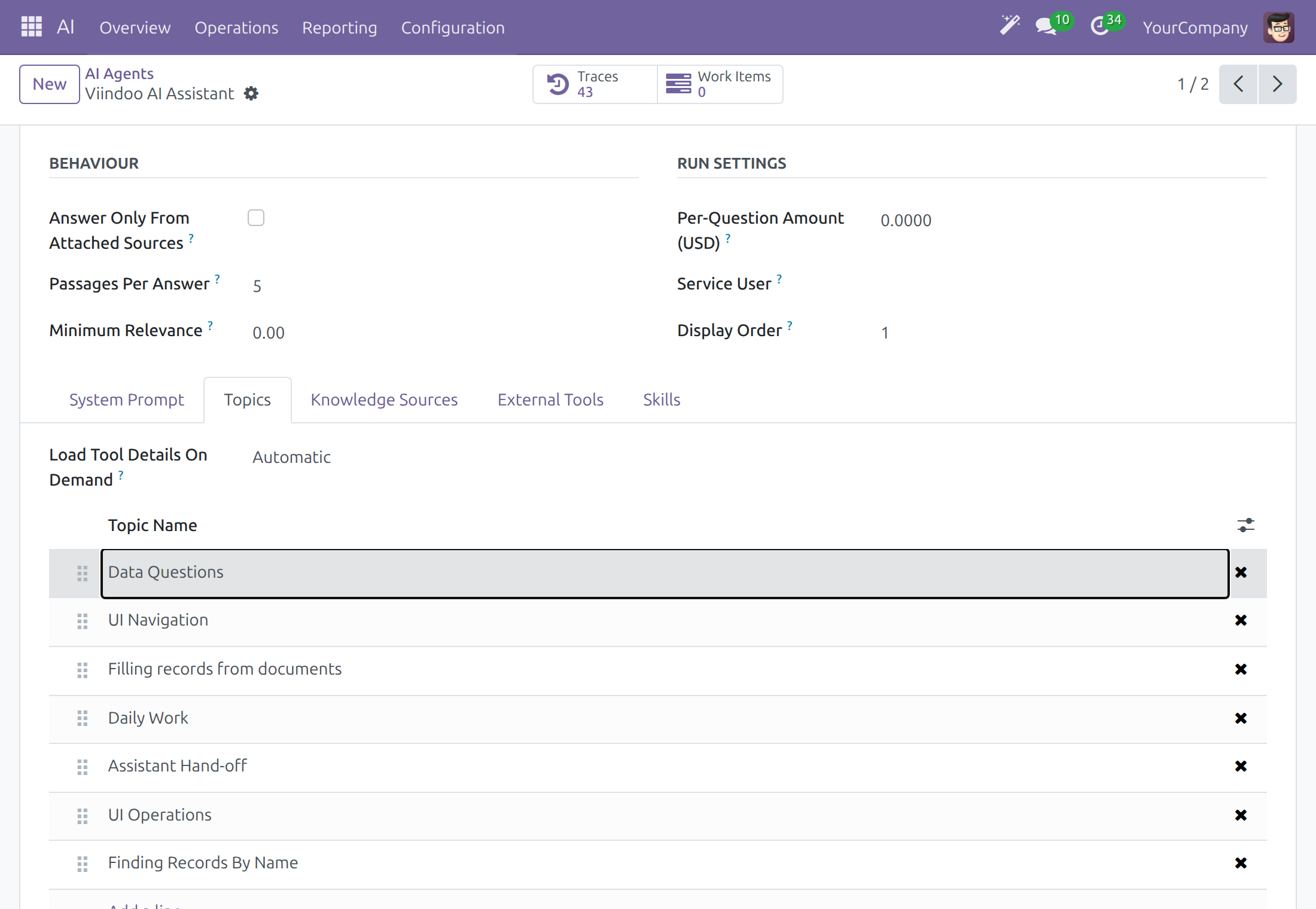
Minimum Relevance, on each assistant, says how much more relevant than the embedding model's own floor a passage must be to answer a question: 0 keeps every passage above that floor and 1 keeps only identical text. A value below 0 or above 1 is refused. Searching by words is never limited by it.
- Open AI ‣ Configuration ‣ Agents and open the assistant.
- In the Behaviour section, set Minimum Relevance and click Save. Point at the question mark beside the field to read its help.
Because each person may read different documents, two people can legitimately get different answers, or one a grounded answer and the other a refusal. That is expected.
Keep a website up to date
A system administrator or an AI Content Manager creates and changes crawl rules; every other internal user sees the list without changing it.
Open AI ‣ Operations ‣ Website Crawls and click New.
Type a Crawl Name and the URL Patterns, one per line. A * matches any text, so one pattern covers a whole site; a plain address is fetched alone.
Set Re-crawl Every (days), and Restricted to User Groups if needed.
Click Save. Last Crawl and Last Crawl Status fill in after a crawl, and the pages found are listed under Crawled Pages.
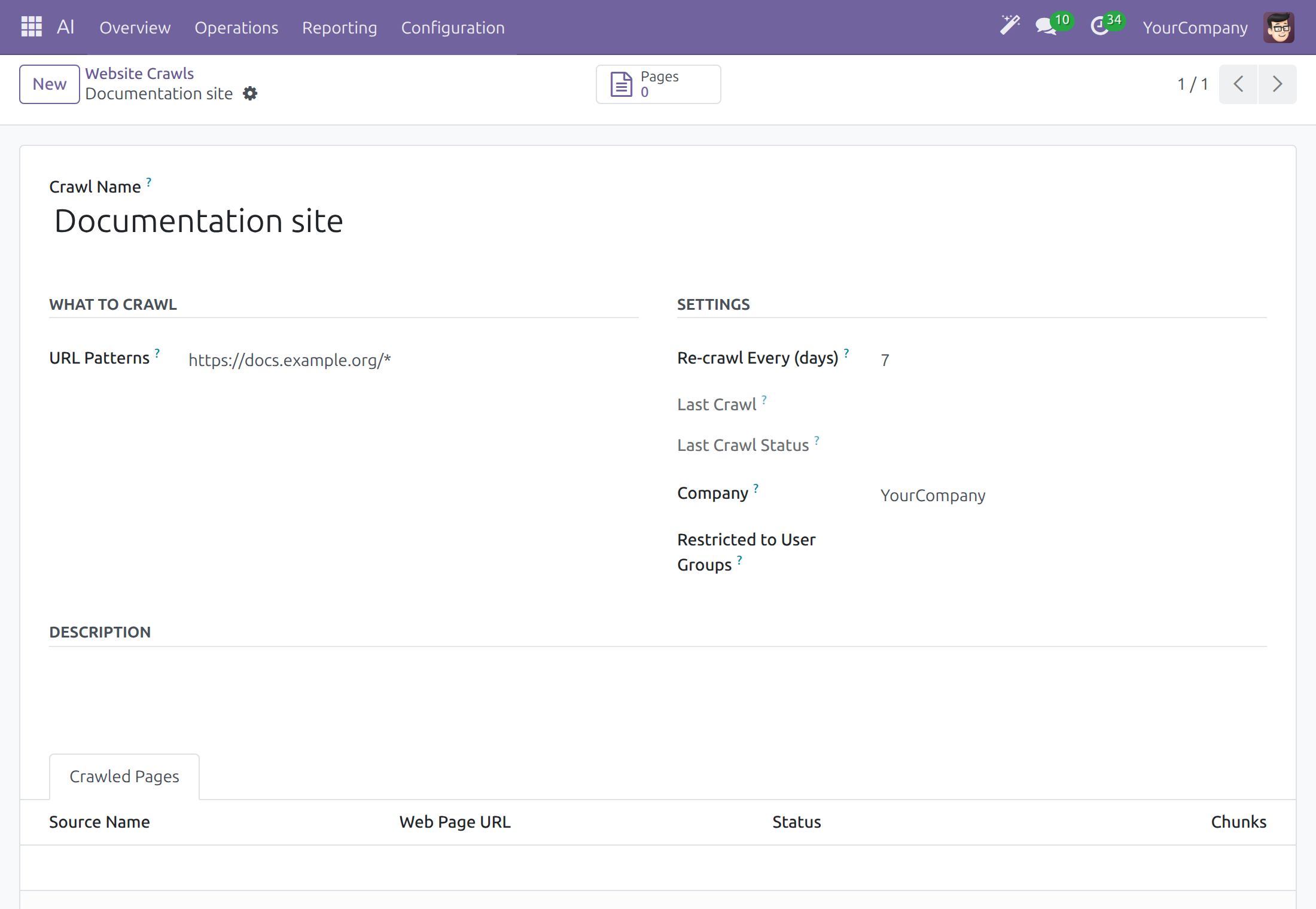
To stop a rule without deleting it, open it and use Action ‣ Archive (the gear beside the rule name).
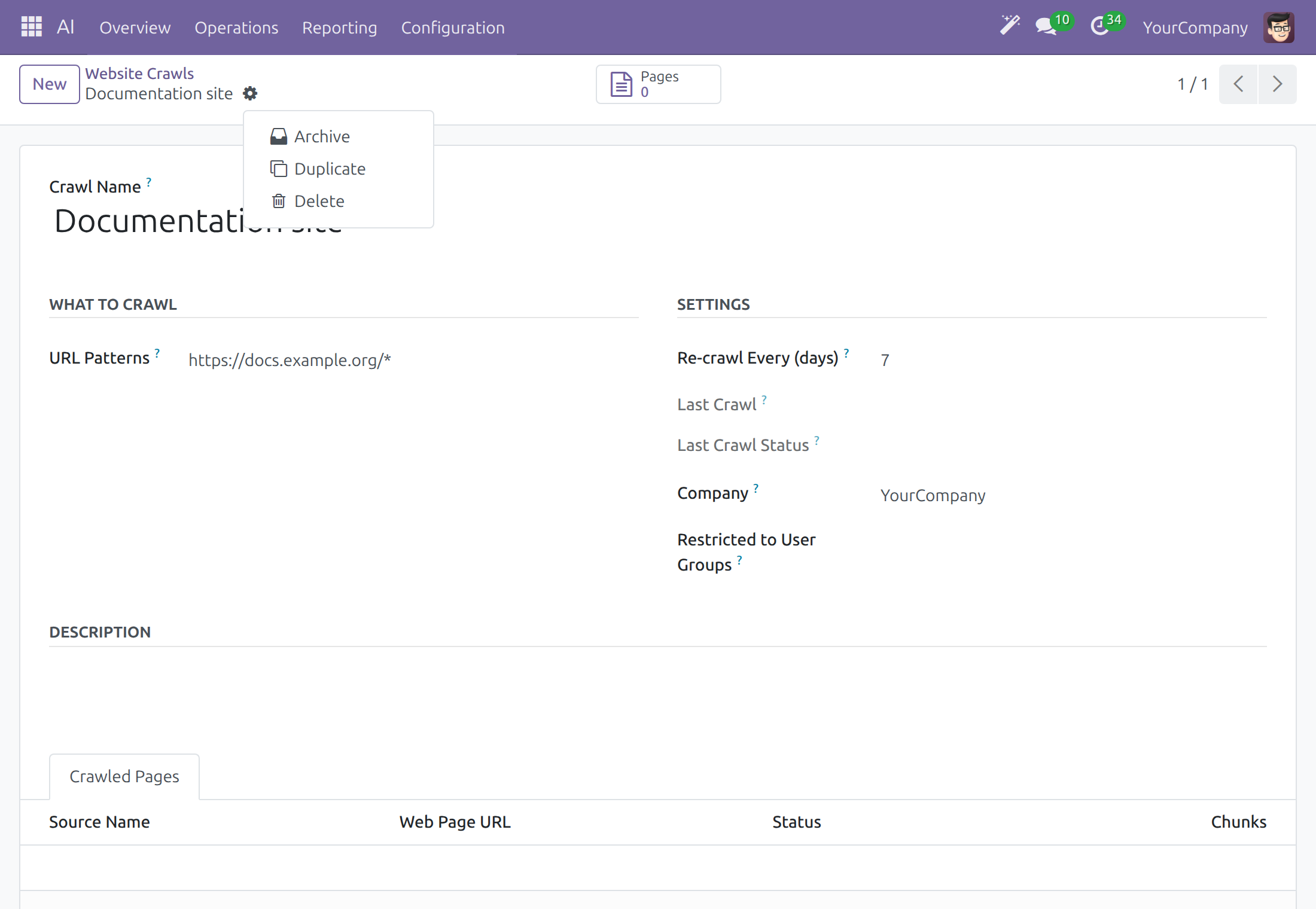
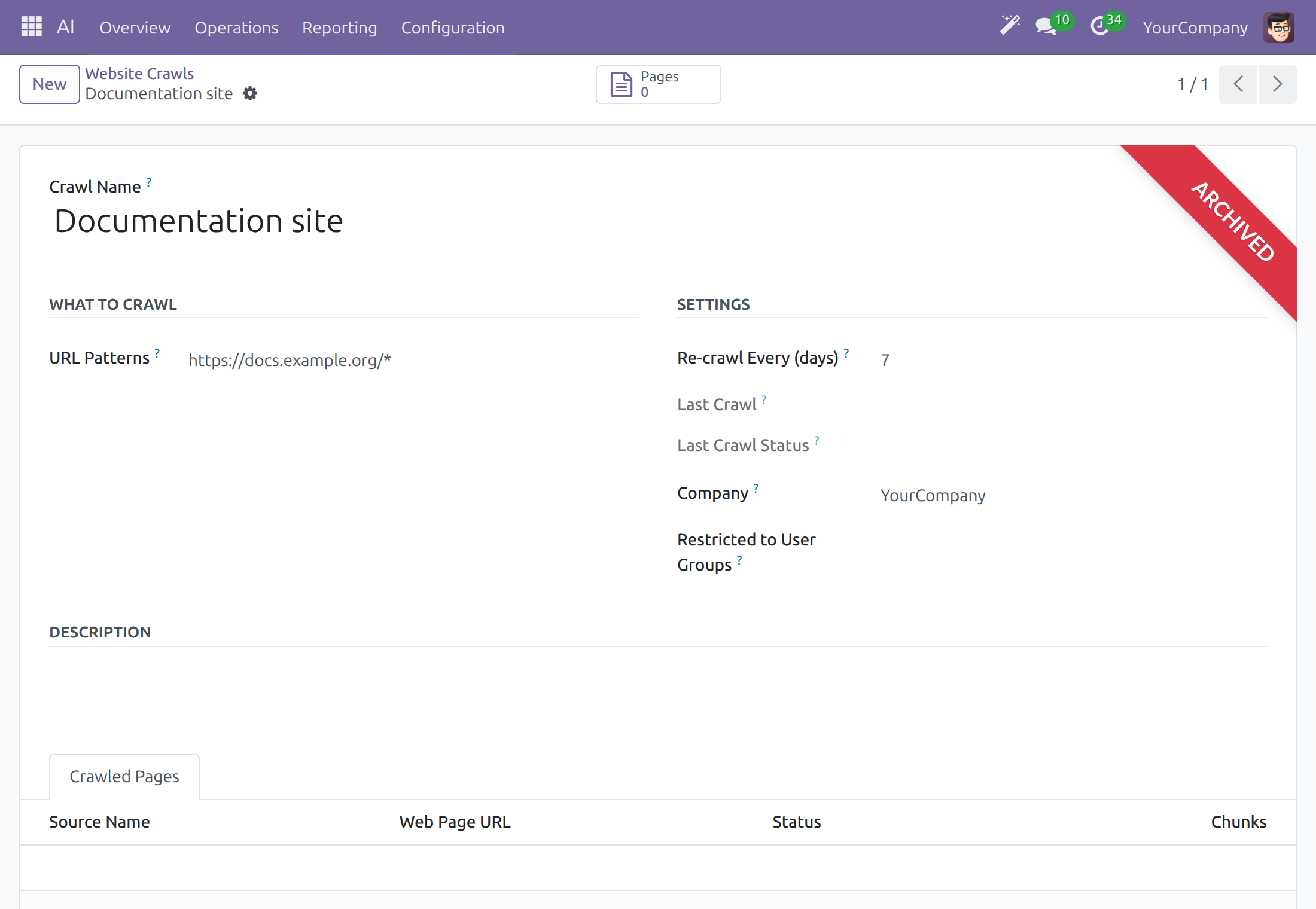
An archived rule shows the ARCHIVED ribbon and is no longer re-crawled. Open the filter menu of the search box and pick Archived to list archived rules; open one and use Action ‣ Unarchive to restore it.
The crawler is set in AI ‣ Configuration ‣ Settings, section Knowledge: Firecrawl URL (leave empty for the default) and Firecrawl API Key.
See and manage skills
A skill is a set of instructions the assistant loads when a task calls for it. Skills are data: you read them, edit them and add your own, and no code is involved. Each assistant sees the short description of every skill and loads the full instructions of the one it applies. Skills come in packs; the ready-made pack is Daily Work.
Open AI ‣ Configuration ‣ AI Skills. Each row shows the Technical Code, Skill Name, Version, Skill Pack and Company. Use the filters Global, Archived and Pack to narrow the list.
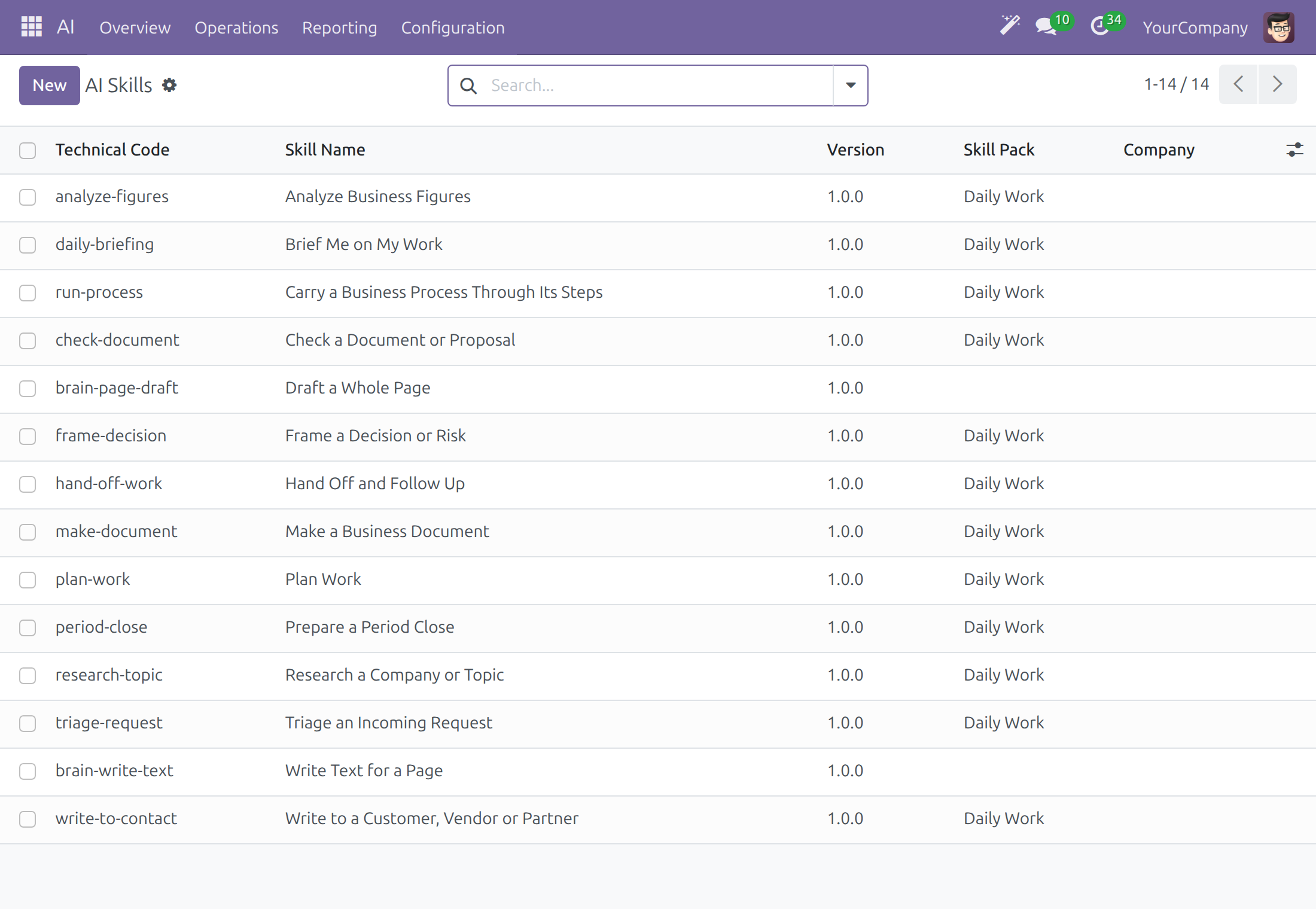
Open a skill. Short Description is what every assistant reads to decide whether to load it; the tab Instruction Body holds the full instructions, Always-On Rules the rules that apply whenever it loads, and Tools the actions it may use. A Global Skill is offered to every company; clear it and set a Company to keep a skill to one company.
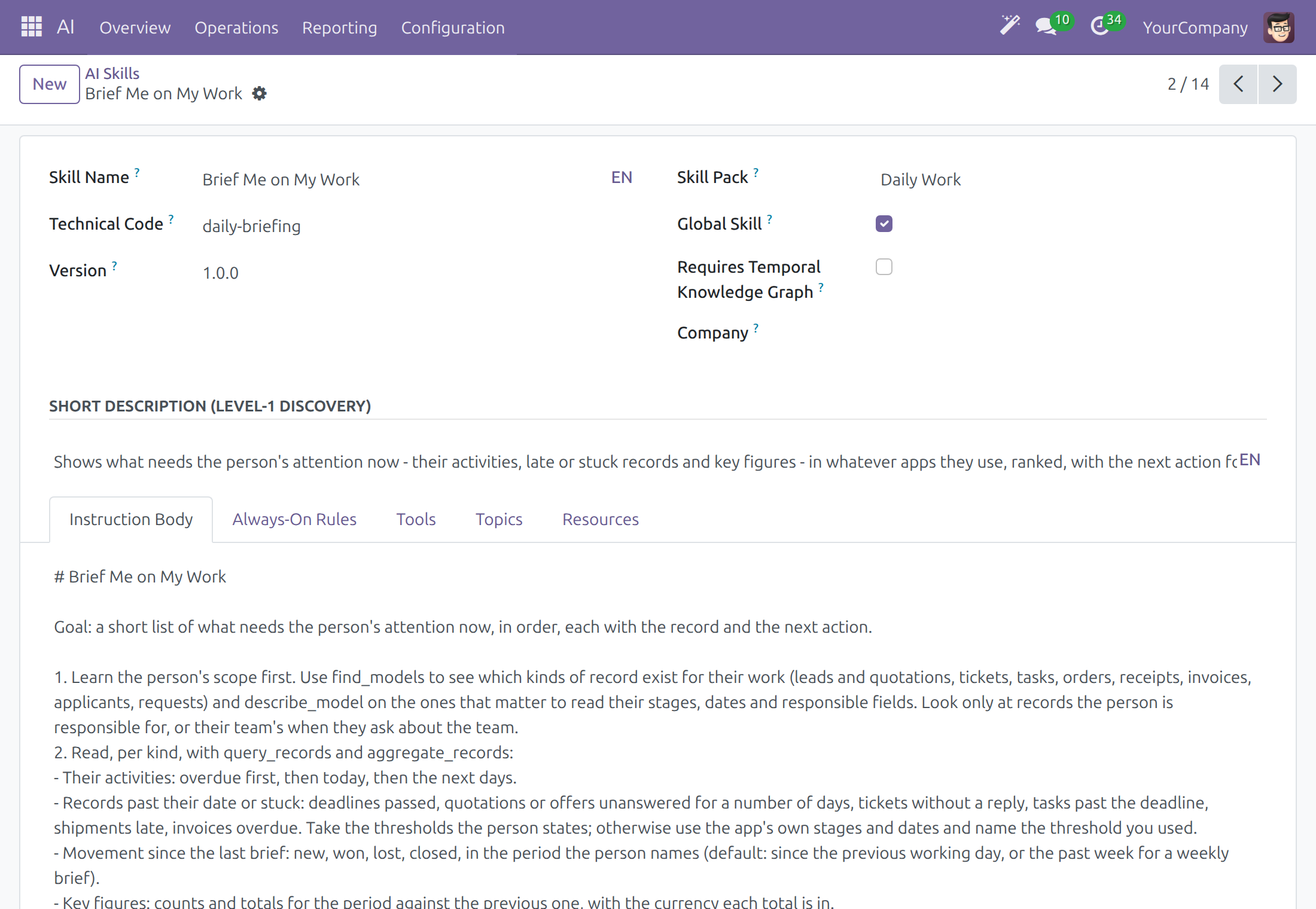
Click New to write a skill of your own: give it a Skill Name, a Technical Code and a clear Short Description, write the steps in Instruction Body and save. A short, specific description decides whether the assistant finds the skill.
To retire a skill without deleting it, use Action ‣ Archive; the Archived filter lists it and Action ‣ Unarchive restores it.
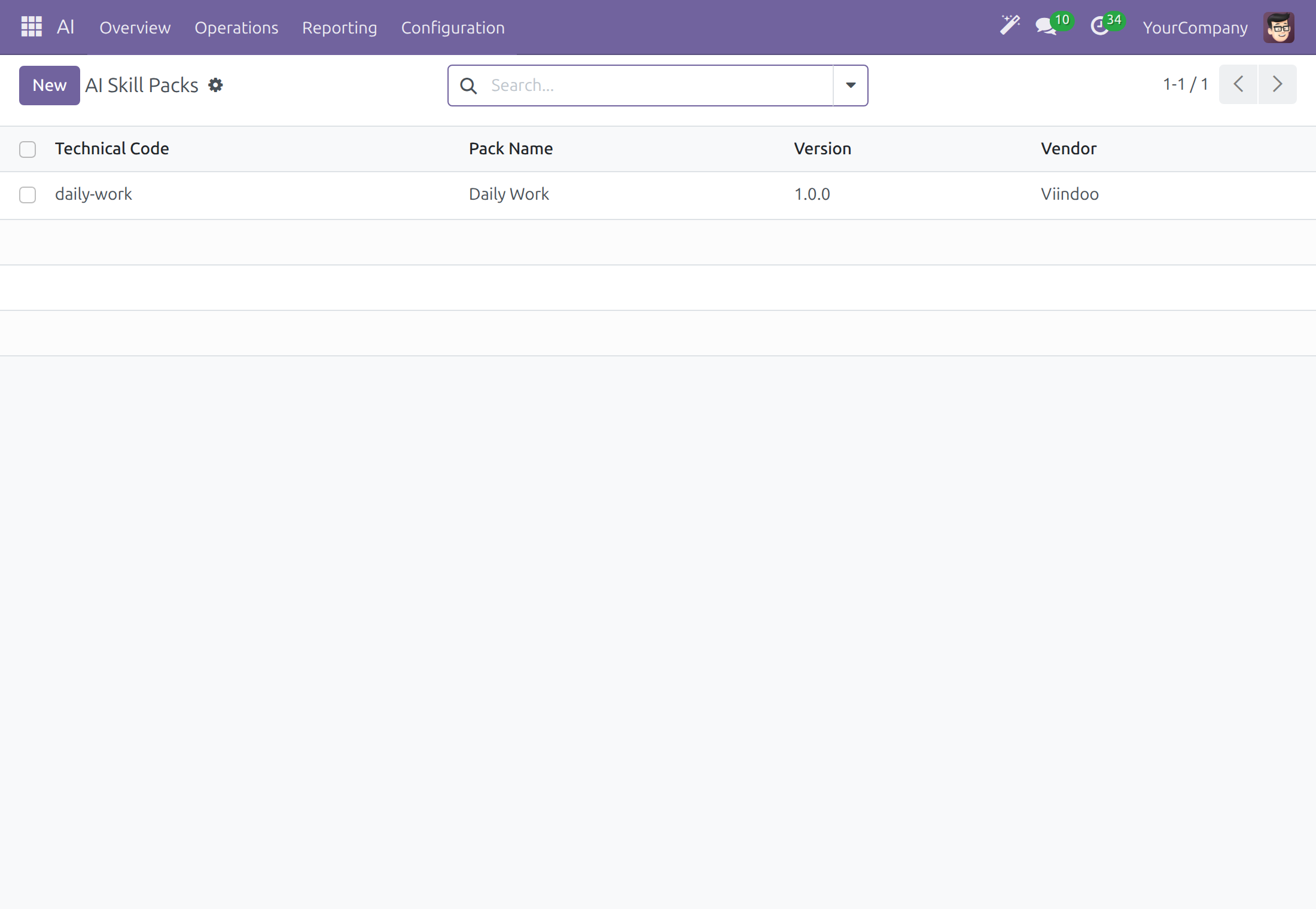
Open AI ‣ Configuration ‣ AI Skill Packs to see each pack with its Technical Code, Pack Name, Version and Vendor. Open a pack to see the skills it carries.
Choose which actions ask first
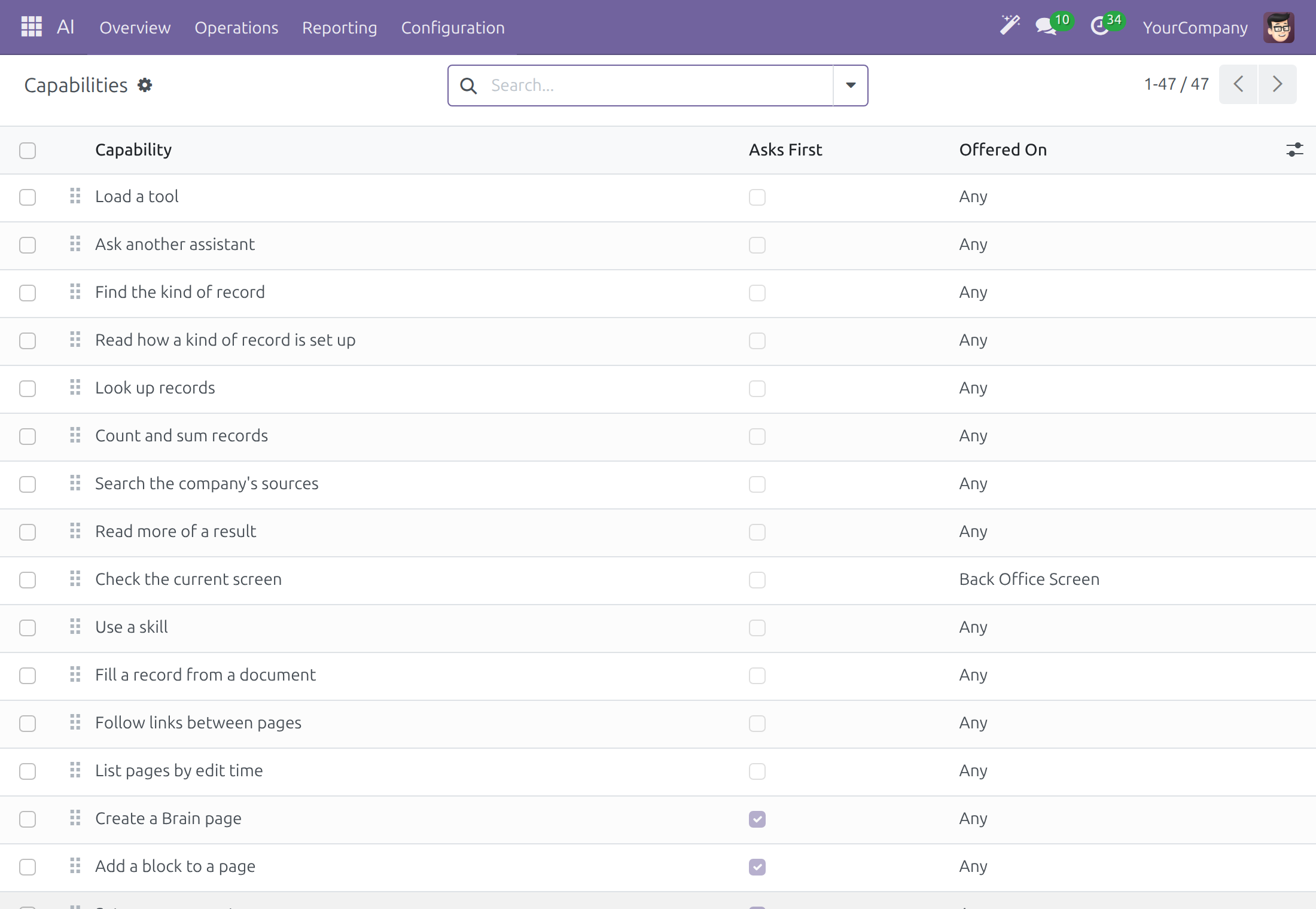
The assistant's actions are listed as capabilities. Each one has the setting Ask User Before Running. It is on, by default, for the actions that send, schedule or save: sending an email or posting a note, scheduling an activity, and creating or changing a record. The person then sees a card and decides.
Open AI ‣ Configuration ‣ Capabilities. Each row shows the Capability, Asks First and Offered On. Use the filters Asks Before Running, Runs Without Asking, Mail and Activities and Record Writes to split the list.
Search for the capability, for example Send an email or post a note, and open it. In Governance, Ask User Before Running is ticked, and Offered On says where it is offered: any run, or only runs on a screen. The text under What This Capability Does is what the assistant reads about the action.
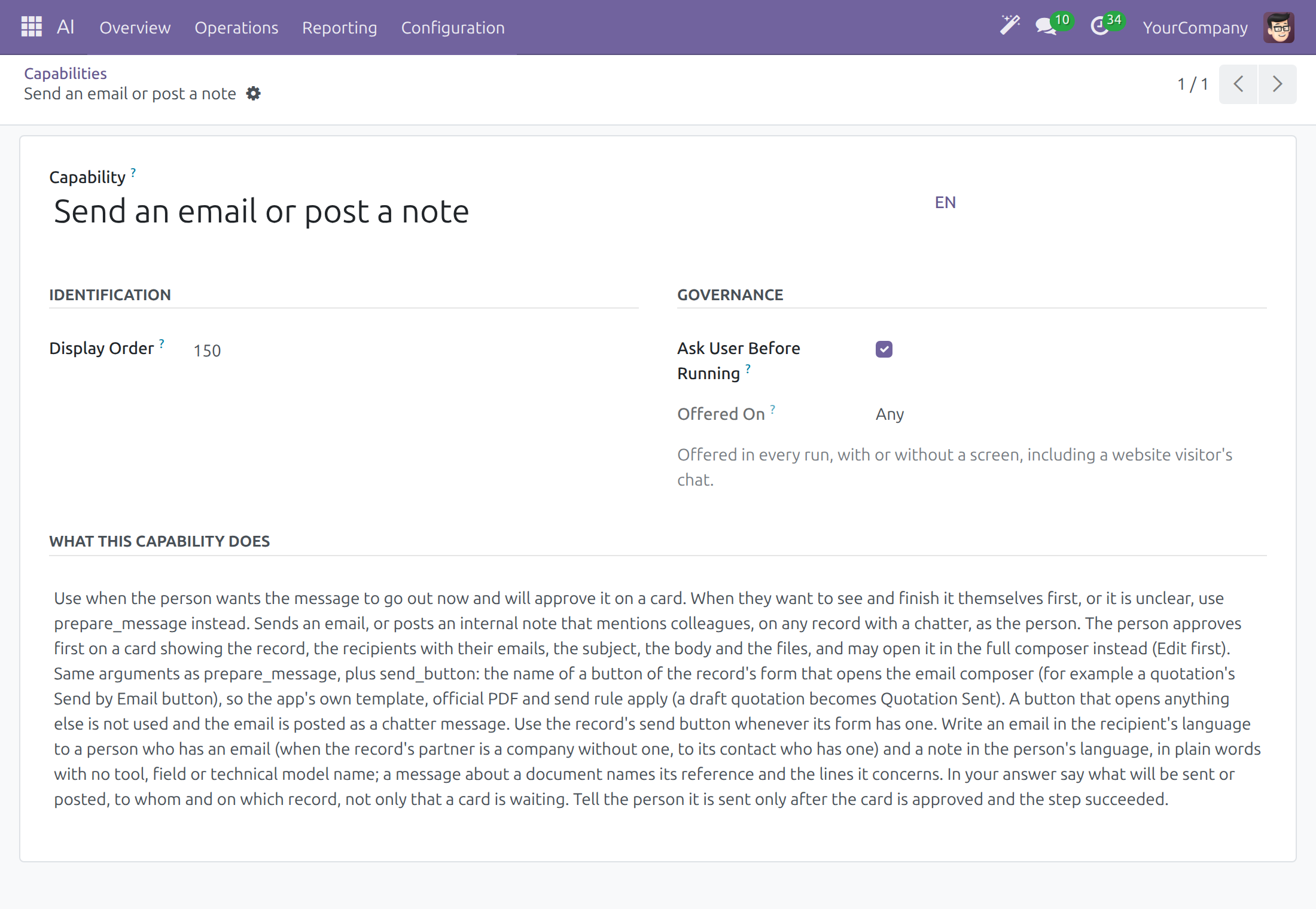
Clear Ask User Before Running to let the assistant carry the action out without a card. Do this only for an action you accept to run unattended: the assistant then acts at once, and a scheduled assistant too.
Set up an assistant
Every internal user opens the Agents list and reads an assistant; only a system administrator changes one.
Open AI ‣ Configuration ‣ Agents and open the assistant.
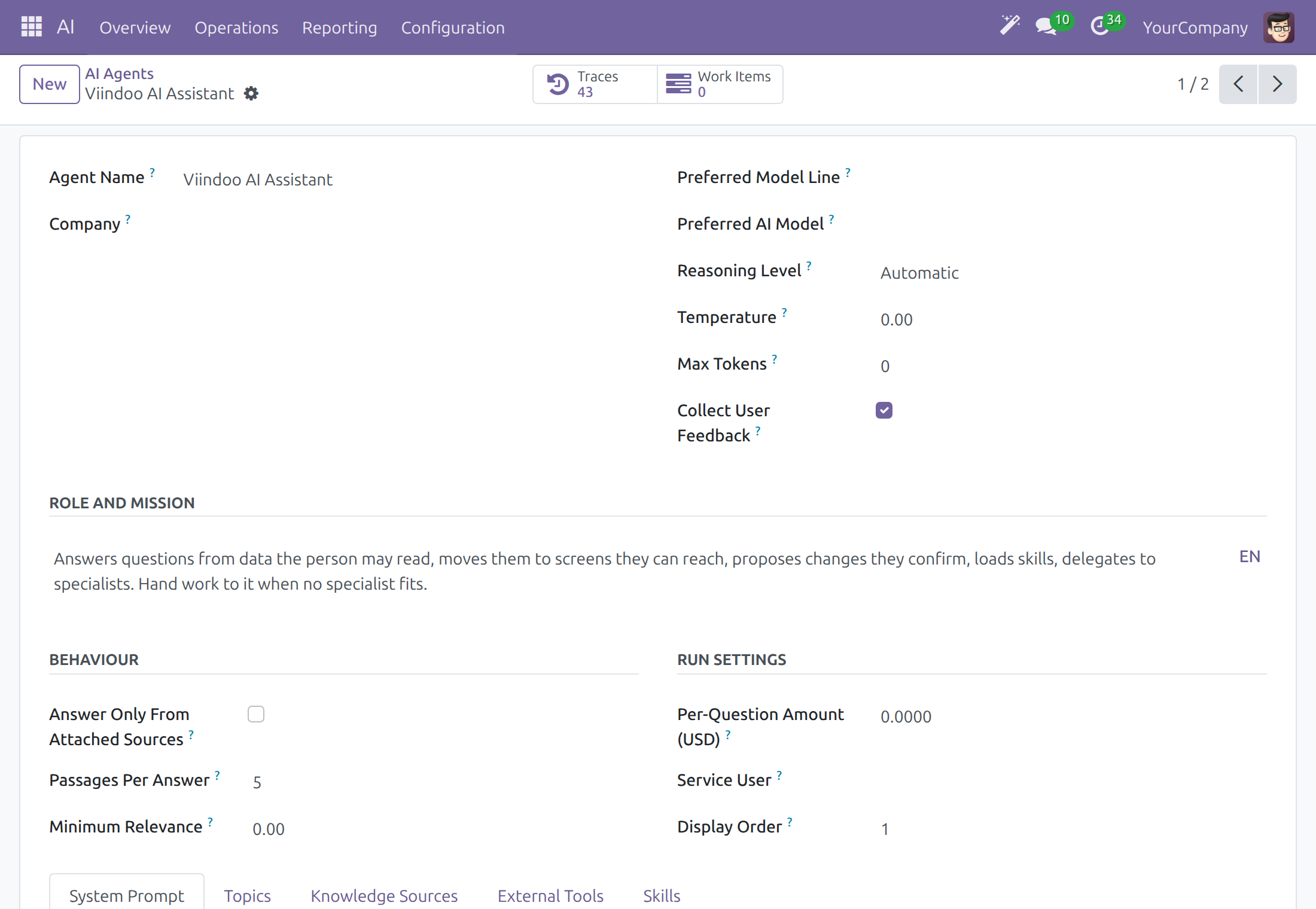
Write what it is for in Role and Mission, and how it behaves in the system prompt.
Pick the Preferred Model Line or Preferred AI Model, the Reasoning Level, and untick Collect User Feedback if people should not rate its answers.
Tick Answer Only From Attached Sources for an assistant that must not use general knowledge, then attach sources under Knowledge Sources. Use the tabs Topics, External Tools and Skills for the rest.
Click Save. The button Traces lists the runs of this assistant.
Fit the assistant to the model's window
An assistant offers many tools, and a model reads only so much at once: its context window. One rule decides how the tools are presented to the model, for every tool of the assistant, built in or coming from an external tool server.
Open AI ‣ Configuration ‣ Agents, open the assistant and go to the Topics tab.
Choose Load Tool Details On Demand. Point at the question mark beside the field to read its help.
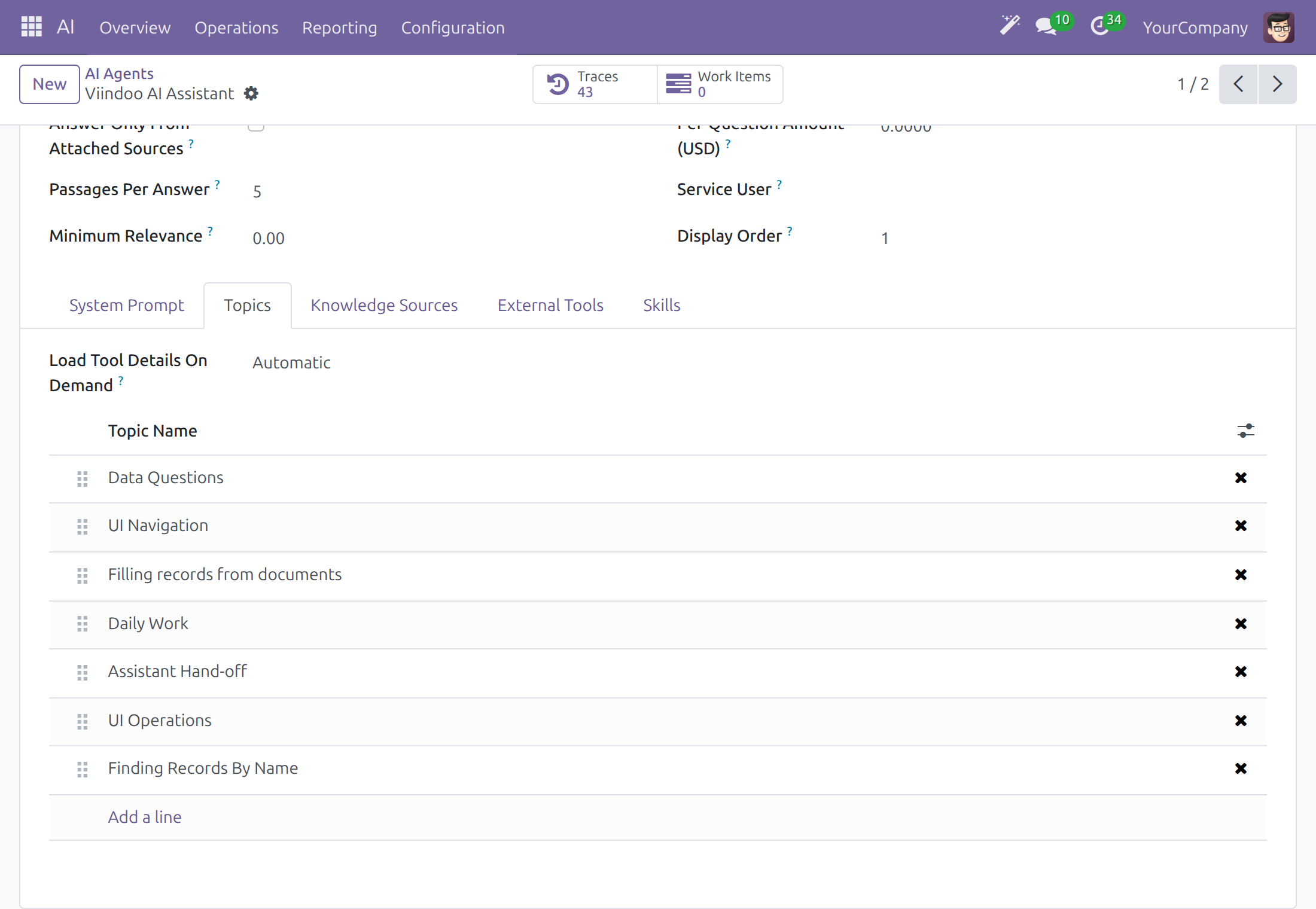
| Choice | What the model receives |
|---|---|
| Automatic | The tools that fit the model are described in full, those marked Always Describe To The Model first. The remaining tools are listed by name and the model loads their details when it needs them. This is the default. |
| Always | Every tool is listed by name only, whatever the size of the window. |
| Never | Every tool is described in full. A model whose window is too small for that answers with the card The request is too large, which names the model. |
A tool listed by name runs exactly like a tool described in full, and each person's own access rights decide which tools are offered in both cases. The ready-to-use Viindoo connection, whose model has a 32K window, answers on a full installation with Automatic; there is nothing to set.
System administrator: review answer quality
Define feedback categories
People rate an answer with a thumb or a flag. Categories let you group the reasons. Only system administrators see this menu.
Open AI ‣ Configuration ‣ Feedback Categories and click New. Type a Name such as Wrong answer or Tone issue and save.
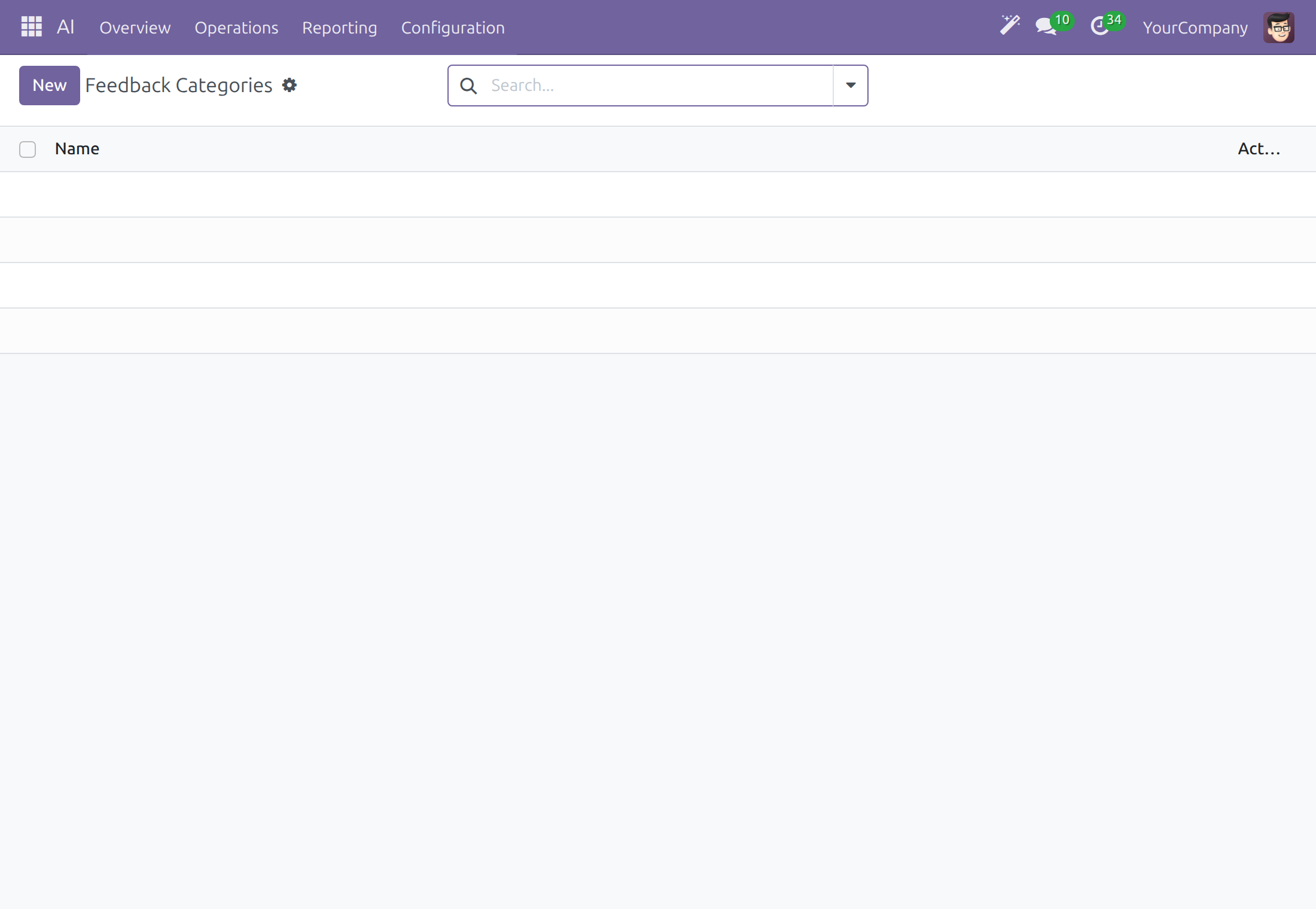
To hide a category from the picker, open it and use Action ‣ Archive. The feedback already given keeps it. The Archived filter lists archived categories, and Action ‣ Unarchive restores one.
Find answers that people rated badly
Only system administrators see the Feedback menu.
Open AI ‣ Operations ‣ Feedback. Each line is one rating, with the Date, User, Trace ID, Rating and Comment.
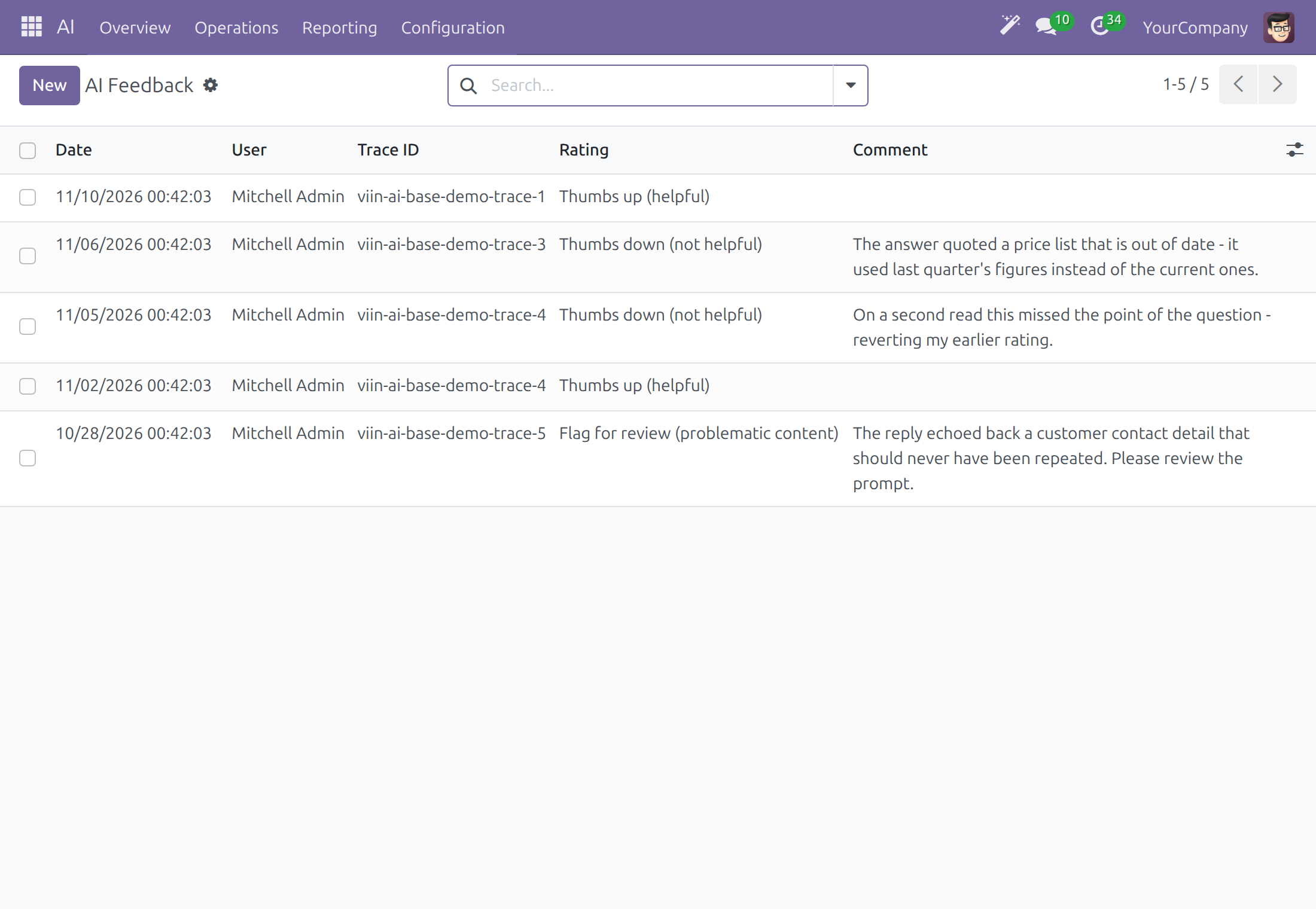
Use the filters Thumbs Up, Thumbs Down and Flagged, or group by Rating, User or Category.
Copy the Trace ID. In AI ‣ Reporting ‣ Dashboard, switch to the List view and tick Trace ID in the optional-columns menu at the right end of the header, then find the same value in that column to open the call behind the rating. The Dashboard has no search box for it. To go straight to the raw HTTP record of a call, type the Trace ID in the search box of API Logs ‣ API Request Logs and choose AI Trace ID.
System administrator: connect external tool servers
An external tool server gives the assistant extra actions from another service. Nothing is sent to a server until its address is approved. An AI Administrator sees these screens; only a system administrator creates or changes an approval or a server.
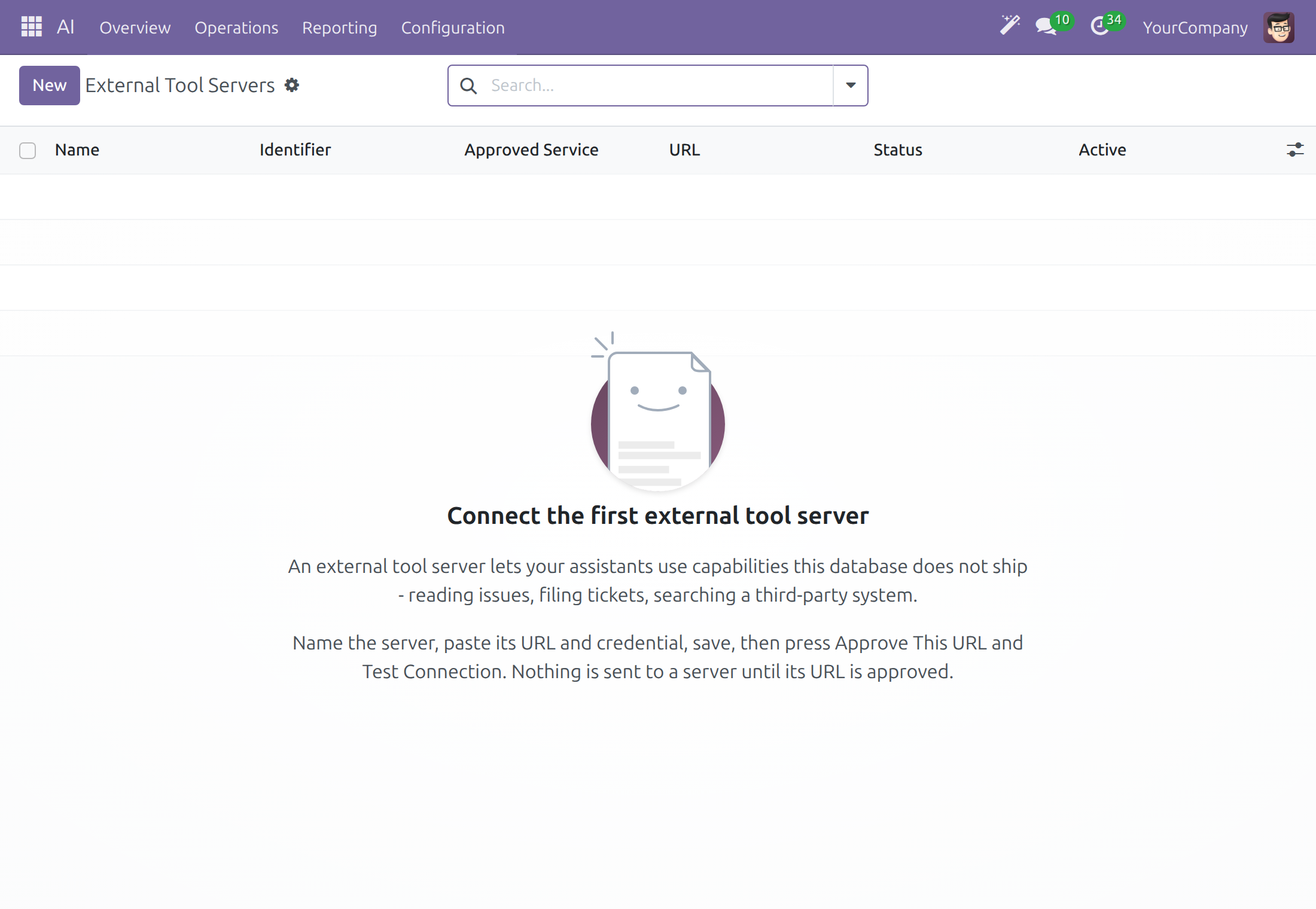
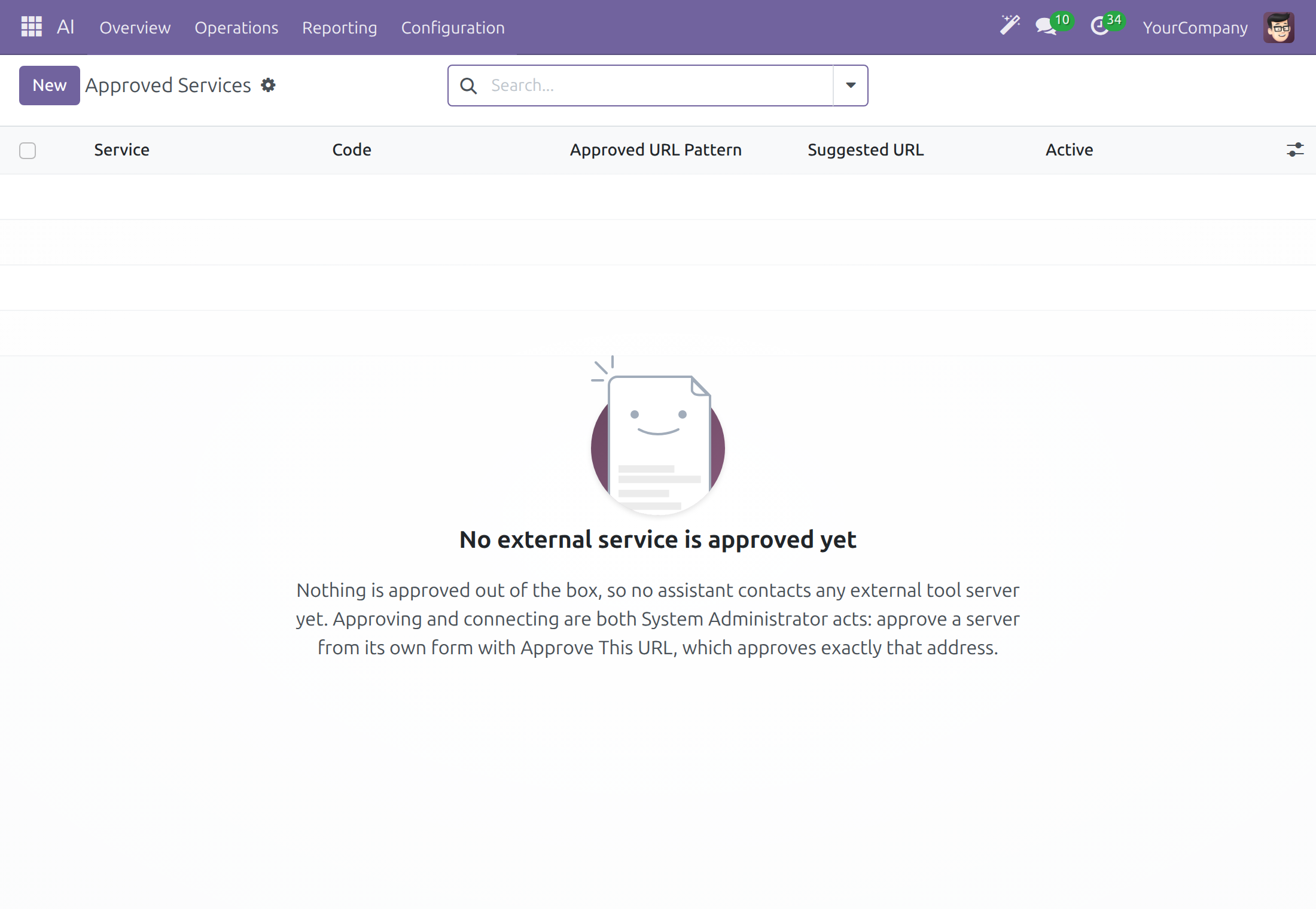
Approve a service
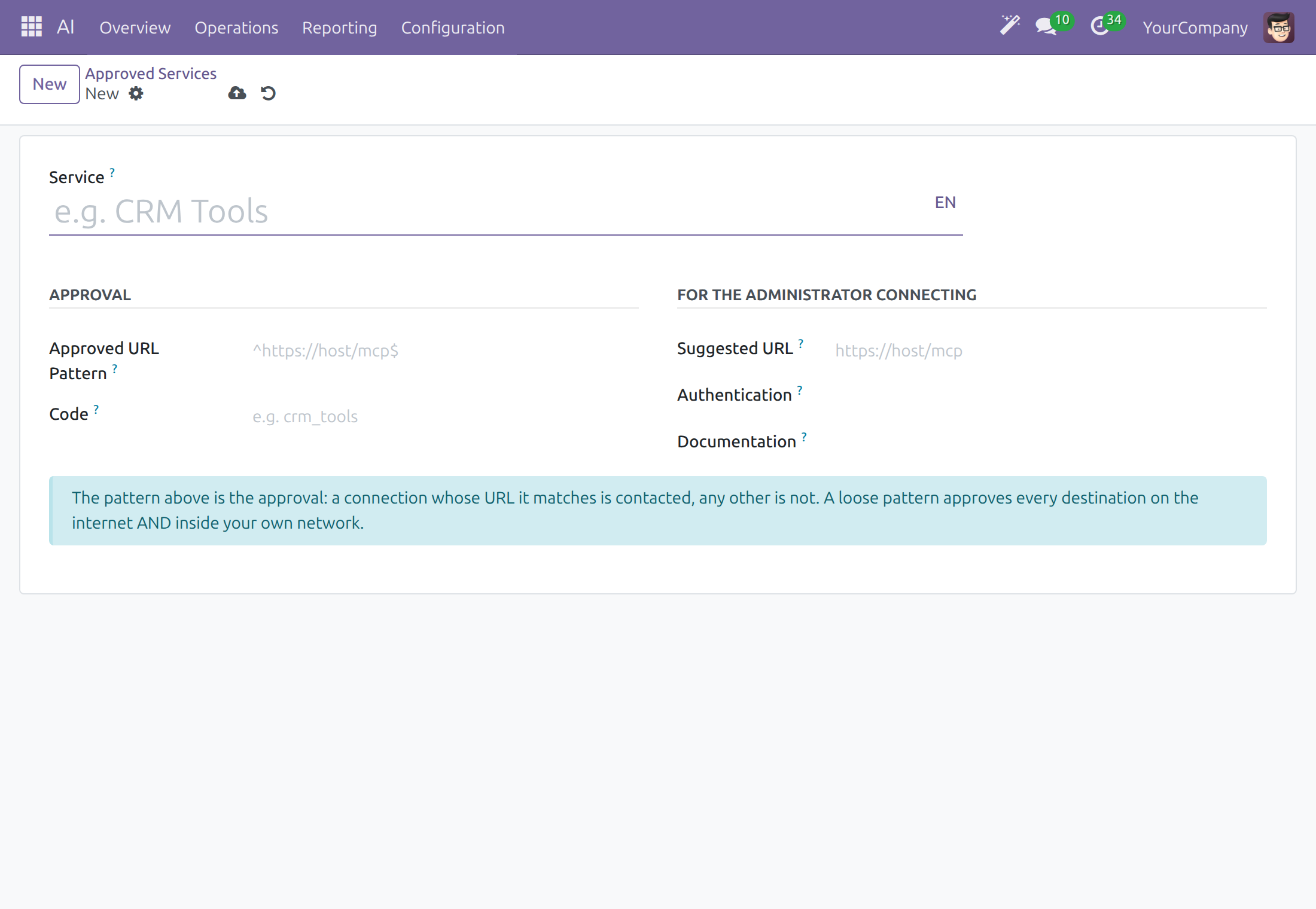
Open AI ‣ Configuration ‣ External Tool Servers ‣ Approved Services and click New.
Type the Service name and a Code, and put the exact address pattern in Approved URL Pattern. A connection is contacted only when its URL matches the pattern; a loose pattern approves every destination on the internet and inside your own network.
Fill Suggested URL, Authentication and Documentation to help whoever connects the service, then click Save.
Connect a server
Open AI ‣ Configuration ‣ External Tool Servers ‣ Servers and click New.
Type the Name and the URL, and choose the Approved Service that covers the URL. The Identifier fills in from the name; change it if you want another short name. Set Authentication to what the service expects.
Click Save, then Test Connection. The status bar goes from Not Yet Contacted to Contacting and Connected. When the URL is not approved, Approve This URL appears.
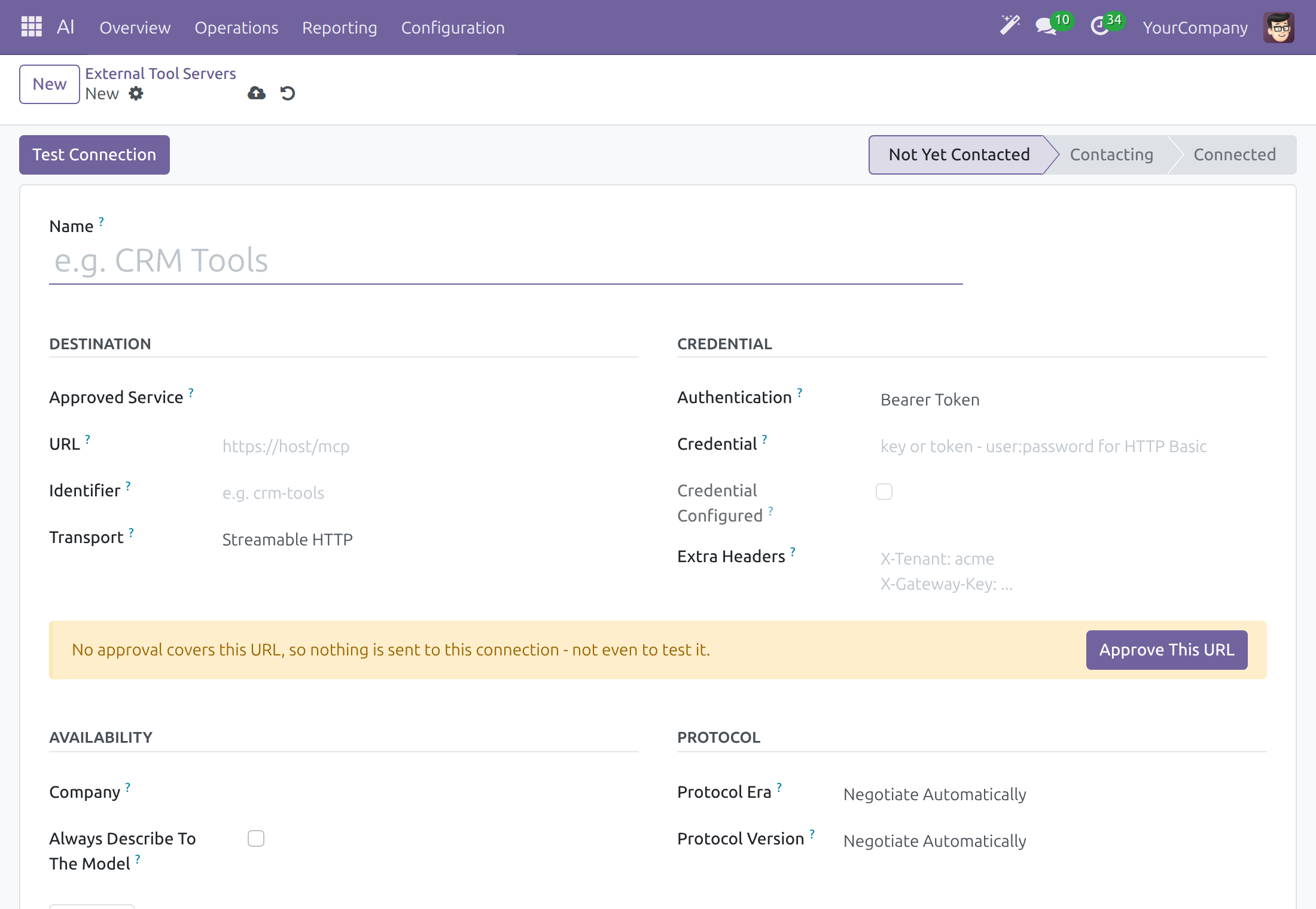
Credentials are typed once into the field of the chosen Authentication; Credential Configured only tells you that one is stored.
Choose which tools the model always sees
Always Describe To The Model is off by default: a tool of the server is described in full only while it fits the model's window, and is otherwise listed by name (see Fit the assistant to the model's window). Switch it on for the tools the assistant must always see in full.
Open the server in AI ‣ Configuration ‣ External Tool Servers ‣ Servers.
In the Availability section, tick Always Describe To The Model to describe every tool of the server in full on every call, before any other tool.
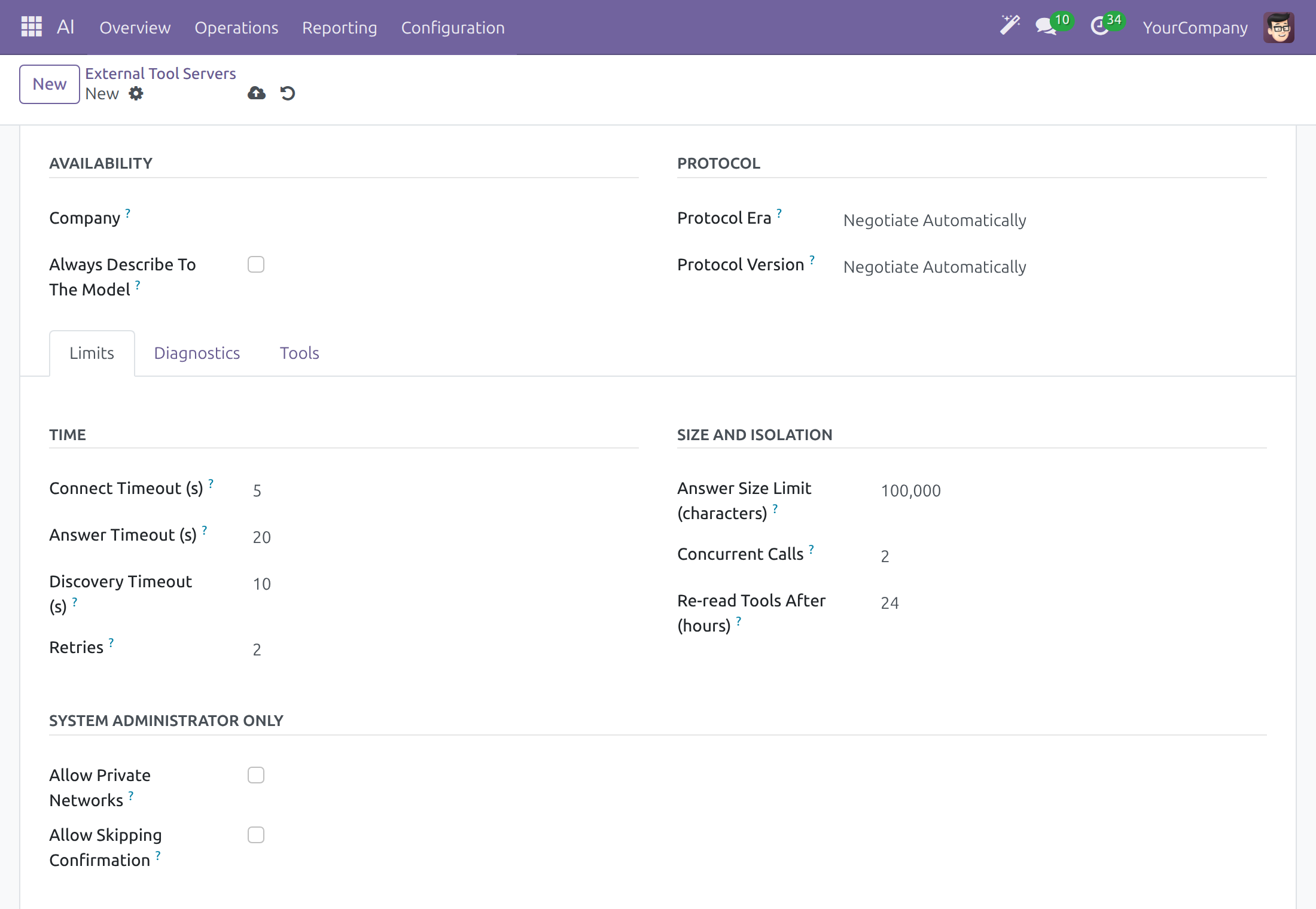
The Tools tab of the server lists its tools. The column Always Describe To The Model shows, tool by tool, which ones are described in full on every call, before any other tool.
Every tool described on every call takes room in each request, so switch the option on only for what the assistant cannot do without.
System administrator: advanced configuration
The screens below hold technical settings. The ready-made values work for the vendors of this guide, so leave them as they are unless a reason below applies. A system administrator or an AI Administrator changes AI Models, Model Lines, Message Adapters and Speech Pronunciations; an AI Administrator sees Capabilities, and only a system administrator changes them. Before changing them, ask Viindoo support at https://viindoo.com/ticket.
Topics
A topic holds the guidance the assistant follows on one subject, and the actions it uses for it. Assistants carry topics. Only system administrators open this list.
Open AI ‣ Configuration ‣ Topics. Each line is a topic with its Topic Name; drag the handle at the start of a line to change the display order. With no topic yet, the list shows Create your first AI topic.
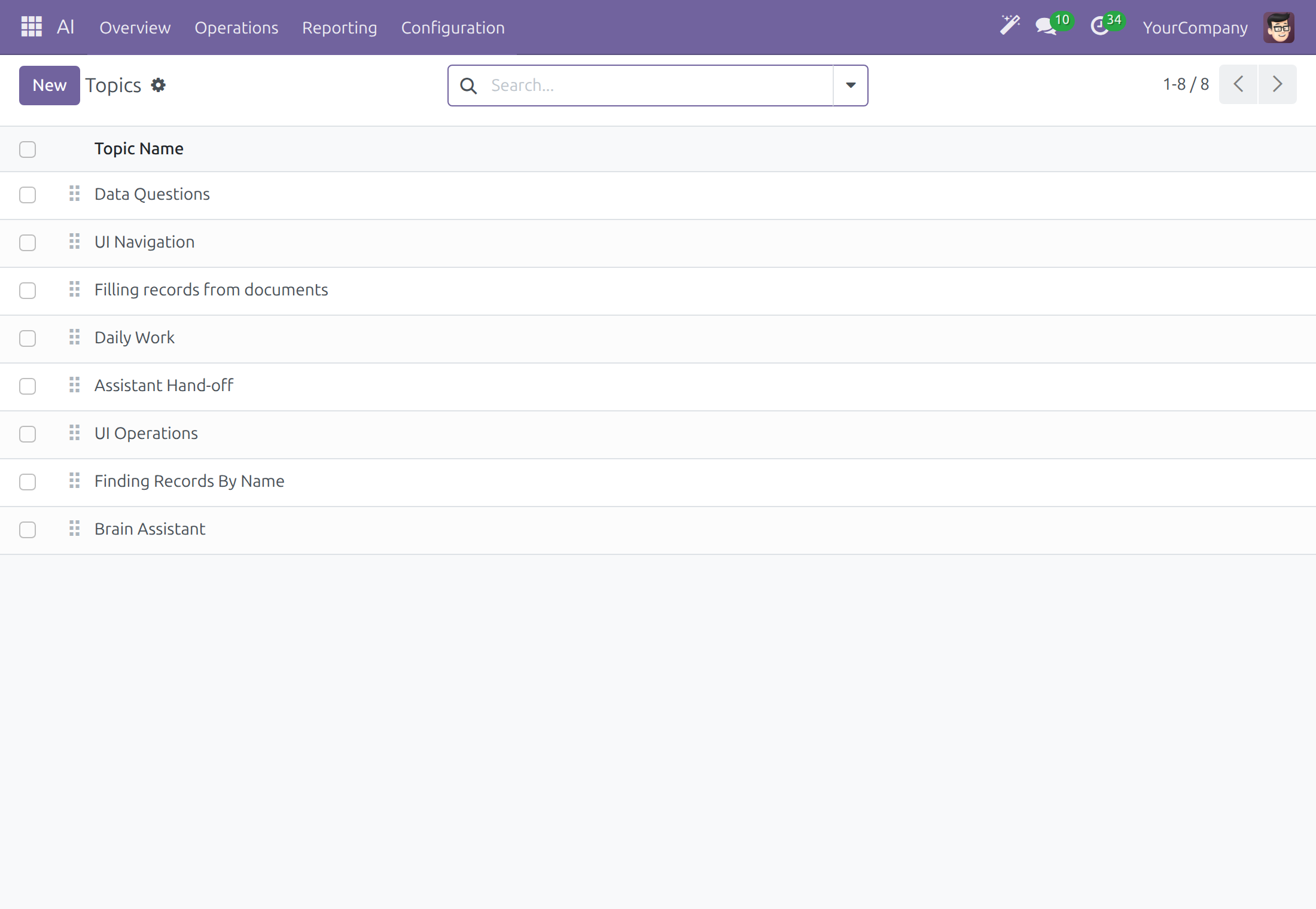
Click New for a topic of your own, or open one to change its name, its actions and the guidance for the assistant.
To stop assistants from offering a topic, open it and use Action ‣ Archive. An archived topic is no longer offered in the Topics tab of an assistant, which lists the others in their display order. The Archived filter lists archived topics, and Action ‣ Unarchive restores one.
Models
- Open AI ‣ Configuration ‣ AI Models. Each line is a model, with its Name, Maker, Features and Number of Providers.
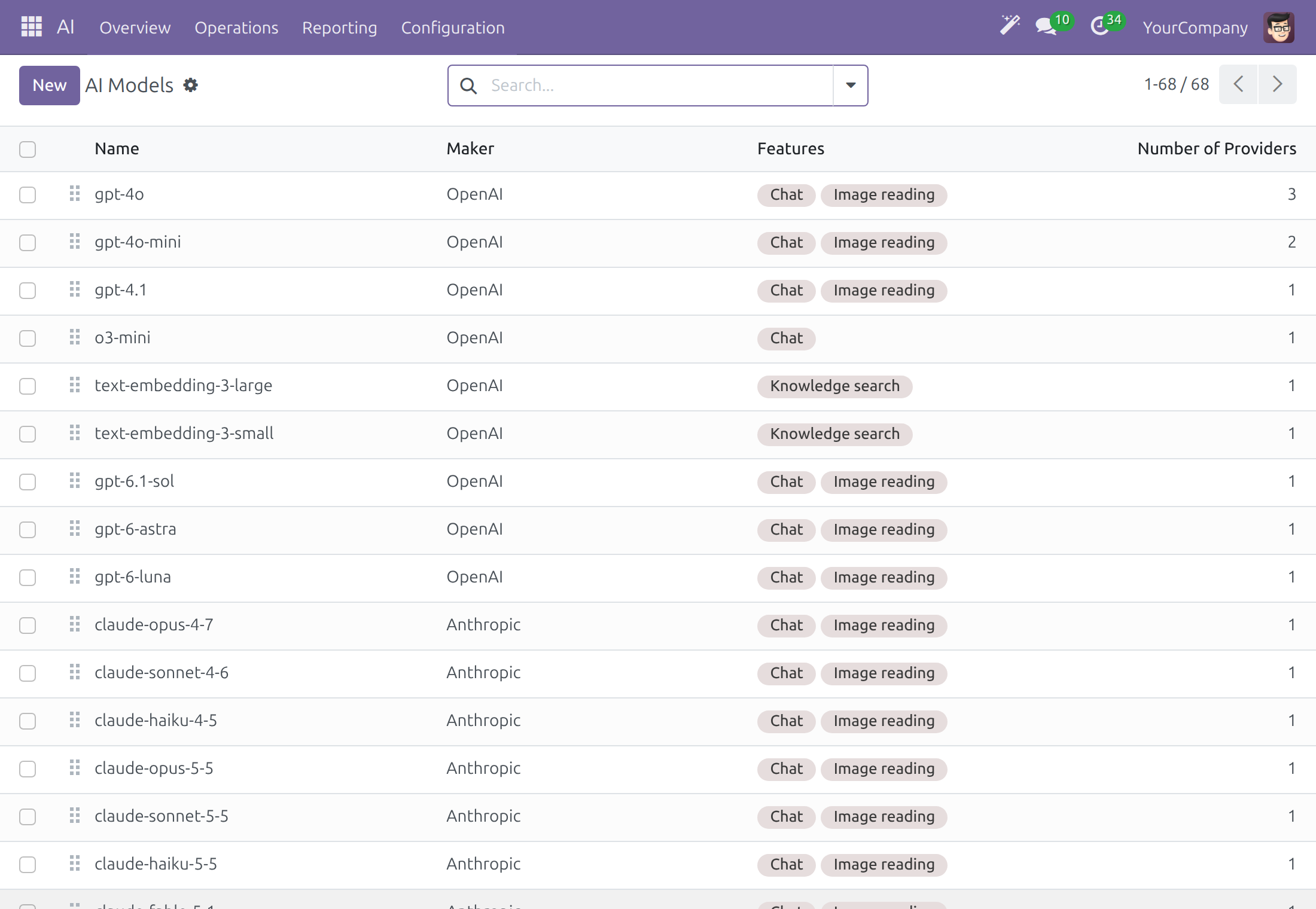
- Open a model to see its Model Line, its Features (chat, image reading, knowledge search, speech to text, read aloud), its Limits, such as the context window in tokens, the Prices per 1,000 tokens that feed the spend limits, its release and retirement dates, and the Providers tab with the connections that serve it.
- Touch it when a vendor releases a model that is not listed (click New, type the exact Model ID of the vendor and add the connection in Providers), when the prices of your contract differ, or to archive a model nobody should pick (Action ‣ Archive; the Archived filter lists archived models and Action ‣ Unarchive restores one).
Model Lines
Open AI ‣ Configuration ‣ Model Lines. A line is the vendor's family name, such as Claude Sonnet; a choice made on a line answers with the newest model of that line.
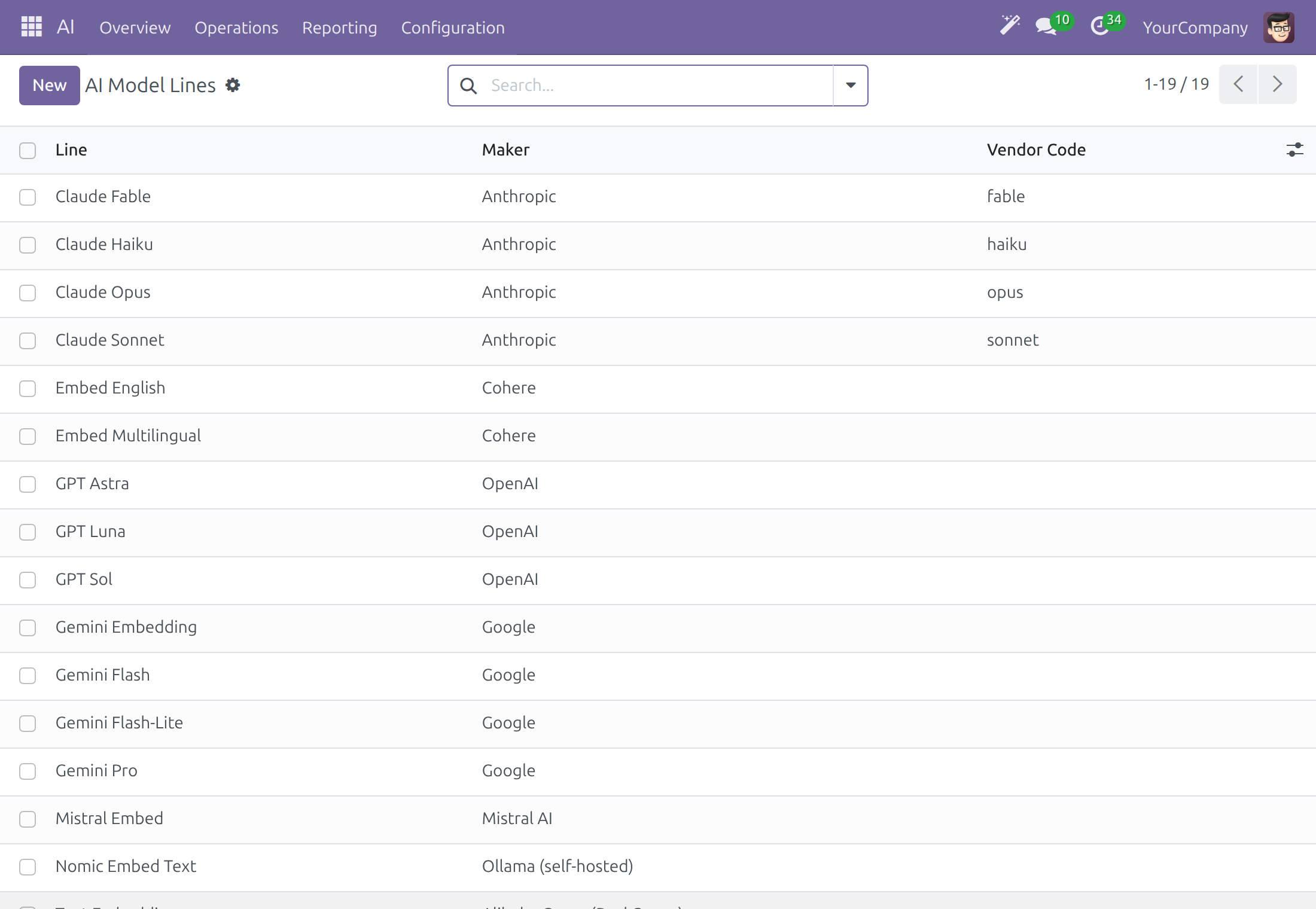
Leave it alone unless a vendor starts a new family that you want settings and assistants to follow.
Message Adapters
Open AI ‣ Configuration ‣ Message Adapters. Each line describes how messages are shaped for one vendor protocol, outgoing or incoming.
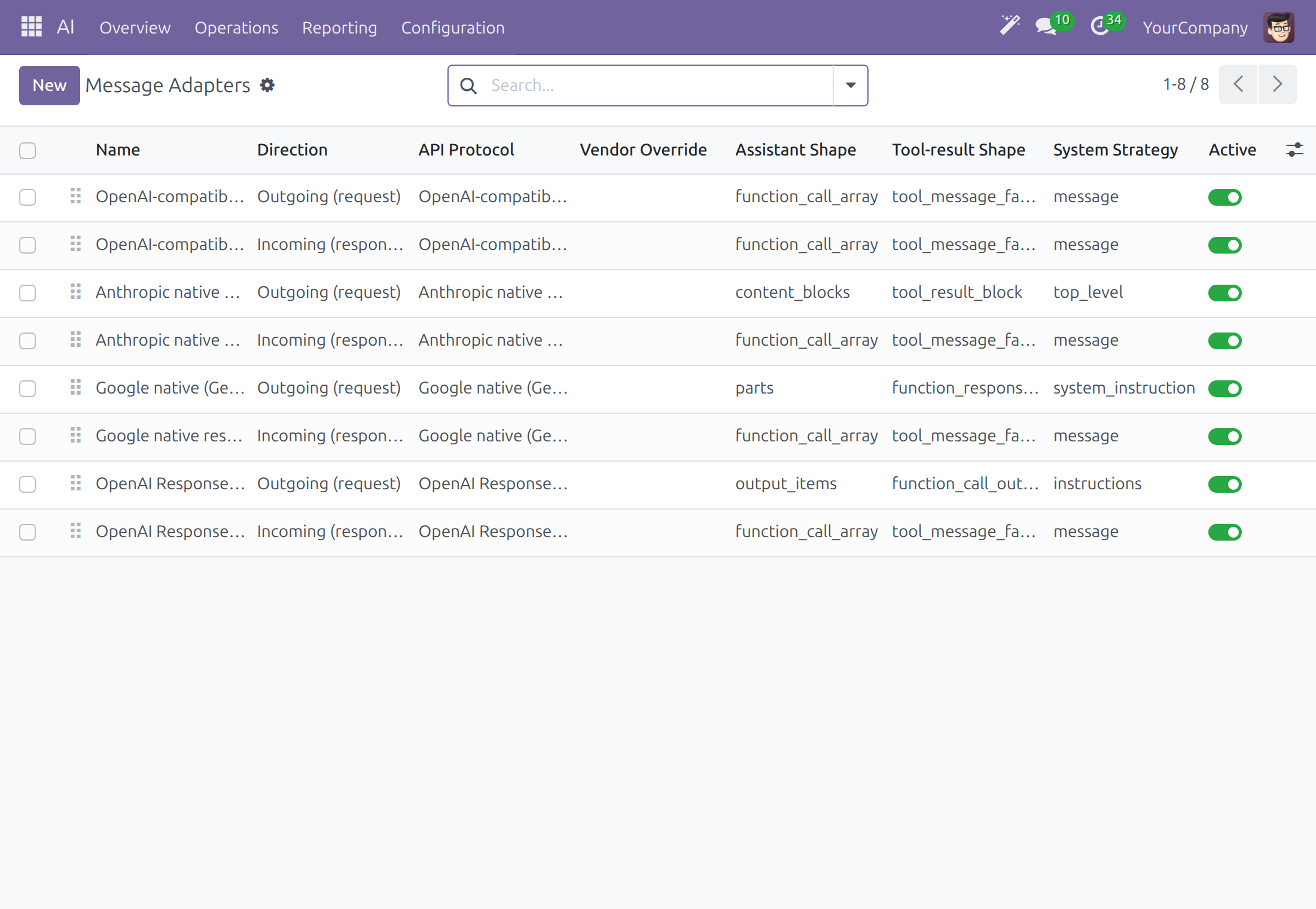
Keep them as they are. A change matters only for a vendor whose interface departs from its protocol, and a wrong value stops answers from that vendor.
Capabilities
The list of AI ‣ Configuration ‣ Capabilities is the full set of actions the assistant can take: finding and reading records (Find the kind of record, Read how a kind of record is set up, Look up records, Count and sum records), searching your knowledge (Search the company's sources), working with screens (Check the current screen, Open a menu, Open a record, Open a record to fill in), loading skills (Use a skill), asking a specialist (Ask another assistant) and the actions that prepare or send mail, make files and read web pages. They are generic: they work through the access rights of the person who asks, on every installed app, so no add-on per app is needed. See Choose which actions ask first to change what asks for approval.
Speech Pronunciations
Open AI ‣ Configuration ‣ Speech Pronunciations. Each line teaches the voice how to say a term, with the Written Term, a Respelling, the Phonetic (IPA) form, the Language and the Speech Models.
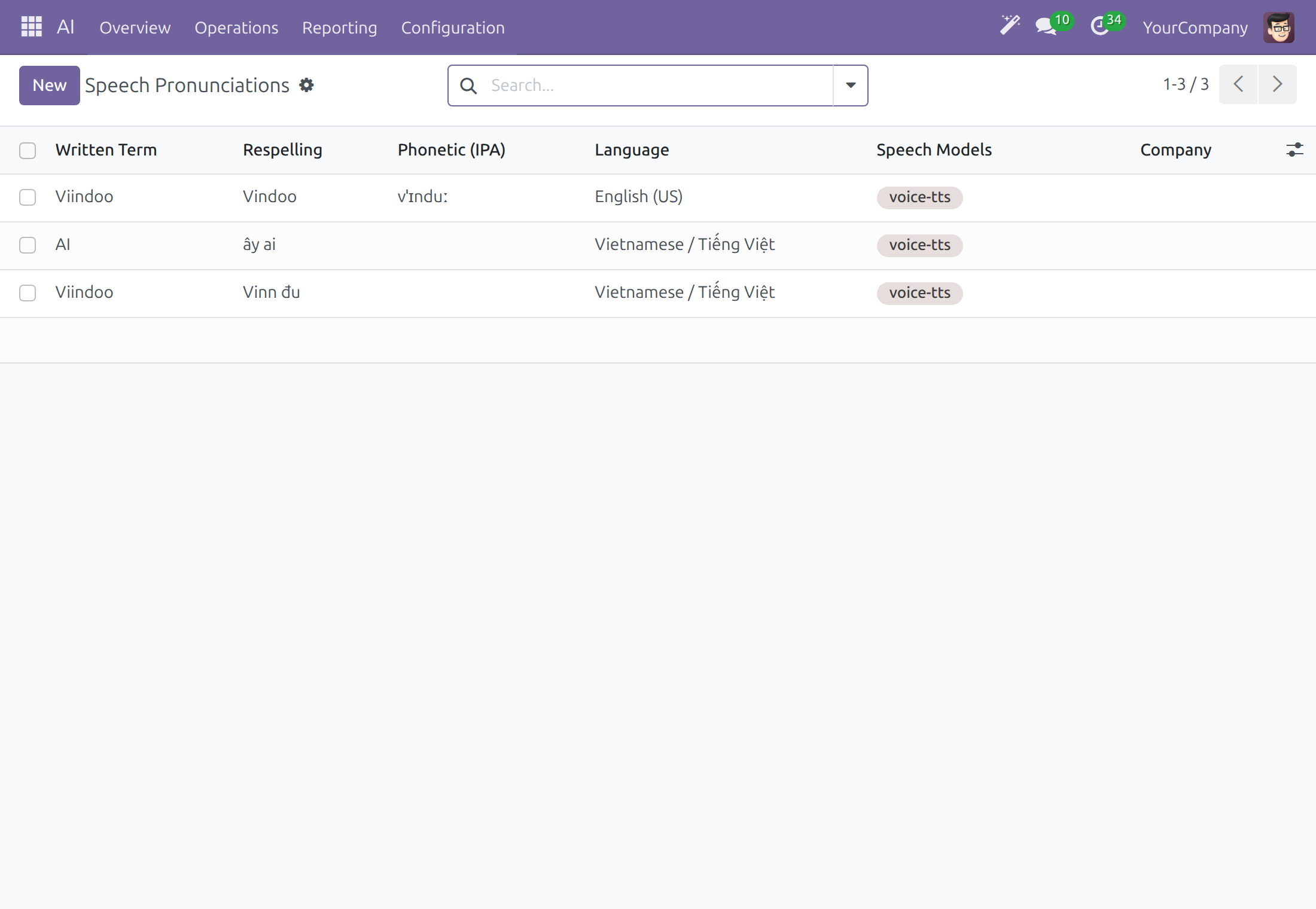
Click New when the voice says a company or product name wrongly. Type the Written Term exactly as written (the match is case-sensitive and whole-word), the Respelling, and the Language; leave Company empty to apply everywhere.
Troubleshooting
| What you see | What to do |
|---|---|
| The message says no AI connection is available for your company. | Open AI ‣ Configuration ‣ Settings and choose a model in Chat under Default Models. It takes effect on the very next question. |
| Test Connection reports an error. | Check the API Key, the Base URL and the Authentication type of the connection in AI ‣ Configuration ‣ Providers. |
| A message says the connection is set to Self-Hosted data residency but has no private endpoint. | Fill in Base URL with your own endpoint, or change Data Residency if the connection is a cloud service. |
| A message says the daily cost cap is exceeded. | Raise the limit in Cost Control, set it to -1 for no limit, or wait for the next day. |
| The card The request is too large names the model. | Open the assistant in AI ‣ Configuration ‣ Agents, go to the Topics tab and set Load Tool Details On Demand to Automatic. If the card stays, choose a model with a larger context window. |
| Raw HTTP or API Request Logs is not available. | Ask a system administrator for the API Log Viewer right. |
| The AI section is missing in the Access Rights tab of a user. | Activate developer mode; the AI rights appear there. |
| A knowledge source stops at Error. | Read the Error section and fix the cause, such as an unlocked file or a corrected address. Then open the assistant in AI ‣ Configuration ‣ Agents, go to Knowledge Sources and click Retry failed sources. |
| An external tool server stays Not Yet Contacted or the message says its URL is not approved. | Click Approve This URL on the server, or approve the service first in AI ‣ Configuration ‣ External Tool Servers ‣ Approved Services, then click Test Connection. |
For other questions, contact support at https://viindoo.com/ticket. To buy or upgrade, see https://viindoo.com/contactus.
FAQ
Which AI vendors can I use? The thirteen connections listed in AI ‣ Configuration ‣ Providers, and any vendor you add with New, such as an Ollama server or Azure OpenAI.
Can anyone read my API key? No. The key field shows dots, and the audit trail shows ***MASKED*** in place of the key.
What is the Viindoo connection for? It is the connection that is ready after installation, with daily token limits and a small model, so the assistant answers short questions before any vendor is configured. For longer chains of work connect your own vendor.
Where is the record of what an employee asked? In the usage log of the Dashboard, on the Prompt tab of the call.
Can each company use its own vendor? Yes. The connection settings are kept per company.
This software and associated files (the "Software") may only be used (executed, modified, executed after modifications) if you have purchased a valid license from the authors, typically via Odoo Apps, or if you have received a written agreement from the authors of the Software (see the COPYRIGHT file).
You may develop Odoo modules that use the Software as a library (typically by depending on it, importing it and using its resources), but without copying any source code or material from the Software. You may distribute those modules under the license of your choice, provided that this license is compatible with the terms of the Odoo Proprietary License (For example: LGPL, MIT, or proprietary licenses similar to this one).
It is forbidden to publish, distribute, sublicense, or sell copies of the Software or modified copies of the Software.
The above copyright notice and this permission notice must be included in all copies or substantial portions of the Software.
THE SOFTWARE IS PROVIDED "AS IS", WITHOUT WARRANTY OF ANY KIND, EXPRESS OR IMPLIED, INCLUDING BUT NOT LIMITED TO THE WARRANTIES OF MERCHANTABILITY, FITNESS FOR A PARTICULAR PURPOSE AND NONINFRINGEMENT. IN NO EVENT SHALL THE AUTHORS OR COPYRIGHT HOLDERS BE LIABLE FOR ANY CLAIM, DAMAGES OR OTHER LIABILITY, WHETHER IN AN ACTION OF CONTRACT, TORT OR OTHERWISE, ARISING FROM, OUT OF OR IN CONNECTION WITH THE SOFTWARE OR THE USE OR OTHER DEALINGS IN THE SOFTWARE.