
Objectives & Key Results - OKR
| Lines of Code | 1900 |
| Technical name | to_okr |
| License | OPL-1 |
| Website | https://viindoo.com/apps/modules/17.0/to_okr |
| Read description for | v 13.0 v 14.0 v 15.0 v 16.0 v 18.0 v 19.0 |
| Required Apps | Discuss (mail) Employees (hr) |
| Included Dependencies | Advanced HR Management |
| Extensions | OKR & Project Integrator |

OKRs that roll up from the person to the company
One tree: the company objective at the top, department objectives under it, key results owned by named people at the bottom - and a progress figure at every level that is computed, not typed.
Objectives & Key Results - OKR (technical name to_okr) is an Odoo 17.0 app for Odoo Community and Odoo Enterprise and Viindoo Cloud, built for executive, department manager, employee, hr.

At a Glance
The facts of Objectives & Key Results - OKR, version 0.1.4, in one place. Published by Viindoo.
Key Features
An OKR is only useful if the company number is the sum of real work. This app models objectives and key results as one tree of nodes: a node belongs to the company, a department or an employee, carries a weight, and rolls its progress up to its parent. Set 75% on a key result and the department objective above it moves, and so does the company objective above that - on a hierarchy chart the whole company can read in one screen. Committed and aspirational objectives are marked as such, and a success threshold decides what counts as achieved rather than leaving it to argument.
A threshold, not an opinion
The success point threshold is configuration. Above it a node reads Successful, below it Failed - the same rule for everyone.
Committed and aspirational
Stretch objectives are marked as such, so the quarterly review does not treat 60% on a moonshot as a miss.
How It Works
Three steps to a quarter that adds up.
Set the company objective
Name it, put it in a year and a quarter, choose whether it belongs to the company, a department or a person, and mark it committed or aspirational. Confirming it makes it part of the quarter.

Break it down and give it weights
Department objectives hang off the company objective; key results hang off those and belong to a named employee. Weights say which key result matters more - 60/40 rather than an implicit 50/50.

Read the tree, not the spreadsheet
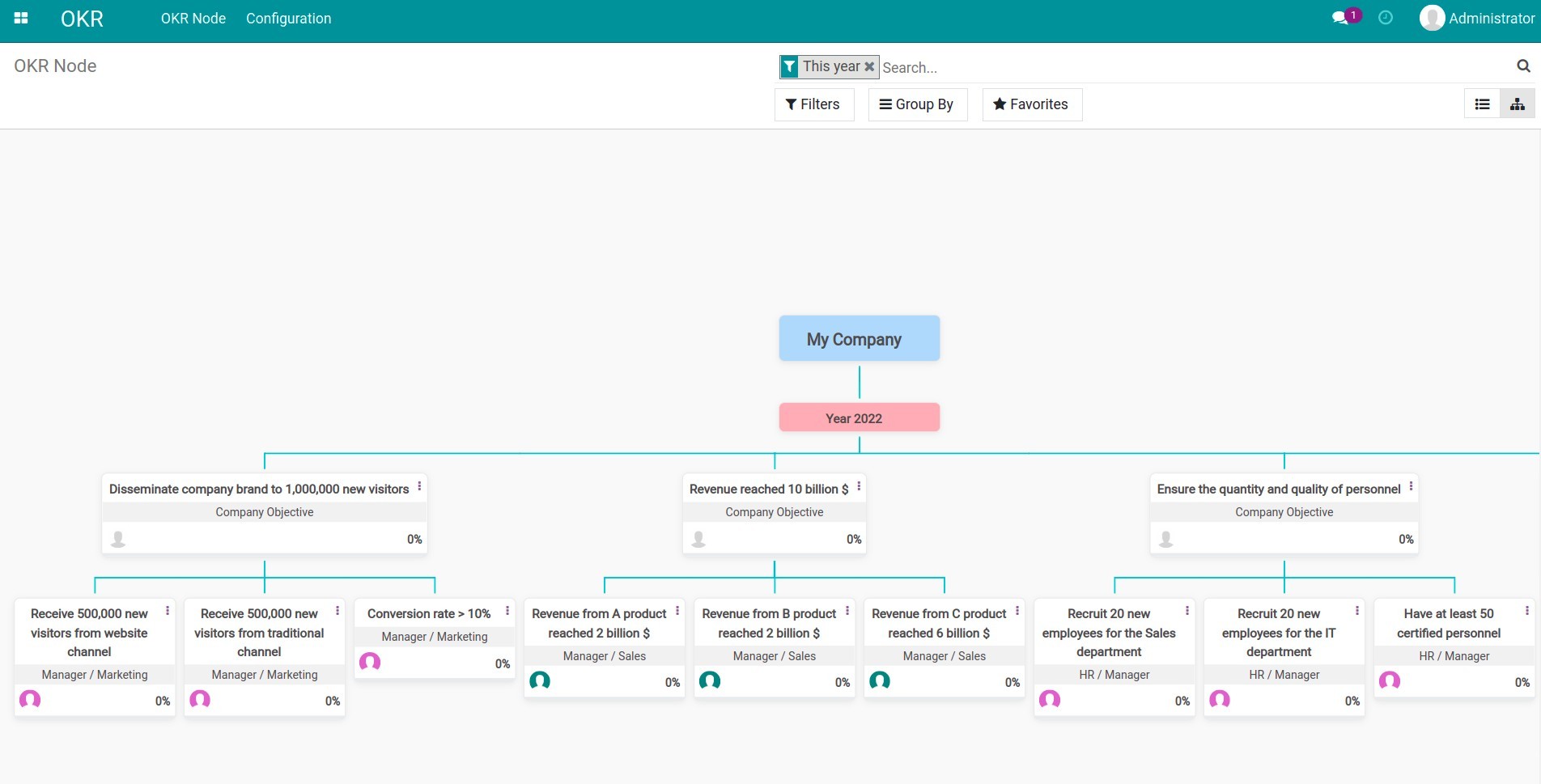
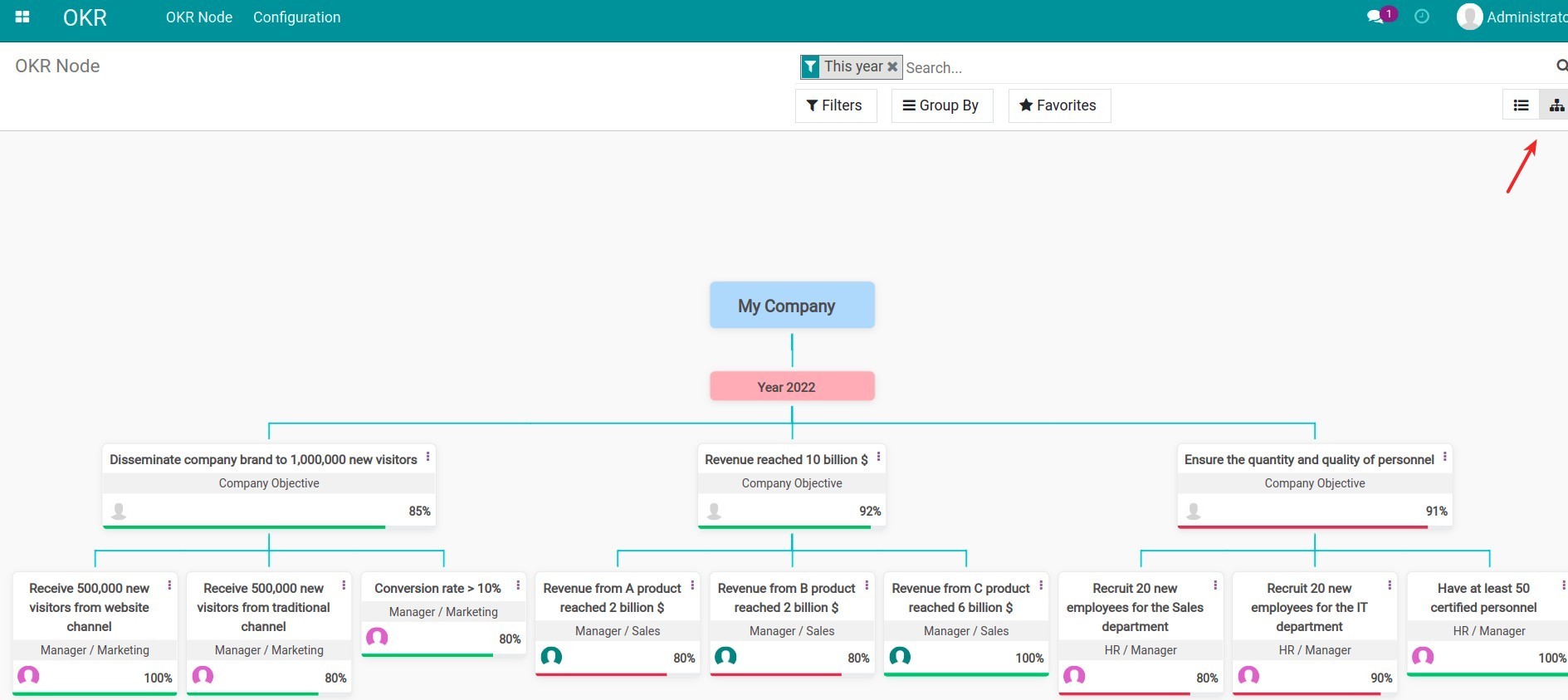
The hierarchy chart shows every level with its owner and its progress bar. The company figure is arithmetic on the levels below it, so a conversation about the number becomes a conversation about which key result is behind.
What You Get
Three levels that behave the same way: company, department and employee objectives are the same model, so a tree can be as deep as the organisation is
Weighted key results: a 60/40 split between two key results makes the parent's progress reflect what actually matters
Progress computed upwards - a parent's figure is always the weighted average of its confirmed children, never a number someone typed
Committed versus aspirational, so a stretch goal at 60% is not read as a failure
A success threshold per tree, which turns progress into Successful or Failed without a meeting
Objectives owned by an employee with a user account, so accountability has a name and a login
More Screens
Everything below was taken on a database seeded with real business data, on this series - not a mock-up and not a screenshot from an older version.
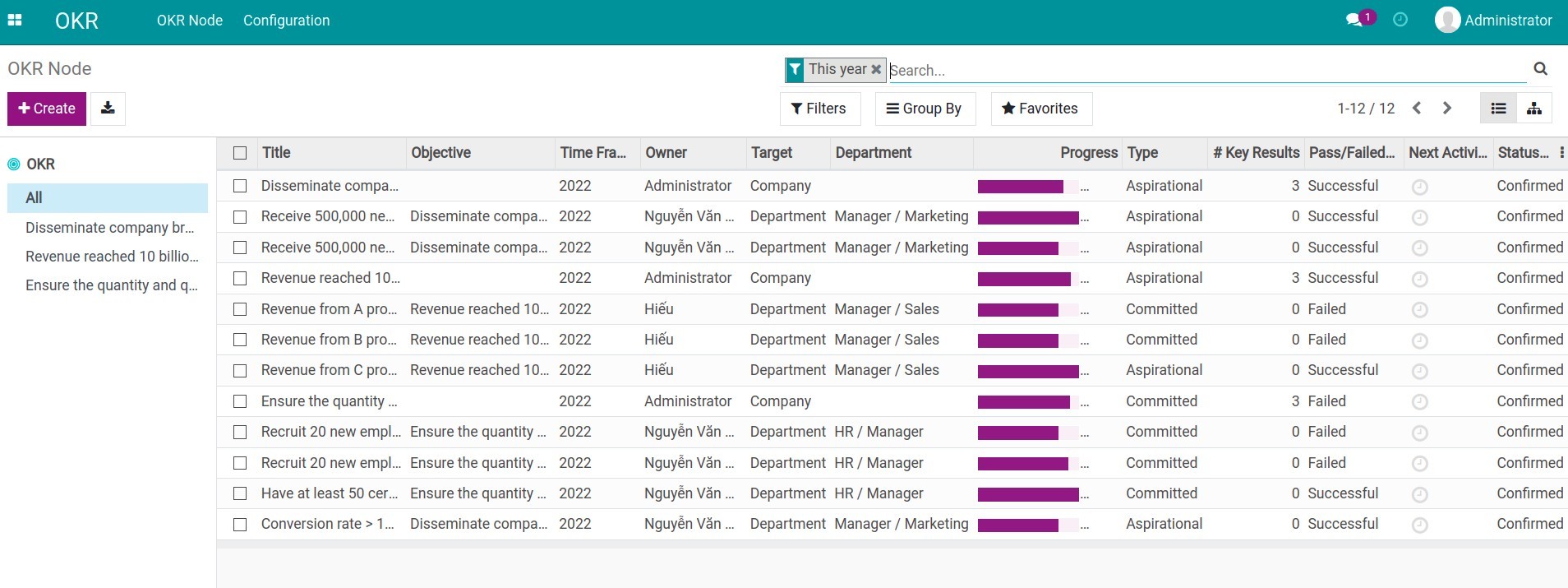
Every objective and key result of the quarter in one list

The success threshold that decides Successful from Failed
What This App Does Not Do
Read this before you buy. Everything below is something the app deliberately leaves to another app or to you.
Progress is updated on the key result when the owner knows the new number. There is no weekly prompt or check-in workflow.
A key result about revenue is not wired to the sales figures; someone types the progress. Automatic sourcing is a project, not a setting.
The app refuses to confirm otherwise, on purpose - an objective without an accountable person is how OKR programmes die. Set the manager first.
OKR measures objectives; rating people is the appraisal app's job, and mixing them is what makes staff game the numbers.
Works Well With
Apps from the same stack, built to fit this one:
OKR + Project
Link key results to the project tasks that deliver them, and let task progress feed the key result.
OKR & Project IntegratorAppraisal
For the conversation about the person, kept separate from the objectives on purpose.
Appraisal (HR)Skills Framework
When the gap behind a missed objective is a capability rather than an effort.
HR Skills FrameworkWho Should Use Objectives & Key Results - OKR?
Executive
Sets the company objectives for the quarter and reads one chart to see where they stand.
Department manager
Breaks a company objective into department objectives and assigns the key results.
Employee
Owns key results, updates their progress, and sees how their number moves the company's.
HR
Runs the quarter: which departments have set objectives, which have not, and what the threshold for success is.
Frequently Asked Questions
What does Objectives & Key Results - OKR do?
One tree: the company objective at the top, department objectives under it, key results owned by named people at the bottom - and a progress figure at every level that is computed, not typed.
What does Objectives & Key Results - OKR not do?
It does not collect check-ins on a schedule. Progress is updated on the key result when the owner knows the new number. There is no weekly prompt or check-in workflow. Key results do not read their own numbers from the database. A key result about revenue is not wired to the sales figures; someone types the progress. Automatic sourcing is a project, not a setting. A department objective needs a department manager with a user account. The app refuses to confirm otherwise, on purpose - an objective without an accountable person is how OKR programmes die. Set the manager first. It is not a performance appraisal. OKR measures objectives; rating people is the appraisal app's job, and mixing them is what makes staff game the numbers.
Who is Objectives & Key Results - OKR for?
Executive: Sets the company objectives for the quarter and reads one chart to see where they stand. Department manager: Breaks a company objective into department objectives and assigns the key results. Employee: Owns key results, updates their progress, and sees how their number moves the company's. HR: Runs the quarter: which departments have set objectives, which have not, and what the threshold for success is.
Which Odoo version and editions does it support?
Odoo 17.0 - Odoo Community, Odoo Enterprise, Viindoo Cloud. Upgrades to a newer Odoo series are a separate purchase for that series.
What does it depend on?
It installs on top of: web_hierarchy, viin_hr. Odoo installs them with it.
How do I set it up?
Three steps to a quarter that adds up.
What works well with it?
OKR + Project (to_okr_project): Link key results to the project tasks that deliver them, and let task progress feed the key result. Appraisal (viin_hr_appraisal): For the conversation about the person, kept separate from the objectives on purpose. Skills Framework (viin_hr_skill_framework): When the gap behind a missed objective is a capability rather than an effort.
Can I try it before buying?
Yes - the Live Preview button at the top of this page opens the module's own screen on a working database.
How do I get support?
Write to apps.support@viindoo.com with your Odoo version and the technical name to_okr; pre-sales questions go to sales@viindoo.com.
See Objectives & Key Results - OKR in Action
OKRs that roll up from the person to the company
Need help with Objectives & Key Results - OKR?
For questions, implementation support, or consulting services, contact Viindoo.
Pre-Sales & Partnership
sales@viindoo.comWhen contacting us, please include:
- Odoo/Viindoo version (Odoo CE / Viindoo Editions).
- Number of users and business scope.
- Other modules currently in use.
Technical Support
apps.support@viindoo.comFor faster troubleshooting, please provide:
- Order number or app reference.
- Odoo/Viindoo version & edition.
- Steps to reproduce the issue.
- Screenshots/logs if available.
Upgrades to a newer Odoo series are a separate purchase for that series.
Technical Requirement
Changes log
0.1.4 - Latest on the 17.0 line
- Progress rolls up by weight, and a parent without confirmed children no longer reports a misleading zero.
- The hierarchy chart shows the owner's avatar and the progress bar at every level.
- Confirming a department objective checks that the department has a manager with a user account, and says so plainly when it does not.
- Committed and aspirational objectives are distinguished in the result computation.
Installation
- Navigate to Apps.
- Search with keyword to_okr.
- Press Install.
How to use
Instruction video: Objectives and Key Results - OKR
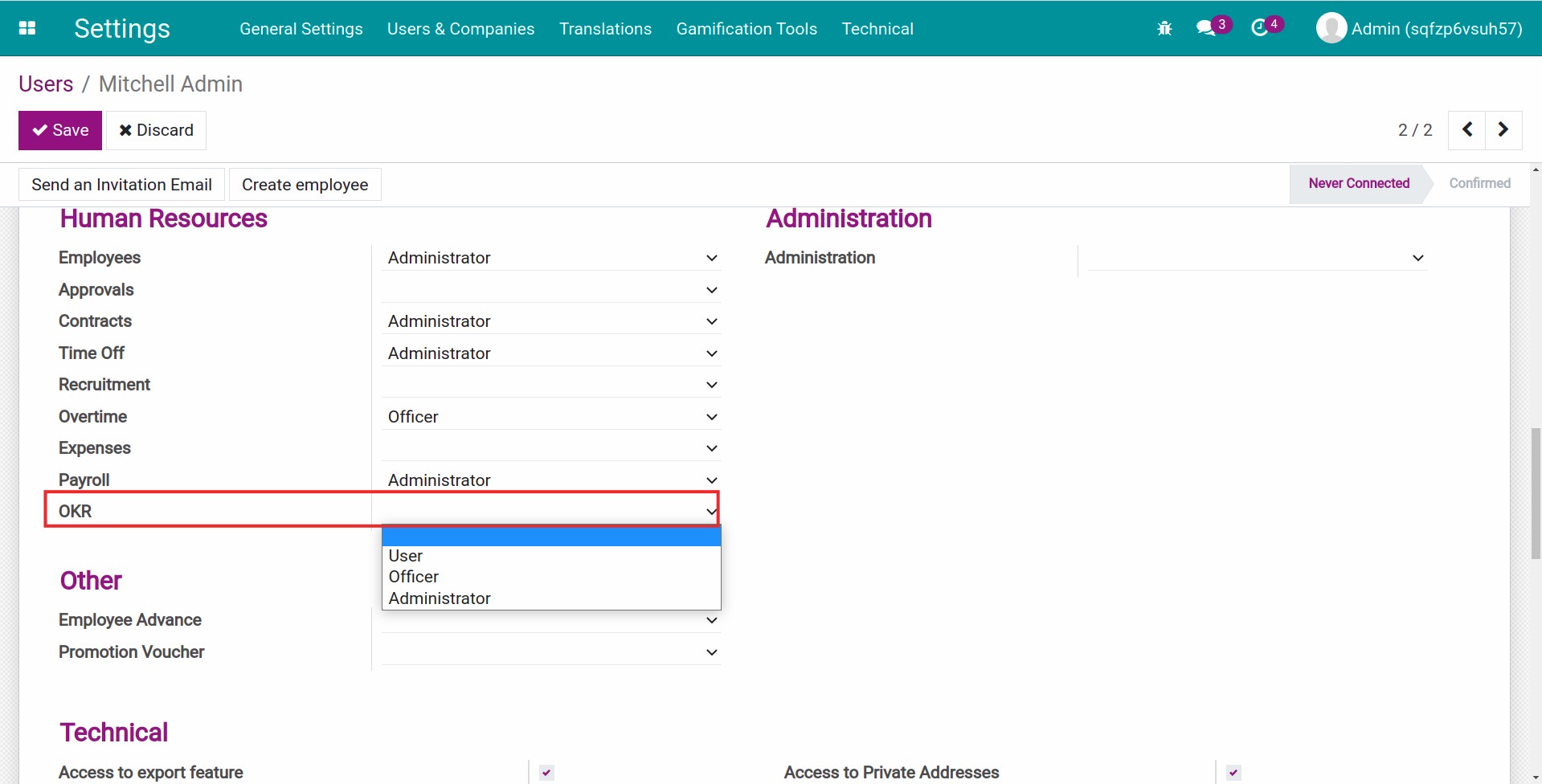
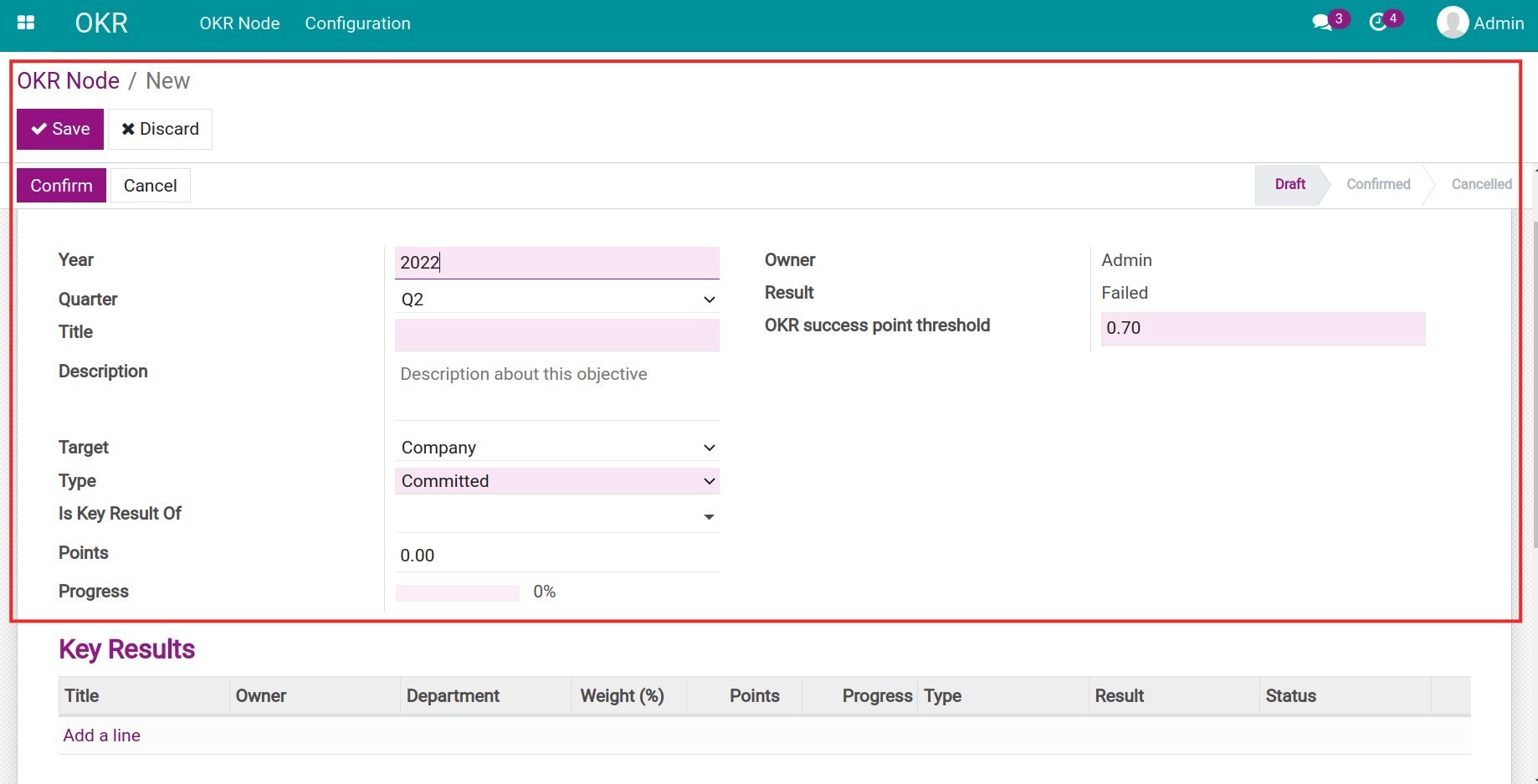
Set up OKRs using the genealogical structure
At the beginning of the year/quarter, your company sets an objective for the whole company. To determine the success or failure of this objective, the company plans to achieve the B, C, and D key results and assigns them to the departments.
For the departments, after they are assigned, B, C, D become their objective. From here, departments begin to strategize with key results B1, C1, D1 to achieve the assigned objective.
Similarly for the employee, when they are assigned tasks, the B1, C1, and D1 will become their personal objective.
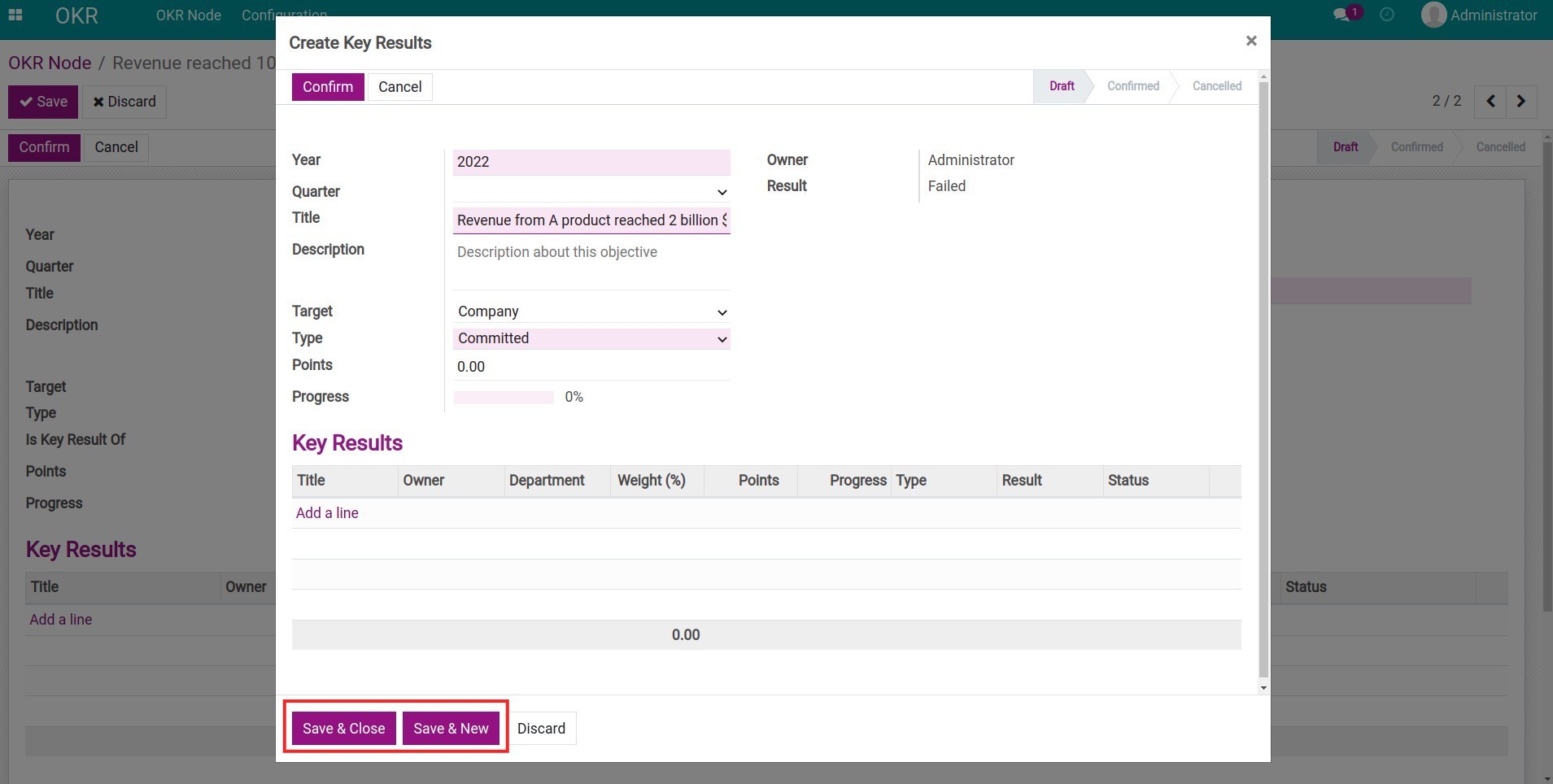
Set up Key results
On the same view, press Edit > Add a line to set up key result for the objective.
Check the OKR genealogical structure
Navigate to OKR > OKR Node, press the Org Chart icon to view the OKR in genealogical structure.
Manage the progress and measure the OKR results
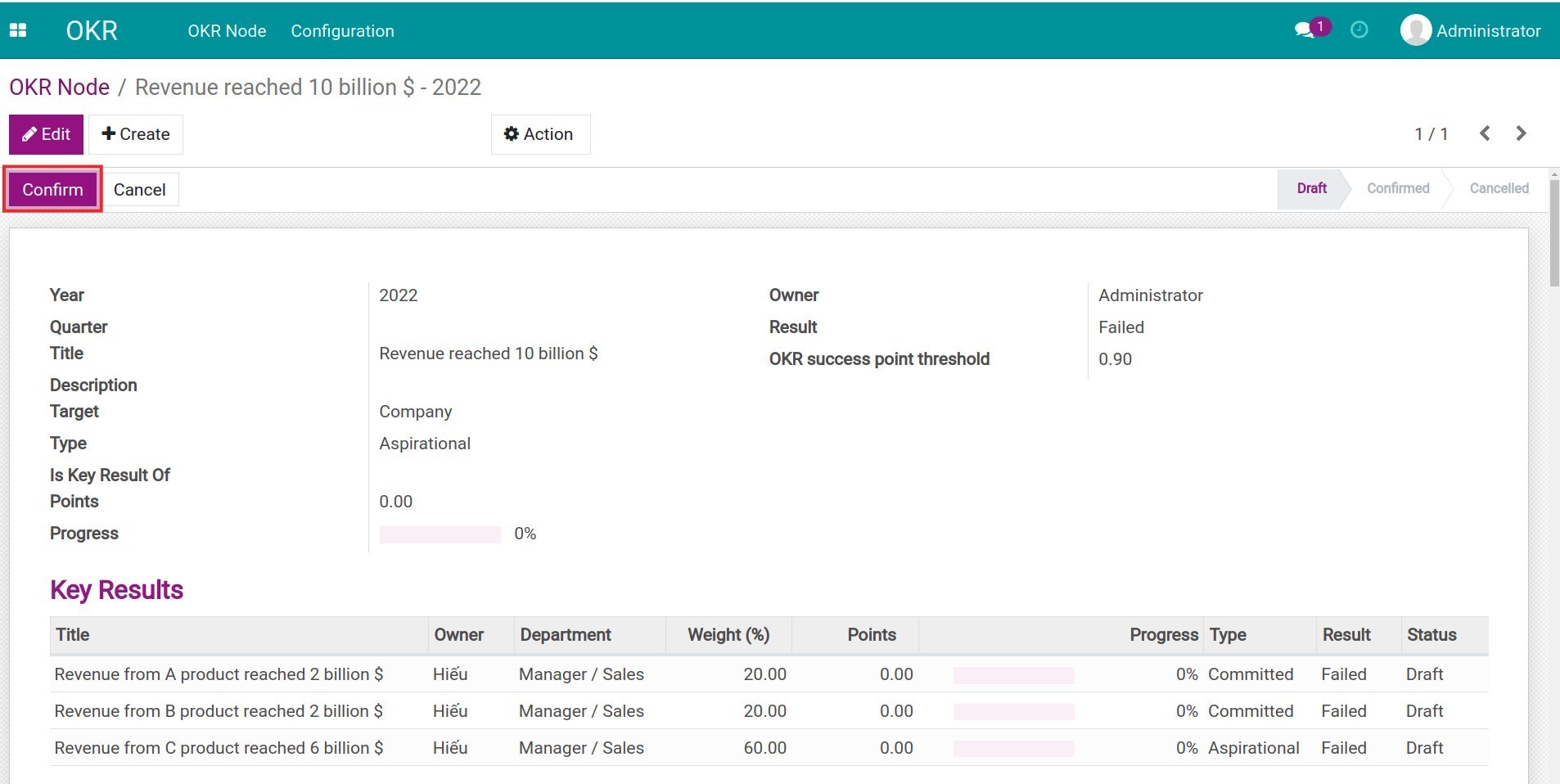
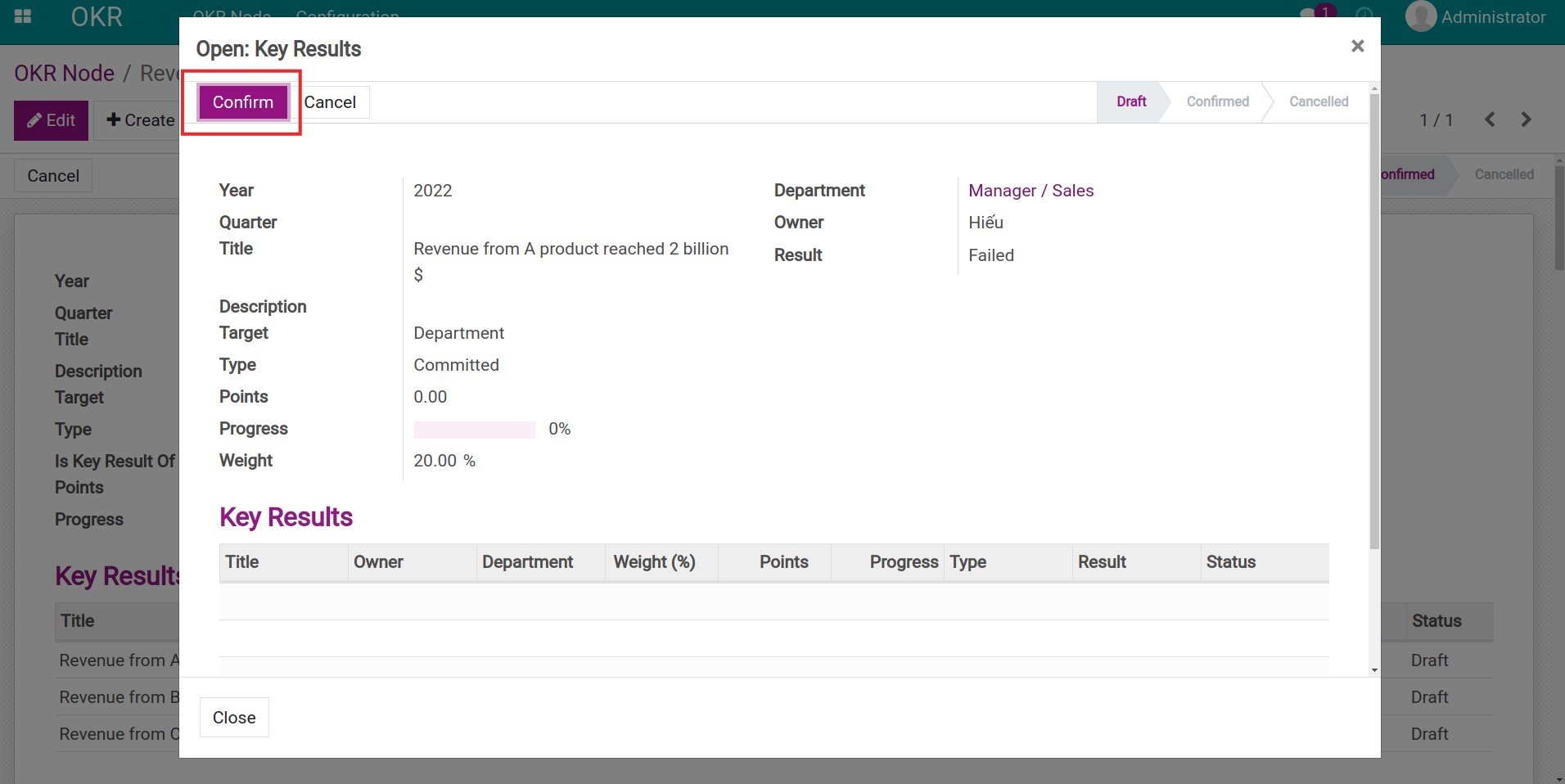
After building the OKR system, the OKR owner proceeds to confirm the OKR Node before the company announce the OKR to the whole company and proceed with it.
Confirm the Objective and Key results
- Confirm the Objective:
- Confirm the Key resuls:
Evaluate and record key results
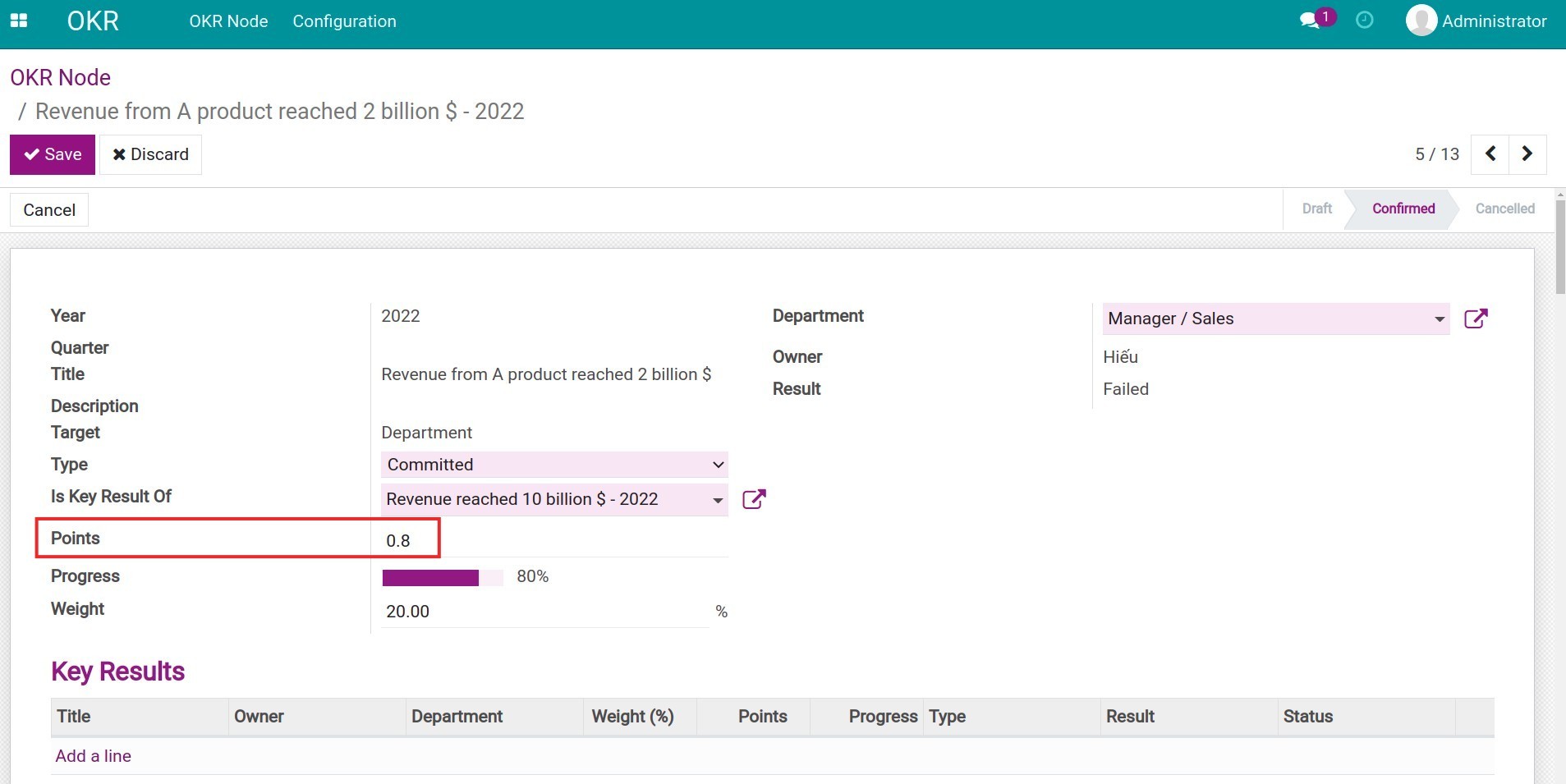
During OKR implementation, the OKR owner will periodically update progress on the system by updating the Point for each Key Result.
Keep track of the OKR progress on the OKR main view
Access the OKR Node list to keep track of the OKR progress.
- List view:
- Org view:
Tip: You can use the OKR & Project Integrator module to plan specific and verifiable OKRs.
This software and associated files (the "Software") may only be used (executed, modified, executed after modifications) if you have purchased a valid license from the authors, typically via Odoo Apps, or if you have received a written agreement from the authors of the Software (see the COPYRIGHT file).
You may develop Odoo modules that use the Software as a library (typically by depending on it, importing it and using its resources), but without copying any source code or material from the Software. You may distribute those modules under the license of your choice, provided that this license is compatible with the terms of the Odoo Proprietary License (For example: LGPL, MIT, or proprietary licenses similar to this one).
It is forbidden to publish, distribute, sublicense, or sell copies of the Software or modified copies of the Software.
The above copyright notice and this permission notice must be included in all copies or substantial portions of the Software.
THE SOFTWARE IS PROVIDED "AS IS", WITHOUT WARRANTY OF ANY KIND, EXPRESS OR IMPLIED, INCLUDING BUT NOT LIMITED TO THE WARRANTIES OF MERCHANTABILITY, FITNESS FOR A PARTICULAR PURPOSE AND NONINFRINGEMENT. IN NO EVENT SHALL THE AUTHORS OR COPYRIGHT HOLDERS BE LIABLE FOR ANY CLAIM, DAMAGES OR OTHER LIABILITY, WHETHER IN AN ACTION OF CONTRACT, TORT OR OTHERWISE, ARISING FROM, OUT OF OR IN CONNECTION WITH THE SOFTWARE OR THE USE OR OTHER DEALINGS IN THE SOFTWARE.