
OKR & Project Integrator
| Lines of Code | 1186 |
| Technical name | to_okr_project |
| License | OPL-1 |
| Website | https://viindoo.com/apps/modules/17.0/to_okr_project |
| Read description for | v 13.0 v 14.0 v 15.0 v 16.0 v 18.0 v 19.0 |
| Required Apps | Project (project) Discuss (mail) Employees (hr) |
| Included Dependencies | Advanced HR Management Objectives & Key Results - OKR |

The key result and the work that delivers it, on the same record
A project task points at the key result it serves. From the objective you see the tasks and the projects behind it; from the project you see which objectives it is paying for.
OKR & Project Integrator (technical name to_okr_project) is an Odoo 17.0 app for Odoo Community and Odoo Enterprise and Viindoo Cloud, built for executive, department manager, project manager, employee.

At a Glance
The facts of OKR & Project Integrator, version 0.1, in one place. Published by Viindoo.
Key Features
Most OKR programmes die in the gap between the quarterly review and the daily work: the objective lives in one system, the tasks in another, and by week six nobody can say which task is moving which number. This connects the two directly. A project task gains one field - the key result it belongs to - and that single link makes both directions readable: the key result gets a Project Tasks button and a Projects button, and the project gets an OKR button that lists every objective its work serves. Nothing is duplicated and nothing is synchronised: the task stays a task, the key result stays a key result, and the connection is a relation you can filter, group and report on.
The tasks behind one objective
One click from the key result to exactly the tasks that deliver it.
The quarter as a tree
The OKR hierarchy is unchanged - this app adds the work underneath it.
Every objective in a list
Owners, weights, progress and now the work attached to each line.
Projects as usual
A normal Odoo project, with one more button.
How It Works
Three steps, and the quarter stops being a slide.
Point the task at the key result
On the task, choose the key result it serves. That is the whole configuration - one relation, set where the work is planned.

Read the objective as work, not as a number
The key result now carries the count of tasks and projects behind it. A key result with a target and no tasks is a promise nobody is keeping - and now that is visible in the same screen as the target.
and from the project side too
Each project shows how many objectives its tasks feed. When two projects compete for the same people, the objectives they serve are part of the argument.

What You Get
One field on the task: the key result it delivers - no separate planning object to keep in step
From a key result: how many tasks are open against it, in which projects
From a project: which objectives this project's work is serving
Counts on both sides, so an objective with no work attached to it is visible immediately
Works with the OKR tree as it is - company, department and employee levels are unchanged
Ordinary Odoo project tasks: stages, assignees, deadlines and timesheets keep working
More Screens
Everything below was taken on a database seeded with real business data, on this series - not a mock-up and not a screenshot from an older version.

Tasks across every project
Projects and the objectives they serve

The OKR tree

Objectives and key results of the quarter
What This App Does Not Do
Read this before you buy. Everything below is something the app deliberately leaves to another app or to you.
A company objective shows the tasks linked to it directly, not the tasks of the key results underneath it. Open the key result to see its work.
Closing tasks does not move the key result's percentage; the owner still sets the number. This app connects the work, it does not infer the outcome.
A task that genuinely serves two objectives has to be split, which is usually the honest answer anyway.
OKR and Project are separate purchases; this is the bridge between them.
Works Well With
Apps from the same stack, built to fit this one:
Advanced HR Management
Departments and managers, which is how objectives find their owners.
Advanced HR ManagementWho Should Use OKR & Project Integrator?
Executive
Opens a key result and sees whether anyone is actually working on it.
Department manager
Turns a key result into the tasks that will move it, in the project the team already uses.
Project manager
Sees which objectives the project is accountable for when priorities collide.
Employee
Works in Project as before; the link to the objective is one field on the task.
Frequently Asked Questions
What does OKR & Project Integrator do?
A project task points at the key result it serves. From the objective you see the tasks and the projects behind it; from the project you see which objectives it is paying for.
What does OKR & Project Integrator not do?
Task counts do not roll up the OKR tree. A company objective shows the tasks linked to it directly, not the tasks of the key results underneath it. Open the key result to see its work. Progress is not computed from tasks. Closing tasks does not move the key result's percentage; the owner still sets the number. This app connects the work, it does not infer the outcome. One key result per task. A task that genuinely serves two objectives has to be split, which is usually the honest answer anyway. It needs both apps. OKR and Project are separate purchases; this is the bridge between them.
Who is OKR & Project Integrator for?
Executive: Opens a key result and sees whether anyone is actually working on it. Department manager: Turns a key result into the tasks that will move it, in the project the team already uses. Project manager: Sees which objectives the project is accountable for when priorities collide. Employee: Works in Project as before; the link to the objective is one field on the task.
Which Odoo version and editions does it support?
Odoo 17.0 - Odoo Community, Odoo Enterprise, Viindoo Cloud. Upgrades to a newer Odoo series are a separate purchase for that series.
What does it depend on?
It installs on top of: to_okr, project. Odoo installs them with it.
How do I set it up?
Three steps, and the quarter stops being a slide.
What works well with it?
OKR (to_okr): The objectives and key results this app attaches work to. Advanced HR Management (viin_hr): Departments and managers, which is how objectives find their owners. Appraisal (viin_hr_appraisal): For the conversation about the person, kept separate from the objective.
Can I try it before buying?
Yes - the Live Preview button at the top of this page opens the module's own screen on a working database.
How do I get support?
Write to apps.support@viindoo.com with your Odoo version and the technical name to_okr_project; pre-sales questions go to sales@viindoo.com.
See OKR & Project Integrator in Action
The key result and the work that delivers it, on the same record
Need help with OKR & Project Integrator?
For questions, implementation support, or consulting services, contact Viindoo.
Pre-Sales & Partnership
sales@viindoo.comWhen contacting us, please include:
- Odoo/Viindoo version (Odoo CE / Viindoo Editions).
- Number of users and business scope.
- Other modules currently in use.
Technical Support
apps.support@viindoo.comFor faster troubleshooting, please provide:
- Order number or app reference.
- Odoo/Viindoo version & edition.
- Steps to reproduce the issue.
- Screenshots/logs if available.
Upgrades to a newer Odoo series are a separate purchase for that series.
Technical Requirement
Changes log
0.1 - Latest on the 17.0 line
- A project task carries the key result it serves, and both sides count what is linked.
- Projects list the objectives their tasks feed, in one button.
- Access follows the OKR and Project rules already in place - no new group to manage.
Installation
- Navigate to Apps.
- Search with keyword to_okr_project.
- Press Install.
Instruction
Instruction video: OKR & Project Integrator
Link an existing task of the Project module to a Key result
With the OKRs app, you can link an existing Task with a Key result to help you make plans as well as keep track of the OKR in more detail.
- Navigate to the Project app app, select a Project and then select the Task you want to link to the OKR app.
- On the Task view, press Edit. On the Key Result field, select the Key result you want to link and then press Save.
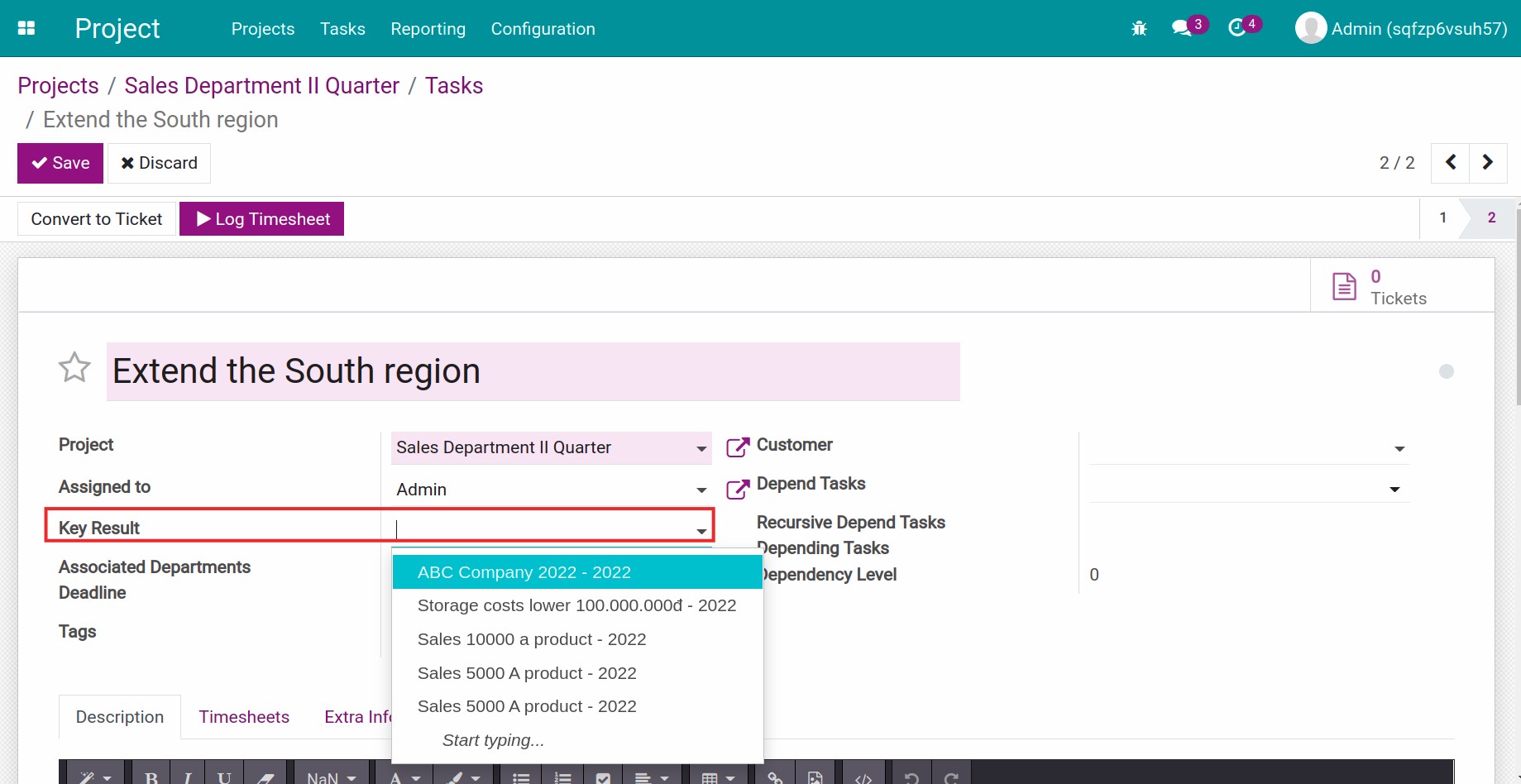
- From this Task view, press on the Key result to see the key result detail view. You will see the quantity of the related Projects and Project Tasks on the top right corner.
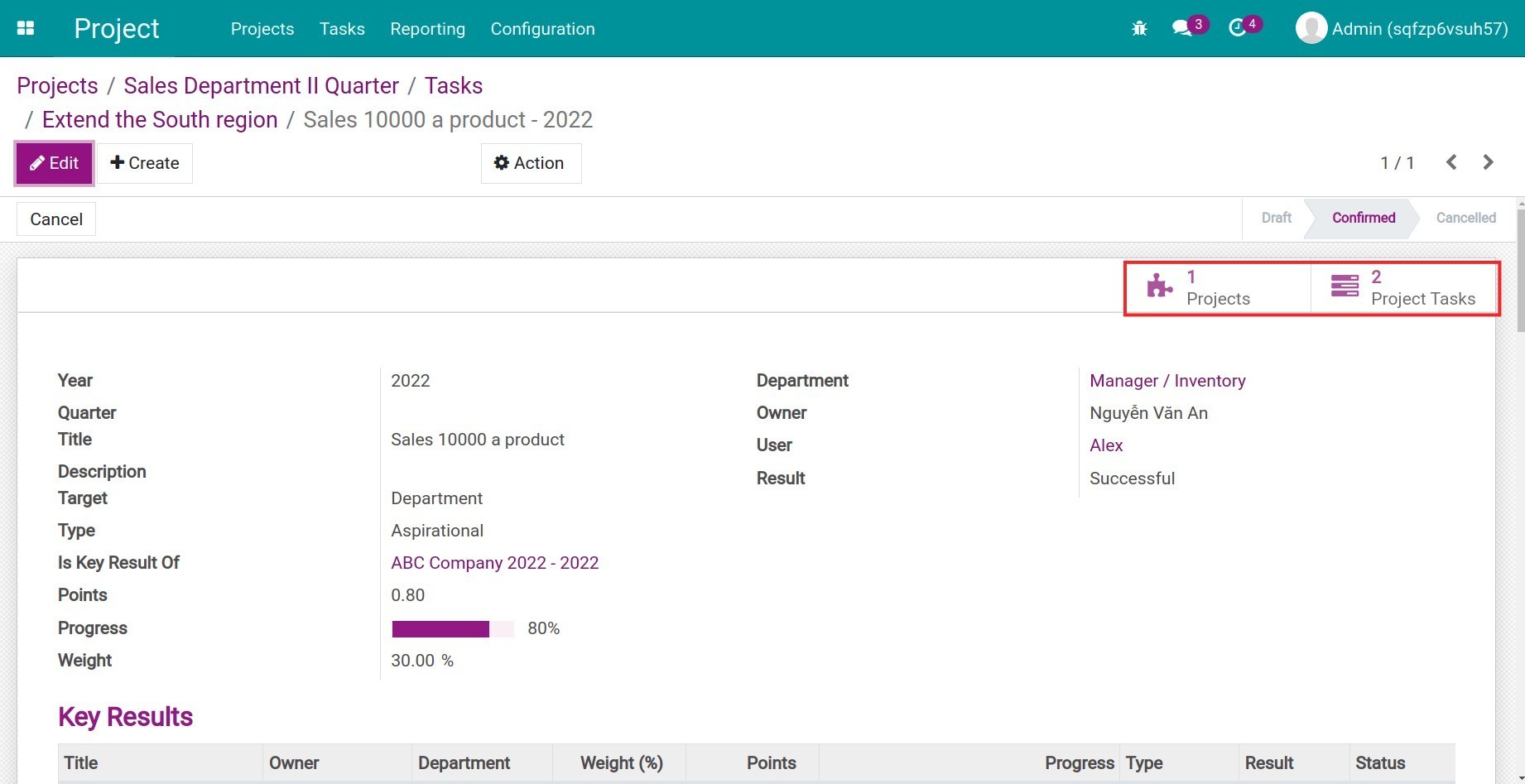
Track the progress of the OKR-related projects
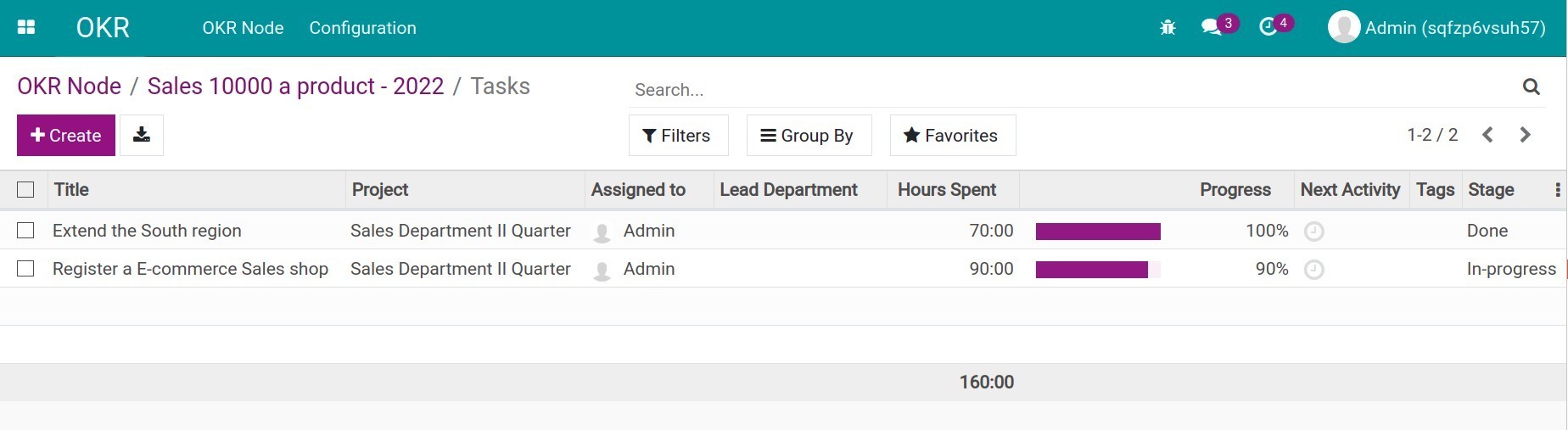
On the OKR Node, press the Projects or Project Tasks button to view the Project, Tasks that are linked to the OKR Node. Especially, when you press the Project Tasks button, you can see the other information such as Project, Assigned person, Hours Spent, Progress, Stage, etc. of each Task.
This software and associated files (the "Software") may only be used (executed, modified, executed after modifications) if you have purchased a valid license from the authors, typically via Odoo Apps, or if you have received a written agreement from the authors of the Software (see the COPYRIGHT file).
You may develop Odoo modules that use the Software as a library (typically by depending on it, importing it and using its resources), but without copying any source code or material from the Software. You may distribute those modules under the license of your choice, provided that this license is compatible with the terms of the Odoo Proprietary License (For example: LGPL, MIT, or proprietary licenses similar to this one).
It is forbidden to publish, distribute, sublicense, or sell copies of the Software or modified copies of the Software.
The above copyright notice and this permission notice must be included in all copies or substantial portions of the Software.
THE SOFTWARE IS PROVIDED "AS IS", WITHOUT WARRANTY OF ANY KIND, EXPRESS OR IMPLIED, INCLUDING BUT NOT LIMITED TO THE WARRANTIES OF MERCHANTABILITY, FITNESS FOR A PARTICULAR PURPOSE AND NONINFRINGEMENT. IN NO EVENT SHALL THE AUTHORS OR COPYRIGHT HOLDERS BE LIABLE FOR ANY CLAIM, DAMAGES OR OTHER LIABILITY, WHETHER IN AN ACTION OF CONTRACT, TORT OR OTHERWISE, ARISING FROM, OUT OF OR IN CONNECTION WITH THE SOFTWARE OR THE USE OR OTHER DEALINGS IN THE SOFTWARE.