
Accounting & Financial Reports
| Lines of Code | 12029 |
| Technical name | to_account_reports |
| License | OPL-1 |
| Website | https://viindoo.com/apps/modules/19.0/to_account_reports |
| Read description for | v 10.0 v 11.0 v 12.0 v 13.0 v 14.0 v 15.0 v 16.0 v 17.0 v 18.0 |
| Required Apps | Invoicing (account) Discuss (mail) |
| Included Dependencies | Account Counterparts Viindoo Base Accounting Foundation |
| Extensions | Accounting Reports - Vietnam Accounting Accounting Reports - Vietnam Accounting - Fixed Asset Disposals Finance Dashboard |

The financial statements Odoo Community does not ship
Balance sheet, profit and loss, cash flow, executive summary, general and partner ledgers, trial balance, aged balances and the tax report - all drillable down to the journal item.
Accounting & Financial Reports (technical name to_account_reports) is an Odoo 19.0 app for Odoo Community and Viindoo Cloud, built for chief accountant, accountant, credit control, management.
At a Glance
The facts of Accounting & Financial Reports, version 1.1.9, in one place. Published by Viindoo.
How It Works
Six of the reports, as they come out of the box.
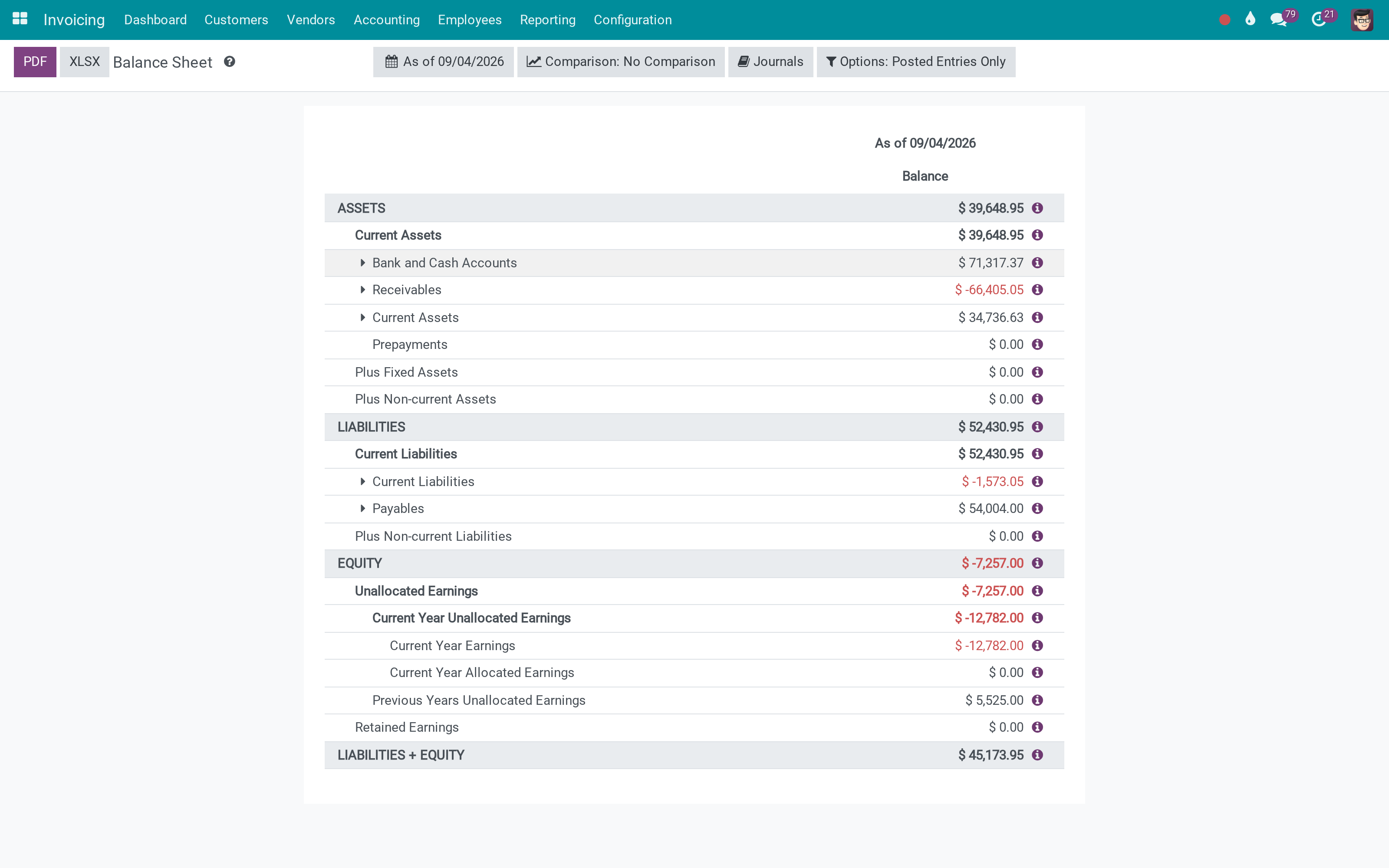
The balance sheet
Assets, liabilities and equity for any period, with comparison, and every line drillable.
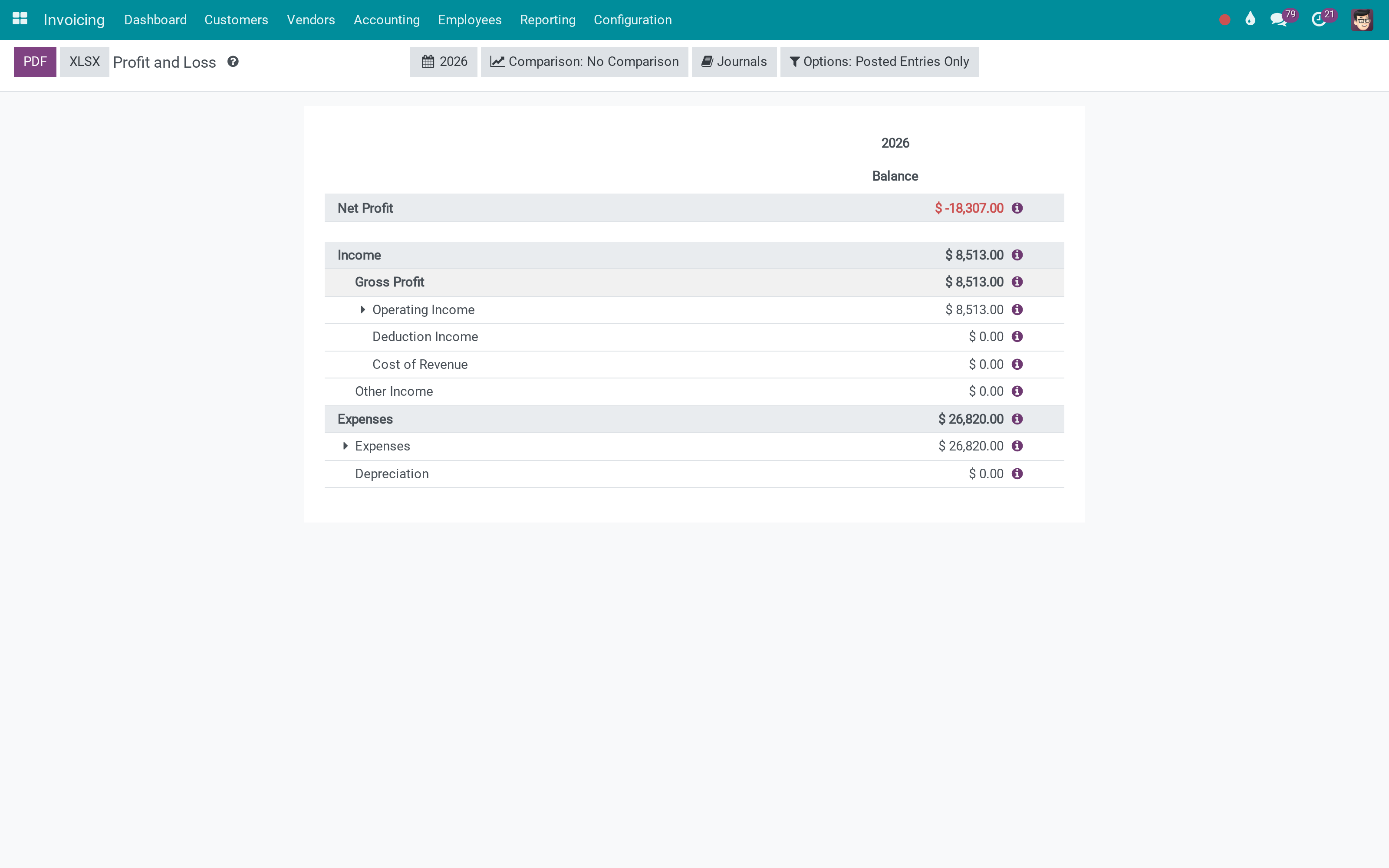
Profit and loss
Income and expense by section - the same engine, a different definition.
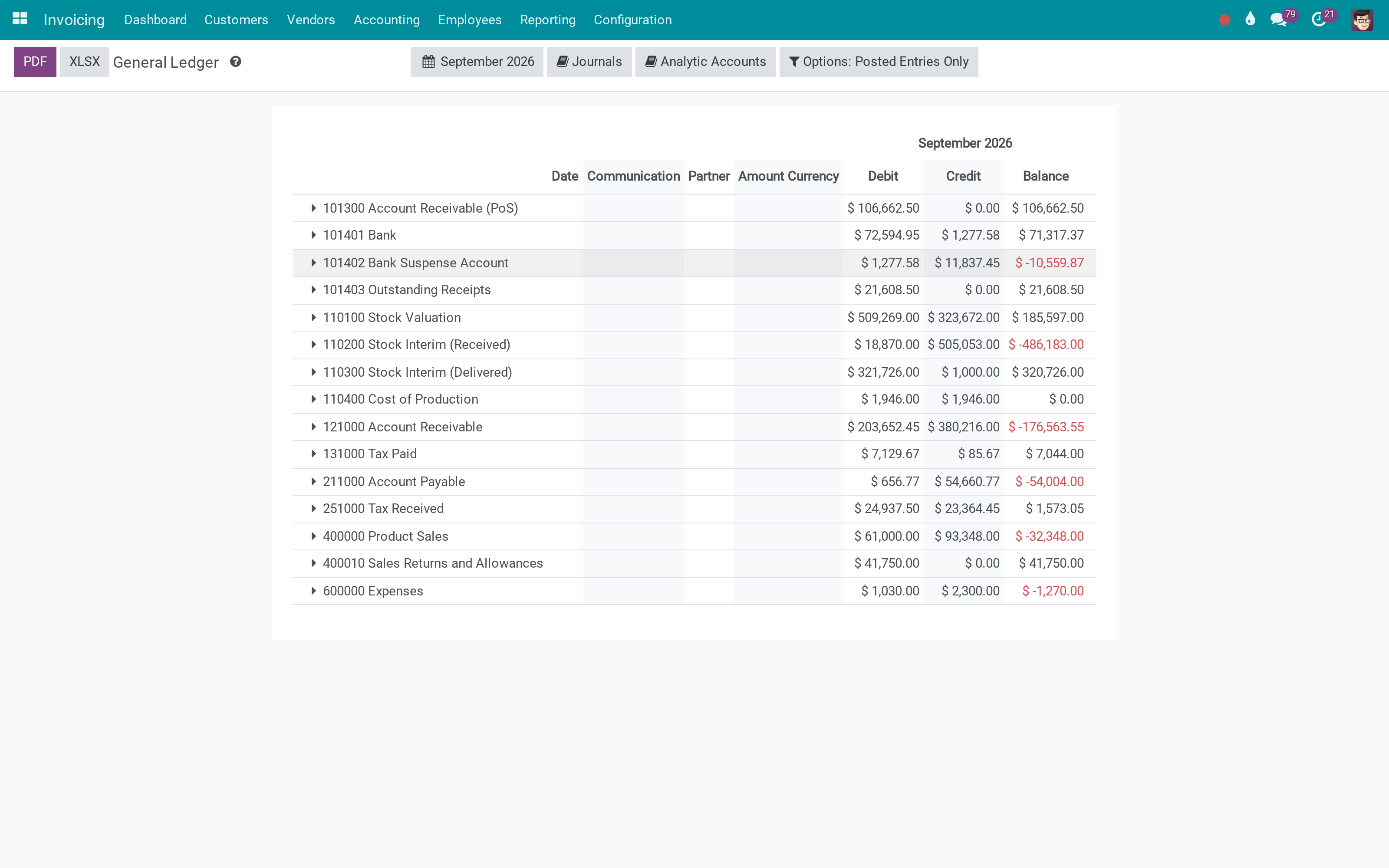
The general ledger
Every account with its movements and its running balance, expandable account by account.
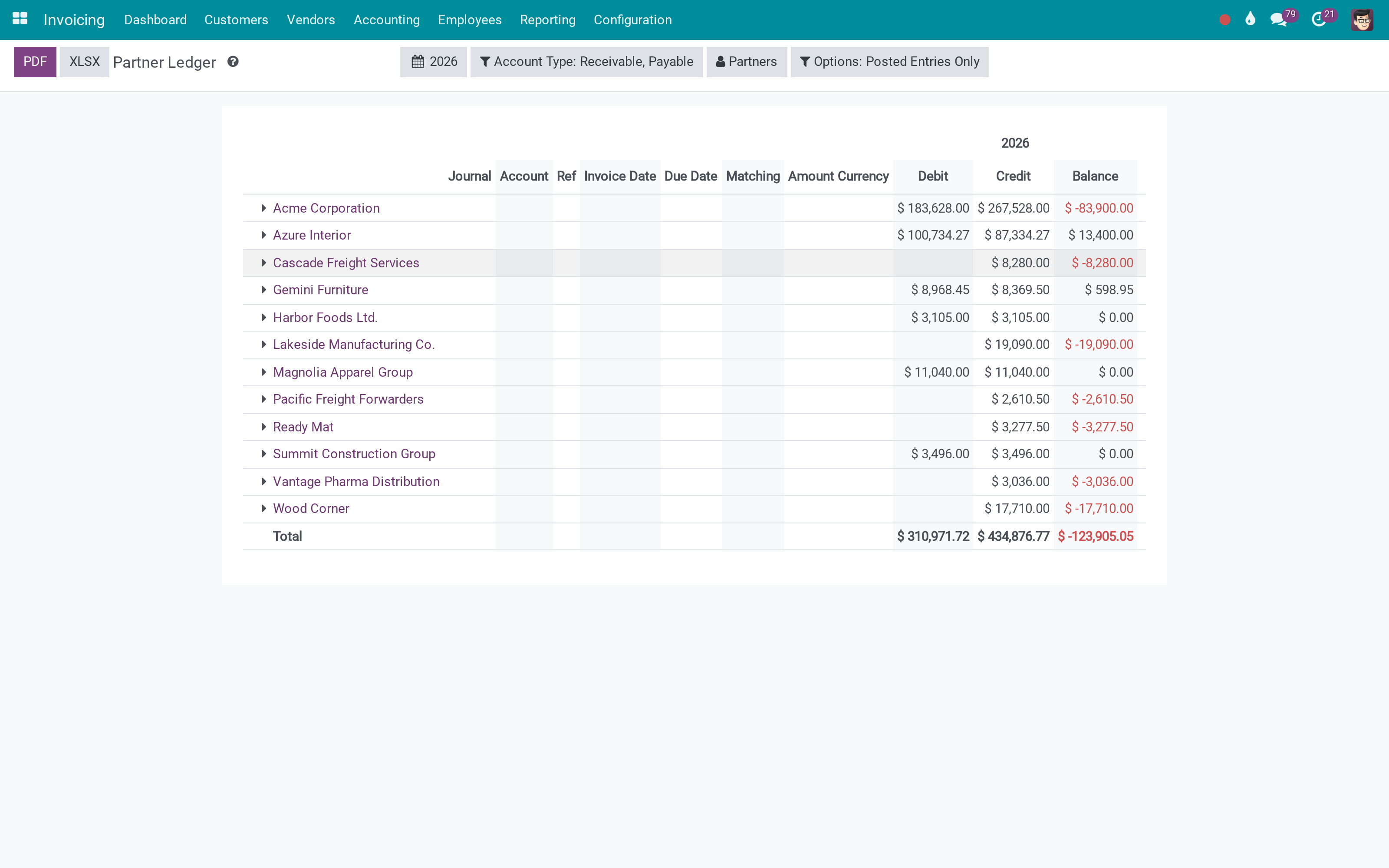
The partner ledger
The same, from the customer's or supplier's side - which is where collection conversations start.
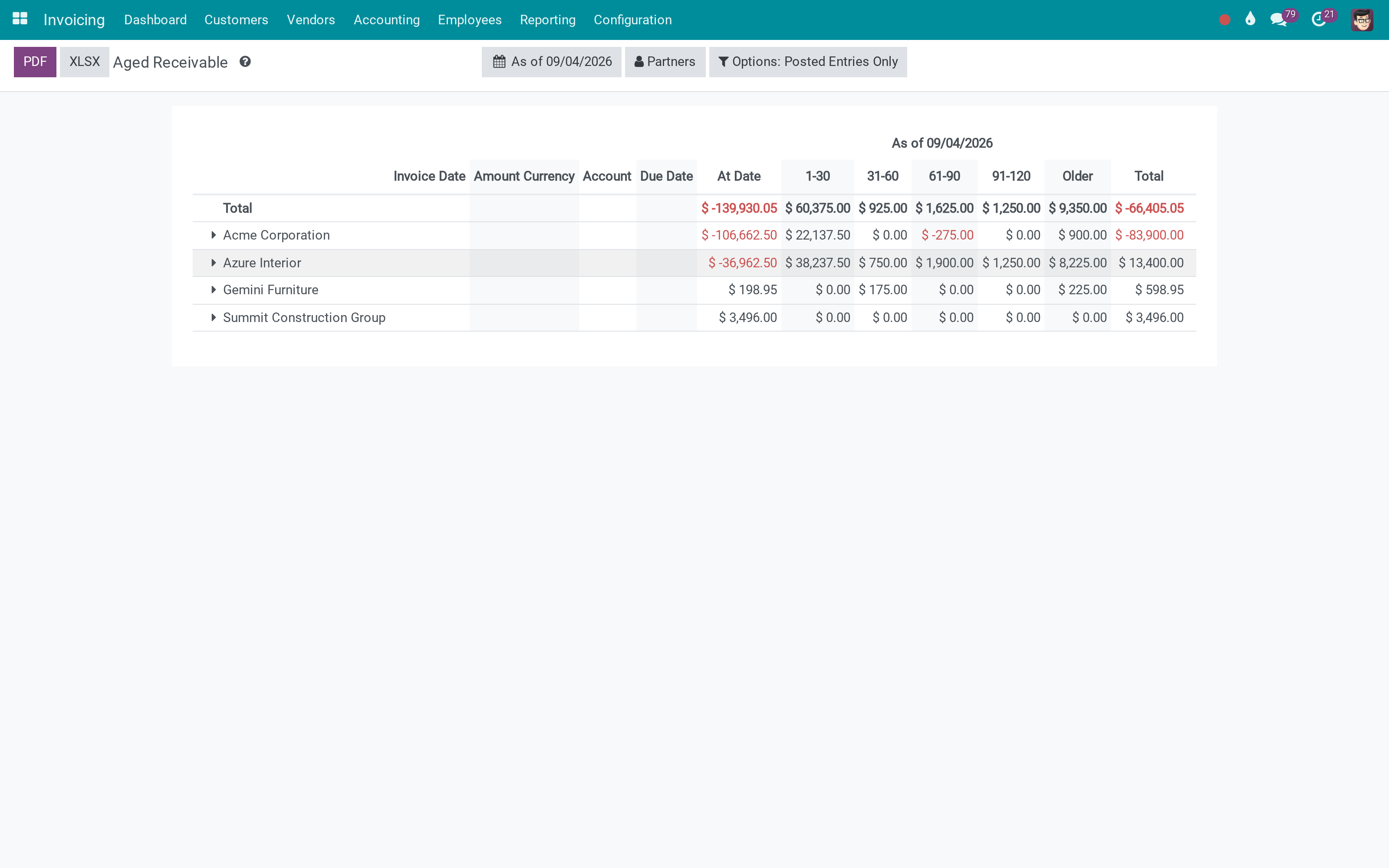
Ageing
What is overdue, by how long, per partner.
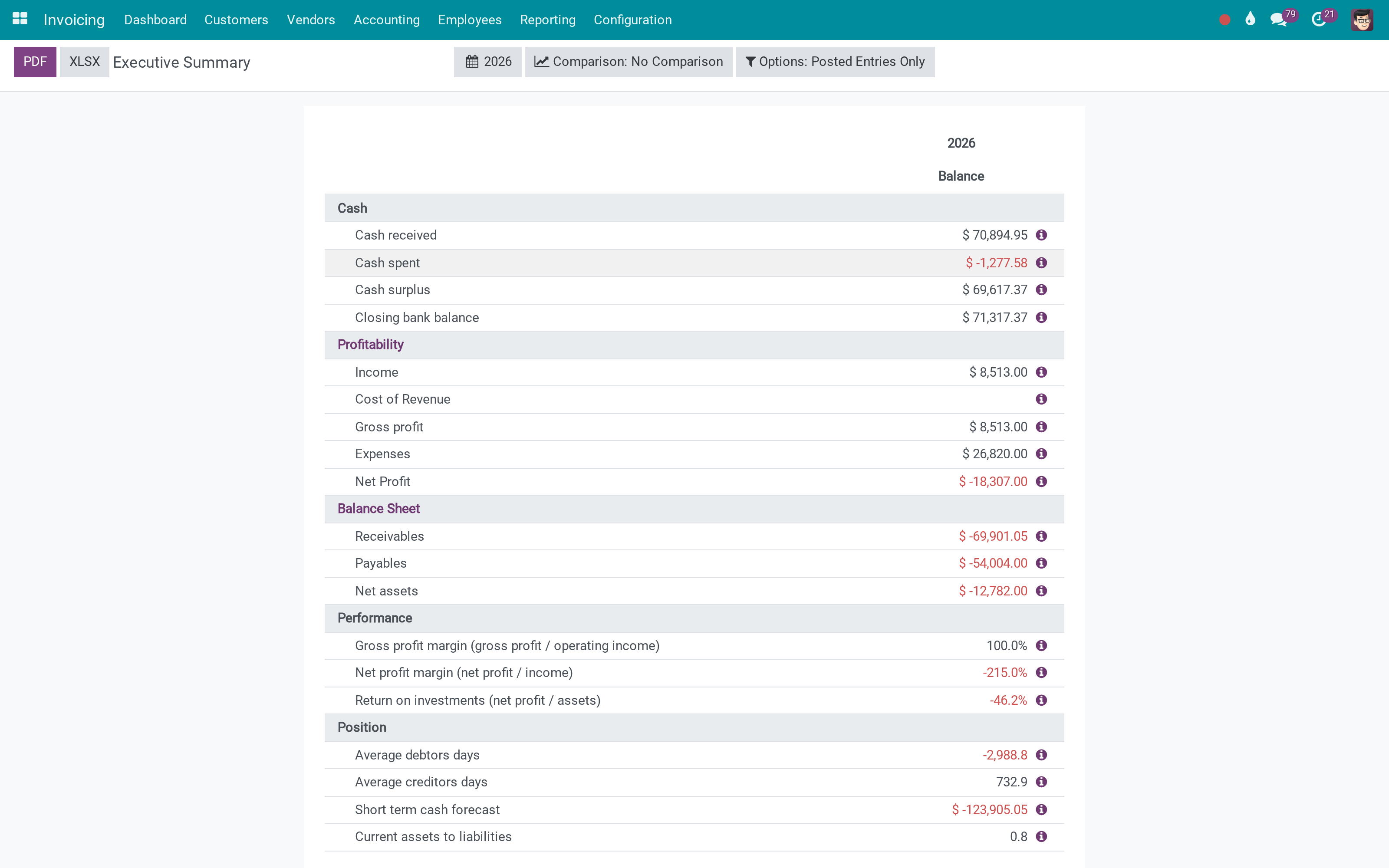
And a one-page summary
Cash, income, performance and position on a single screen, for the people who do not open ledgers.
What You Get
Balance Sheet, Profit and Loss, Cash Flow Statement and Executive Summary
General Ledger, Partner Ledger and Trial Balance
Aged Receivable and Aged Payable, bucketed
A tax report, with the counterpart accounts your regime needs
Every figure drills down to the journal items behind it
Period comparisons, filters and export to PDF or spreadsheet
Report lines defined by formulas over accounts and tags - so they can be adapted
More Screens
Everything below was taken on a database seeded with real business data, on this series - not a mock-up and not a screenshot from an older version.
Profit and loss
Aged receivable
What This App Does Not Do
Read this before you buy. Everything below is something the app deliberately leaves to another app or to you.
Everything shown comes from the journal items your accounting already produced.
A country-specific declaration file is a localisation module's job.
The lines are formulas over accounts and tags; getting them right is a decision, not a setting.
Analytic accounts and plans filter these reports rather than producing their own statements.
Multi-company consolidation is a different problem, with its own eliminations.
Works Well With
Apps from the same stack, built to fit this one:
Who Should Use Accounting & Financial Reports?
Chief accountant
Closes a period against statements produced from the ledger, not a spreadsheet.
Accountant
Works from a general ledger that opens the entry behind any line.
Credit control
Reads aged receivables by bucket and by partner.
Management
Gets an executive summary without asking finance to build it.
Auditor
Follows a statement figure down to the journal item.
Frequently Asked Questions
What does Accounting & Financial Reports do?
Balance sheet, profit and loss, cash flow, executive summary, general and partner ledgers, trial balance, aged balances and the tax report - all drillable down to the journal item.
What does Accounting & Financial Reports not do?
It reports; it does not post. Everything shown comes from the journal items your accounting already produced. The tax report follows your chart and tax setup. A country-specific declaration file is a localisation module's job. Report definitions are data, not code - but changing them is accounting work. The lines are formulas over accounts and tags; getting them right is a decision, not a setting. Analytic reporting is filtering, not a separate report set. Analytic accounts and plans filter these reports rather than producing their own statements. It does not consolidate several companies into one statement. Multi-company consolidation is a different problem, with its own eliminations.
Who is Accounting & Financial Reports for?
Chief accountant: Closes a period against statements produced from the ledger, not a spreadsheet. Accountant: Works from a general ledger that opens the entry behind any line. Credit control: Reads aged receivables by bucket and by partner. Management: Gets an executive summary without asking finance to build it. Auditor: Follows a statement figure down to the journal item.
Which Odoo version and editions does it support?
Odoo 19.0 - Odoo Community, Viindoo Cloud. Upgrades to a newer Odoo series are a separate purchase for that series.
What does it depend on?
It installs on top of: viin_account, to_account_counterpart. Odoo installs them with it.
How do I set it up?
Six of the reports, as they come out of the box.
What works well with it?
Accounting Foundation (viin_account): The layer these reports read from. VAT Counterpart (to_vat_counterpart): Making sure VAT lands where the tax report reads it. Reconciliation Widget (viin_account_reconciliation): Clearing what the aged balance shows as open.
Can I try it before buying?
Yes - the Live Preview button at the top of this page opens the module's own screen on a working database.
How do I get support?
Write to apps.support@viindoo.com with your Odoo version and the technical name to_account_reports; pre-sales questions go to sales@viindoo.com.
See Accounting & Financial Reports in Action
Need help with Accounting & Financial Reports?
For questions, implementation support or a custom feature, contact Viindoo.
Pre-Sales & Partnership
sales@viindoo.comUpgrades to a newer Odoo series are a separate purchase for that series.
All Viindoo apps: Viindoo Apps
Technical Requirement
Changes log
1.1.9 - Latest on the 18.0 line
- Make the bank-suspense backfill finish on a real ledger.
- Unblock three C99 statutory figures.
- Replace tree with list.
- Smoke tour now covers every Reporting menu.
- Honor selected report currency on expanded rows (#4237).
Installation
- Navigate to Apps.
- Search with keyword to_account_reports.
- Press Install.
Note: To have a full feature-related observation of this module, you need install Accounting app.
Instruction
Instruction video: Accounting Reports
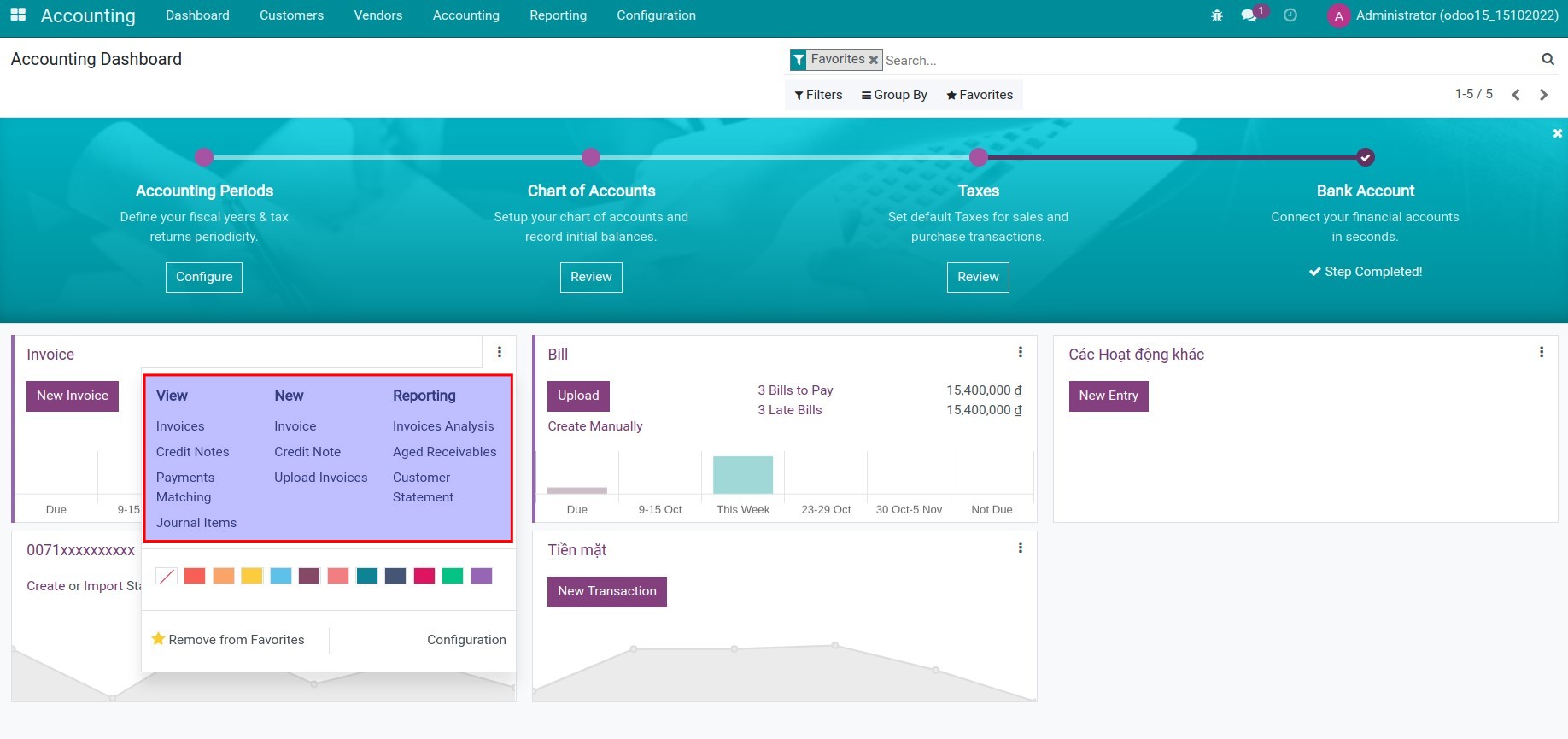
1. View the journal-related information in the dashboard menu.
Go to Accounting app > Dashboard, choose any kanban. Each kanban card is correlative with one journal in the Accounting app at this interface.
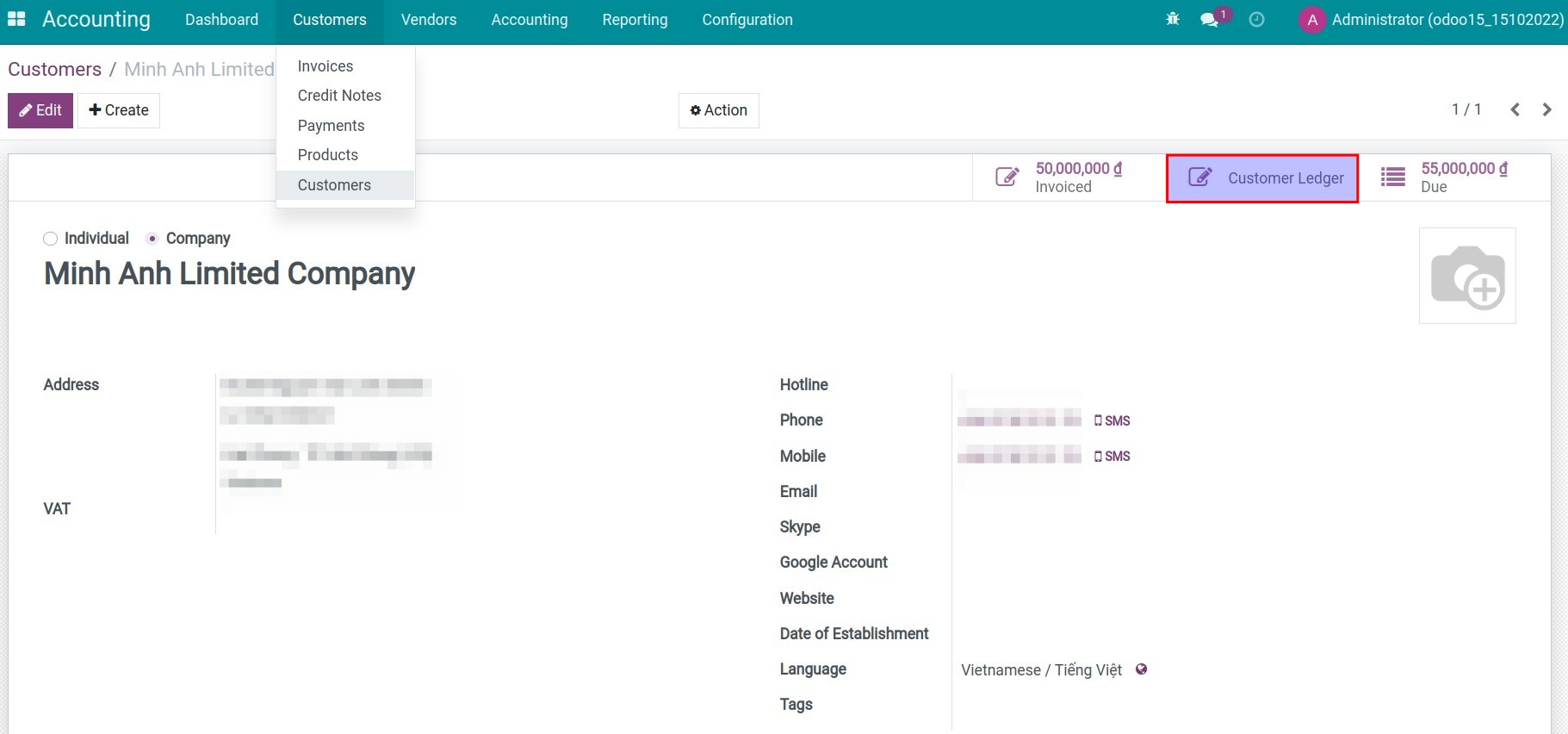
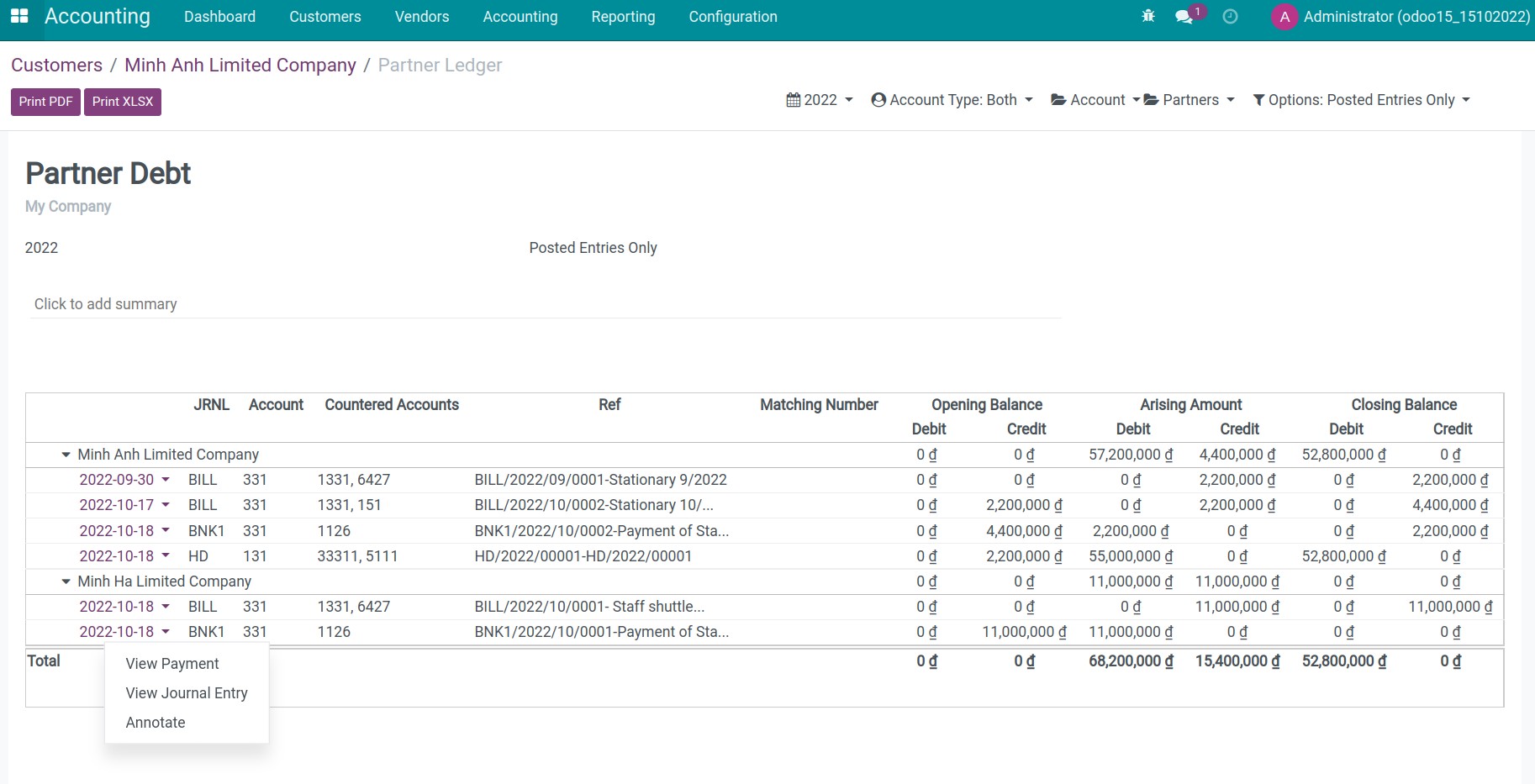
2. View the receivable report on the customer's contact.
Go to Accounting app > Customers > Customers, press Customer Ledger.
3. View the accounting reports.
Go to Accounting ‣ Reporting. The menu groups the reports as follows:
- Statement Reports: Balance Sheet, Profit and Loss, Cash Flow Statement, Executive Summary and Tax Report.
- Audit Reports: General Ledger, Trial Balance and Journal Items Analysis.
- Partner Reports: Partner Ledger, Aged Receivable and Aged Payable.
- Management: Invoice Analysis, Invoice & Bill Analysis, Analytic Report and Transfer / Allocation Analysis.
The groups Vietnam Accounting Reports and Invoice Lists, and the entries Assets and Asset Depreciation of Management, appear when the matching modules are installed.
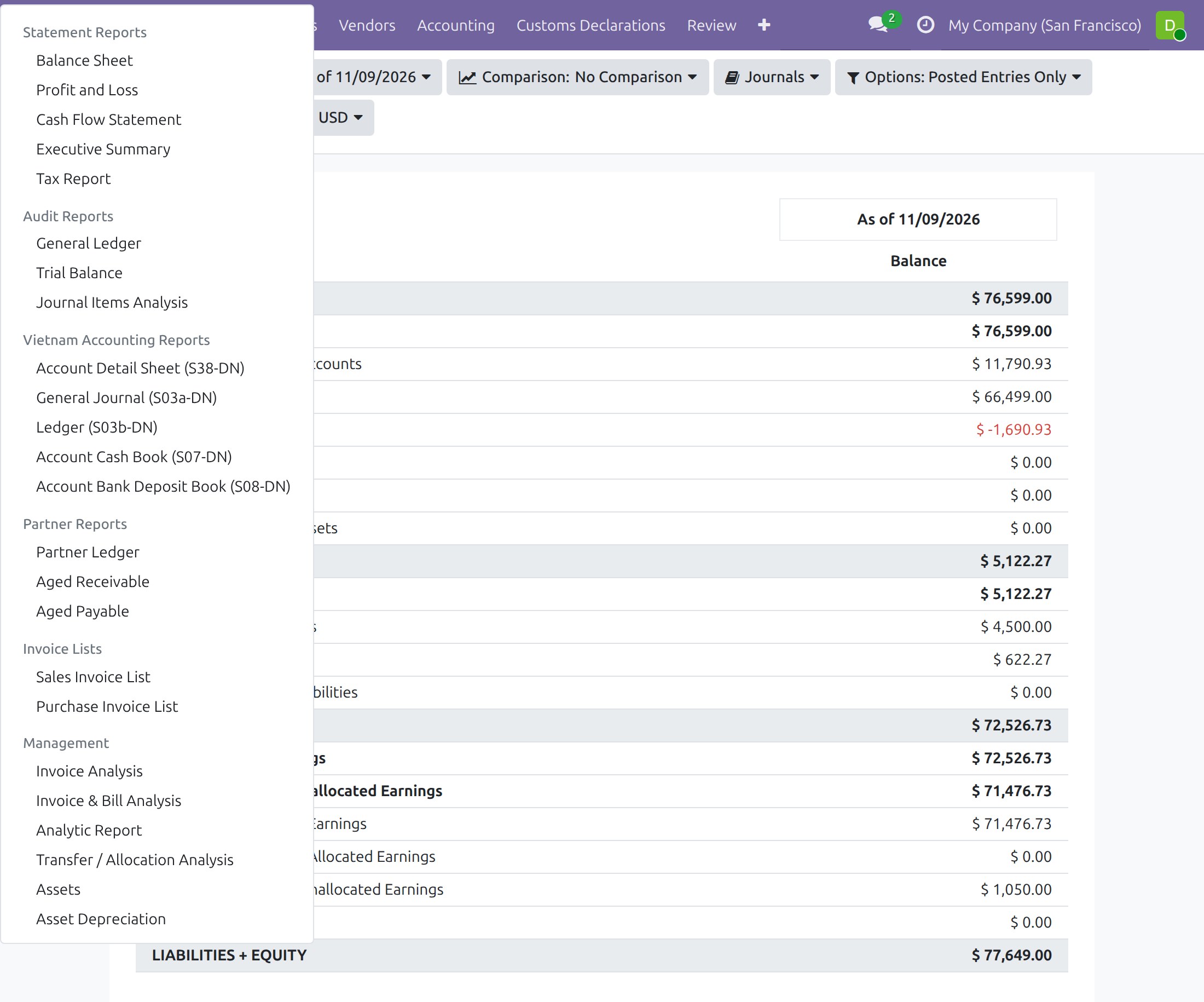
- Note: In order to observer the financial reports according to Vietnam Accounting Standards (VAS), you need install module l10n_vn_viin_account_reports.
4. Set how a report shows negative amounts.
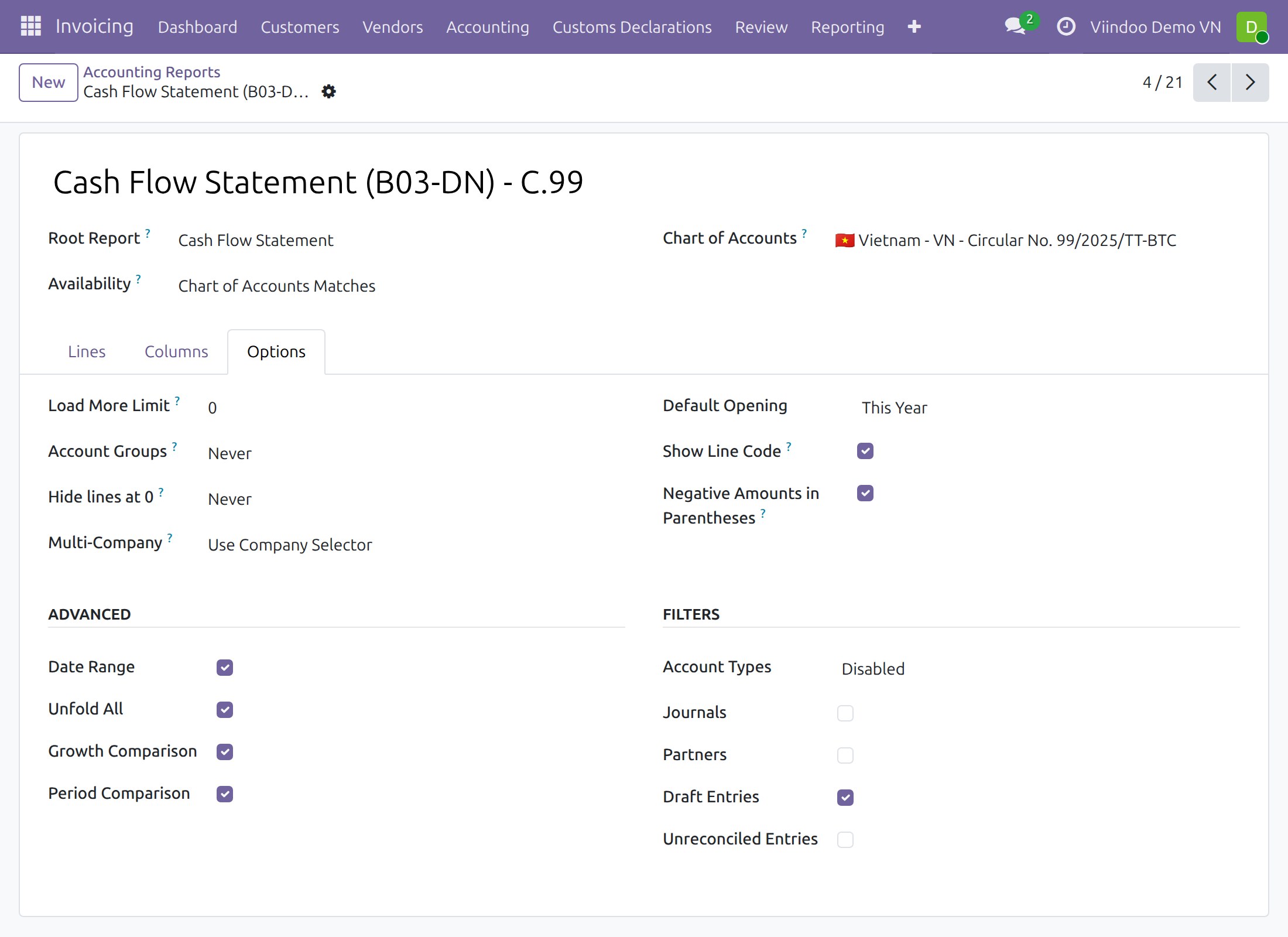
An accounting manager goes to Accounting ‣ Configuration ‣ Accounting Reports, opens a report and selects the tab Options. Tick Negative Amounts in Parentheses to show a negative amount as (1,000) instead of -1,000. The setting applies on screen, in the PDF and in the XLSX file of the report. The Vietnam statements are set this way, as statutory financial statements require.
5. Export a report to XLSX.
Open a report and press XLSX.
- The sheet is named after the report. A long name is cut at a whole word within the 31 characters Excel allows, for instance Statement of Financial Position.
- The title of the sheet shows the form code of a statutory statement as written, for instance B01-DN.
- The percentage column of a comparison shows the % sign after each value.
- The last rows carry the signature captions: Prepared By, Chief Accountant and Director/CEO. A statutory statement of the Vietnam module carries the captions of its own form: Preparer, Chief Accountant and Legal Representative.
6. Read the Trial Balance.
Go to Accounting ‣ Reporting ‣ Audit Reports ‣ Trial Balance.
- An account with the option Has balance at both debit and credit? (receivables and payables, for example) is balanced partner by partner before the totals are taken. Contacts of one company count as one partner: the balance is taken for the commercial partner, within each legal entity. The account therefore shows debit balances and credit balances side by side. An archived account keeps its partner balances, so the report stays the same after an account is archived. All other accounts are balanced per company.
- When you select a parent company together with its branches, the message The rows of a parent company include the figures of its selected branches. appears above the report. A branch posts on the accounts of its parent company, so it has no row of its own: its figures are in the rows of the parent.
7. Developer mode.
Two tools of a report are shown in developer mode only, so accountants read the statements without them:
- The gear button after the filters of the report opens the configuration of the report: its lines, columns and options.
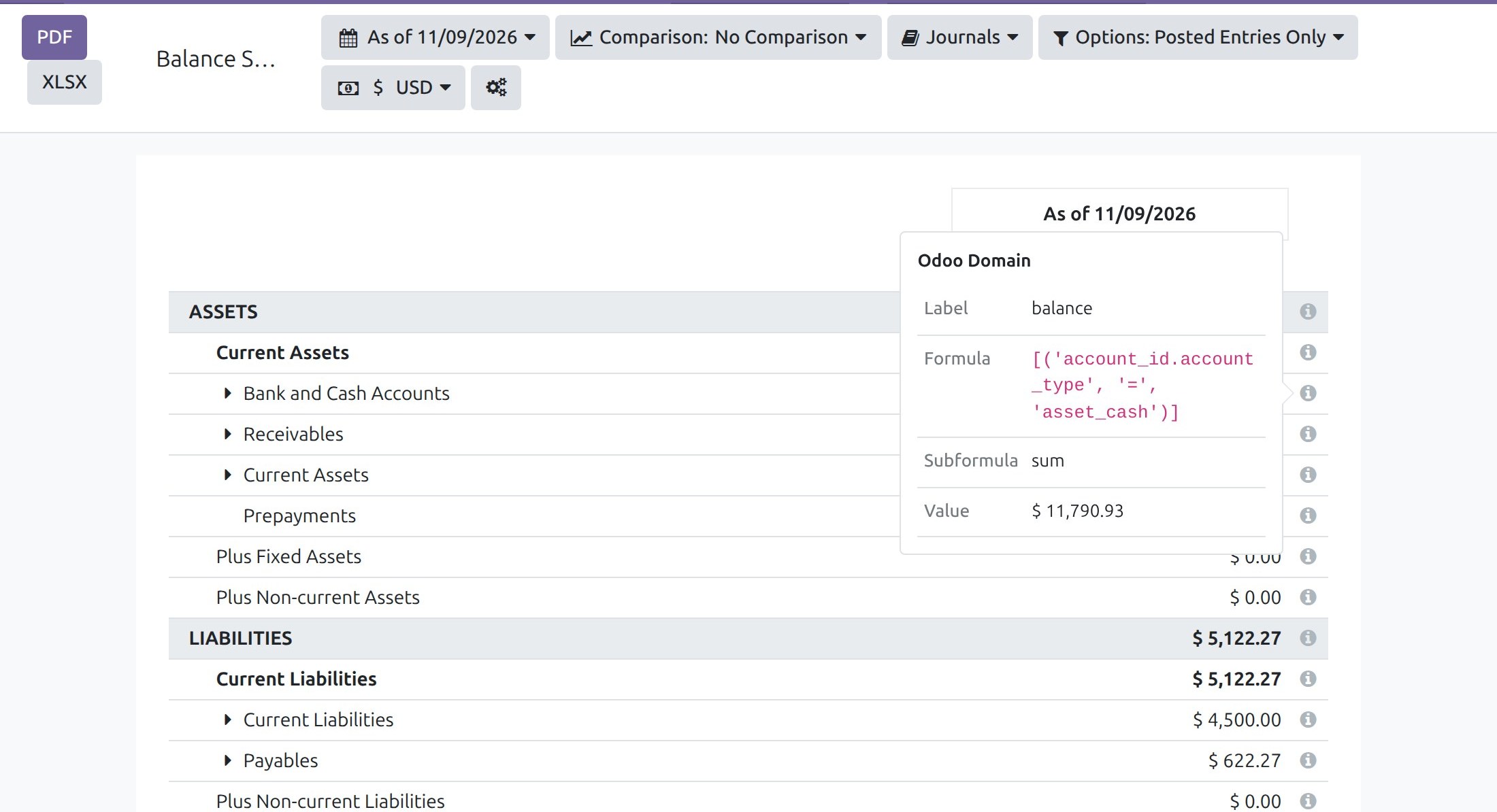
- The information icon after the figure of a line opens a popover with the type of formula, the formula and the value of the line.
Activate the developer mode to see them.
This software and associated files (the "Software") may only be used (executed, modified, executed after modifications) if you have purchased a valid license from the authors, typically via Odoo Apps, or if you have received a written agreement from the authors of the Software (see the COPYRIGHT file).
You may develop Odoo modules that use the Software as a library (typically by depending on it, importing it and using its resources), but without copying any source code or material from the Software. You may distribute those modules under the license of your choice, provided that this license is compatible with the terms of the Odoo Proprietary License (For example: LGPL, MIT, or proprietary licenses similar to this one).
It is forbidden to publish, distribute, sublicense, or sell copies of the Software or modified copies of the Software.
The above copyright notice and this permission notice must be included in all copies or substantial portions of the Software.
THE SOFTWARE IS PROVIDED "AS IS", WITHOUT WARRANTY OF ANY KIND, EXPRESS OR IMPLIED, INCLUDING BUT NOT LIMITED TO THE WARRANTIES OF MERCHANTABILITY, FITNESS FOR A PARTICULAR PURPOSE AND NONINFRINGEMENT. IN NO EVENT SHALL THE AUTHORS OR COPYRIGHT HOLDERS BE LIABLE FOR ANY CLAIM, DAMAGES OR OTHER LIABILITY, WHETHER IN AN ACTION OF CONTRACT, TORT OR OTHERWISE, ARISING FROM, OUT OF OR IN CONNECTION WITH THE SOFTWARE OR THE USE OR OTHER DEALINGS IN THE SOFTWARE.