
E-Invoice - MISA meInvoice Integrator
| Lines of Code | 1550 |
| Technical name | l10n_vn_viin_accounting_meinvoice |
| License | OPL-1 |
| Website | https://viindoo.com/apps/modules/19.0/l10n_vn_viin_accounting_meinvoice |
| Read description for | v 16.0 v 17.0 v 18.0 |
| Required Apps | Invoicing (account) Discuss (mail) |
| Included Dependencies | Vietnamese E-Invoice Integration Partner Budget Code Partner Identity Information Viindoo Base Accounting Foundation API Request Logger Legal Invoice Number |
| Extensions | [TEST] Vietnamese E-Invoice Provider Test Adapter |

E-Invoice - MISA meInvoice Integrator
For Vietnamese businesses that issue legal e-invoices through MISA meInvoice
Integrate with MISA meInvoice service to issue legal e-Invoice, from the same screens as every other Vietnam e-invoice provider
Odoo 19.0 · Community and Enterprise · OPL-1
Extends Vietnamese E-Invoice Integration with the MISA meInvoice service.
At a Glance
E-Invoice - MISA meInvoice Integrator at a glance, published by Viindoo.
Key Features
Issue, track and correct MISA meInvoice e-invoices without leaving Odoo:
Issue from the invoice you already use
Issue, adjust, replace and download MISA meInvoice e-invoices from the customer invoice and the Print & Send window.
One-click serial and template setup
Fetch your serials and templates from your meInvoice account with a single button instead of typing them in.
Signing path chosen for you
Digital-signature, unsigned and cash-register invoices go to the matching meInvoice endpoint, from the template type and the service settings.
VAT difference on rate changes
A decrease adjustment that only changes a line's VAT rate sends meInvoice the VAT difference between the original and the new rate.
One E-Invoice experience
The same E-Invoice menu, tab and E-Invoice Status filter as the other Vietnam e-invoice providers.
English next to Vietnamese
For customers whose language is not Vietnamese, the amount in words, units and item names carry an English rendering.
Benefits
From the Cancellation Blocked From date of the Vietnam E-Invoicing settings, Request Cancel on an issued meInvoice e-invoice is blocked with a clear message that points to an adjustment or a replacement instead.
Serials and templates come from meInvoice in one click, which reduces typing errors.
MISA meInvoice, Viettel S-Invoice and VNInvoice share one E-Invoice menu, tab and status filter.
The portal invoice page shows the legal number, lookup link and codes, with a Download button for the e-invoice files.
Connect the service in one form
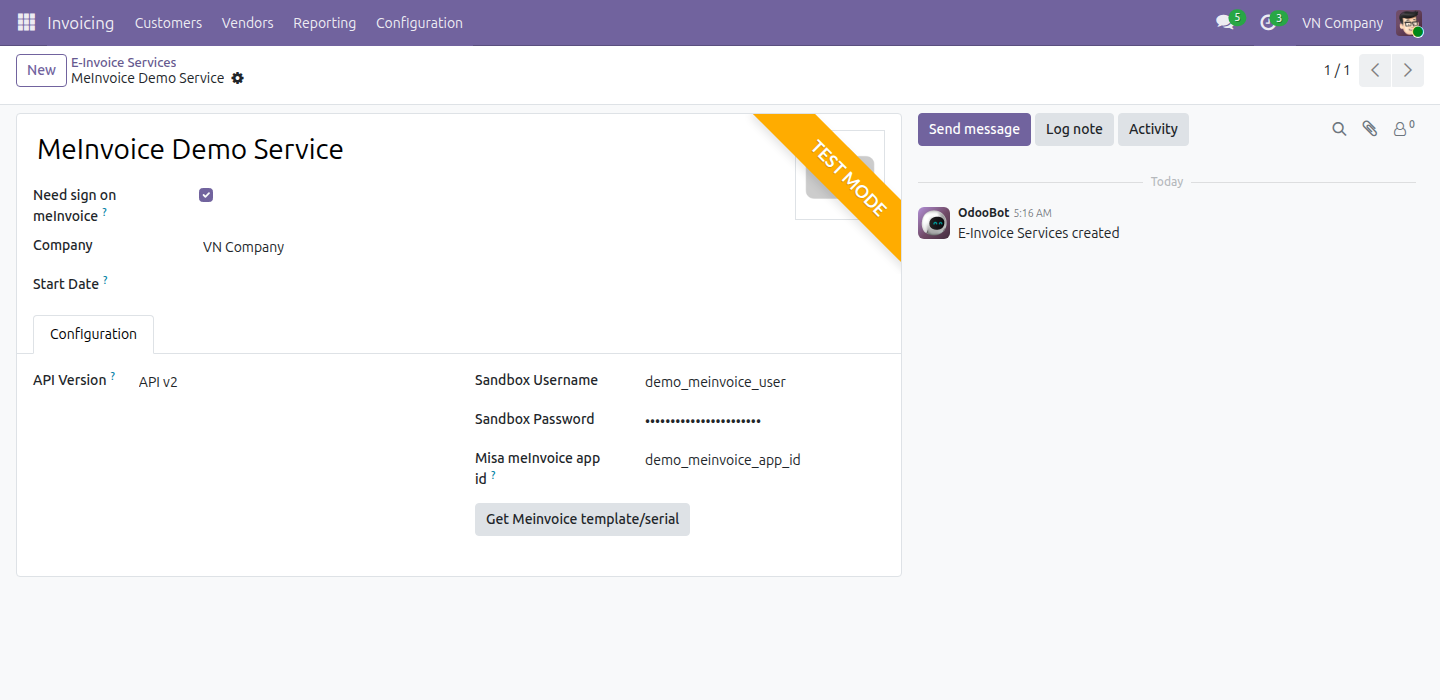
The service exists in every Vietnamese company. Choose Sandbox or Production and enter your credentials.
Serials and templates in one click
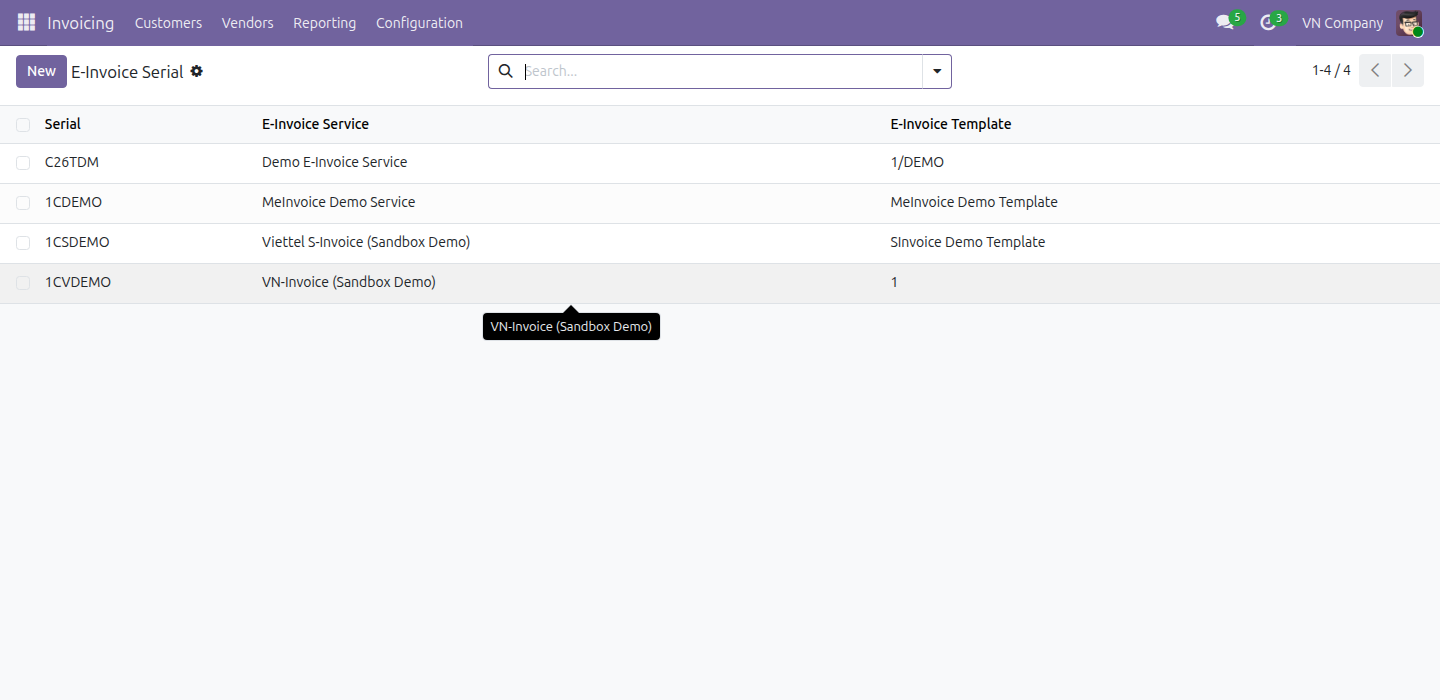
Press Get meInvoice template/serial: the serials and templates are created from your meInvoice account.
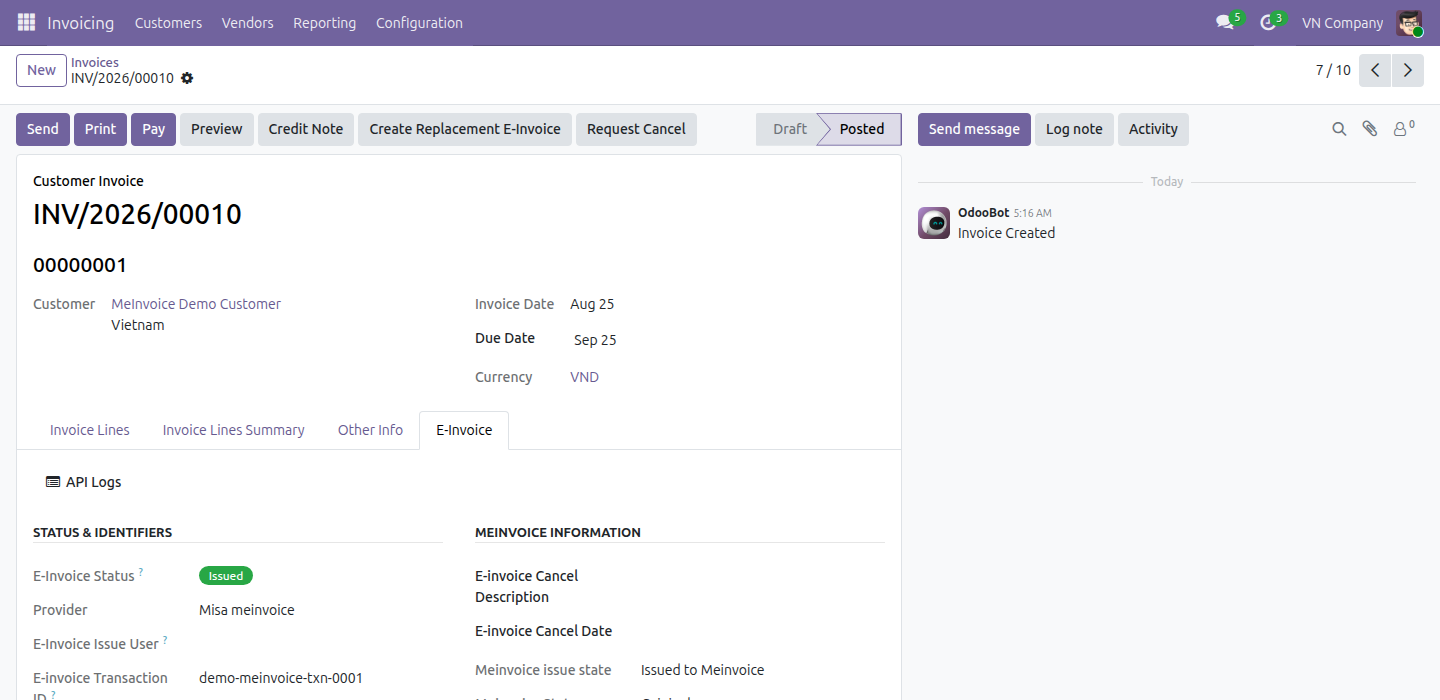
meInvoice detail in the E-Invoice tab
Issue state, invoice state and reference type sit in their own group, and feed the shared E-Invoice Status.
Read the guide or open the live demo
Need help with E-Invoice - MISA meInvoice Integrator?
For questions, implementation support, or consulting services, contact Viindoo.
Pre-Sales & Partnership
When contacting us, please include:
- Odoo/Viindoo version (CE/EE).
- Number of users and business scope.
- Other modules currently in use.
Technical Support
For faster troubleshooting, please provide:
- Order number or app reference.
- Odoo/Viindoo version & edition.
- Steps to reproduce the issue.
- Screenshots/logs if available.
Technical Requirement
Works Great With These Modules
Extend E-Invoice - MISA meInvoice Integrator with a complementary Viindoo app:
Show EInvoice Information on POS Receipt
Show the e-invoice information on the POS receipt of orders invoiced through MISA meInvoice or any other Vietnam e-invoice provider.
Who Should Use This Module?
Existing MISA meInvoice users
Companies that want to issue from Odoo instead of a separate portal.
Vietnam-based accounting teams
Teams that issue, adjust and replace e-invoices every day.
Export-oriented businesses
Companies that invoice customers whose language is not Vietnamese.
Installation
- Navigate to Apps.
- Search with keyword l10n_vn_viin_accounting_meinvoice.
- Press Activate.
Instruction
Note
Extends l10n_vn_viin_edi - see its documentation.
This module plugs the MISA meInvoice provider into the unified E-Invoice interface: once installed alongside the hub (l10n_vn_viin_edi), you configure, issue, adjust, replace and download meInvoice e-invoices from the same screens used for every other provider - there is no separate meInvoice menu or portal overlay.
1. Connect the MISA meInvoice service.
- Go to Invoicing > Configuration > E-Invoice > E-Invoice Services (the app is called Accounting in the Enterprise edition) and open the MISA meInvoice API v3 service. Every Vietnamese company has this service from the moment the company is created, with the MISA meInvoice provider already set - there is no provider to select.
- Choose the Mode: Sandbox while you are testing (the form then carries a Test Mode ribbon) or Production for live invoices.
- Leave Need sign on meInvoice ticked. It applies only to the invoices of cash-register (POS) templates: when ticked, meInvoice signs them digitally at issue; when not ticked, they are issued without a digital signature. The invoices of the other templates are always signed by meInvoice.
- In the Configuration tab, enter your Username and Password (Sandbox Username and Sandbox Password in Sandbox mode) and the MISA meInvoice App ID.
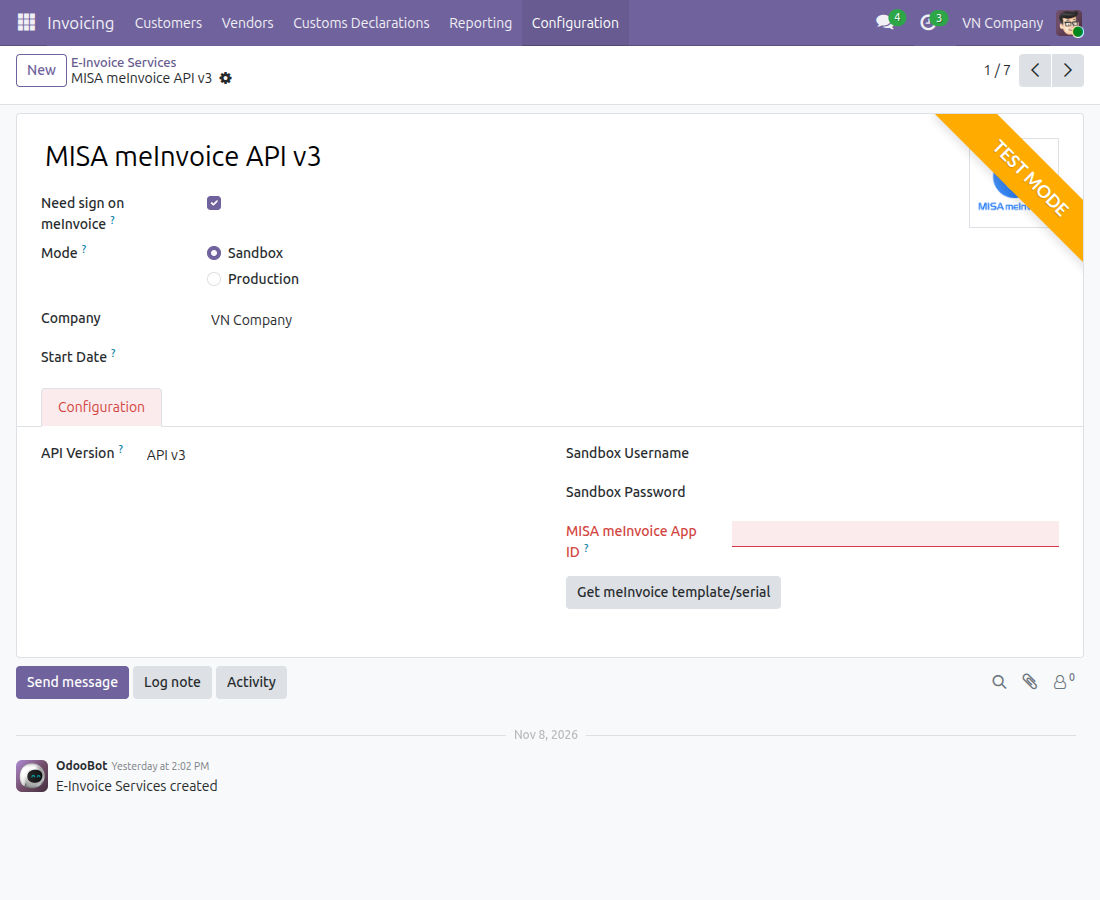
2. Fetch your serial and template from meInvoice in one click.
- On the same service, press Get meInvoice template/serial. Username and password of the chosen mode must be filled in first: otherwise the system stops and shows Fill the Sandbox Username and Sandbox Password in the Configuration tab of the e-invoice service, then try again. (Fill the Username and Password in the Configuration tab of the e-invoice service, then try again. in Production mode).
- The system logs in to meInvoice with your credentials, creates the missing E-Invoice Serial records and creates or updates the matching E-Invoice Template records - no manual data entry - then opens the list of the serials it created.
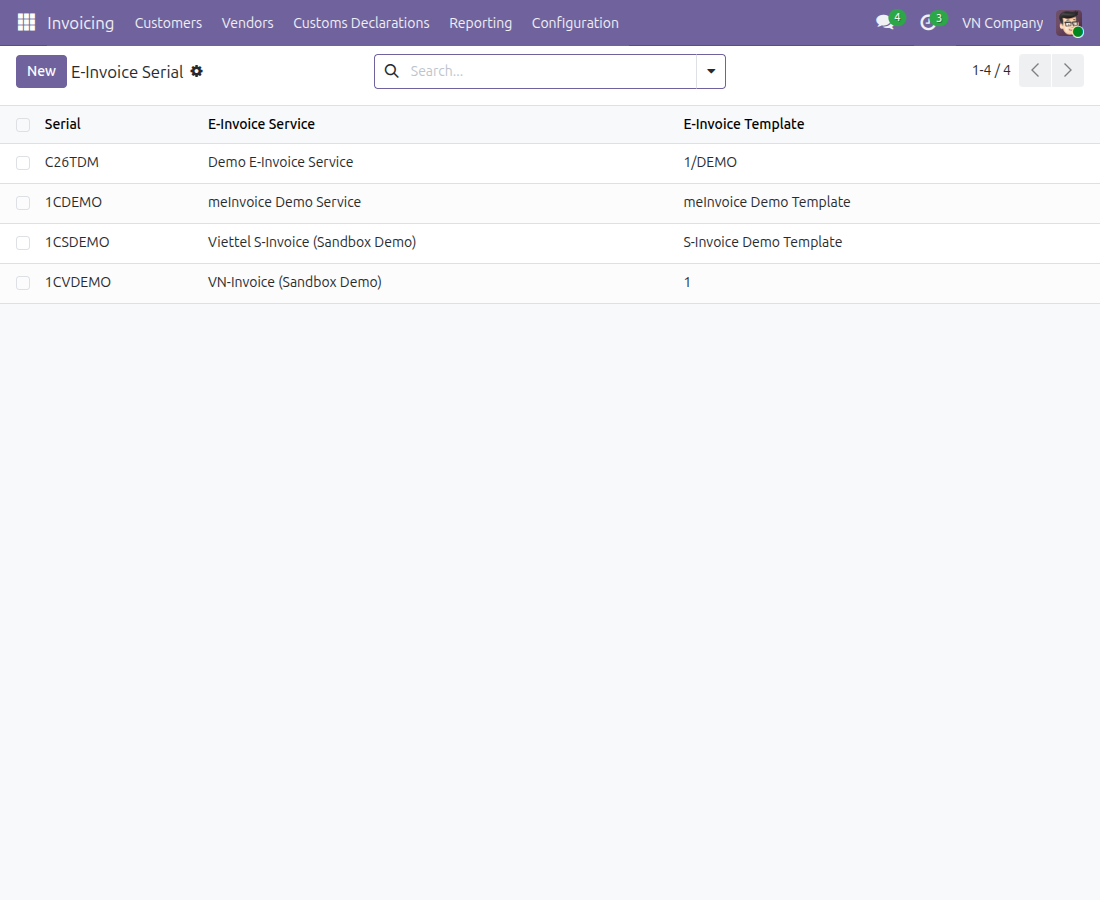
3. Review the fetched serial and template from the unified E-Invoice menu.
- Go to Invoicing > Configuration > E-Invoice. The E-Invoice Serial and E-Invoice Templates entries list the serials and templates just fetched, alongside those of every other provider, next to E-Invoice Services and E-Invoice Types.
- To use meInvoice for customers that have no serial of their own, go to Invoicing > Configuration > Settings, open the Vietnam E-Invoicing section and set Default Serial to one of the fetched serials.
4. Issue a customer invoice through meInvoice.
- Confirm a customer invoice whose customer (Default Serial) or journal (E-Invoice Serial) points to a serial of the meInvoice service. Press Send, keep Issue Vietnamese E-Invoice ticked in the Print & Send window and press Send. The system selects the correct meInvoice signing path - digital signature, unsigned, or cash-register - from the meInvoice type of the template and the Need sign on meInvoice setting.
- The e-invoice carries the invoice date: an invoice dated before today can still be issued, and one dated after today can be issued from that date on.
- On success, the invoice's Legal Number, Tax Authority Code and E-invoice Transaction ID are filled in, and the representation (PDF and XML) and converted files appear under Documents in the E-Invoice tab, ready to download.
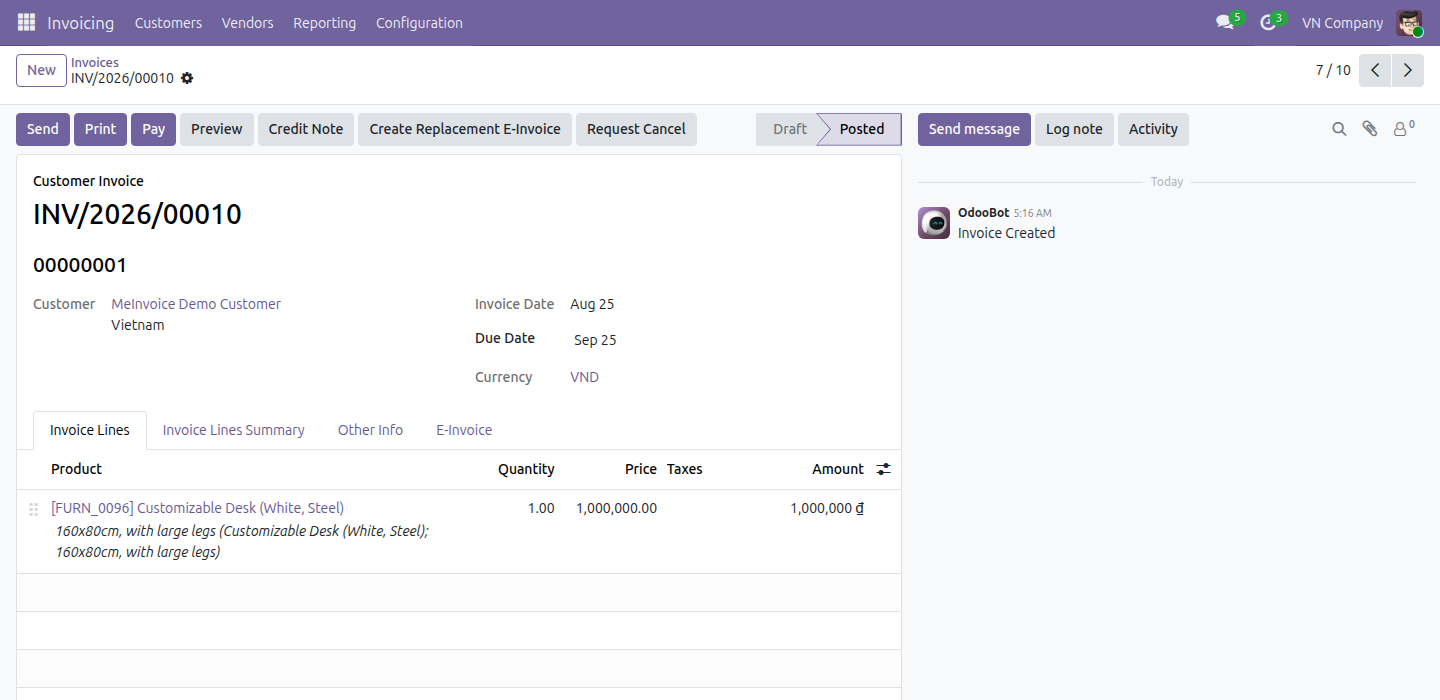
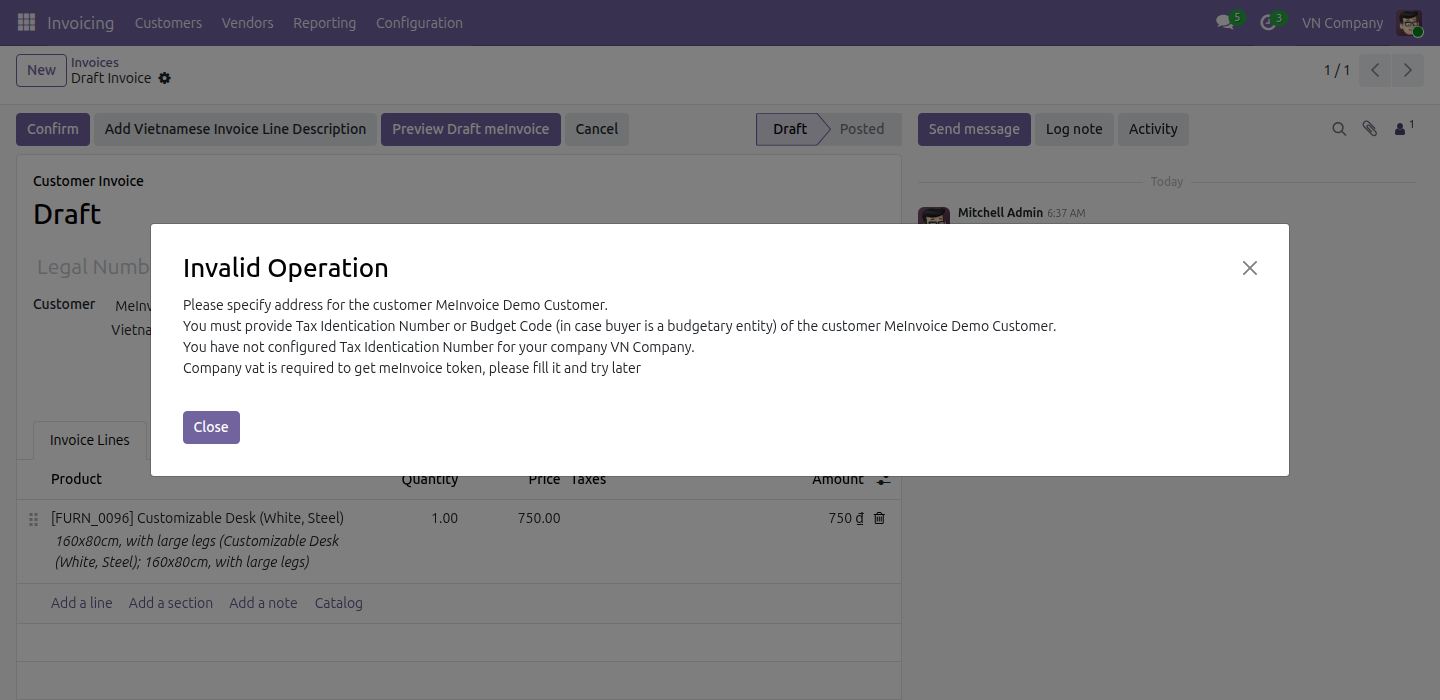
5. Preview a draft meInvoice before issuing.
- On an invoice that is not yet issued to meInvoice, press Preview Draft meInvoice to see how the e-invoice will look before it is actually issued. For a credit note (adjustment or replacement), the original invoice must already be issued; otherwise the system tells you so.
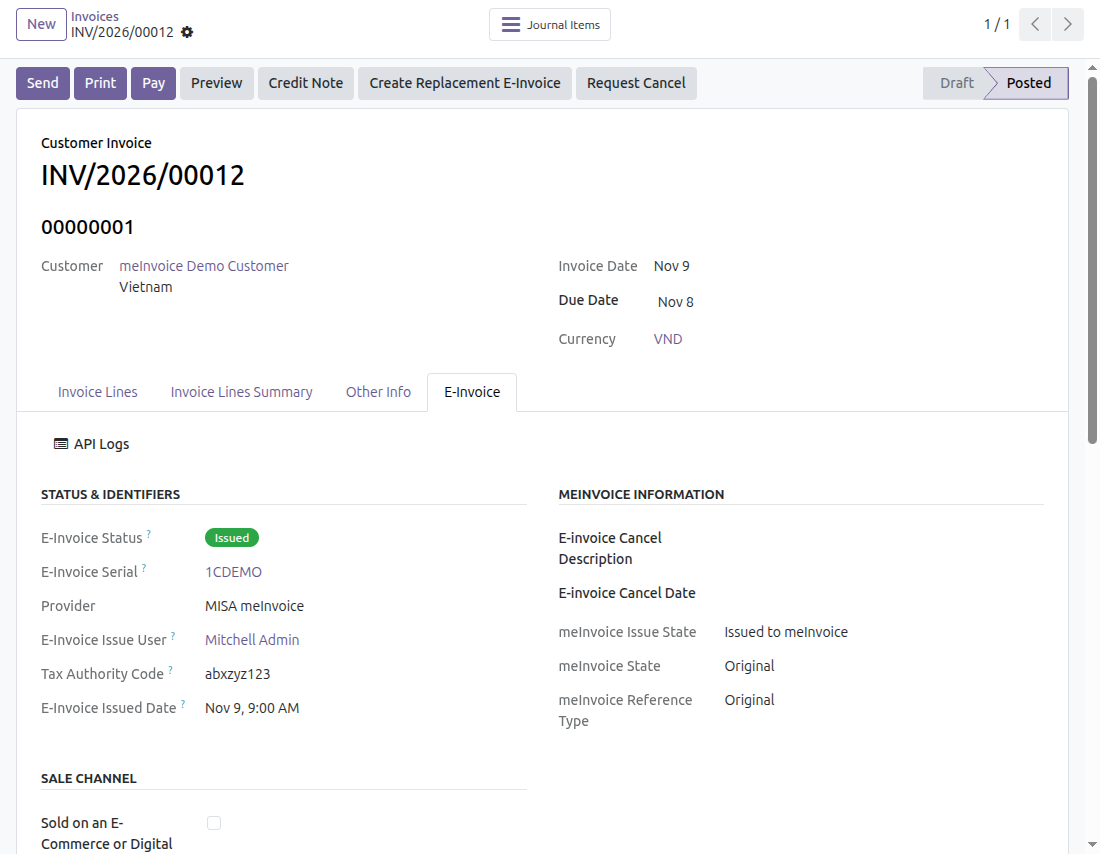
6. Track meInvoice's own status inside the merged E-Invoice tab.
- Open the invoice's E-Invoice tab. The meInvoice Information group keeps meInvoice's own detail - meInvoice Issue State (Unissued to meInvoice / Issued to meInvoice / Error when issuing to meInvoice), meInvoice State (Original / Deleted / Replaced / Adjusted) and meInvoice Reference Type (Original / Replaced / Adjusted).
- Every one of these states also feeds the single, cross-provider E-Invoice Status shown in the tab. On Invoicing > Customers > Invoices, open the search options to filter with E-Invoice Issued, E-Invoice Cancelled or E-Invoice Error, or to group by E-Invoice Status.
7. Adjust an invoice with the correct VAT when the tax rate changes.
- When you issue a decrease adjustment (credit note) that only changes the VAT rate of a line (for example from 10% to 8%) without changing the quantity or the price, the system sends meInvoice only the VAT difference between the original and the new rate, never the full recomputed amount. Nothing extra is asked from you: the adjustment is issued as usual.
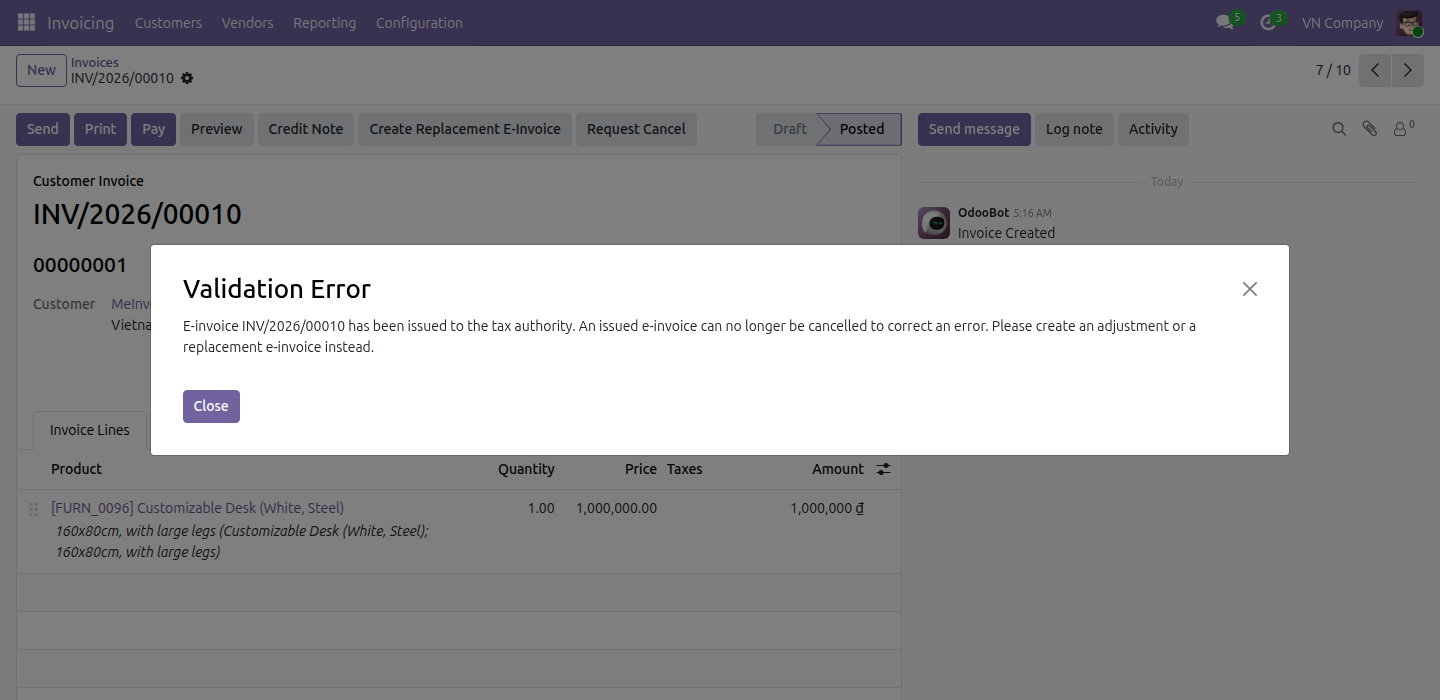
8. Cancel, or adjust/replace, an issued meInvoice invoice.
- An issued invoice offers Credit Note (adjustment), Create Replacement E-Invoice and Request Cancel. From the Cancellation Blocked From date set in Invoicing > Configuration > Settings (Vietnam E-Invoicing section), Request Cancel does not cancel an issued e-invoice, whenever it was issued: the system shows an error saying the e-invoice can no longer be cancelled to correct an error and asks you to create an adjustment or a replacement e-invoice instead, which keeps your books compliant.
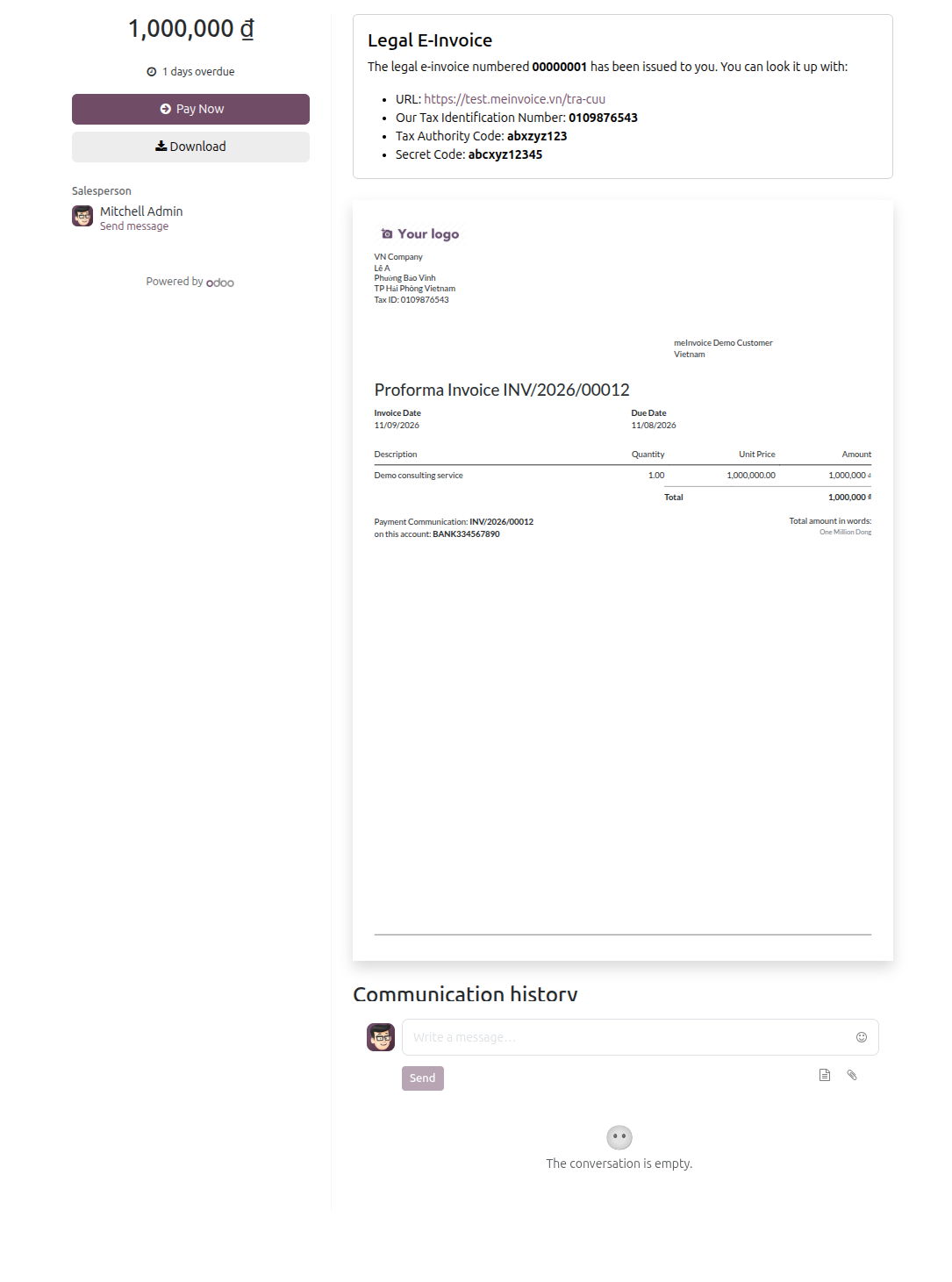
9. Let your customer view and download the meInvoice from the portal.
- On the customer portal, the invoice page shows a Legal E-Invoice box with the legal number issued with meInvoice, the lookup URL on meInvoice's own page, your Tax Identification Number, the Tax Authority Code and the Secret Code, each shown when it is available. The Download button gives the buyer the e-invoice files. The layout is the same for every other provider.
10. Point of Sale receipts also carry the e-invoice disclosure.
- When a POS order is invoiced through MISA meInvoice, the printed receipt shows the same provider-agnostic legal e-invoice disclosure block used by every other provider - the tax-authority code, the lookup code, the lookup URL, and a QR code encoding that URL. There is no separate meInvoice-only receipt layout, and nothing extra to configure beyond this module and l10n_vn_viin_edi_pos. See the l10n_vn_viin_edi_pos user guide for the full POS receipt walkthrough.
This software and associated files (the "Software") may only be used (executed, modified, executed after modifications) if you have purchased a valid license from the authors, typically via Odoo Apps, or if you have received a written agreement from the authors of the Software (see the COPYRIGHT file).
You may develop Odoo modules that use the Software as a library (typically by depending on it, importing it and using its resources), but without copying any source code or material from the Software. You may distribute those modules under the license of your choice, provided that this license is compatible with the terms of the Odoo Proprietary License (For example: LGPL, MIT, or proprietary licenses similar to this one).
It is forbidden to publish, distribute, sublicense, or sell copies of the Software or modified copies of the Software.
The above copyright notice and this permission notice must be included in all copies or substantial portions of the Software.
THE SOFTWARE IS PROVIDED "AS IS", WITHOUT WARRANTY OF ANY KIND, EXPRESS OR IMPLIED, INCLUDING BUT NOT LIMITED TO THE WARRANTIES OF MERCHANTABILITY, FITNESS FOR A PARTICULAR PURPOSE AND NONINFRINGEMENT. IN NO EVENT SHALL THE AUTHORS OR COPYRIGHT HOLDERS BE LIABLE FOR ANY CLAIM, DAMAGES OR OTHER LIABILITY, WHETHER IN AN ACTION OF CONTRACT, TORT OR OTHERWISE, ARISING FROM, OUT OF OR IN CONNECTION WITH THE SOFTWARE OR THE USE OR OTHER DEALINGS IN THE SOFTWARE.