
BIDV Connector
| Lines of Code | 1689 |
| Technical name | viin_bidv_connector |
| License | OPL-1 |
| Website | https://viindoo.com/apps/modules/18.0/viin_bidv_connector |
| Read description for | v 17.0 |
| Required Apps | Invoicing (account) Discuss (mail) |
| Included Dependencies | Bank Connector API Request Logger |
| Extensions | BIDV Automatic QR Payment |

Your BIDV account, ready to tell you which bill each transfer pays
Enter the Merchant ID and Service ID BIDV issued, hand BIDV the callback addresses and keys shown on the bank account, and every bill lookup and payment notification from BIDV is logged - and checked against your company's keys before a payment app acts on it.
BIDV Connector (technical name viin_bidv_connector) is an Odoo 18.0 app for Odoo Community, Odoo Enterprise and Viindoo Cloud, built for companies in Vietnam that collect money through a BIDV account.
At a Glance
The facts of BIDV Connector, version 1.0.5, in one place. Published by Viindoo.
How It Works
Three steps, once per company.
Set the bank account to BIDV
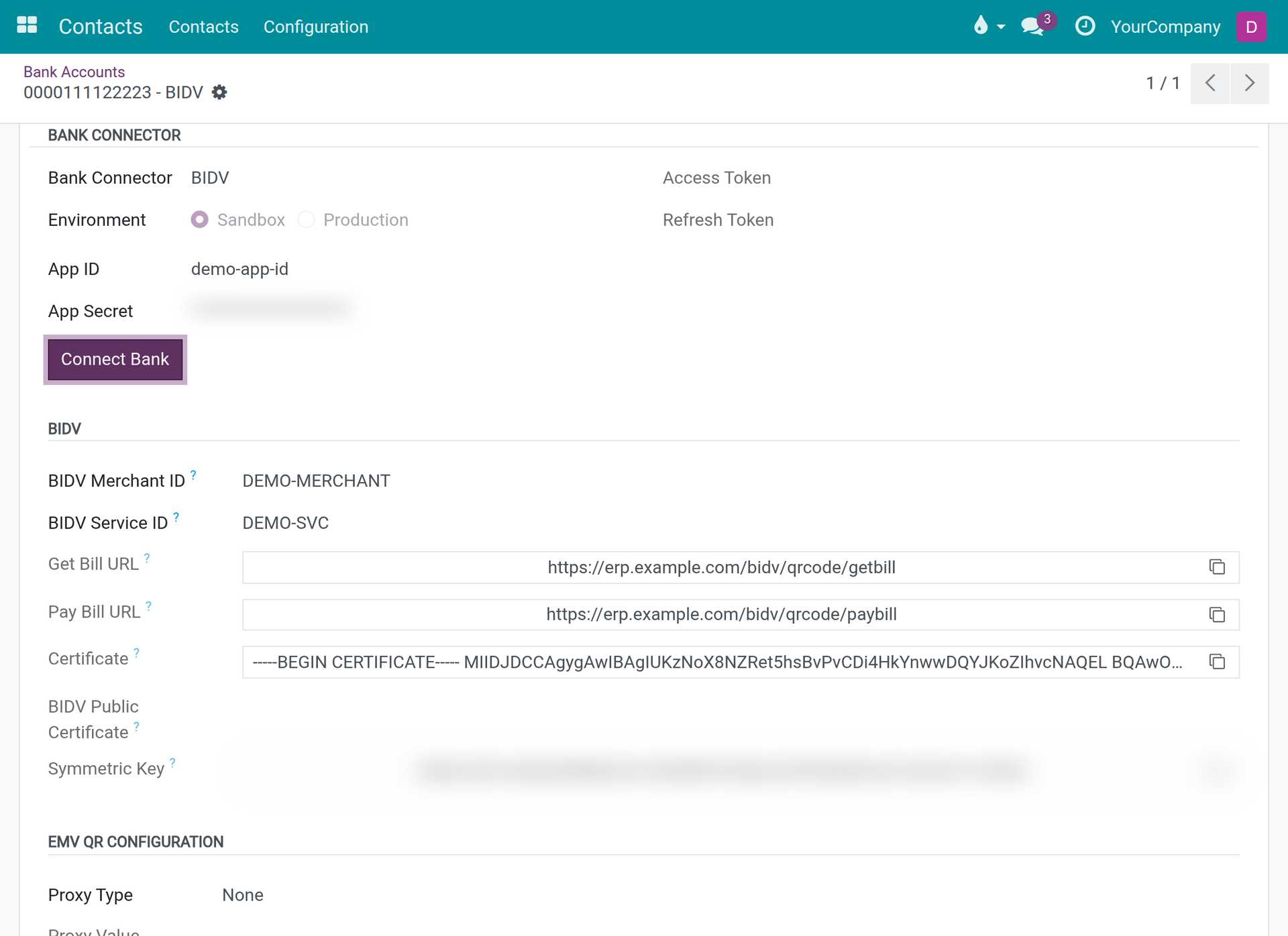
On the company bank account choose BIDV as the bank connector and enter the Merchant ID and Service ID from your BIDV registration. The system administrator enters the App ID and App Secret, chooses Sandbox or Production and presses Connect Bank.
Give BIDV what it asks for
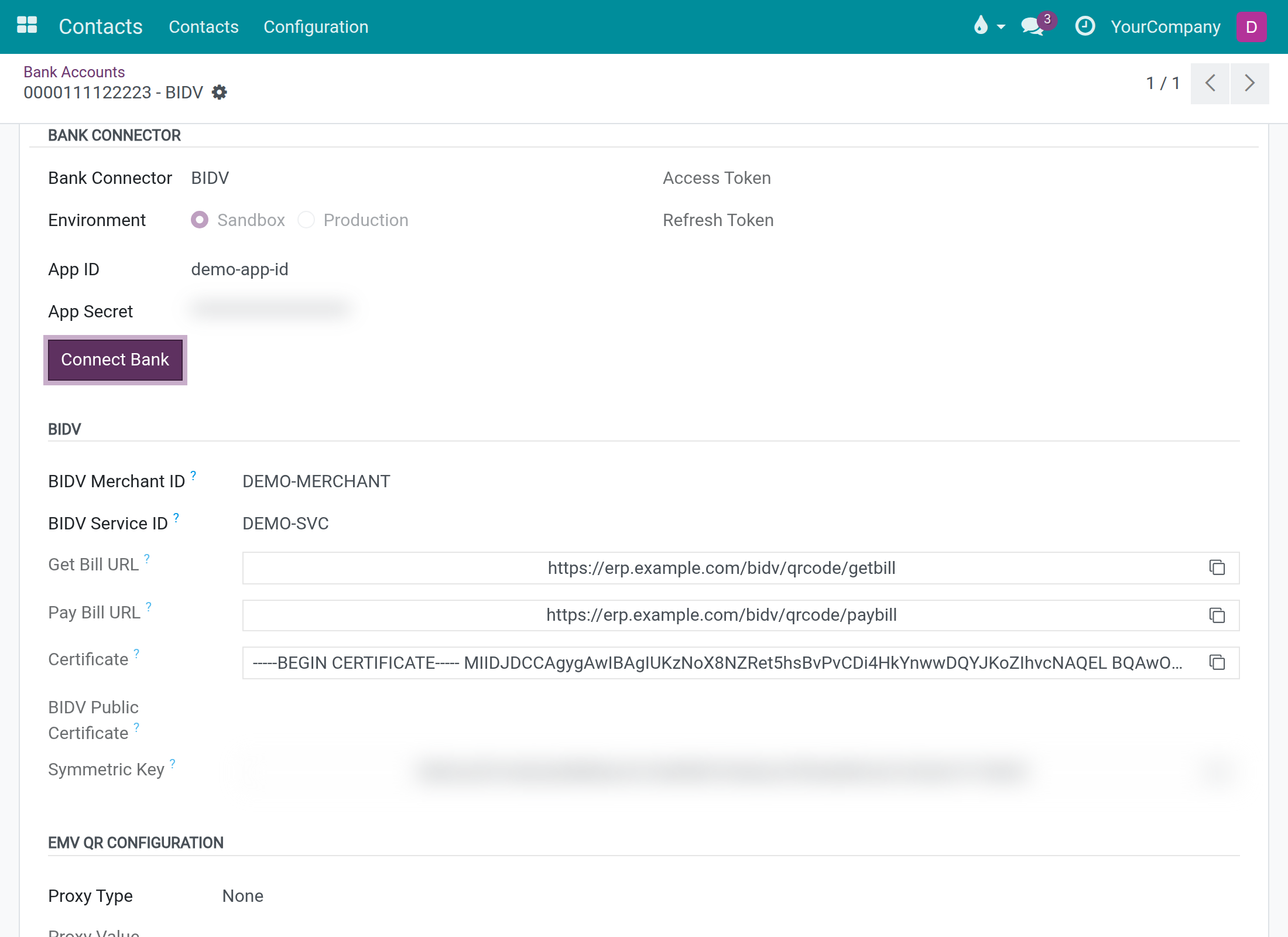
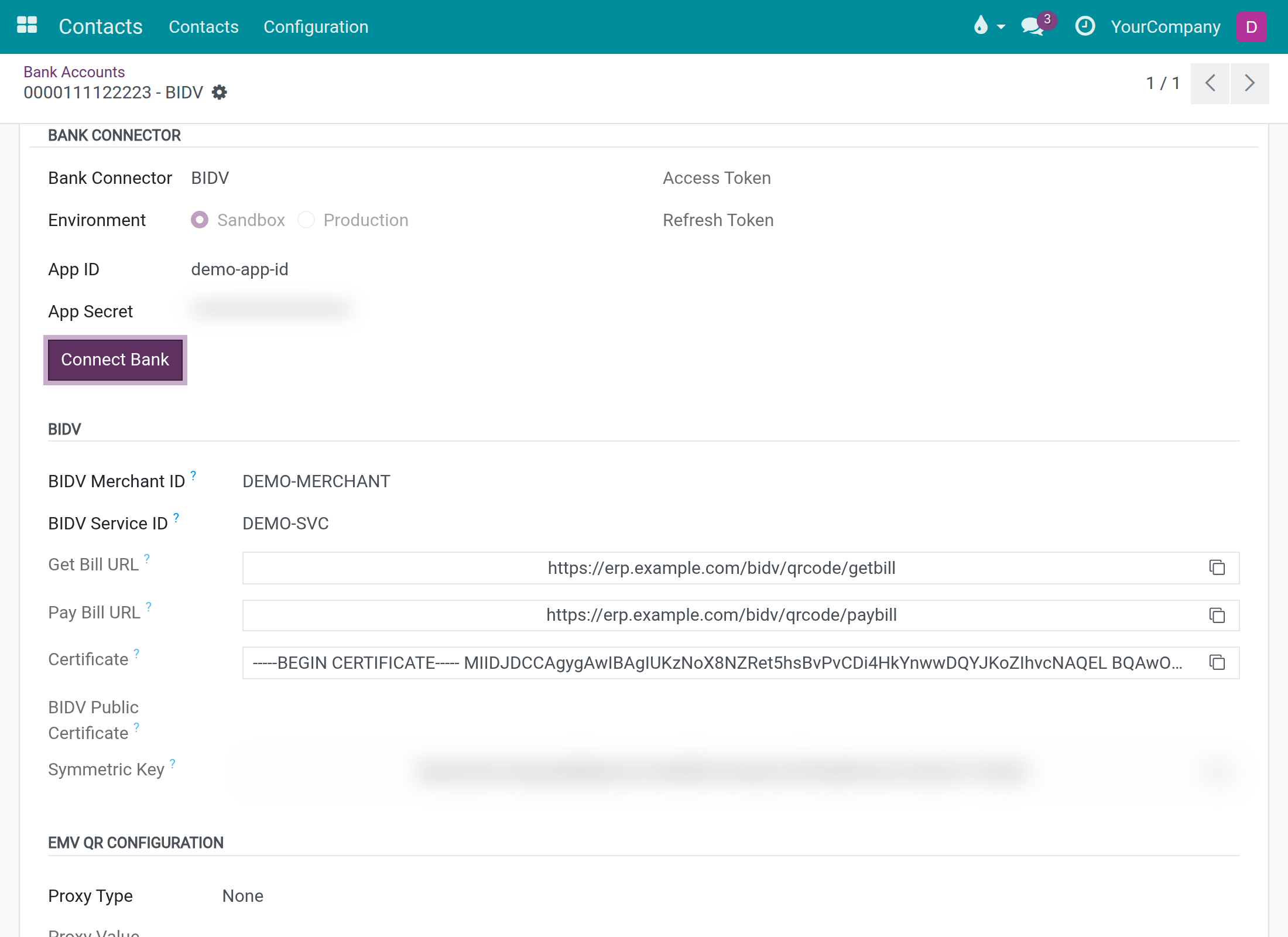
The Get Bill and Pay Bill addresses, the certificate and the symmetric key are on the same bank account, each with a copy button. The secret code is in the Accounting settings.
See BIDV's calls arrive
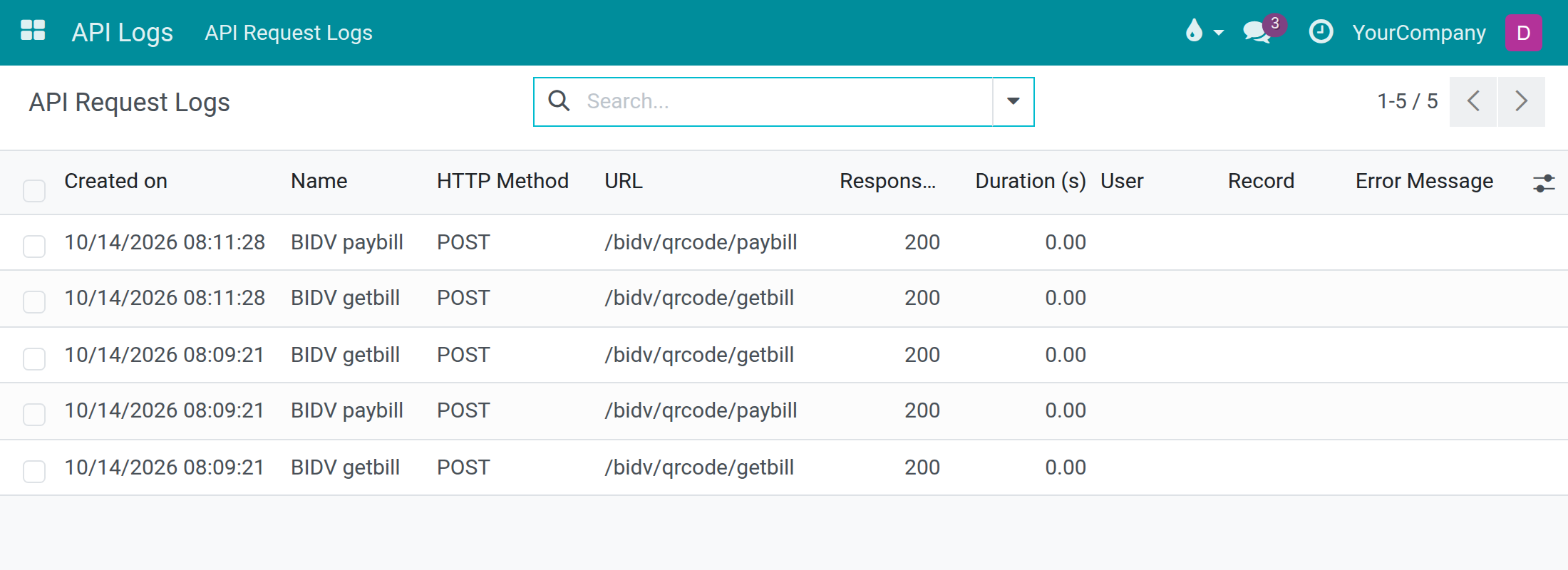
Every bill lookup and payment notification leaves a row in API Request Logs, with the answer the system gave.
What You Get
Merchant ID, Service ID, environment and credentials sit on the bank account they belong to. Merchant ID and Service ID are required as soon as BIDV is chosen.
The connector serves BIDV's bill lookup and payment notification addresses itself; the two addresses to give the bank are displayed, not assembled by hand.
The apps that record payments check BIDV's checksum against your company's keys through the connector; a call that fails is refused before any document is looked up or changed.
Accepted or refused, each callback leaves a row; the checksum is masked in the log.
Secret code, certificate and symmetric key are generated for each company, shown to system administrators only; the private key is on no screen.
The QR carries a BIDV payment alias instead of the bare account number, so BIDV can tell the system which bill a transfer pays - and a missing setting is reported with a clear message instead of a broken code.
What This App Does Not Do
Read this before you buy. Everything below is something the app deliberately leaves to another app or to you.
On its own it answers BIDV that the bill is unknown. BIDV Automatic QR Payment records transfers on invoices and sales orders; Point of sale - BIDV QR code automatic payment does it at the till.
Merchant ID, Service ID, App ID and App Secret come from BIDV.
Only the secret code can be regenerated from the settings.
The QR needs the bank's NAPAS identifier and the account holder's city or province.
Works Well With
Apps from the same stack, built to fit this one:
BIDV Automatic QR Payment
Records each confirmed transfer on the invoice or sales order it pays.
payment_bidv_viinPoint of sale - BIDV QR code automatic payment
Shows the BIDV QR at the till and closes the order when BIDV confirms.
viin_pos_qr_bidvWho Should Use BIDV Connector?
System administrator
Connects the account once, hands BIDV its addresses and keys from one screen, and keeps the keys closed to other users.
Accountant
Enters the Merchant ID and Service ID, and can see whether BIDV reached the system and what it was answered.
Frequently Asked Questions
What does BIDV Connector do?
It links a company BIDV account to BIDV Open API: it stores the Merchant ID and Service ID, shows the callback addresses and keys to give BIDV, builds the VietQR with a payment alias, receives BIDV's bill lookups and payment notifications, logs each of them, and gives the payment apps the checksum verification they act on.
What does BIDV Connector not do?
It does not record payments on invoices, sales orders or POS orders by itself; add BIDV Automatic QR Payment or Point of sale - BIDV QR code automatic payment for that. It does not replace the BIDV Open API registration.
Who is BIDV Connector for?
Companies in Vietnam that collect through a BIDV account: the system administrator who sets up the connection and the accountant who follows the collections.
Where do I find the addresses BIDV must call?
On the company bank account, in the BIDV section: Get Bill URL and Pay Bill URL, each with a copy button.
Who can see the keys and the secret code?
System administrators only. The private key is not shown on any screen.
How do I know that BIDV reached my system?
Open API Request Logs: each call from BIDV is a row named after the callback, with the status of the answer.
We configured BIDV on Odoo 17 - what happens to our keys on upgrade?
The upgrade copies the certificate, private key and symmetric key stored on your BIDV bank accounts to the company and generates only what is missing; a key the company already has is never overwritten.
How do I set it up?
Choose BIDV on the company bank account, enter Merchant ID and Service ID, let a system administrator enter App ID and App Secret and press Connect Bank, then send BIDV the two callback addresses, the certificate, the symmetric key and the secret code.
Which Odoo version and editions does it support?
Odoo 18.0 - Odoo Community, Odoo Enterprise, Viindoo Cloud. Upgrades to a newer Odoo series are a separate purchase for that series.
What does it depend on?
It installs on top of: viin_bank_connector, l10n_vn. Odoo installs them with it.
What works well with it?
BIDV Automatic QR Payment (payment_bidv_viin): Records each confirmed transfer on the invoice or sales order it pays. Point of sale - BIDV QR code automatic payment (viin_pos_qr_bidv): Shows the BIDV QR at the till and closes the order when BIDV confirms. Bank Connector (viin_bank_connector): The shared base, installed with this app.
Can I try it before buying?
Yes - the Live Preview button at the top of this page opens the module's own screen on a working database.
How do I get support?
Write to apps.support@viindoo.com with your Odoo version and the technical name viin_bidv_connector; pre-sales questions go to sales@viindoo.com.
See BIDV Connector in Action
Live demo: v18demo-int.viindoo.com
Need help with BIDV Connector?
For questions, implementation support or a custom feature, contact Viindoo.
Pre-Sales & Partnership
sales@viindoo.comUpgrades to a newer Odoo series are a separate purchase for that series.
All Viindoo apps: /apps/modules/browse?author=Viindoo
Technical Requirement
Changes log
1.0.5 - Odoo 18.0
- The Secret Code block of the settings is laid out cleanly.
- The optional check of BIDV's response signature now refuses a malformed signature as well as a missing one.
1.0.4 - Odoo 18.0
- The connector serves BIDV's callbacks itself and shows the two addresses on the bank account.
- Every callback is logged with its checksum masked.
- Keys are kept per company, shown to system administrators only, and carried over from bank accounts on upgrade.
- The VietQR reports a missing setting with a clear message.
1.0.2 - Odoo 18.0
- First release for Odoo 18.0.
BIDV Connector
Note
Extends Bank Connector - see its documentation: viin_bank_connector.
Overview
BIDV Connector links a company bank account held at BIDV to your system. It does four things:
- It builds the VietQR code of the account with a BIDV payment alias, so that BIDV can tell which bill a customer is paying.
- It provides the two web addresses BIDV calls: one to look up a bill (Get Bill URL) and one to announce a payment (Pay Bill URL). No other app has to be installed for these addresses to exist.
- It keeps a journal of every call BIDV makes, in API Request Logs.
- It generates and protects the keys of your company that BIDV needs: a certificate, a symmetric key and a secret code.
What it does not do on its own: it records no payment. Installed alone, the connector answers a bill lookup with "customer unknown" (result code 011) and a payment notification with "bill not found" (result code 021). To have payments recorded you also need one of these apps:
- BIDV Automatic QR Payment for invoices and sales orders.
- Point of sale - BIDV QR code automatic payment for the till.
Who uses this module
| Role | What they do | Access right to assign |
|---|---|---|
| System Administrator | Connects the account to BIDV (App Secret, Connect Bank), gives BIDV the addresses, secret code, certificate and symmetric key, reads the keys. | Administration / Settings |
| Accounting Officer | Opens the company bank account, chooses BIDV as Bank Connector, enters the Merchant ID and the Service ID, reads the callback addresses. | Extra Rights / Contact Creation |
| Accounting or IT support staff | Checks that BIDV reaches the system and what the system answered. | API Log Viewer (see "Checking that BIDV reaches you") |
The roles in this table are the people who typically hold these tasks; your company may split them differently.
Before you start
Ask BIDV for the four values it issues to your company: the Merchant ID, the Service ID, the App ID and the App Secret. Then check two things, because without them no QR code can be built:
- The bank. Open Contacts ‣ Configuration ‣ Bank Accounts ‣ Banks, open BIDV and check that the Bank Identifier Code is the 6-digit NAPAS code of BIDV: 970418. A SWIFT code does not work.
- The account holder. The holder of the account (your company's contact) must have a City or a State filled in. Open Contacts ‣ Contacts, open your company and fill in the City or the State.
Setup (for the System Administrator)
Installation
- Open Apps and search for BIDV Connector.
- Click Install. The Bank Connector app and the Vietnam accounting localization are installed with it.
- Install BIDV Automatic QR Payment and/or Point of sale - BIDV QR code automatic payment if you want payments to be recorded.
When the module is installed, your company receives its secret code, certificate and symmetric key automatically. A company you create later receives them too.
Giving a user the right to work with BIDV
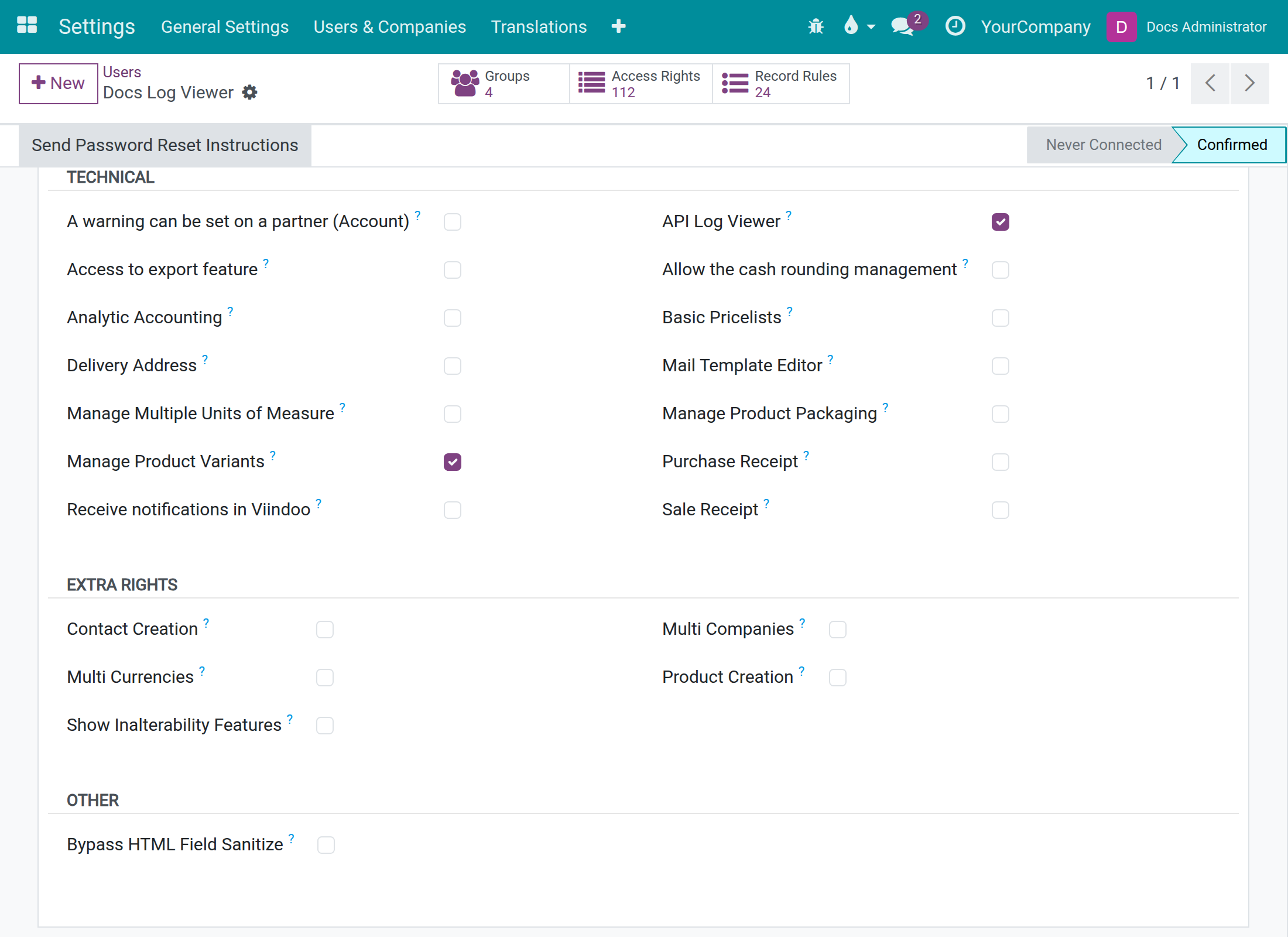
Open Settings ‣ Users & Companies ‣ Users, open the user and tick the access right from the table above:
- Administration / Settings for the administrator.
- Extra Rights / Contact Creation for the accounting officer.
- API Log Viewer for the person who reads API Request Logs. This right is listed under "Technical" and is shown only in developer mode.
Connecting the bank account
The accounting officer and the administrator share this task. The administrator is needed for the App Secret and the Connect Bank button.
- Open Contacts ‣ Configuration ‣ Bank Accounts ‣ Bank Accounts and open the company's account at BIDV (or create it, with BIDV as the bank).
- In the "Bank Connector" group, choose BIDV in Bank Connector.
- Choose the Environment: Sandbox for tests, Production for the real bank.
- Enter the App ID given by BIDV.
- Enter the App Secret (the administrator only - other users do not see this field).
- In the "BIDV" group, enter the BIDV Merchant ID and the BIDV Service ID. Both are required.
- Click Save.
- The administrator clicks Connect Bank.
The accountant sees the same form without the App Secret, the Certificate and the Symmetric Key:
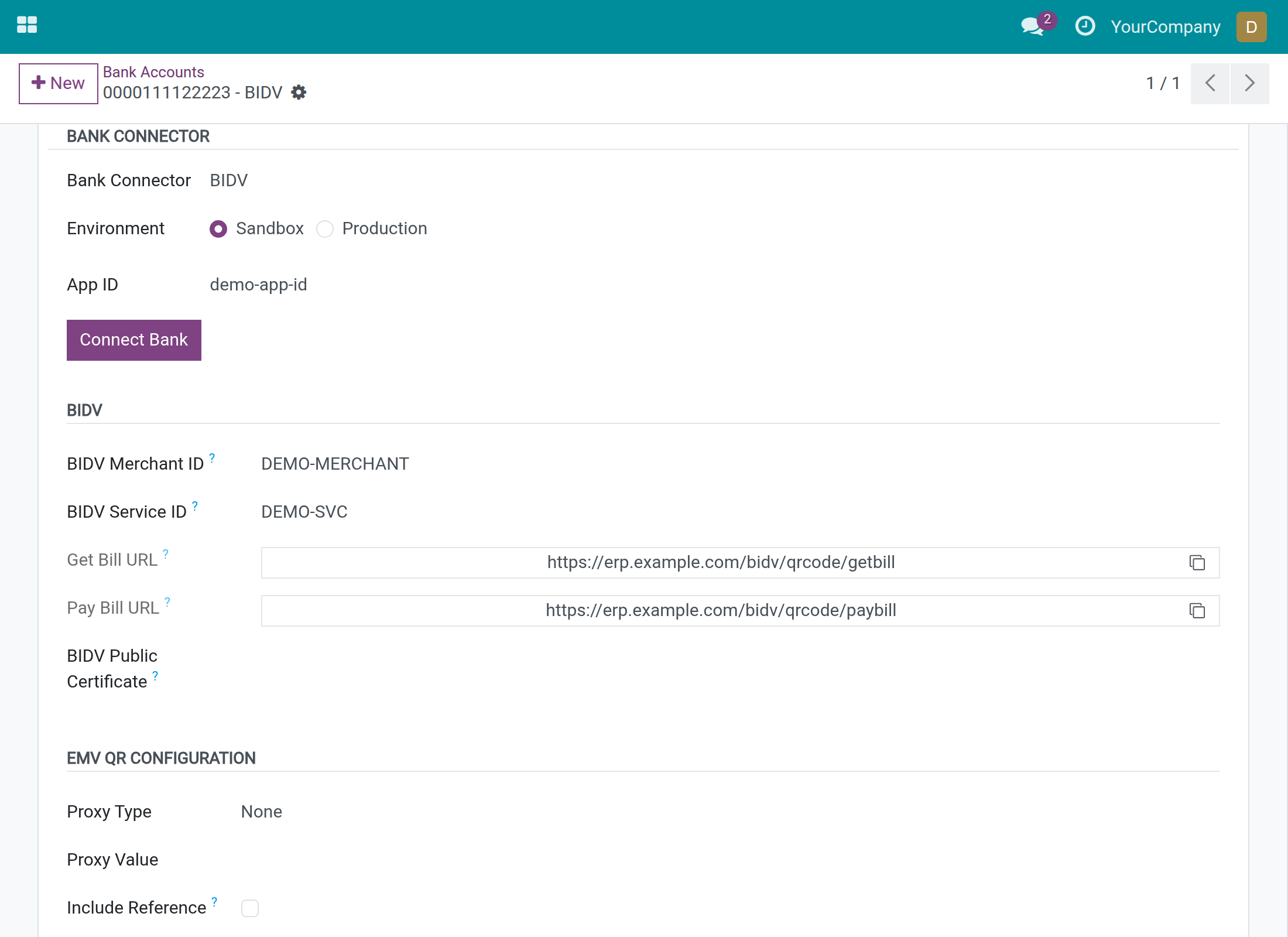
The administrator sees the whole form:
What Connect Bank answers:
- On success, a notification "Connect to BIDV OPEN API successful" with the text "Let start using BIDV OPEN API."
- If the App ID or the App Secret is empty: "App ID and App Secret are required for BIDV connection".
- If BIDV refuses or does not answer: "Error connecting to BIDV:" followed by the reason BIDV gave, or "no response".
- If you are not an administrator, the system refuses with an access error before BIDV is called. Ask an administrator to click the button.
The system asks BIDV for a new access token by itself when it is missing or expired, so you click Connect Bank to check the credentials, not to renew them.
Giving BIDV your side
BIDV needs five items from you. They are all in the system:
| Item for BIDV | Where to find it | Who sees it |
|---|---|---|
| Get Bill URL | Bank account form, "BIDV" group | Accountant and administrator |
| Pay Bill URL | Bank account form, "BIDV" group | Accountant and administrator |
| Certificate | Bank account form, "BIDV" group | Administrator |
| Symmetric Key | Bank account form, "BIDV" group | Administrator |
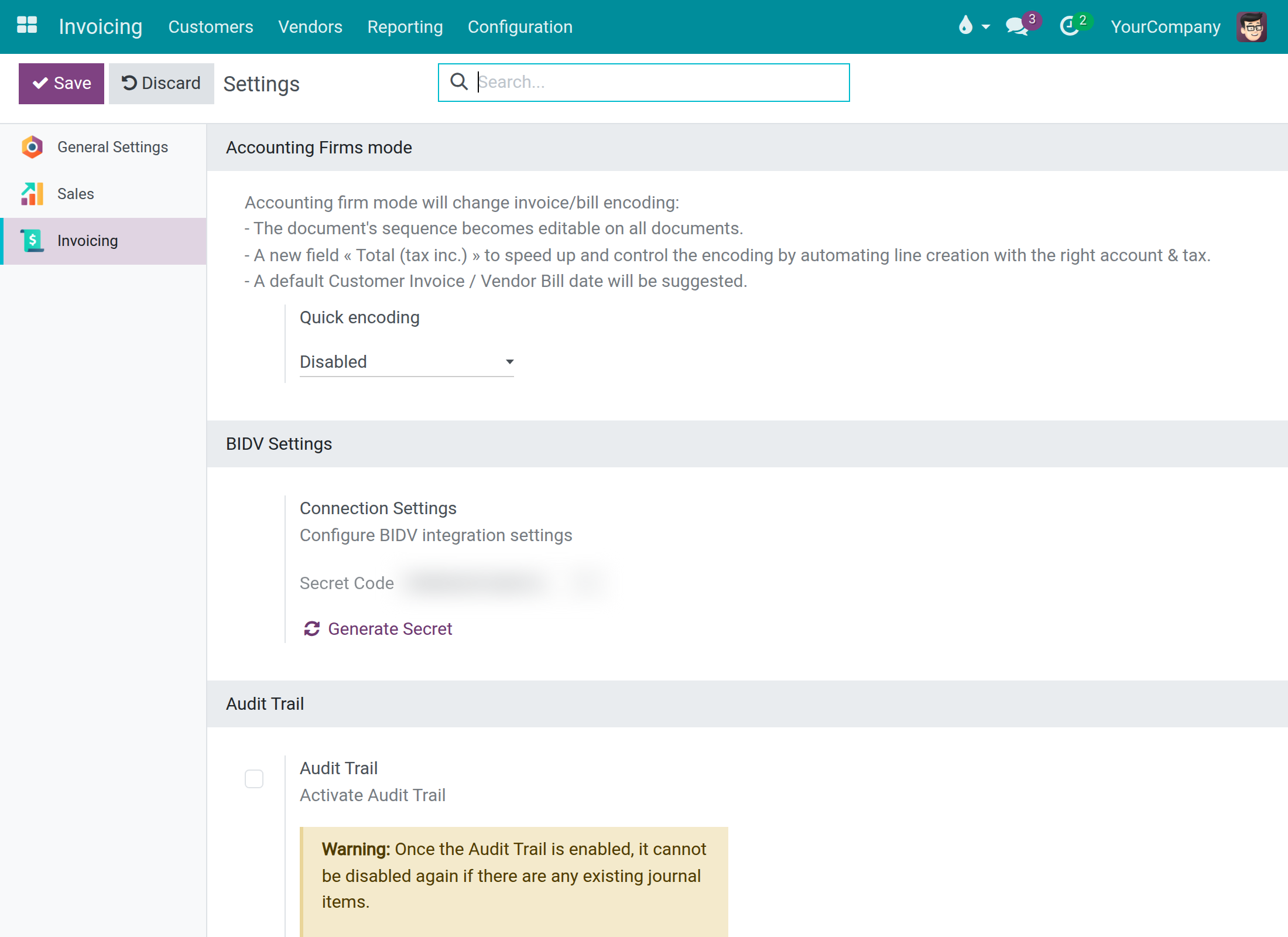
| Secret Code | Invoicing ‣ Configuration ‣ Settings, block "BIDV Settings" | Administrator |
The two addresses end in /bidv/qrcode/getbill and /bidv/qrcode/paybill. They are served by this module itself. They start with the web address of your system, so check that they show the public address BIDV can reach and not an internal one such as localhost. If they do not, ask your implementer to correct the web address of the system.
Each field has a copy button on its right. Click it and paste the value into the form or the message you send to BIDV.
The certificate is public material: only its first line is shown here, and BIDV needs the whole text. Never send the Secret Code or the Symmetric Key by an open channel; use the secure channel agreed with BIDV.
In the "BIDV" group you also find BIDV Public Certificate. Paste there the certificate BIDV gives you. It is only used if you switch on the check of BIDV signatures (see "Optional: check the signature of BIDV answers").
The Secret Code
The Secret Code belongs to the company you are working in. Click Generate Secret only if the code has leaked or BIDV asks for a new one. The system first asks you to confirm: "Generating a new secret code makes BIDV reject all callbacks until the new secret code is shared with BIDV. Continue?". After you confirm, the new code replaces the old one at once and the page shows "New secret code has been generated. Please copy and share it with BIDV." From that moment on BIDV rejects every call until you send it the new code.
Checking that BIDV reaches you
Every call BIDV makes to the two addresses leaves a row in API Logs ‣ API Request Logs. This menu is shown to users with the API Log Viewer right (they can read) and to administrators (they can read and delete).
How to read a row:
- Name: BIDV getbill is a bill lookup, BIDV paybill is a payment notification.
- URL: the address BIDV called.
- Response Status: always 200. BIDV's own answer code is not here but inside the answer, see below.
- Error Message: filled only when the system failed while handling the call; it names the kind of failure.
- Record: the order, invoice or payment the call is about, when a payment app supplies it.
Open a row and click the "Response Details" tab to read the answer sent to BIDV.
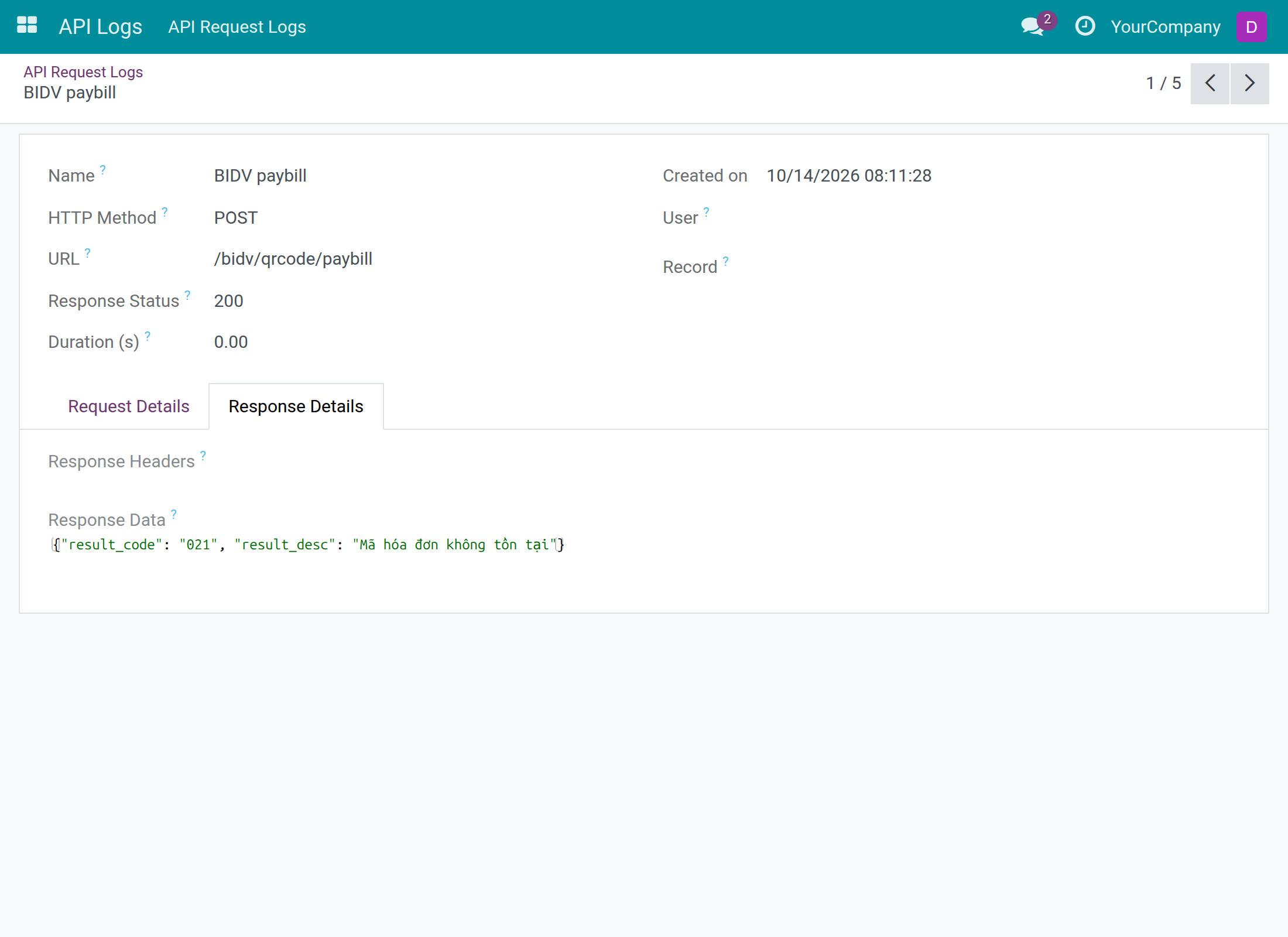
What is kept in a row:
- For a call that passed the signature check, the content of the call (with the checksum hidden) and the answer.
- For every other call, only the size of the call and the answer code. Nothing else of the call is stored.
The connector alone never answers a call as "accepted", so with no payment app installed all rows show the size only. The full content appears once a payment app checks the call.
What the answer code means:
| Code | Meaning | What to do |
|---|---|---|
| 000 | Success. | Nothing. |
| 011 | Customer unknown (Mã khách hàng không đúng/không tồn tại). | BIDV asked about a payment alias the system cannot answer. If no payment app is installed this is expected: install one. Otherwise check that the Merchant ID on the bank account is exactly the one BIDV uses. |
| 021 | Bill not found (Mã hóa đơn không tồn tại). | A payment was announced but no document could be matched. Same checks as 011. |
| 023 | Transaction already settled. | BIDV announced a payment that was already recorded. Nothing to do. |
| 004 | Invalid checksum. | Given by the payment apps when the checksum of the call does not match. The Secret Code or the Symmetric Key BIDV uses is not the one in the system: send BIDV the current values. |
| 031 | Error in the system. | The call failed inside the system. Read the Error Message column and ask your implementer. |
Keys and who sees them
- The secret code, certificate, private key and symmetric key are generated automatically per company: when the module is installed, when a new company is created and when the module is upgraded. A value that already exists is never replaced.
- Only system administrators see the Certificate, the Symmetric Key and the Secret Code, and only for the companies they are allowed to work in. Other users do not see these fields.
- The private key is shown on no screen.
- The certificate is valid for 365 days from the day it was generated. In developer mode, the field Certificate Info on the bank account shows its subject, serial number and valid-from and valid-until dates.
- This version has no button to renew the certificate or the symmetric key. When the certificate approaches its end date, or if you must replace the symmetric key, contact your implementer or Viindoo support.
Optional: check the signature of BIDV answers
By default the system does not verify the signature of BIDV's answers to the calls it makes. To require it, an administrator turns developer mode on, opens Settings ‣ Technical ‣ Parameters ‣ System Parameters and creates a parameter with the key viin_bank_connector.verify_jws and the value True. This parameter does not exist after installation. Once it is set:
- The answer of BIDV must carry a signature; if the signature is missing or malformed, the system raises "The BIDV response is not signed, its signature cannot be verified."
- The signature is checked with the BIDV Public Certificate of the bank account. If the check fails, the system raises "JWS Signature verification failed:" followed by the reason.
This applies to the calls the payment apps make to BIDV. It does not change how BIDV's calls to you are checked. Delete the parameter or set it to False to switch the check off.
Upgrading from Odoo 17
On 17.0 the keys were kept on the BIDV bank accounts. When the module is upgraded to 18.0, for each company the upgrade does the following:
- If the company has no certificate and no private key, it copies the pair from the oldest BIDV account of the company's own contact that has both.
- If the company has no symmetric key, it copies it from the oldest BIDV account that has one.
- It generates whatever is still missing: certificate and private key, symmetric key, and a secret code if the company has none.
A key the company already has is never overwritten. If the upgrade generates a new secret code or key, send it to BIDV, otherwise BIDV rejects the calls.
Troubleshooting
The QR code cannot be built
When the QR code cannot be built, the reason is one of these messages:
| Message | Cause | Fix |
|---|---|---|
| Missing Merchant City or State. | The account holder has neither a City nor a State. | Fill in the City or the State of your company's contact. |
| Missing Bank Identifier Code. | The bank of the account has no Bank Identifier Code. | Open Contacts ‣ Configuration ‣ Bank Accounts ‣ Banks, open BIDV and enter 970418. |
| The Bank Identifier Code must be the 6-digit NAPAS BIN, BIDV is 970418, not the SWIFT code. | The code on the bank is not six digits. | Replace it by 970418. |
| Missing BIDV Merchant ID or Service ID. | One of the two is empty on the bank account. | Enter both in the "BIDV" group. |
| The payment alias must start with the BIDV Merchant ID. | The payment reference used by the document does not begin with the Merchant ID of the account. | Check that the Merchant ID is typed exactly as BIDV issued it, and that the payment app uses the same account. |
| Missing Merchant Account Information. | The account information of the QR code could not be built. | Check the bank and the Merchant ID of the account, then ask your implementer. |
The connection to BIDV fails
| Message | Cause | Fix |
|---|---|---|
| App ID and App Secret are required for BIDV connection | One of them is empty. | Enter both (the App Secret is entered by an administrator), save, click Connect Bank. |
| Error connecting to BIDV: ... | BIDV refused the credentials, or could not be reached. The text after the colon is the reason BIDV gave, or "no response". | Check the App ID and App Secret, check that the Environment matches the credentials (Sandbox or Production), then try again. |
| Error calling BIDV API: ... | A call made by a payment app was refused or did not get an answer. | Click Connect Bank to check the credentials, then read the reason after the colon. |
| BIDV rejects every call after you generated a new secret code | BIDV still holds the old secret code. | Send BIDV the current Secret Code. |
This software and associated files (the "Software") may only be used (executed, modified, executed after modifications) if you have purchased a valid license from the authors, typically via Odoo Apps, or if you have received a written agreement from the authors of the Software (see the COPYRIGHT file).
You may develop Odoo modules that use the Software as a library (typically by depending on it, importing it and using its resources), but without copying any source code or material from the Software. You may distribute those modules under the license of your choice, provided that this license is compatible with the terms of the Odoo Proprietary License (For example: LGPL, MIT, or proprietary licenses similar to this one).
It is forbidden to publish, distribute, sublicense, or sell copies of the Software or modified copies of the Software.
The above copyright notice and this permission notice must be included in all copies or substantial portions of the Software.
THE SOFTWARE IS PROVIDED "AS IS", WITHOUT WARRANTY OF ANY KIND, EXPRESS OR IMPLIED, INCLUDING BUT NOT LIMITED TO THE WARRANTIES OF MERCHANTABILITY, FITNESS FOR A PARTICULAR PURPOSE AND NONINFRINGEMENT. IN NO EVENT SHALL THE AUTHORS OR COPYRIGHT HOLDERS BE LIABLE FOR ANY CLAIM, DAMAGES OR OTHER LIABILITY, WHETHER IN AN ACTION OF CONTRACT, TORT OR OTHERWISE, ARISING FROM, OUT OF OR IN CONNECTION WITH THE SOFTWARE OR THE USE OR OTHER DEALINGS IN THE SOFTWARE.