
BIDV Automatic QR Payment
by Viindoo
| Lines of Code | 1552 |
| Technical name | payment_bidv_viin |
| License | OPL-1 |
| Website | https://viindoo.com/apps/modules/18.0/payment_bidv_viin |
| Read description for | v 17.0 |
| Required Apps | Invoicing (account) Discuss (mail) |
| Included Dependencies | BIDV Connector Bank Connector API Request Logger |
| Extensions | Point of sale - BIDV QR code automatic payment |

Every BIDV transfer on the right invoice - once, at the amount really received
Your customer scans a BIDV VietQR to pay an invoice or a sales order; when BIDV confirms the transfer, the payment is recorded on that document automatically, and a transfer of a different amount is flagged for the accountant.
BIDV Automatic QR Payment (technical name payment_bidv_viin) is an Odoo 18.0 app for Odoo Community, Odoo Enterprise and Viindoo Cloud, built for companies in Vietnam that collect invoices and orders in VND through a BIDV account.
At a Glance
The facts of BIDV Automatic QR Payment, version 0.1.5, in one place. Published by Viindoo.
How It Works
Set up once, then every payment runs by itself.
The administrator switches BIDV on
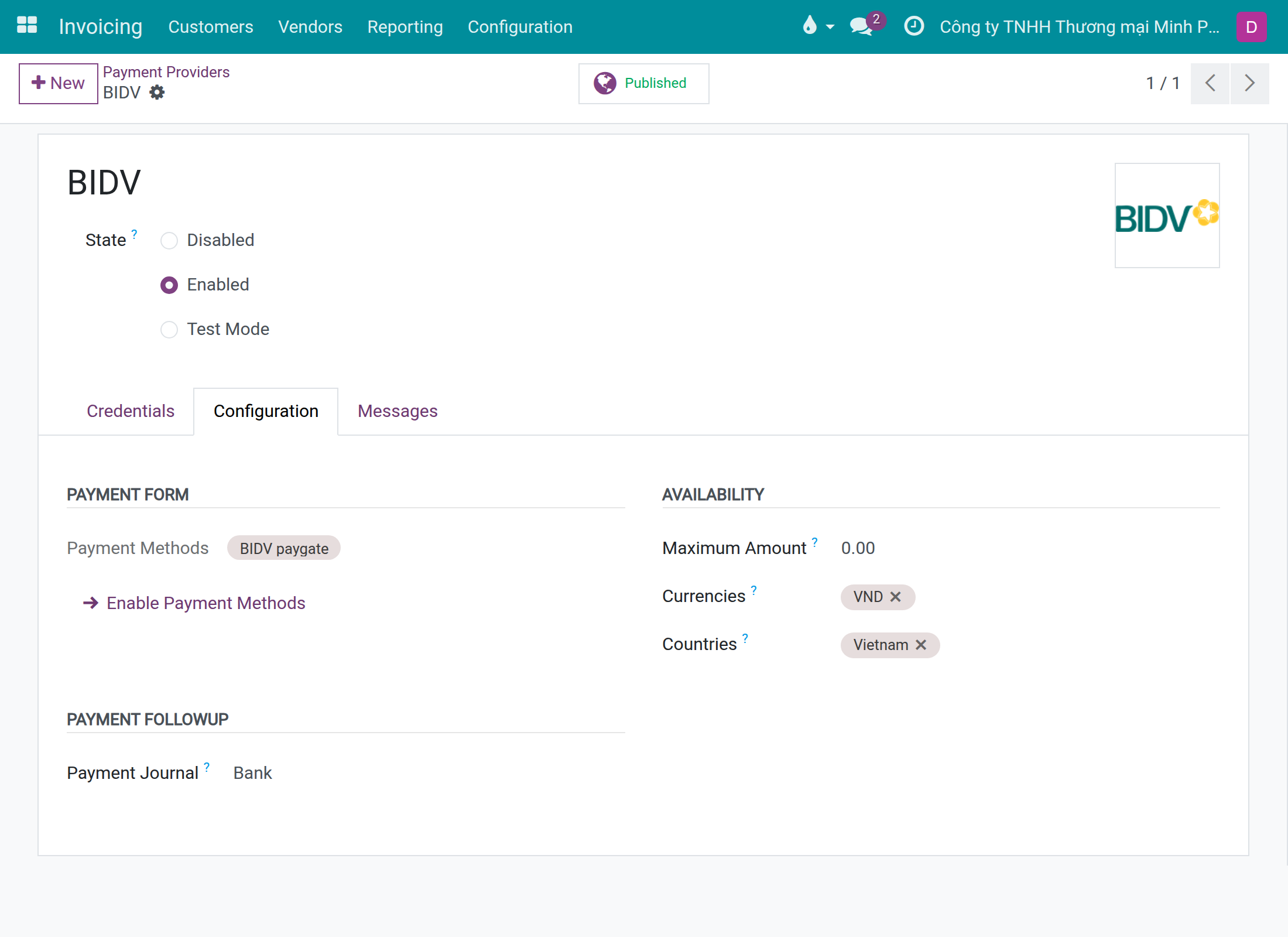
On the BIDV payment provider choose the payment journal whose bank account is connected to BIDV and enable it. If something is missing - Merchant ID, Service ID, bank identifier, the account holder's city - the provider lists it and stays off.
The customer scans and pays
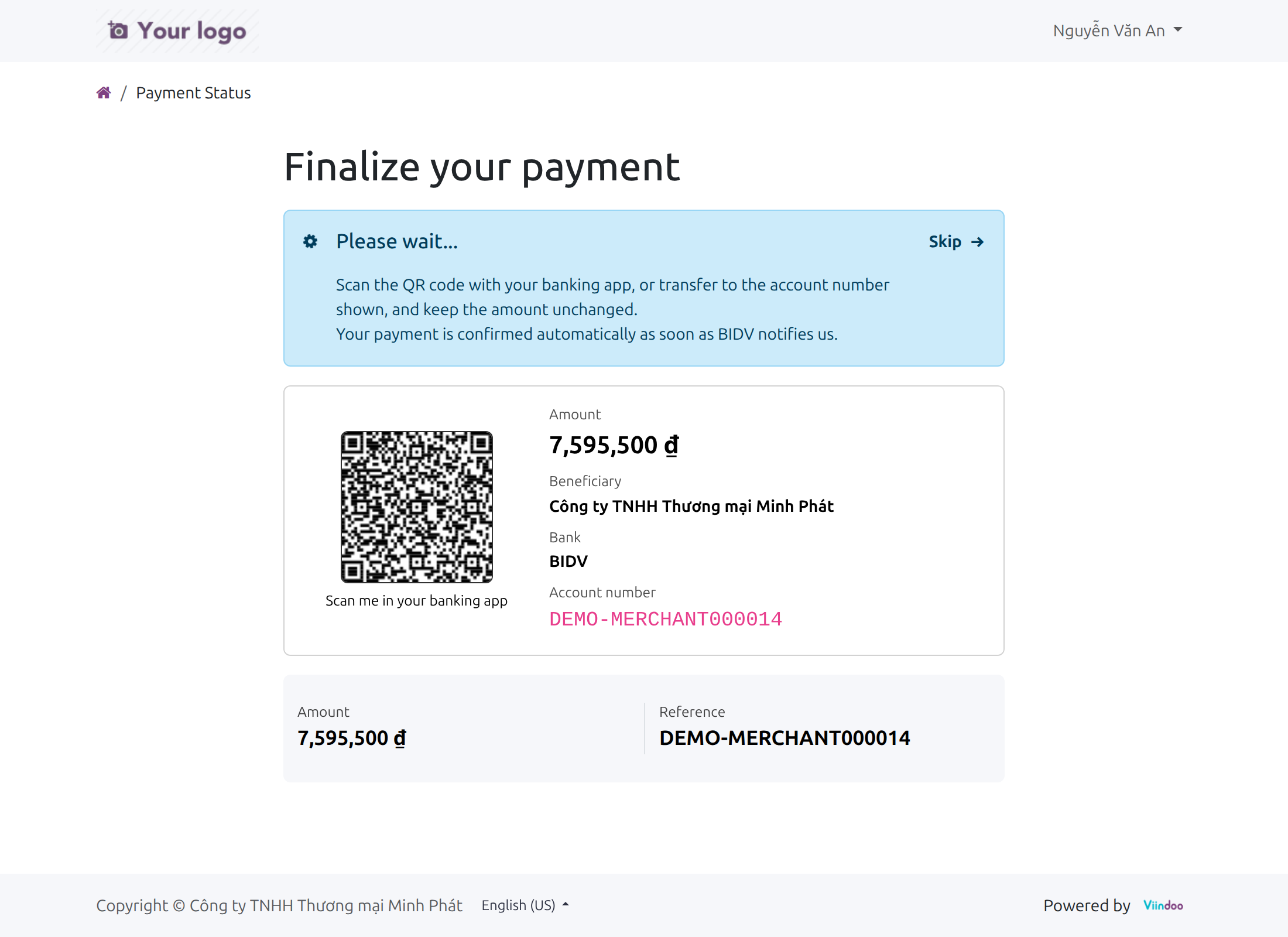
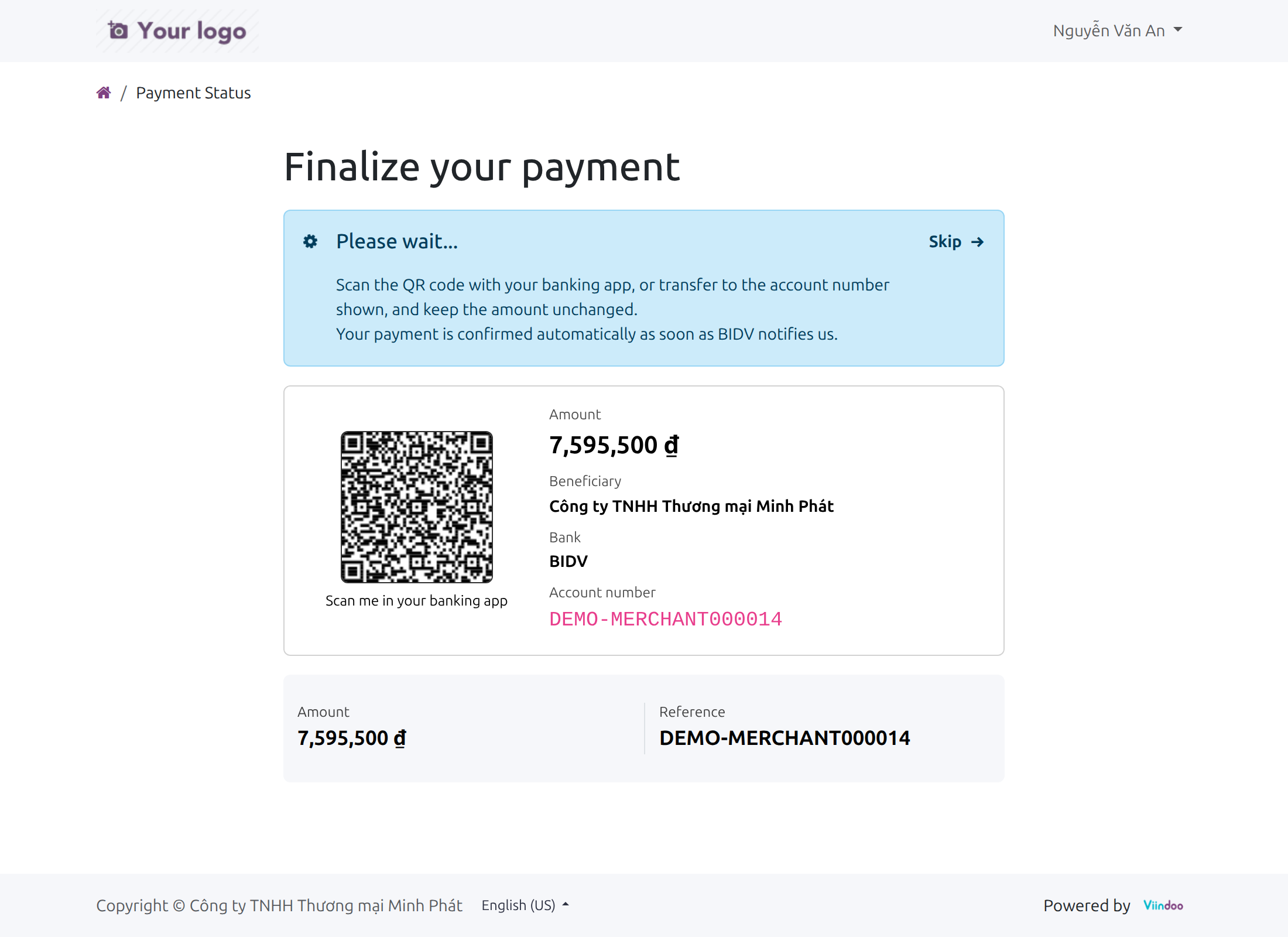
On the invoice or order the customer chooses BIDV and gets a QR code with the amount, the beneficiary and a payment account number that belongs to this payment alone. A customer who leaves the page finds the same instructions again on the invoice.
BIDV confirms, the document is paid
BIDV notifies the system, the payment is recorded and the invoice is marked paid. Nobody types anything.
The accountant reviews the exceptions
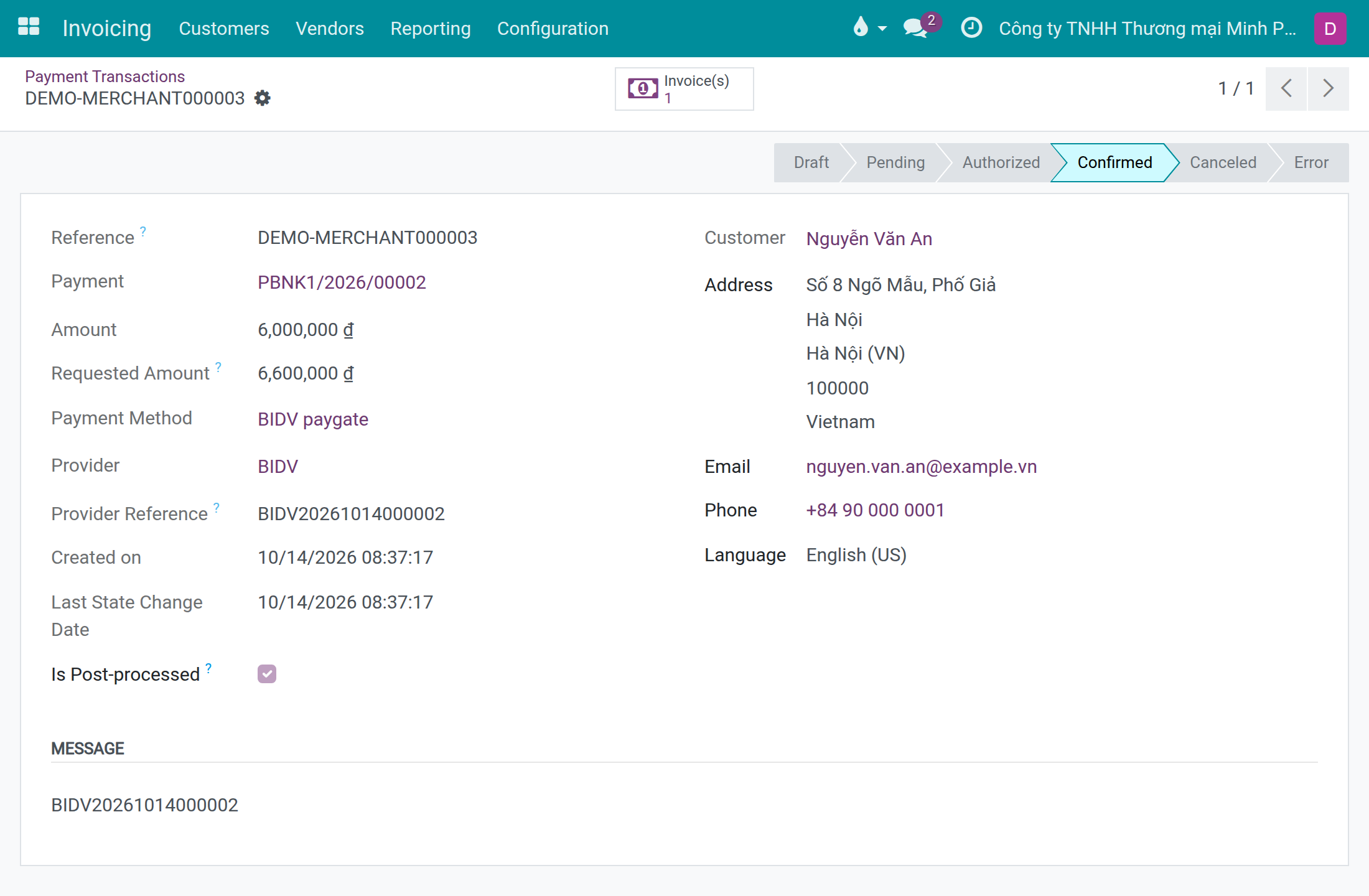
One filter, BIDV: amount differs in Payment Transactions, lists the BIDV payments whose amount differs from what was asked; each shows the amount asked next to the amount received. The Payment Transactions menu appears in developer mode.
What You Get
Each payment gets its own BIDV payment account number, so BIDV tells the system exactly which invoice or order a transfer pays.
A notification BIDV sends again for the same transfer records nothing a second time; a second transfer for a payment already recorded is refused and noted.
When the customer pays more or less than asked, the amount received is what is recorded, the amount asked is kept beside it and a note is left on the document.
If the invoice is already paid or cancelled when the customer scans, BIDV is told not to take the money and a note on the document gives the reason.
The provider cannot be enabled until the journal, the bank account and the BIDV identifiers can really collect; if a QR cannot be built, the customer is told to contact you instead of seeing a broken code.
What This App Does Not Do
Read this before you buy. Everything below is something the app deliberately leaves to another app or to you.
The payment method is offered for Vietnam and VND. A transfer whose amount differs on a document in another currency is not booked automatically; the transaction is set aside with a message asking to record it by hand.
Refunds are made outside this app.
The Merchant ID, Service ID and keys are set up in BIDV Connector.
QR payments at the point of sale are a separate app, Point of sale - BIDV QR code automatic payment.
Works Well With
Apps from the same stack, built to fit this one:
BIDV Connector
Required. Holds the BIDV account, the callback addresses and the keys.
viin_bidv_connectorSales
When Sales is installed, sales orders are paid the same way and get the same notes.
sale
Who Should Use BIDV Automatic QR Payment?
Accountant
Stops matching the BIDV statement by hand; sees differing amounts and refusals the day they happen.
Salesperson
Sees the order paid, and the reason when a customer's payment was refused, without asking accounting.
System administrator
Switches BIDV on only when the setup is complete, and has every call from BIDV in the log.
Your customer
Scans, checks the amount, pays - no account number or reference to type.
Frequently Asked Questions
What does BIDV Automatic QR Payment do?
It adds BIDV as an online payment provider: the customer scans a BIDV VietQR on the payment page of an invoice or sales order, and when BIDV confirms the transfer the payment is recorded on that document, once, at the amount actually received.
What does BIDV Automatic QR Payment not do?
It does not collect in currencies other than VND or through other banks, does not refund, and does not handle the point of sale. It needs BIDV Connector and a BIDV Open API registration.
Who is BIDV Automatic QR Payment for?
Companies in Vietnam that invoice in VND and collect through a BIDV account - their accountant, their salespeople and their customers.
What happens when the customer transfers a different amount?
The amount received is recorded, the amount asked is kept on the transaction, a note is left on the document, and the filter "BIDV: amount differs" lists the payment.
What happens if BIDV sends the same notification twice?
The second one is acknowledged and records nothing.
What happens if the invoice is already paid or cancelled when the customer scans the QR?
BIDV is told there is nothing to pay, so no money is taken, and a note on the invoice or order says a payment was attempted and why it was refused.
What does the customer see if the QR cannot be created?
A message asking them to contact your company, with the amount and the beneficiary still shown.
How do I set it up?
Connect the BIDV account in BIDV Connector, then open the BIDV payment provider, choose the payment journal of that account and enable it.
Which Odoo version and editions does it support?
Odoo 18.0 - Odoo Community, Odoo Enterprise, Viindoo Cloud. Upgrades to a newer Odoo series are a separate purchase for that series.
What does it depend on?
It installs on top of: payment, account_payment, viin_bidv_connector. Odoo installs them with it.
What works well with it?
BIDV Connector (viin_bidv_connector): Required. Holds the BIDV account, the callback addresses and the keys. Sales (sale): When Sales is installed, sales orders are paid the same way and get the same notes. Point of sale - BIDV QR code automatic payment (viin_pos_qr_bidv): The same BIDV account at the till.
Can I try it before buying?
Yes - the Live Preview button at the top of this page opens the module's own screen on a working database.
How do I get support?
Write to apps.support@viindoo.com with your Odoo version and the technical name payment_bidv_viin; pre-sales questions go to sales@viindoo.com.
See BIDV Automatic QR Payment in Action
Live demo: v18demo-int.viindoo.com
Need help with BIDV Automatic QR Payment?
For questions, implementation support or a custom feature, contact Viindoo.
Pre-Sales & Partnership
sales@viindoo.comUpgrades to a newer Odoo series are a separate purchase for that series.
All Viindoo apps: /apps/modules/browse?author=Viindoo
Technical Requirement
Changes log
0.1.5 - Odoo 18.0
- A customer who left the payment page finds the same payment instructions again on the invoice.
- A fully paid sales order refuses a second payment through an old payment account number.
- The payment card stays inside its box when no QR can be built.
0.1.4 - Odoo 18.0
- Payments are recorded at the amount actually received, with the amount asked kept and a filter for differences.
- A repeated notification is recorded once.
- A scan on a paid or cancelled document is refused with a note on the document.
- The provider checks its setup before it can be enabled.
0.1.1 - Odoo 18.0
- First release for Odoo 18.0.
BIDV Automatic QR Payment
Note
Extends BIDV Connector - see its documentation: viin_bidv_connector.
Overview
BIDV Automatic QR Payment lets your customers pay an invoice - or a sales order, when Sales is installed - by scanning a BIDV VietQR code on the online payment page. When BIDV confirms the transfer, the system records the payment on that document, once, at the amount BIDV reports as received, and the invoice is marked as paid. Nobody has to match the bank statement by hand.
How a payment travels:
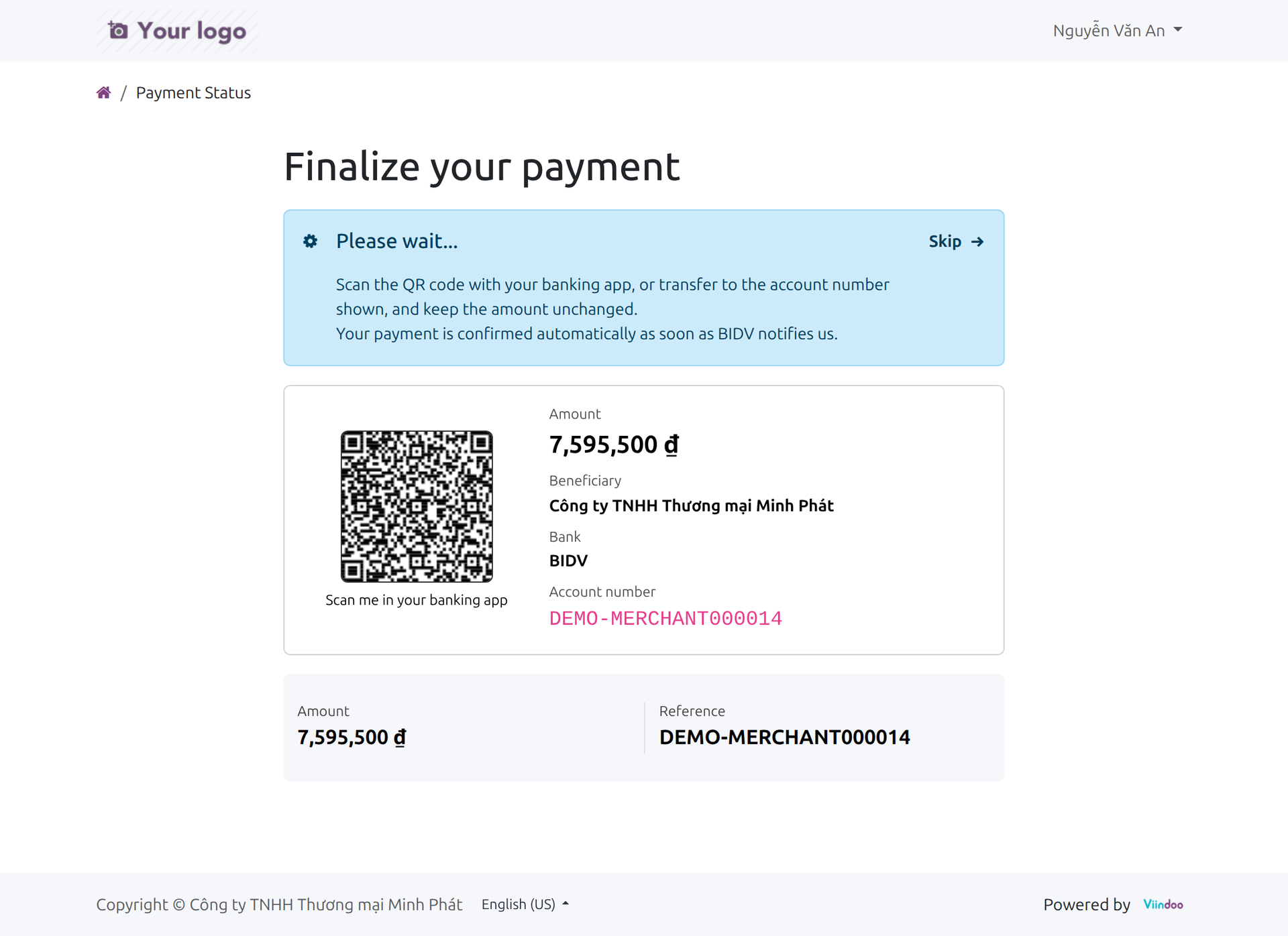
- The customer opens the invoice or the order from the customer portal, clicks Pay Now, chooses BIDV paygate and clicks Pay. The page "Finalize your payment" shows a QR code, the amount, the beneficiary, the bank and a payment account number that is unique to this payment. A customer who leaves the page finds the same instructions again by opening the invoice later, on any device.
- The customer scans the code in a banking app (or transfers to the account number shown) and pays.
- BIDV asks the system what is owed, then announces the money it received. The system answers on its own, with no one clicking anything.
- The accountant finds the invoice paid, the payment recorded and reconciled, and a note on the document whenever something is out of the ordinary.
Who uses this module:
| Role | What they do | Access right to assign |
|---|---|---|
| System Administrator | Switches BIDV collection on: chooses the payment journal of the BIDV provider, enables it and publishes it. | Administration / Settings |
| Accountant | Follows what was collected, checks transfers whose amount differs, reads the notes on invoices. | Invoicing / Invoicing |
| Chief Accountant | Does what the accountant does, and reaches the Online Payments menus (providers, payment transactions in developer mode). | Invoicing / Administrator |
| Salesperson | Sees on the sales order that the customer has paid, and reads the BIDV notes in its history. | Sales / User: Own Documents Only |
| Paying Customer | Pays by scanning the QR code. Needs no access right: the customer uses the portal. | None (portal user) |
The roles in this table are the people who typically hold these tasks; your company may split them differently.
Before you start
- BIDV Connector is set up. The BIDV bank account of your company, its Merchant ID and Service ID, the addresses BIDV calls and the keys are all explained in the BIDV Connector guide: viin_bidv_connector. Do that first.
- VND and Vietnam only. BIDV collects in Vietnamese dong, for customers in Vietnam. The BIDV provider is limited to the currency VND and the country Vietnam, so a document in another currency is not offered BIDV.
Setup (for the System Administrator)
Installation
- Open Apps and search for BIDV Automatic QR Payment.
- Click Install. BIDV Connector and the Invoicing app are installed with it.
Switching BIDV on
- Open Invoicing ‣ Configuration ‣ Online Payments ‣ Payment Providers and open BIDV. (The menu Configuration is shown to users with the right Invoicing / Administrator.)
- On the Credentials tab, a blue notice reminds you that BIDV collects into the bank account of the Payment Journal.
- Open the Configuration tab and choose the Payment Journal. Pick the bank journal whose bank account is connected to BIDV, that is, a bank account with Bank Connector set to BIDV (see the BIDV Connector guide).
- In State, choose Enabled for real payments, or Test Mode for trials. Click Save.
What the three states mean:
- Disabled: BIDV is not offered to anyone.
- Enabled: BIDV is offered to your customers. Choosing Enabled also switches the Published button on.
- Test Mode: BIDV is for trials. Choosing it switches Published off, so customers do not see BIDV; staff logged in to the system do. This module treats BIDV calls the same way in both states.
Published is the button at the top of the form. A provider that is enabled but Unpublished is not offered to customers - they see no BIDV on the payment page, and if BIDV is the only method they are told no payment method is available. Click the button to switch between Published and Unpublished; a Disabled provider cannot be published.
The BIDV provider shows a default Pending Message on the Messages tab, which the customer reads on the "Finalize your payment" page: "Scan the QR code with your banking app, or transfer to the account number shown, and keep the amount unchanged. Your payment is confirmed automatically as soon as BIDV notifies us."
When the system refuses to enable BIDV
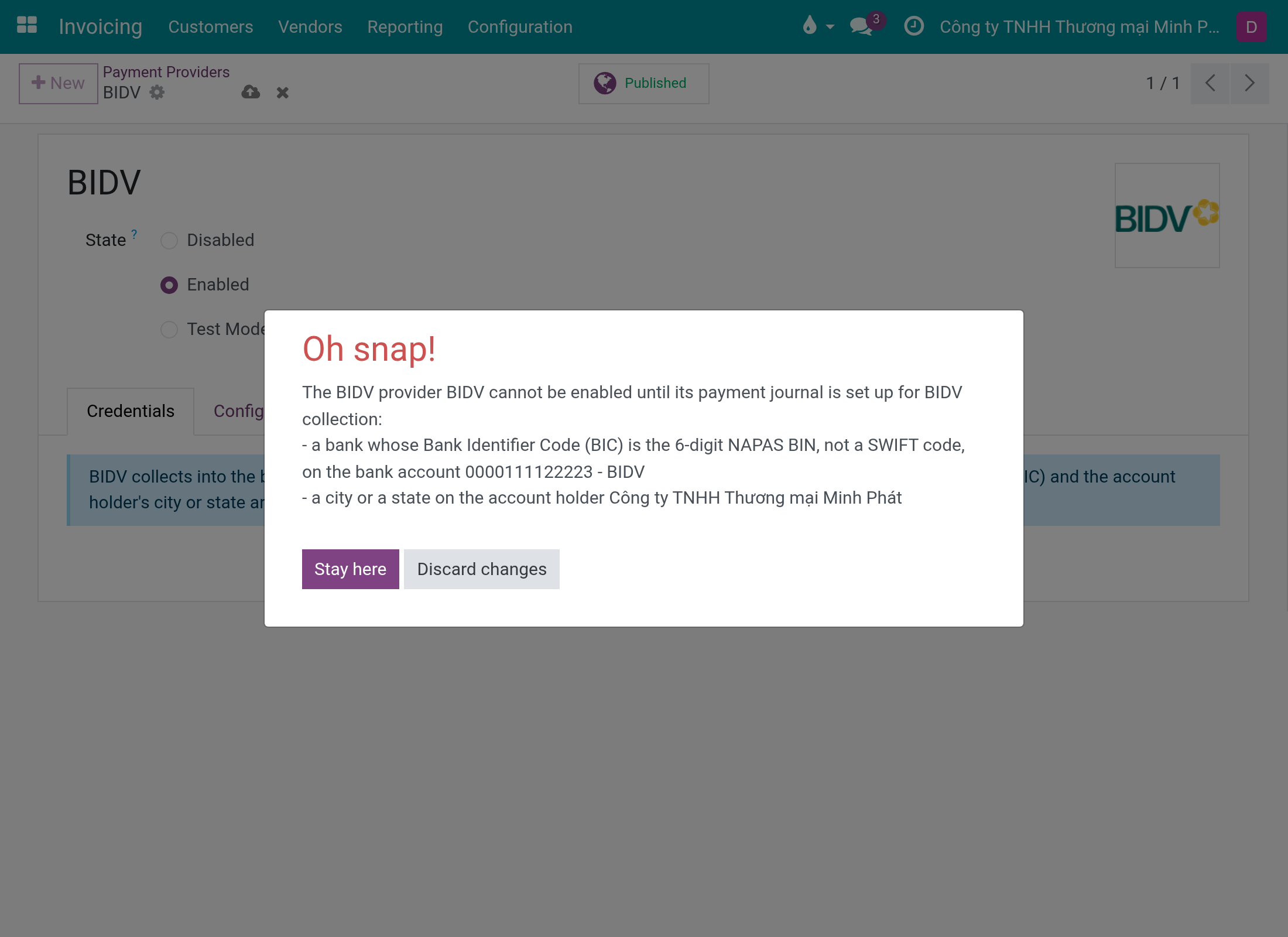
Before it enables (or tests) BIDV, the system checks that the payment journal can really collect. If something is missing, saving fails with the message "The BIDV provider BIDV cannot be enabled until its payment journal is set up for BIDV collection:" followed by one line per missing item. Fix them all, then save again.
The lines you can meet, and what to do:
| Line | What to do |
|---|---|
| a payment journal | The provider has no Payment Journal. Choose one on the Configuration tab. |
| a bank account on the payment journal ... | Open the journal and give it a bank account. |
| the bank account ... of the payment journal must use the BIDV bank connector | Open Contacts ‣ Configuration ‣ Bank Accounts ‣ Bank Accounts, open the account and choose BIDV in Bank Connector. The next items are only checked once this one is right. |
| a BIDV Merchant ID on the bank account ... | Enter the BIDV Merchant ID on the bank account. |
| a BIDV Merchant ID shorter than 19 characters, so that payment aliases fit | Use the Merchant ID exactly as BIDV issued it; it must be shorter than 19 characters. |
| a BIDV Service ID on the bank account ... | Enter the BIDV Service ID on the bank account. |
| a bank whose Bank Identifier Code (BIC) is the 6-digit NAPAS BIN, not a SWIFT code, ... | Open Contacts ‣ Configuration ‣ Bank Accounts ‣ Banks, open BIDV and enter 970418. |
| a city or a state on the account holder ... | Open the account holder (your company's contact) and fill in the City or the State. |
The check also runs when you save a provider that is already enabled, so changing the state from Enabled to Test Mode is refused too while an item is missing.
Paying Customer: pays by scanning the QR code
The customer uses the customer portal, from the link in the email or from My Invoices & Bills.
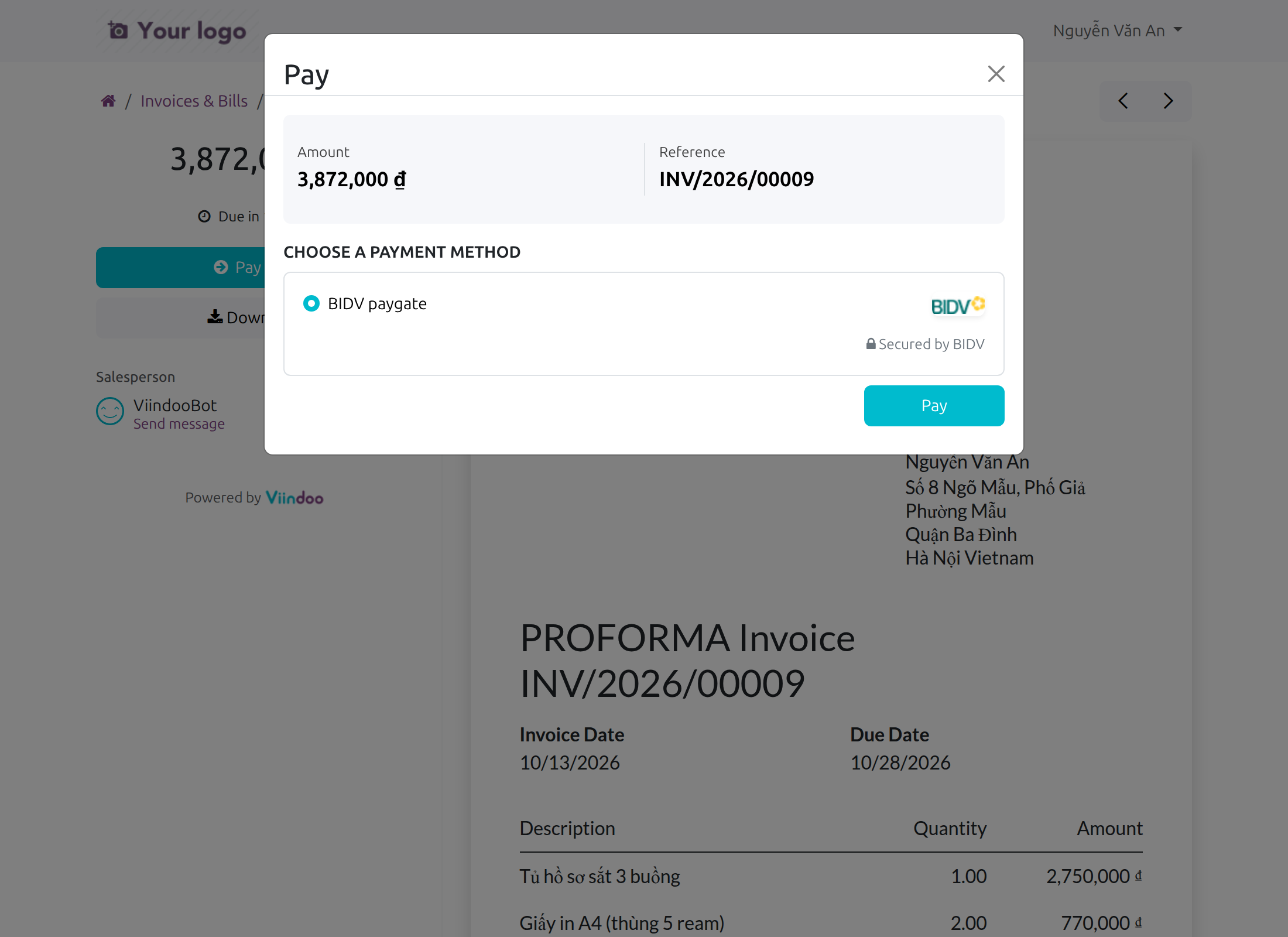
- Open the invoice (or the sales order) and click Pay Now.
- Choose BIDV paygate and click Pay.
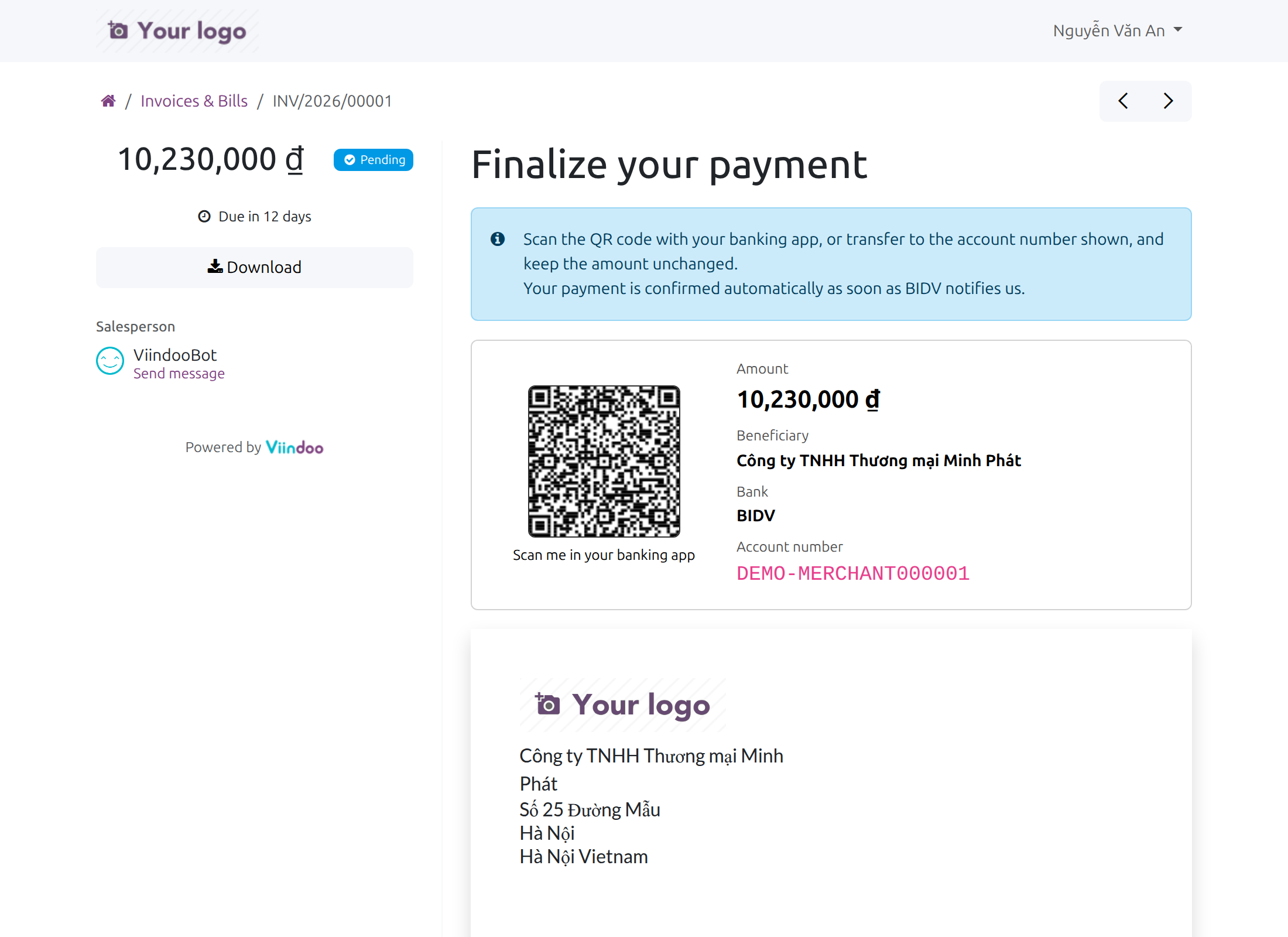
- The page "Finalize your payment" opens. It shows:
- the QR code, with "Scan me in your banking app";
- the Amount to pay, in dong;
- the Beneficiary and the Bank;
- the Account number, which is the payment account number of this payment only: your Merchant ID followed by a number. Each payment gets its own.
- The customer scans the code in a banking app and confirms the transfer, keeping the amount unchanged. The customer can also transfer by hand to the account number shown.
Once the customer has chosen BIDV, the invoice shows Pending in the portal and Pay Now is hidden until the payment is settled. In its place, the invoice page shows the same "Finalize your payment" instructions as above: the same QR code, amount, beneficiary, bank and payment account number. So a customer who closed the page can open the invoice again - from the portal, or from the payment link you send - on any device, and pay with the same payment account number. On a sales order, the order page shows the instructions in the same way.
When no QR code can be built
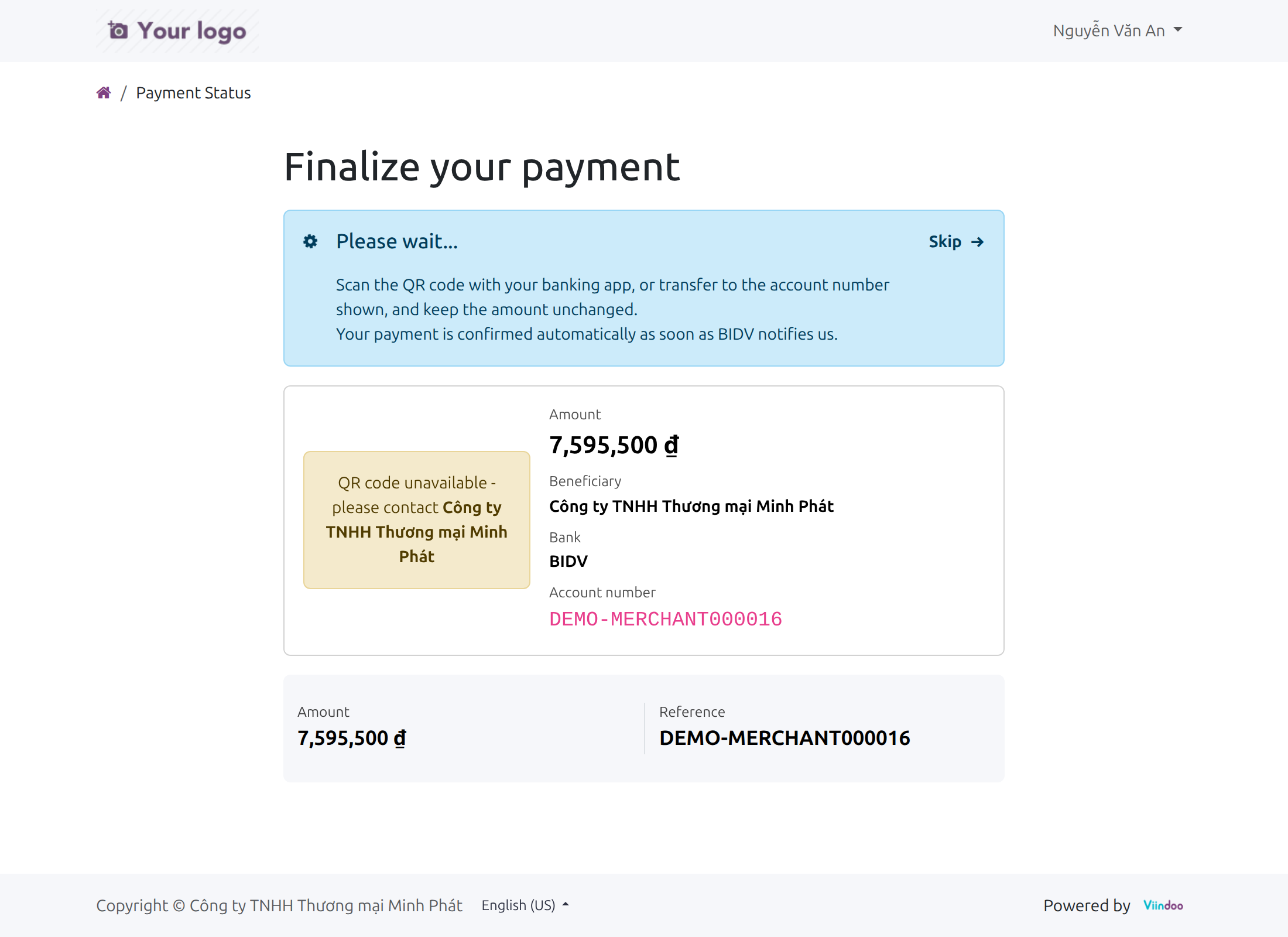
If the system cannot build the QR code - for example the bank code of BIDV is not a 6-digit code, or the account holder has no city or state - the customer sees "QR code unavailable - please contact" followed by your company name, instead of the code. The amount, beneficiary, bank and account number are still shown, so the customer can still transfer to the account number shown. The fix is on your side: see the table "Messages and what to do" below.
Accountant: follows what was collected
What happens when BIDV confirms
When BIDV announces the money, the system:
- confirms the payment transaction and records the BIDV transaction code as its Provider Reference;
- creates the payment and reconciles it with the invoice (this is done by Odoo's own processing right after BIDV's call, and at the latest by the scheduled action "Payment: Post-process transactions", which runs every 10 minutes);
- marks the invoice Paid.
The accountant finds the result in three places:
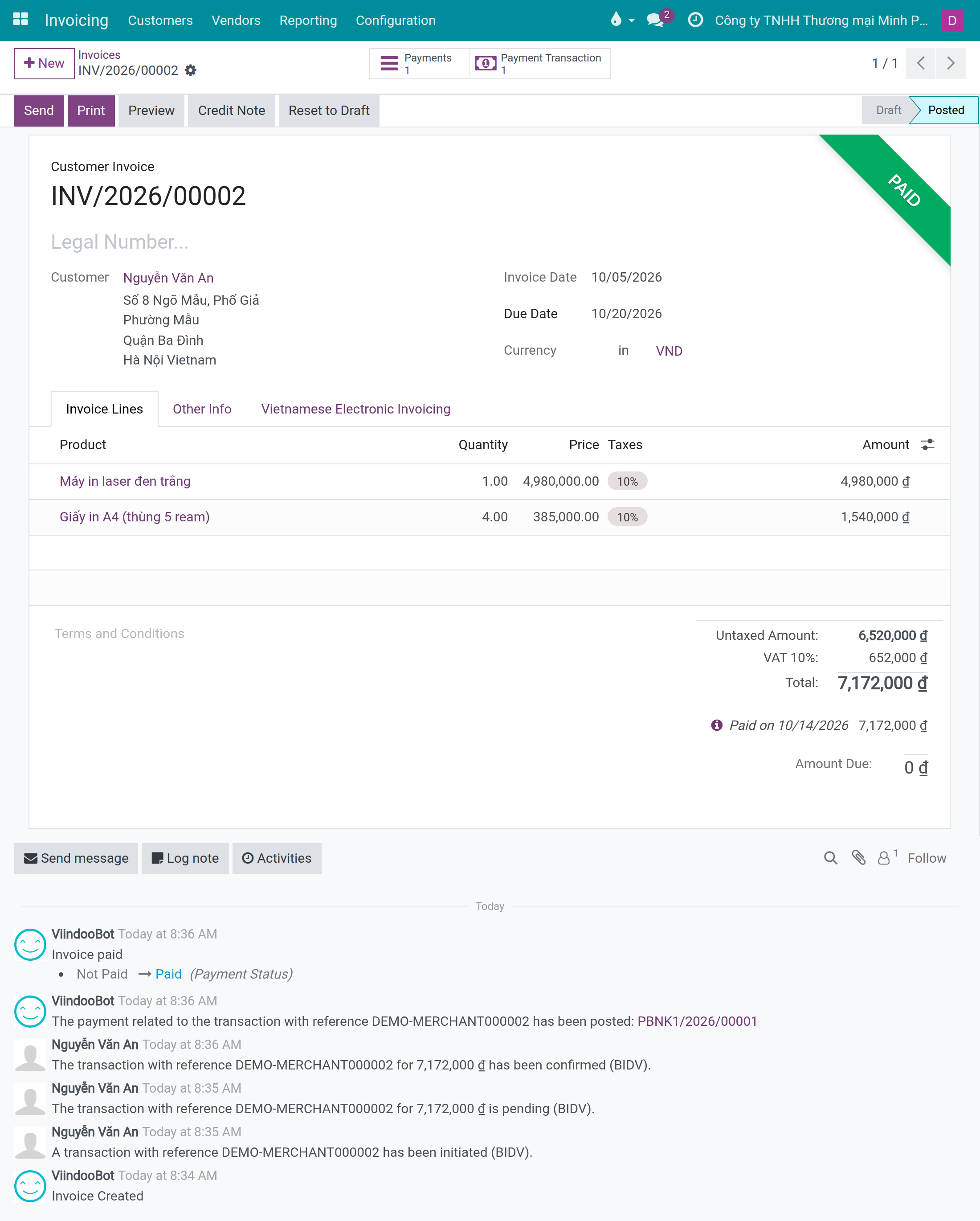
- On the invoice (Invoicing ‣ Customers ‣ Invoices): the status Paid, the smart buttons Payments and Payment Transaction, and in the history below the form the lines "has been confirmed (BIDV)" and "The payment related to the transaction ... has been posted".
- In the payments: Invoicing ‣ Customers ‣ Payments, a payment named after the journal, for example PBNK1/2026/00001.
- On the sales order, for a paid order: the status becomes Sales Order, and the history shows the same lines.
When the amount differs
The customer may transfer less or more than asked. The system never refuses money BIDV says it received:
- The transaction Amount becomes the amount actually received, and the payment is booked at that amount. An underpayment leaves the invoice Partially Paid for the rest; an overpayment pays the invoice and leaves the excess as credit of the customer.
- The amount that was asked is kept in Requested Amount.
- A note is posted on the invoice (or order): "BIDV payment <BIDV code>: expected 6,600,000 ₫, received 6,000,000 ₫."
To find these transfers, open the payment transaction:
- From the invoice (works for the Accountant and the Chief Accountant, in normal mode): open the invoice and click the smart button Payment Transaction. The transaction form shows Amount and Requested Amount one under the other.
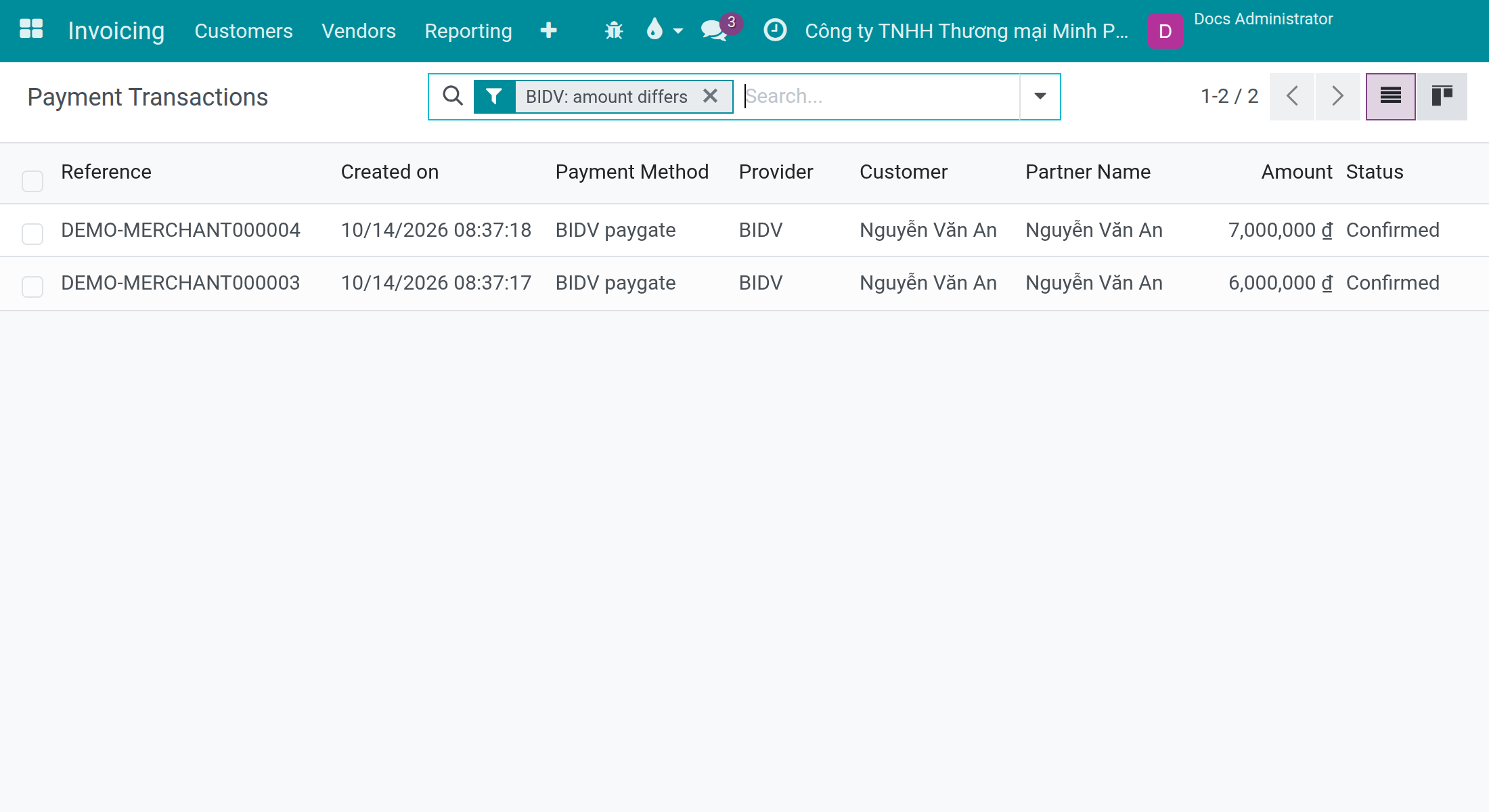
- From the list (Chief Accountant, developer mode): turn developer mode on, open Invoicing ‣ Configuration ‣ Online Payments ‣ Payment Transactions and, in the search box, open the filters and choose BIDV: amount differs. The list keeps only the transactions whose amount differs from what was asked.
Good to know:
- The Configuration menu, and so the list above, is shown to users with the access right Invoicing / Administrator. An Accountant without that right does not see it, even in developer mode; the Accountant reaches the same transaction from the invoice as described above.
- If an invoice has more than one transaction, the button Payment Transaction opens their list, and the same filter is in its search box.
- A user whose accounting right is read-only (for example an auditor) is not given access to payment transactions by this module. Such a user reviews BIDV money in Invoicing ‣ Customers ‣ Payments.
When BIDV is told not to take the money
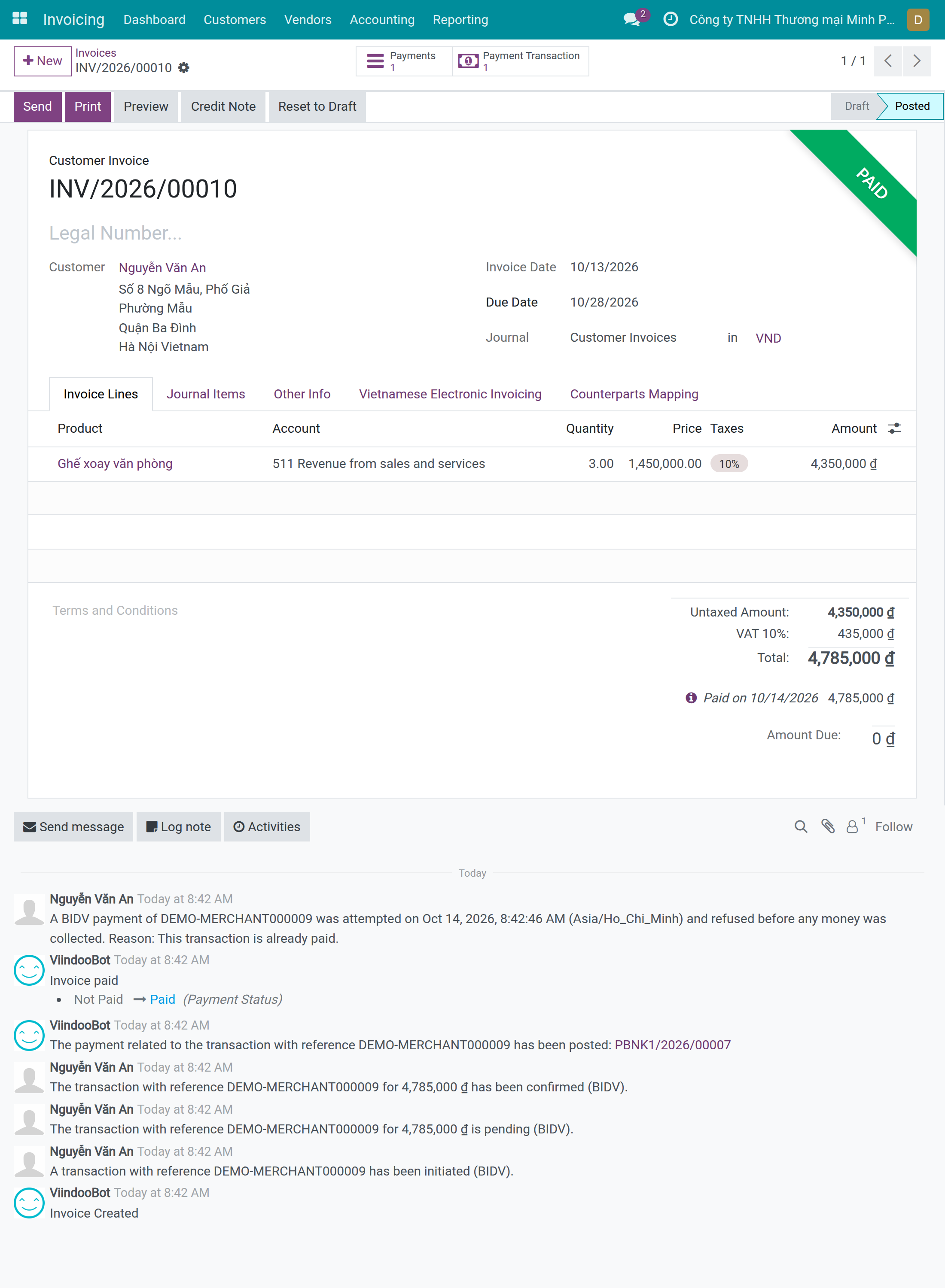
Before the customer pays, the banking app asks BIDV what is owed, and BIDV asks the system. The system refuses, and the banking app shows that nothing is owed, when it would be wrong to take the money. It then posts a note on the invoice (or order):
A BIDV payment of DEMO-MERCHANT000009 was attempted on Oct 14, 2026, 8:42:46 AM (Asia/Ho_Chi_Minh) and refused before any money was collected. Reason: This transaction is already paid.
The note is the only place the reason is shown. The time is in the time zone of your company's contact, and the note is written in the language set on that contact, whoever opens it. Notes already posted are not translated afterwards.
The reasons the system can give, in the order it looks for them:
| Reason in the note | What it means |
|---|---|
| This transaction is already paid. | The customer scanned a QR code whose payment is already confirmed. The banking app says the bill is settled. |
| The documents it pays are already settled. | The invoice was paid in the meantime - by another transfer, or by a payment registered by hand - then the old code was scanned. A sales order counts too: once it is fully paid, a scan of another payment account number of the same order is refused in the same way, and the note is posted on the order. An order that is only partly paid (a prepayment, a balance still due) stays payable. |
| The documents it pays are cancelled. | The invoice or the order was cancelled after the customer chose BIDV. The banking app says there is no bill to pay. |
| This transaction is cancelled. | The payment transaction itself was cancelled. |
| This transaction is in error. | The payment transaction is in the status Error. |
| It has no amount to pay in VND. | The document has no positive amount in dong to collect. |
Repeated scans for the same reason leave one note only. If the transaction becomes payable again, the next refusal is noted again.
The same notification twice, and a second transfer
- The same BIDV transaction announced again (BIDV sometimes repeats a notification): nothing is recorded a second time. There is still one transaction, one payment and no new note.
- A second, different transfer on a document already paid: the system does not record it. It answers BIDV that the transaction is already settled and posts the note "A second BIDV payment <BIDV code> was refused: the transaction <reference> is already paid." Ask BIDV whether the customer's money was returned; if it reached your account, refund it or apply it by hand.
- A scan of another payment account number of a sales order that is already fully paid: BIDV is told the bill is settled and the note "The documents it pays are already settled." is posted on the order, as for an invoice. An order that is only partly paid stays payable.
- A transfer received after the transaction was cancelled: the money is booked, and a note says "BIDV payment <BIDV code> was received after the transaction <reference> had been cancelled. It is recorded as a customer payment: apply it to another document or refund it."
A document in another currency
BIDV collects in dong only, and the BIDV provider is limited to VND. If the amount BIDV reports differs from the amount asked on a transaction that is not in dong, the system does not book it. It sets the transaction to Error, keeps the amount asked in Requested Amount and writes the message: "BIDV payment <BIDV code> of <amount received> does not match the <amount asked> asked for. It was not booked automatically because the transaction is not in VND: record it manually." Register the payment by hand. This comes from the module's source; it is not reachable on a standard system, where BIDV is not offered for a document that is not in dong.
Salesperson: sees orders paid
When the customer pays a sales order through BIDV, the salesperson sees it on the order:
- Open Sales ‣ Orders ‣ Orders and open the order.
- When the order required online payment, the status is Sales Order: the confirmation came with the payment.
- In the history below the form, read the lines "A transaction with reference ... has been initiated (BIDV)", "... is pending (BIDV)", "... has been confirmed (BIDV)" and "The payment related to the transaction ... has been posted", then the confirmation of the order.
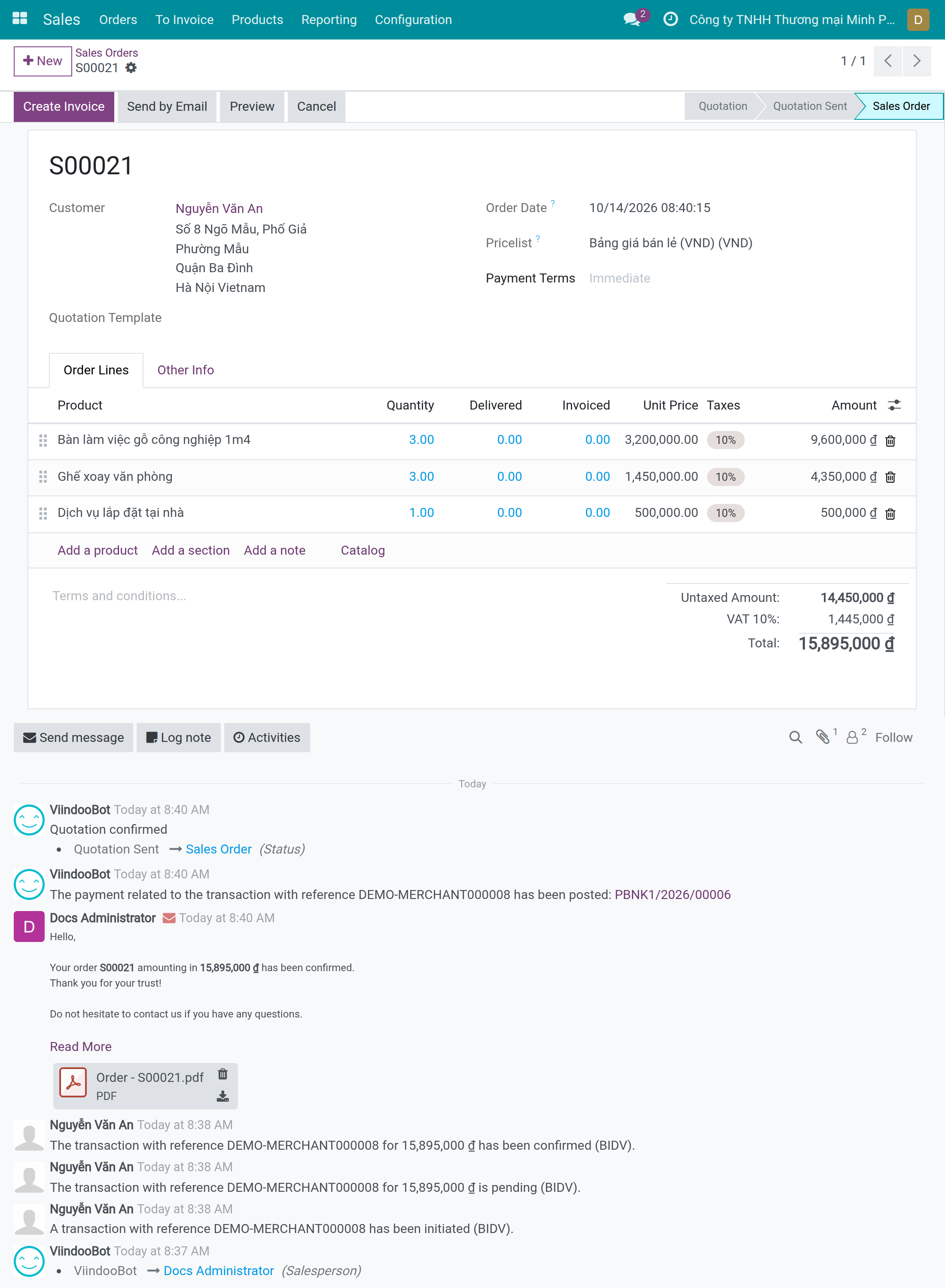
A customer who comes back to the order page finds the payment instructions there again. An order that the customer has not paid stays a quotation. If BIDV was told not to take money for the order, the note described above is in the same history.
The QR code printed on the invoice
Do not mix up two different QR codes:
- The QR code on the payment page is the one this module builds. It carries the payment account number of the transaction, which is how BIDV recognizes the payment and tells the system. A transfer made with it is recorded automatically.
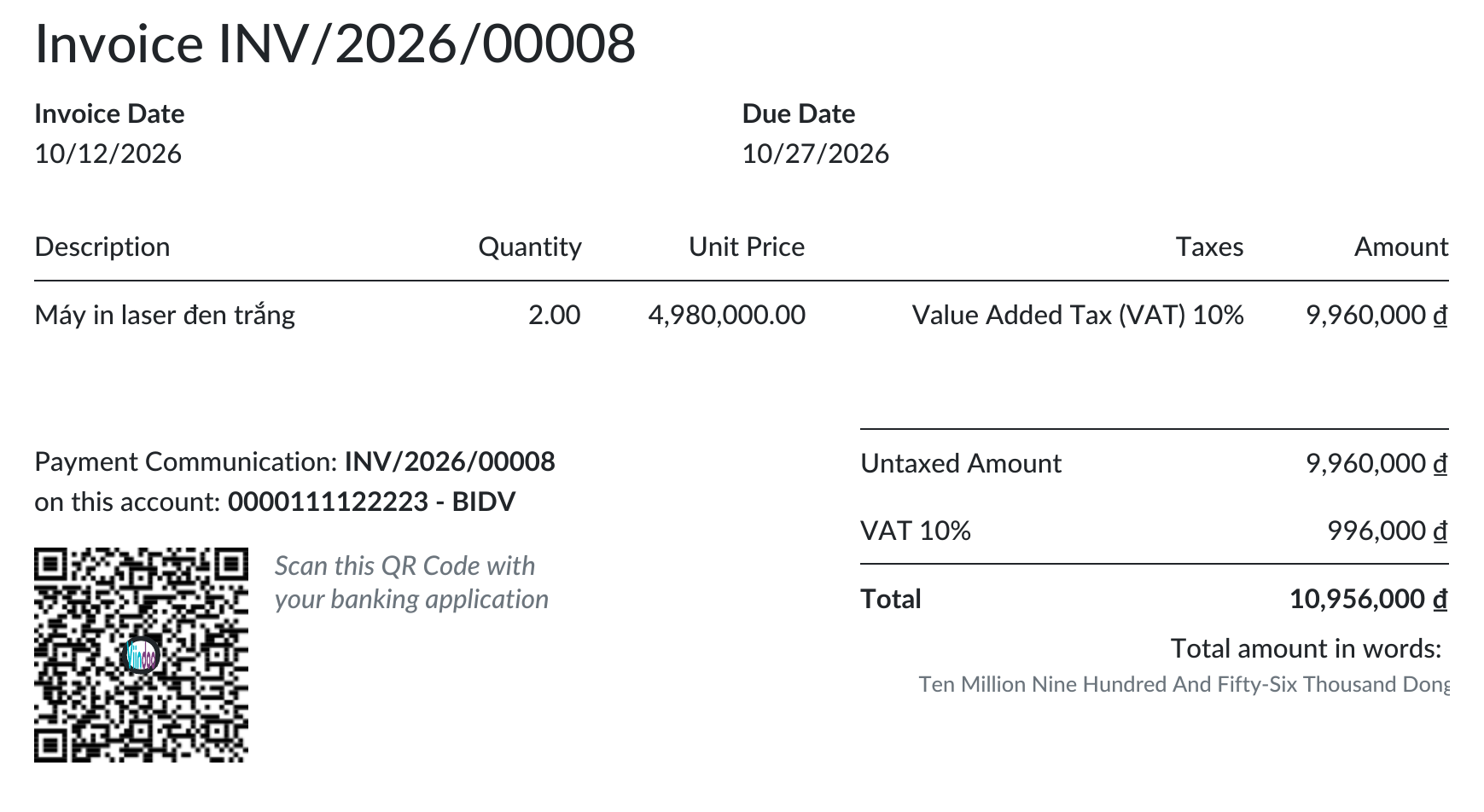
- The QR code printed on the invoice PDF is Odoo's own "QR Codes" feature for invoices. It carries the account number of the bank account and the invoice reference, not a payment account number. BIDV calls the system only for a payment account number, and the system finds no transaction for the invoice reference: when this code was tried, the system answered BIDV that the customer is unknown (code 011) and recorded nothing. A transfer made with it is not recorded automatically; the accountant registers the payment by hand.
If you still want a printed QR code, set it up as follows:
- Open Invoicing ‣ Configuration ‣ Settings and tick QR Codes.
- Open Contacts ‣ Configuration ‣ Bank Accounts ‣ Bank Accounts, open the BIDV account and, in the section EMV QR Configuration, set Proxy Type to Bank Account and Proxy Value to the account number.
- Make sure the invoice's Recipient Bank (tab Other Info) is that account.
Without a proxy, no QR code is printed on the invoice. Printing the invoice as a PDF is even refused, with Odoo's message that the QR code could not be generated because of the proxy: "The proxy type none is not supported for Vietnamese partners. It must be either Merchant ID, ATM Card Number or Bank Account" - or "Missing Proxy Type." or "Missing Proxy Value." depending on what is empty. With the proxy set, the PDF prints a code under the invoice.
Upgrading from Odoo 17
If you followed the guide of version 17, this is what changed:
- BIDV settings moved. The Merchant ID and the Service ID are no longer entered in the "BIDV Settings" block of the Invoicing settings, nor on the provider. They belong to the BIDV bank account of the payment journal, in BIDV Connector. The upgrade copies the values the provider (or the company) held onto the BIDV bank account, only into a field that is still empty. The "BIDV Settings" block now holds only the Secret Code, which BIDV Connector manages (see its guide).
- No "Enable QR Payment" switch and no EMV steps. The QR code of the payment page is built from the bank account of the journal and the payment account number; you do not configure an EMV proxy for it. A proxy is needed only for the QR code printed on invoices (see above).
- A check when enabling. BIDV can no longer be enabled with an incomplete journal: the system lists what is missing, as described above.
- Amounts are recorded as received. A transfer of a different amount is booked at the amount received, with the amount asked kept in Requested Amount and a note on the document.
- One BIDV code, one payment. The upgrade writes the BIDV transaction code of every confirmed BIDV transaction into a field that prevents a code from settling two transactions. If two old transactions shared a code, only the oldest keeps it.
Troubleshooting
Messages and what to do
| What you see | Cause | What to do |
|---|---|---|
| "The BIDV provider ... cannot be enabled until its payment journal is set up for BIDV collection:" and a list | The payment journal is not ready; each line names what is missing. | See the table in "When the system refuses to enable BIDV". |
| Customer sees "QR code unavailable - please contact ..." | The QR code cannot be built: the bank code of BIDV is not 6 digits, the bank has none, the Merchant ID or Service ID is empty, the account holder has no city or state, or the payment account number does not start with the Merchant ID of the bank account. | Check the bank (970418), the Merchant ID, the Service ID and the city or state of the holder. The customer can still transfer to the account number shown. |
| Customer sees no BIDV, or "no payment method available" | The provider is Disabled, Unpublished, or in Test Mode; or the document is not in VND, or the customer is not in Vietnam. | Open the provider and check State and Published. |
| Customer cannot pay again: the invoice shows Pending | A BIDV payment was started and is not settled yet. | The customer opens the invoice again (or the payment link) and finds the same instructions: QR code, amount and account number. As a fallback, the account number is the Reference of the transaction (button Payment Transaction on the invoice). |
| Note "A BIDV payment of ... was attempted ... and refused ..." | BIDV was told not to take the money; the reason follows. | See "When BIDV is told not to take the money". |
| Note "BIDV payment ...: expected ..., received ..." | The customer paid another amount. | Check the Requested Amount; the rest of the invoice stays open, or the excess is credit. |
| Note "A second BIDV payment ... was refused" | A second, different transfer for a document already paid. | Ask BIDV whether the money was returned; if it reached your account, refund it or apply it by hand. |
| Note "BIDV payment ... was received after the transaction ... had been cancelled" | Money came after the transaction was cancelled. | Apply the customer payment to another document or refund it. |
| A transaction in Error with the message "BIDV payment ... does not match ... asked for ... record it manually." | A transfer of another amount on a transaction not in dong. | Register the payment by hand. |
| A transaction in Error with the message "BIDV sent a payment notification without a usable transaction ID or amount." or "BIDV cannot collect this transaction: it has no amount to pay in VND." | BIDV's notification could not be used, or the document has no amount in dong. | Look at the call in the callback log (see below) and ask BIDV or your implementer. |
The customer says "I paid" and the invoice is not paid
- Open the invoice, click Payment Transaction and read the status. Pending means BIDV has not announced the money.
- Look at the calls BIDV made in API Logs ‣ API Request Logs (see the BIDV Connector guide: viin_bidv_connector). A BIDV paybill row for this payment means BIDV did announce it; read its answer code there.
- If the transaction is Confirmed but the invoice is still unpaid, the payment is being created: wait for the scheduled action "Payment: Post-process transactions" (every 10 minutes, active while a payment provider is enabled).
- If there is no row at all, BIDV never reached the system: check the addresses and keys with BIDV, as explained in the BIDV Connector guide.
FAQ
- Can I use BIDV for a document in US dollars?
- No. BIDV collects in dong and the provider is limited to VND.
- Why is the amount recorded different from the invoice?
- The system records the amount BIDV received. The amount asked is in Requested Amount.
- Where is the reason BIDV refused a payment?
- In the note on the invoice or order. It is not shown on any other screen.
- Does the QR code printed on my invoice record the payment automatically?
- No. Only the QR code of the payment page does.
This software and associated files (the "Software") may only be used (executed, modified, executed after modifications) if you have purchased a valid license from the authors, typically via Odoo Apps, or if you have received a written agreement from the authors of the Software (see the COPYRIGHT file).
You may develop Odoo modules that use the Software as a library (typically by depending on it, importing it and using its resources), but without copying any source code or material from the Software. You may distribute those modules under the license of your choice, provided that this license is compatible with the terms of the Odoo Proprietary License (For example: LGPL, MIT, or proprietary licenses similar to this one).
It is forbidden to publish, distribute, sublicense, or sell copies of the Software or modified copies of the Software.
The above copyright notice and this permission notice must be included in all copies or substantial portions of the Software.
THE SOFTWARE IS PROVIDED "AS IS", WITHOUT WARRANTY OF ANY KIND, EXPRESS OR IMPLIED, INCLUDING BUT NOT LIMITED TO THE WARRANTIES OF MERCHANTABILITY, FITNESS FOR A PARTICULAR PURPOSE AND NONINFRINGEMENT. IN NO EVENT SHALL THE AUTHORS OR COPYRIGHT HOLDERS BE LIABLE FOR ANY CLAIM, DAMAGES OR OTHER LIABILITY, WHETHER IN AN ACTION OF CONTRACT, TORT OR OTHERWISE, ARISING FROM, OUT OF OR IN CONNECTION WITH THE SOFTWARE OR THE USE OR OTHER DEALINGS IN THE SOFTWARE.