

Logistics Routes Integration
by Viindoo
| Lines of Code | 1719 |
| Technical name | viin_logistics_route |
| License | OPL-1 |
| Website | https://viindoo.com/apps/modules/17.0/viin_logistics_route |
| Read description for | v 18.0 v 19.0 |
| Required Apps | Discuss (mail) |
| Included Dependencies | Logistics Shipment Tracking Location Route Extension Viindoo Unified Routing Framework Logistics Package Type Tracking Location QR Code Mixin Viindoo Base API Request Logger |
| Extensions | Logistics Shipment Sale Integration Freight Dashboard |

The route a shipment actually takes
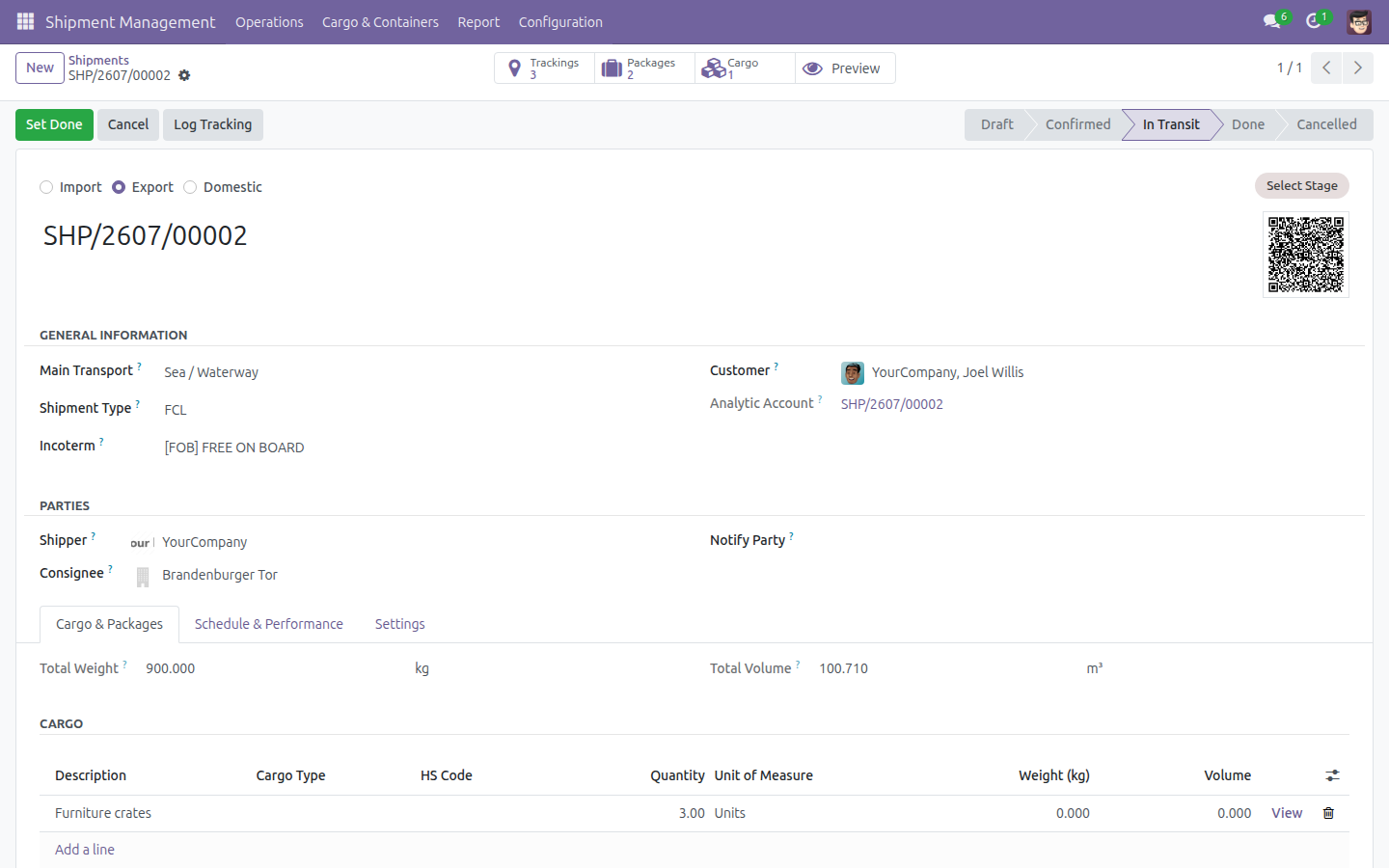
Logistics shipments linked to geographic routes, with a route report that shows what moves over which lane.
Logistics Routes Integration (technical name viin_logistics_route) is an Odoo 17.0 app for Odoo Community and Odoo Enterprise and Viindoo Cloud, built for operations, sales, finance, management.

At a Glance
The facts of Logistics Routes Integration, version 0.1.3, in one place. Published by Viindoo.
How It Works
Three screens.
The route report
Which lanes carry what.
On the shipment
The route it follows.

What is moving
Against their lanes.

What You Get
Shipments linked to geographic routes
Sections and waypoints, not just endpoints
A route report over shipments
Lane volume visible
Transit planning against a real path
Installed as a bridge when both apps are present
More Screens
Everything below was taken on a database seeded with real business data, on this series - not a mock-up and not a screenshot from an older version.
Shipments in progress
What This App Does Not Do
Read this before you buy. Everything below is something the app deliberately leaves to another app or to you.
Routes are defined, not solved for you.
Mapping needs the map modules and a network.
Time comes from your own lane data.
Logistics and Geo Routes.
Works Well With
Apps from the same stack, built to fit this one:
Who Should Use Logistics Routes Integration?
Operations
Runs the job from one record.
Sales
Sees what happened to what they sold.
Finance
Costs and bills against the movement.
Management
Reads volume and margin per lane.
Frequently Asked Questions
What does Logistics Routes Integration do?
Logistics shipments linked to geographic routes, with a route report that shows what moves over which lane.
What does Logistics Routes Integration not do?
It does not compute a route. Routes are defined, not solved for you. It does not draw a map. Mapping needs the map modules and a network. It does not estimate transit time. Time comes from your own lane data. It needs both apps. Logistics and Geo Routes.
Who is Logistics Routes Integration for?
Operations: Runs the job from one record. Sales: Sees what happened to what they sold. Finance: Costs and bills against the movement. Management: Reads volume and margin per lane.
Which Odoo version and editions does it support?
Odoo 17.0 - Odoo Community, Odoo Enterprise, Viindoo Cloud. Upgrades to a newer Odoo series are a separate purchase for that series.
What does it depend on?
It installs on top of: viin_logistics, to_geo_routes, viin_tracking_location_route. Odoo installs them with it.
How do I set it up?
Three screens.
What works well with it?
Logistics Shipments (viin_logistics): The shared shipment model. Freight Management (viin_freight_management): The forwarding desk built on it. Logistics with Sales (viin_logistics_sale): Shipments from sales orders.
Can I try it before buying?
Yes - the Live Preview button at the top of this page opens the module's own screen on a working database.
How do I get support?
Write to apps.support@viindoo.com with your Odoo version and the technical name viin_logistics_route; pre-sales questions go to sales@viindoo.com.
See Logistics Routes Integration in Action
The route a shipment actually takes
Need help with Logistics Routes Integration?
For questions, implementation support, or consulting services, contact Viindoo.
Pre-Sales & Partnership
sales@viindoo.comWhen contacting us, please include:
- Odoo/Viindoo version (Odoo CE / Viindoo Editions).
- Number of users and business scope.
- Other modules currently in use.
Technical Support
apps.support@viindoo.comFor faster troubleshooting, please provide:
- Order number or app reference.
- Odoo/Viindoo version & edition.
- Steps to reproduce the issue.
- Screenshots/logs if available.
Upgrades to a newer Odoo series are a separate purchase for that series.
Technical Requirement
Changes log
0.1.3 - Latest on the 17.0 line
- Aligned with the 17.0 logistics shipment model.
Logistics Routes Integration
Note
Extends viin_logistics - see its documentation.
This module links your Logistics shipments and Freight Service products to predefined geo Routes. Once a shipment leg or a Freight Service leg is linked to a Route, its pickup address, drop-off address, transport mode and distance fill in automatically - you no longer type them by hand. You also get a ready-made Route Map on every shipment and a Shipment Routes report to see which routes your shipments use most.
Installation
- Open the Apps menu.
- Search for Logistics Routes Integration.
- Click Install.
This module is installed automatically as soon as its three required apps are all present, so in most cases you will never need to install it by hand:
- Logistics Shipment (viin_logistics)
- Viindoo Unified Routing Framework (to_geo_routes)
- Tracking Location Route Extension (viin_tracking_location_route)
Configuration
No extra settings screen is added by this module. The only configuration step is managing the predefined Routes that shipments and Freight Service products will link against - see Configure a route for shipments and freight products below. Access to the Routes menu and to the Generate Freight Products action requires the Shipment Administrator / Shipment User access levels already used across Shipment Management.
Usage
Link a shipment leg to a route
Instead of typing a leg's pickup address, drop-off address, transport mode and distance by hand, pick a predefined Route and let the leg fill itself in.
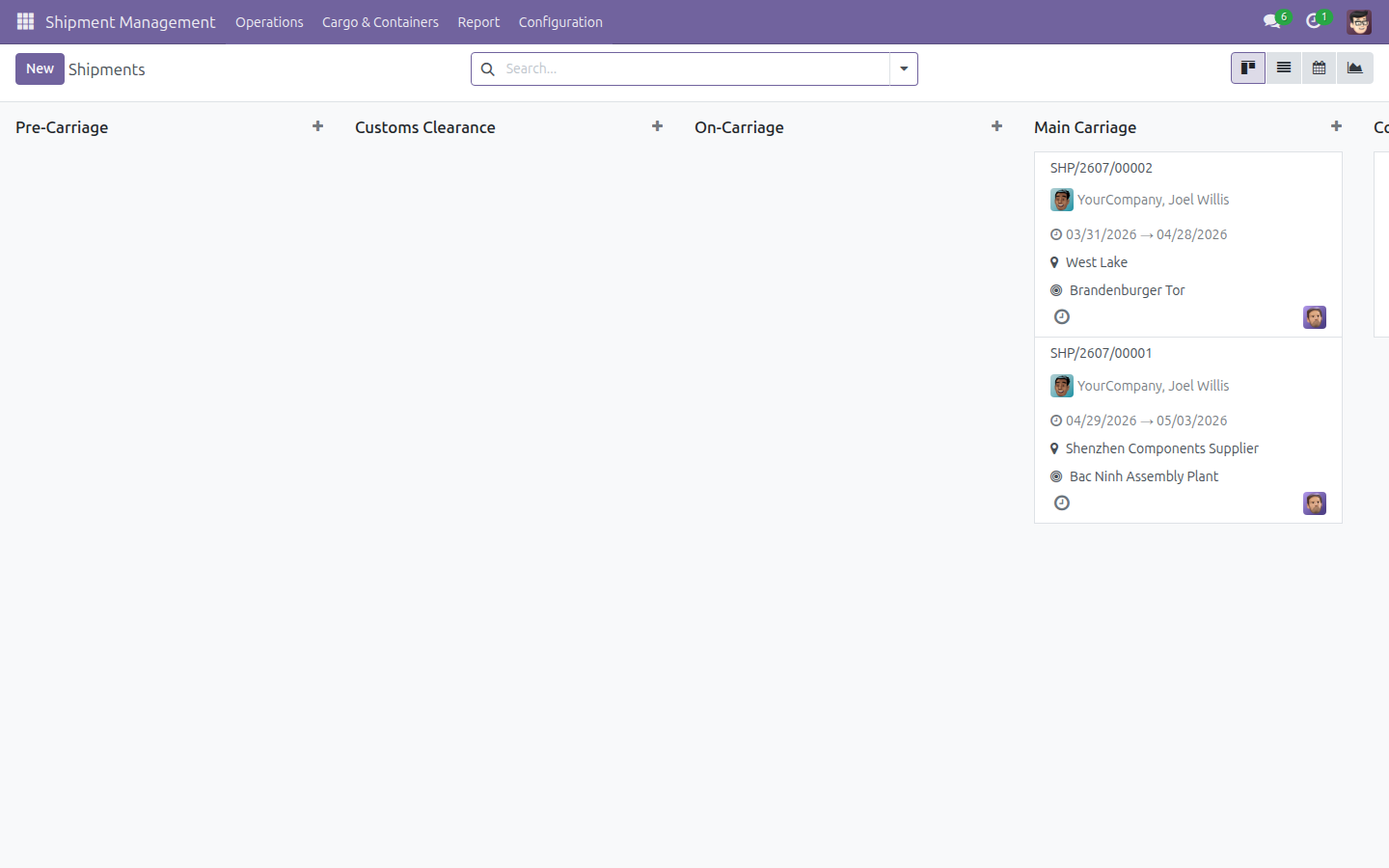
Open Shipment Management > Operations > All Shipments and open a shipment.
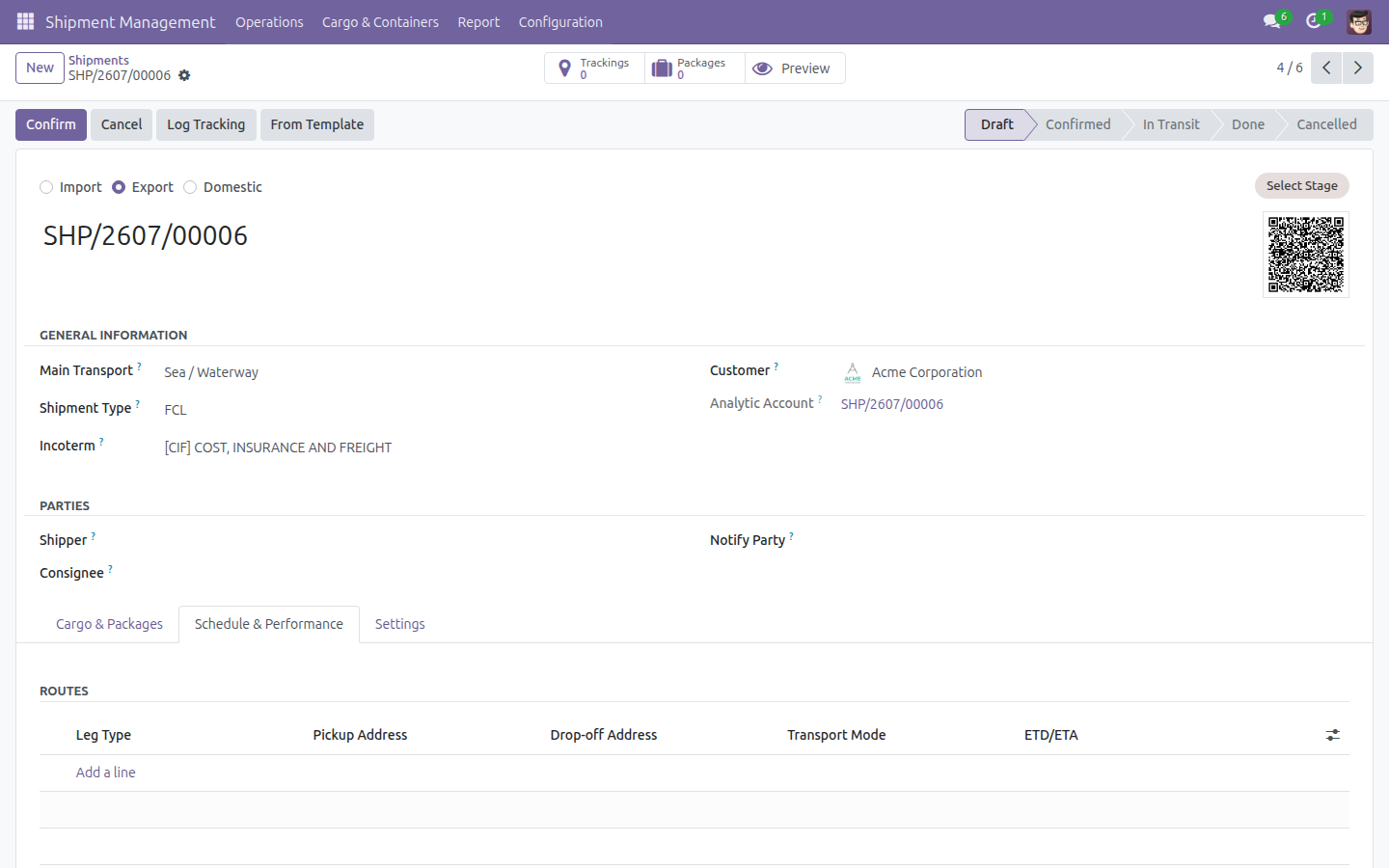
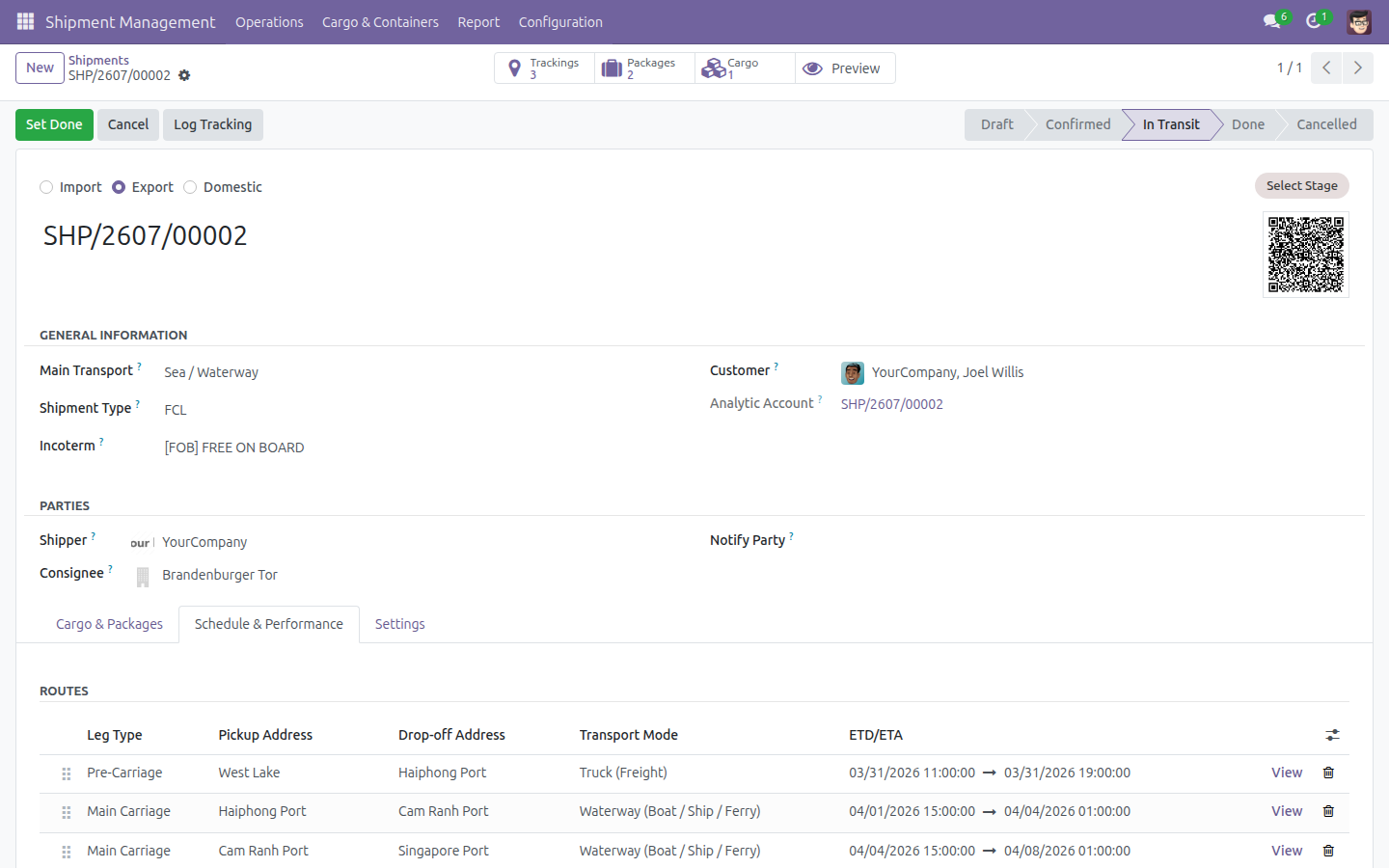
Click the Schedule & Performance tab, where the shipment's legs are listed under ROUTES.
Click Add a line to start a new leg row.
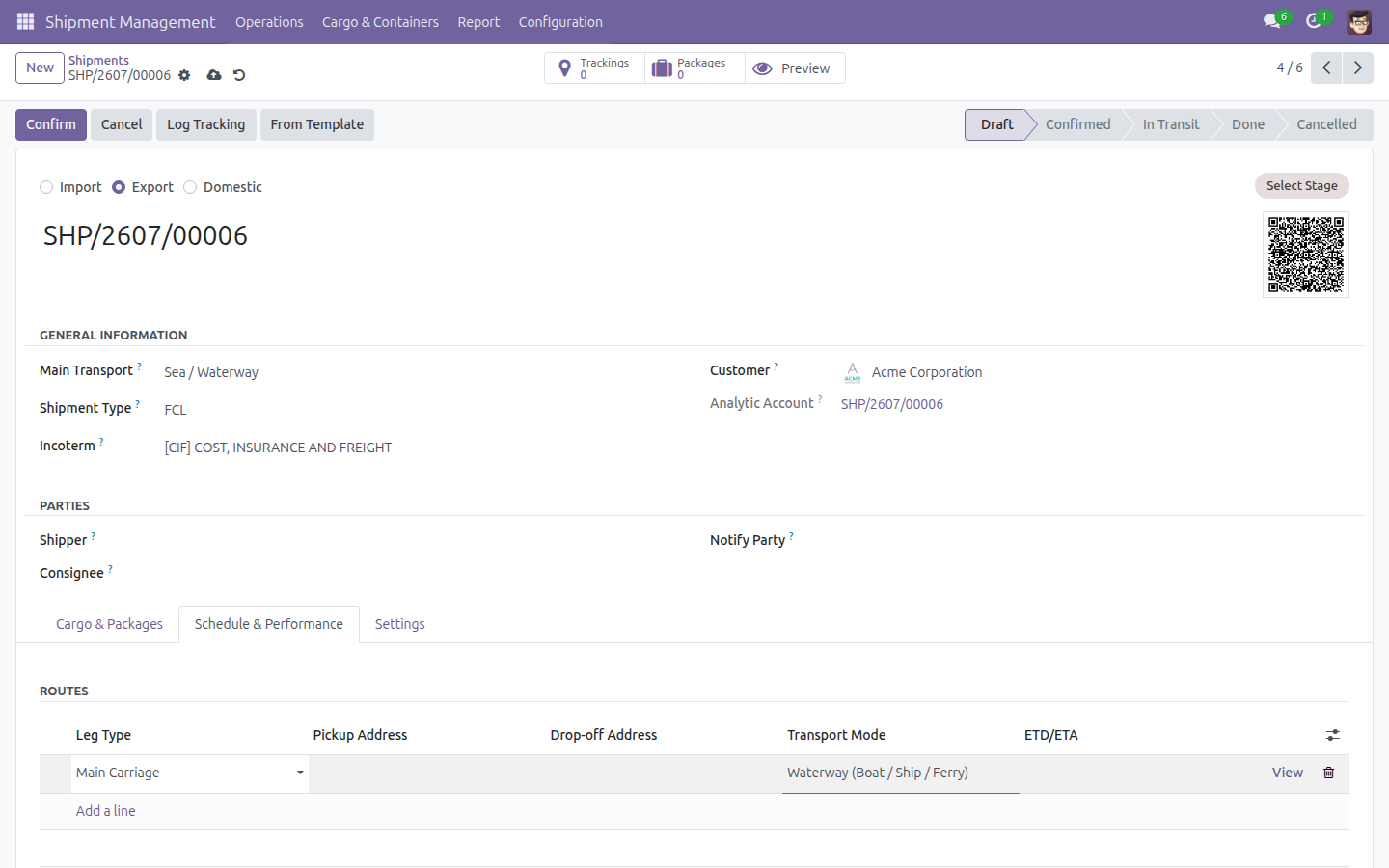
The Route field is not shown on this row directly - click the small arrow icon at the end of the row (Open in form view) to open the leg's full detail form.
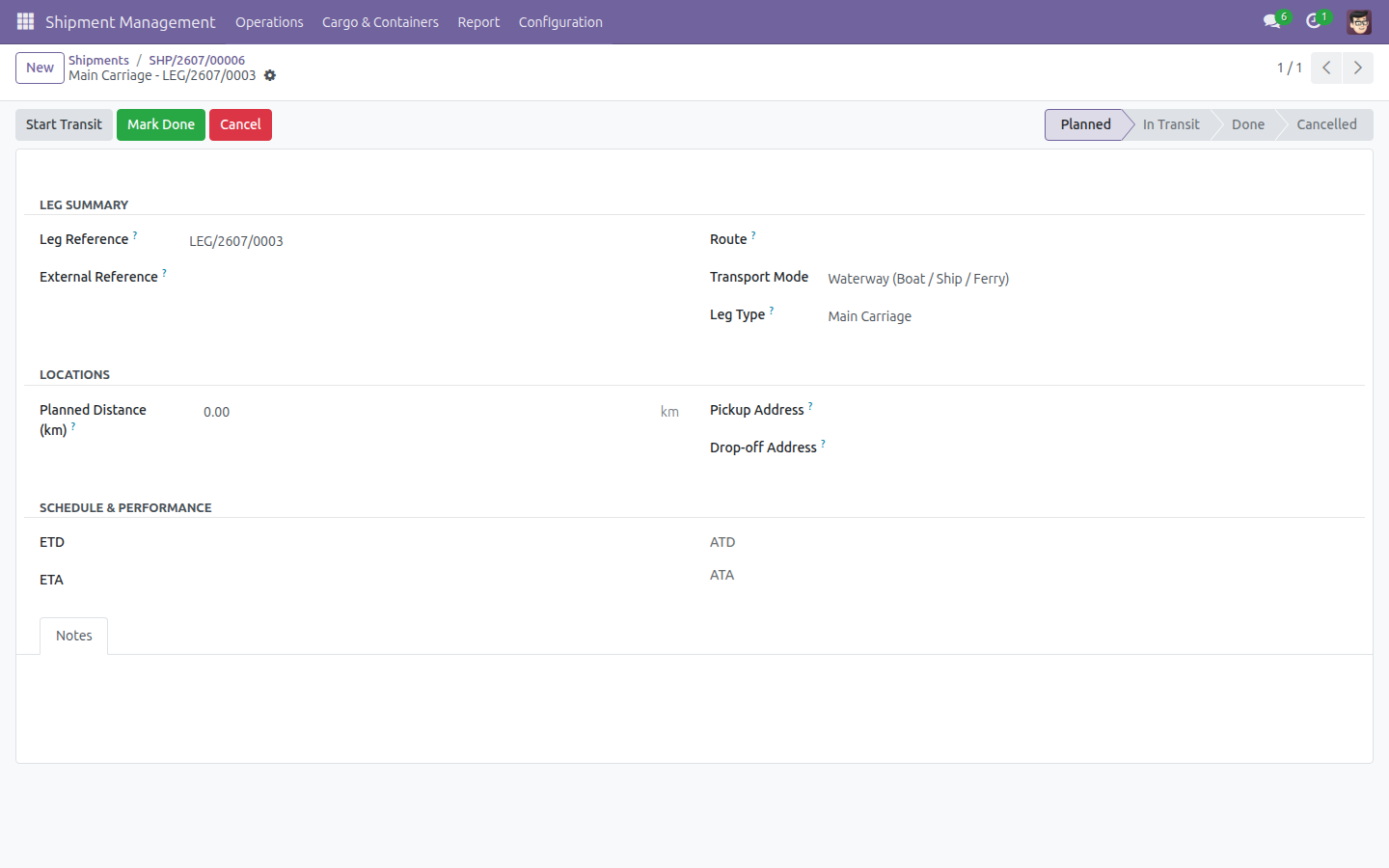
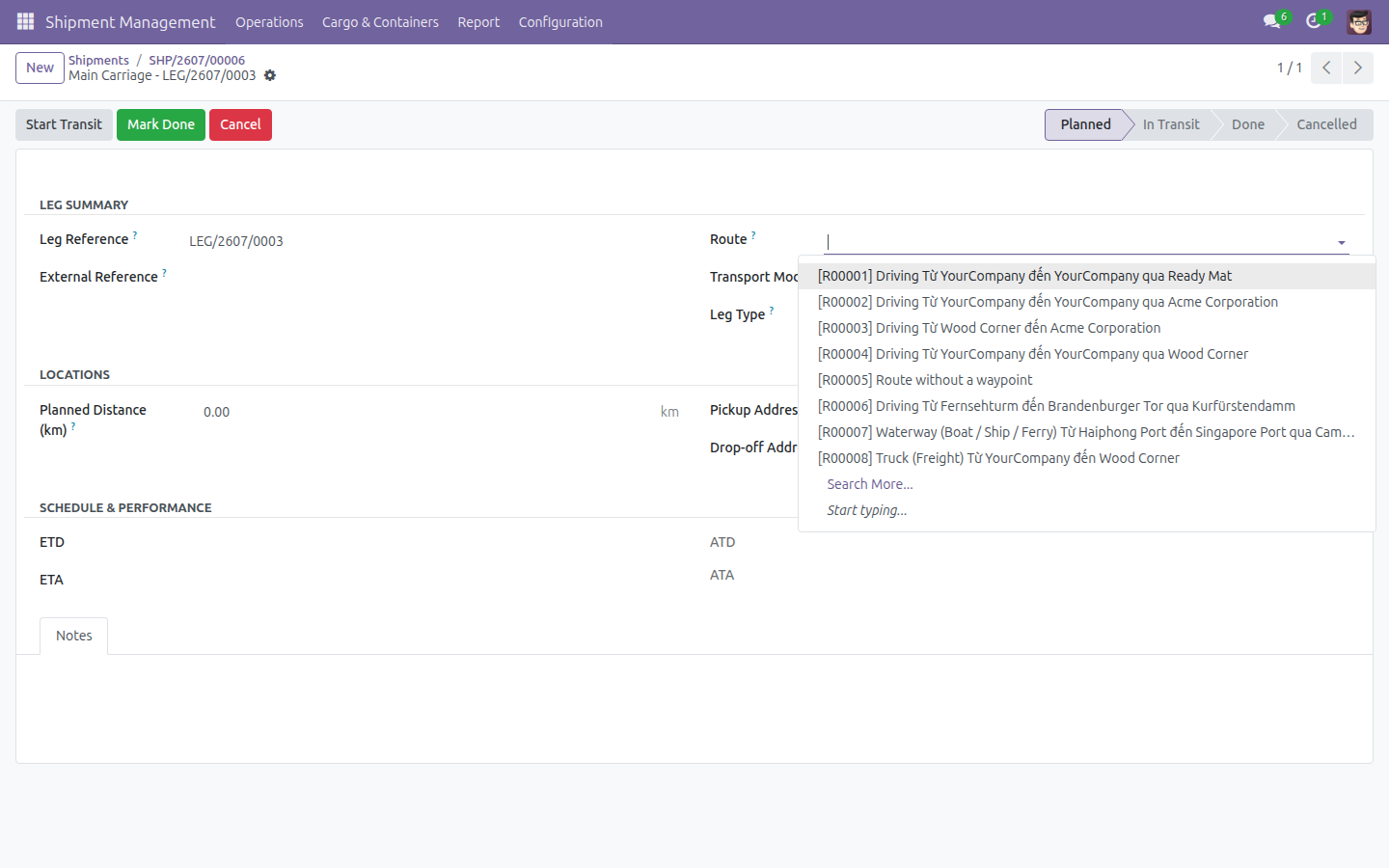
In the Route field, pick a predefined route (for example, a route from Haiphong Port to Singapore Port).
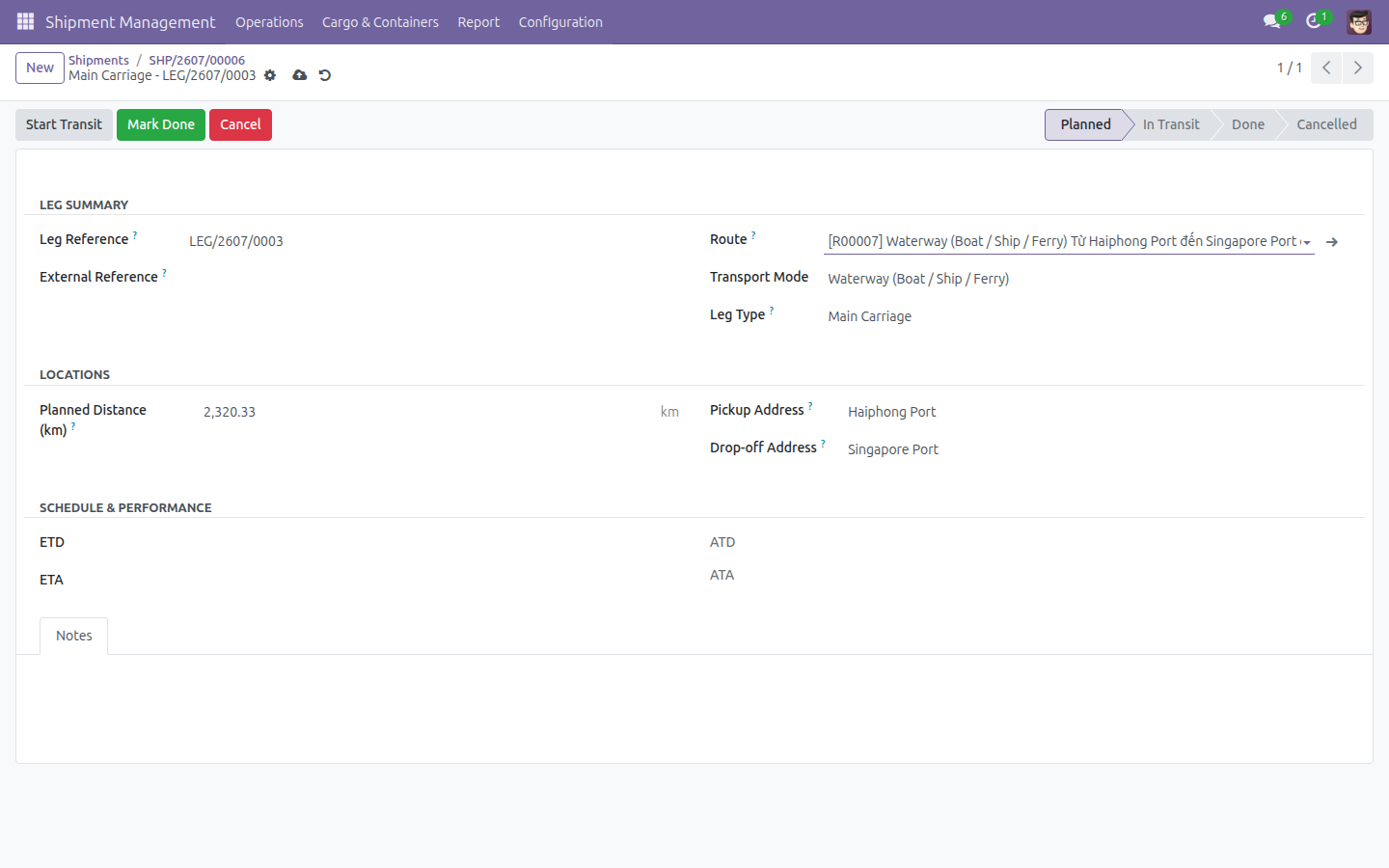
Pickup Address, Drop-off Address, Transport Mode and Planned Distance (km) are filled in automatically from the route you picked.
Configure a route for shipments and freight products
Set up the predefined routes that shipment legs and Freight Service products link against.
Open Shipment Management > Configuration > Locations > Routes and click New.
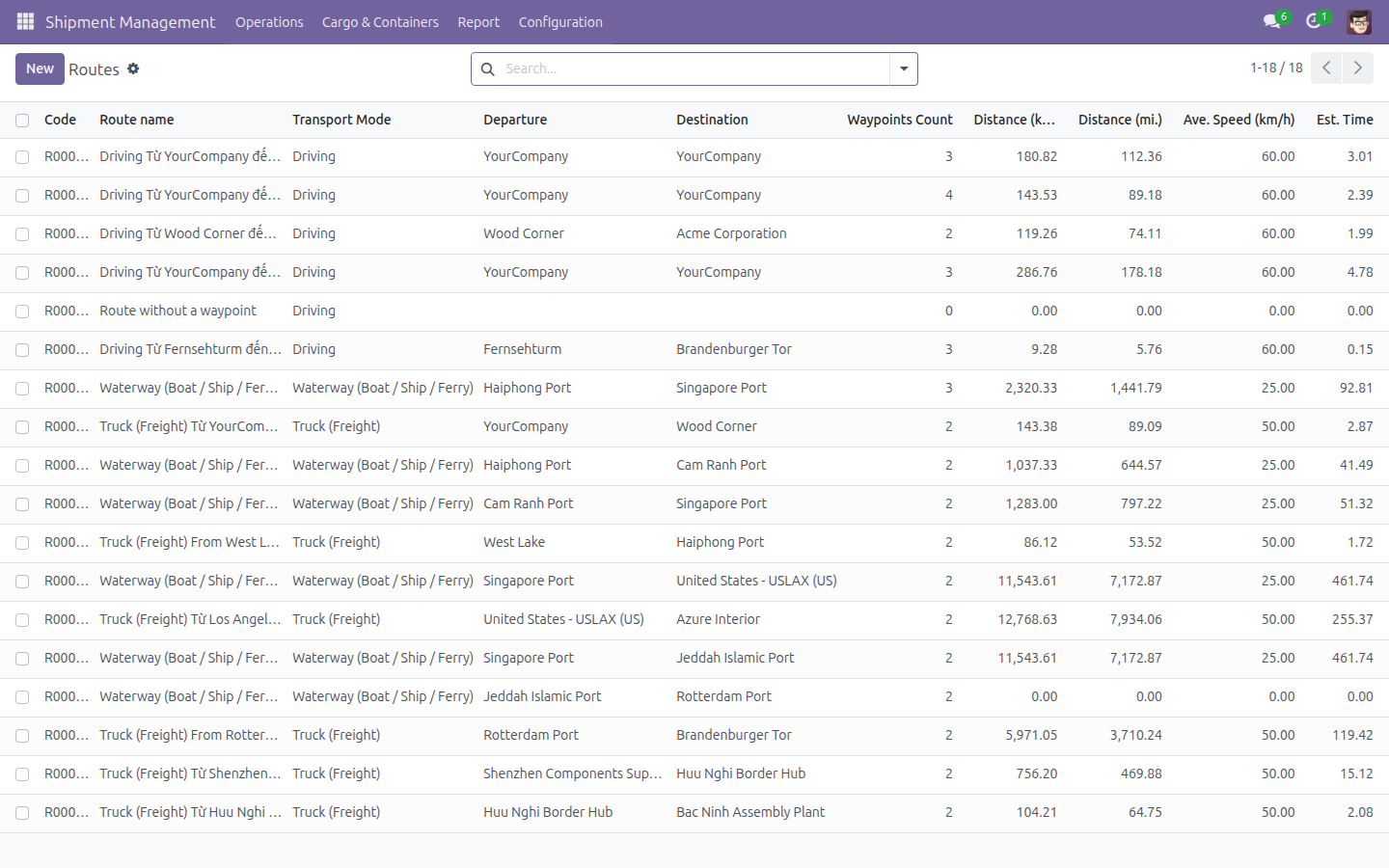
Set the Transport Mode (for example, Truck) for the new route.
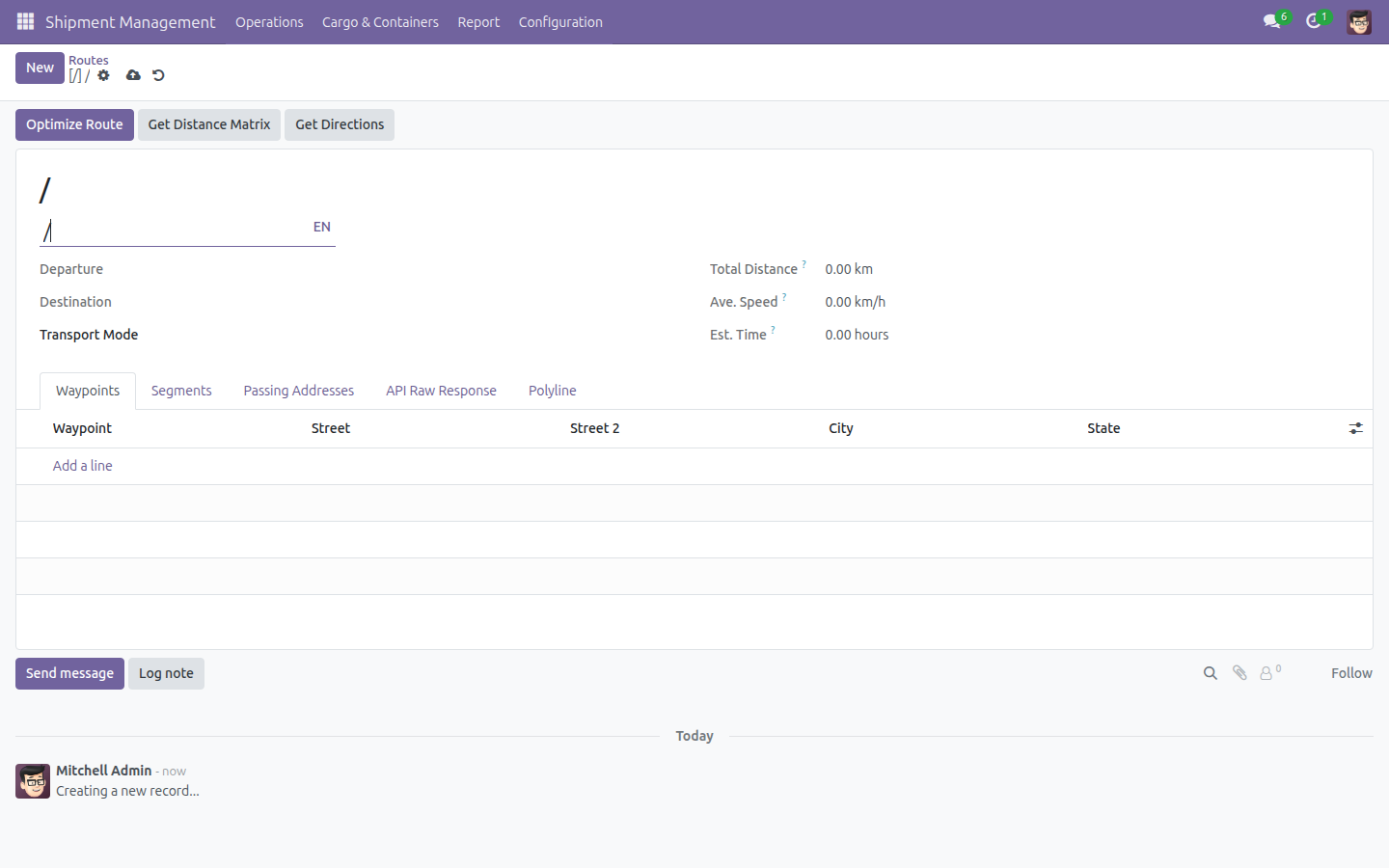
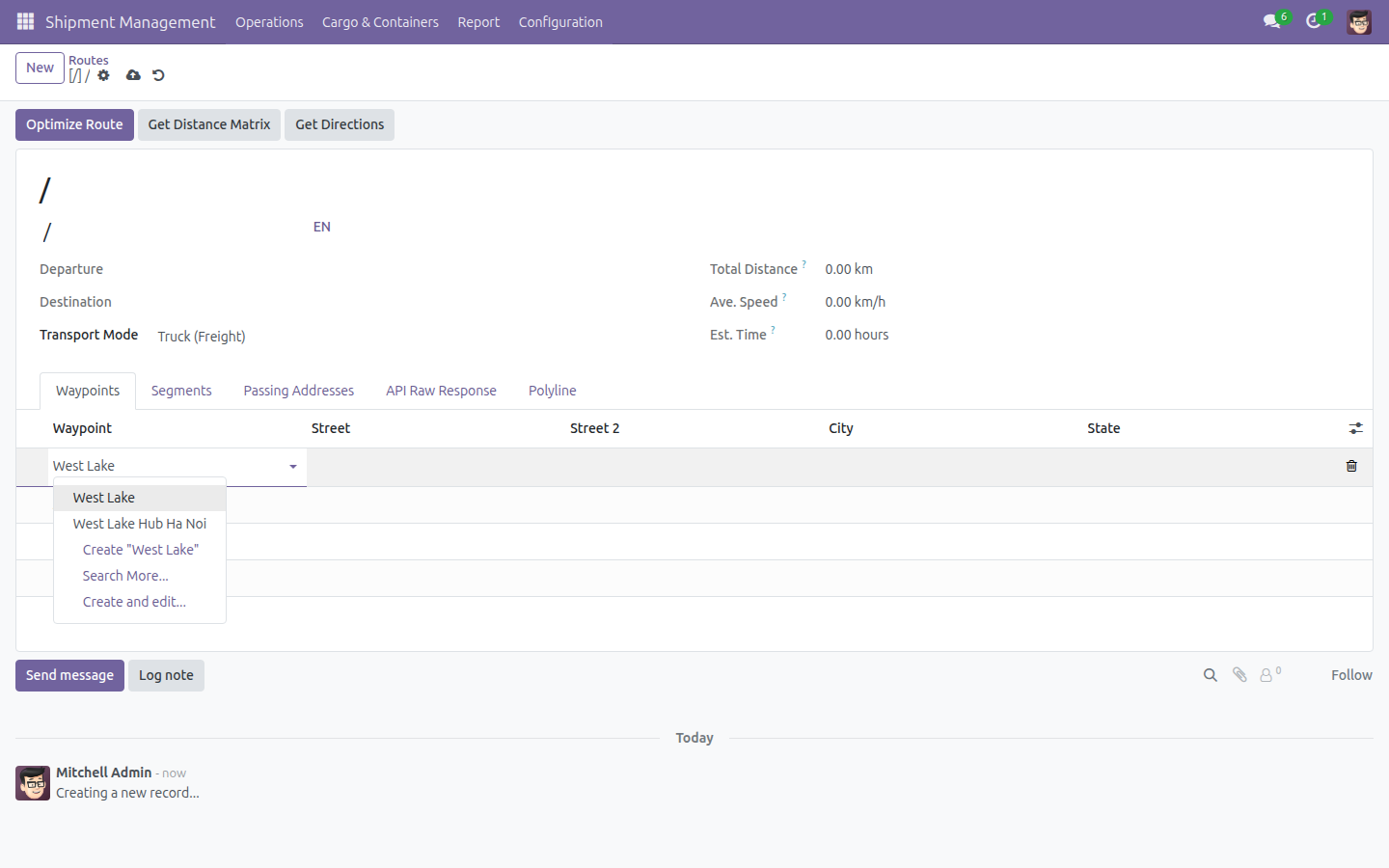
Under the Waypoints tab, click Add a line and pick the first address (this becomes the Departure).
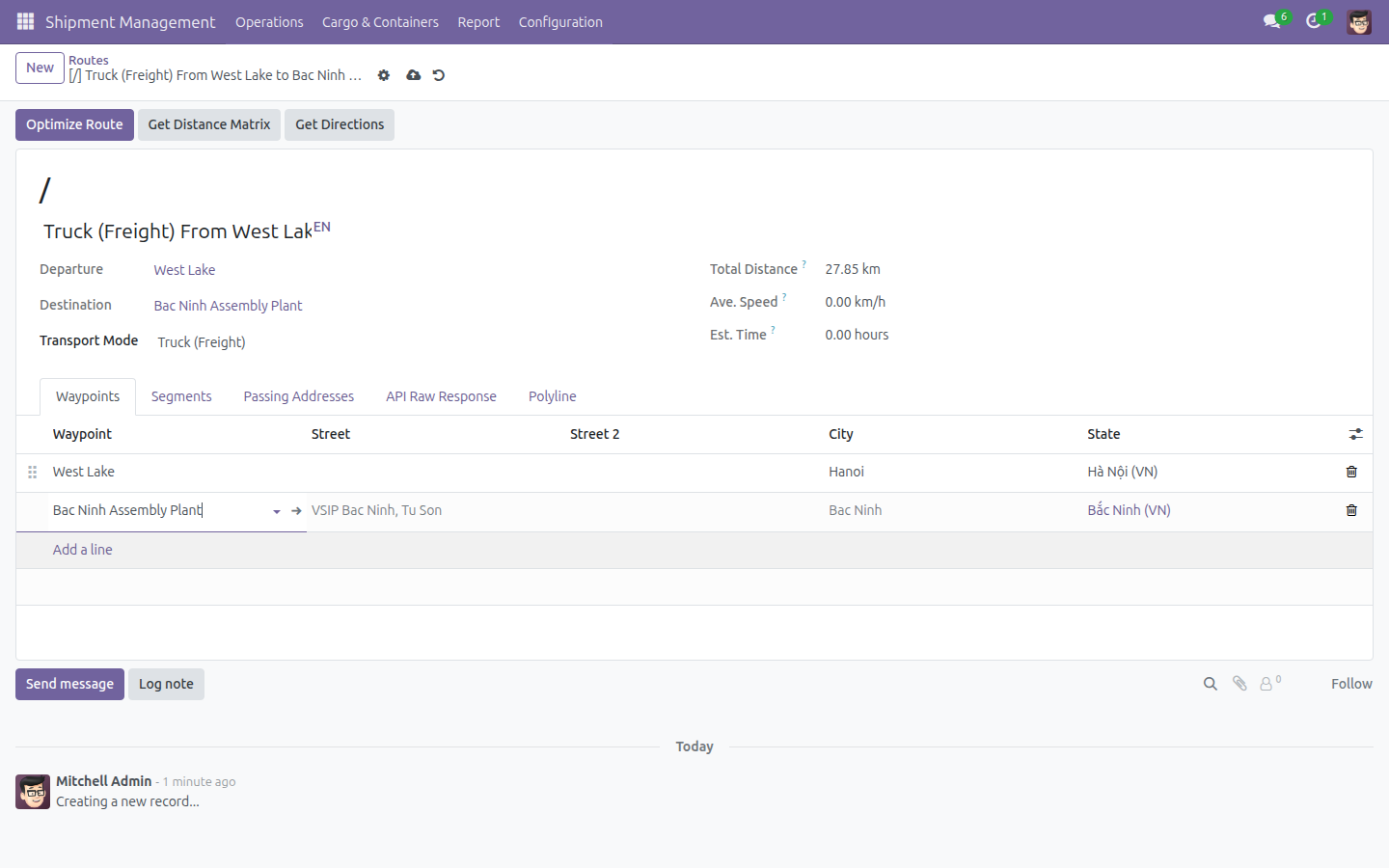
Add a second waypoint (this becomes the Destination). Total Distance is already computed as soon as both waypoints are set.
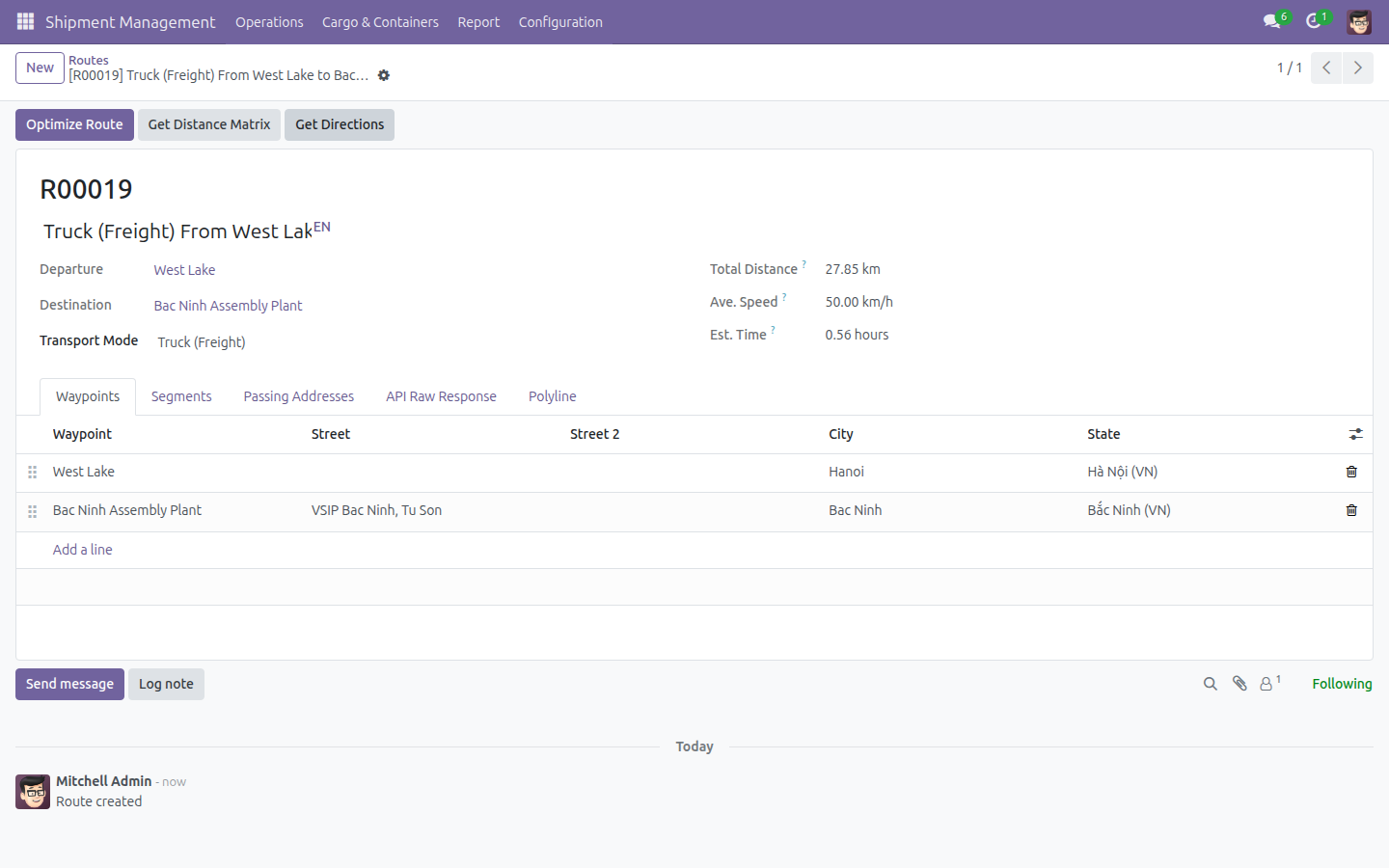
Click Get Directions to (re)compute the route's Total Distance, Ave. Speed and Est. Time from the mapping provider. The route also receives an auto-generated Code.
Note
Get Directions, Get Distance Matrix and Optimize Route need a Geo-Direction Provider configured for your company. Without one, these buttons report an error instead of a distance.
Generate Freight Products from routes
Turn one or more existing Routes directly into ready-to-sell Freight Service products, without re-entering the pickup/drop-off addresses.
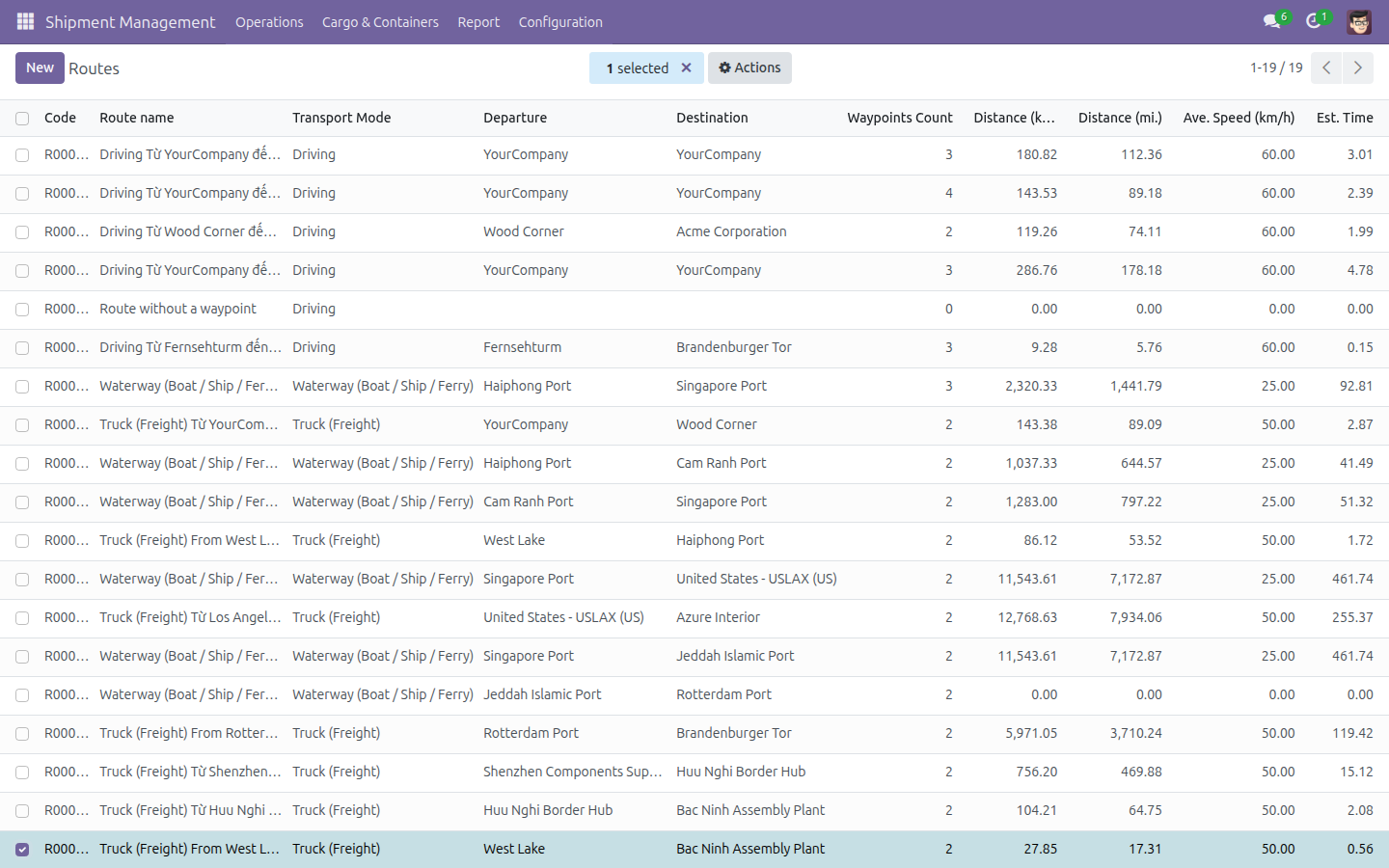
Open Shipment Management > Configuration > Locations > Routes, tick the checkbox of one or more routes, then open the Actions menu (the gear icon) above the list and click Generate Freight Products.
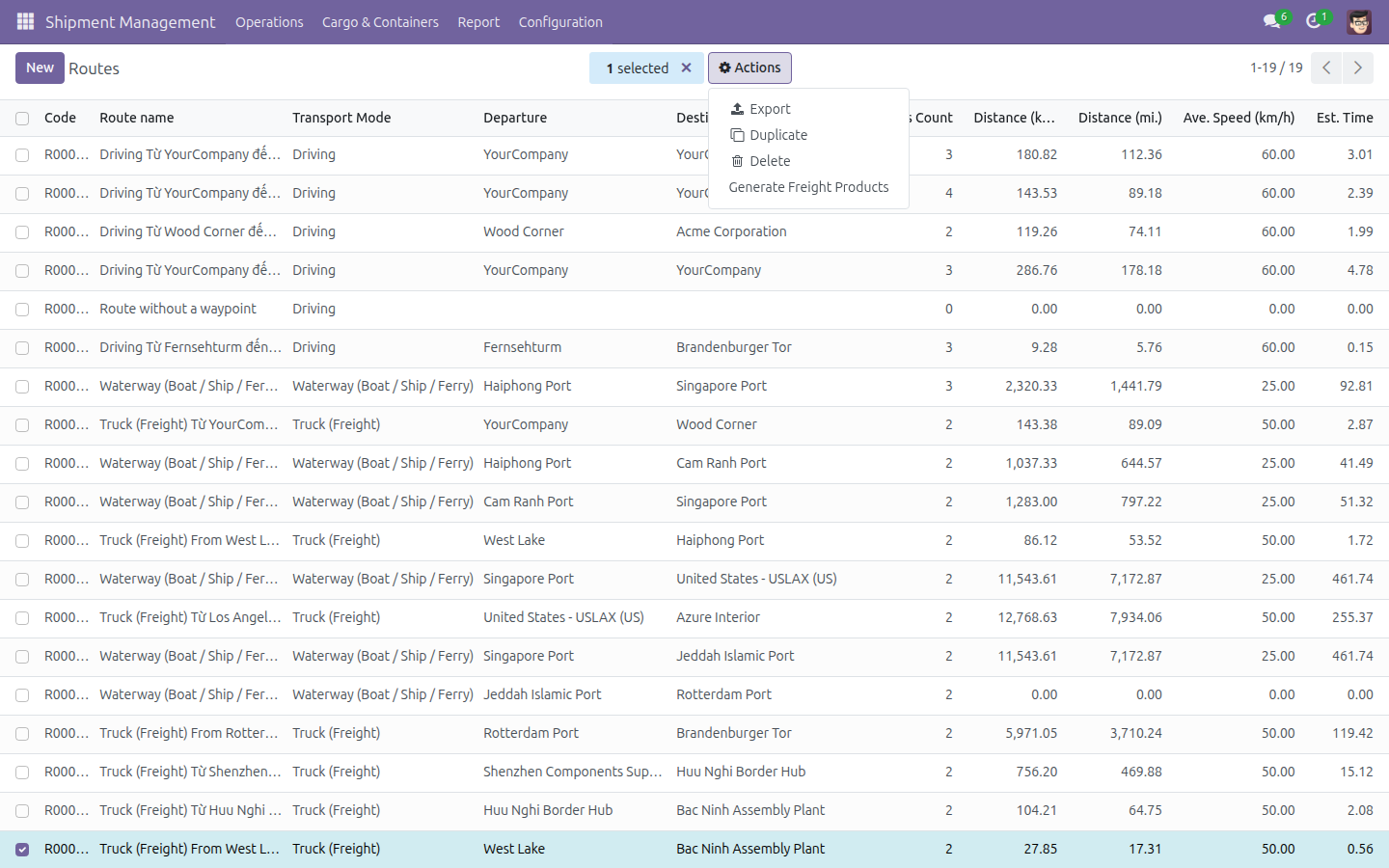
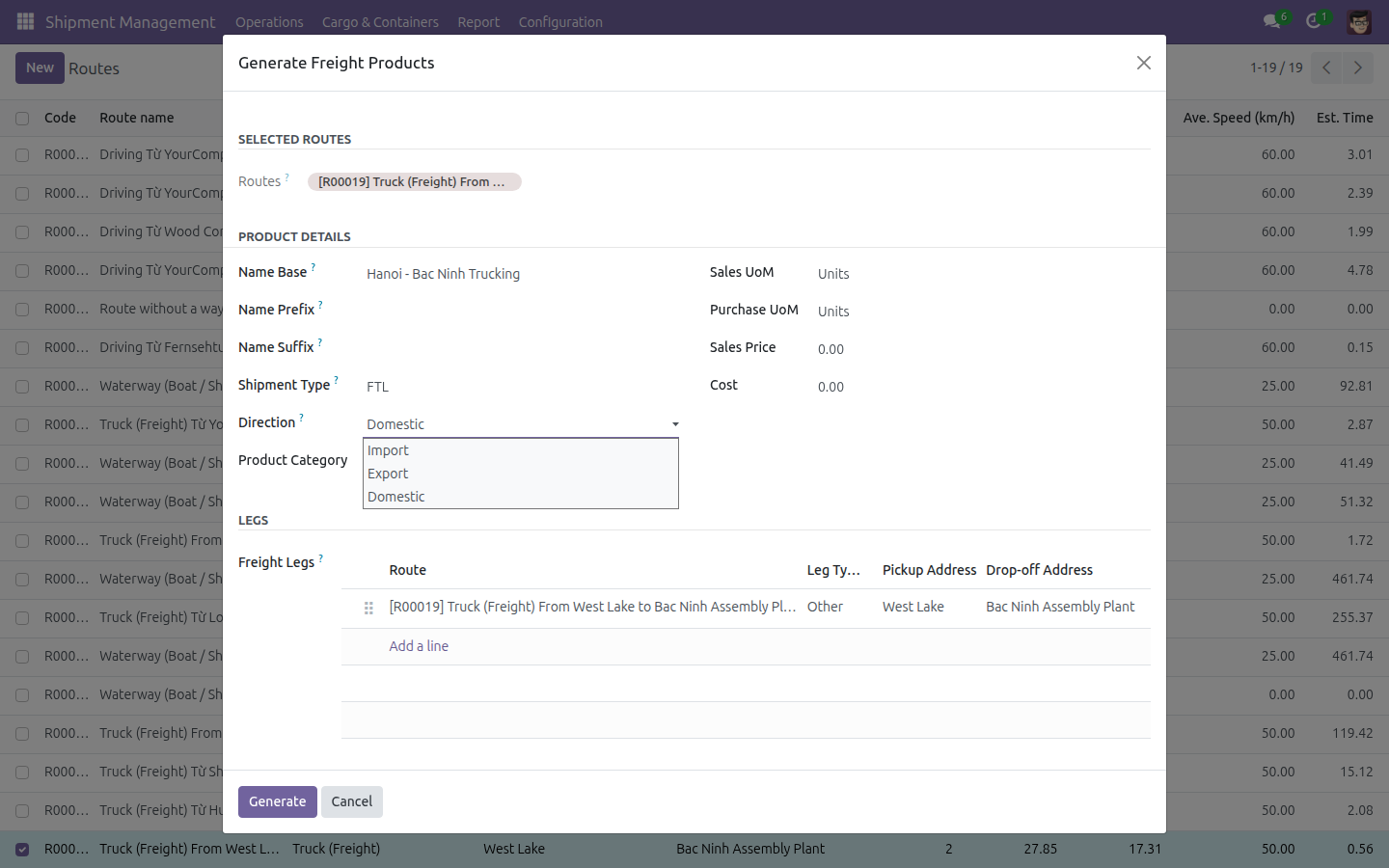
Fill in Name Base, Shipment Type, Direction and Product Category for the product(s) to create. The Freight Legs table is already pre-filled with one leg per selected route (pickup/drop-off address and transport mode inherited from the route).
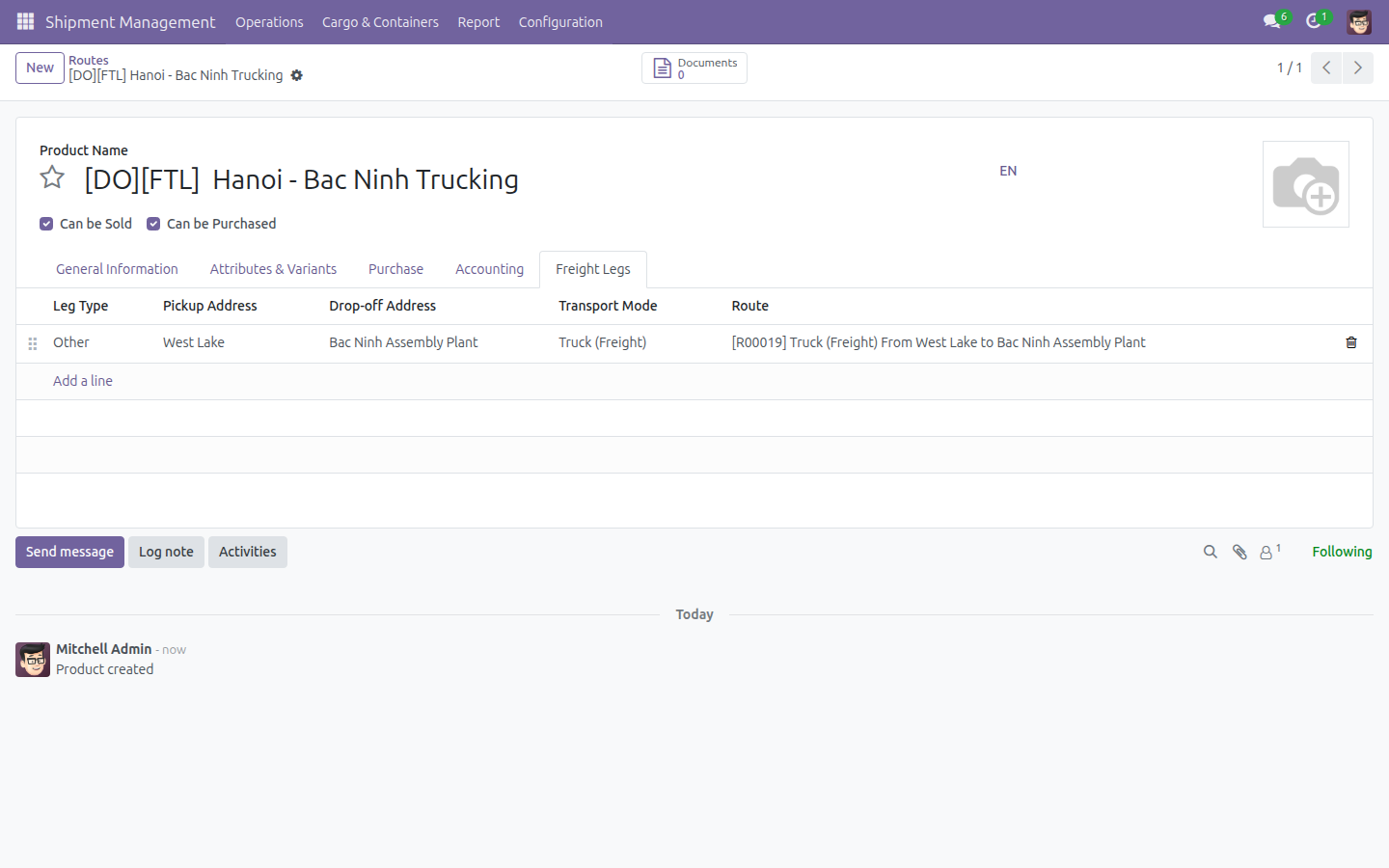
Click Generate. A new Freight Service product opens, its Freight Legs tab already carrying the leg copied from the route.
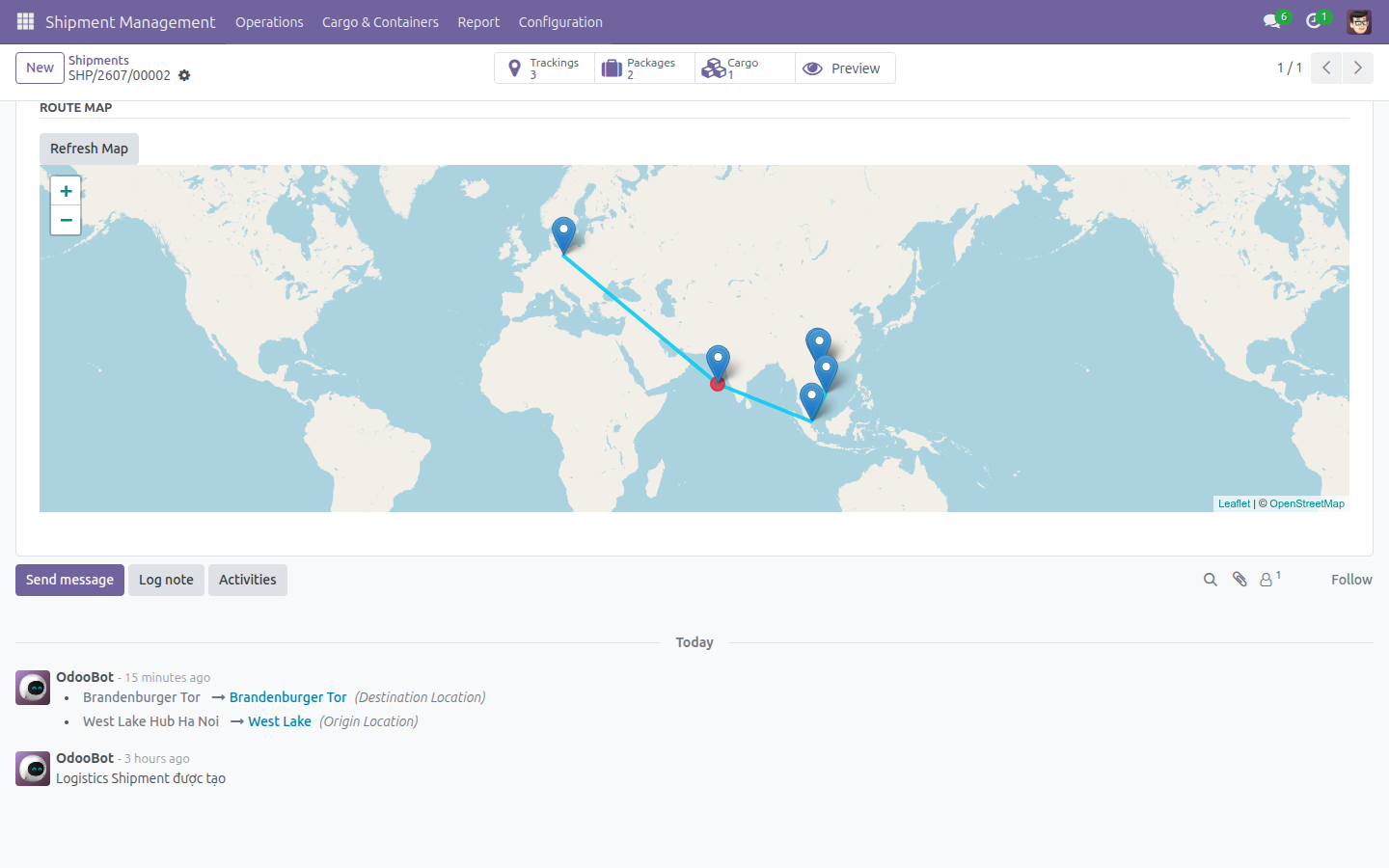
Visualize a shipment's route map
See a shipment's full multi-leg journey plotted on an interactive map.
Open a shipment whose legs are already linked to routes and click the Schedule & Performance tab. Scroll down to the ROUTE MAP section.
The map plots every leg's pickup and drop-off point and connects them end to end.
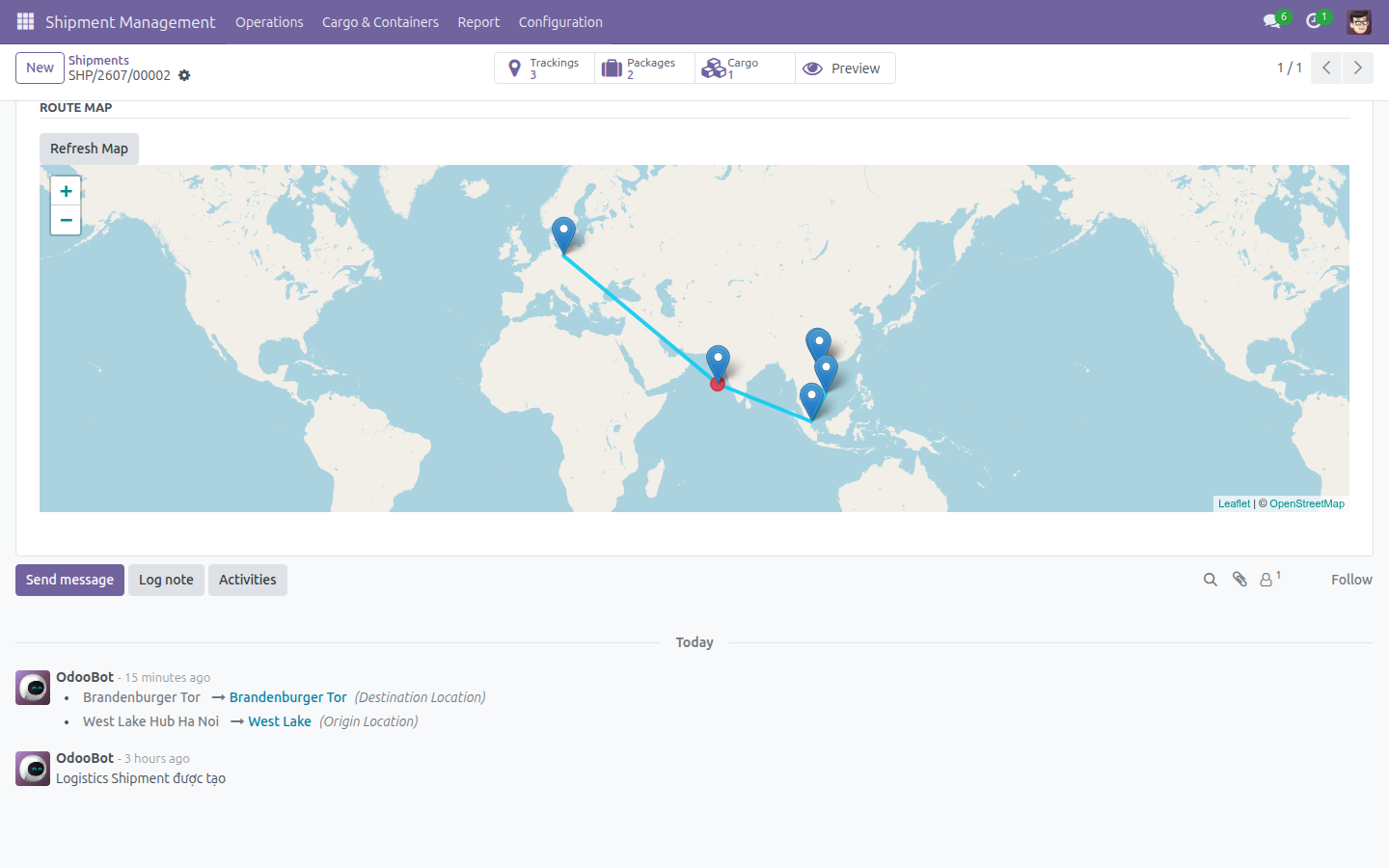
If you add or change a leg afterwards, click Refresh Map to recompute the map from the shipment's current legs.
Customers can see the same map from their online portal, on the shipment's tracking page.
Analyze the Shipment Routes report
See which routes your shipments use most, and how usage changes over time.
Open Shipment Management > Report > Shipment Statistics > Shipment Routes. The report opens as a pivot, already grouped by Route.
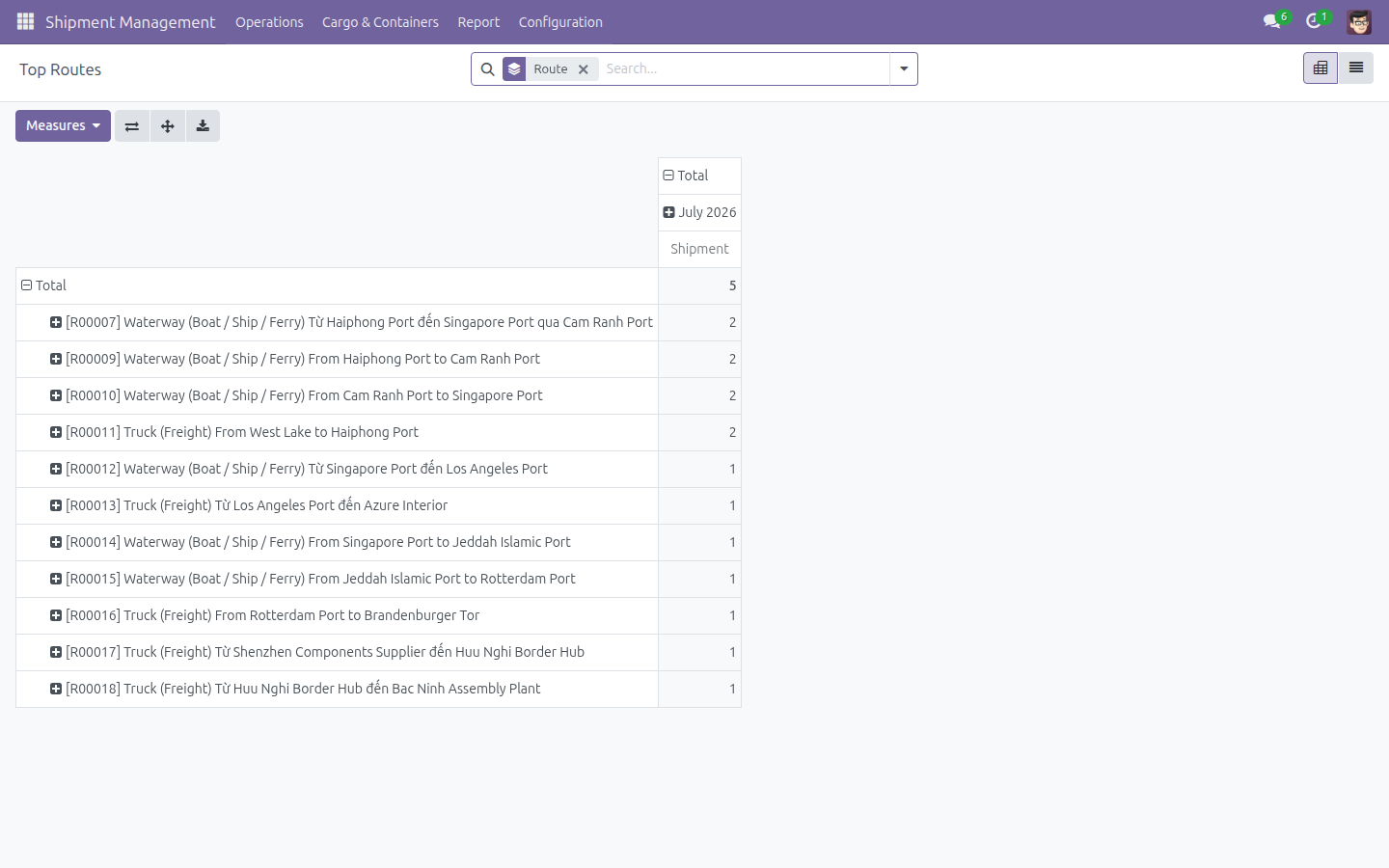
Switch to the List view (top-right toggle) for a row-by-row read of each shipment/route pair.
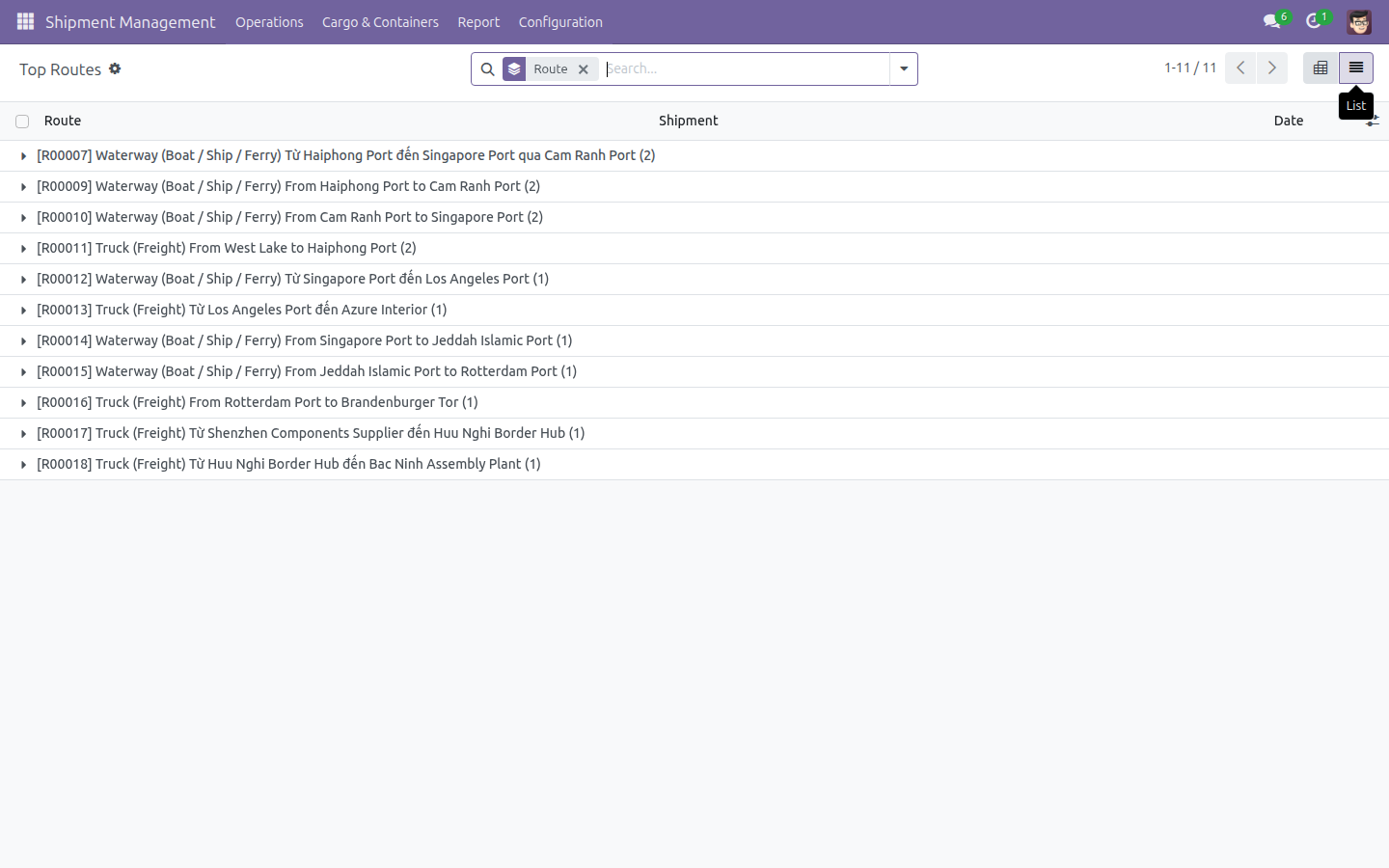
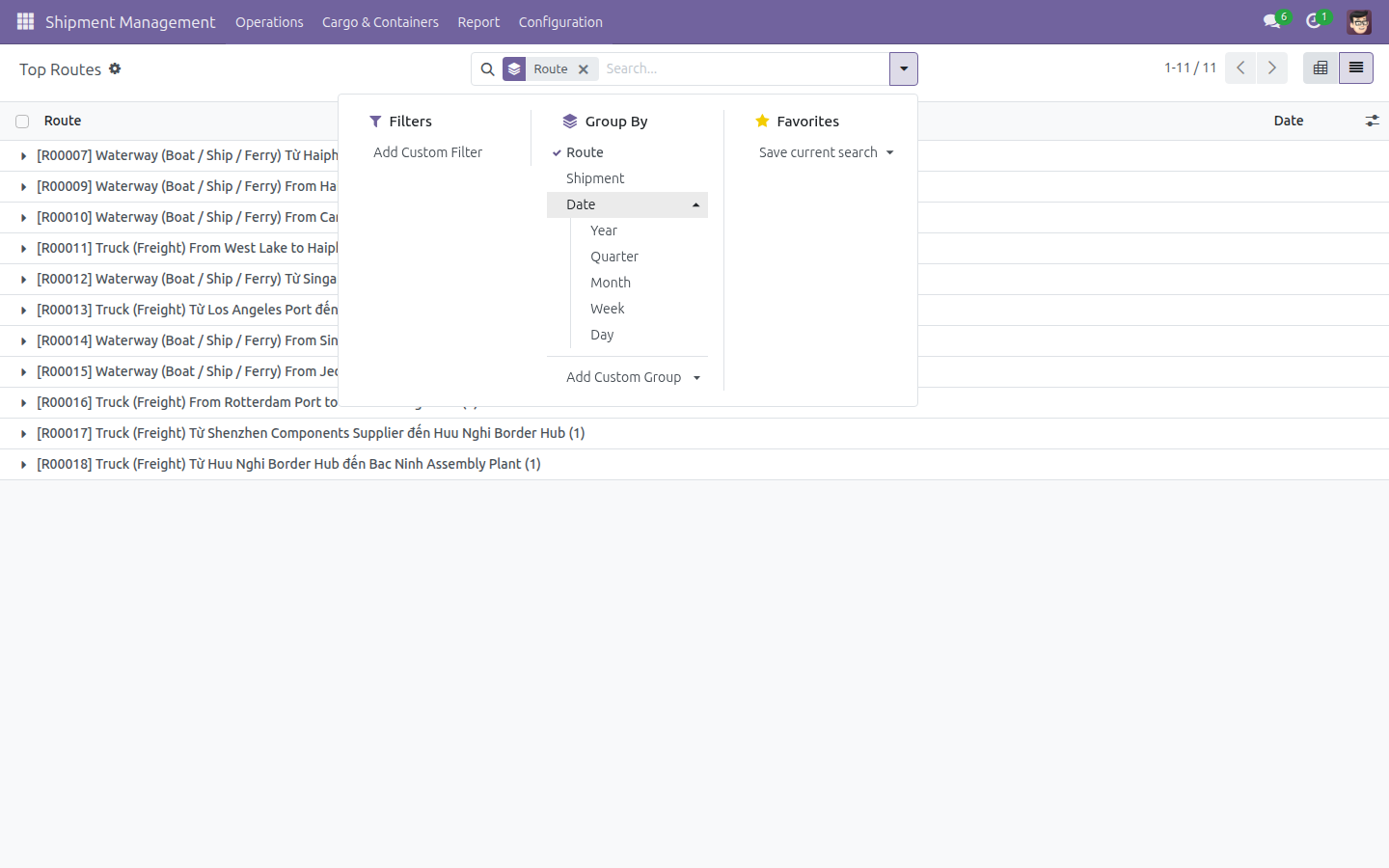
Open the search filters and add Group By > Date > Month to see route usage trend month over month.
Troubleshooting
- A shipment leg's Route field is empty on the Legs list.
- The Route field only appears on the leg's own detail form, not on the inline row in the shipment's Legs list. Add the leg first, then click the row's small arrow icon (Open in form view) to reach the Route field.
- Clicking Get Directions / Optimize Route / Get Distance Matrix shows an error instead of a distance.
- These actions call an external mapping/Geo-Direction Provider. Make sure at least one provider is enabled for your company before using them. Ask your administrator to configure one under the Geo-Routes settings.
- The Route Map says "Map is not available yet because coordinates are missing."
- At least one leg needs a resolved pickup or drop-off address with geographic coordinates. Link the leg to a Route (see Configure a route for shipments and freight products above) or set its addresses directly, then click Refresh Map.
- Generate Freight Products fails with a validation error about Product Category.
- Product Category is a required field on the product being created. Set it in the wizard before clicking Generate.
FAQ
- Can I still fill in the pickup address, drop-off address and distance by hand?
- Yes. Linking a leg to a Route is optional and only saves you the manual entry - you can still edit any auto-filled field afterwards.
- What happens if no existing Route matches my pickup and drop-off addresses?
- Create a new Route for that pair of addresses (see Configure a route for shipments and freight products above), then link your leg or freight product leg to it.
- Does the Shipment Routes report include shipments that have no leg linked to a route?
- No. Only shipment legs that carry a Route are counted in the report.
This software and associated files (the "Software") may only be used (executed, modified, executed after modifications) if you have purchased a valid license from the authors, typically via Odoo Apps, or if you have received a written agreement from the authors of the Software (see the COPYRIGHT file).
You may develop Odoo modules that use the Software as a library (typically by depending on it, importing it and using its resources), but without copying any source code or material from the Software. You may distribute those modules under the license of your choice, provided that this license is compatible with the terms of the Odoo Proprietary License (For example: LGPL, MIT, or proprietary licenses similar to this one).
It is forbidden to publish, distribute, sublicense, or sell copies of the Software or modified copies of the Software.
The above copyright notice and this permission notice must be included in all copies or substantial portions of the Software.
THE SOFTWARE IS PROVIDED "AS IS", WITHOUT WARRANTY OF ANY KIND, EXPRESS OR IMPLIED, INCLUDING BUT NOT LIMITED TO THE WARRANTIES OF MERCHANTABILITY, FITNESS FOR A PARTICULAR PURPOSE AND NONINFRINGEMENT. IN NO EVENT SHALL THE AUTHORS OR COPYRIGHT HOLDERS BE LIABLE FOR ANY CLAIM, DAMAGES OR OTHER LIABILITY, WHETHER IN AN ACTION OF CONTRACT, TORT OR OTHERWISE, ARISING FROM, OUT OF OR IN CONNECTION WITH THE SOFTWARE OR THE USE OR OTHER DEALINGS IN THE SOFTWARE.