
Logistics Package Type
by Viindoo
| Lines of Code | 1021 |
| Technical name | viin_logistics_package_type |
| License | OPL-1 |
| Website | https://viindoo.com/apps/modules/17.0/viin_logistics_package_type |
| Read description for | v 18.0 v 19.0 |
| Required Apps | Discuss (mail) |
| Extensions | Logistics Shipment |

The boxes, pallets and containers your goods actually travel in
A shared list of package types with their dimensions and weight limits - pallets, cartons, drums, 20ft and 40ft containers - so packing and freight documents refer to the same thing.
Logistics Package Type (technical name viin_logistics_package_type) is an Odoo 17.0 app for Odoo Community and Odoo Enterprise and Viindoo Cloud, built for logistics, freight desk, warehouse.

At a Glance
The facts of Logistics Package Type, version 1.0.2, in one place. Published by Viindoo.
How It Works
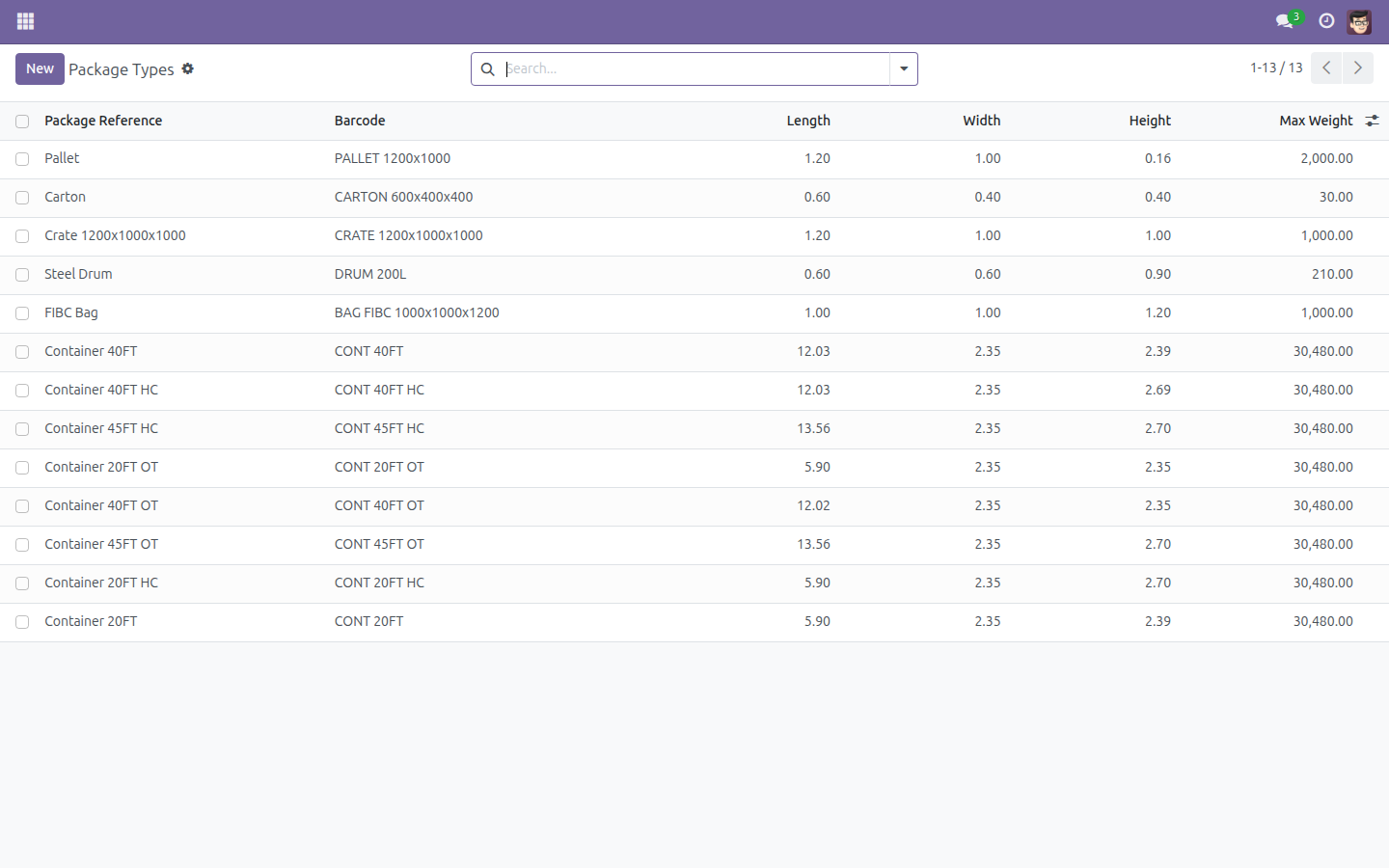
Two screens - the list, and one type.
One list for the whole company
Everything goods can travel in, in one place: pallets, cartons, drums, bags and the ISO containers.
Each type carries its limits
Outer dimensions, tare weight and maximum payload - the three numbers a load plan and a freight quote both need.

What You Get
Package types with length, width, height, tare weight and maximum payload
The ISO container family out of the box - 20ft, 40ft, 40ft HC, 45ft HC, open top
Pallets, cartons, drums and bulk bags for road and warehouse work
Master data other apps reference, so freight, packing and customs agree
More Screens
Everything below was taken on a database seeded with real business data, on this series - not a mock-up and not a screenshot from an older version.
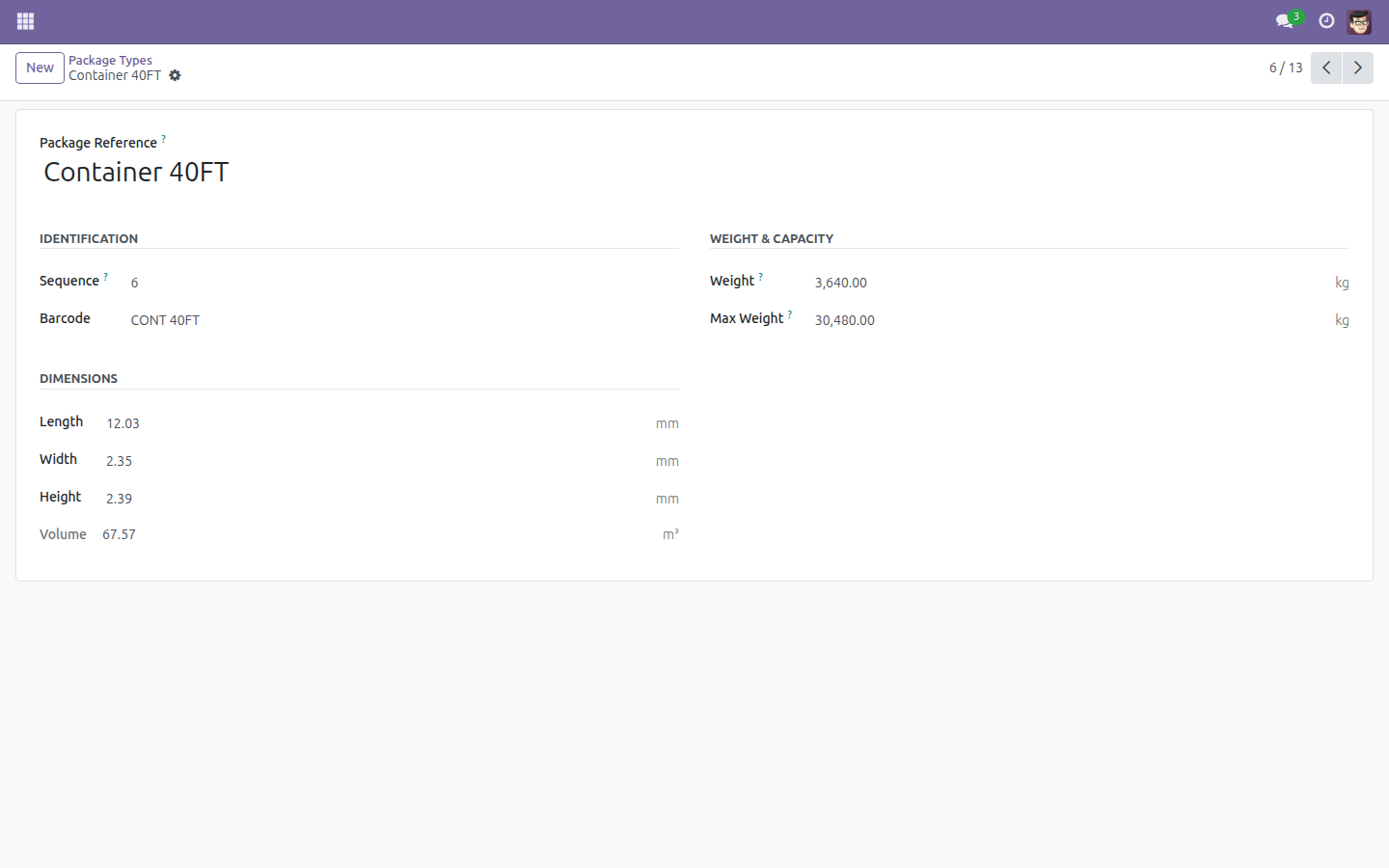
A package type
What This App Does Not Do
Read this before you buy. Everything below is something the app deliberately leaves to another app or to you.
Nothing is packed or optimised here; this is the list those tools read.
Rates belong to the carrier or the freight app.
Product packaging describes a selling unit; this describes the transport unit.
Works Well With
Apps from the same stack, built to fit this one:
Who Should Use Logistics Package Type?
Logistics
Plans a load against real limits instead of a guess.
Freight desk
Quotes on the container the goods will actually travel in.
Warehouse
Packs into a type that has dimensions the system knows.
Frequently Asked Questions
What does Logistics Package Type do?
A shared list of package types with their dimensions and weight limits - pallets, cartons, drums, 20ft and 40ft containers - so packing and freight documents refer to the same thing.
What does Logistics Package Type not do?
It is master data, not a load planner. Nothing is packed or optimised here; this is the list those tools read. It does not price freight. Rates belong to the carrier or the freight app. It is not Odoo's product packaging. Product packaging describes a selling unit; this describes the transport unit.
Who is Logistics Package Type for?
Logistics: Plans a load against real limits instead of a guess. Freight desk: Quotes on the container the goods will actually travel in. Warehouse: Packs into a type that has dimensions the system knows.
Which Odoo version and editions does it support?
Odoo 17.0 - Odoo Community, Odoo Enterprise, Viindoo Cloud. Upgrades to a newer Odoo series are a separate purchase for that series.
What does it depend on?
It installs on top of: product. Odoo installs them with it.
How do I set it up?
Two screens - the list, and one type.
What works well with it?
Product Dimensions (to_product_dimensions): The goods that go into these packages. Routing Framework (to_geo_routes): Distance and mode for the journey they take.
Can I try it before buying?
Yes - the Live Preview button at the top of this page opens the module's own screen on a working database.
How do I get support?
Write to apps.support@viindoo.com with your Odoo version and the technical name viin_logistics_package_type; pre-sales questions go to sales@viindoo.com.
See Logistics Package Type in Action
The boxes, pallets and containers your goods actually travel in
Need help with Logistics Package Type?
For questions, implementation support, or consulting services, contact Viindoo.
Pre-Sales & Partnership
sales@viindoo.comWhen contacting us, please include:
- Odoo/Viindoo version (Odoo CE / Viindoo Editions).
- Number of users and business scope.
- Other modules currently in use.
Technical Support
apps.support@viindoo.comFor faster troubleshooting, please provide:
- Order number or app reference.
- Odoo/Viindoo version & edition.
- Steps to reproduce the issue.
- Screenshots/logs if available.
Upgrades to a newer Odoo series are a separate purchase for that series.
Technical Requirement
Changes log
1.0.2 - Latest on the 17.0 line
- The ISO container family ships as data, with dimensions and payloads.
- Package types are shared master data for the freight and packing apps.
Logistics Package Type
This module provides the shared Package Types library used by Viindoo's logistics apps (fleet, freight forwarding, warehousing, and similar modules). It ships a set of 13 ready-to-use package and container profiles - pallets, cartons, crates, drums, bags, and ISO shipping containers - so you do not have to enter their dimensions, weight and barcode by hand. You can also add your own package types the same way.
This module has no menu of its own. It is a foundation piece that other Viindoo logistics apps build on; once one of those apps is installed, you normally reach the package/container library from that app's own menu. Until then, an administrator can open it directly - see the Usage section below.
Installation
- Open the Apps app.
- Remove the default "Apps" filter from the search bar and search for "Logistics Package Type".
- Click Install on the module's card.
This module only needs the standard Odoo Products component, which is already included with the Sales, Inventory, and Purchase apps. If none of those apps are installed yet, installing this module pulls in the Products component automatically - there is nothing extra to install beforehand.
Configuration
- Access rights. Only users whose access rights include Administrator / technical settings (the "Settings" access level) can open the Package Types screen. Ask your Odoo administrator for access if you cannot see it.
- Developer mode. Because this module ships no menu, reaching the screen directly requires developer mode. Go to Settings > General Settings, scroll to Developer Tools, and click Activate the developer mode.
- Multi-company. If your database manages more than one company, a Company field appears on the form so an administrator can restrict a package or container type to a single company. Leave it empty to make the type available to every company.
- There is nothing else to configure - the 13 standard package and container types are ready to use as soon as the module is installed.
Usage
Review the built-in package & container type library
As an administrator, you can review the 13 pre-configured package and container profiles that ship with this module (Pallet, Carton, Crate 1200x1000x1000, Steel Drum, FIBC Bag, and the ISO Container 20FT / 20FT HC / 40FT / 40FT HC / 45FT HC profiles together with their Open-Top variants), and open any one of them to check its dimensions, weight limits and barcode.
Go to Settings > Technical > Actions > Window Actions.
Search for "Package Types" and open the record whose Object column shows logistics.package.type.
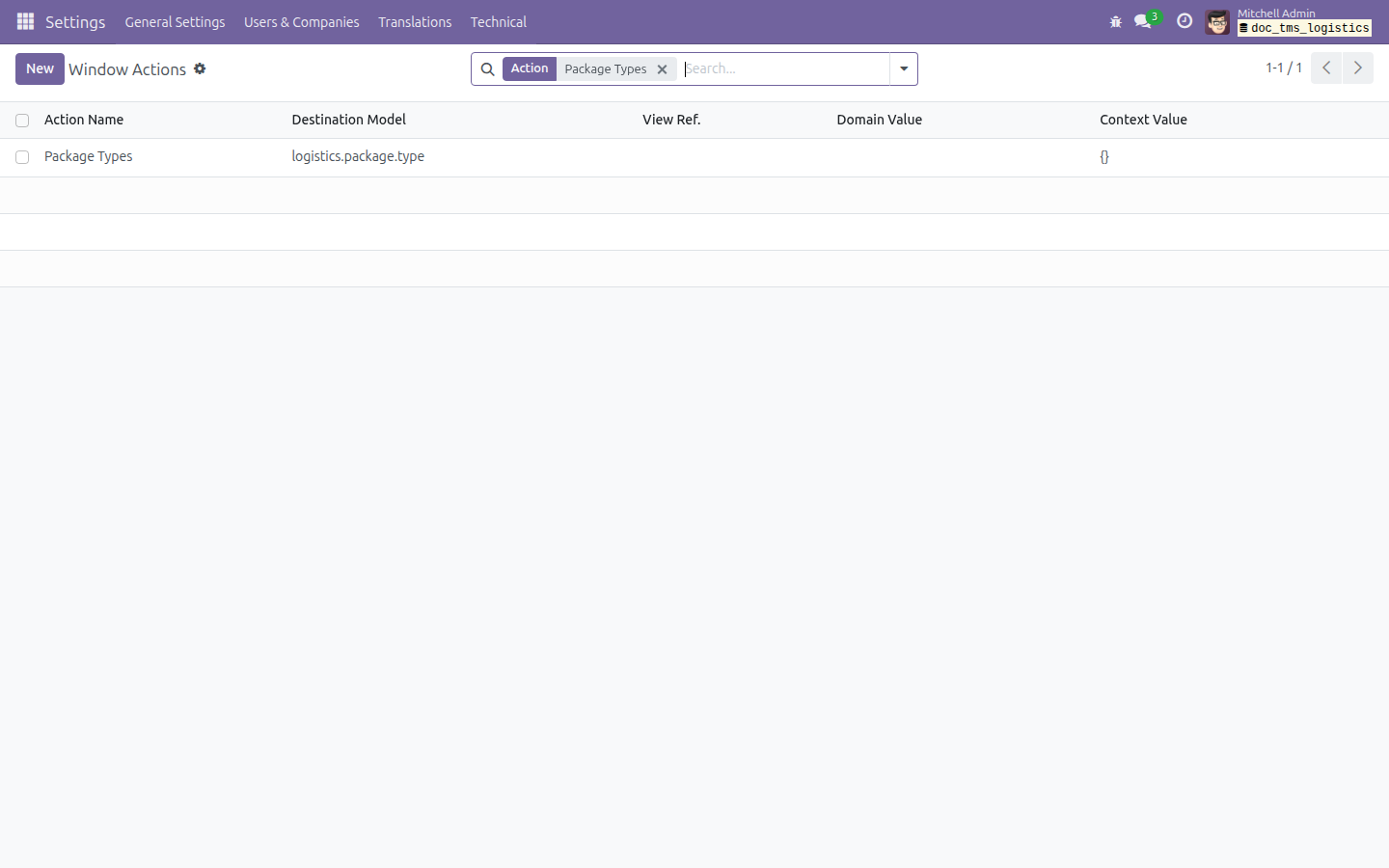
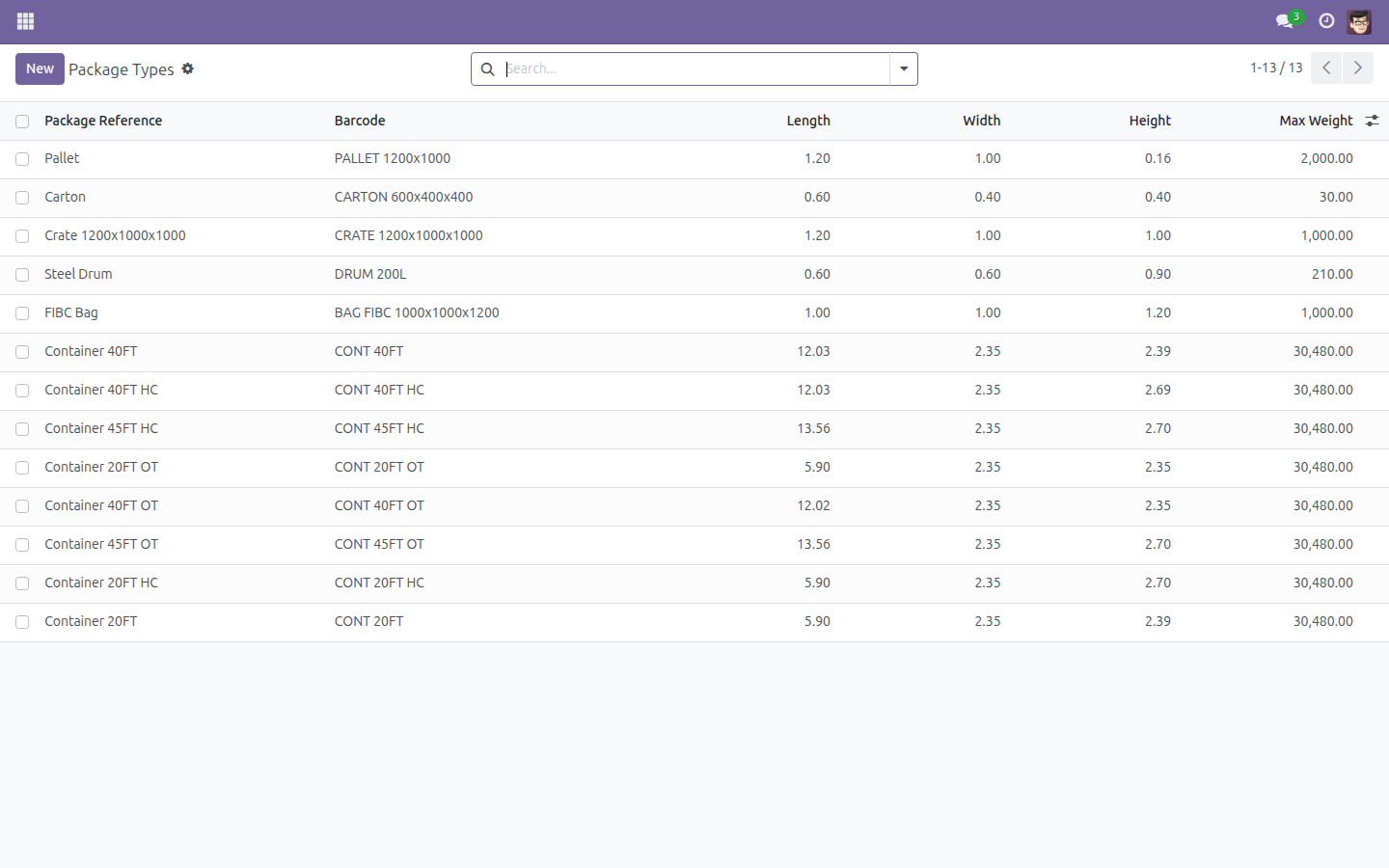
From here, an administrator (or any Viindoo app that depends on this module) can open the actual Package Types screen. It lists all package and container types ordered by their sequence, with their Package Reference, Barcode, Length, Width, Height and Max Weight shown as columns.
Click any row - for example Container 40FT - to see its full details: its Identification (Sequence, Barcode), Weight & Capacity (Weight, Max Weight) and Dimensions (Length, Width, Height, and the automatically computed Volume).
Create a custom package type
If none of the 13 built-in profiles match a package or container you use, add your own the same way any downstream app would.
From the Package Types list (see above), click New.
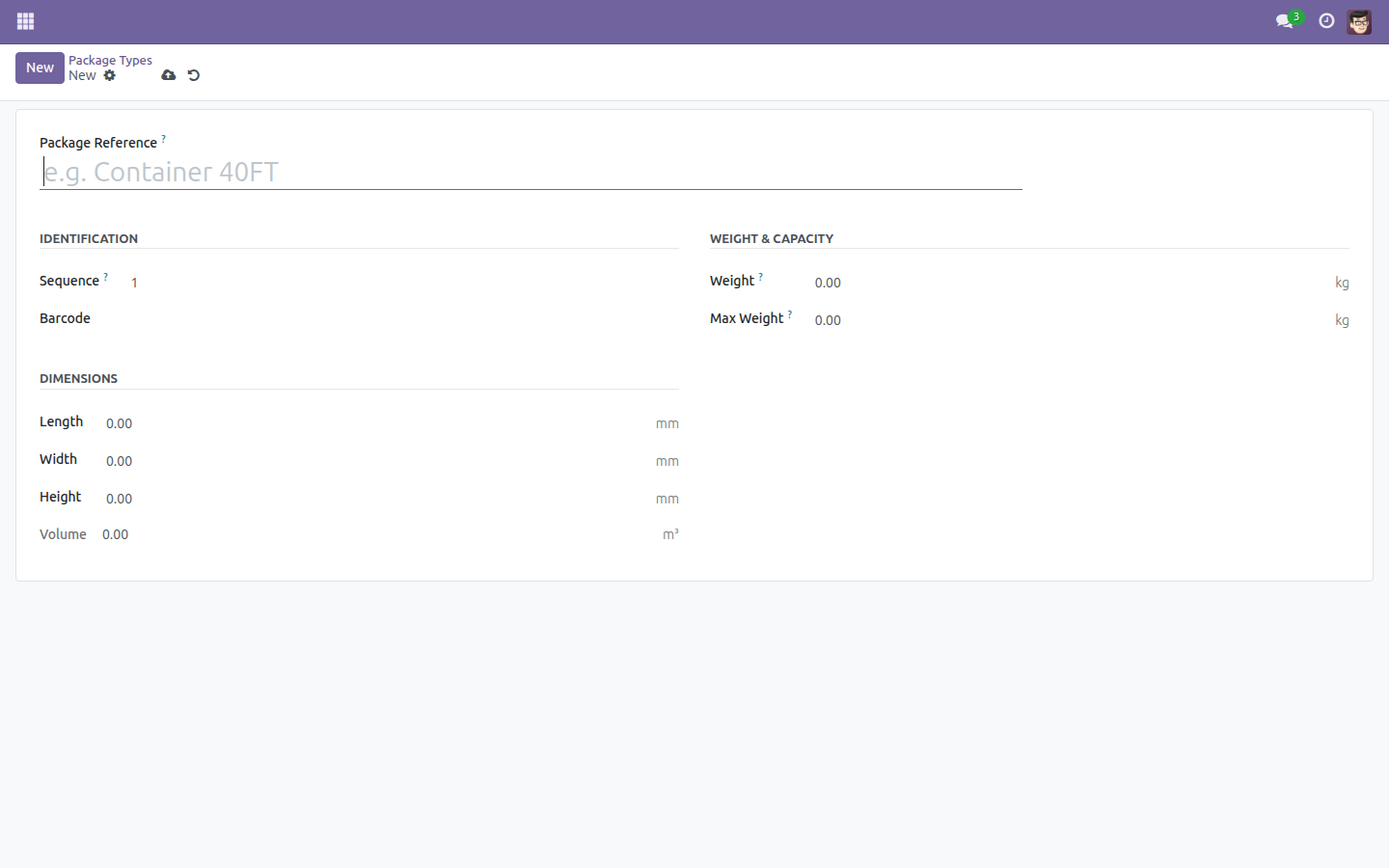
Enter a name in Package Reference - this is how you will recognize this package type elsewhere in Odoo (for example Wooden Crate 1000x800).
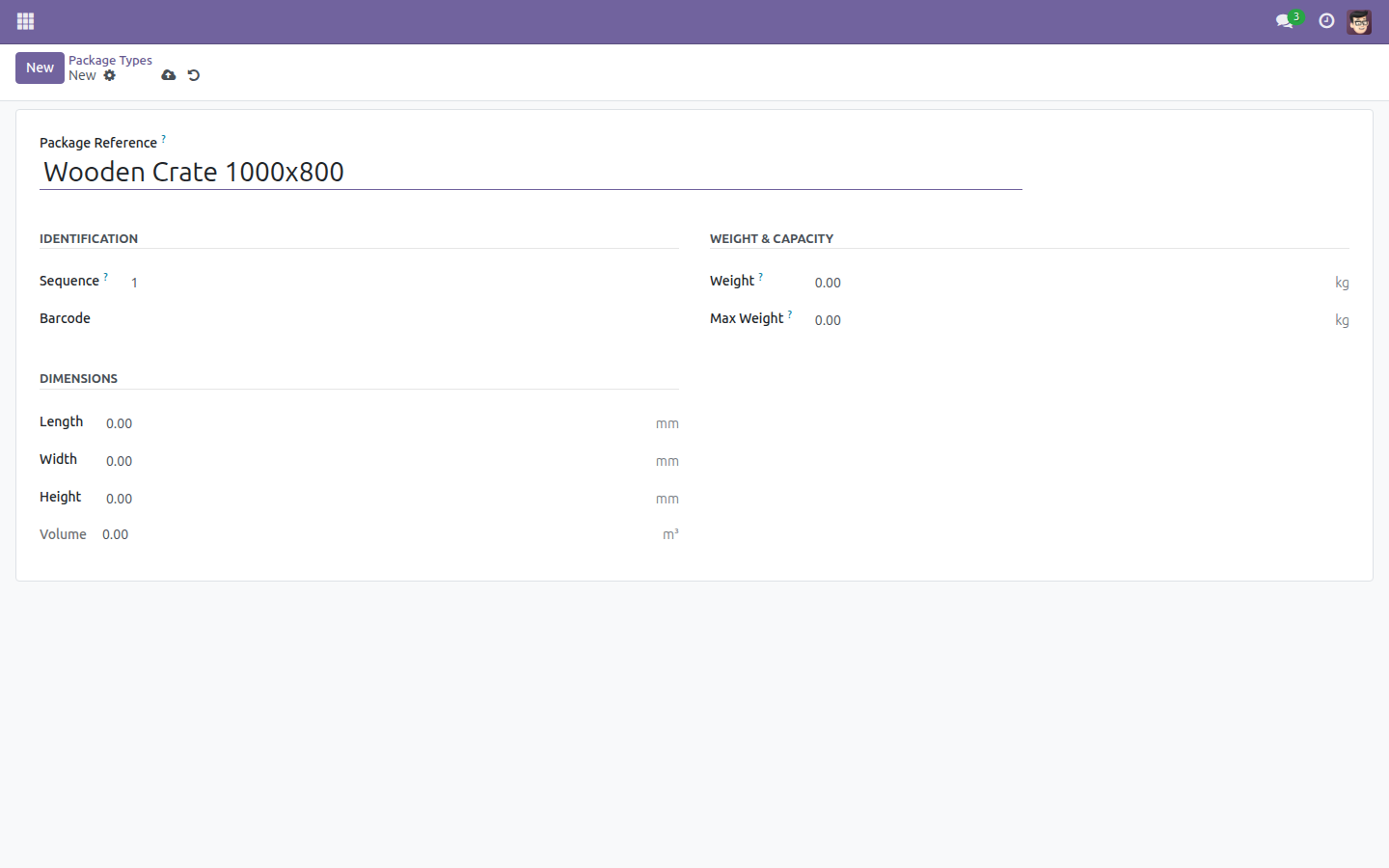
Optionally fill in Barcode under Identification. It must be unique - no two package types can share the same barcode.
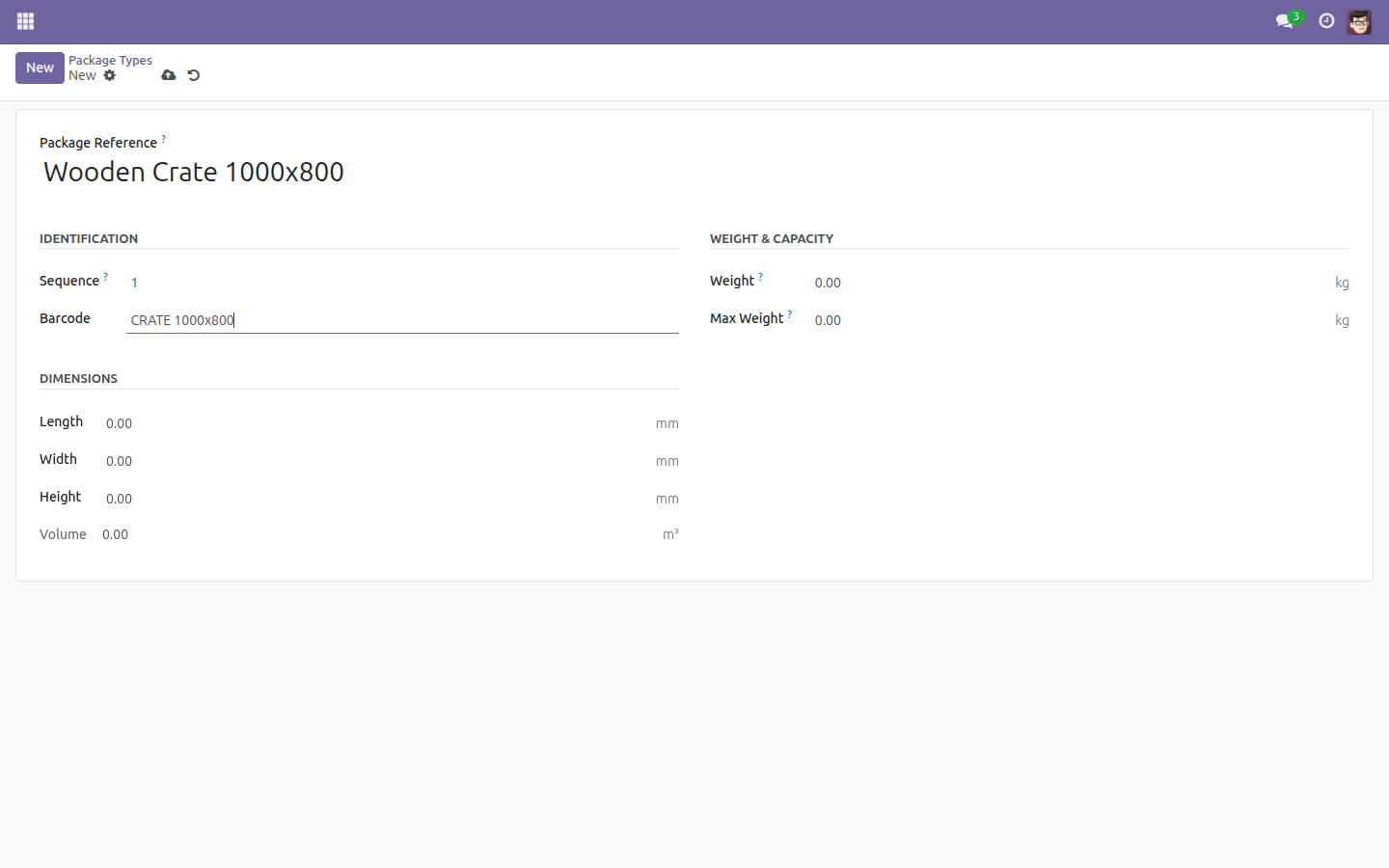
Under Weight & Capacity, fill in Weight - the weight of the empty packaging itself.
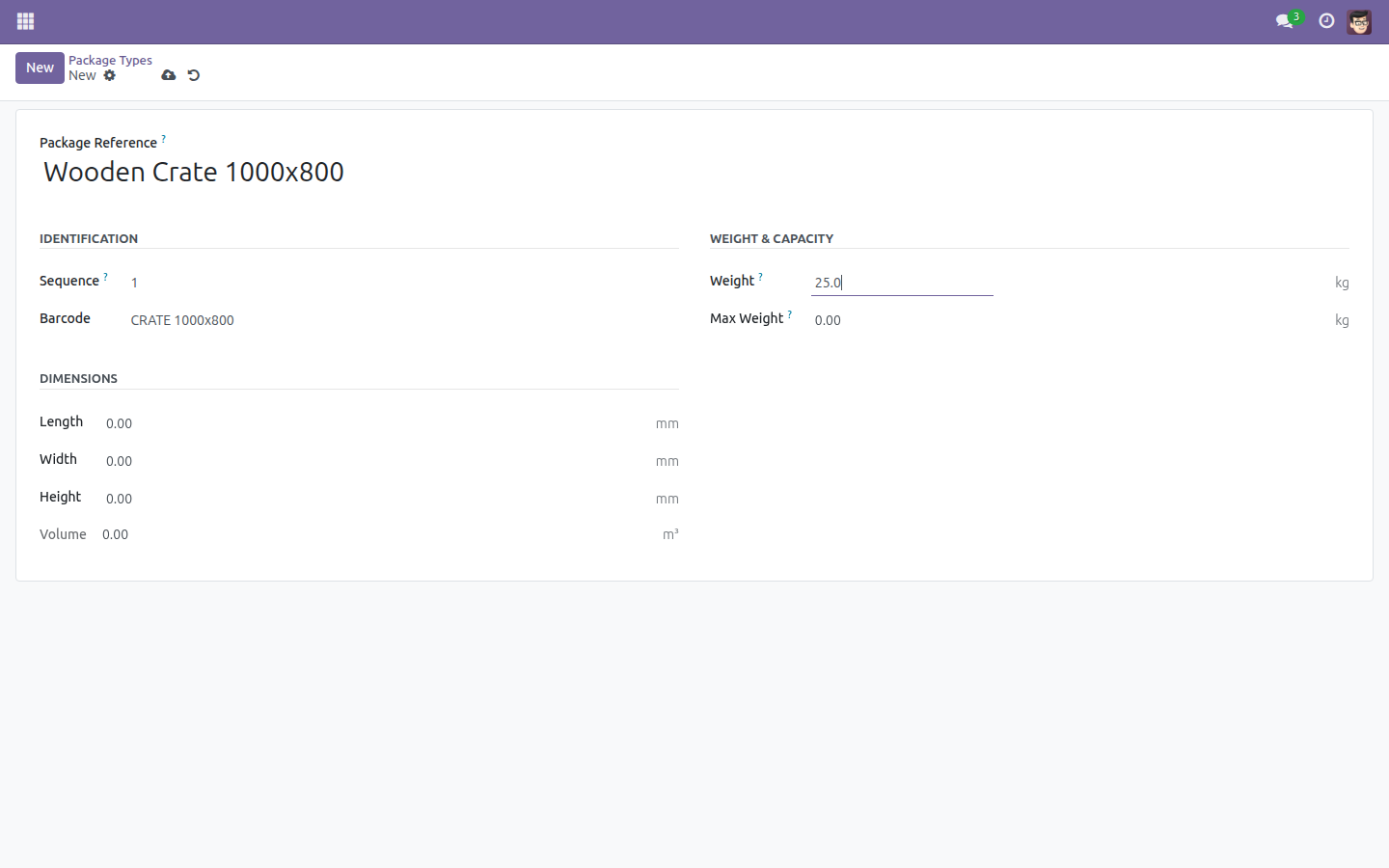
Fill in Max Weight - the maximum weight this packaging can safely carry.
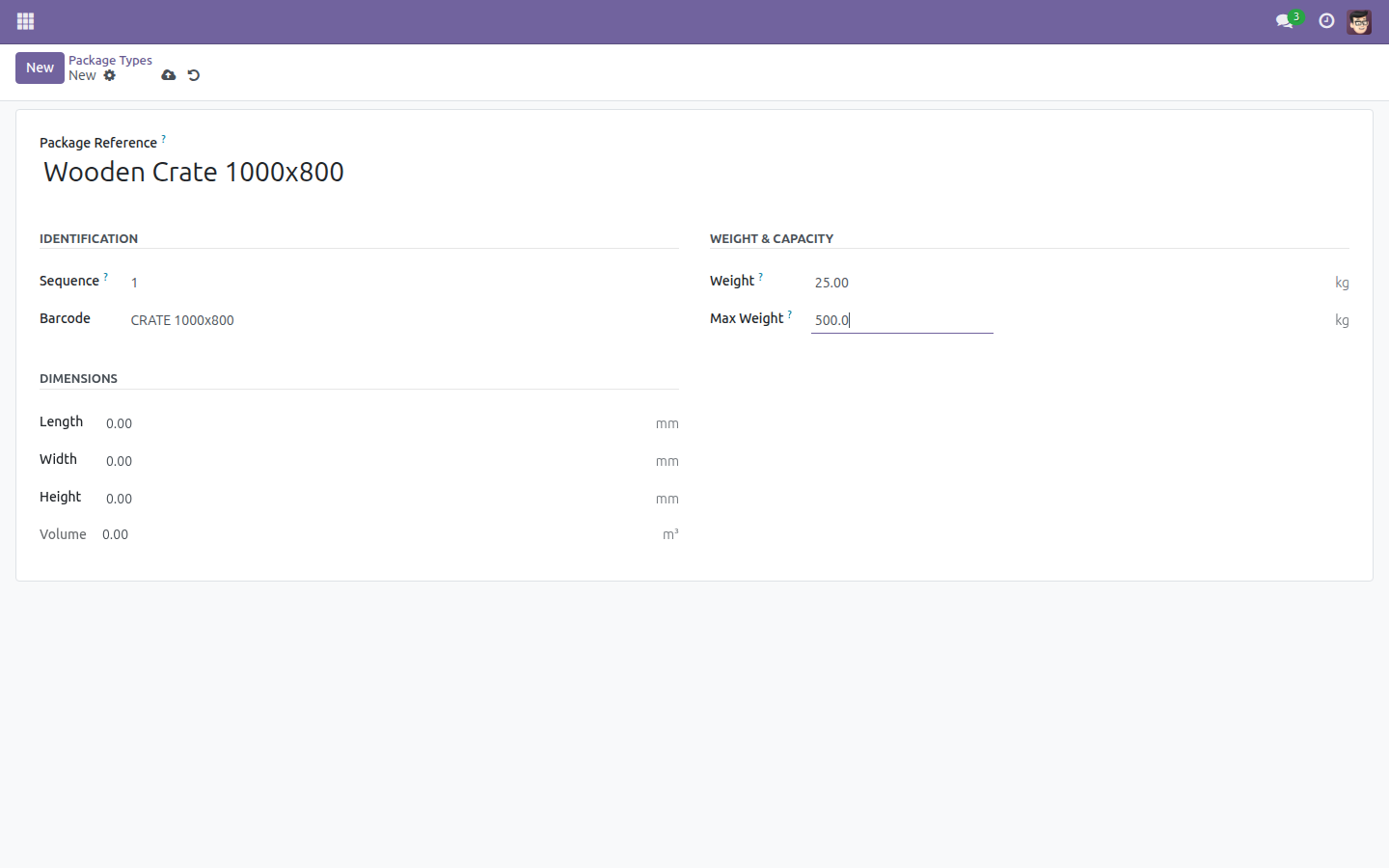
Under Dimensions, fill in Length.
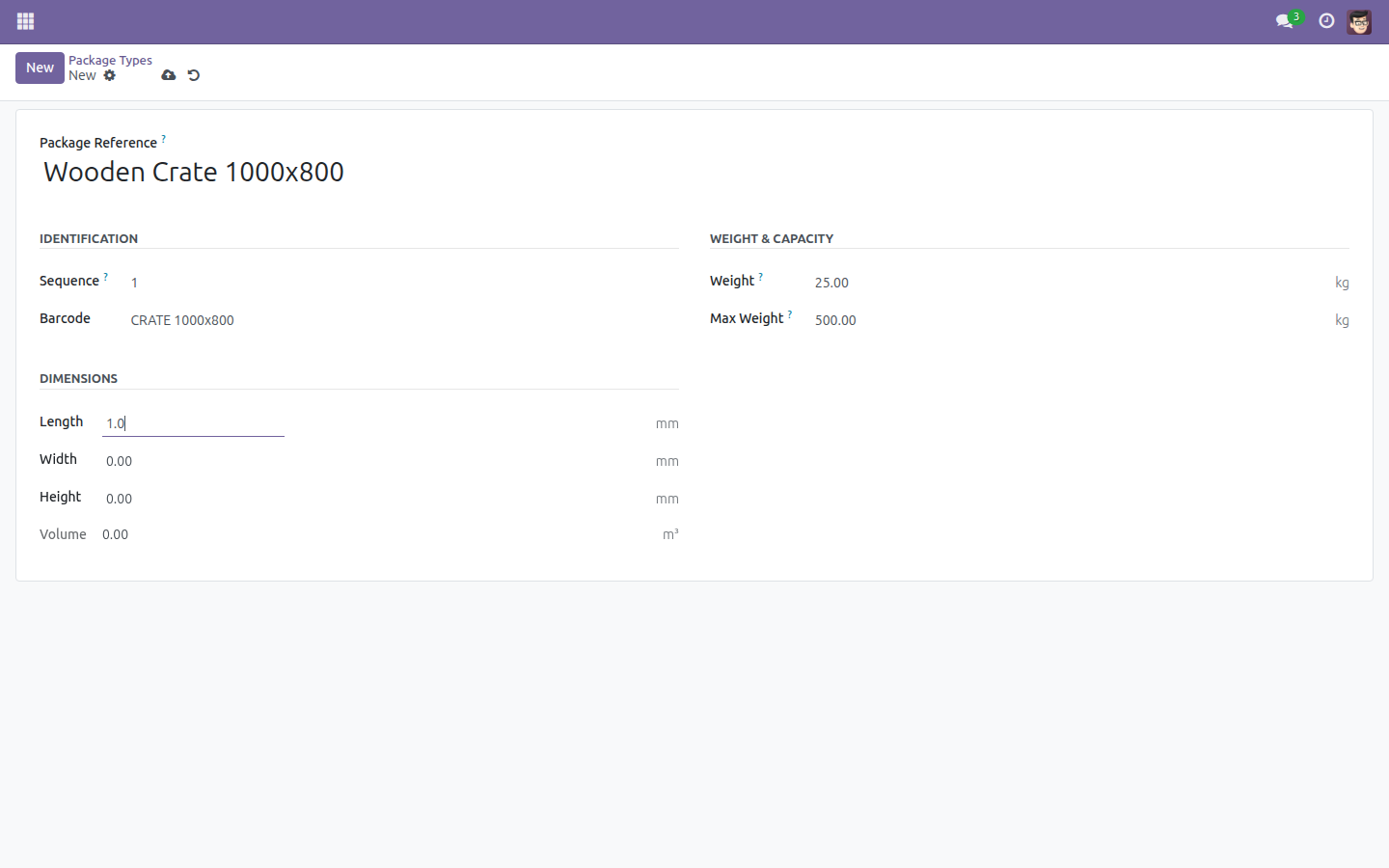
Fill in Width.
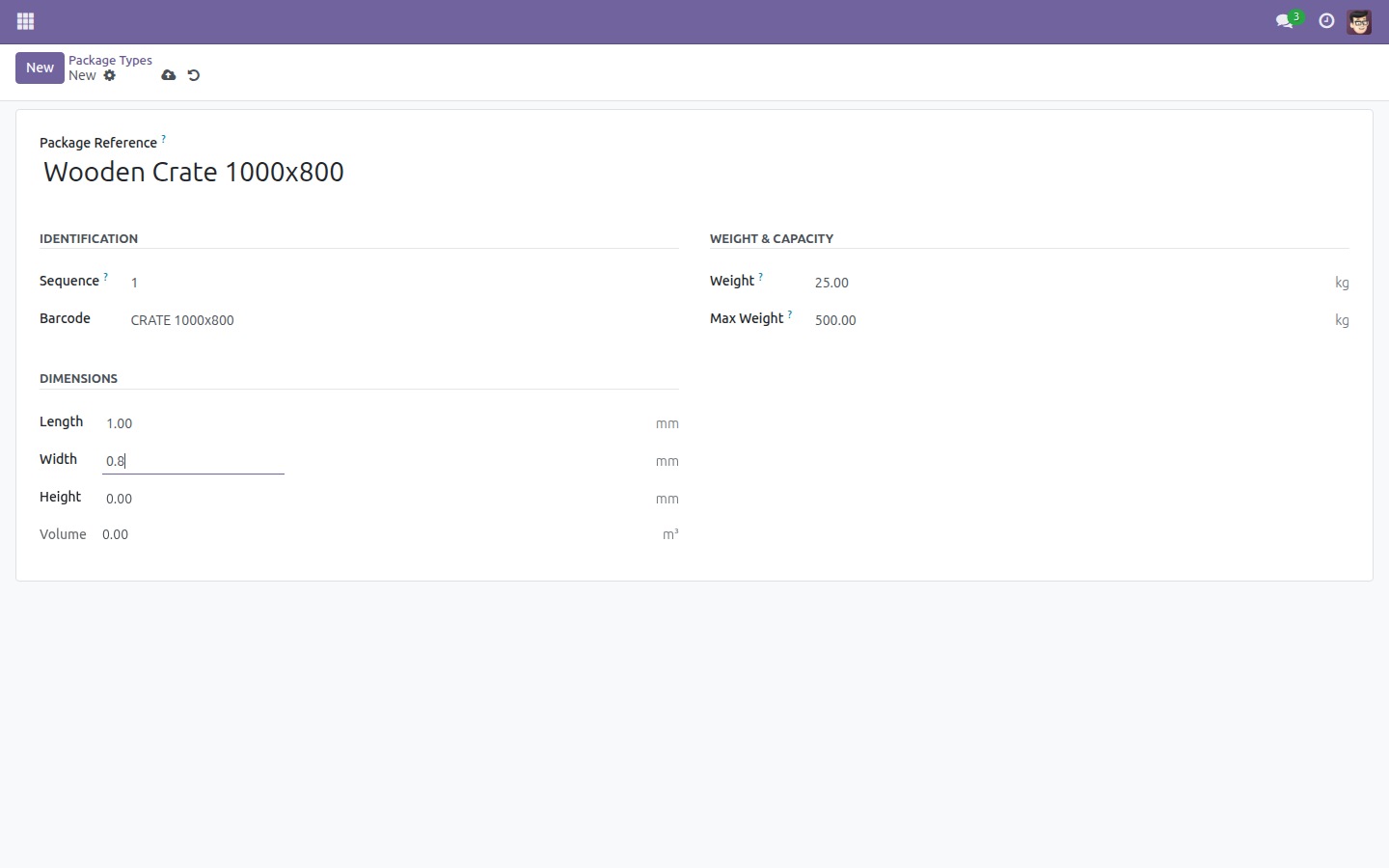
Fill in Height.
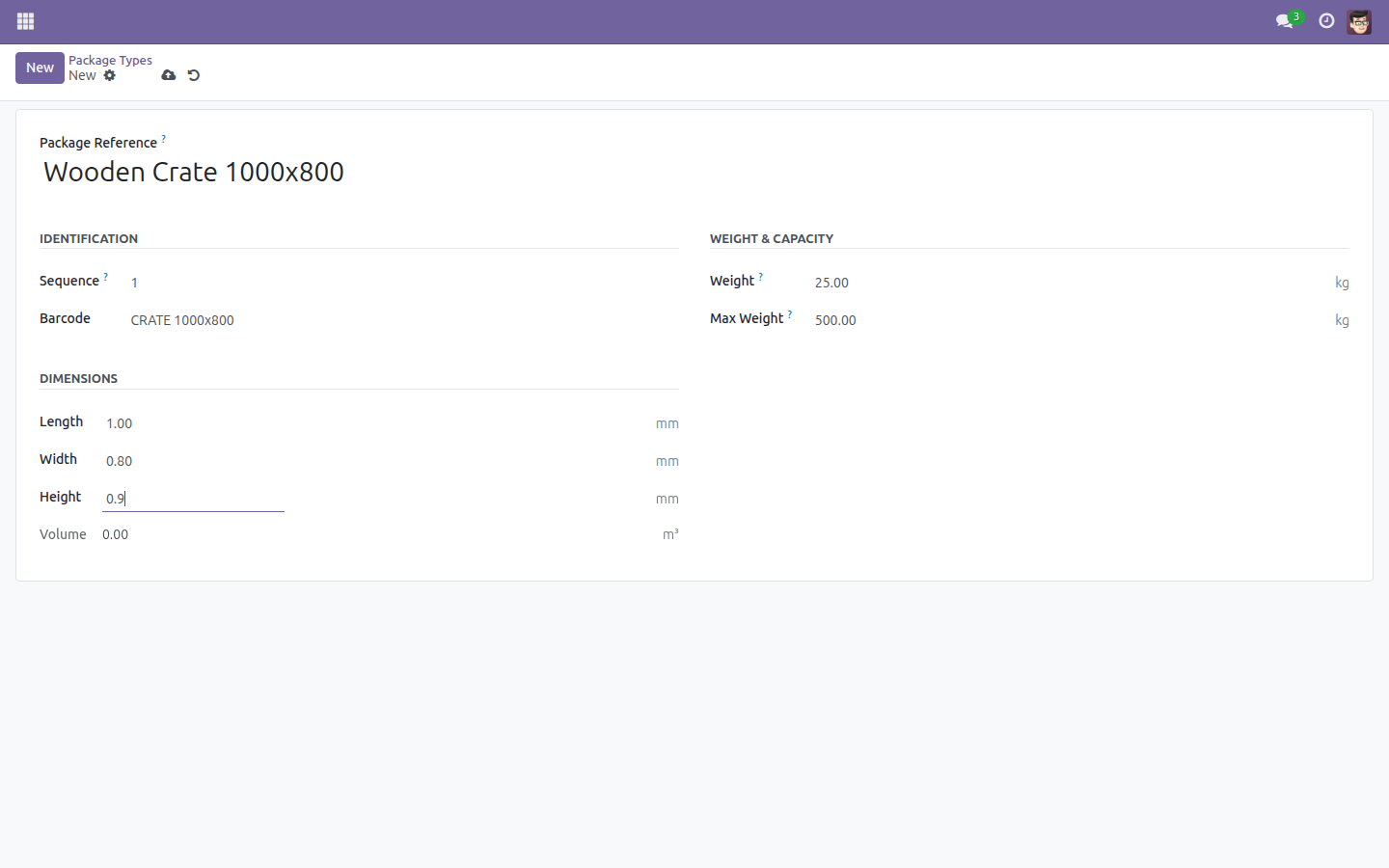
As soon as Length, Width and Height are all filled in, Volume is calculated for you automatically - there is nothing to type there.
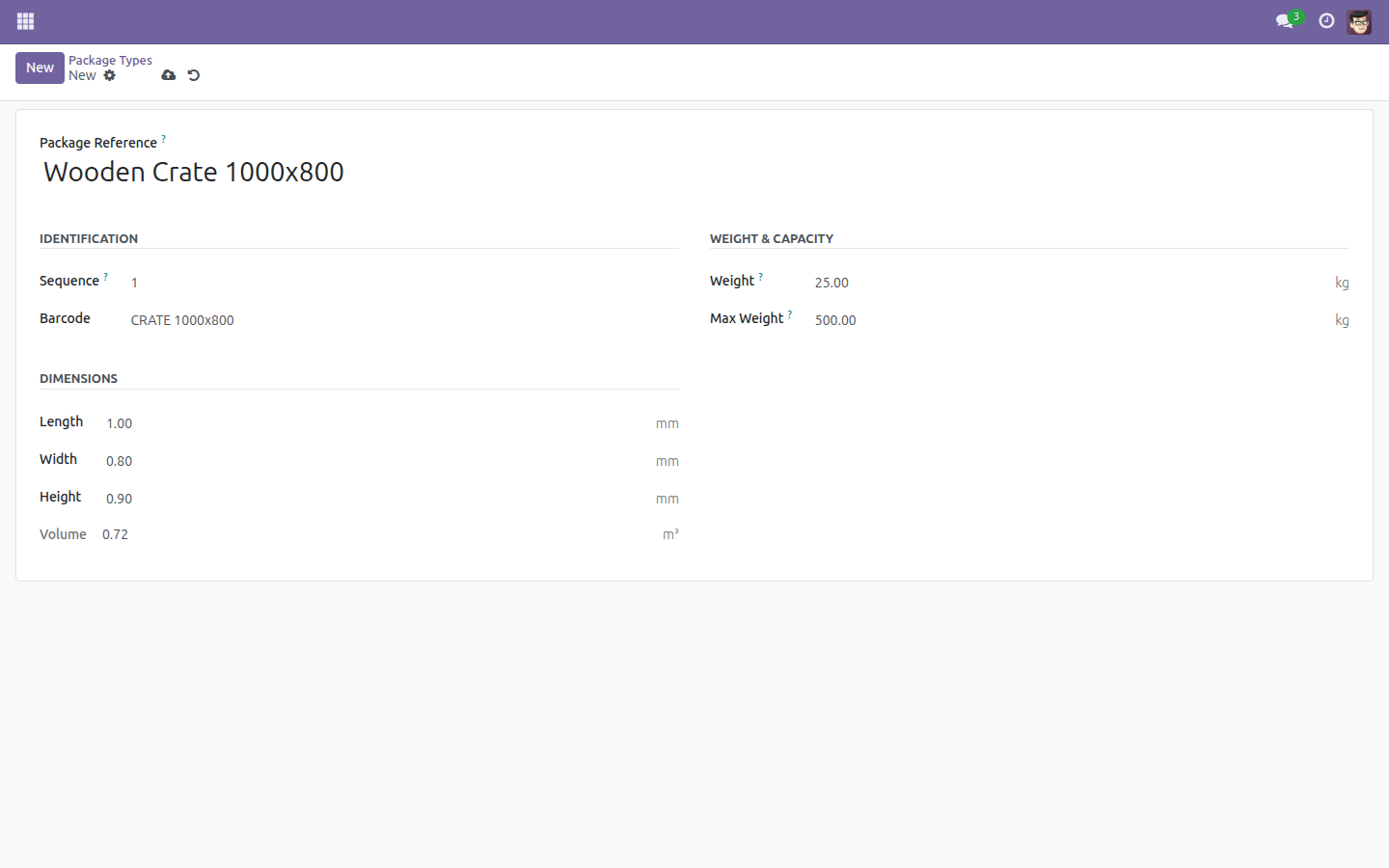
Click Save (the cloud icon) to keep your new package type.
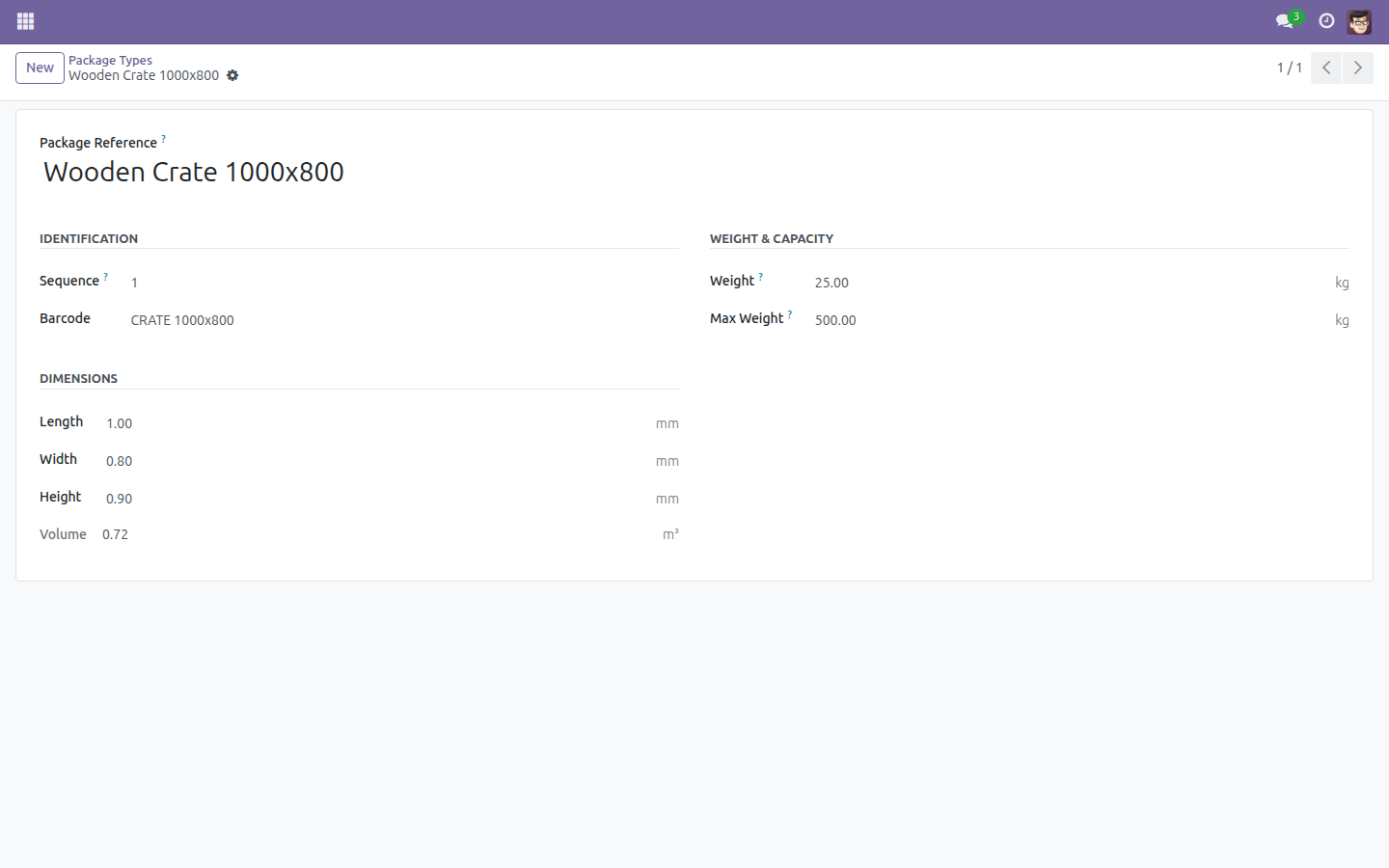
Your new package type now behaves exactly like the 13 built-in ones and is ready to be selected from any Viindoo logistics app that depends on this module.
Each dimension and weight field displays its unit of measure next to it (for example mm, kg or m³), taken from your company's Units of Measure settings.
Troubleshooting
"A barcode can only be assigned to one package type!"
The barcode you entered is already used by another package type. Enter a different, unique barcode, or leave the field empty.
"Height must be positive" / "Length must be positive" / "Width must be positive" / "Max Weight must be positive" --------------------------------------------------------------------------------------- One of these fields was left negative. Enter zero or a positive number.
Volume stays at 0.00
Volume is only calculated once Length, Width and Height are all filled in. Fill in the missing dimension and Volume recalculates automatically.
FAQ
Can I edit or delete the 13 built-in package and container types? Yes - they are regular records like any you create yourself. You can edit them freely; deleting one that is already referenced elsewhere in Odoo may be blocked until you remove that reference first.
Why doesn't this module have its own app or menu? It is a shared foundation used by other Viindoo logistics apps (fleet, freight forwarding, warehousing, and similar). Once one of those apps is installed, you normally manage package and container types from that app's own menu instead of the technical screen described here.
What is "Package Reference" used for? It is simply the name you use to recognize a package or container type elsewhere in Odoo, for example when selecting a packaging on a shipment.
Who can access this screen? Only users with Administrator / technical access rights. Ask your Odoo administrator if you need access.
This software and associated files (the "Software") may only be used (executed, modified, executed after modifications) if you have purchased a valid license from the authors, typically via Odoo Apps, or if you have received a written agreement from the authors of the Software (see the COPYRIGHT file).
You may develop Odoo modules that use the Software as a library (typically by depending on it, importing it and using its resources), but without copying any source code or material from the Software. You may distribute those modules under the license of your choice, provided that this license is compatible with the terms of the Odoo Proprietary License (For example: LGPL, MIT, or proprietary licenses similar to this one).
It is forbidden to publish, distribute, sublicense, or sell copies of the Software or modified copies of the Software.
The above copyright notice and this permission notice must be included in all copies or substantial portions of the Software.
THE SOFTWARE IS PROVIDED "AS IS", WITHOUT WARRANTY OF ANY KIND, EXPRESS OR IMPLIED, INCLUDING BUT NOT LIMITED TO THE WARRANTIES OF MERCHANTABILITY, FITNESS FOR A PARTICULAR PURPOSE AND NONINFRINGEMENT. IN NO EVENT SHALL THE AUTHORS OR COPYRIGHT HOLDERS BE LIABLE FOR ANY CLAIM, DAMAGES OR OTHER LIABILITY, WHETHER IN AN ACTION OF CONTRACT, TORT OR OTHERWISE, ARISING FROM, OUT OF OR IN CONNECTION WITH THE SOFTWARE OR THE USE OR OTHER DEALINGS IN THE SOFTWARE.