
Quality Control IoT for Manufacturing
by Viindoo
| Lines of Code | 593 |
| Technical name | viin_iot_quality_mrp |
| License | OPL-1 |
| Website | https://viindoo.com/apps/modules/17.0/viin_iot_quality_mrp |
| Read description for | v 18.0 |
| Required Apps | Manufacturing (mrp) Discuss (mail) Inventory (stock) |
| Included Dependencies | Manufacturing Quality Control Stock Quality Control Quality Internet Of Things IoT Manufacturing IoT Quality |

Work-order checks use the work centre's instrument
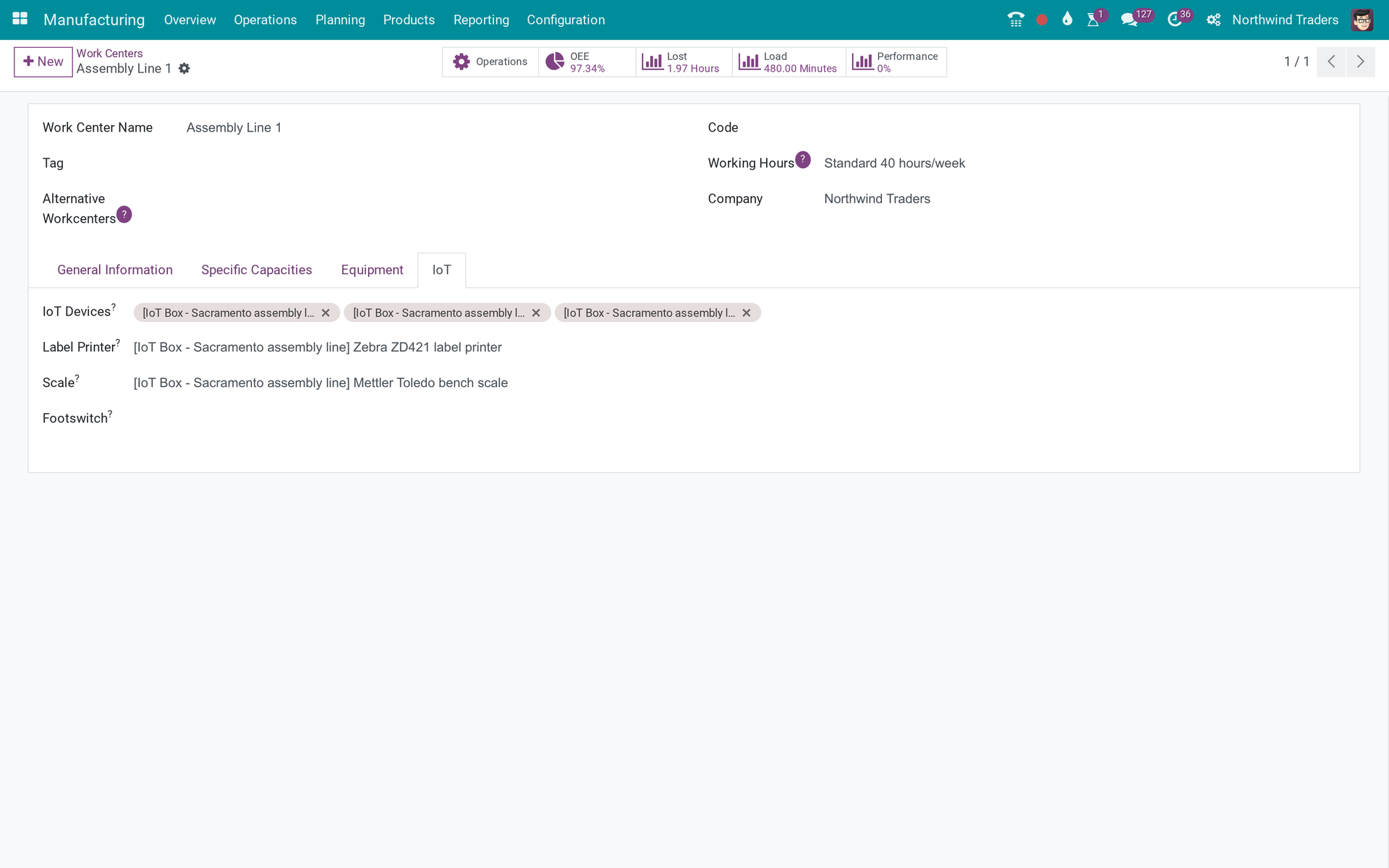
A quality check on a work order reads from the instrument nominated on that work order's work centre instead of the control point's.
Quality Control IoT for Manufacturing (technical name viin_iot_quality_mrp) is an Odoo 17.0 app for Odoo Community and Odoo Enterprise and Viindoo Cloud, built for quality inspector.

At a Glance
The facts of Quality Control IoT for Manufacturing, version 0.1.0, in one place. Published by Viindoo.
How It Works
Auto-installed.
Work centre
Its scale.
Point
Default instrument.

Checks
The list.

What You Get
Instrument from the work centre
What This App Does Not Do
Read this before you buy. Everything below is something the app deliberately leaves to another app or to you.
A bridge.
Works Well With
Apps from the same stack, built to fit this one:
Who Should Use Quality Control IoT for Manufacturing?
Quality inspector
Each line measures with its own scale.
Frequently Asked Questions
What does Quality Control IoT for Manufacturing do?
A quality check on a work order reads from the instrument nominated on that work order's work centre instead of the control point's.
What does Quality Control IoT for Manufacturing not do?
Nothing else. A bridge.
Who is Quality Control IoT for Manufacturing for?
Quality inspector: Each line measures with its own scale.
Which Odoo version and editions does it support?
Odoo 17.0 - Odoo Community, Odoo Enterprise, Viindoo Cloud. Upgrades to a newer Odoo series are a separate purchase for that series.
What does it depend on?
It installs on top of: viin_iot_mrp, viin_iot_quality, to_quality_mrp. Odoo installs them with it.
How do I set it up?
Auto-installed.
What works well with it?
IoT - Quality (viin_iot_quality): Required. IoT - Manufacturing (viin_iot_mrp): Required.
Can I try it before buying?
Yes - the Live Preview button at the top of this page opens the module's own screen on a working database.
How do I get support?
Write to apps.support@viindoo.com with your Odoo version and the technical name viin_iot_quality_mrp; pre-sales questions go to sales@viindoo.com.
See Quality Control IoT for Manufacturing in Action
Work-order checks use the work centre's instrument
Need help with Quality Control IoT for Manufacturing?
For questions, implementation support, or consulting services, contact Viindoo.
Pre-Sales & Partnership
sales@viindoo.comWhen contacting us, please include:
- Odoo/Viindoo version (Odoo CE / Viindoo Editions).
- Number of users and business scope.
- Other modules currently in use.
Technical Support
apps.support@viindoo.comFor faster troubleshooting, please provide:
- Order number or app reference.
- Odoo/Viindoo version & edition.
- Steps to reproduce the issue.
- Screenshots/logs if available.
Upgrades to a newer Odoo series are a separate purchase for that series.
Technical Requirement
Changes log
0.1.0 - Latest on the 17.0 line
- Aligned with the 17.0 models and views.
Quality Control IoT for Manufacturing
Note
Extends viin_iot - see its documentation.
Note
Extends viin_iot_mrp - see its documentation.
Note
Extends viin_iot_quality - see its documentation.
This module has no screen of its own. It adds no menu, no view and no settings page - it only changes ONE thing behind the scenes: when a quality check belongs to a work order, and that check asks an instrument for its measurement, the check now asks the instrument nominated on that work order's OWN work center first, instead of only ever asking the instrument named on the control point behind it. A customer who already has IoT Manufacturing, IoT Quality and Manufacturing Quality Control simply gets this join - there is nothing extra to switch on.
A quality check that is not on a work order is completely unaffected by this module.
Installation
This module installs itself automatically the moment three other apps are all present, so you rarely need to install it by hand:
- Open Apps.
- Search for and install IoT Manufacturing (skip if already installed).
- Search for and install IoT Quality (skip if already installed).
- Search for and install Manufacturing Quality Control (skip if already installed).
- Quality Control IoT for Manufacturing installs itself once all three are active.
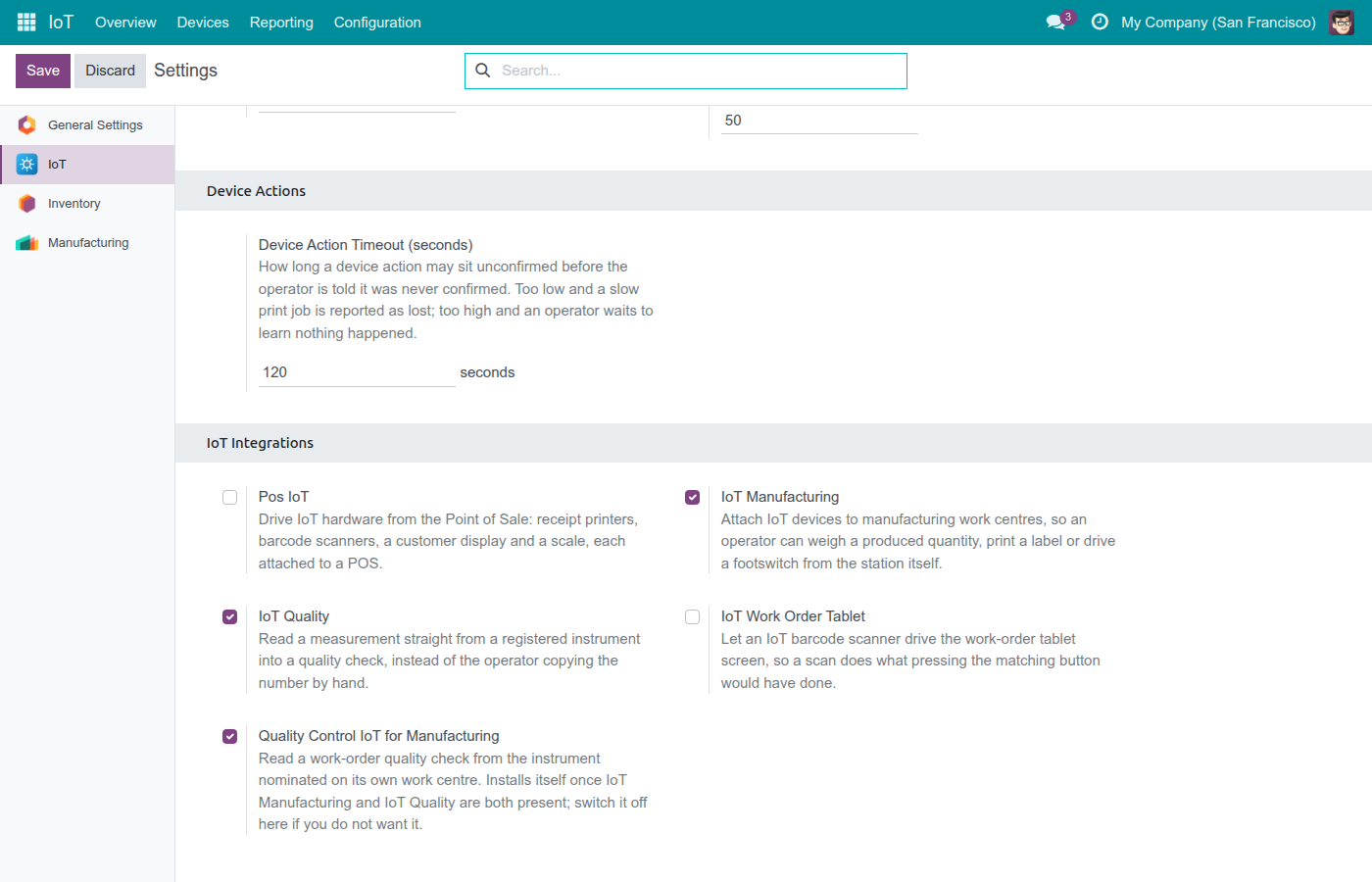
It has no menu and no app icon of its own, so it will not show up in Apps unless the Apps-only search filter is removed first. The more direct way to check whether it is active, or to turn it on or off, is the IoT application's own settings:
- Open Settings ‣ IoT.
- Under IoT Integrations, find Quality Control IoT for Manufacturing.
- Switch the toggle on to install the module, or off to remove it.
Configuration
There is nothing to configure inside this module itself - it has no configuration screen of its own. What DOES need setting up lives on its two neighbours, and two different roles are usually involved.
Nominate the instrument on the work center
This is the one-time setup step this module actually depends on. It is done in the Manufacturing application and needs at least the IoT app's User access level:
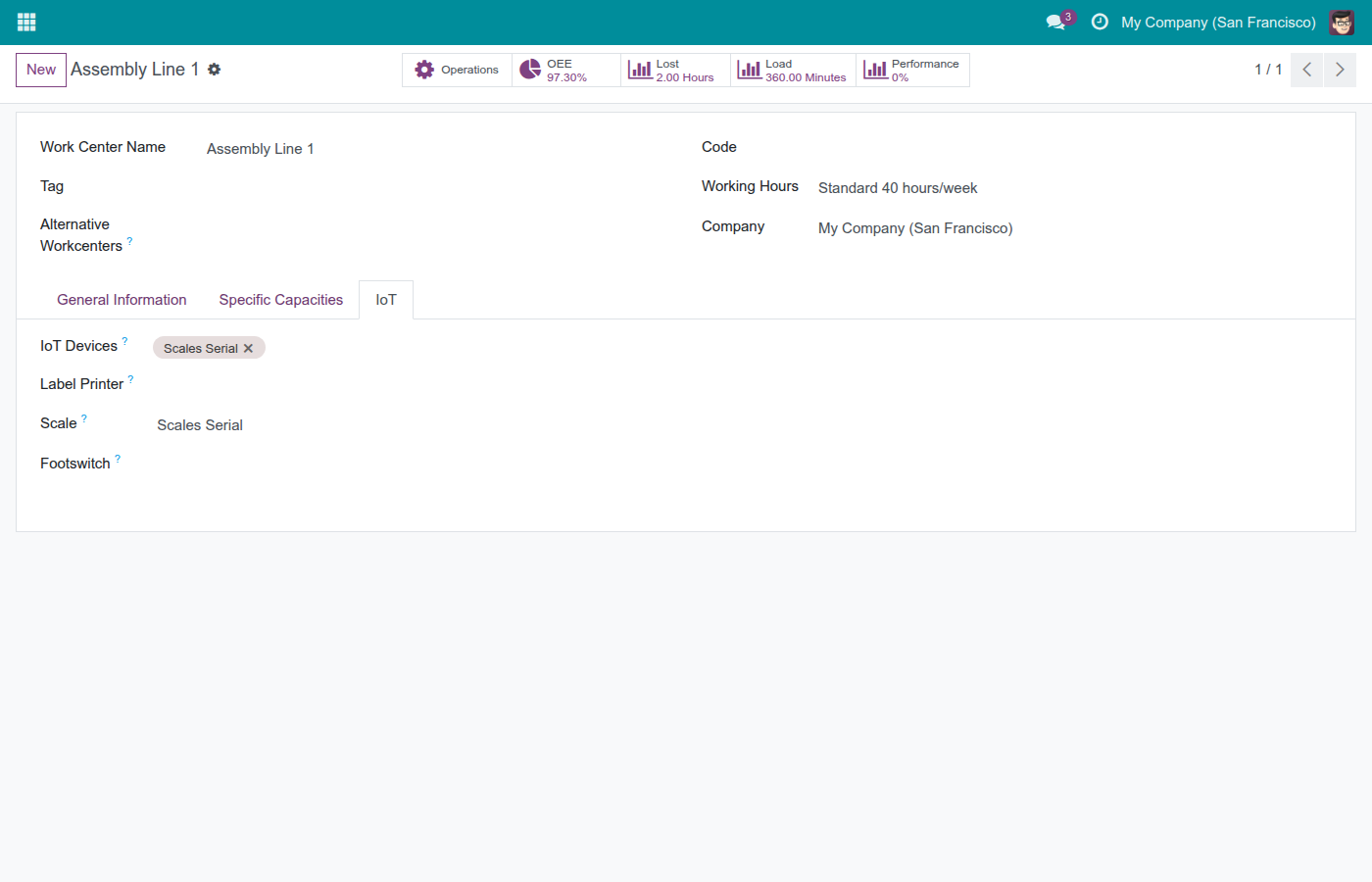
- Open Manufacturing ‣ Configuration ‣ Work Centers and open the work center where the operator will take the measurement.
- Go to its IoT page and add a registered scale to the IoT Devices field.
- Nominate that scale in the Scale field.
An ordinary quality operator does not need this, or any other IoT access level, to benefit from it - see Usage below.
Naming an instrument on the control point (optional, and not this module's job)
A control point can still name its own measuring instrument, exactly as before this module was installed - that setup step belongs to IoT Quality and needs Administrator access under Quality, not any IoT permission. This module never touches that setting; it only decides which instrument a WORK-ORDER check asks first. See the viin_iot_quality documentation for that step, its permission, and everything else about naming an instrument on a control point.
Usage
A work-order check reads its own work center's instrument
Open a quality check that belongs to a work order and whose type is Measure - for example from Quality ‣ Quality Control ‣ Quality Checks, or from the work order itself - and click Measure. The dialog names the instrument that will supply the reading before anything is pressed, and that instrument is the one nominated on this check's OWN work center - never a dropdown, never a choice for the operator. This is true even when the control point behind the check names no instrument of its own, or names a different one: for a work-order check, the work center's own nomination always wins.
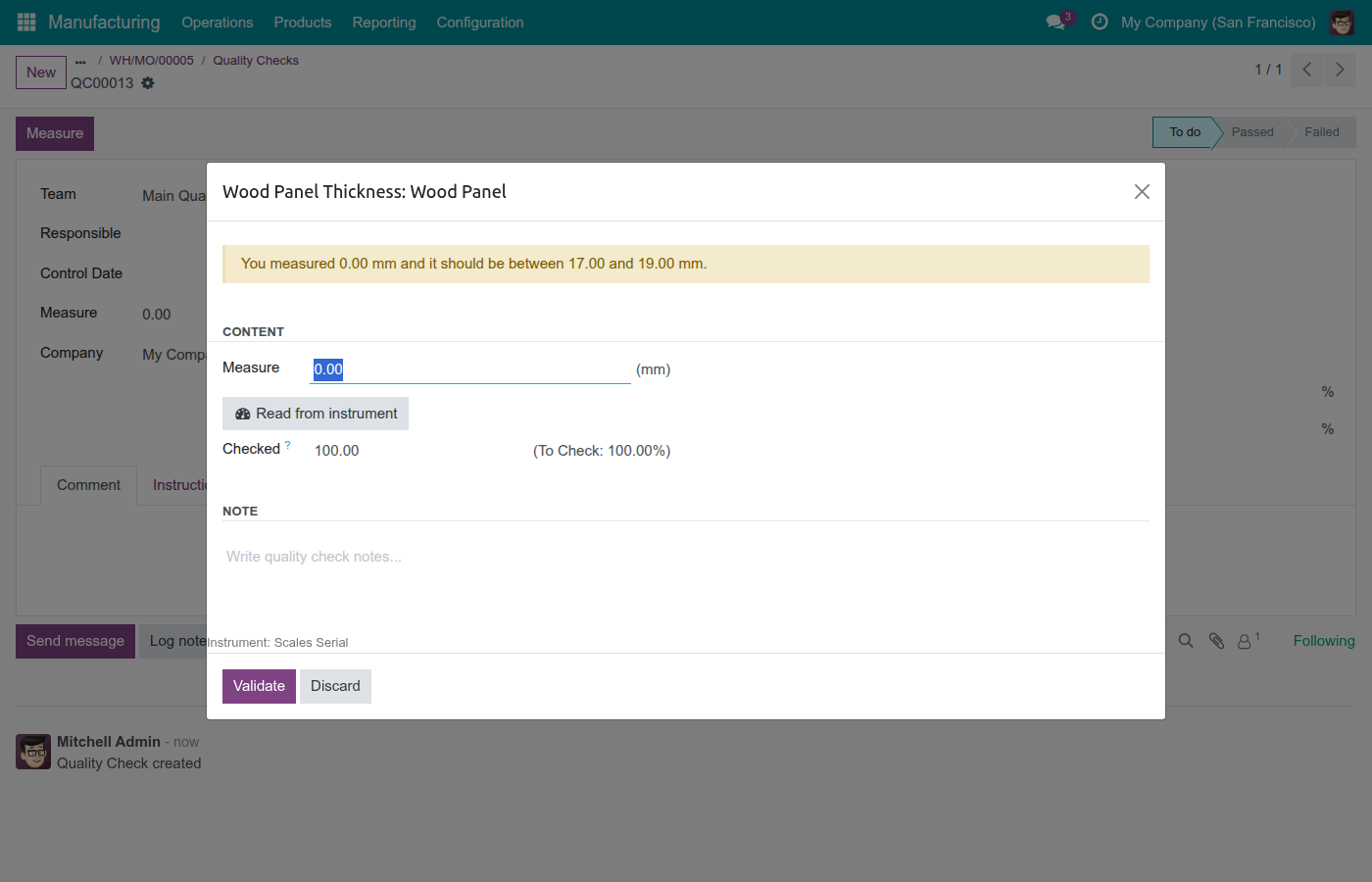
From there, requesting the reading, seeing it fail to arrive, and seeing where a measurement came from all work exactly as IoT Quality alone documents - this module only changed which instrument is asked, nothing about how the reading itself is requested, reported or recorded.
Moving a work order to a different work center
Because the instrument is resolved from the work order's OWN work center, moving a work order to a different work center changes which instrument its checks read from immediately, with no extra setup: the check simply asks whichever work center the work order sits on right now.
When the work center has no instrument nominated
A work center that has not nominated a scale is not treated as an error. The check falls back to the control point's own instrument, exactly as if this module were not installed - it never guesses among several instruments that happen to be attached to the work center but not nominated for the Scale role.
A check that is not on a work order, or not a Measure check
A quality check that is not tied to a work order behaves exactly as IoT Quality alone specifies - this module has nothing to add there. The same is true for a work-order check whose type is Take a Picture rather than Measure: this module only changes where a MEASUREMENT comes from, so a picture check still reads the camera named on its control point.
Troubleshooting
- A work-order check still reads from the control point's instrument, not the work center's.
- The work center has no scale nominated. Open Manufacturing ‣ Configuration ‣ Work Centers, open the work center the check's work order runs on, and nominate a scale on its IoT page.
- I cannot find a settings page for this module.
- There is none - this module adds no screen of its own. Check Settings ‣ IoT ‣ IoT Integrations for its toggle instead, or remove the Apps-only filter under Apps to find it there.
- The check does not name any instrument at all.
- Neither the work order's work center nor the control point behind the check names an instrument. Nominate one on either - the work center for a work-order-wide default, or the control point for everything else - or keep filling the check in by hand, exactly as before this module was installed.
- A Take a Picture check on a work order still reads the control point's camera, not the work center's.
- That is expected. This module only resolves the instrument for a Measure check; a picture check is unaffected and always reads the control point's own camera.
FAQ
- Does this module add a menu, a view or a settings screen of its own?
- No. It adds none of these - it only changes which instrument a work-order measurement check asks.
- Do I need to install this module myself?
- Usually not. It installs itself automatically once IoT Manufacturing, IoT Quality and Manufacturing Quality Control are all present. You can still switch it on or off by hand under Settings ‣ IoT ‣ IoT Integrations.
- Does an operator need any extra permission because this module is installed?
- No. This module changes no access rights at all - an ordinary quality operator with no IoT permission still just takes the measurement, exactly as before.
- Which instrument wins when both the work center and the control point name one?
- For a work-order check, the work center's own nomination always wins. The control point's instrument is used only when the work center has none nominated.
- Does this change anything for a quality check that is not tied to a work order?
- No. A check with no work order is completely unaffected and behaves exactly as IoT Quality alone specifies.
This software and associated files (the "Software") may only be used (executed, modified, executed after modifications) if you have purchased a valid license from the authors, typically via Odoo Apps, or if you have received a written agreement from the authors of the Software (see the COPYRIGHT file).
You may develop Odoo modules that use the Software as a library (typically by depending on it, importing it and using its resources), but without copying any source code or material from the Software. You may distribute those modules under the license of your choice, provided that this license is compatible with the terms of the Odoo Proprietary License (For example: LGPL, MIT, or proprietary licenses similar to this one).
It is forbidden to publish, distribute, sublicense, or sell copies of the Software or modified copies of the Software.
The above copyright notice and this permission notice must be included in all copies or substantial portions of the Software.
THE SOFTWARE IS PROVIDED "AS IS", WITHOUT WARRANTY OF ANY KIND, EXPRESS OR IMPLIED, INCLUDING BUT NOT LIMITED TO THE WARRANTIES OF MERCHANTABILITY, FITNESS FOR A PARTICULAR PURPOSE AND NONINFRINGEMENT. IN NO EVENT SHALL THE AUTHORS OR COPYRIGHT HOLDERS BE LIABLE FOR ANY CLAIM, DAMAGES OR OTHER LIABILITY, WHETHER IN AN ACTION OF CONTRACT, TORT OR OTHERWISE, ARISING FROM, OUT OF OR IN CONNECTION WITH THE SOFTWARE OR THE USE OR OTHER DEALINGS IN THE SOFTWARE.