
Internet Of Things
by Viindoo
| Lines of Code | 3277 |
| Technical name | viin_iot |
| License | OPL-1 |
| Website | https://viindoo.com/apps/modules/17.0/viin_iot |
| Read description for | v 16.0 v 18.0 |
| Required Apps | Discuss (mail) |
| Extensions | Pos IoT IoT Manufacturing IoT Quality |

IoT boxes and their devices, registered and logged in Odoo
Each IoT box registers itself with its IP, version, serial number and token; its printers, scanners, scales, displays, cameras and terminals appear as devices with connection type and status; boxes send logs kept for a retention period; other apps consume devices through a mixin and a dispatch queue with timeouts.
Internet Of Things (technical name viin_iot) is an Odoo 17.0 app for Odoo Community and Viindoo Cloud, built for it, operator.

At a Glance
The facts of Internet Of Things, version 0.1.1, in one place. Published by Viindoo.
How It Works
Pair the box; the devices appear; enable the add-ons.
Boxes
Three.

Box
IP, version, devices.
Devices
Types.

Device
Serial, connected.

Logs
Readings and prints.

Settings
Retention and add-ons.

What You Get
Boxes register themselves
Devices by type and connection
Logs with retention
Dispatch queue with timeouts
Consumer mixin for other apps
Add-ons for POS, MRP, Quality
What This App Does Not Do
Read this before you buy. Everything below is something the app deliberately leaves to another app or to you.
This is the server side.
Statuses were entered.
Works Well With
Apps from the same stack, built to fit this one:
Who Should Use Internet Of Things?
IT
Three boxes: shop counter, cafe, assembly line.
Operator
Which scale is on which line.
Frequently Asked Questions
What does Internet Of Things do?
Each IoT box registers itself with its IP, version, serial number and token; its printers, scanners, scales, displays, cameras and terminals appear as devices with connection type and status; boxes send logs kept for a retention period; other apps consume devices through a mixin and a dispatch queue with timeouts.
What does Internet Of Things not do?
The box image is a separate product. This is the server side. The lab boxes are records, not live hardware. Statuses were entered.
Who is Internet Of Things for?
IT: Three boxes: shop counter, cafe, assembly line. Operator: Which scale is on which line.
Which Odoo version and editions does it support?
Odoo 17.0 - Odoo Community, Viindoo Cloud. Upgrades to a newer Odoo series are a separate purchase for that series.
What does it depend on?
It installs on top of: mail, web, bus. Odoo installs them with it.
How do I set it up?
Pair the box; the devices appear; enable the add-ons.
What works well with it?
IoT - POS (viin_iot_pos): Printers, displays, scanners, scales at the till. IoT - Manufacturing (viin_iot_mrp): Label printers and scales on work centres. IoT - Quality (viin_iot_quality): Instrument readings on checks.
Can I try it before buying?
Yes - the Live Preview button at the top of this page opens the module's own screen on a working database.
How do I get support?
Write to apps.support@viindoo.com with your Odoo version and the technical name viin_iot; pre-sales questions go to sales@viindoo.com.
See Internet Of Things in Action
IoT boxes and their devices, registered and logged in Odoo
Need help with Internet Of Things?
For questions, implementation support, or consulting services, contact Viindoo.
Pre-Sales & Partnership
sales@viindoo.comWhen contacting us, please include:
- Odoo/Viindoo version (Odoo CE / Viindoo Editions).
- Number of users and business scope.
- Other modules currently in use.
Technical Support
apps.support@viindoo.comFor faster troubleshooting, please provide:
- Order number or app reference.
- Odoo/Viindoo version & edition.
- Steps to reproduce the issue.
- Screenshots/logs if available.
Upgrades to a newer Odoo series are a separate purchase for that series.
Technical Requirement
Changes log
0.1.1 - Latest on the 17.0 line
- Aligned with the 17.0 models and views.
Overview
Internet Of Things (IoT) connects the peripheral devices attached to a paired IoT box - printers, barcode scanners, scales, customer displays, payment terminals and more - so other Viindoo apps (Point of Sale, Manufacturing, Quality, Work Order Tablet) can drive that hardware.
On its own, this module is the platform: an IoT administrator pairs and monitors boxes and devices here. The people who actually operate the hardware - a cashier ringing up a sale, a manufacturing operator weighing a produced quantity - use it through their own app once it is paired and configured, without needing any IoT permissions of their own.
Installation
- Open Apps.
- Search for Internet Of Things (technical name viin_iot).
- Click Install.
Odoo installs its required technical components automatically - there is nothing else to install by hand.
Configuration
Access rights (roles)
IoT access is a three-level ladder, assigned from a user's own access rights under the Internet of Things (IoT) category:
- User - sees every paired IoT box, its devices and its logs, read-only.
- IoT Box Creator - everything User can do, plus pairing a new IoT box and registering its devices, including from a remote box.
- Administrator - everything IoT Box Creator can do, plus full control of the IoT infrastructure, including each box's own credentials.
Assign the right level to each person who manages hardware directly. Someone who only operates a POS, a manufacturing work order or a quality check does not need any of these groups - they use the IoT hardware through their own app once an administrator has paired and configured it.
Settings
Open IoT ‣ Configuration ‣ Settings (Administrator only).
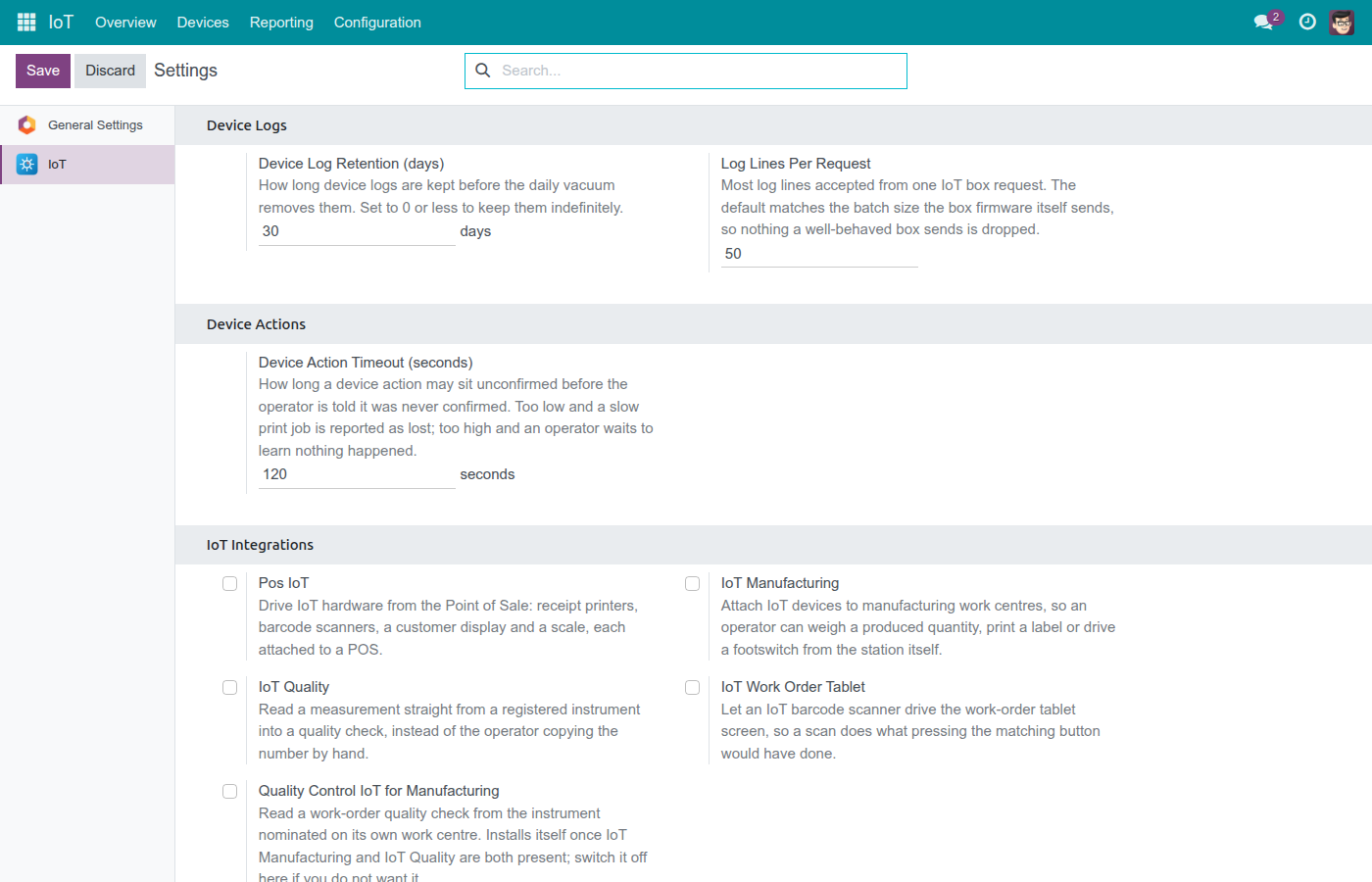
- Device Log Retention (days) - how long device logs are kept before the daily cleanup removes them. Set it to 0 or less to keep them indefinitely.
- Log Lines Per Request - the most log lines accepted from one IoT box request in a single batch.
- Device Action Timeout (seconds) - how long a device action (a print job, a scale reading, and so on) may sit unconfirmed before the operator is told it was never confirmed. Set it too low and a slow job is reported as lost; set it too high and the operator waits without an answer.
- IoT Integrations - turn on the bridge apps this deployment has available: Pos IoT, IoT Manufacturing, IoT Quality, IoT Work Order Tablet, and Quality Control IoT for Manufacturing. A row shows a checkbox when that app is available on this deployment, or a "Purchase or Learn more" link when it is not installed yet.
Usage
Pairing dashboard
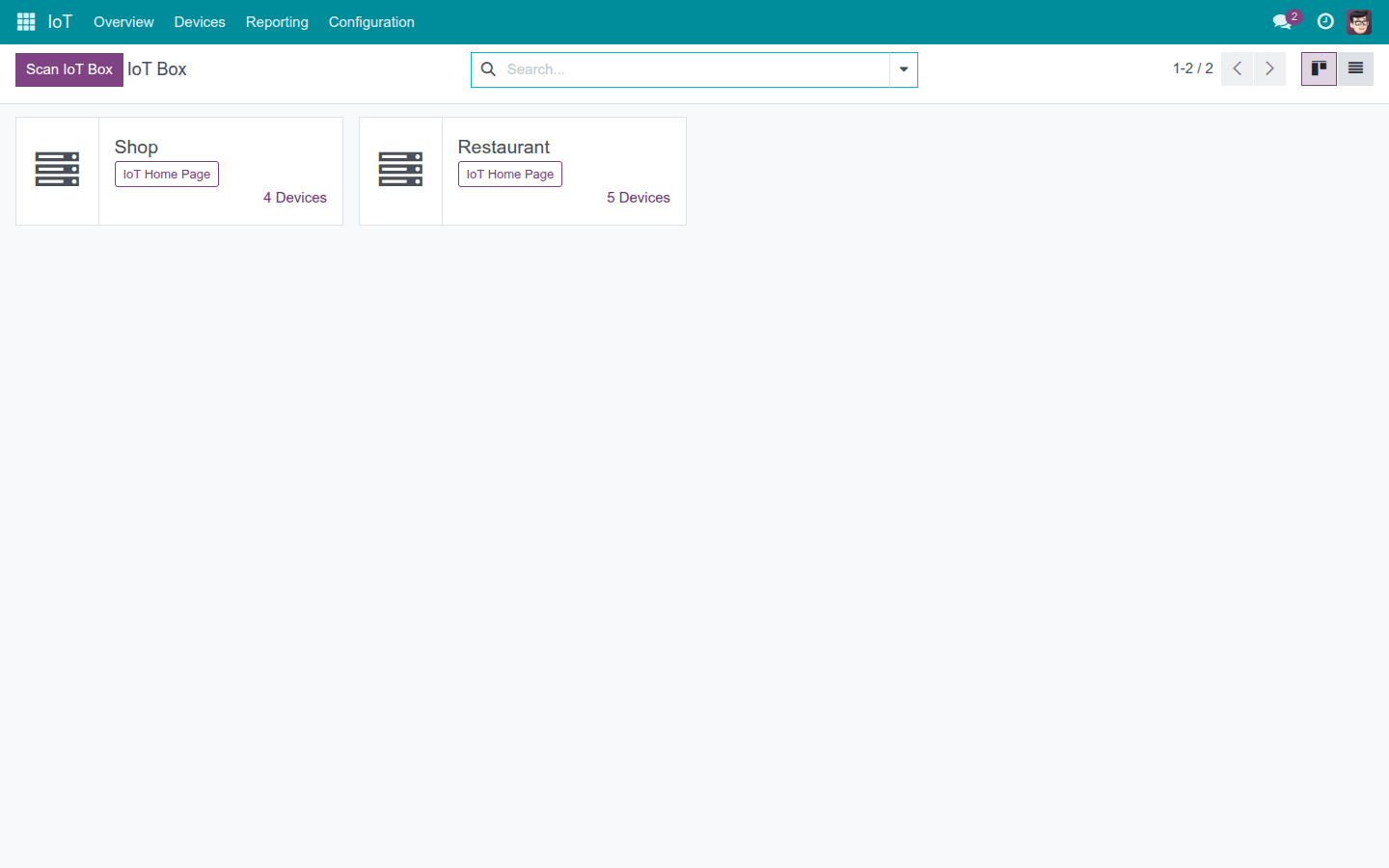
Open IoT ‣ Overview to see every paired IoT box as a card.
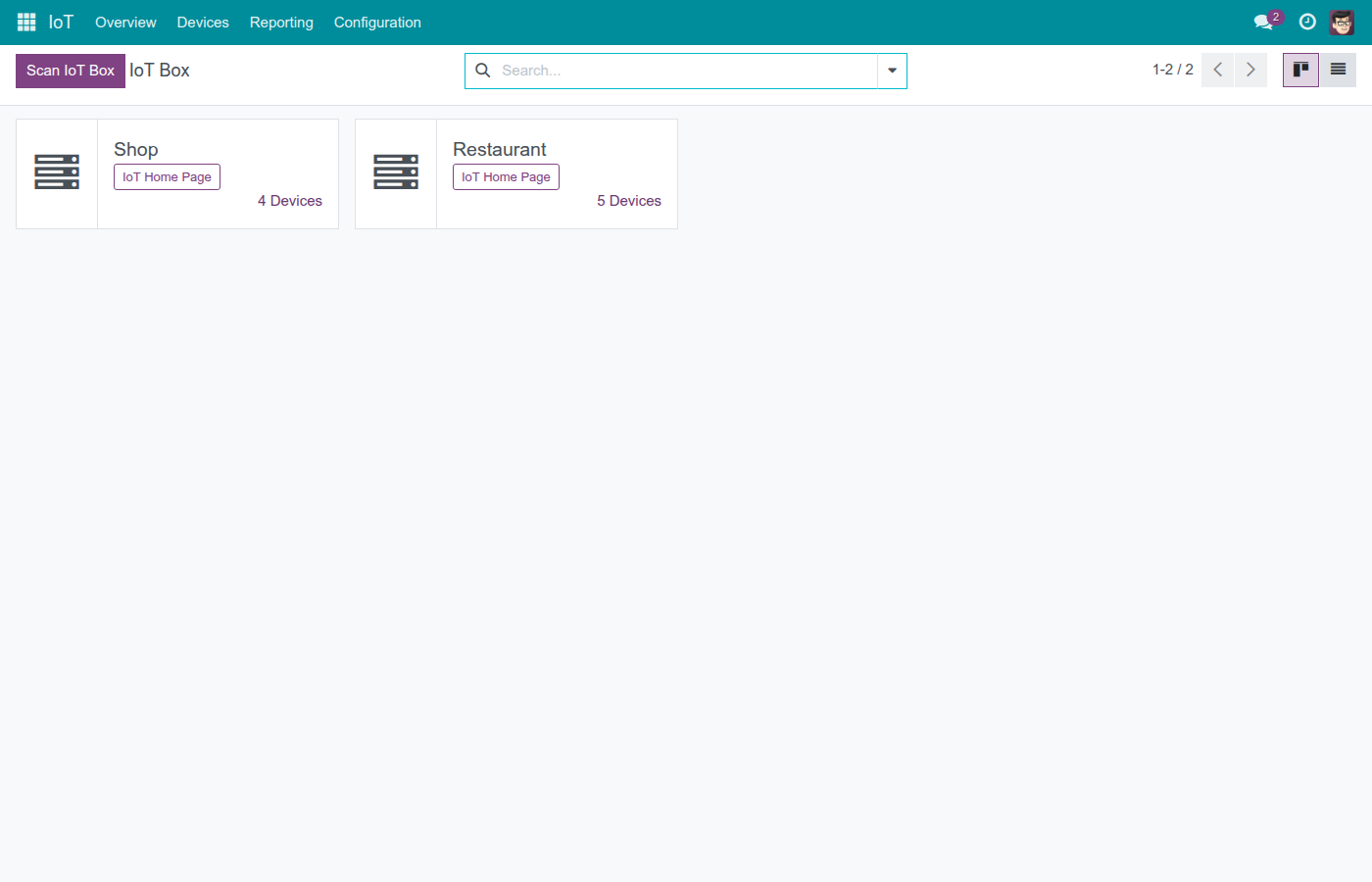
Each card shows the box's name and its number of devices; click the device count to jump straight to that box's device list. Click IoT Home Page to open the box's own local web page in a new tab, once the box has reported an IP address.
To pair a new box, click Scan IoT Box. A confirmation dialog asks you to connect your computer to the same local network as the box before continuing.
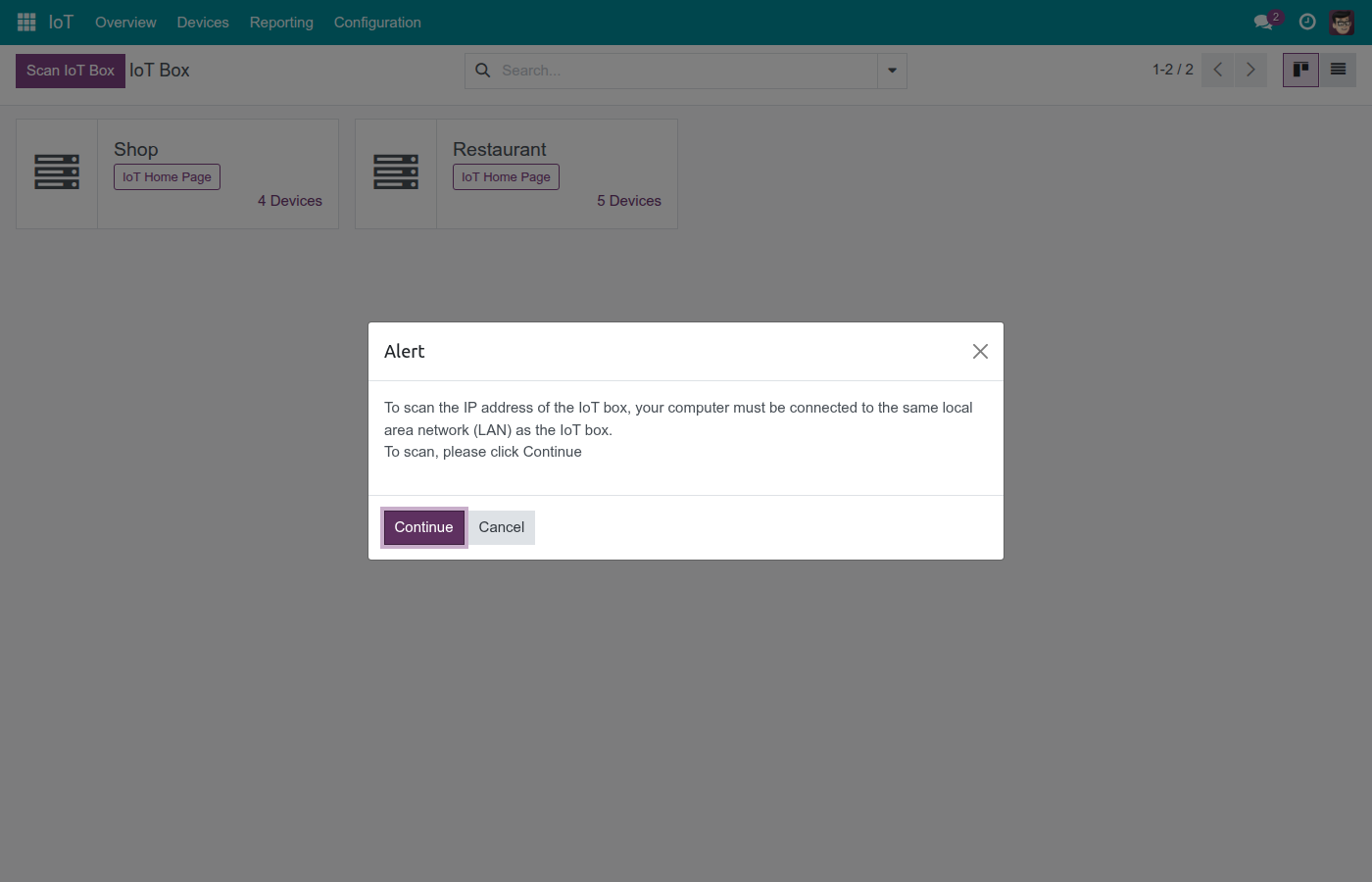
Click Continue to open the box's own discovery page and find its IP address, or Cancel to close the dialog without scanning. Pairing the box itself needs the IoT Box Creator or Administrator level.
Box details
Click a card (or a row in the Configuration list) to open a box's own page.
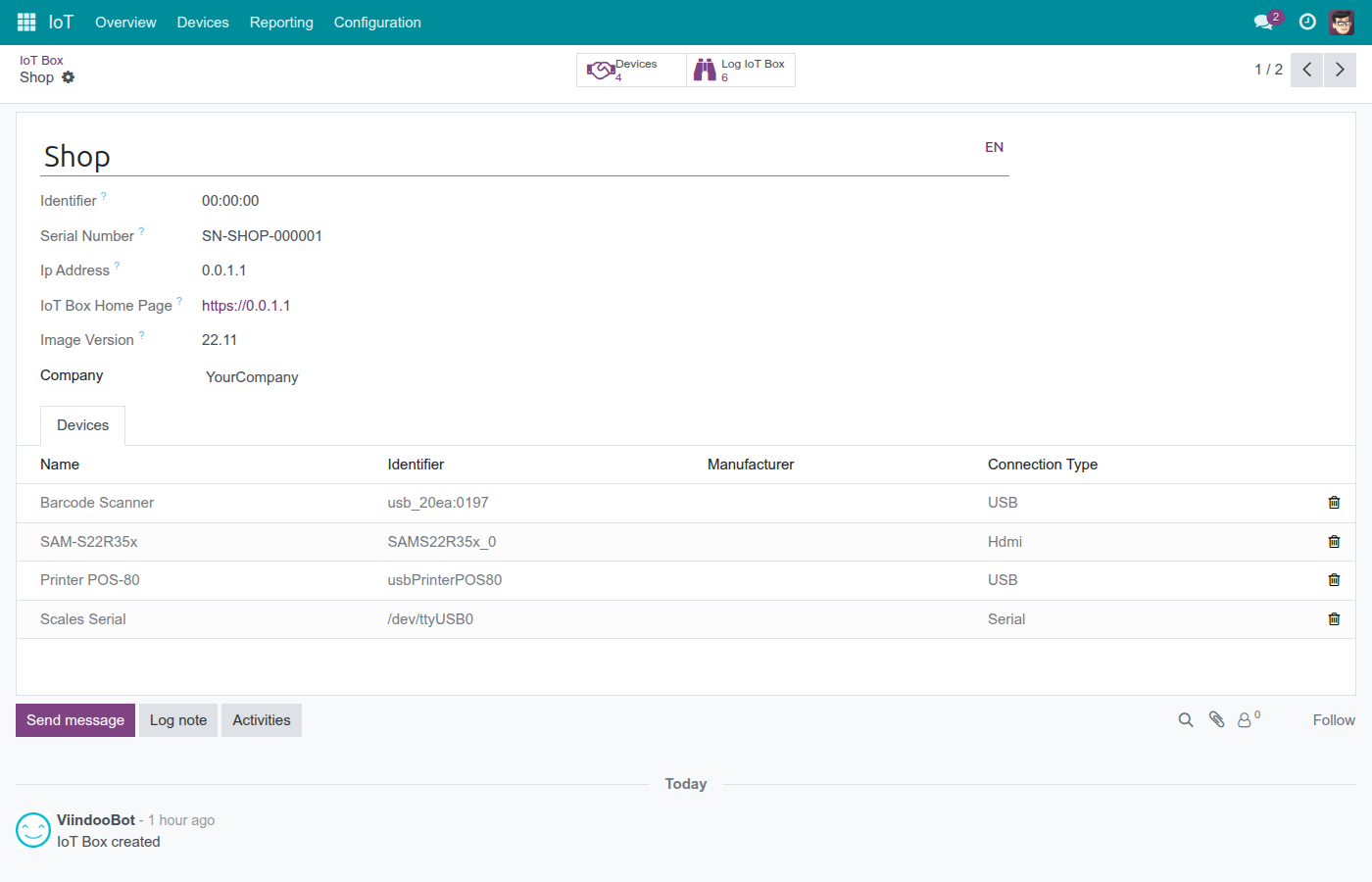
The Devices and Log IoT Box buttons at the top jump to that box's devices and logs. The Devices tab lists every device the box has reported, with its identifier, manufacturer and connection type.
Devices
Open IoT ‣ Devices to browse every peripheral across every box, grouped by box.
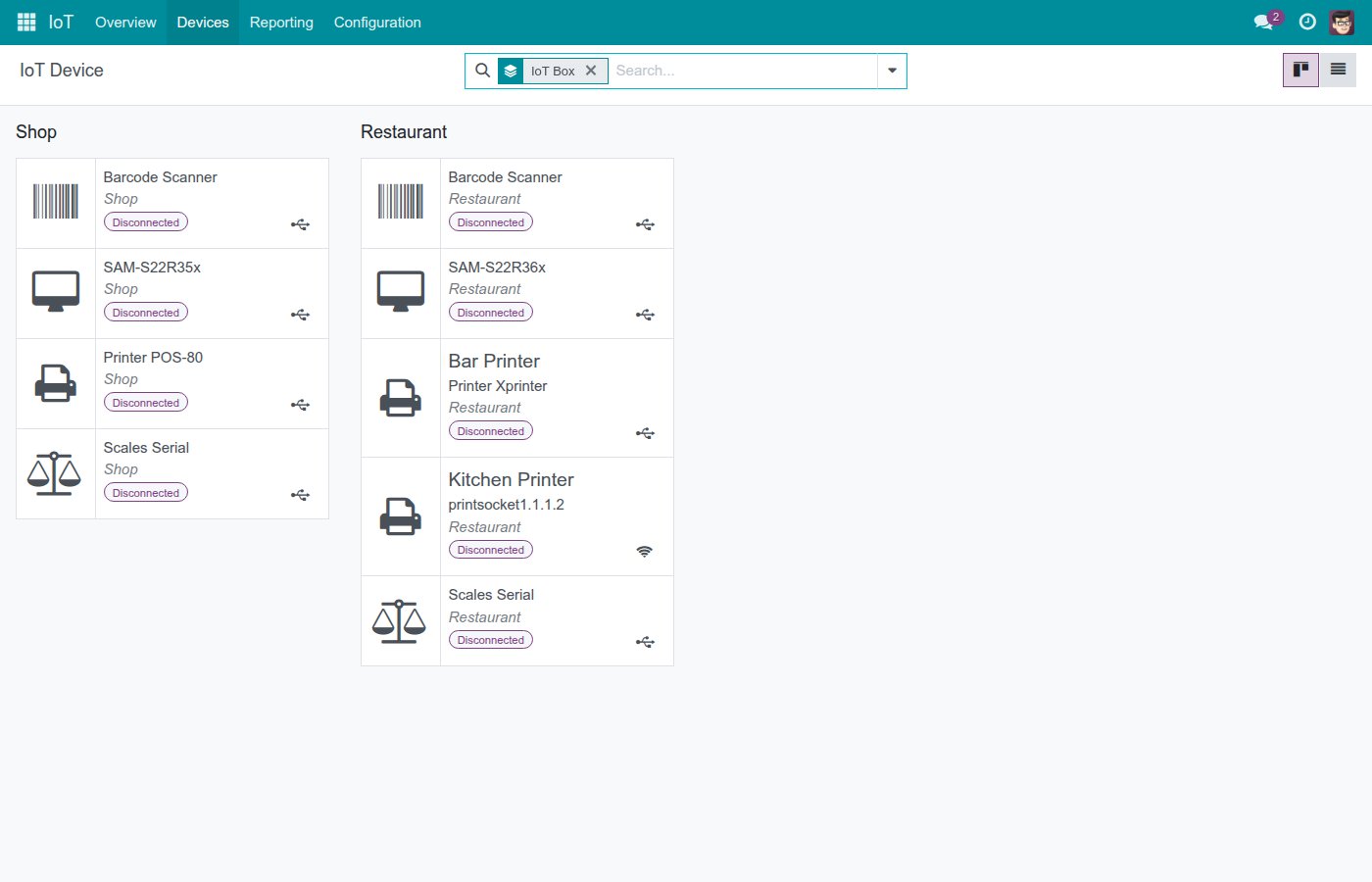
Each card shows the device type, the box it belongs to, and whether it is currently Connected or Disconnected. Use the search filters to group by device type or connection type instead, or to show only connected (or only disconnected) devices.
Click a device to see its own page.
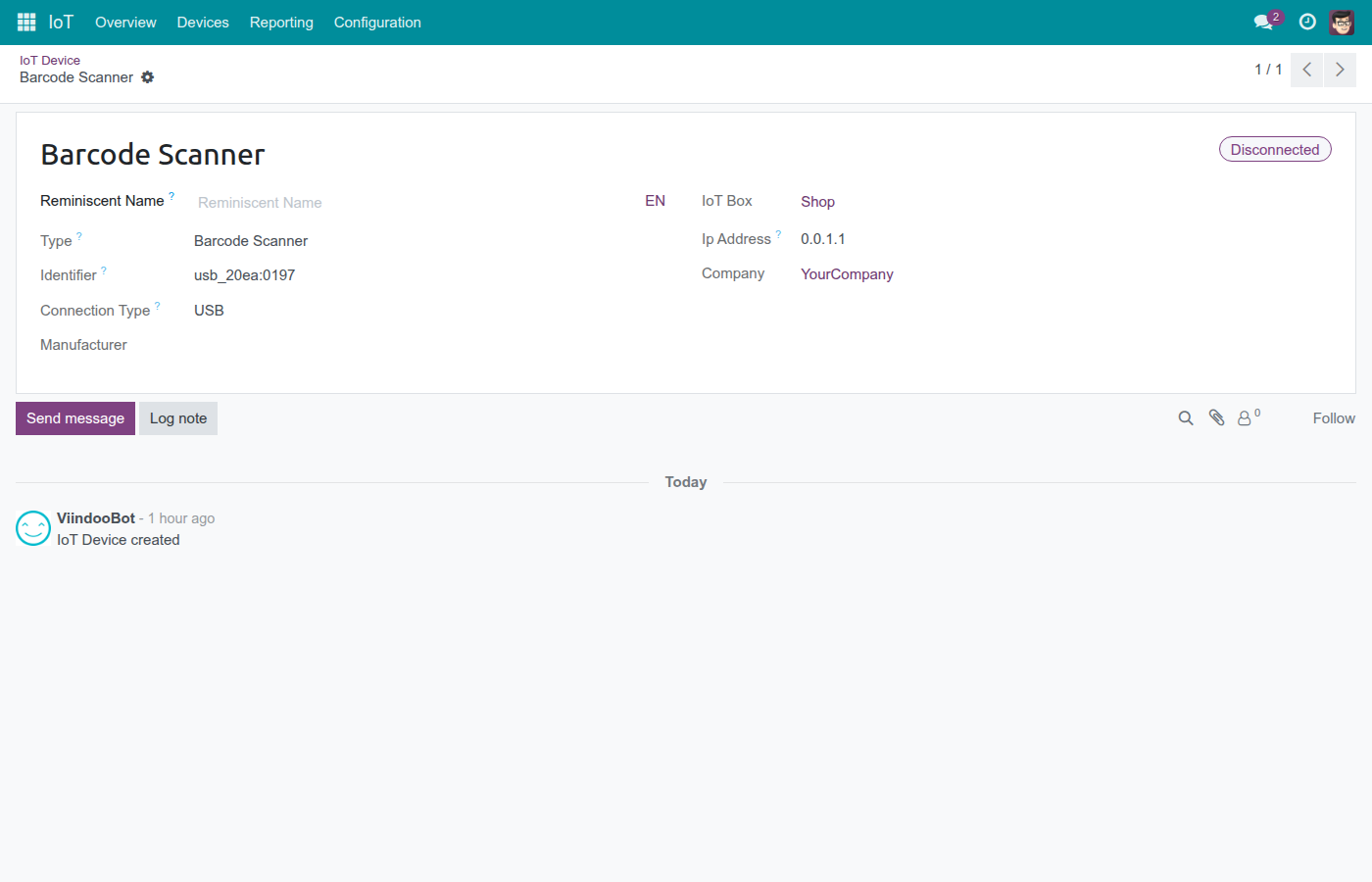
The device page shows its type, identifier, connection type, manufacturer, and the box and company it belongs to.
Device Logs
Open IoT ‣ Reporting ‣ Device Logs to read the raw diagnostic stream every paired box sends.
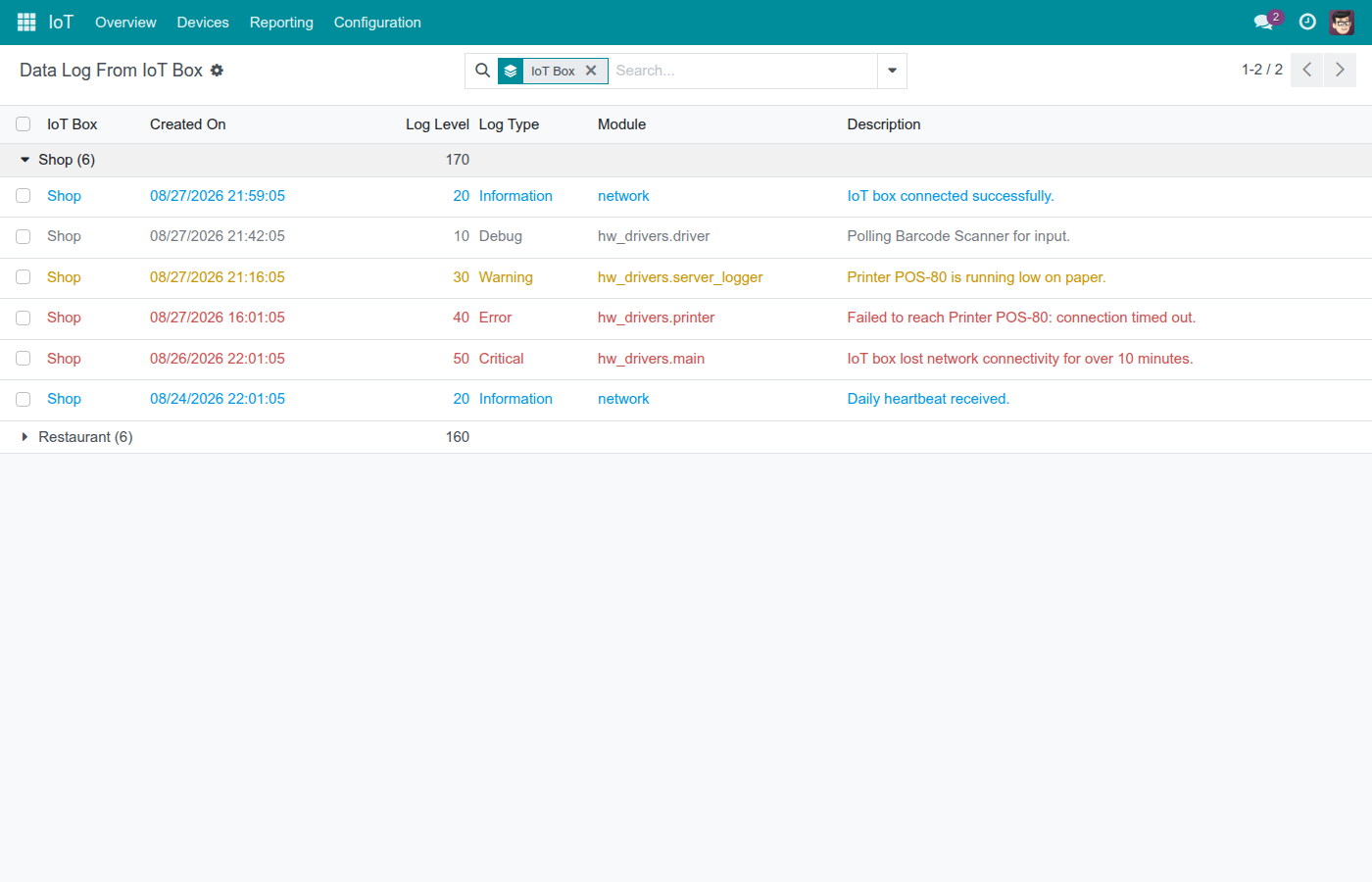
Logs are grouped by box by default; expand a group to see each line's timestamp, severity (Debug, Information, Warning, Error or Critical), source module and description. Use this list to start a support conversation from evidence - for example an Error line reporting that a printer could not be reached, or a Critical line reporting a lost connection - instead of guesswork.
Administering the box fleet
Administrators can also open IoT ‣ Configuration ‣ IoT Boxes for a list-first register of the same boxes Overview shows, ordered for an audit rather than a dashboard.
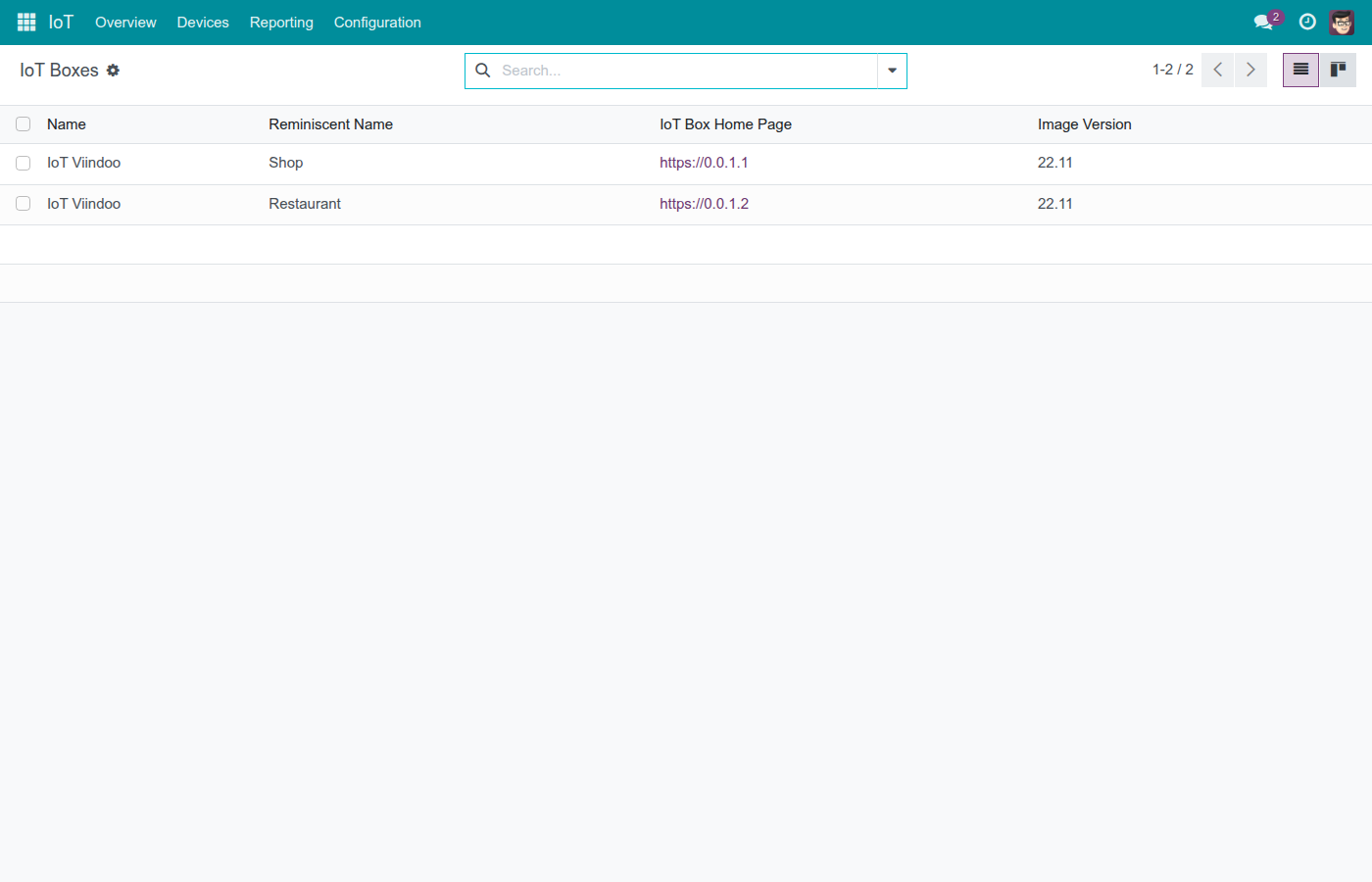
This is also where an administrator manages a box's own credentials, which never appear anywhere a plain User can see.
Device actions and unconfirmed outcomes
When an app drives a device - printing a receipt, reading a scale - the platform records the action and waits for the box to confirm it. Every action ends in exactly one outcome:
- Dispatched - in flight, inside its time window.
- Completed - the box confirmed it carried out the action.
- Refused - the command never left the server.
- Never Confirmed - no confirmation arrived within the Device Action Timeout set in Settings.
Never Confirmed is not a claim that the action failed - it only means the box did not answer in time. This module ships no dedicated screen for these records; check Device Logs on the box in question for the evidence the box itself reported, such as the connection timed out example above.
Troubleshooting
A box shows no IoT Home Page link. The box has not yet reported an IP address. Confirm the box is powered on and connected to the network, then check its entry in Device Logs for a recent connection message.
A device stays Disconnected. Check the device's own page for its connection type and identifier, and check Device Logs for the box it belongs to - a Warning, Error or Critical line often explains why (a printer low on paper, a lost network connection, and so on).
An operator was told an action was Never Confirmed. This means no confirmation arrived within the configured timeout - it is not automatically a failure. Check Device Logs for the box and device involved. If confirmations are consistently arriving late, raise Device Action Timeout (seconds) in Settings; if they never arrive, check the device and box themselves.
A bridge app row on Settings shows a "Purchase or Learn more" link instead of a checkbox. That app is not available on this deployment yet - it has not been installed, so there is nothing to switch on until it is.
FAQ
Who can pair a new IoT box? IoT Box Creator or Administrator.
Who can see a box's own credentials (token, command channel)? Administrator only - a plain User or IoT Box Creator never sees them.
Does a cashier or manufacturing operator need an IoT group to use the hardware? No. Once an administrator has paired the box and configured the devices, the person operating the corresponding app (Point of Sale, Manufacturing, and so on) uses the hardware through that app - no IoT group is required.
Where do I see what a box has been doing? IoT ‣ Reporting ‣ Device Logs, or the Log IoT Box smart button on the box's own page.
What happens to old device logs? They are kept for the number of days set in Device Log Retention (days) under Settings, then removed by a daily cleanup. Set it to 0 or less to keep them indefinitely.
This software and associated files (the "Software") may only be used (executed, modified, executed after modifications) if you have purchased a valid license from the authors, typically via Odoo Apps, or if you have received a written agreement from the authors of the Software (see the COPYRIGHT file).
You may develop Odoo modules that use the Software as a library (typically by depending on it, importing it and using its resources), but without copying any source code or material from the Software. You may distribute those modules under the license of your choice, provided that this license is compatible with the terms of the Odoo Proprietary License (For example: LGPL, MIT, or proprietary licenses similar to this one).
It is forbidden to publish, distribute, sublicense, or sell copies of the Software or modified copies of the Software.
The above copyright notice and this permission notice must be included in all copies or substantial portions of the Software.
THE SOFTWARE IS PROVIDED "AS IS", WITHOUT WARRANTY OF ANY KIND, EXPRESS OR IMPLIED, INCLUDING BUT NOT LIMITED TO THE WARRANTIES OF MERCHANTABILITY, FITNESS FOR A PARTICULAR PURPOSE AND NONINFRINGEMENT. IN NO EVENT SHALL THE AUTHORS OR COPYRIGHT HOLDERS BE LIABLE FOR ANY CLAIM, DAMAGES OR OTHER LIABILITY, WHETHER IN AN ACTION OF CONTRACT, TORT OR OTHERWISE, ARISING FROM, OUT OF OR IN CONNECTION WITH THE SOFTWARE OR THE USE OR OTHER DEALINGS IN THE SOFTWARE.