
Fleet Booking & Trip Management - Cargo
by Viindoo
| Lines of Code | 1670 |
| Technical name | viin_fleet_booking_cargo |
| License | OPL-1 |
| Website | https://viindoo.com/apps/modules/17.0/viin_fleet_booking_cargo |
| Read description for | v 18.0 |
| Required Apps | Discuss (mail) Employees (hr) Fleet (fleet) |
| Included Dependencies | Fleet Drivers Management Fleet Booking & Trip Management Fleet Loading Capacity Employee Documents QR Code Mixin Viindoo Base Advanced HR Management Viin Fleet |
| Extensions | Fleet Sale - Cargo |

Cargo bookings with weight, volume and capacity checks
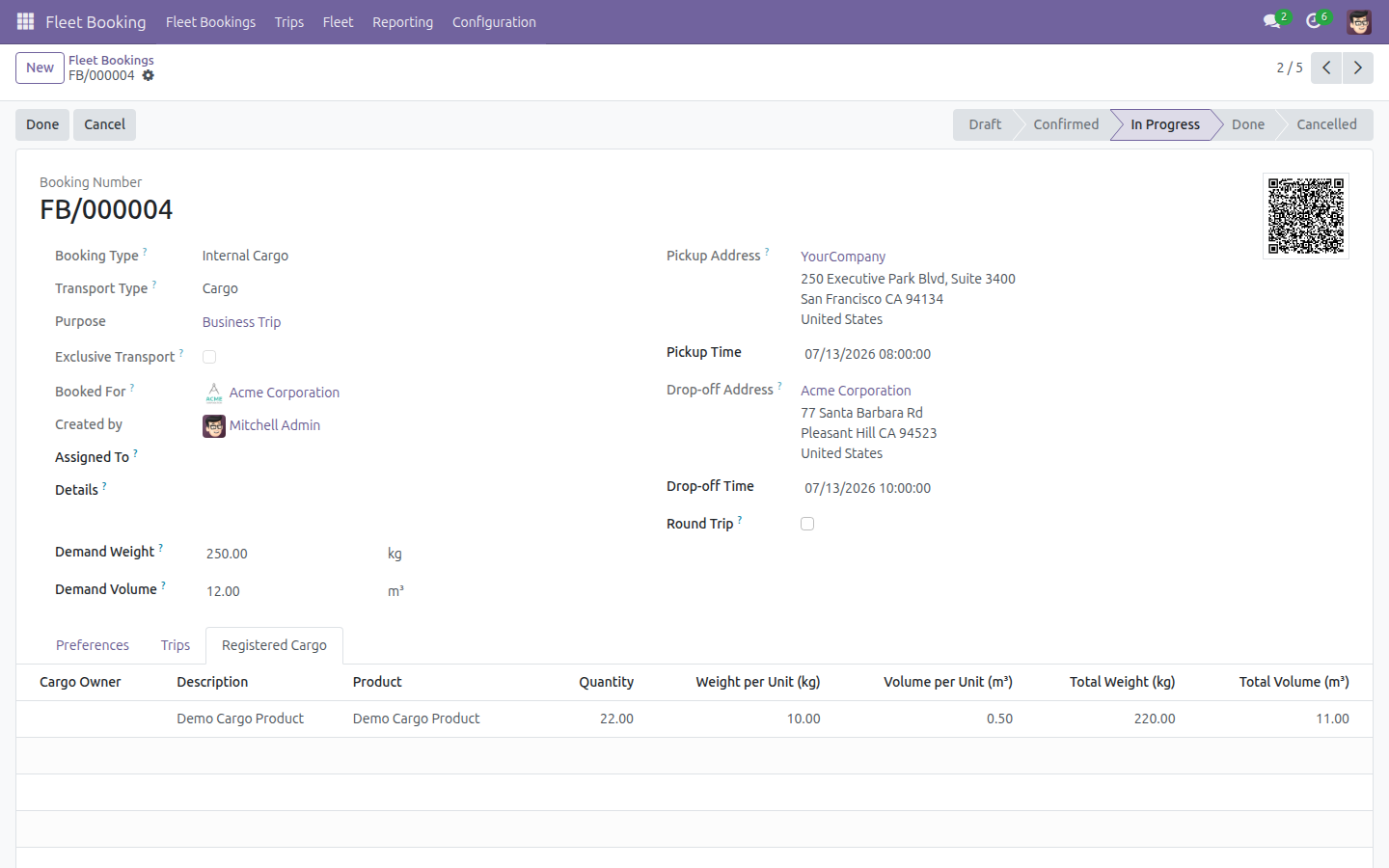
Internal and external cargo booking types on Fleet Booking: cargo lines per booking item with product, quantity, weight and volume, demand weight and volume, capacity checks against the vehicle, and cargo on the trip.
Fleet Booking & Trip Management - Cargo (technical name viin_fleet_booking_cargo) is an Odoo 17.0 app for Odoo Community and Odoo Enterprise and Viindoo Cloud, built for dispatcher, driver, customer, fleet manager.

At a Glance
The facts of Fleet Booking & Trip Management - Cargo, version 1.1.2, in one place. Published by Viindoo.
How It Works
Set the booking type to cargo; add cargo lines; book.
A booking
Pallets to Rotterdam: wood panels and table kits with weight and volume.
The cargo
Every line across bookings.

The bookings
Cargo and passenger bookings side by side.

What You Get
Internal Cargo and External Cargo booking types
Demand weight and volume on the booking
Cargo lines: product, quantity, weight and volume per unit, totals
Cargo totals checked against the demand
Vehicle candidates and compatibility by loading capacity
Cargo listed and counted on the trip
More Screens
Everything below was taken on a database seeded with real business data, on this series - not a mock-up and not a screenshot from an older version.
Fleet bookings
What This App Does Not Do
Read this before you buy. Everything below is something the app deliberately leaves to another app or to you.
Set vehicle capacity there.
Fleet Sale - Cargo sells it.
Raise the demand or split the booking.
Install it and the behaviour is there.
Works Well With
Apps from the same stack, built to fit this one:
Who Should Use Fleet Booking & Trip Management - Cargo?
Dispatcher
Books freight with the numbers that matter.
Driver
Sees the manifest on the trip.
Customer
Books a pallet, not a vehicle.
Fleet manager
No overloaded vehicle assigned.
Frequently Asked Questions
What does Fleet Booking & Trip Management - Cargo do?
Internal and external cargo booking types on Fleet Booking: cargo lines per booking item with product, quantity, weight and volume, demand weight and volume, capacity checks against the vehicle, and cargo on the trip.
What does Fleet Booking & Trip Management - Cargo not do?
Capacity comes from the loading-capacity module. Set vehicle capacity there. No pricing by itself. Fleet Sale - Cargo sells it. Cargo totals must fit the demand. Raise the demand or split the booking. Nothing to configure. Install it and the behaviour is there.
Who is Fleet Booking & Trip Management - Cargo for?
Dispatcher: Books freight with the numbers that matter. Driver: Sees the manifest on the trip. Customer: Books a pallet, not a vehicle. Fleet manager: No overloaded vehicle assigned.
Which Odoo version and editions does it support?
Odoo 17.0 - Odoo Community, Odoo Enterprise, Viindoo Cloud. Upgrades to a newer Odoo series are a separate purchase for that series.
What does it depend on?
It installs on top of: viin_fleet_booking, viin_fleet_loading_capacity, product. Odoo installs them with it.
How do I set it up?
Set the booking type to cargo; add cargo lines; book.
What works well with it?
Fleet Sale - Cargo (viin_fleet_sale_cargo): Sell cargo transport. Fleet Booking - Passenger (viin_fleet_booking_passenger): The people side. Fleet Planning Map (viin_fleet_planning_map): Trips drawn.
Can I try it before buying?
Yes - the Live Preview button at the top of this page opens the module's own screen on a working database.
How do I get support?
Write to apps.support@viindoo.com with your Odoo version and the technical name viin_fleet_booking_cargo; pre-sales questions go to sales@viindoo.com.
See Fleet Booking & Trip Management - Cargo in Action
Cargo bookings with weight, volume and capacity checks
Need help with Fleet Booking & Trip Management - Cargo?
For questions, implementation support, or consulting services, contact Viindoo.
Pre-Sales & Partnership
sales@viindoo.comWhen contacting us, please include:
- Odoo/Viindoo version (Odoo CE / Viindoo Editions).
- Number of users and business scope.
- Other modules currently in use.
Technical Support
apps.support@viindoo.comFor faster troubleshooting, please provide:
- Order number or app reference.
- Odoo/Viindoo version & edition.
- Steps to reproduce the issue.
- Screenshots/logs if available.
Upgrades to a newer Odoo series are a separate purchase for that series.
Technical Requirement
Changes log
1.1.2 - Latest on the 17.0 line
- Aligned with the 17.0 models and views.
Fleet Booking & Trip Management - Cargo
Note
Extends viin_fleet_booking - see its documentation.
This guide shows how to book cargo shipments on top of Fleet Booking - declare how much weight and volume a shipment needs, register the individual cargo lines that make it up, follow that cargo through to the vehicle trip that carries it, let the customer see it on the portal, and analyze cargo weight and volume in the standard Fleet Booking reports.
Installation
- Go to Apps.
- Remove the default Apps filter, search for Fleet Booking Cargo, and click Install on the Fleet Booking & Trip Management - Cargo card.
- Odoo automatically installs everything this app is built on, so you do not need to look for these separately: Fleet Booking & Trip Management (see its own guide) and Fleet Loading Capacity (Volume & Payload) (see its own guide), plus the base Products app.
Configuration
Access rights
Cargo items use the same roles as the rest of Fleet Booking (see Access rights in the Fleet Booking & Trip Management guide):
- A Fleet Booking User only sees cargo on bookings they created, are following, or that belong to their team.
- An Operator sees and manages every cargo item, on any booking.
- A portal contact set as Cargo Owner on a cargo line, or as Booked For on the booking, can see that cargo's own record online - no extra group is needed for that.
Prepare a product for cargo lines
A cargo line can reference a regular product to auto-fill how much one unit of it weighs and takes up in volume. Open Inventory > Products (or Sales > Products), open the product that represents the kind of goods you ship, and set its Weight and Volume fields. When that product is picked on a cargo line, Weight per Unit and Volume per Unit are filled in automatically from those values - you can still adjust them by hand on the line itself.
Usage
Declare cargo demand and register cargo lines on a booking
Open Fleet Booking > Fleet Bookings > Bookings and click New.
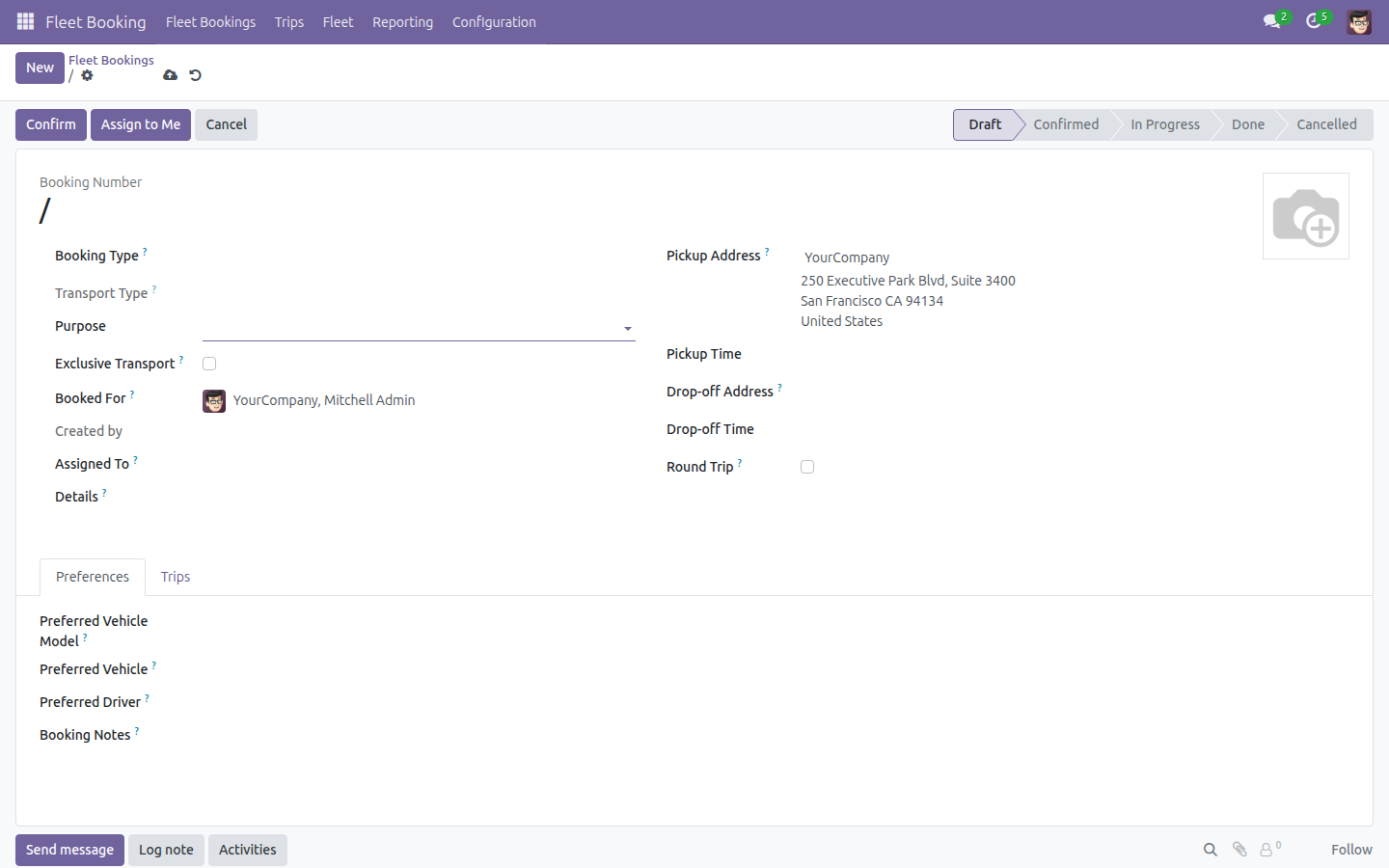
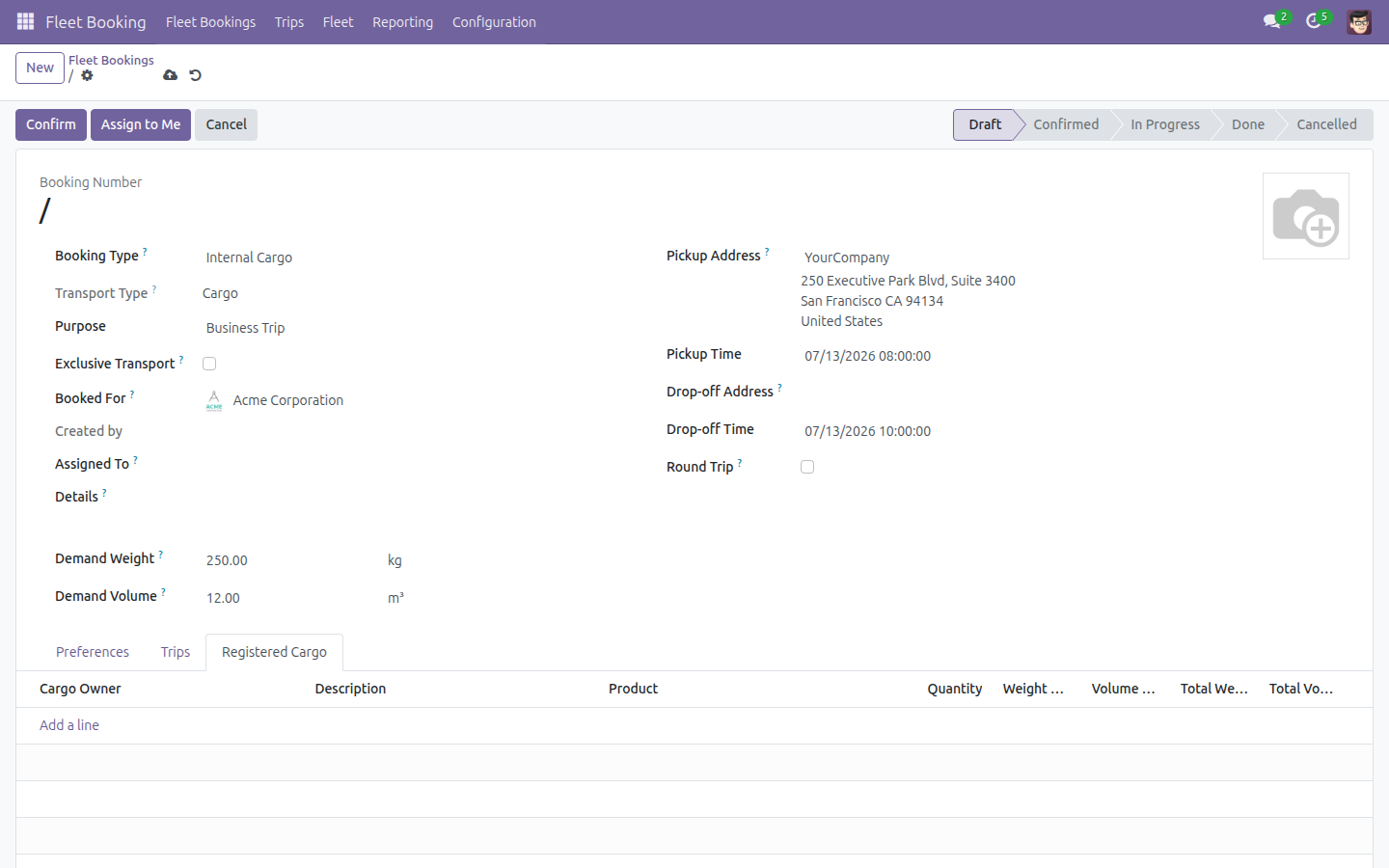
Set Booking Type to Internal Cargo (or External Cargo). This automatically sets Transport Type to Cargo and reveals the Demand Weight, Demand Volume and Registered Cargo tab.
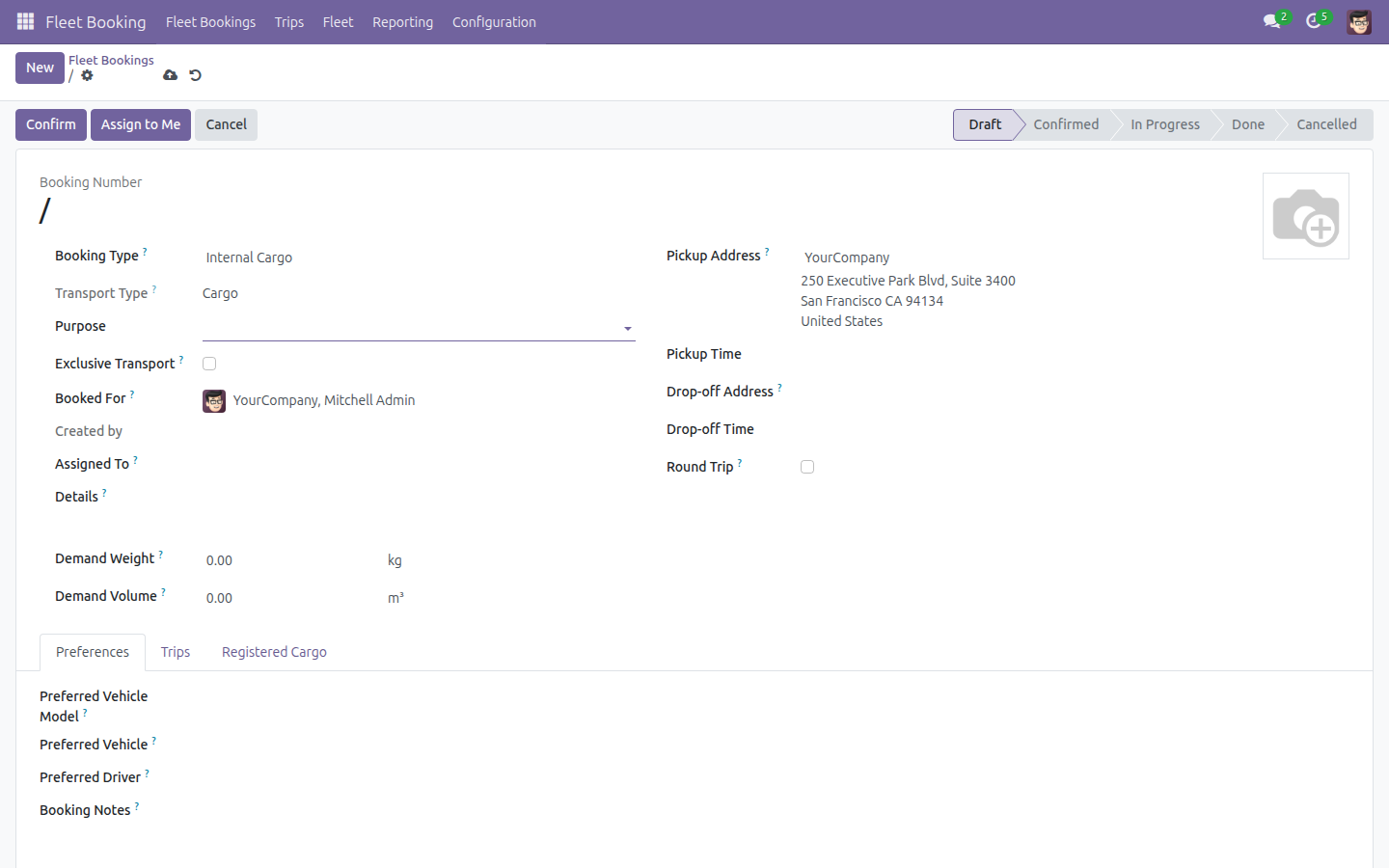
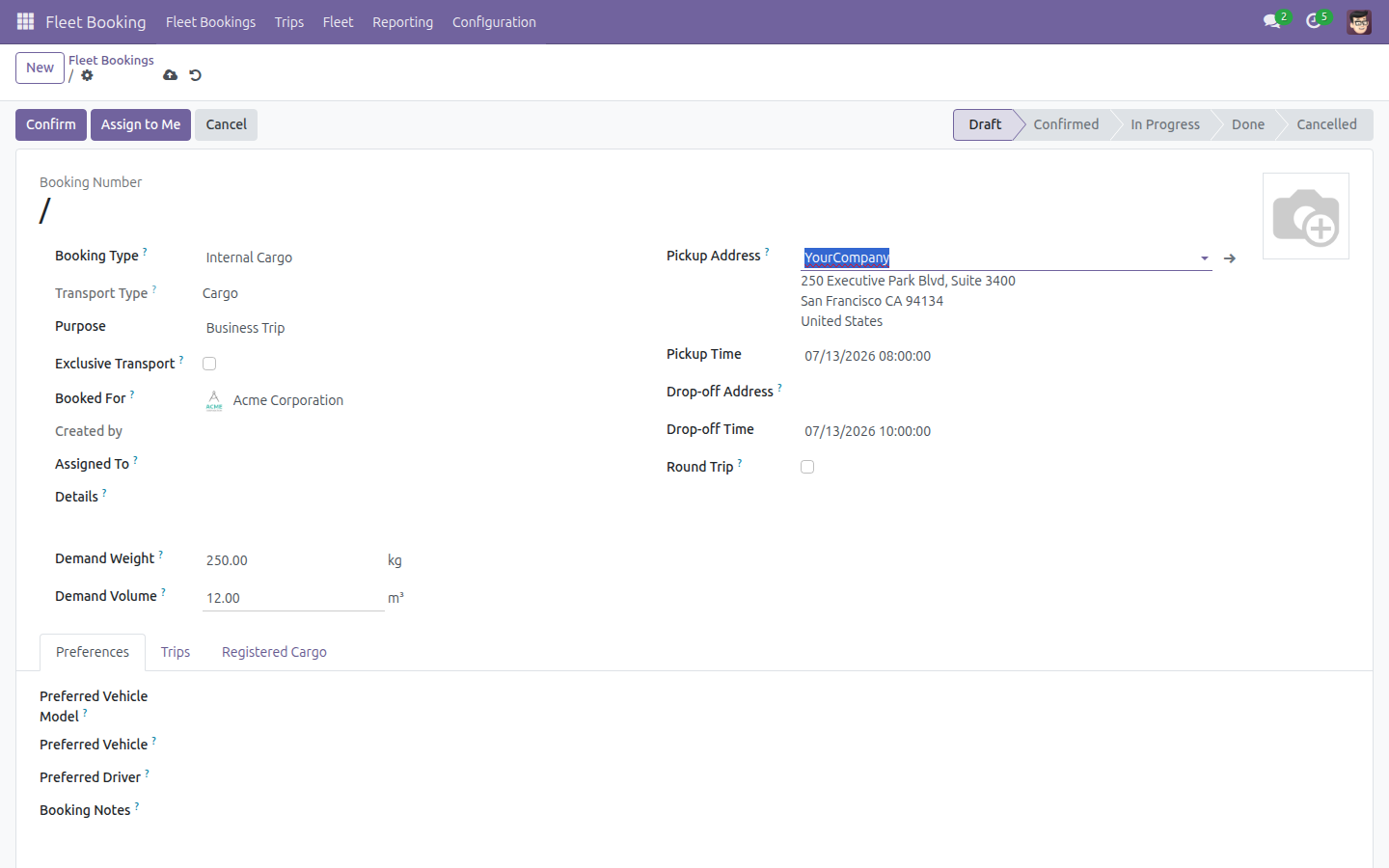
Fill in Booked For, Purpose, Pickup Time, Drop-off Time, and the total Demand Weight / Demand Volume the booking is sized for.
Open the Registered Cargo tab and click Add a line.
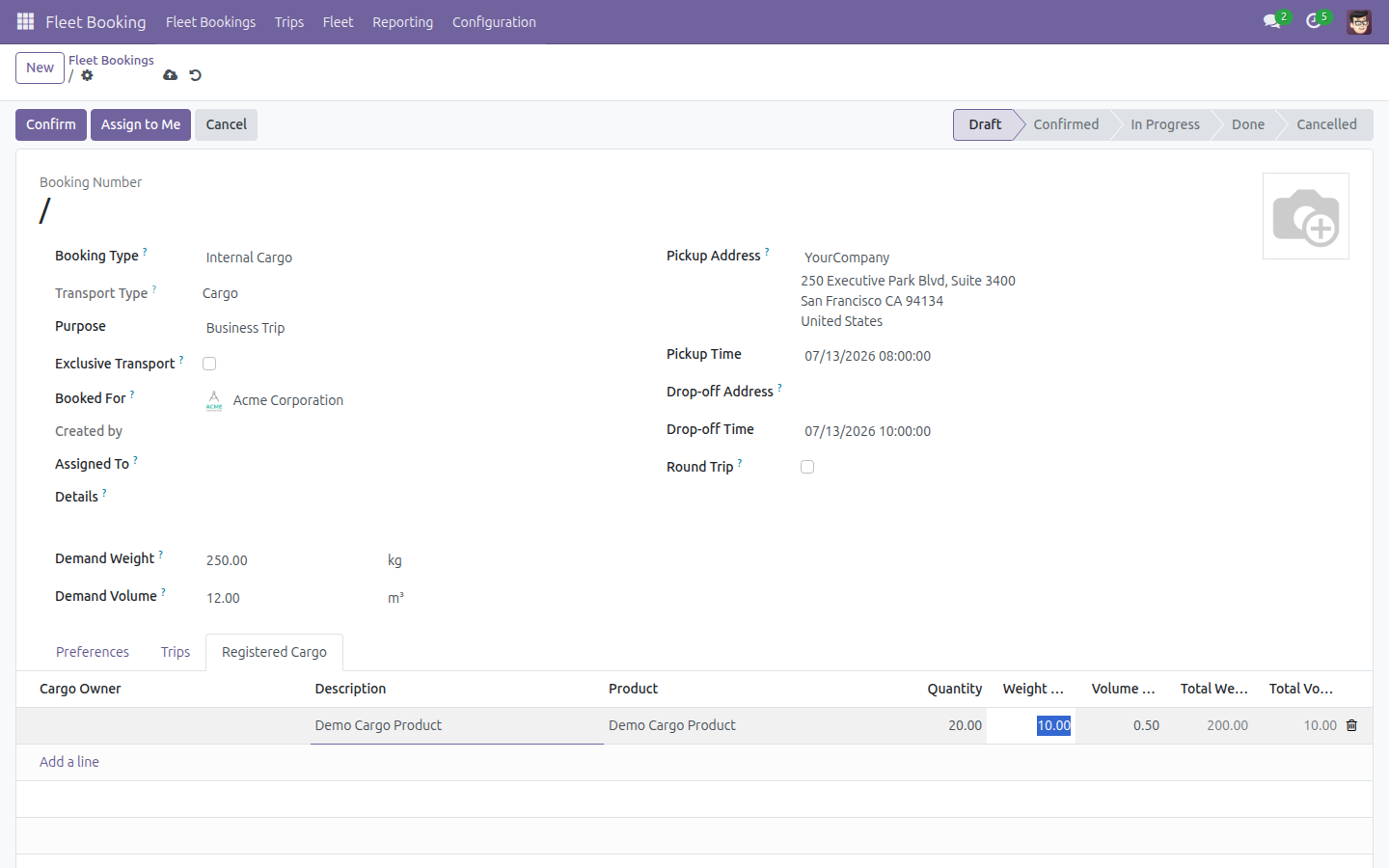
Pick a Product - Weight per Unit and Volume per Unit fill in from the product - then set Quantity. Total Weight and Total Volume are computed for the line.
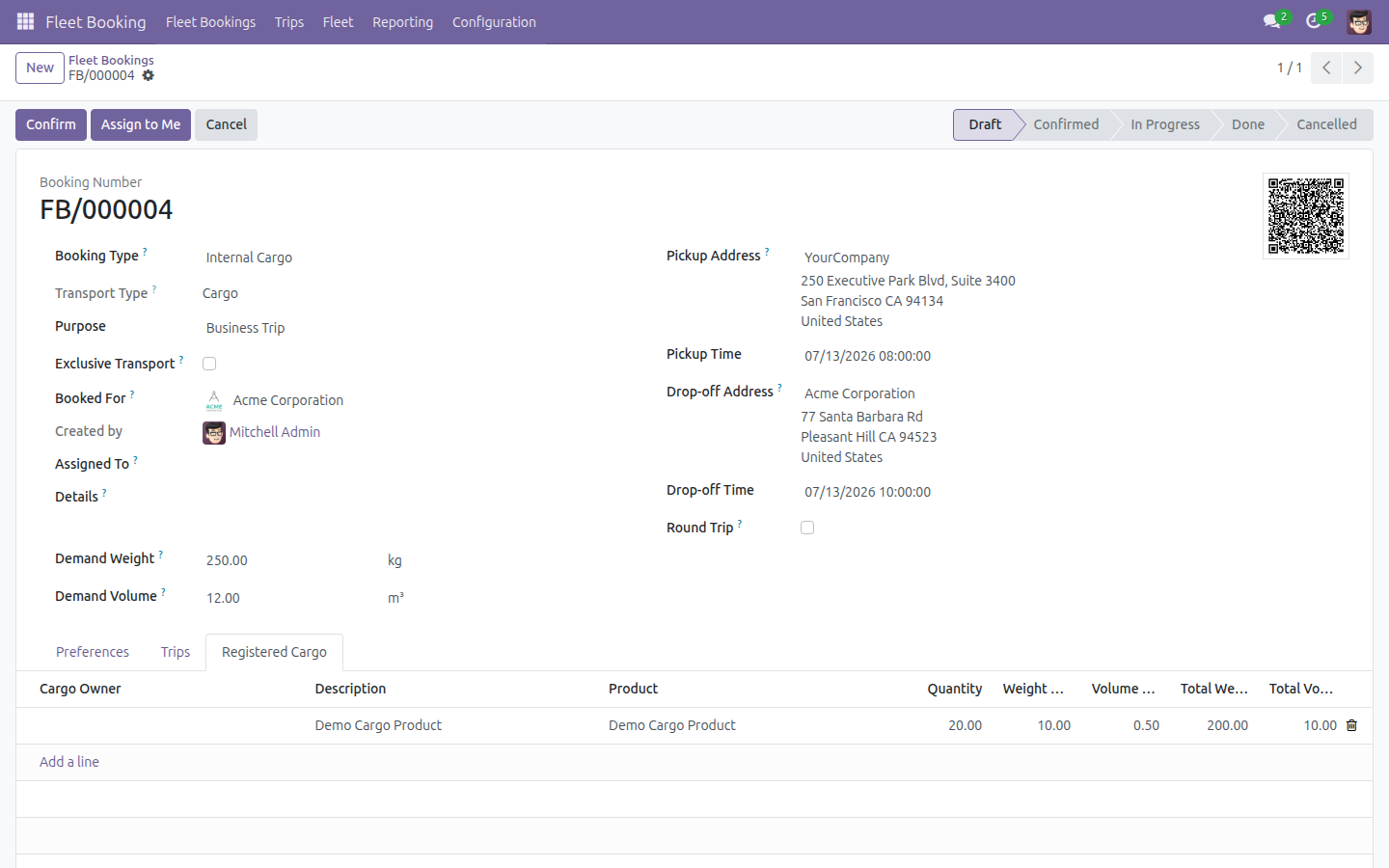
Click Save (or Confirm once the booking is ready).
Important
A cargo line can never push the booking's registered totals above the Demand Weight or Demand Volume you declared - Odoo blocks the save with a message naming the booking if you try. Likewise, a cargo line can only be added while Transport Type is Cargo - see Troubleshooting below.
Review and adjust a cargo item from the Cargo list
Every cargo line is also a standalone record you can find and edit outside its booking.
Open Fleet Booking > Fleet Bookings > Cargo. The list shows Description, Cargo Owner, Product, Quantity, Unit of Measure, Total Weight (kg) and Total Volume (m³) for every cargo item.
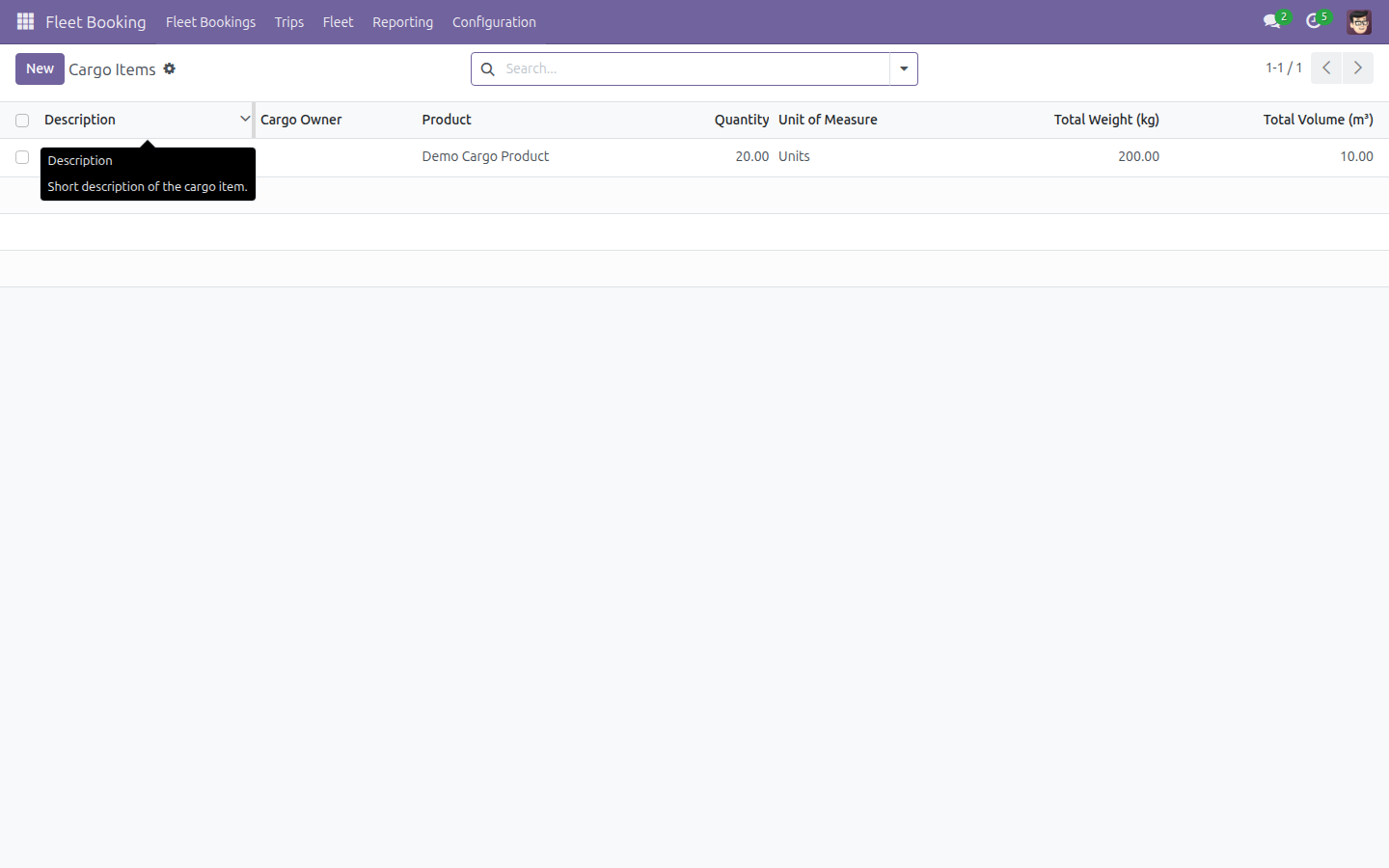
Open a cargo item from the list.
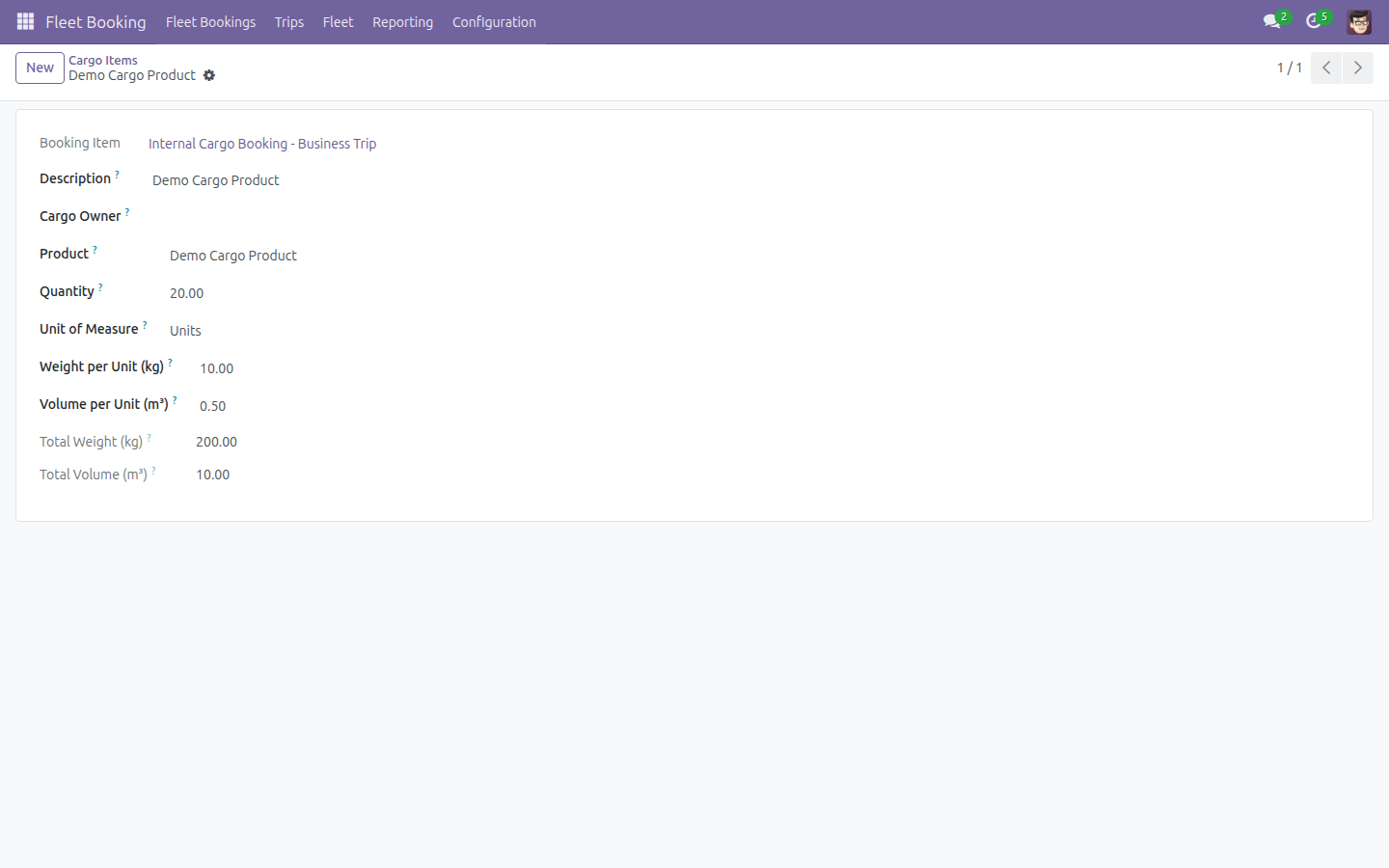
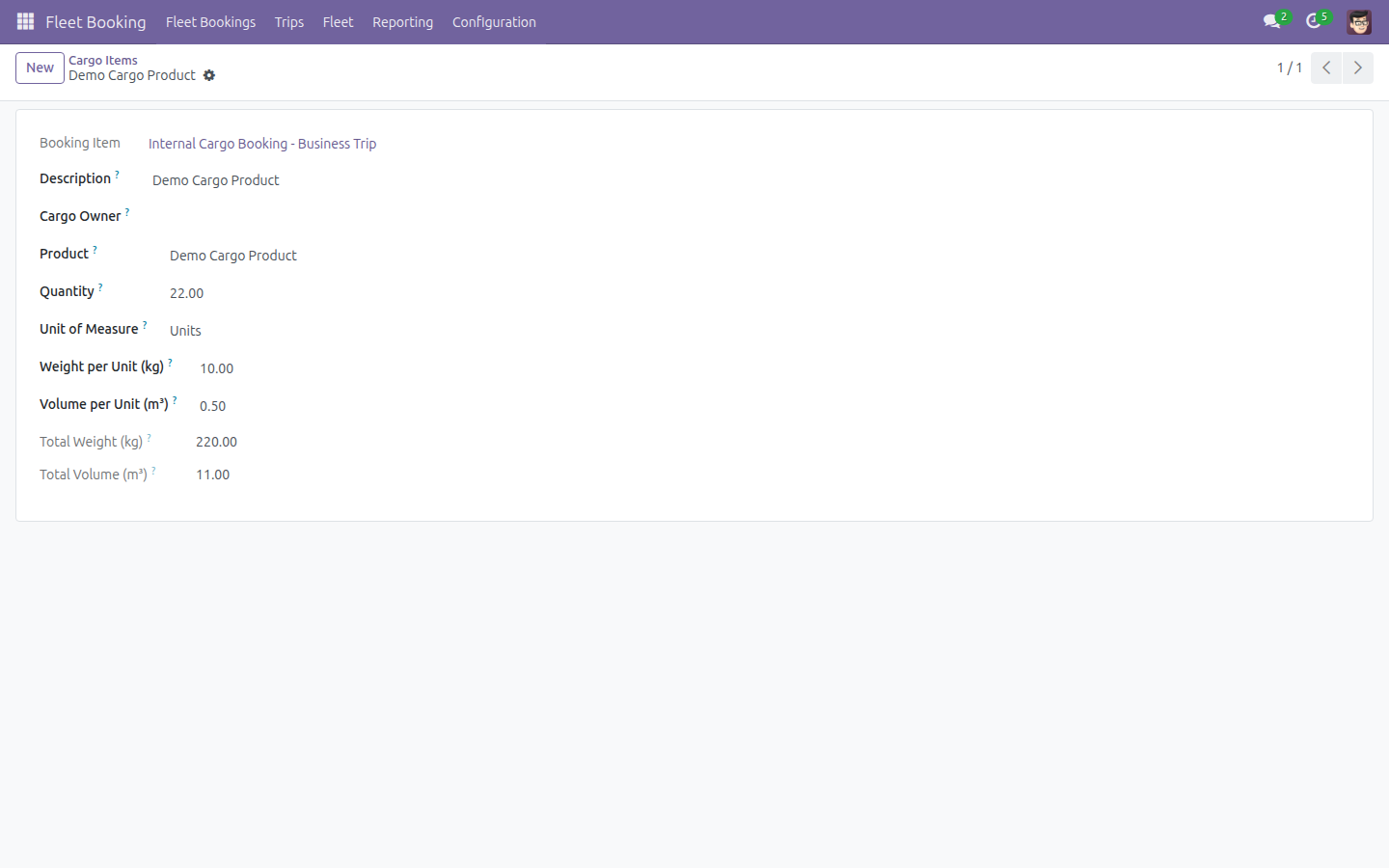
Change its Quantity (or Product, Weight per Unit, Volume per Unit) and click Save. Total Weight and Total Volume recompute automatically, and the parent booking's Registered Cargo tab reflects the same updated totals.
Let customers see the cargo breakdown on the portal
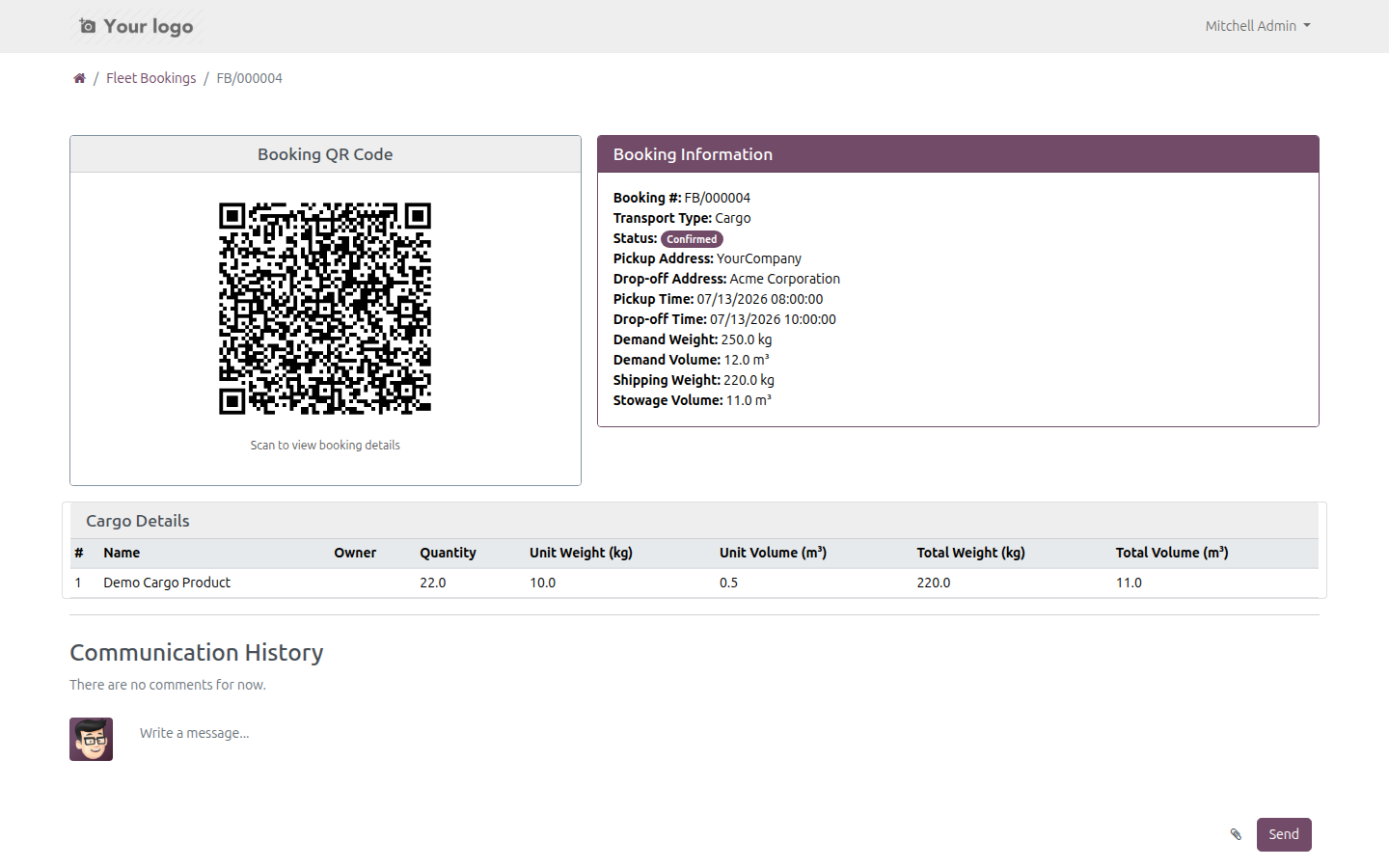
Any contact set as Booked For on a cargo booking can see its cargo details online once they have portal access.
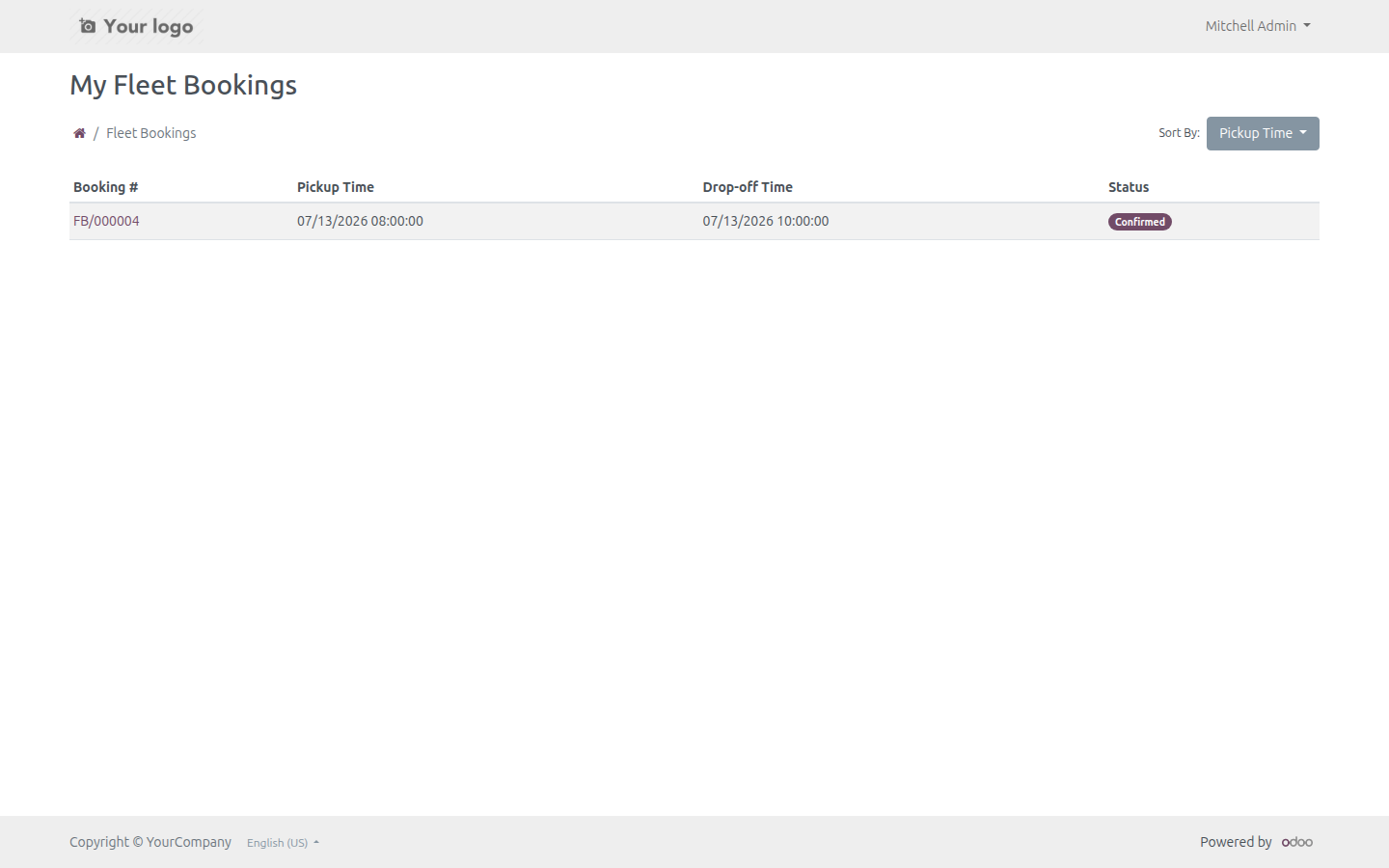
The customer opens My Account > My Fleet Bookings and clicks the booking.
The Booking Information card shows Demand Weight, Demand Volume, Shipping Weight and Stowage Volume for a cargo booking, and the Cargo Details table lists each registered item with its Name, Owner, Quantity, Unit Weight (kg), Unit Volume (m³), Total Weight (kg) and Total Volume (m³).
Trace a cargo item from its booking item to the carrying vehicle trip
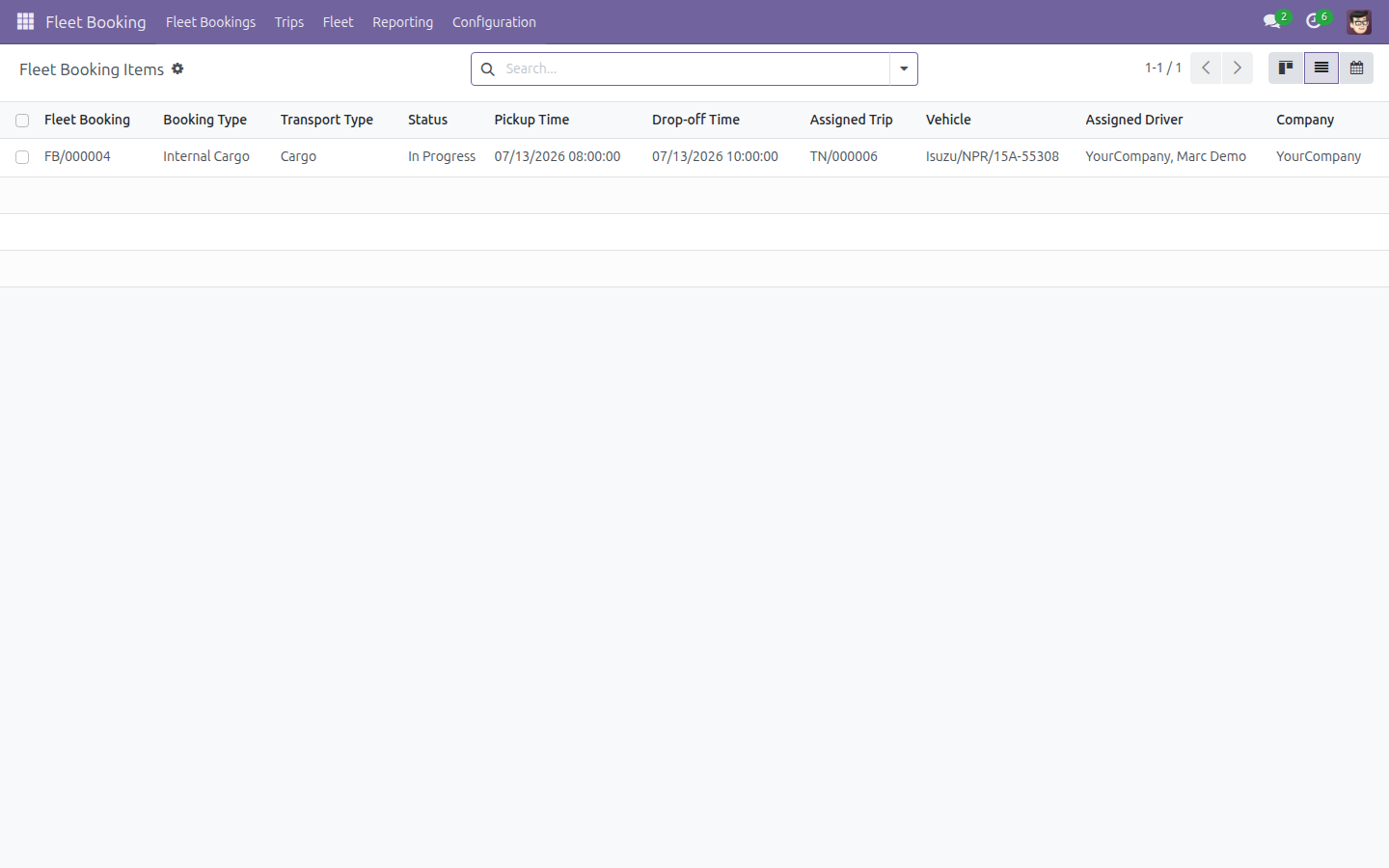
Open Fleet Booking > Fleet Bookings > Booking Items. Every item shows its Transport Type, and once a booking is assigned to a vehicle, its Assigned Trip and Vehicle.
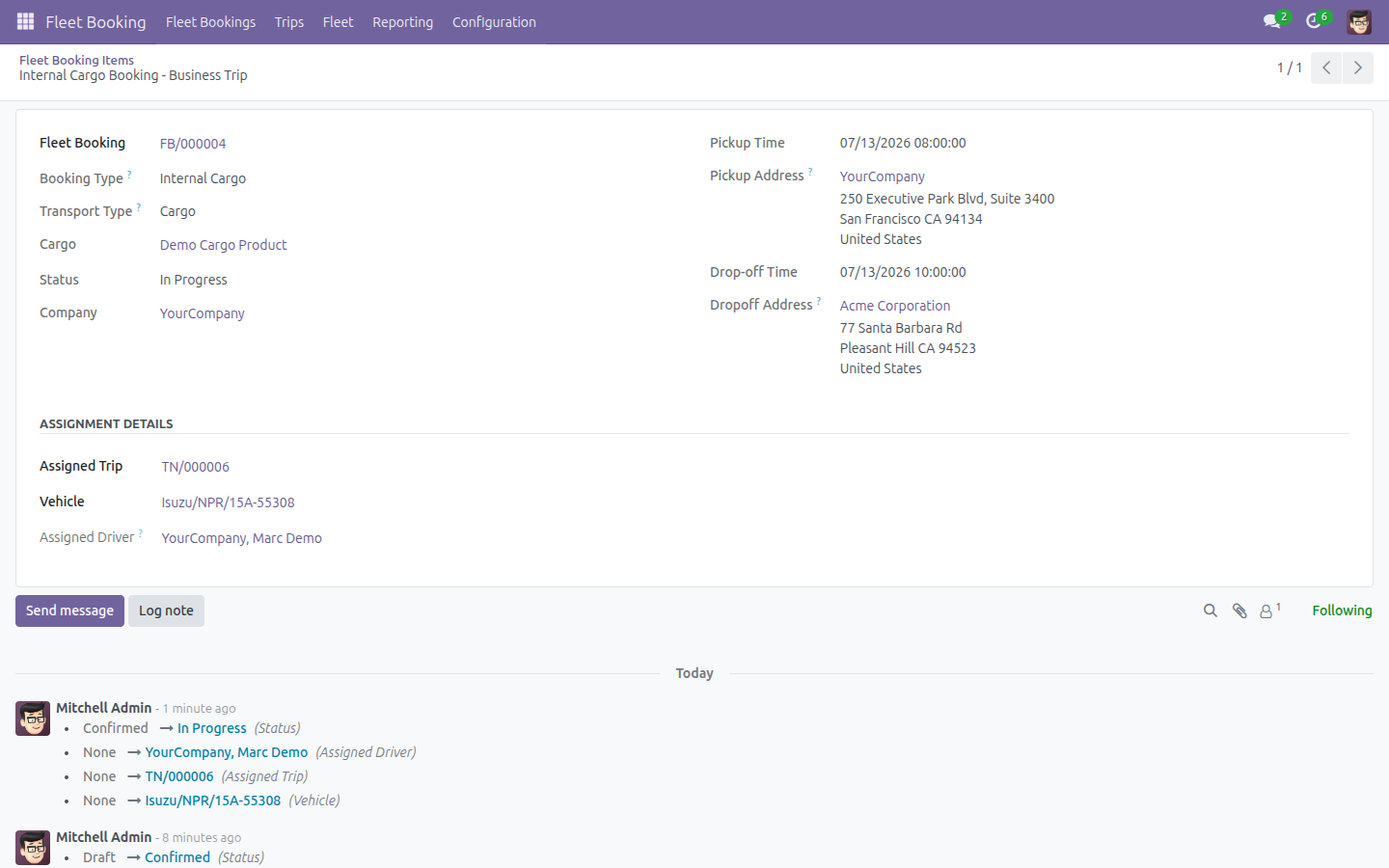
Open the item - its Cargo field shows the linked cargo record's name whenever Transport Type is Cargo.
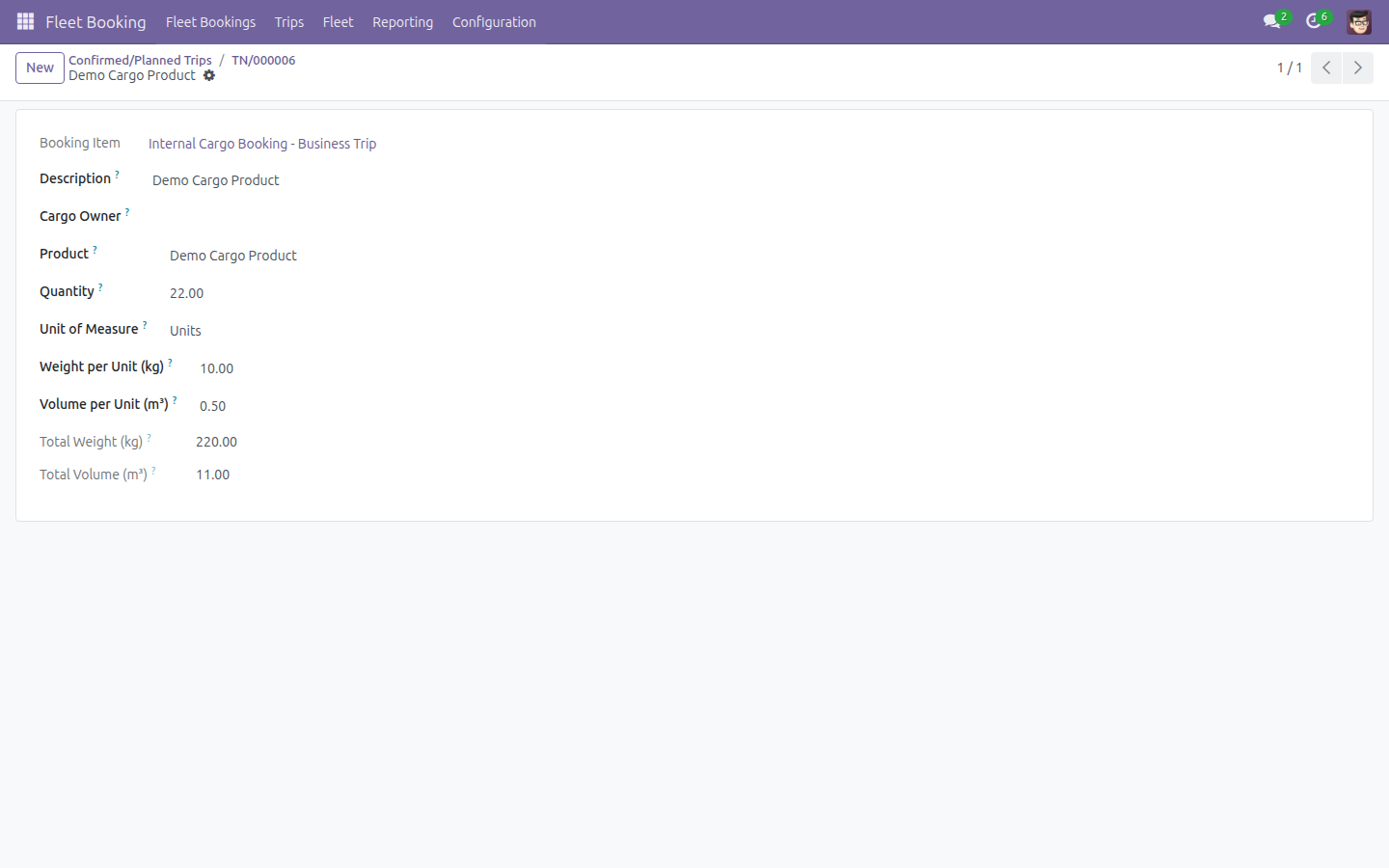
Open Fleet Booking > Trips > Trips Confirmed (or Planning / Done) and open the trip that carries it. Click the Cargo stat button in the button box - since this trip carries a single cargo item, it opens that cargo record's own form directly (a trip carrying several cargo items opens a list instead).
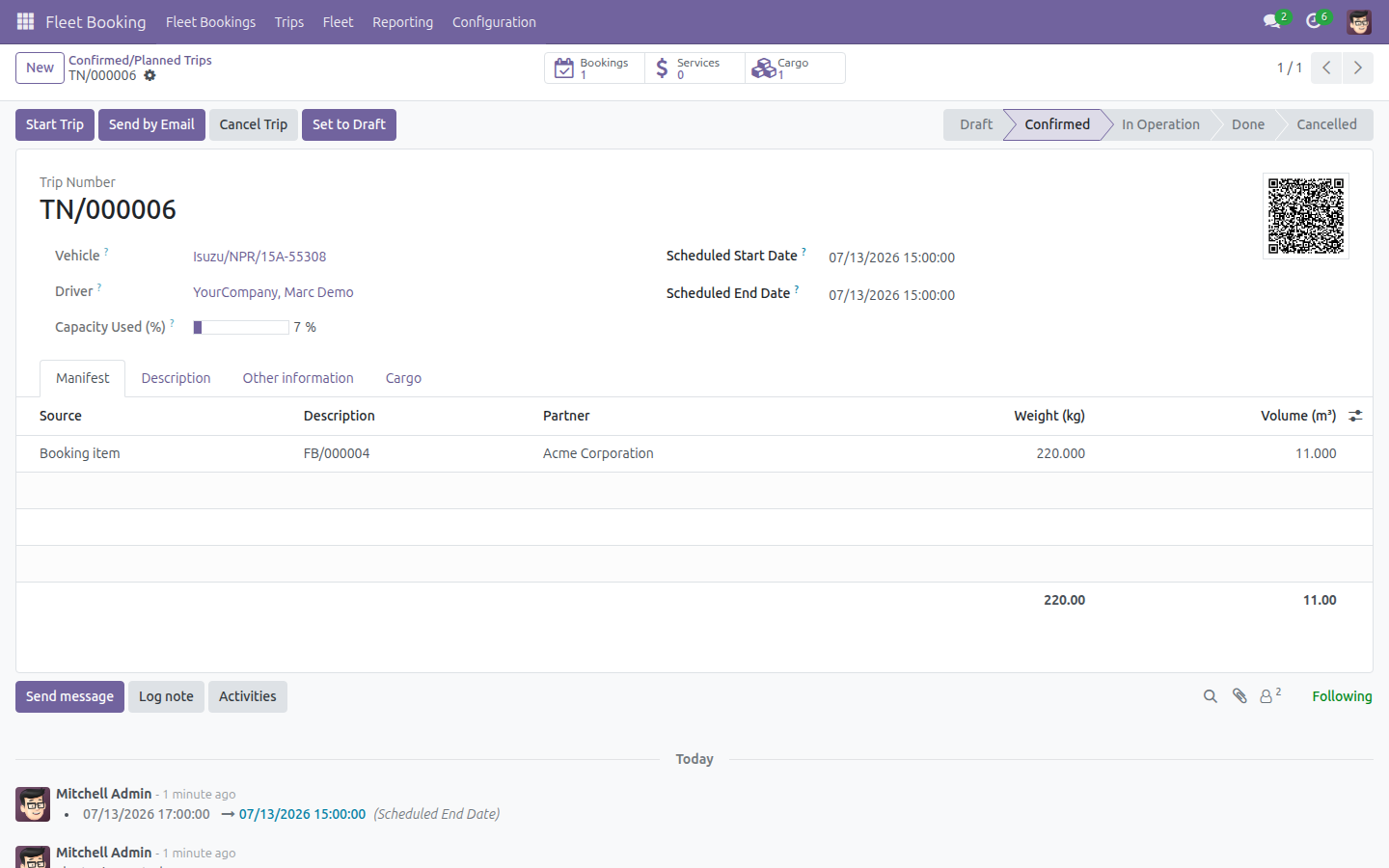
Back on the trip form, the Manifest tab lists every booking item the trip carries with its Weight (kg) and Volume (m³), and the header shows a Cargo count next to Bookings and Services; a separate Cargo tab next to Manifest lists just the registered cargo lines with their Description, Cargo Owner, Booking, Product, Quantity, Unit of Measure, Total Weight and Total Volume.
Analyze cargo weight and volume in the Bookings and Trips reports
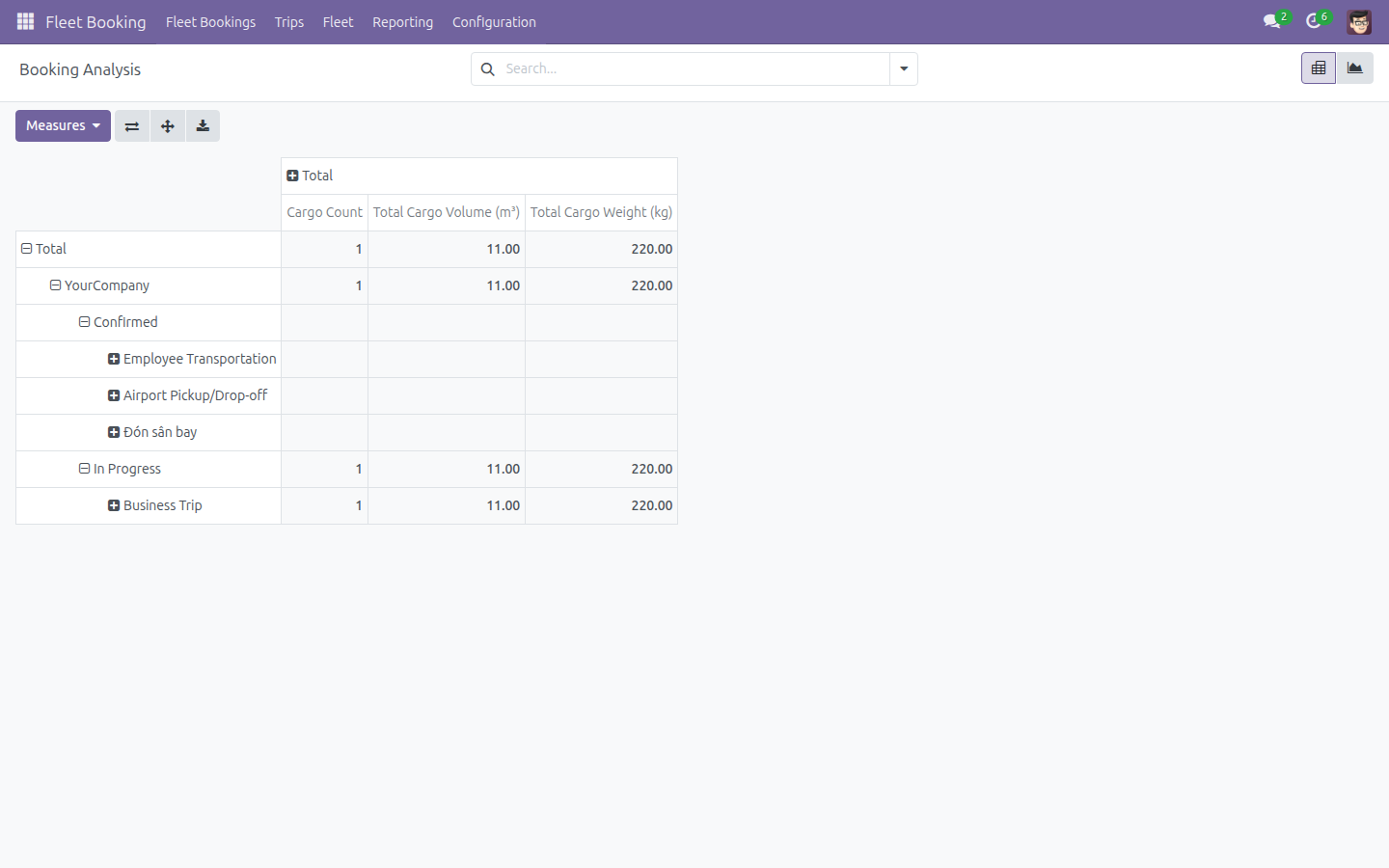
Open Fleet Booking > Reporting > Fleet Booking Analysis (the Booking Analysis pivot), click Measures, and add Cargo Count, Total Cargo Weight (kg) and Total Cargo Volume (m³) alongside the existing booking KPIs.
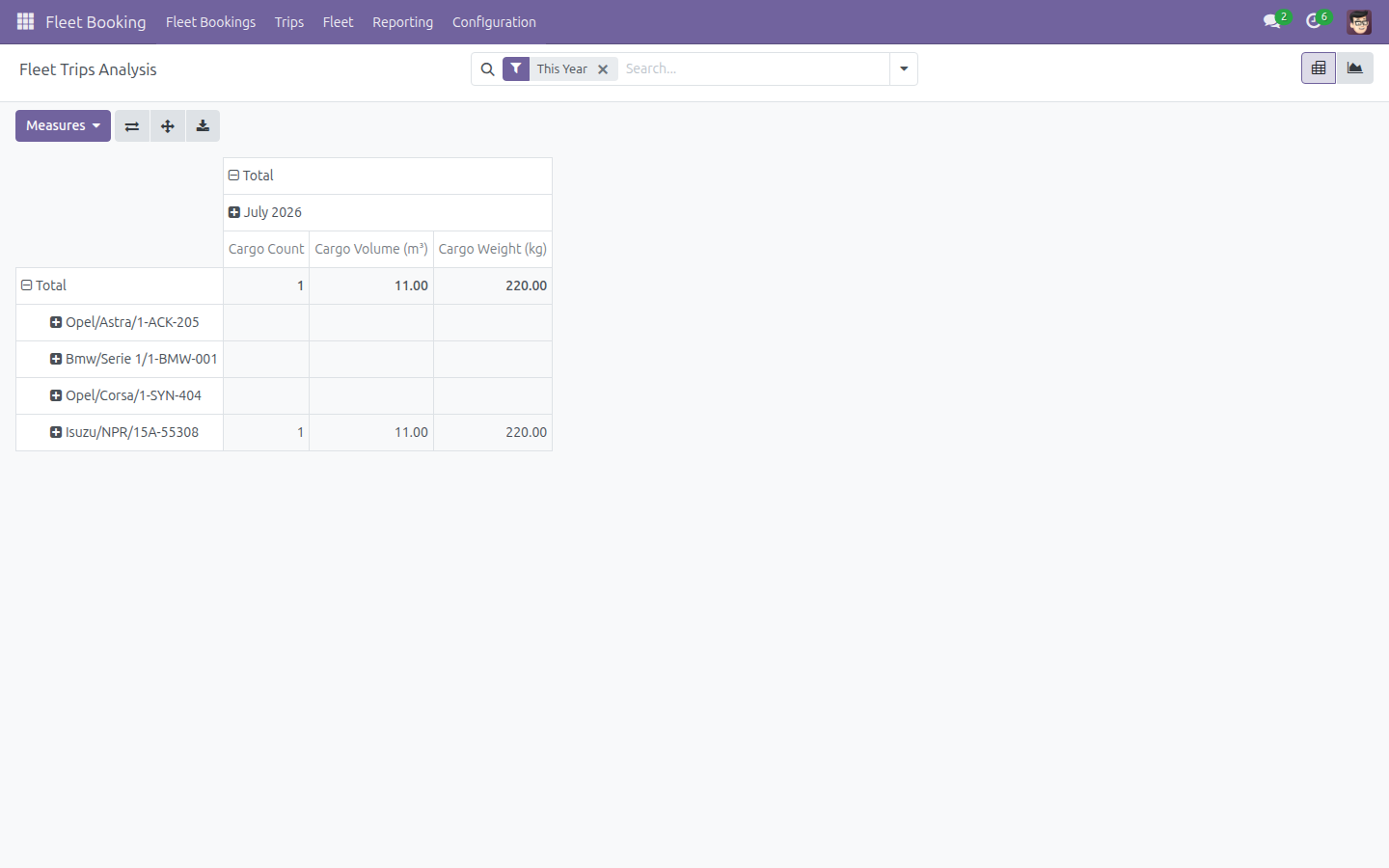
Open Fleet Booking > Reporting > Fleet Trips Analysis and add the equivalent Cargo Count, Cargo Weight (kg) and Cargo Volume (m³) measures, rolled up per trip.
Troubleshooting
The Registered Cargo tab does not appear on a booking
The tab (and the Demand Weight / Demand Volume fields) only show once Transport Type is Cargo. Set Booking Type to Internal Cargo or External Cargo first - Transport Type follows it automatically.
Saving a cargo line fails with a message about the Demand Weight or Demand Volume
The registered cargo lines on a booking can never add up to more than its declared Demand Weight or Demand Volume. Either raise the demand on the booking first, or lower the Quantity (or per-unit weight/volume) on the cargo line so the totals fit within it.
"It is not allowed to add cargo to this booking" error
This appears if a cargo line is added while the booking's Transport Type is not Cargo - for example after switching Booking Type away from a cargo type. Set Booking Type back to a cargo type, or remove the cargo line from a non-cargo booking.
A product's Weight per Unit / Volume per Unit is 0.00 on a cargo line
The line only auto-fills these from the product's own Weight and Volume fields (Inventory > Products). If the product does not have them set, fill in Weight per Unit and Volume per Unit directly on the cargo line instead.
FAQ
Can I use Cargo without installing any other Fleet Booking add-on? Yes. This app only needs Fleet Booking & Trip Management and Fleet Loading Capacity (Volume & Payload), both installed automatically with it.
Does a cargo line have to reference a product? No. Product is optional - it is a convenient way to auto-fill Weight per Unit and Volume per Unit, but you can always enter those by hand and leave Product empty.
Can the same cargo item be split across more than one vehicle trip? No - a cargo item belongs to one booking item, which is assigned to at most one trip at a time. To split a shipment across multiple trips, register it as separate cargo lines and assign each booking item to its own trip.
Where do the Cargo Count / Cargo Weight / Cargo Volume measures come from in reporting? They are aggregated from every registered cargo line: Cargo Count counts the lines, and the weight/volume measures sum each line's Total Weight / Total Volume.
This software and associated files (the "Software") may only be used (executed, modified, executed after modifications) if you have purchased a valid license from the authors, typically via Odoo Apps, or if you have received a written agreement from the authors of the Software (see the COPYRIGHT file).
You may develop Odoo modules that use the Software as a library (typically by depending on it, importing it and using its resources), but without copying any source code or material from the Software. You may distribute those modules under the license of your choice, provided that this license is compatible with the terms of the Odoo Proprietary License (For example: LGPL, MIT, or proprietary licenses similar to this one).
It is forbidden to publish, distribute, sublicense, or sell copies of the Software or modified copies of the Software.
The above copyright notice and this permission notice must be included in all copies or substantial portions of the Software.
THE SOFTWARE IS PROVIDED "AS IS", WITHOUT WARRANTY OF ANY KIND, EXPRESS OR IMPLIED, INCLUDING BUT NOT LIMITED TO THE WARRANTIES OF MERCHANTABILITY, FITNESS FOR A PARTICULAR PURPOSE AND NONINFRINGEMENT. IN NO EVENT SHALL THE AUTHORS OR COPYRIGHT HOLDERS BE LIABLE FOR ANY CLAIM, DAMAGES OR OTHER LIABILITY, WHETHER IN AN ACTION OF CONTRACT, TORT OR OTHERWISE, ARISING FROM, OUT OF OR IN CONNECTION WITH THE SOFTWARE OR THE USE OR OTHER DEALINGS IN THE SOFTWARE.