
Inter-Company Rule for Sale/Purchase
| Lines of Code | 760 |
| Technical name | to_inter_company_sale_purchase |
| License | OPL-1 |
| Website | https://viindoo.com/apps/modules/17.0/to_inter_company_sale_purchase |
| Read description for | v 12.0 v 13.0 v 14.0 v 15.0 v 16.0 v 18.0 |
| Required Apps | Purchase (purchase) Invoicing (account) Discuss (mail) |
| Included Dependencies | Inter-Company Rule for Invoices Activate Enterprise Mark - Inter-Company Hide Enterprise Modules Inter Company Base |
| Extensions | Inter-Company Storable Products Purchase and Sales |

Confirm a sale to a sister company and its purchase order appears
A confirmed sales order to a company of the group creates the purchase order in that company - and a confirmed purchase order creates the sales order the other way - validated automatically when the company says so.
Inter-Company Rule for Sale/Purchase (technical name to_inter_company_sale_purchase) is an Odoo 17.0 app for Odoo Community and Odoo Enterprise and Viindoo Cloud, built for sales, branch buyer, controller.

At a Glance
The facts of Inter-Company Rule for Sale/Purchase, version 0.1, in one place. Published by Viindoo.
How It Works
Set Apply On and validation on each company; confirm an order.
The sale
S00092 confirmed.
The purchase
P00034, auto-validated.

The link
Inter-Company Sale Order and Auto Generated.

The other way
P00035 that became S00093.

Settings
Apply On and validation.

What You Get
SO to PO and PO to SO between group companies
Apply On and auto-validation per company
Lines copied with price and UoM
Auto Generated flag and cross links
Cancellation message on the other side
Works with the invoice bridge
More Screens
Everything below was taken on a database seeded with real business data, on this series - not a mock-up and not a screenshot from an older version.

The generated sales order
What This App Does Not Do
Read this before you buy. Everything below is something the app deliberately leaves to another app or to you.
That user needs sales and purchase rights there.
Otherwise the mirror stays draft.
Install it for receipts and deliveries.
Works Well With
Apps from the same stack, built to fit this one:
Who Should Use Inter-Company Rule for Sale/Purchase?
Sales
Sells to the branch like any customer.
Branch buyer
The PO is already there.
Controller
Intercompany volumes without spreadsheets.
Frequently Asked Questions
What does Inter-Company Rule for Sale/Purchase do?
A confirmed sales order to a company of the group creates the purchase order in that company - and a confirmed purchase order creates the sales order the other way - validated automatically when the company says so.
What does Inter-Company Rule for Sale/Purchase not do?
The mirrored document is created as the inter-company user. That user needs sales and purchase rights there. Auto-validation needs the user set. Otherwise the mirror stays draft. Warehouses come from the stock bridge. Install it for receipts and deliveries.
Who is Inter-Company Rule for Sale/Purchase for?
Sales: Sells to the branch like any customer. Branch buyer: The PO is already there. Controller: Intercompany volumes without spreadsheets.
Which Odoo version and editions does it support?
Odoo 17.0 - Odoo Community, Odoo Enterprise, Viindoo Cloud. Upgrades to a newer Odoo series are a separate purchase for that series.
What does it depend on?
It installs on top of: sale_purchase, to_inter_company_invoice. Odoo installs them with it.
How do I set it up?
Set Apply On and validation on each company; confirm an order.
What works well with it?
Inter-Company Stock (to_inter_company_sale_purchase_stock): Warehouse per company. Inter-Company Invoice (to_inter_company_invoice): Invoices mirrored too.
Can I try it before buying?
Yes - the Live Preview button at the top of this page opens the module's own screen on a working database.
How do I get support?
Write to apps.support@viindoo.com with your Odoo version and the technical name to_inter_company_sale_purchase; pre-sales questions go to sales@viindoo.com.
See Inter-Company Rule for Sale/Purchase in Action
Confirm a sale to a sister company and its purchase order appears
Need help with Inter-Company Rule for Sale/Purchase?
For questions, implementation support, or consulting services, contact Viindoo.
Pre-Sales & Partnership
sales@viindoo.comWhen contacting us, please include:
- Odoo/Viindoo version (Odoo CE / Viindoo Editions).
- Number of users and business scope.
- Other modules currently in use.
Technical Support
apps.support@viindoo.comFor faster troubleshooting, please provide:
- Order number or app reference.
- Odoo/Viindoo version & edition.
- Steps to reproduce the issue.
- Screenshots/logs if available.
Upgrades to a newer Odoo series are a separate purchase for that series.
Technical Requirement
Changes log
0.1 - Latest on the 17.0 line
- Aligned with the 17.0 models and views.
Installation
- Navigate to Apps.
- Search with keyword to_inter_company_sale_purchase.
- Press Install.
Note: After installing the to_inter_company_sale_purchase module, the system will automatically install the modules:
- account;
- purchase;
- utm;
- to_inter_company_base;
- to_inter_company_invoice.
You need to install the sale_management module to see the full features of the to_inter_company_sale_purchase module.
Instruction
Instruction video: Inter-Company Rule for Sale/Purchase
Use cases
Example: There are 2 companies, A and B.
- The A Company needs to buy products from the B Company.
- The A Company creates a request for quotation and confirms the purchase order.
- The B Company creates a quotation and confirms the sale order.
Implement in the software
Step 1: Set up multi-company.
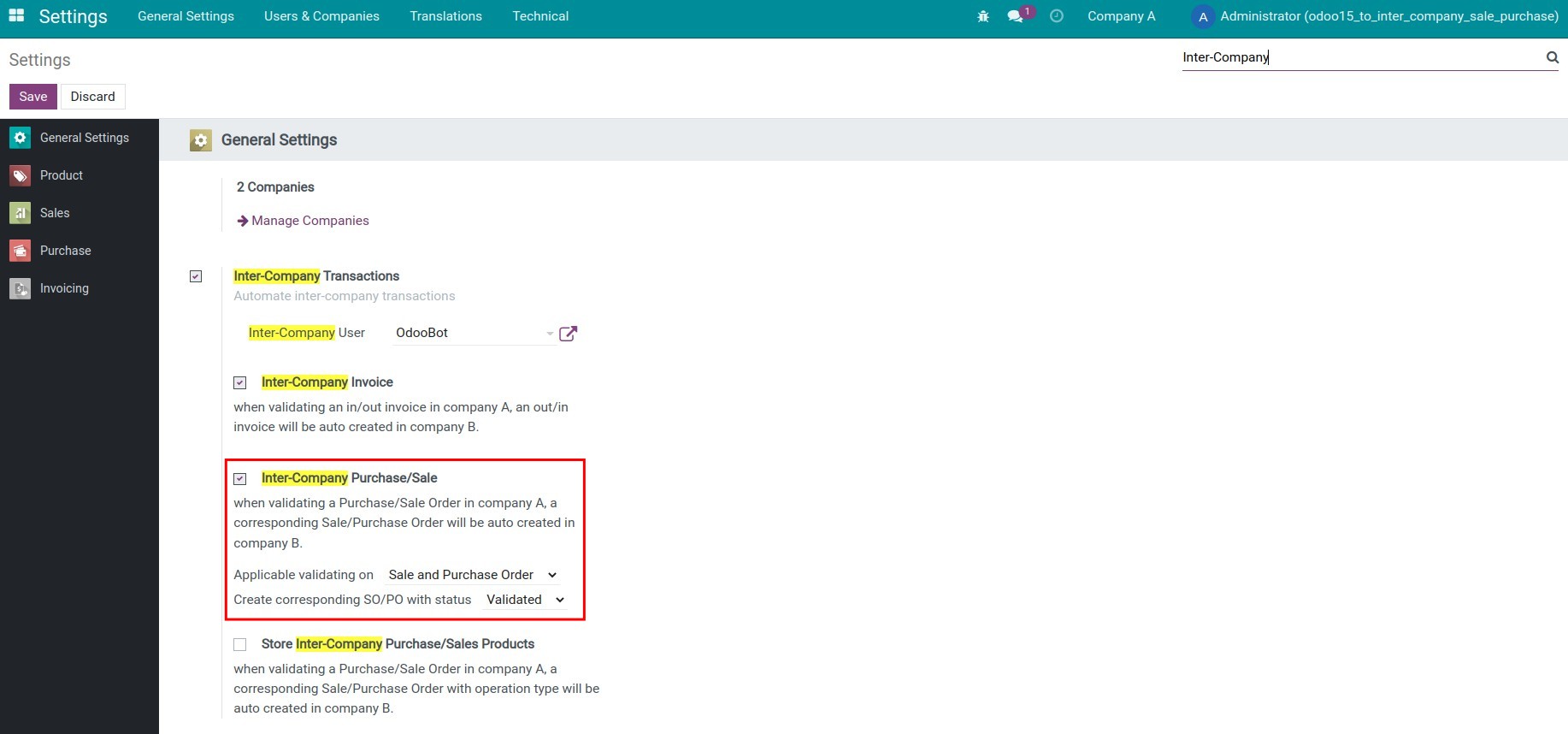
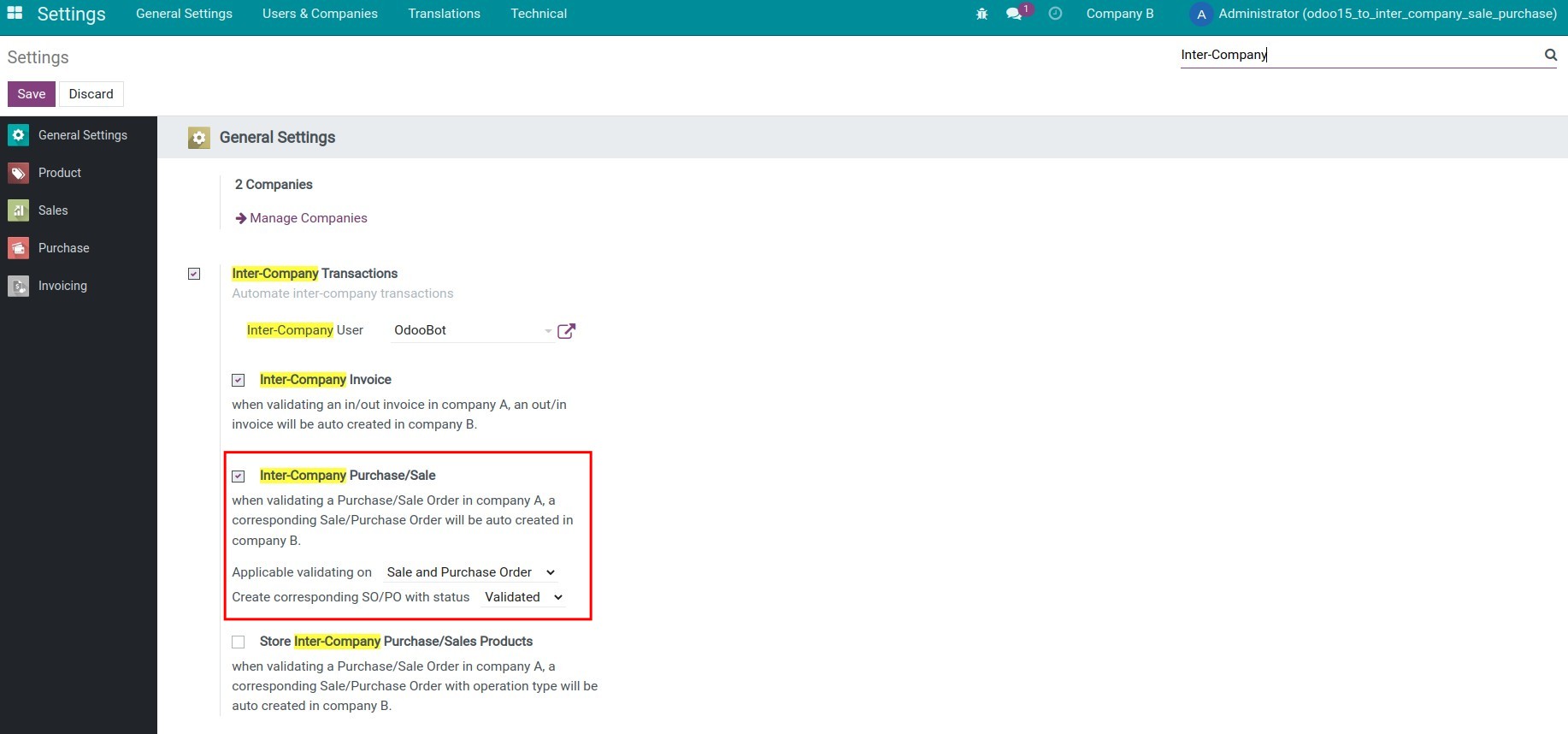
Step 2: Set up to perform inter-company transactions on the same system. From the main screen, go to Settings, and search for the keyword Inter-Company.
- The A Company:
- The B Company:
Step 4: Create a Request for Quotation, then confirm the Purchase Order at the A Company.
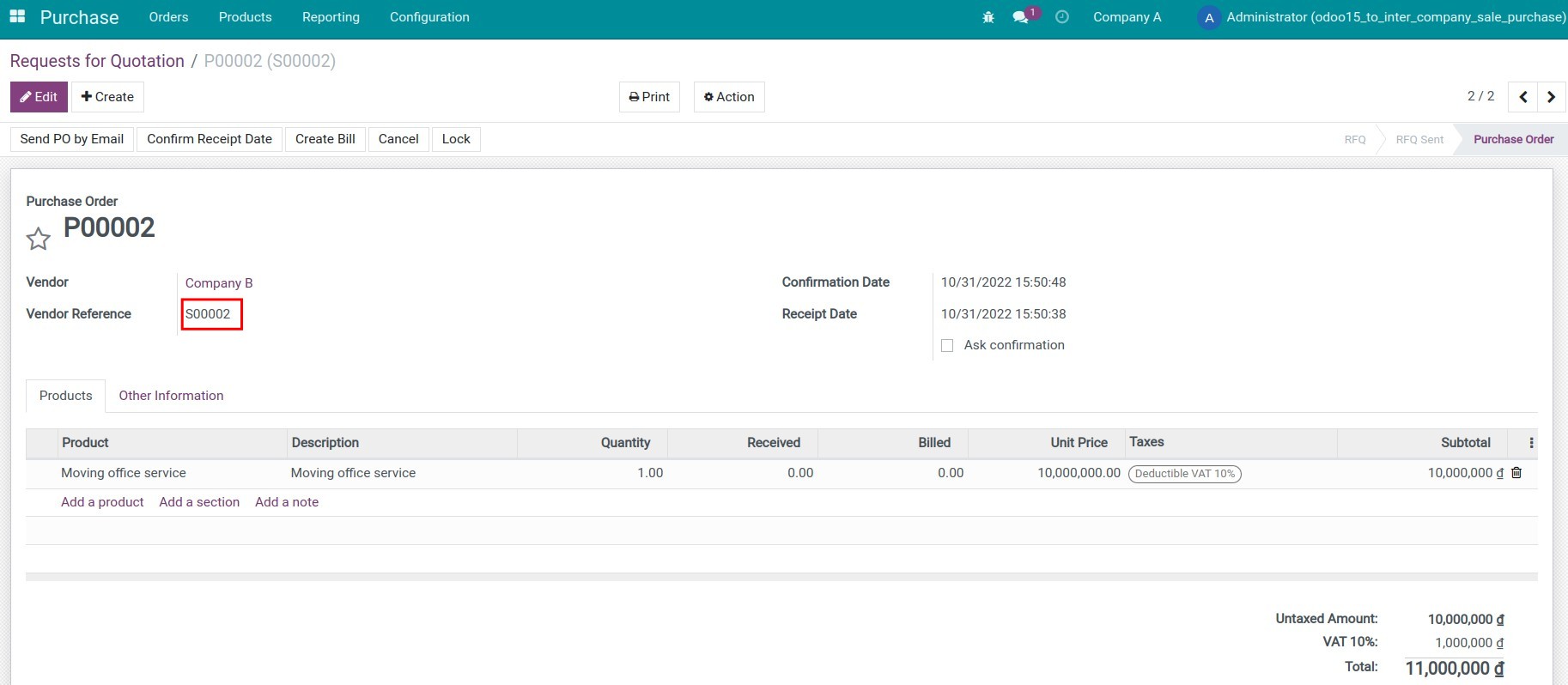
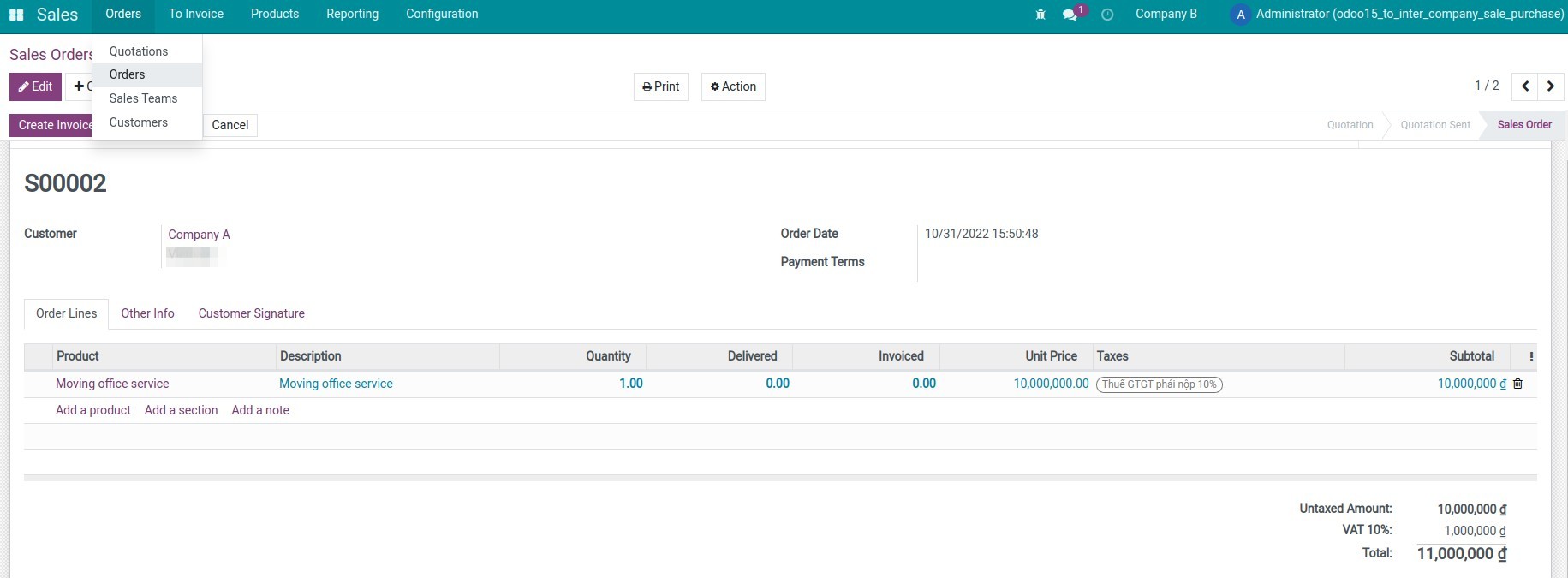
Step 5: Check the Sales Order is automatically generated at the B Company.
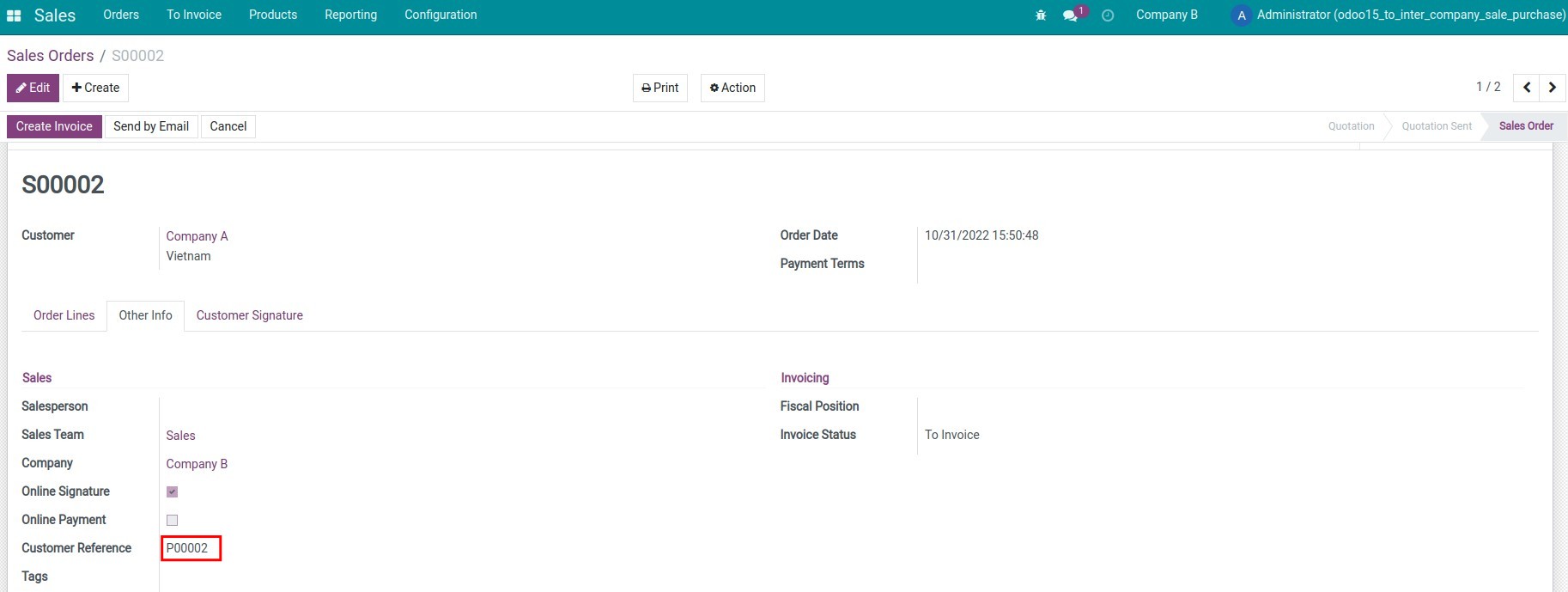
On the auto-generated sales order at the B Company, you can check the reference number to the purchase order of the A Company right at the Other Info tab.
This software and associated files (the "Software") may only be used (executed, modified, executed after modifications) if you have purchased a valid license from the authors, typically via Odoo Apps, or if you have received a written agreement from the authors of the Software (see the COPYRIGHT file).
You may develop Odoo modules that use the Software as a library (typically by depending on it, importing it and using its resources), but without copying any source code or material from the Software. You may distribute those modules under the license of your choice, provided that this license is compatible with the terms of the Odoo Proprietary License (For example: LGPL, MIT, or proprietary licenses similar to this one).
It is forbidden to publish, distribute, sublicense, or sell copies of the Software or modified copies of the Software.
The above copyright notice and this permission notice must be included in all copies or substantial portions of the Software.
THE SOFTWARE IS PROVIDED "AS IS", WITHOUT WARRANTY OF ANY KIND, EXPRESS OR IMPLIED, INCLUDING BUT NOT LIMITED TO THE WARRANTIES OF MERCHANTABILITY, FITNESS FOR A PARTICULAR PURPOSE AND NONINFRINGEMENT. IN NO EVENT SHALL THE AUTHORS OR COPYRIGHT HOLDERS BE LIABLE FOR ANY CLAIM, DAMAGES OR OTHER LIABILITY, WHETHER IN AN ACTION OF CONTRACT, TORT OR OTHERWISE, ARISING FROM, OUT OF OR IN CONNECTION WITH THE SOFTWARE OR THE USE OR OTHER DEALINGS IN THE SOFTWARE.