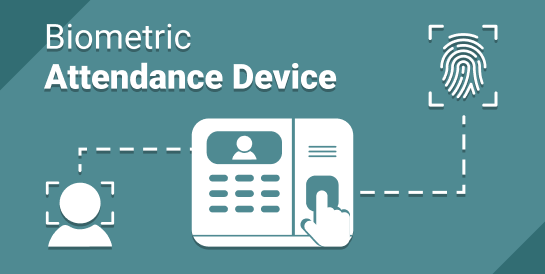

Biometric Attendance Machines Integration
| Lines of Code | 7301 |
| Technical name | to_attendance_device |
| License | OPL-1 |
| Website | https://viindoo.com/apps/modules/17.0/to_attendance_device |
| Read description for | v 10.0 v 11.0 v 12.0 v 13.0 v 14.0 v 15.0 v 16.0 v 18.0 v 19.0 |
| Required Apps | Attendances (hr_attendance) Discuss (mail) Employees (hr) |
| Included Dependencies | Viindoo Base |

Attendance straight from your ZKTeco machines into Odoo
Connect the biometric clocks you already own, pull every punch on a schedule, and let HR work from attendance records that nobody typed in by hand.
Biometric Attendance Machines Integration (technical name to_attendance_device) is an Odoo 17.0 app for Odoo Community and Odoo Enterprise and Viindoo, built for hr officer, employee, system administrator.

At a Glance
The facts of Biometric Attendance Machines Integration, version 1.1.10, in one place. Published by Viindoo.
Key Features
This app talks to ZKTeco attendance machines over your network and keeps Odoo's attendance records in step with them. You register each machine once, map its enrolled users to employees, and from then on the punches arrive on their own. It handles the parts that make this awkward in practice: machines in different offices and time zones, employees enrolled on several machines, devices that fill up and need clearing, and machines that sit behind a network you cannot reach outbound.
Several machines, several offices
Each machine belongs to a location with its own time zone. A punch recorded at 08:00 in Hanoi and one at 08:00 in Berlin do not collide.
Fingerprint and face templates
Read templates off a machine, store them against the employee, and push them to another machine. Opening a second office does not mean enrolling everyone twice.
Command queue per device
Add a user, change their information, enrol a finger - each becomes a queued command that runs when the machine is reachable, instead of failing silently.
Attendance activities and status codes
Every punch is classified the way the machine reports it - normal attendance, overtime, break, or an unknown punch state - through status codes mapped per activity, so a check-in and a check-out mean the same thing on every machine you connect.
A polling interval that costs little
A push machine asks for its next command on one interval you set, and only waits it out while it has nothing to do: a batch of users or fingerprints goes through back to back. A quiet fleet stops hammering the server without slowing an upload down.
How It Works
Four steps from an unconnected machine to attendance records HR can close a month on.
Register the machine
Give the machine a name, an IP or hostname, a port and a location. Hit Get Machine Info and the firmware, serial number, vendor and biometric versions come back filled in - which is also how you confirm the connection works before going any further.

Map users to employees
The machine knows user IDs; Odoo knows employees. This screen puts them side by side and keeps two lists in front of you: machine users with no employee, and employees on no machine. An employee enrolled on three machines is still one employee.

Let the schedule pull the data
A scheduled job downloads new punches from every confirmed machine. If the device is close to full you can have it cleared right after a successful download, at a time given in the machine's own time zone rather than the server's.

Work from the attendance records
Punches land as normal attendance records, so everything downstream - reports, timesheets, payroll - reads them the way it reads any other attendance. The machine and the raw log stay attached to each record, so a disputed punch can be traced back to the device it came from.

What You Get
Reads firmware, serial number, vendor, platform, fingerprint algorithm and face version from the device, so you can tell what you are actually running
Two ways to connect: Odoo pulls from the machine over TCP or UDP, or the machine pushes to Odoo over its own protocol when the device sits behind a firewall
Maps machine users to employees, and shows you which users are still unmapped and which employees are on no machine at all
Downloads attendance logs on a schedule and can clear the device afterwards, at a time you choose in the machine's own time zone
Enrols fingerprint and face templates from Odoo and copies them to other machines, so a new office does not mean re-enrolling everyone
Keeps a command queue per device, so an action taken while a machine is offline runs when it comes back
More Screens
Everything below was taken on a database seeded with real business data, on this series - not a mock-up and not a screenshot from an older version.

Attendance locations, so every machine belongs to a place with its own time zone

Employees still without a machine user, listed on the machine itself

Status codes as the machine reports them, mapped to check-in, check-out, overtime or break
Technical settings: packet size, ping, timeout, unique UID and auto-clear

Raw rows exactly as the machine sent them, kept for when a punch is disputed

Face and fingerprint templates held per device user

Fingerprint templates, ready to be pushed to a second machine

The command queue waiting for each machine to come back online

Attendance activities - normal, overtime, break - each with the status codes that mean check-in and check-out

The catalogue of status codes shared by every machine

The result: Odoo attendance records nobody typed in by hand

Hours per employee and per period, straight out of machine data

Who is in and who is out right now, from the same records
What This App Does Not Do
Read this before you buy. Everything below is something the app deliberately leaves to another app or to you.
The protocol implemented here is ZKTeco's. Suprema, Hikvision, Anviz and other vendors are not supported and will not connect, whatever the machine looks like.
Punches arrive as attendance records; turning them into worked hours, overtime and payslips is the job of the payroll and overtime apps.
There is no shift planning here. It records when people actually clocked, not when they were supposed to.
Doors, turnstiles and permission-to-enter are outside this app even when the same machine is wired to them.
On a network where neither is possible, no attendance app can help - you need a VPN or a routable address first.
Who Should Use Biometric Attendance Machines Integration?
HR officer
Registers machines, maps users to employees, and checks each morning that the previous day arrived.
Employee
Punches on the machine as before. Nothing changes for them, which is the point.
System administrator
Sets the download schedule, the clearing policy and who is allowed to manage machines.
Frequently Asked Questions
What does Biometric Attendance Machines Integration do?
Connect the biometric clocks you already own, pull every punch on a schedule, and let HR work from attendance records that nobody typed in by hand.
What does Biometric Attendance Machines Integration not do?
ZKTeco machines only. The protocol implemented here is ZKTeco's. Suprema, Hikvision, Anviz and other vendors are not supported and will not connect, whatever the machine looks like. It does not calculate payroll. Punches arrive as attendance records; turning them into worked hours, overtime and payslips is the job of the payroll and overtime apps. It does not plan shifts or rosters. There is no shift planning here. It records when people actually clocked, not when they were supposed to. It does not do access control. Doors, turnstiles and permission-to-enter are outside this app even when the same machine is wired to them. Odoo must be able to reach the machine, or the machine must reach Odoo. On a network where neither is possible, no attendance app can help - you need a VPN or a routable address first.
Who is Biometric Attendance Machines Integration for?
HR officer: Registers machines, maps users to employees, and checks each morning that the previous day arrived. Employee: Punches on the machine as before. Nothing changes for them, which is the point. System administrator: Sets the download schedule, the clearing policy and who is allowed to manage machines.
Which Odoo version and editions does it support?
Odoo 17.0 - Odoo Community, Odoo Enterprise, Viindoo. Upgrades to a newer Odoo series are a separate purchase for that series.
What does it depend on?
It installs on top of: hr_attendance, to_base. Odoo installs them with it.
How often does a push machine contact the server?
On the Delay interval the server hands it, 30 seconds by default, while it has nothing to do; after carrying out a command it asks for the next one straight away. Attendance punches do not wait for that interval - with Real Time on, the machine sends each punch as it happens.
How do I set it up?
Four steps from an unconnected machine to attendance records HR can close a month on.
Can I try it before buying?
Yes - the Live Preview button at the top of this page opens the module's own screen on a working database.
How do I get support?
Write to apps.support@viindoo.com with your Odoo version and the technical name to_attendance_device; pre-sales questions go to sales@viindoo.com.
See Biometric Attendance Machines Integration in Action
Attendance straight from your ZKTeco machines into Odoo
Need help with Biometric Attendance Machines Integration?
For questions, implementation support, or consulting services, contact Viindoo.
Pre-Sales & Partnership
sales@viindoo.comWhen contacting us, please include:
- Odoo/Viindoo version (Odoo CE / Viindoo Editions).
- Number of users and business scope.
- Other modules currently in use.
Technical Support
apps.support@viindoo.comFor faster troubleshooting, please provide:
- Order number or app reference.
- Odoo/Viindoo version & edition.
- Steps to reproduce the issue.
- Screenshots/logs if available.
Upgrades to a newer Odoo series are a separate purchase for that series.
Technical Requirement
Changes log
1.1.12 - Latest on the 17.0 line
- Push machines poll on a single interval again, 30 seconds by default. Version 1.1.11 switched a machine between two intervals with CHECK commands; a machine that acknowledged the CHECK without re-reading its options was sent a new one on every request.
- A queued command is handed over on the very next request instead of waiting behind a CHECK.
- A machine INFO reply that carries no IP address no longer fails.
1.1.11 - Command lookup and clean-up
- The command lookup that every poll triggers no longer scans the whole command table.
- Commands a machine never answered are cleaned up on schedule as well, instead of being kept forever.
1.1.10 - Machine registration and matching fixes
- A machine that reports its own IP address no longer collides with another machine on the uniqueness check.
- Employees are matched to machine users in ordered passes, most reliable evidence first, with Badge ID taking priority.
- The synchronisation scheduler no longer re-triggers itself in a loop.
- SenseFace 2A machines complete their registration handshake.
- Uploading biometric data from one machine to another works again.
- The attendance watermark advances by what was actually processed rather than by when the download ran, so a failed batch is not skipped.
- Pushed ATTLOG and BIODATA payloads are dispatched by table rather than guessed from their content.
- Push data that is not valid UTF-8 is decoded instead of raising.
2025-2026 - Reliability and speed
- One unreachable machine no longer stops the scheduled download for the others.
- The attendance synchronisation cron no longer times out on large fleets.
- Downloading users and computing record counts use far less memory and CPU.
- Repeated error messages no longer flood the log or the chatter.
- Queued commands are cleaned up on a schedule you configure.
2025 - Biometrics and devices
- Face and fingerprint templates can be read from a machine and pushed to another.
- The list of supported machines was extended twice after field testing.
- Connection tests report what actually happened instead of failing silently.
Installation
- Navigate to Apps;
- Find with keyword to_attendance_device;
- Press Install.
Usages
Instruction video: Biometric Attendance Machines Integration
Concepts
Machine Position is a model to store locations where your attendance machines are installed. Each location consists of the following information:
- Name: the name of the location.
- Time zone: the time zone of the location. This is to support attendance logs at multiple locations in different time zones.
Attendance State is a model to store states of attendance activity that can be defined by users. States could be Check-in, Check-out, Overtime Check-in, Overtime Start, etc. Please navigate to Attendance > Configuration > Attendance Status to see the list of default states that were created during the installation of this application.
Attendance Activity is a model that classifies attendance in activities such as Normal Working, Overtime, etc. Navigate to Attendance > Configuration > Attendance Activity to see the list of default activities that were created during the installation of this application. Each Attendance Activity is defined with the following:
- Name: the unique name of the activity.
- Attendance Status: list of the attendance states that are applied to this activity.
Machine User is a model that stores all the machines' users in your Odoo instance and map such users with Employees in the system. Each Machine User consists of (but is not limited to) the following information:
- Name: the name of the user stored in the machine.
- Attendance Machine: the machine to which this user belongs.
- UID: The ID (technical field) of the user in the machine storage, which is usually invisible at the machine's interface/screen.
- ID Number: the ID Number of the user/employee in the machine storage. It is also known as "User ID" in some machines.
- Employee: the employee that is mapped with this user. If you have multiple machines, each employee may map with multiple corresponding machine users.
User Attendance is a model that stores all the attendance records downloaded from all the machines. In other words,it is a central database of attendance logs for all your machines. This log will be used as the base to create HR Attendance. During that creation, the software will also check for the validity of the attendance to ensure that the HR Attendance data is clean and valid.
HR Attendance is a model offered by Odoo's standard module hr_attendance and is extended to have the following fields:
- Check-in: the time of check-in.
- Check-out: the time of check-out.
- Employee: the related employee.
- Checkin Machine: the attendance machine that logged the check-in.
- Checkout Machine: the attendance machine that logged the check-out.
HR Attendance records are created automatically and periodically by the Scheduled Action named Synchronize attendances schedule.
Employee is a model in Odoo that is extended for the additional following information:
- Unmapped Machines: to show the list of attendance machines that have not to gotten this employee mapped.
- Created from Machine: to indicate if the employee profile was created from a machine (e.g. Download users -> auto create employee-> auto map them). This will helps you filter your employees to see ones that were or were not created from machines.
Attendance Machine is a model that stores all the information of an attendance machine. It also provides a lot of tools such as:
- Upload Users: to upload all your employee to an attendance machine (e.g a new and fresh machine).
- Download Users: to download all the machine's users' data into odoo and map those users with employees (if an auto mapping is set).
- Map Employee: to map machine users with employees in your Odoo instance.
- Check connection: to check if your Odoo instance could connect to the machine.
- Get Machine Info: to get the most important information about the machine (e.g. OEM Vendor, Machine Name, Serial Number, Firmware Version, etc).
- Download Attendance: to download manually all the attendance data from the machine into your Odoo database, although this could be done automatically by the scheduled action named "Download attendances scheduler".
- Restart: to restart the machine.
- Clear Data: this is to empty your data. It is a very DANGEROUS function and is visible to and accessible by the HR Attendance Manager only.
- And many more...
Setup a new attendance machine
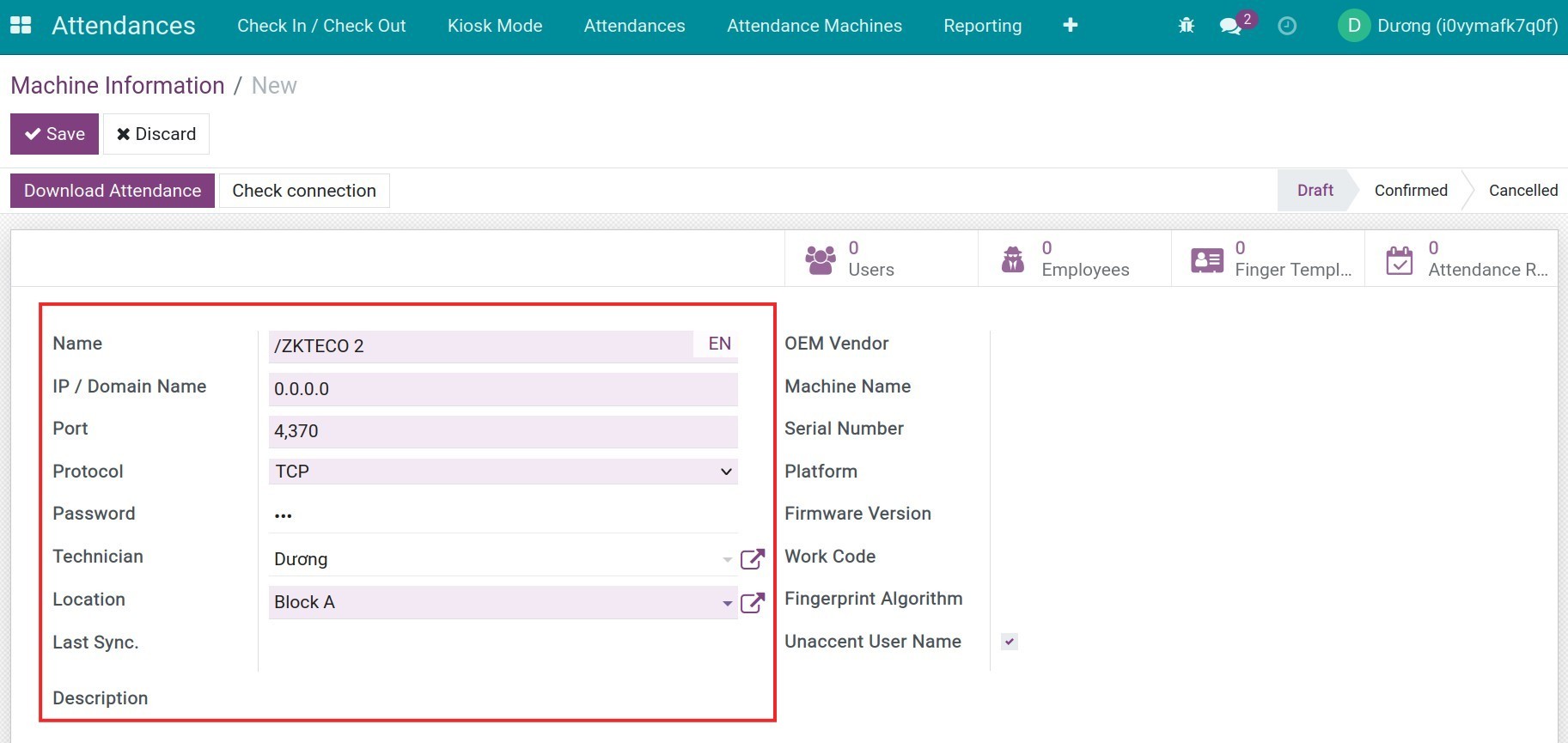
- Navigate to Attendances > Attendance Machines > Machines Manager.
- Click Create button to open a machine form view.
- Input the name of the machine (optional).
- Enter the IP of the machine. It must be accessible from your Odoo server. If your Odoo instance is on the Internet while the machine is in your office, behind a router, please ensure that port forwarding is enabled and the machine's network configuration is properly set to allow accessing your machine from outside via the Internet. You may need to refer to your router manufacturers for documentation on how to do NAT/port forwarding.
- Port: the port of the machine. It is usually 4370.
- Protocol: which is either UDP or TCP. Most modern machines nowadays support both. TCP is more reliable but may not be supported by a behind-a-decade machine.
- Location: the location where the machine is physically installed. The time zone of the location must be correct.
- You may want to see other options (e.g. Map Employee Before Download, Time zone, Generate Employees During Mapping, etc).
- Hit the Save button to create a new machine in your Odoo.
- Hit Check Connection to test if the connection works. If it did not work, please troubleshoot for the following cases:
- Check network settings inside the physical machine: IP, Gateway, Port, Net Mask.
- Check your firewall/router to see if it blocks connection from your Odoo instance.
- Try on switching between UDP and TCP.
Refer to the article Biometric attendance device intergration.
Map Machines Users and Employees
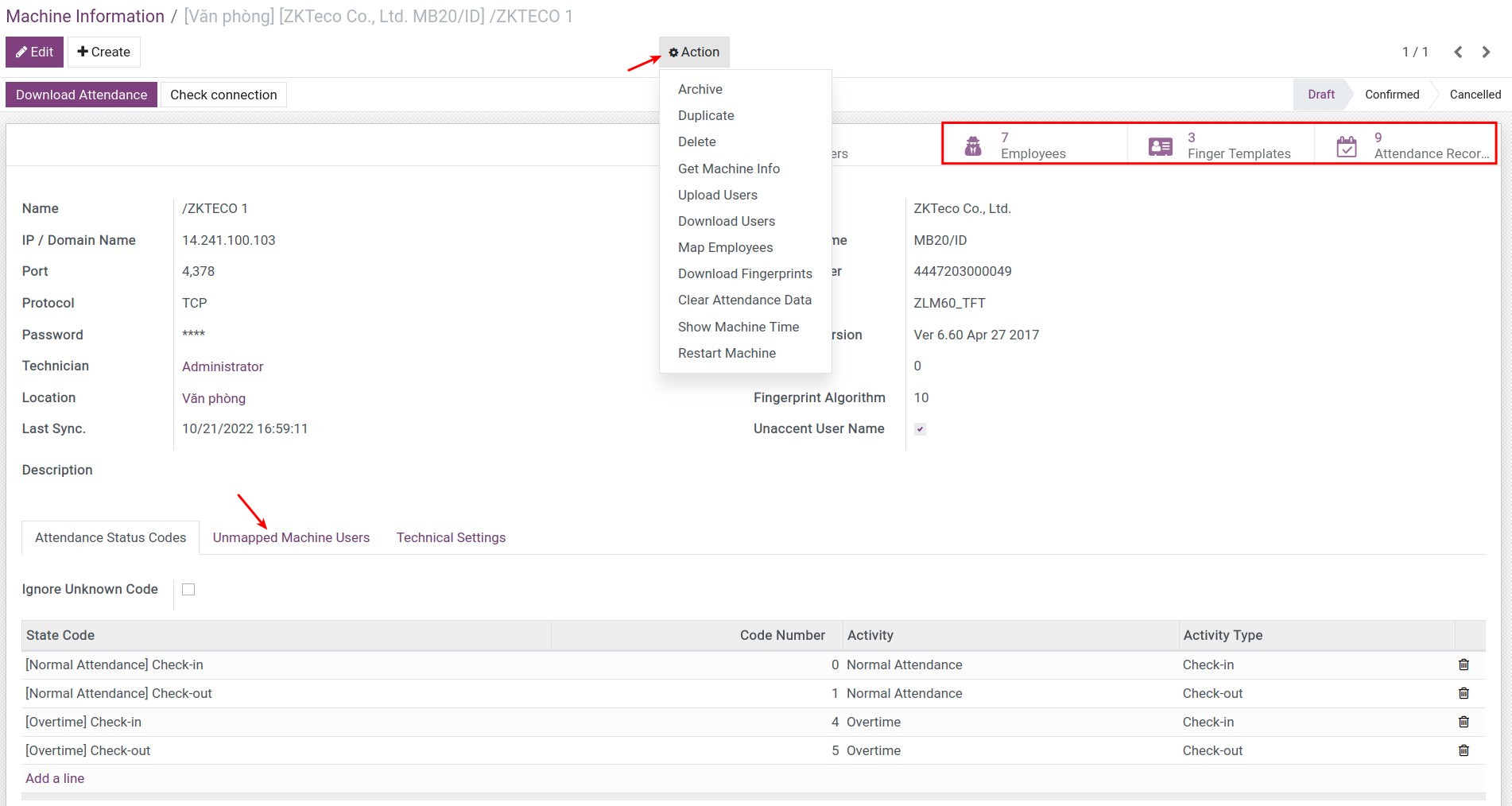
- If this is a fresh machine without any data stored inside:
- Click Upload users.
- If this is not a fresh machine:
- You may want to clear data before doing step 10.1 mentioned above.
- Or, you may want to Download Users and map them to an existing employee or create a new employee accordingly.
- Validate the result:
- All Machine Users should link to a corresponding employee.
- No unmapped employees are shown on the machine form view.
Refer to the article Link Attendance device users with employees in Viindoo system.
- Test Attendance Data download and synchronization:
- Do some check-in and check-out at the physical machine:
- Wait for seconds between check-in and check-out.
- Try some wrong actions: check-in a few times before checking-out.
- Come back to the machine form view in Odoo:
- Hit Download Attendance Data and wait for its completion. For just a few attendance records, it may take only a couple of seconds even if your device is located in a country other than the Odoo instance's.
- Validate the result:
- Navigate to Attendances > Attendance Machines > Attendance Data to validate if the attendance log is recorded there.
- If found, you are done now. You can continue with the following steps to bring the new machine into production:
- Clear the sample attendance data you have created:
- Navigate to Attendances > Attendance Machines > Attendance Data, find and delete those sample records.
- Navigate to Attendances > Attendance Machines > Synchronize and hit Clear Attendance Data button.
- Hit the Confirmed state in the header of the machine form view. If you don't do it, the schedulers will ignore the machine during their runs.
- Clear the sample attendance data you have created:
- If not found, there should be some trouble that needs further investigation:
- Check the connection.
- Try to get the machine information.
- Check the work codes of the machine if they match the ones specified in the "Attendance Status Codes" table in the machine form view.
- Contact the author of the "Attendance Machine" application if you could not solve the problem yourself.
- Do some check-in and check-out at the physical machine:
Set up for a new Employee
- Create an employee as usual.
- Hit the Action button in the header area of the employee form view to find the menu item "Upload to Attendance Machine" in the dropped-down list.
- Select the machine(s) that will be used for this employee then hit the Upload Employees button.
- You can also do mass upload by selecting employees from the employee list view. Or go to the machines.
How the automation works
There are two scheduled actions:
- Download attendances scheduler: by default, it runs every 30 minutes to:
- Download the attendance log/data from all your machines that are set in Confirmed status. Machines that are not in this status will be ignored.
- Create User Attendance records in your Odoo database.
- Depending on the configuration you made on the machines, it may also do the following automatically:
- Create new employees and map with the corresponding machine users if new users are found in the machines.
- Clear the attendance data from the machine if it's time to do it.
- Synchronize attendances scheduler: by default, it runs every 30 minutes to:
- Find the valid attendance in the user attendance log.
- Create HR Attendance records from such the log.
This software and associated files (the "Software") may only be used (executed, modified, executed after modifications) if you have purchased a valid license from the authors, typically via Odoo Apps, or if you have received a written agreement from the authors of the Software (see the COPYRIGHT file).
You may develop Odoo modules that use the Software as a library (typically by depending on it, importing it and using its resources), but without copying any source code or material from the Software. You may distribute those modules under the license of your choice, provided that this license is compatible with the terms of the Odoo Proprietary License (For example: LGPL, MIT, or proprietary licenses similar to this one).
It is forbidden to publish, distribute, sublicense, or sell copies of the Software or modified copies of the Software.
The above copyright notice and this permission notice must be included in all copies or substantial portions of the Software.
THE SOFTWARE IS PROVIDED "AS IS", WITHOUT WARRANTY OF ANY KIND, EXPRESS OR IMPLIED, INCLUDING BUT NOT LIMITED TO THE WARRANTIES OF MERCHANTABILITY, FITNESS FOR A PARTICULAR PURPOSE AND NONINFRINGEMENT. IN NO EVENT SHALL THE AUTHORS OR COPYRIGHT HOLDERS BE LIABLE FOR ANY CLAIM, DAMAGES OR OTHER LIABILITY, WHETHER IN AN ACTION OF CONTRACT, TORT OR OTHERWISE, ARISING FROM, OUT OF OR IN CONNECTION WITH THE SOFTWARE OR THE USE OR OTHER DEALINGS IN THE SOFTWARE.