
Manufacturing Accounting Backdate
| Lines of Code | 290 |
| Technical name | to_mrp_account_backdate |
| License | OPL-1 |
| Website | https://viindoo.com/apps/modules/19.0/to_mrp_account_backdate?force_show=1 |
| Read description for | |
| Required Apps | Manufacturing (mrp) Invoicing (account) Discuss (mail) Inventory (stock) |
| Included Dependencies | Inventory Backdate Backdate Operations Manufacturing Backdate |

Labour cost in the month the production happened
For manufacturers who value inventory automatically and close orders after the work is done
Book the labour entry of a manufacturing order done on a past date in that date's period
Odoo 19.0 · Odoo Community · Odoo Enterprise · OPL-1
Extends Manufacturing Backdate, which marks manufacturing orders as done on a past date.
What changes for your team
Labour cost stays in the month of production
Today: an order finished on the last day of the month is marked as done on the first day of the next. Its materials and finished product are booked on the past day, while Odoo dates the labour entry on the day of the click, so the cost of one order is split across two periods.
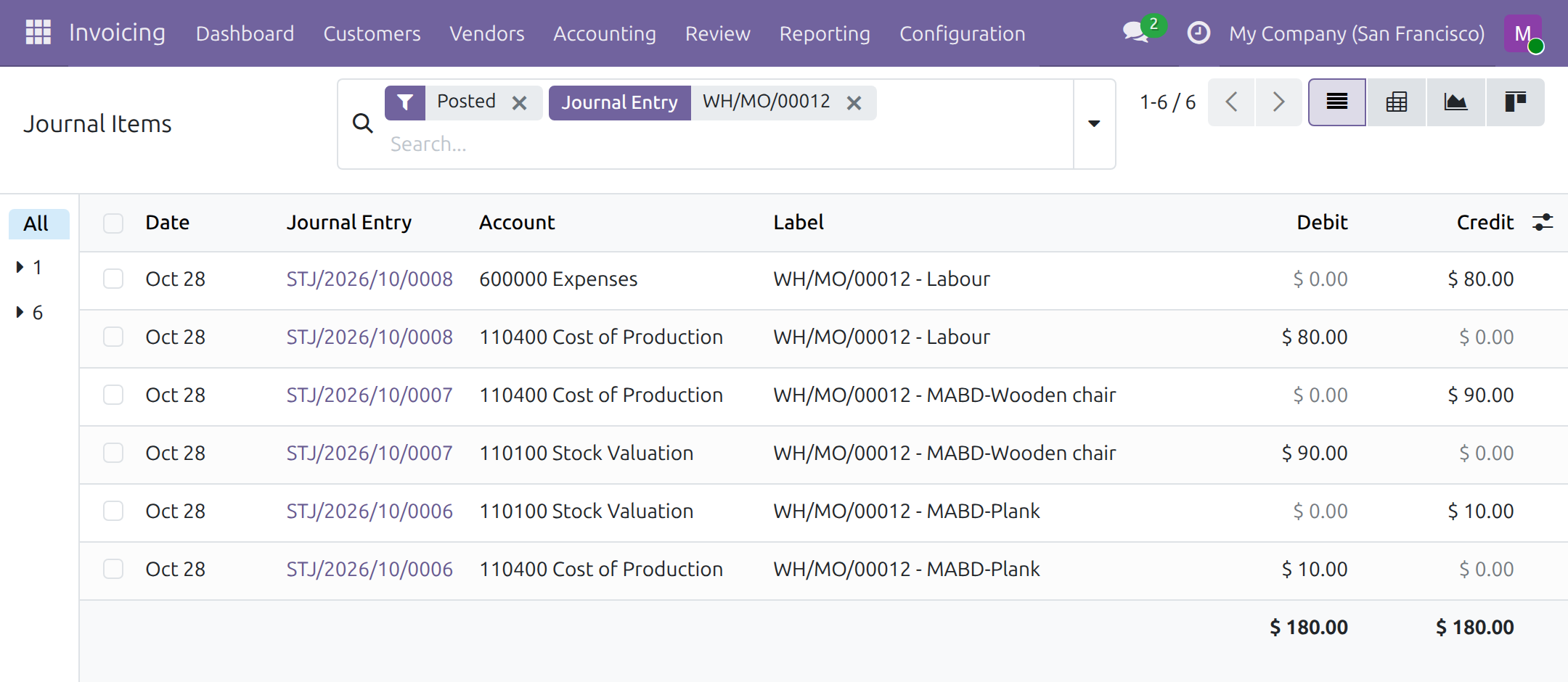
→ The labour entry takes the same day as the order's stock entries. Its Accounting Date and its number belong to the period of the production.
Planners keep the step they already know
Today: the Date Done a planner enters for a back-dated order reaches its stock entries, but not its labour entry.
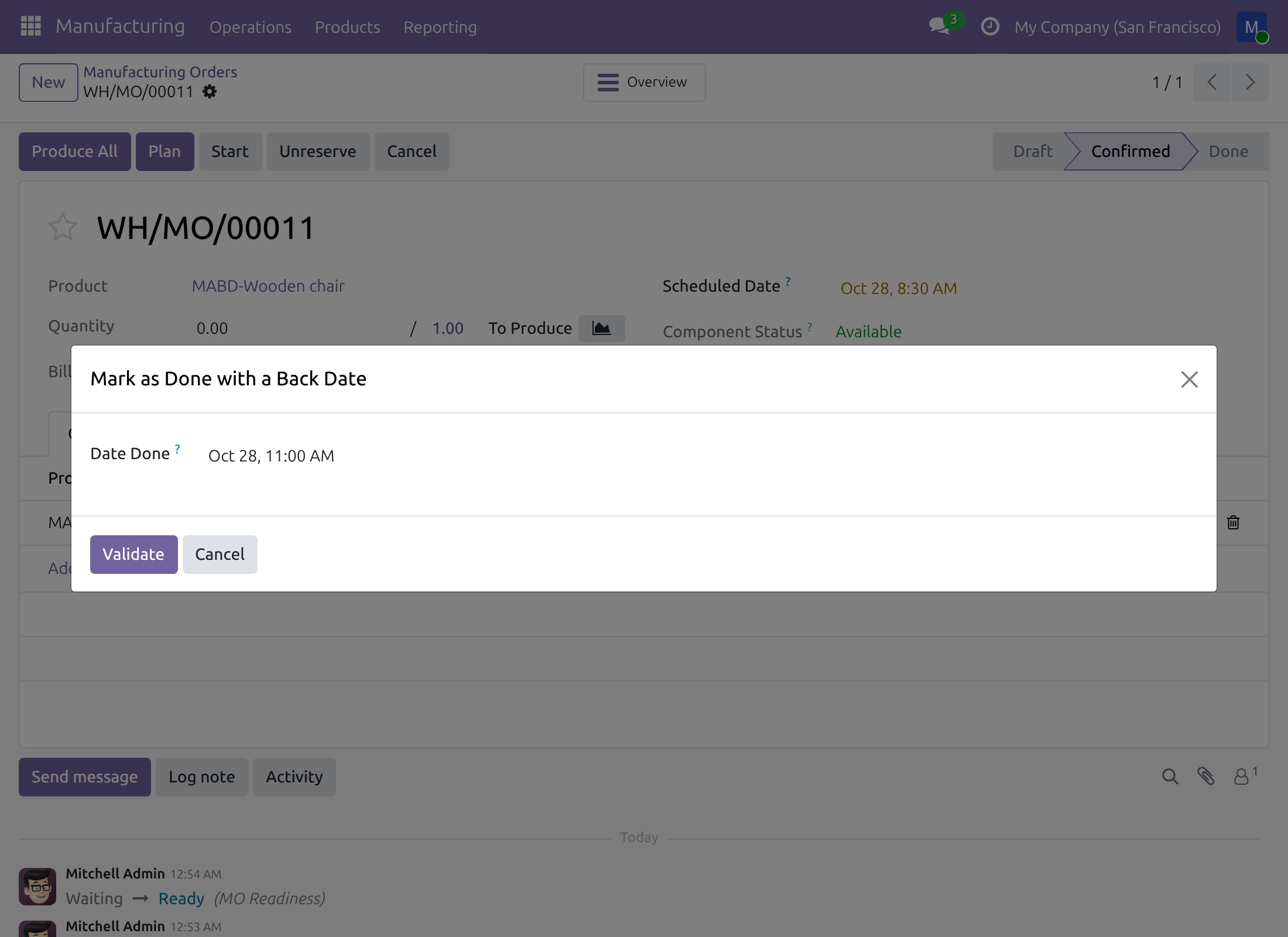
→ No extra field and no extra step: the Date Done of the Mark as Done with a Back Date dialog also dates the labour entry, in the planner's own time zone.
Accountants review the whole order on one day
Today: the stock entries of a back-dated order sit in one period and its labour entry in a later one, so the cost of the order is traced across both.
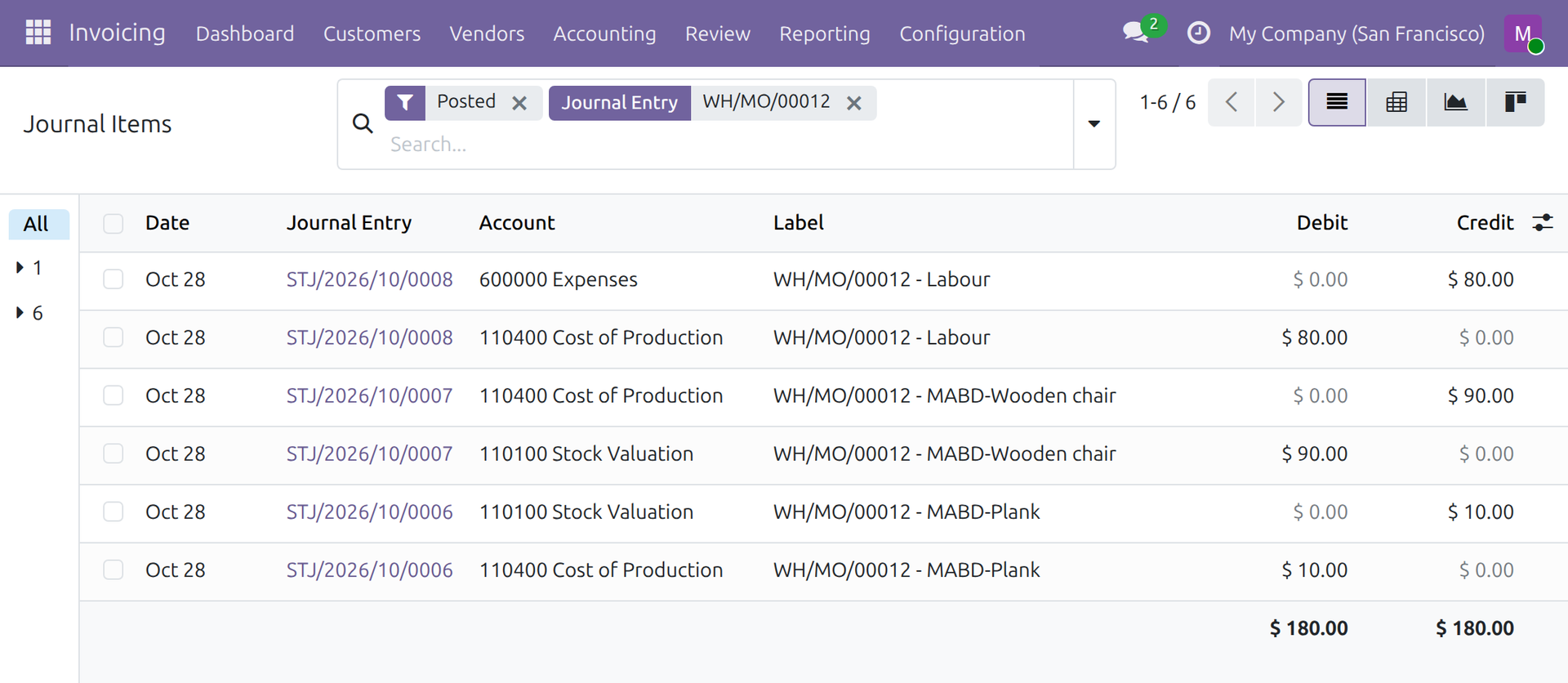
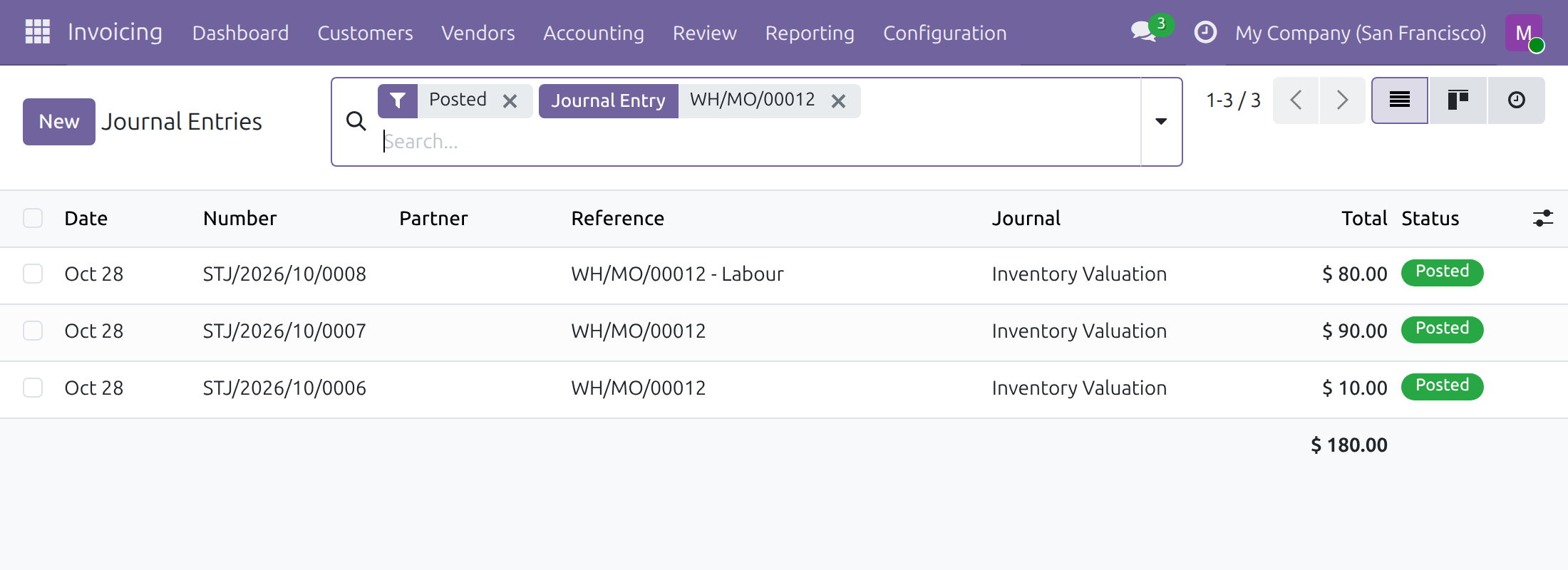
→ A search for the order number in Journal Entries lists the stock entries and the Labour entry on the same date, in the same journal.
What is included
The date of the labour entry of a manufacturing order marked as done on a past date. The module installs by itself when Manufacturing Backdate and Accounting - MRP are both installed, and adds no menu, screen or access right.
Before you decide
When does Odoo book a labour entry?
When the product is valued automatically, the production location has a Cost of Production account and the work orders carry a cost: the time recorded multiplied by the work centre's Cost per hour. Odoo computes the amount and chooses the accounts; this module sets only the date.
Who chooses the date, and who sees the entries?
People given Manufacturing Backdate on the user form are asked for a Date Done; nobody holds it by default. An order marked as done without a past date gets a labour entry dated today, as in standard Odoo. Users with full accounting access see the entries.
What about a locked accounting period?
Nothing is refused: the movements keep their date and Odoo moves the journal entries, the labour entry included, to today or to the last day of the first open month (31 December for journals numbered per year). The lock dates are never bypassed.
Can it be switched off?
Untick Manufacturing Accounting Backdate in Settings → Backdate Operations. Only this module is removed: Manufacturing Backdate stays, and labour entries are then dated today.
Which languages and time zones?
English and Vietnamese. Each person enters dates in their own time zone, which also sets the accounting day.
Try it, then ask us
The Documentation tab walks through the set-up, the planner's step and the accountant's check.
Pre-sales & partnership
viindoo.com/contactusTechnical support
viindoo.com/ticketTechnical requirements
- Odoo version: 19.0
- Editions: Odoo Community, Odoo Enterprise
- Required modules: Manufacturing Backdate, Accounting - MRP
- License: OPL-1
- Languages: English, Vietnamese
Manufacturing Accounting Backdate
Note
This guide is for production planners who mark manufacturing orders as done on a past date, for users with full accounting access who check the journal entries of those orders, and for the administrator who sets the valuation up.
Note
Extends Manufacturing Backdate - see the Manufacturing Backdate documentation for work orders, manufacturing orders and work-centre stoppages recorded on a past date.
Manufacturing Accounting Backdate books the labour entry of a manufacturing order in the same accounting period as the rest of the order. An order finished on the last day of a month and marked as done at the start of the next one carries its whole cost, materials and labour, in the month in which the production happened.
Overview
When a manufacturing order is marked as done, Odoo books the cost of the materials and of the finished product in journal entries of the stock journal, and the labour cost of the work orders in one more entry of its own. With Manufacturing Backdate, the entries of the materials and of the finished product take the day chosen in the dialog Mark as Done with a Back Date. Without this module, the labour entry is still dated on the day the order is actually marked as done, and the cost of one order is split across two accounting periods whenever the two days fall in different periods.
The module installs by itself as soon as Manufacturing Backdate and Odoo's manufacturing accounting (Accounting - MRP) are both installed. It adds no menu and no screen of its own: the labour entry takes the Date Done of the dialog that Manufacturing Backdate already offers.
- The labour entry carries the day of the Date Done, in your own time zone, like the other entries of the order.
- An order marked as done without a past date keeps Odoo's behaviour: its labour entry is dated today.
Who does what:
| Role | What they do | Access right to assign |
|---|---|---|
| Administrator | Ticks Manufacturing Accounting Backdate and checks the valuation set-up. | Role: Administrator |
| Production planner | Marks manufacturing orders as done on the day the production happened. | Manufacturing Backdate: Manufacturing Backdate Operations |
| Accountant (a user who can see journal entries, with full accounting access) | Checks that the entries of an order carry the date of the production. | Full accounting access, so that the journal entries can be seen |
Setup (for the Administrator)
Installation
- Open Settings ‣ Backdate Operations.
- In the Manufacturing block, tick Manufacturing Accounting Backdate and click Save.
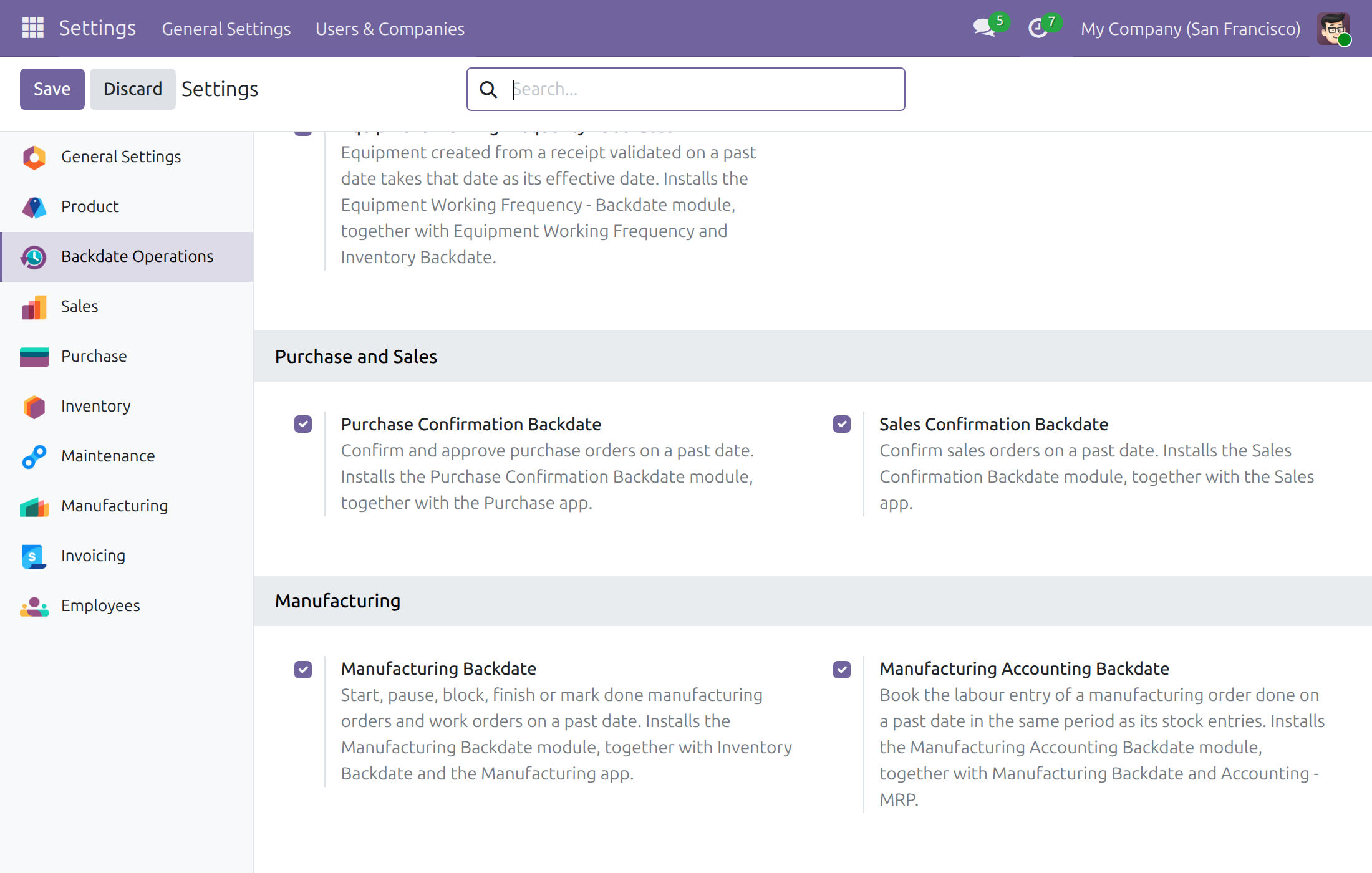
Odoo installs the module together with Manufacturing Backdate and Accounting - MRP. Unticking the box removes the module only: Manufacturing Backdate stays, and the labour entry of an order is dated today.
Give people the Manufacturing Backdate right as described in the guide of Manufacturing Backdate. Having the right means the dialog is offered to that person. It never stops anyone else from working.
Check the valuation set-up
Odoo books a labour entry only when:
- the product's category has Inventory Valuation set to Perpetual (at invoicing): see Inventory ‣ Configuration ‣ Products ‣ Categories;
- the Production location has an account in Cost of Production: see Inventory ‣ Configuration ‣ Warehouse Management ‣ Locations;
- the work orders of the order carry a cost: the work centre has a Cost per hour, and the time recorded on the work orders is not zero.
The labour cost is the time recorded on each work order multiplied by the Cost per hour of its work centre. This module only sets the date of that entry.
Production planner: mark an order as done on the day it happened
For the people who hold Manufacturing Backdate: Manufacturing Backdate Operations. The dialog below is the one of Manufacturing Backdate; nothing more is asked for the labour entry.
Mark a manufacturing order as done on a past date
- Open Manufacturing ‣ Operations ‣ Manufacturing Orders and open the order. Its work orders have their time recorded.
- Click Produce All. The dialog Mark as Done with a Back Date opens.
- In Date Done, enter the date and time the production ended, in your own time zone.
- Click Validate, or Cancel to leave the order as it was.
The order is Done and its finished date is the date you entered. The journal entries of its materials, of the finished product and of the labour all carry the day of that date. A Date Done after the current time is refused, as for every back-dated operation.
Accountant: check the entries of an order
For users who can see journal entries (full accounting access).
Find the entries of an order
- Open Journal Entries in the accounting menu.
- Search for the number of the manufacturing order, for example WH/MO/00012.
- Check the Date column: the entries of the materials and of the finished product, and the entry whose reference ends with - Labour, all show the same day.
Open the labour entry
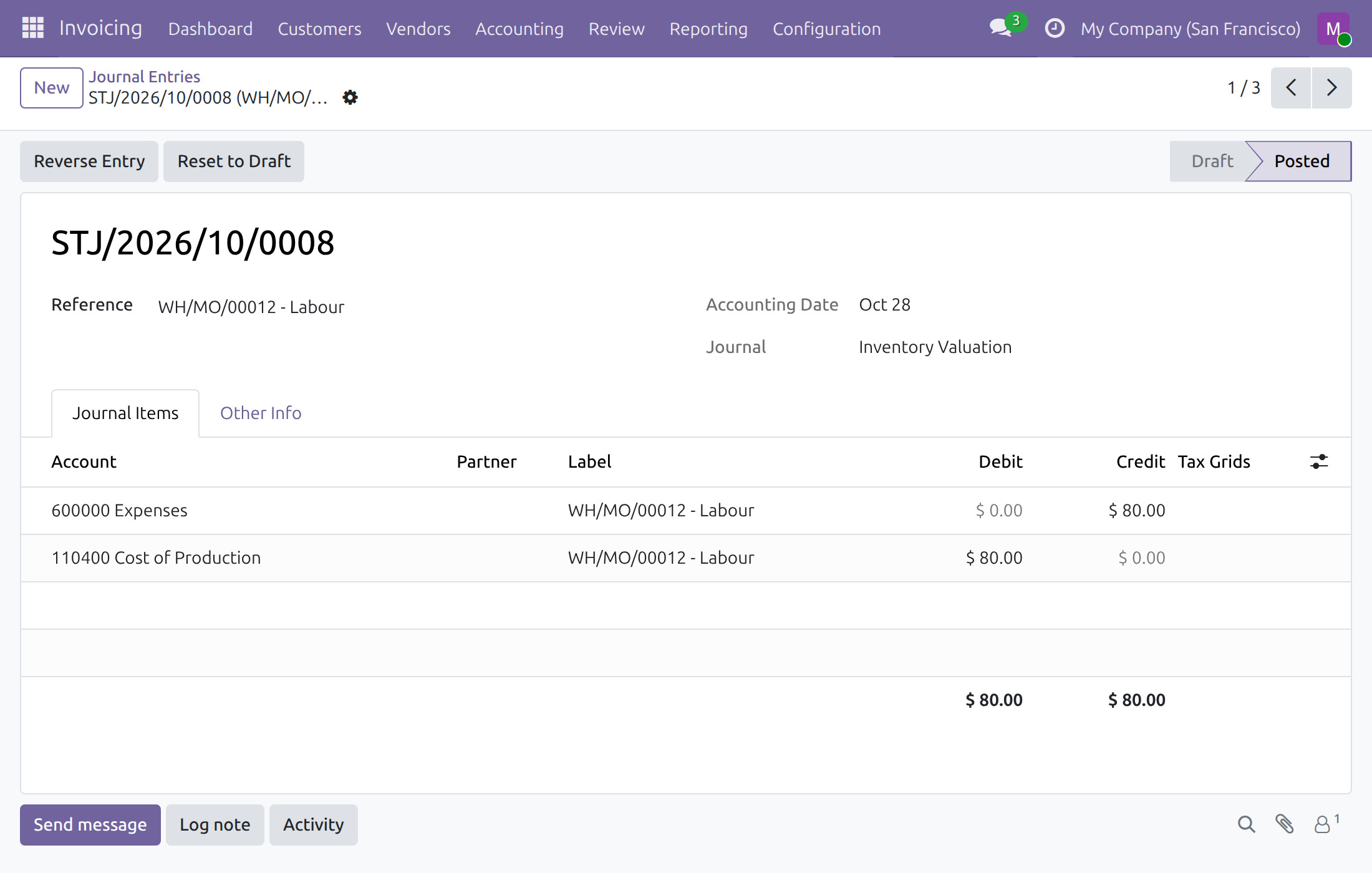
Open the entry whose reference ends with - Labour. Its Accounting Date is the day of the Date Done, and its number comes from the month of that day, so it sits in the period of the production.
The entry moves the labour cost of the work orders into the Cost of Production account.
Good to know
- An order marked as done without a past date, by anyone, gets a labour entry dated today.
- An accounting date inside a locked period does not stop the order. The movements keep their date and Odoo moves the journal entries, the labour entry included, to today, or to the last day of the first open month (31 December for journals numbered per year). A transfer dated in a locked period is refused. This module never bypasses the lock dates.
- Dates are entered in your time zone: the accounting day is the day of the chosen date in your own time zone.
- Journal entries of the materials and of the finished product are created for products valued automatically; see the guides of Stock Account Backdate and Manufacturing Backdate.
This software and associated files (the "Software") may only be used (executed, modified, executed after modifications) if you have purchased a valid license from the authors, typically via Odoo Apps, or if you have received a written agreement from the authors of the Software (see the COPYRIGHT file).
You may develop Odoo modules that use the Software as a library (typically by depending on it, importing it and using its resources), but without copying any source code or material from the Software. You may distribute those modules under the license of your choice, provided that this license is compatible with the terms of the Odoo Proprietary License (For example: LGPL, MIT, or proprietary licenses similar to this one).
It is forbidden to publish, distribute, sublicense, or sell copies of the Software or modified copies of the Software.
The above copyright notice and this permission notice must be included in all copies or substantial portions of the Software.
THE SOFTWARE IS PROVIDED "AS IS", WITHOUT WARRANTY OF ANY KIND, EXPRESS OR IMPLIED, INCLUDING BUT NOT LIMITED TO THE WARRANTIES OF MERCHANTABILITY, FITNESS FOR A PARTICULAR PURPOSE AND NONINFRINGEMENT. IN NO EVENT SHALL THE AUTHORS OR COPYRIGHT HOLDERS BE LIABLE FOR ANY CLAIM, DAMAGES OR OTHER LIABILITY, WHETHER IN AN ACTION OF CONTRACT, TORT OR OTHERWISE, ARISING FROM, OUT OF OR IN CONNECTION WITH THE SOFTWARE OR THE USE OR OTHER DEALINGS IN THE SOFTWARE.