
Blogs - Table of Contents
by Viindoo
| Lines of Code | 1566 |
| Technical name | viin_website_blog_toc |
| License | OPL-1 |
| Website | https://viindoo.com/apps/modules/17.0/viin_website_blog_toc |
| Read description for | v 15.0 v 16.0 v 18.0 |
| Required Apps | Discuss (mail) Website (website) |

A table of contents on blog posts, built from the headings
Choose which heading levels count, number them, set id prefixes, exclude headings, require a minimum - and each post gets a generated table of contents on the page.
Blogs - Table of Contents (technical name viin_website_blog_toc) is an Odoo 17.0 app for Odoo Community and Odoo Enterprise and Viindoo Cloud, built for blogger.

At a Glance
The facts of Blogs - Table of Contents, version 0.1.2, in one place. Published by Viindoo.
How It Works
Set the levels on the blog; write posts with headings.
Post
Table of contents.
In the text
Ids on each.

Blog
Levels, prefix, minimum.

Post form
Last generation.

What You Get
Heading levels per blog
Numbering and ids
Excluded headings, minimum count
Generated on save or by button
Rendered on the post
What This App Does Not Do
Read this before you buy. Everything below is something the app deliberately leaves to another app or to you.
Styled paragraphs are not headings.
Who Should Use Blogs - Table of Contents?
Blogger
A five-section racking guide with a navigable index.
Frequently Asked Questions
What does Blogs - Table of Contents do?
Choose which heading levels count, number them, set id prefixes, exclude headings, require a minimum - and each post gets a generated table of contents on the page.
What does Blogs - Table of Contents not do?
Headings must be real h2-h6 tags. Styled paragraphs are not headings.
Who is Blogs - Table of Contents for?
Blogger: A five-section racking guide with a navigable index.
Which Odoo version and editions does it support?
Odoo 17.0 - Odoo Community, Odoo Enterprise, Viindoo Cloud. Upgrades to a newer Odoo series are a separate purchase for that series.
What does it depend on?
It installs on top of: website_blog. Odoo installs them with it.
How do I set it up?
Set the levels on the blog; write posts with headings.
What works well with it?
Blog (website_blog): Required.
Can I try it before buying?
Yes - the Live Preview button at the top of this page opens the module's own screen on a working database.
How do I get support?
Write to apps.support@viindoo.com with your Odoo version and the technical name viin_website_blog_toc; pre-sales questions go to sales@viindoo.com.
See Blogs - Table of Contents in Action
A table of contents on blog posts, built from the headings
Need help with Blogs - Table of Contents?
For questions, implementation support, or consulting services, contact Viindoo.
Pre-Sales & Partnership
sales@viindoo.comWhen contacting us, please include:
- Odoo/Viindoo version (Odoo CE / Viindoo Editions).
- Number of users and business scope.
- Other modules currently in use.
Technical Support
apps.support@viindoo.comFor faster troubleshooting, please provide:
- Order number or app reference.
- Odoo/Viindoo version & edition.
- Steps to reproduce the issue.
- Screenshots/logs if available.
Upgrades to a newer Odoo series are a separate purchase for that series.
Technical Requirement
Changes log
0.1.2 - Latest on the 17.0 line
- Aligned with the 17.0 models and views.
Installation
- Navigate to Apps.
- Search with keyword viin_website_blog_toc.
- Press Install.
After installing this module, the following module will be automatically installed: website_blog.
Instruction
Instruction video: Blogs - Table of Contents.
Configure the table of contents for the blog posts
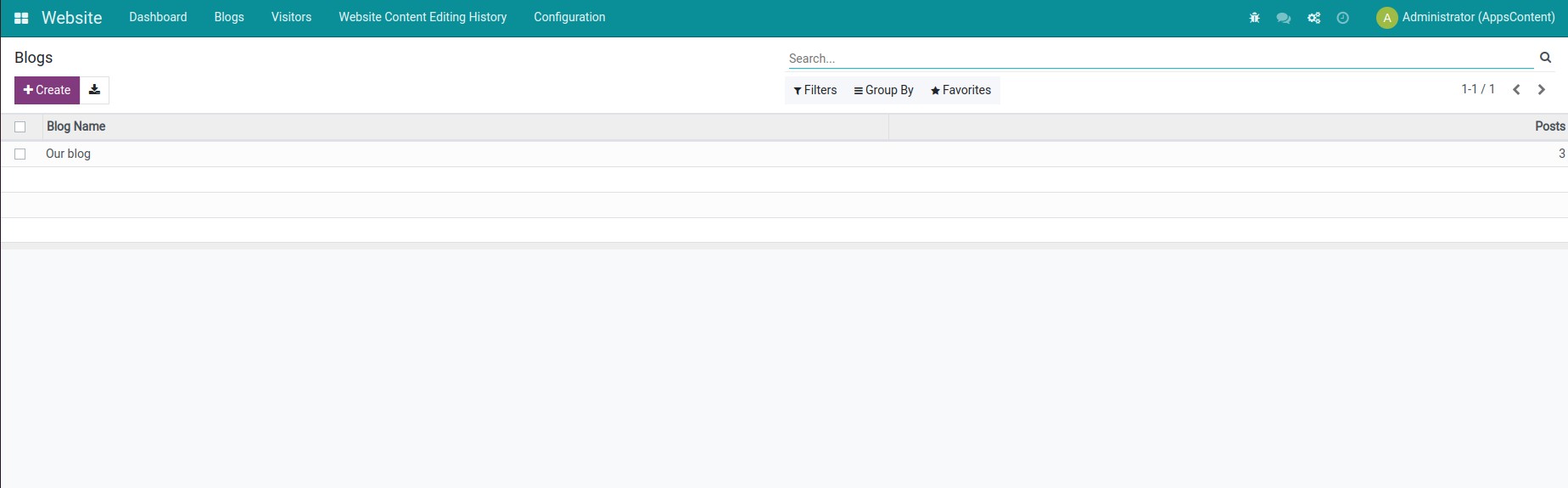
Step 1: Navigate to Website > Configuration > Blogs to select a blog post to configure the table of contents.
Step 2: Choose any 1 blog post/create a new blog, the table of contents information fields will be displayed as shown below.
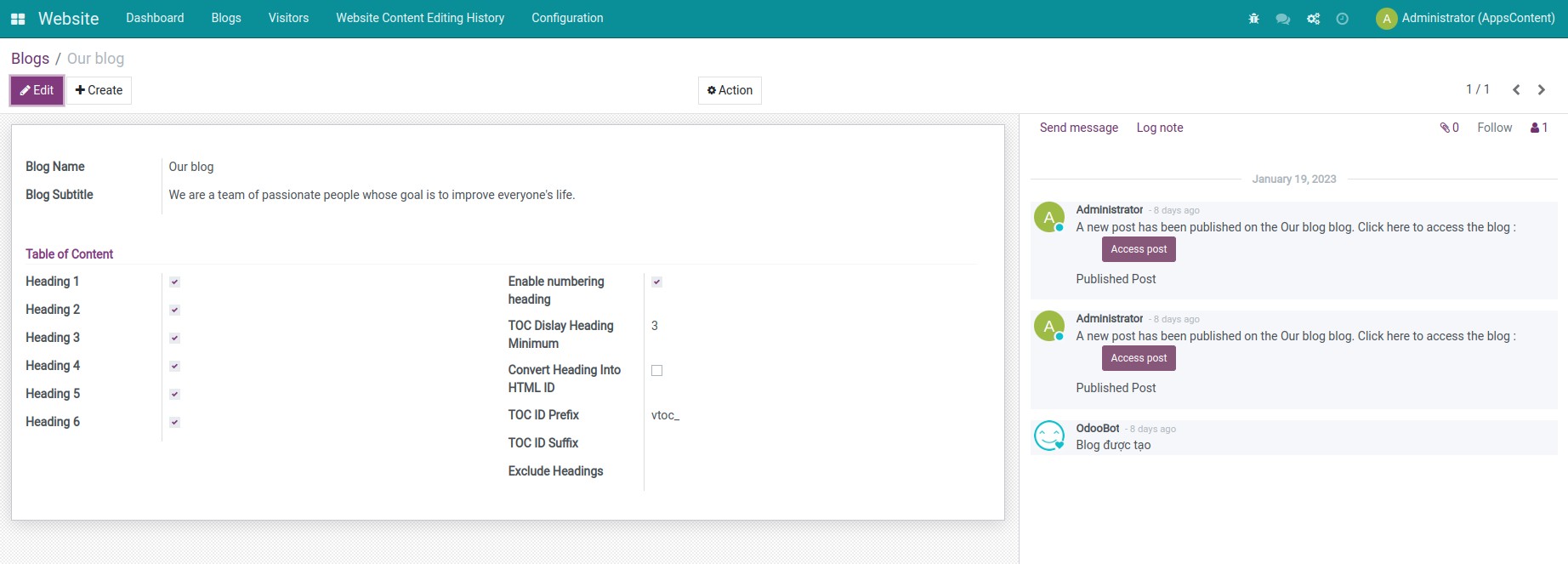
- Heading 1: Check this box for the header configured as Heading 1. The other Headings will be similar.
- Enable numbering heading: Check this box for the titles that are being numbered. For example: There are 3 headings: One heading 1 and two headings 2. Thus, the title will be numbered: 1. Heading 1; 1.1. Heading 2; 1.2 Heading 2.
- TOC Display Heading Minimum: Show the table of contents when there is a minimum number of headings. Example: When setting the TOC Display Heading Minimum is 3. Therefore, the blog post needs at least 3 headings or more to show the table of contents. If the blog post has under 3 headings, the table of contents will not be shown.
- Convert Heading Into HTML ID: The heading will be converted by HTML ID. With the system default settings, the HTML ID attribute will be displayed with the prefix: vtoc_, such as vtoc_1, vtoc_2,... However, when converting the heading into HTML ID, the HTML ID name will be the heading name. For example: If the Heading 1 is Demo, then the HTML ID will also be Demo. This is a feature for developers who are knowledgeable about the HTML language and want to set up the layout of the table of contents in blog posts in their way.
- TOC ID Prefix: The HTML ID title attribute prefix. The system has the default prefix: vtoc_.
- TOC ID Suffix: The HTML ID title attribute suffix. If left blank, the TOC ID Suffix will follow the ascending natural number attached by the TOC ID Prefix. For example: vtoc_1, vtoc_2.
- Exclude Headings: Specify the heading that you don't want to show on the table of contents. Example: Enter the title Viindoo Enterprise, which is the Heading 1 of the article, into this field. This Heading 1 is still in the blog post but will not be shown in the table of contents.
Activate the show/hide table of contents mode in the blog post
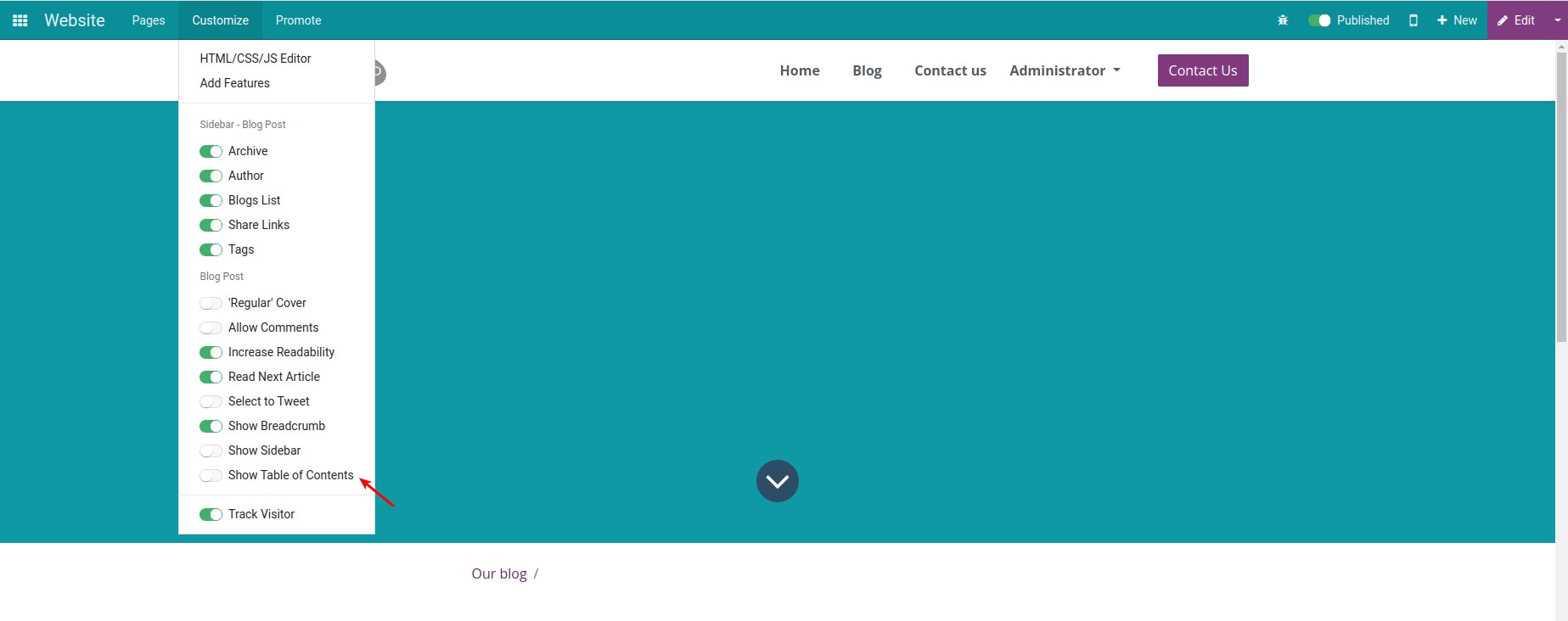
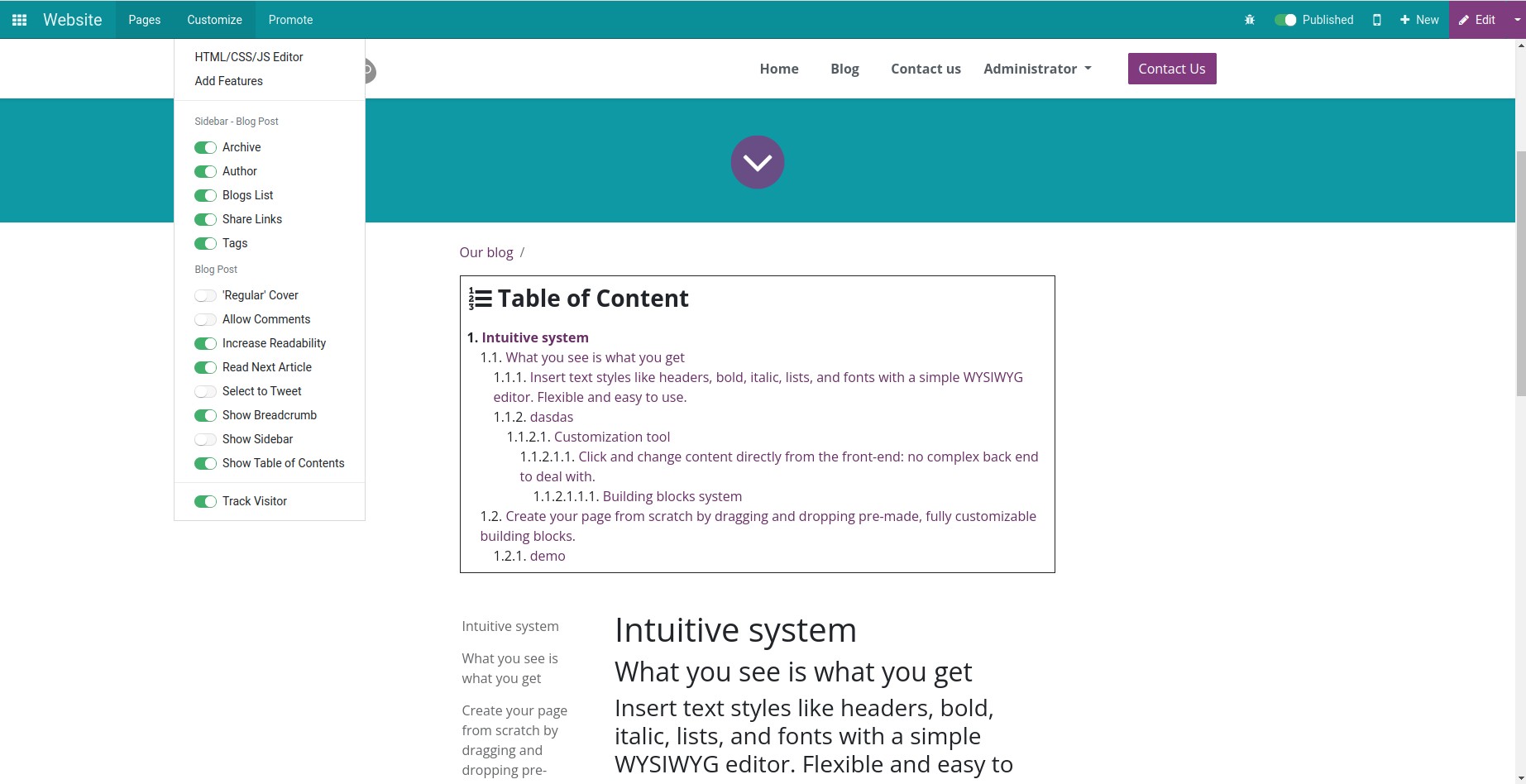
On the Website view, this module provides a Show Table of Contents field at the Customize tab. When this field is activated, the blog post will have a table of contents.
Note: The Show Table of Contents field appears in the Customize tab when:
- Users have the Editor and Designer rights in the Website app.
- Users need to access the blog post to add a table of contents.
This software and associated files (the "Software") may only be used (executed, modified, executed after modifications) if you have purchased a valid license from the authors, typically via Odoo Apps, or if you have received a written agreement from the authors of the Software (see the COPYRIGHT file).
You may develop Odoo modules that use the Software as a library (typically by depending on it, importing it and using its resources), but without copying any source code or material from the Software. You may distribute those modules under the license of your choice, provided that this license is compatible with the terms of the Odoo Proprietary License (For example: LGPL, MIT, or proprietary licenses similar to this one).
It is forbidden to publish, distribute, sublicense, or sell copies of the Software or modified copies of the Software.
The above copyright notice and this permission notice must be included in all copies or substantial portions of the Software.
THE SOFTWARE IS PROVIDED "AS IS", WITHOUT WARRANTY OF ANY KIND, EXPRESS OR IMPLIED, INCLUDING BUT NOT LIMITED TO THE WARRANTIES OF MERCHANTABILITY, FITNESS FOR A PARTICULAR PURPOSE AND NONINFRINGEMENT. IN NO EVENT SHALL THE AUTHORS OR COPYRIGHT HOLDERS BE LIABLE FOR ANY CLAIM, DAMAGES OR OTHER LIABILITY, WHETHER IN AN ACTION OF CONTRACT, TORT OR OTHERWISE, ARISING FROM, OUT OF OR IN CONNECTION WITH THE SOFTWARE OR THE USE OR OTHER DEALINGS IN THE SOFTWARE.