
Stock Barcode
| Lines of Code | 2525 |
| Technical name | to_stock_barcode |
| License | OPL-1 |
| Website | https://viindoo.com/apps/modules/17.0/to_stock_barcode |
| Read description for | v 10.0 v 11.0 v 12.0 v 13.0 v 14.0 v 15.0 v 16.0 v 18.0 |
| Required Apps | Discuss (mail) Inventory (stock) |
| Extensions | MRP Barcode |

Scan your way through receipts, deliveries, inventory and scrap
A barcode scanning screen for stock: open transfers by scanning, add products, lots, packages and locations, count inventory, scrap, and print command sheets - GS1 nomenclature supported.
Stock Barcode (technical name to_stock_barcode) is an Odoo 17.0 app for Odoo Community and Odoo Enterprise and Viindoo Cloud, built for warehouse operator, inventory clerk, warehouse manager, it.

At a Glance
The facts of Stock Barcode, version 1.3, in one place. Published by Viindoo.
How It Works
Open the scan screen, scan the transfer, scan the goods.
The scan screen
Scan a transfer, a product or a location to start.
Product barcodes
Every product with its barcode, ready to print.

A transfer
Scanned quantities on the detailed operations.

What You Get
Scan screen: open a transfer, then scan products, lots, packages and locations
Scanned quantity per move line; product, lot and location resolution with GS1 support
Inventory counting by scanning from the quant list
Scrap by scan
Barcode columns and a Product Barcodes list
Printable command and demo barcode sheets
More Screens
Everything below was taken on a database seeded with real business data, on this series - not a mock-up and not a screenshot from an older version.
A receipt
What This App Does Not Do
Read this before you buy. Everything below is something the app deliberately leaves to another app or to you.
Camera scanning is the browser's business.
MRP Barcode.
Configure GS1 rules in Barcodes.
Install it and the behaviour is there.
Works Well With
Apps from the same stack, built to fit this one:
Who Should Use Stock Barcode?
Warehouse operator
Works a transfer without touching the keyboard.
Inventory clerk
Counts by scanning.
Warehouse manager
Prints the command sheet for the wall.
IT
Any keyboard-wedge scanner works.
Frequently Asked Questions
What does Stock Barcode do?
A barcode scanning screen for stock: open transfers by scanning, add products, lots, packages and locations, count inventory, scrap, and print command sheets - GS1 nomenclature supported.
What does Stock Barcode not do?
It reads keyboard-wedge scanners. Camera scanning is the browser's business. Manufacturing needs the MRP companion. MRP Barcode. Nomenclature rules come from Odoo. Configure GS1 rules in Barcodes. Nothing to configure. Install it and the behaviour is there.
Who is Stock Barcode for?
Warehouse operator: Works a transfer without touching the keyboard. Inventory clerk: Counts by scanning. Warehouse manager: Prints the command sheet for the wall. IT: Any keyboard-wedge scanner works.
Which Odoo version and editions does it support?
Odoo 17.0 - Odoo Community, Odoo Enterprise, Viindoo Cloud. Upgrades to a newer Odoo series are a separate purchase for that series.
What does it depend on?
It installs on top of: barcodes, stock. Odoo installs them with it.
How do I set it up?
Open the scan screen, scan the transfer, scan the goods.
What works well with it?
MRP Barcode (to_mrp_barcode): Scan on work orders. Specific Identification Costing (viin_stock_specific_identification): Serials that carry cost. Assets from stock (to_stock_asset): Serials that become assets.
Can I try it before buying?
Yes - the Live Preview button at the top of this page opens the module's own screen on a working database.
How do I get support?
Write to apps.support@viindoo.com with your Odoo version and the technical name to_stock_barcode; pre-sales questions go to sales@viindoo.com.
See Stock Barcode in Action
Scan your way through receipts, deliveries, inventory and scrap
Need help with Stock Barcode?
For questions, implementation support, or consulting services, contact Viindoo.
Pre-Sales & Partnership
sales@viindoo.comWhen contacting us, please include:
- Odoo/Viindoo version (Odoo CE / Viindoo Editions).
- Number of users and business scope.
- Other modules currently in use.
Technical Support
apps.support@viindoo.comFor faster troubleshooting, please provide:
- Order number or app reference.
- Odoo/Viindoo version & edition.
- Steps to reproduce the issue.
- Screenshots/logs if available.
Upgrades to a newer Odoo series are a separate purchase for that series.
Technical Requirement
Changes log
1.3 - Latest on the 17.0 line
- Aligned with the 17.0 models and views.
Installation
- Navigate to Apps.
- Search with keyword to_stock_barcode.
- Press Install.
Instruction
Instruction video: Stock Barcode
Inventory Configuration
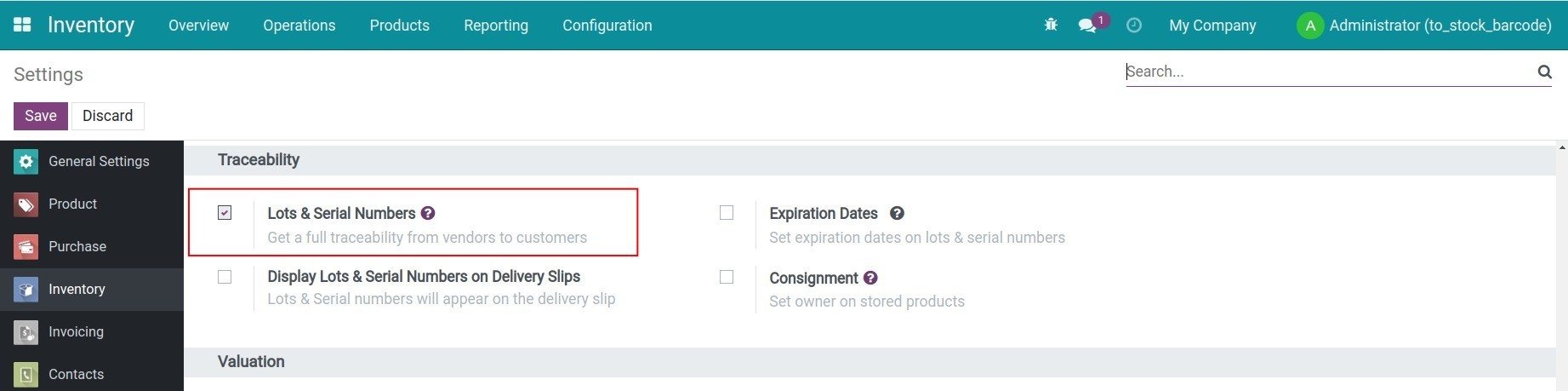
Step 1: Activate the Lots & Serial Numbers feature.
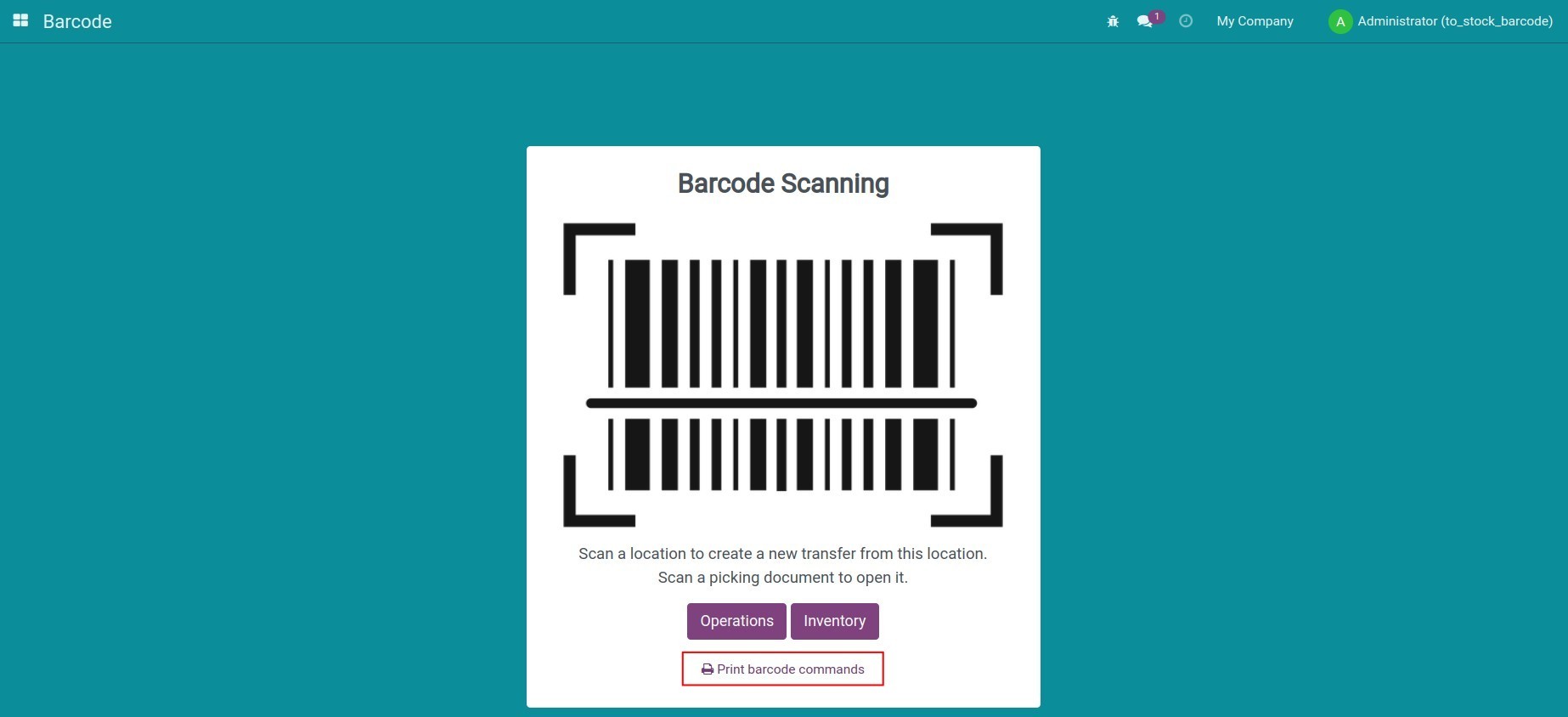
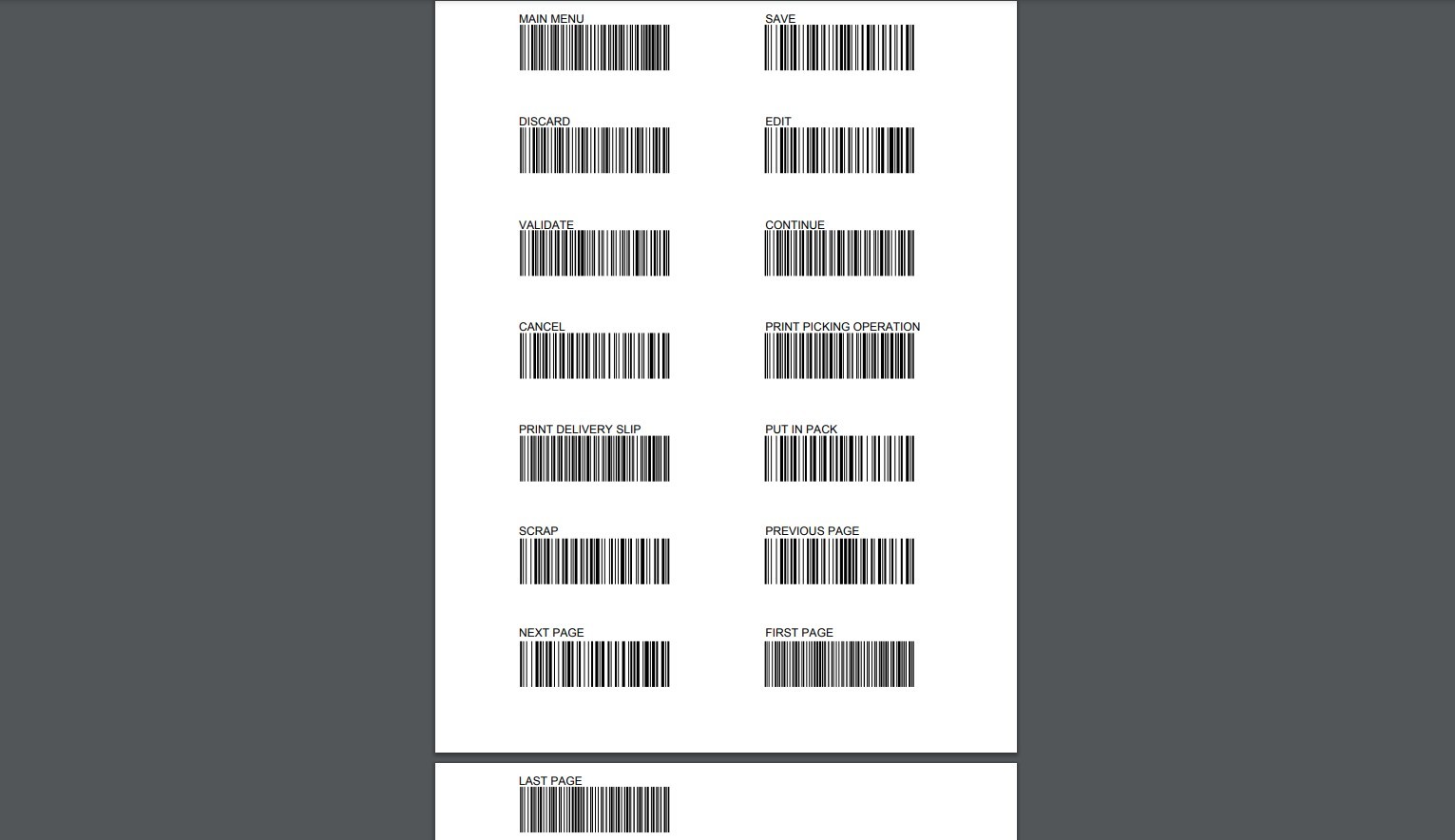
Step 2: Go to the Barcode app, press the Print barcode commands button. These barcodes when scanned will replace the actions on the transfer slip (For example, code MAIN MENU to return to the main screen, SAVE to save changes, DISCARD to discard changes, EDIT to edit information on the transfer slip, VALIDATE to confirm the transfer slip, etc).
Check the input, output of your inventory goods/lots with the barcode
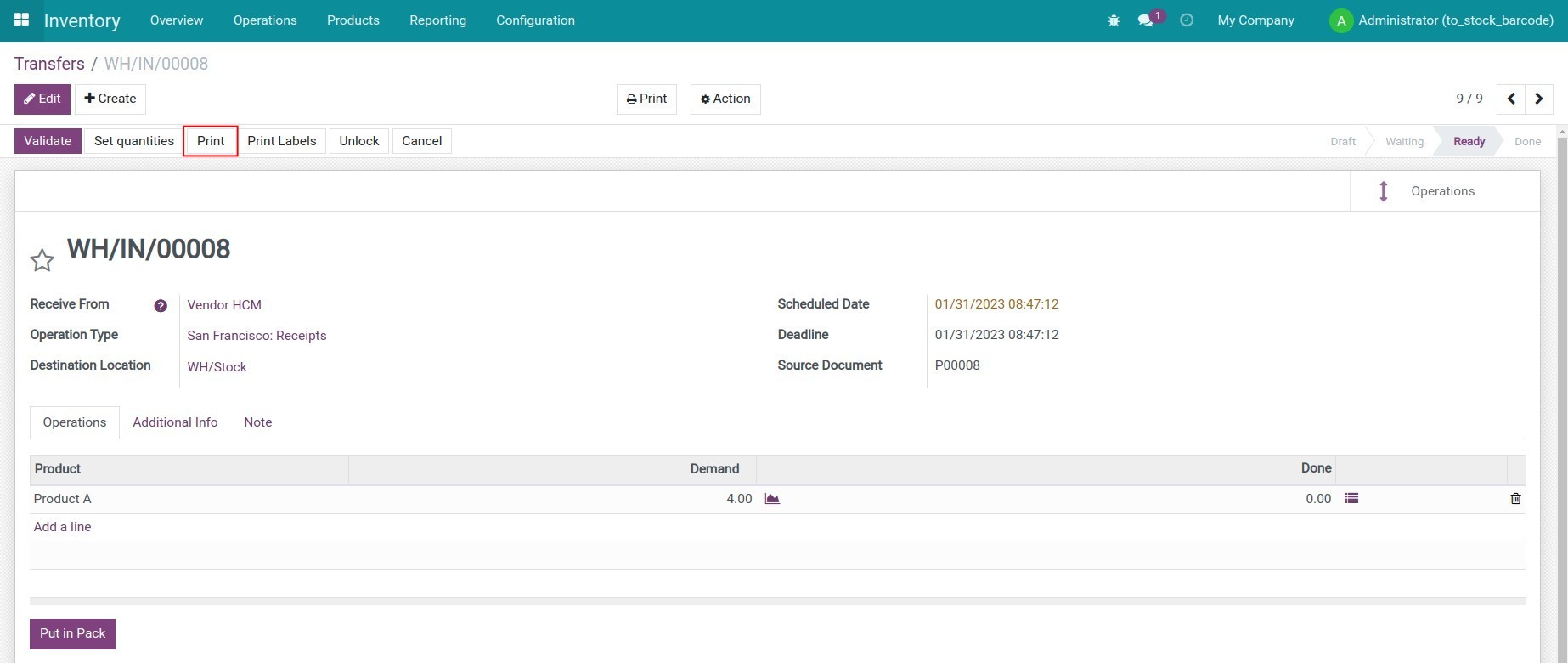
Step 1: To print a barcode for a transfer slip, go to Inventory > Transfers, open a transfer slip and press Print.
Step 2: Go to Barcode, scan the transfer slip code, the corresponding transfer slip will appear.
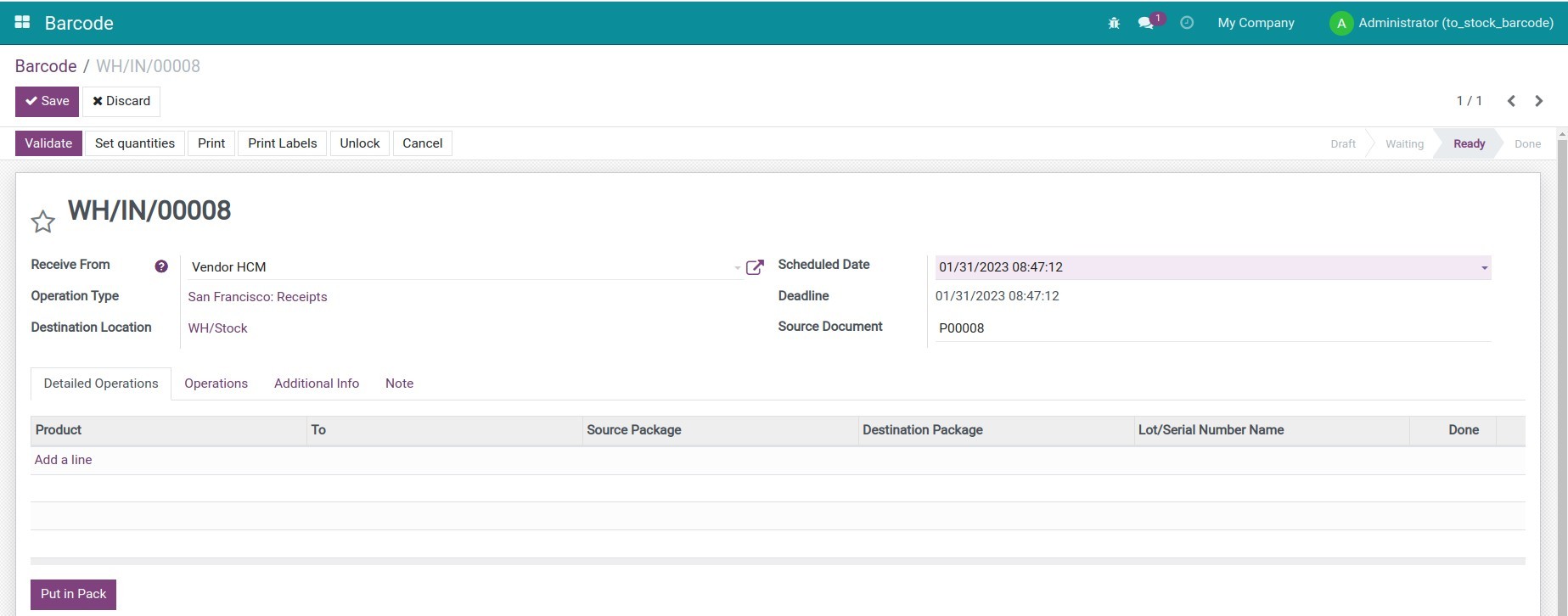
Note: You can also access Barcode, press the Operations button on the interface, choose a transaction type (receipt, delivery orders, etc.) and choose a transfer slip to open.
Step 3: Access the receipt, scan the product code or product lot to receive the goods.
- Case 1: For products that are tracked by serial number, scan each product's code to receive the serial.
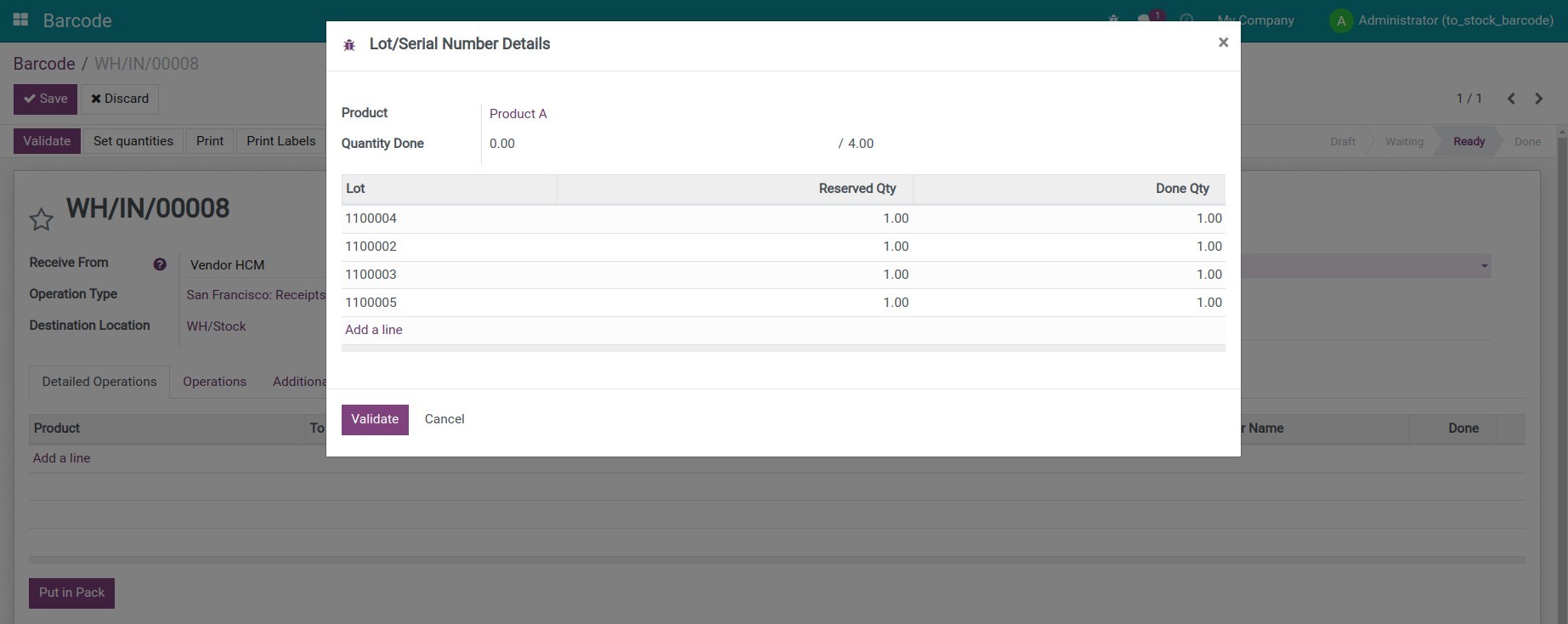
- Case 2: For products that are traced by lots, scan the lots code and the product codes to receive the products of the lot.
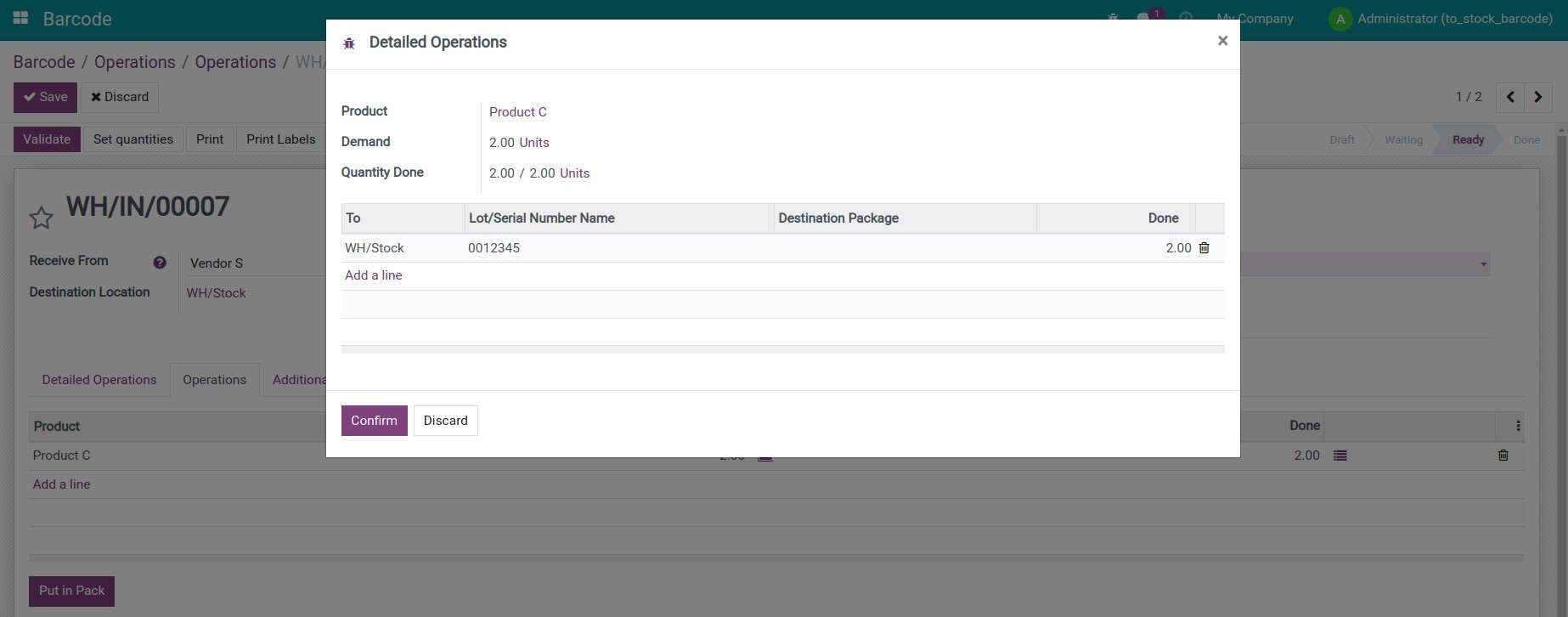
Step 4: Press Validate (or scan the VALIDATE code) and press Save (or scan the SAVE code) to save the product information on the receipt.
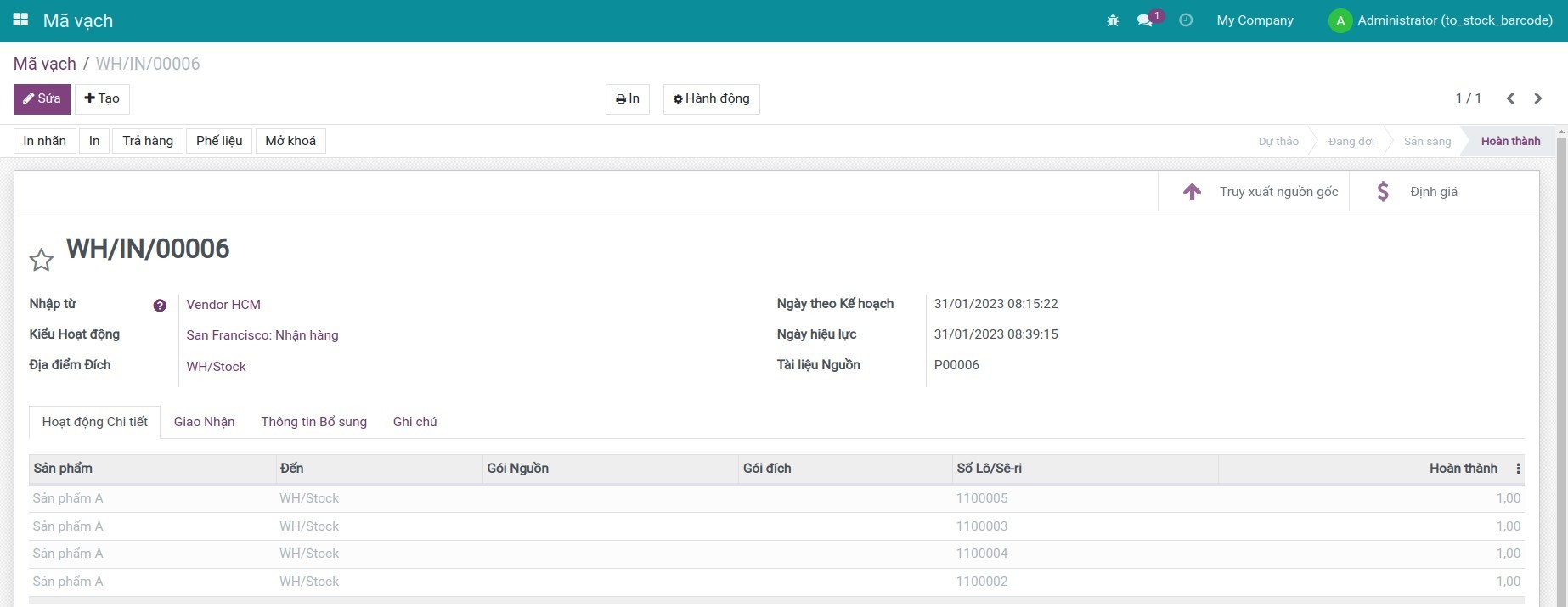
Inventory adjustments with barcode
Step 1: Access Barcode, press the Inventory button to open the Inventory Adjustments interface.

Note: If your enterprise has multiple warehouses, you can enable the multi-warehouse feature in the Settings section. Then go to Inventory > Locations, print the barcodes for these warehouse locations for quick access to these locations by scanning the barcodes.
Step 2: Scan the product codes in your inventory, the quantity of the respective products will be updated.
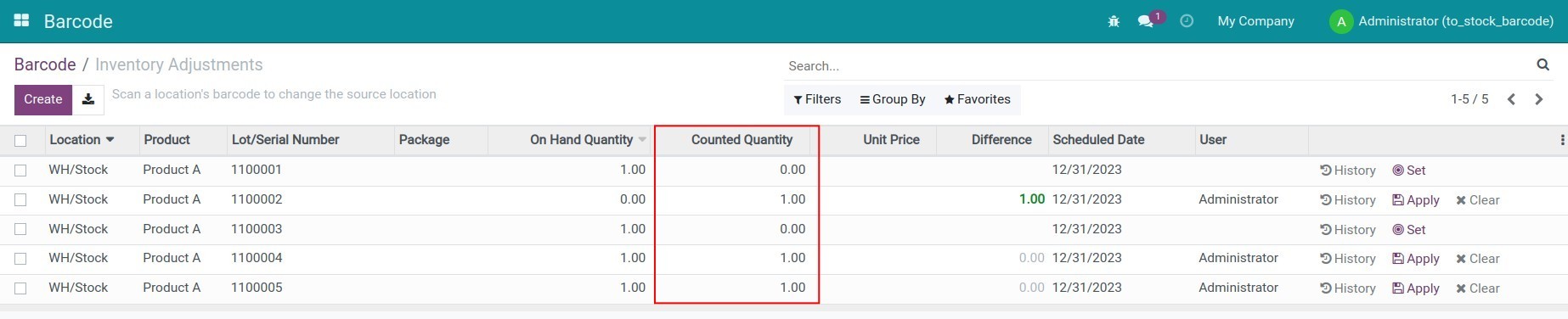
Create transfer slip for location
Step 1: Navigate to Inventory > Configuration > Locations, select a location and press Print > Location Barcode.
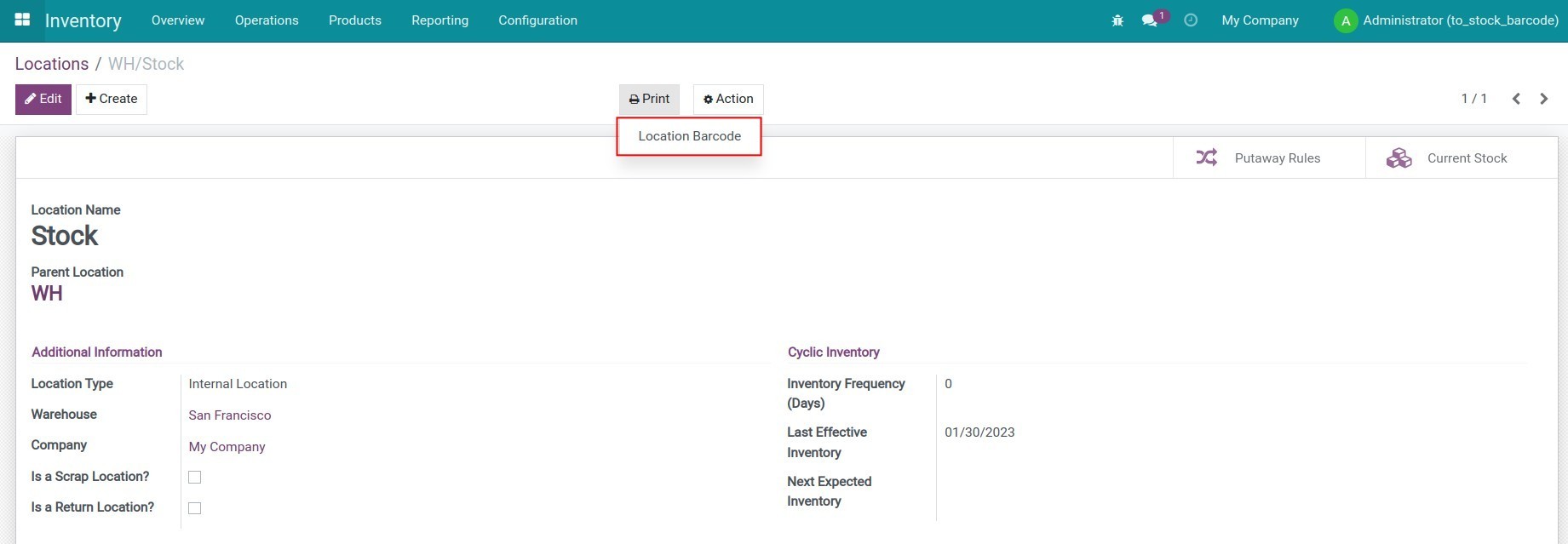
Step 2: Access Barcode, use the scanner to scan the location barcode to create the corresponding location transfer slip.
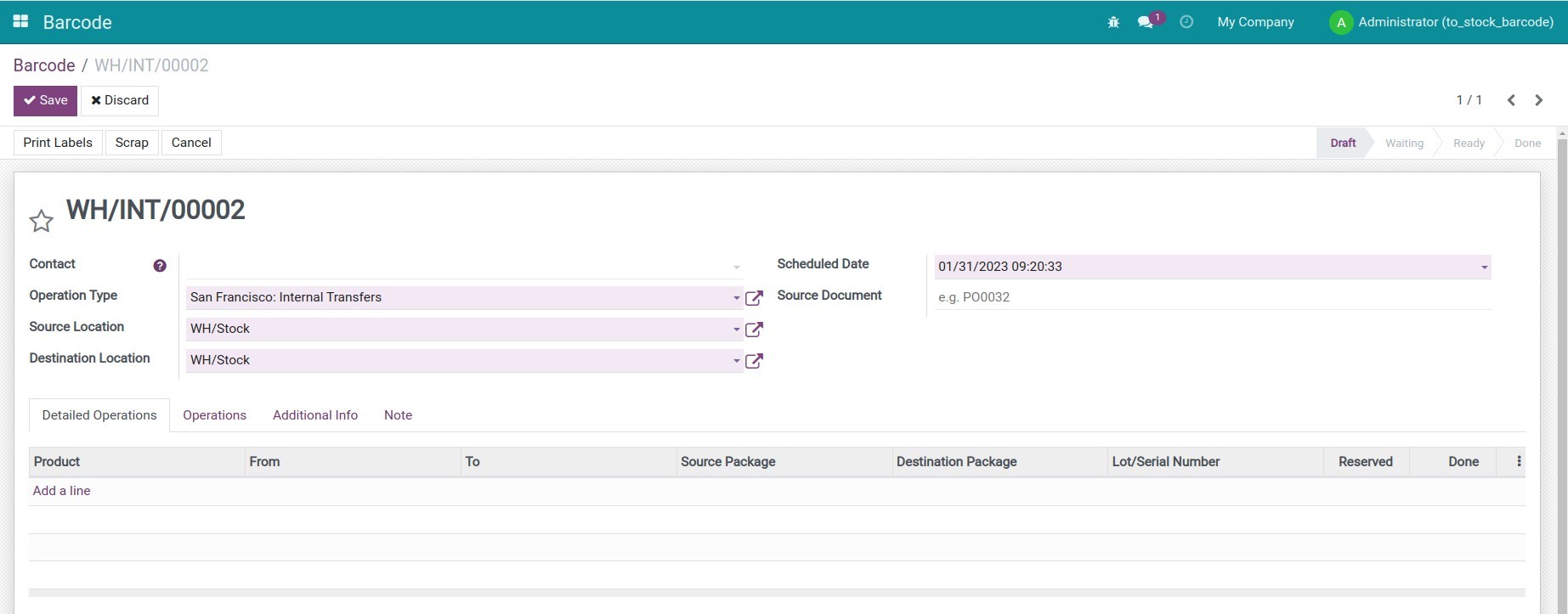
This software and associated files (the "Software") may only be used (executed, modified, executed after modifications) if you have purchased a valid license from the authors, typically via Odoo Apps, or if you have received a written agreement from the authors of the Software (see the COPYRIGHT file).
You may develop Odoo modules that use the Software as a library (typically by depending on it, importing it and using its resources), but without copying any source code or material from the Software. You may distribute those modules under the license of your choice, provided that this license is compatible with the terms of the Odoo Proprietary License (For example: LGPL, MIT, or proprietary licenses similar to this one).
It is forbidden to publish, distribute, sublicense, or sell copies of the Software or modified copies of the Software.
The above copyright notice and this permission notice must be included in all copies or substantial portions of the Software.
THE SOFTWARE IS PROVIDED "AS IS", WITHOUT WARRANTY OF ANY KIND, EXPRESS OR IMPLIED, INCLUDING BUT NOT LIMITED TO THE WARRANTIES OF MERCHANTABILITY, FITNESS FOR A PARTICULAR PURPOSE AND NONINFRINGEMENT. IN NO EVENT SHALL THE AUTHORS OR COPYRIGHT HOLDERS BE LIABLE FOR ANY CLAIM, DAMAGES OR OTHER LIABILITY, WHETHER IN AN ACTION OF CONTRACT, TORT OR OTHERWISE, ARISING FROM, OUT OF OR IN CONNECTION WITH THE SOFTWARE OR THE USE OR OTHER DEALINGS IN THE SOFTWARE.