
Invoice Tax Details

The tax amount of every invoice line, on screen and on paper
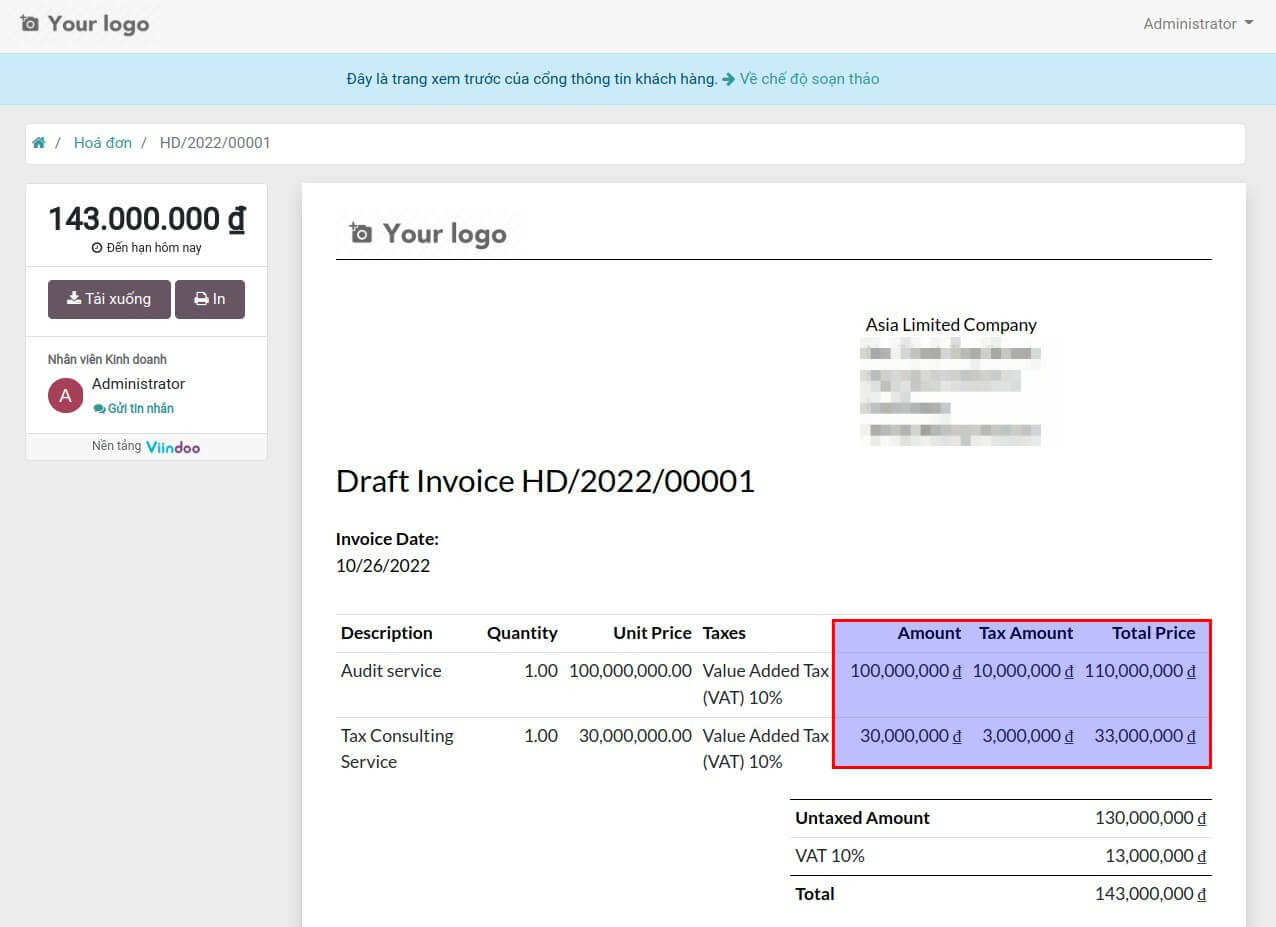
A Tax Total column on invoice and bill lines - total minus subtotal per line - shown in the line list and kanban, and two extra columns, Tax Amount and Total Price, on the printed invoice.
Invoice Tax Details (technical name to_invoice_tax_details) is an Odoo 17.0 app for Odoo Community and Odoo Enterprise and Viindoo Cloud, built for accountant, customer.

At a Glance
The facts of Invoice Tax Details, version 0.1, in one place. Published by Viindoo.
How It Works
Install; open an invoice.
The invoice
Tax Total next to the subtotal.
The lines
Each line with its tax amount.

What You Get
Tax Total per line, computed from total and subtotal
Optional column on invoice and bill lines
Shown in the line kanban
Tax Amount and Total Price columns on the printed invoice
What This App Does Not Do
Read this before you buy. Everything below is something the app deliberately leaves to another app or to you.
A layout that replaces the line rows (as some localized invoice layouts do) shows the headers without the cells.
No filtering or grouping by tax amount.
Works Well With
Apps from the same stack, built to fit this one:
Who Should Use Invoice Tax Details?
Accountant
Tax per line without a calculator.
Customer
Sees the tax on each line of the PDF.
Frequently Asked Questions
What does Invoice Tax Details do?
A Tax Total column on invoice and bill lines - total minus subtotal per line - shown in the line list and kanban, and two extra columns, Tax Amount and Total Price, on the printed invoice.
What does Invoice Tax Details not do?
The PDF columns are added to the standard line rows. A layout that replaces the line rows (as some localized invoice layouts do) shows the headers without the cells. Not stored. No filtering or grouping by tax amount.
Who is Invoice Tax Details for?
Accountant: Tax per line without a calculator. Customer: Sees the tax on each line of the PDF.
Which Odoo version and editions does it support?
Odoo 17.0 - Odoo Community, Odoo Enterprise, Viindoo Cloud. Upgrades to a newer Odoo series are a separate purchase for that series.
What does it depend on?
It installs on top of: account. Odoo installs them with it.
How do I set it up?
Install; open an invoice.
What works well with it?
PDF Print Preview (viin_pdf_print_preview): See the PDF before downloading.
Can I try it before buying?
Yes - the Live Preview button at the top of this page opens the module's own screen on a working database.
How do I get support?
Write to apps.support@viindoo.com with your Odoo version and the technical name to_invoice_tax_details; pre-sales questions go to sales@viindoo.com.
See Invoice Tax Details in Action
The tax amount of every invoice line, on screen and on paper
Need help with Invoice Tax Details?
For questions, implementation support, or consulting services, contact Viindoo.
Pre-Sales & Partnership
sales@viindoo.comWhen contacting us, please include:
- Odoo/Viindoo version (Odoo CE / Viindoo Editions).
- Number of users and business scope.
- Other modules currently in use.
Technical Support
apps.support@viindoo.comFor faster troubleshooting, please provide:
- Order number or app reference.
- Odoo/Viindoo version & edition.
- Steps to reproduce the issue.
- Screenshots/logs if available.
Upgrades to a newer Odoo series are a separate purchase for that series.
Technical Requirement
Changes log
0.1 - Latest on the 17.0 line
- Aligned with the 17.0 models and views.
Installation
- Navigate to Apps.
- Search with keyword to_invoice_tax_details.
- Press Install.
Note: The account module will be automatically installed together with the to_invoice_tax_details module.
Instructions
Instruction video: Invoice Tax Details
In the Accounting app, configure the subtotal tax details on the invoice and its PDF format as follows:
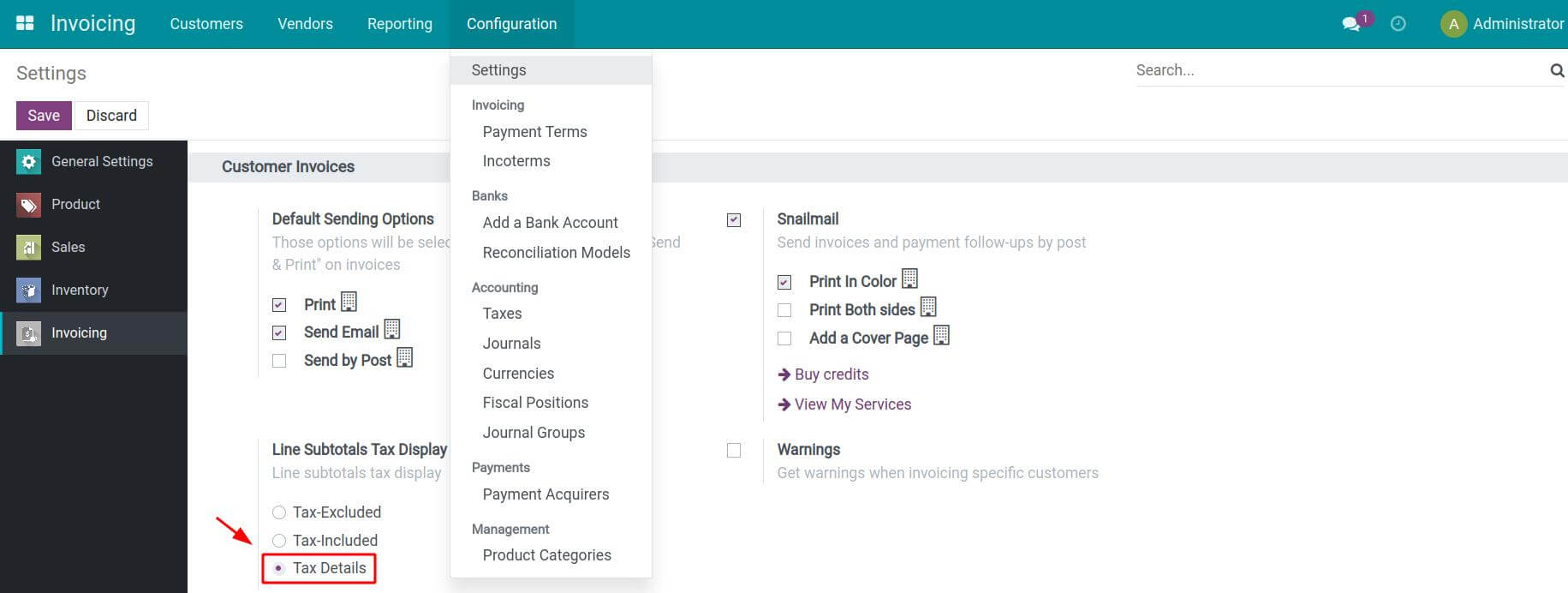
Step 1: Navigate Invoicing app > Configuration > Settings, enable the Tax Details option under the Line Subtotals Tax Display section.
Step 2: Create a customer invoice.
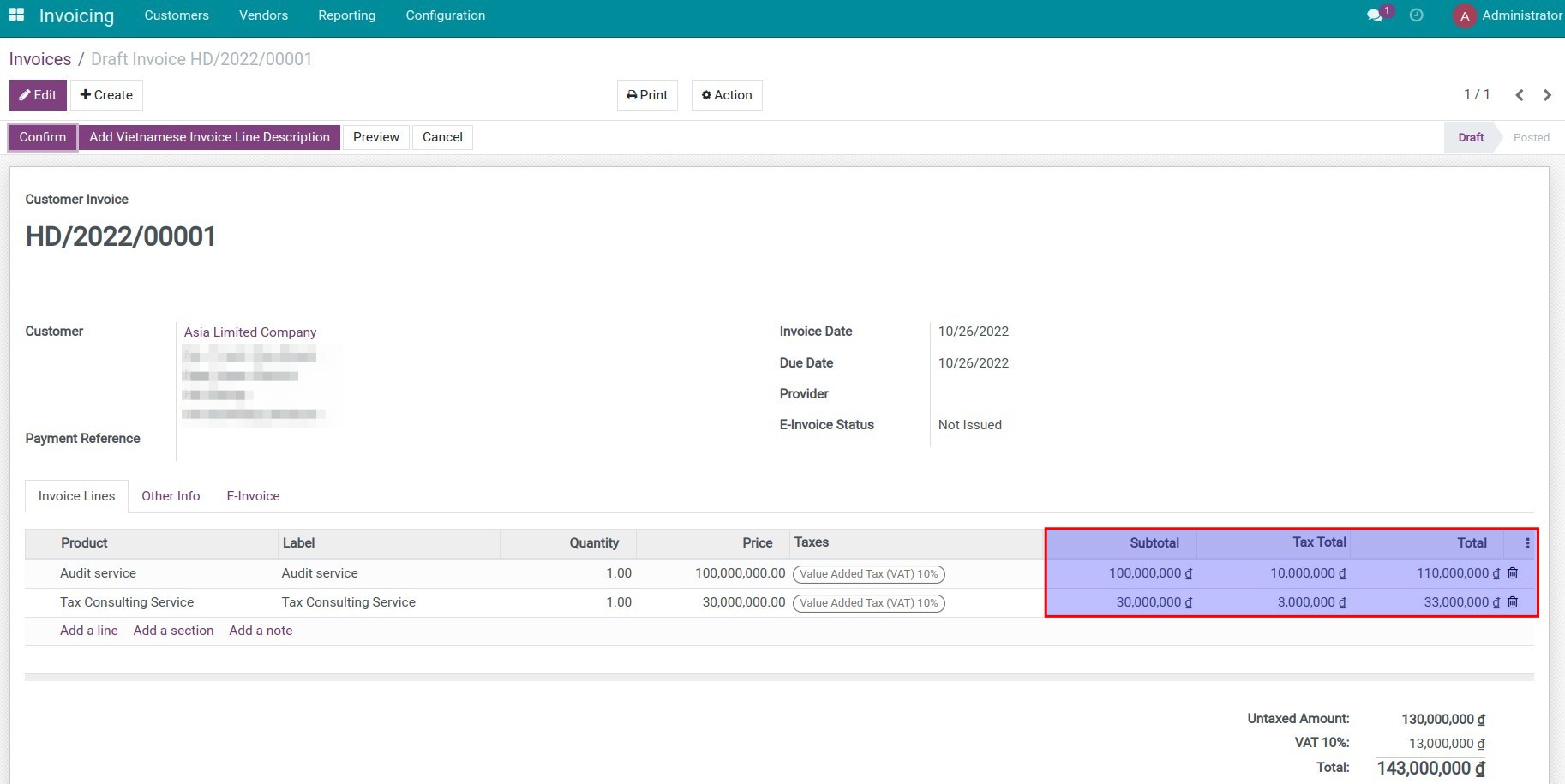
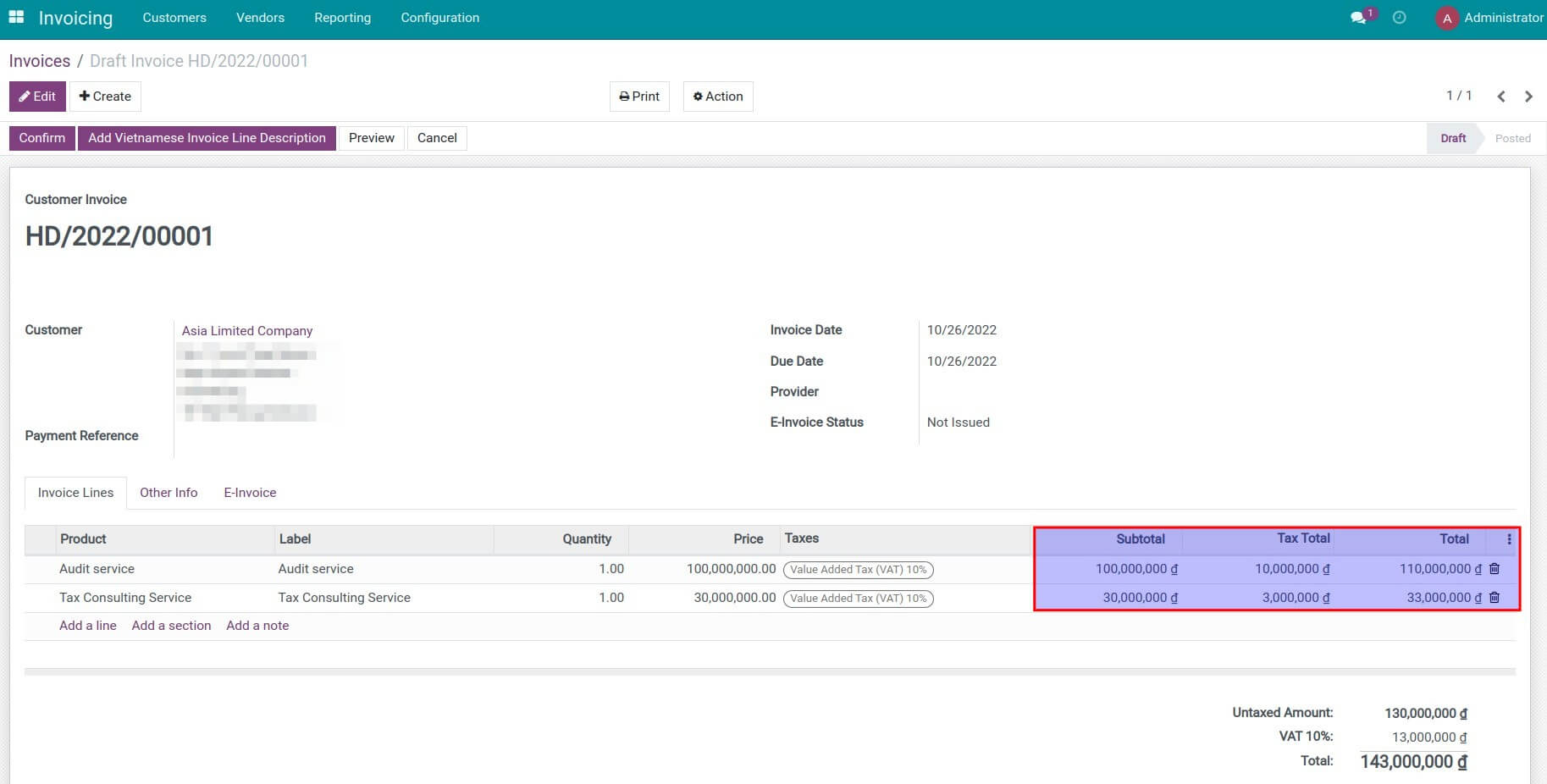
Step 3: Check the information on the invoice and its PDF version. The subtotal, tax total, and tax-included total are displayed on the invoice lines.
This software and associated files (the "Software") may only be used (executed, modified, executed after modifications) if you have purchased a valid license from the authors, typically via Odoo Apps, or if you have received a written agreement from the authors of the Software (see the COPYRIGHT file).
You may develop Odoo modules that use the Software as a library (typically by depending on it, importing it and using its resources), but without copying any source code or material from the Software. You may distribute those modules under the license of your choice, provided that this license is compatible with the terms of the Odoo Proprietary License (For example: LGPL, MIT, or proprietary licenses similar to this one).
It is forbidden to publish, distribute, sublicense, or sell copies of the Software or modified copies of the Software.
The above copyright notice and this permission notice must be included in all copies or substantial portions of the Software.
THE SOFTWARE IS PROVIDED "AS IS", WITHOUT WARRANTY OF ANY KIND, EXPRESS OR IMPLIED, INCLUDING BUT NOT LIMITED TO THE WARRANTIES OF MERCHANTABILITY, FITNESS FOR A PARTICULAR PURPOSE AND NONINFRINGEMENT. IN NO EVENT SHALL THE AUTHORS OR COPYRIGHT HOLDERS BE LIABLE FOR ANY CLAIM, DAMAGES OR OTHER LIABILITY, WHETHER IN AN ACTION OF CONTRACT, TORT OR OTHERWISE, ARISING FROM, OUT OF OR IN CONNECTION WITH THE SOFTWARE OR THE USE OR OTHER DEALINGS IN THE SOFTWARE.