
Nhóm các dòng Hóa đơn
| Số dòng Code | 762 |
| Tên kỹ thuật | to_invoice_line_summary |
| Giấy phép | OPL-1 |
| Website | https://viindoo.com/apps/modules/17.0/to_invoice_line_summary |
| Đọc mô tả cho | v 10.0 v 11.0 v 12.0 v 13.0 v 14.0 v 15.0 v 16.0 v 18.0 v 19.0 |
| Yêu cầu các App | Invoicing (account) Discuss (mail) |
| Các mở rộng | Gộp dòng hóa đơn điện tử Việt Nam |

Eight chairs on one line, whatever the sales order said
Invoice lines summarised by product, unit price, tax and discount - or looser groupings - with a per-journal default, a per-invoice override, and a summary version of the printed invoice.
Invoice Lines Summary (technical name to_invoice_line_summary) is an Odoo 17.0 app for Odoo Community and Odoo Enterprise and Viindoo Cloud, built for accountant, customer, sales admin, support.

At a Glance
The facts of Invoice Lines Summary, version 0.3, in one place. Published by Viindoo.
How It Works
Set the grouping on the journal; every invoice gets a summary.
The summary
Five lines become three: eight chairs at $10, two at $9, three drawers.
The journal
Grouping mode and display mode for every invoice in the journal.

The invoices
Each with its own summary.

What You Get
Summary lines computed per invoice, grouped by product / price / tax / discount, or looser
Four grouping modes, from strict to product-template only
Invoice Display Mode: raw lines or summary lines on PDF, portal and preview
Journal-level defaults for sales and purchase journals
Per-invoice override of both mode and grouping
Summary lines carry quantity, unit price, taxes, subtotal and total
More Screens
Everything below was taken on a database seeded with real business data, on this series - not a mock-up and not a screenshot from an older version.
Journal defaults
What This App Does Not Do
Read this before you buy. Everything below is something the app deliberately leaves to another app or to you.
They follow the invoice lines; edit those.
Their order relative to products may differ from the raw view.
Journal items are still one per invoice line.
The display mode applies to vendor bills the same way.
Works Well With
Apps from the same stack, built to fit this one:
Who Should Use Invoice Lines Summary?
Accountant
Keeps the detailed lines for the ledger.
Customer
Reads one line per product.
Sales admin
Sets the default once per journal.
Support
Explains an invoice without counting duplicates.
Frequently Asked Questions
What does Invoice Lines Summary do?
Invoice lines summarised by product, unit price, tax and discount - or looser groupings - with a per-journal default, a per-invoice override, and a summary version of the printed invoice.
What does Invoice Lines Summary not do?
Summary lines are computed, not stored. They follow the invoice lines; edit those. Sections and notes are summarised as themselves. Their order relative to products may differ from the raw view. Accounting is unchanged. Journal items are still one per invoice line. Purchase journals can use it too. The display mode applies to vendor bills the same way.
Who is Invoice Lines Summary for?
Accountant: Keeps the detailed lines for the ledger. Customer: Reads one line per product. Sales admin: Sets the default once per journal. Support: Explains an invoice without counting duplicates.
Which Odoo version and editions does it support?
Odoo 17.0 - Odoo Community, Odoo Enterprise, Viindoo Cloud. Upgrades to a newer Odoo series are a separate purchase for that series.
What does it depend on?
It installs on top of: account. Odoo installs them with it.
How do I set it up?
Set the grouping on the journal; every invoice gets a summary.
What works well with it?
Sales Lines Numbering (to_sale_line_numbering): Numbered lines upstream. Accounting Report Flag (to_accounting_entry_report_flag): Entries out of legal reports.
Can I try it before buying?
Yes - the Live Preview button at the top of this page opens the module's own screen on a working database.
How do I get support?
Write to apps.support@viindoo.com with your Odoo version and the technical name to_invoice_line_summary; pre-sales questions go to sales@viindoo.com.
See Invoice Lines Summary in Action
Eight chairs on one line, whatever the sales order said
Need help with Invoice Lines Summary?
For questions, implementation support, or consulting services, contact Viindoo.
Pre-Sales & Partnership
sales@viindoo.comWhen contacting us, please include:
- Odoo/Viindoo version (Odoo CE / Viindoo Editions).
- Number of users and business scope.
- Other modules currently in use.
Technical Support
apps.support@viindoo.comFor faster troubleshooting, please provide:
- Order number or app reference.
- Odoo/Viindoo version & edition.
- Steps to reproduce the issue.
- Screenshots/logs if available.
Upgrades to a newer Odoo series are a separate purchase for that series.
Technical Requirement
Changes log
0.3 - Latest on the 17.0 line
- Aligned with the 17.0 models and views.
Cài đặt
- Truy cập Ứng dụng.
- Tìm từ khóa to_invoice_line_summary.
- Ấn Cài đặt.
Hướng dẫn sử dụng
Video hướng dẫn: Nhóm các dòng Hóa đơn
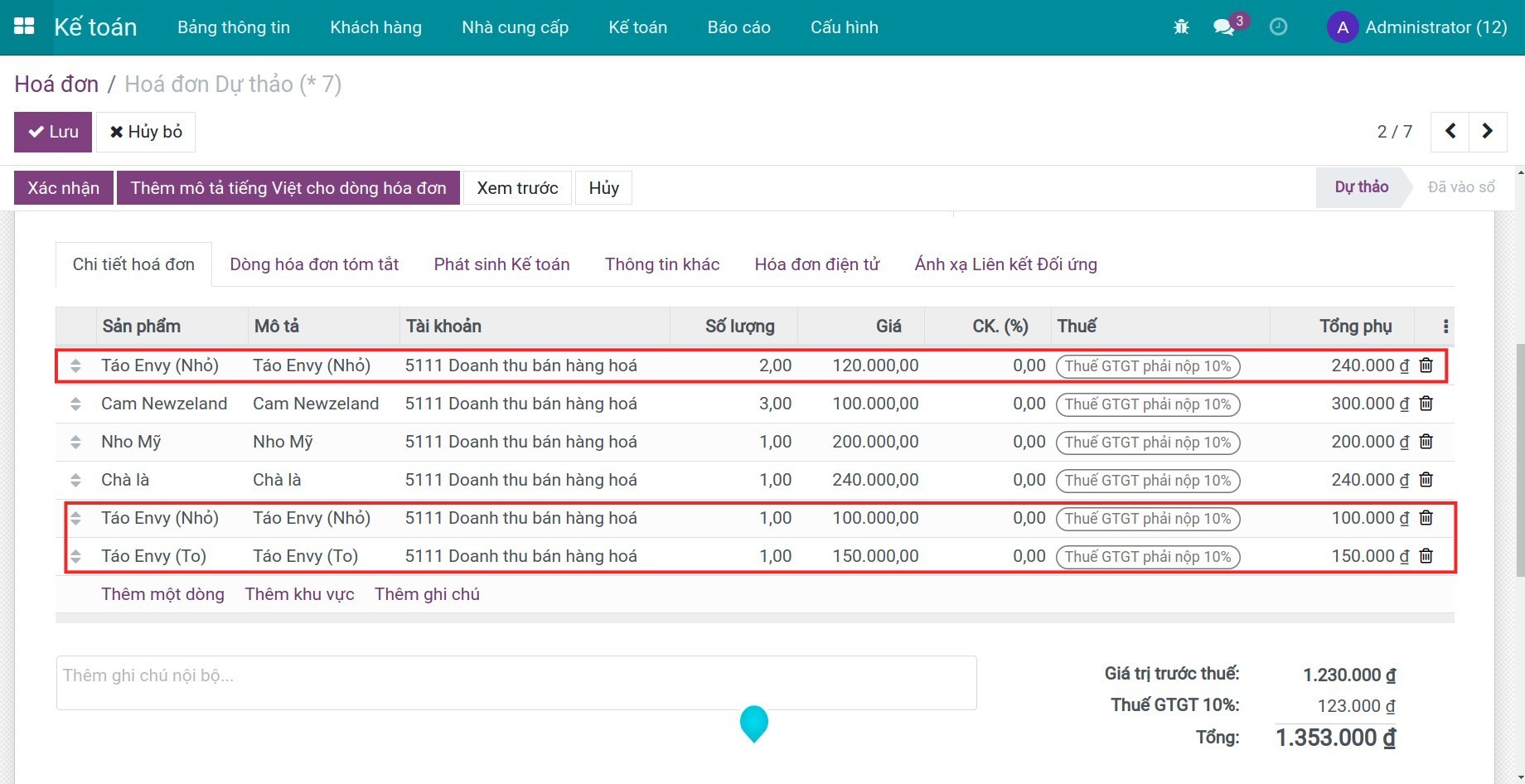
Tạo Hóa đơn có nhiều dòng của cùng một sản phẩm
Bạn tạo một hóa đơn, trong đó có nhiều dòng của cùng một sản phẩm hoặc biển thể sản phẩm. Ví dụ: trên hóa đơn có hai dòng biến thể sản phẩm Táo Envy (Nhỏ) và ba dòng sản phẩm Táo Envy (To) (lưu ý đây sẽ là ví dụ được sử dụng xuyên suốt bài viết).
Nhóm các dòng của cùng một sản phẩm trên hóa đơn
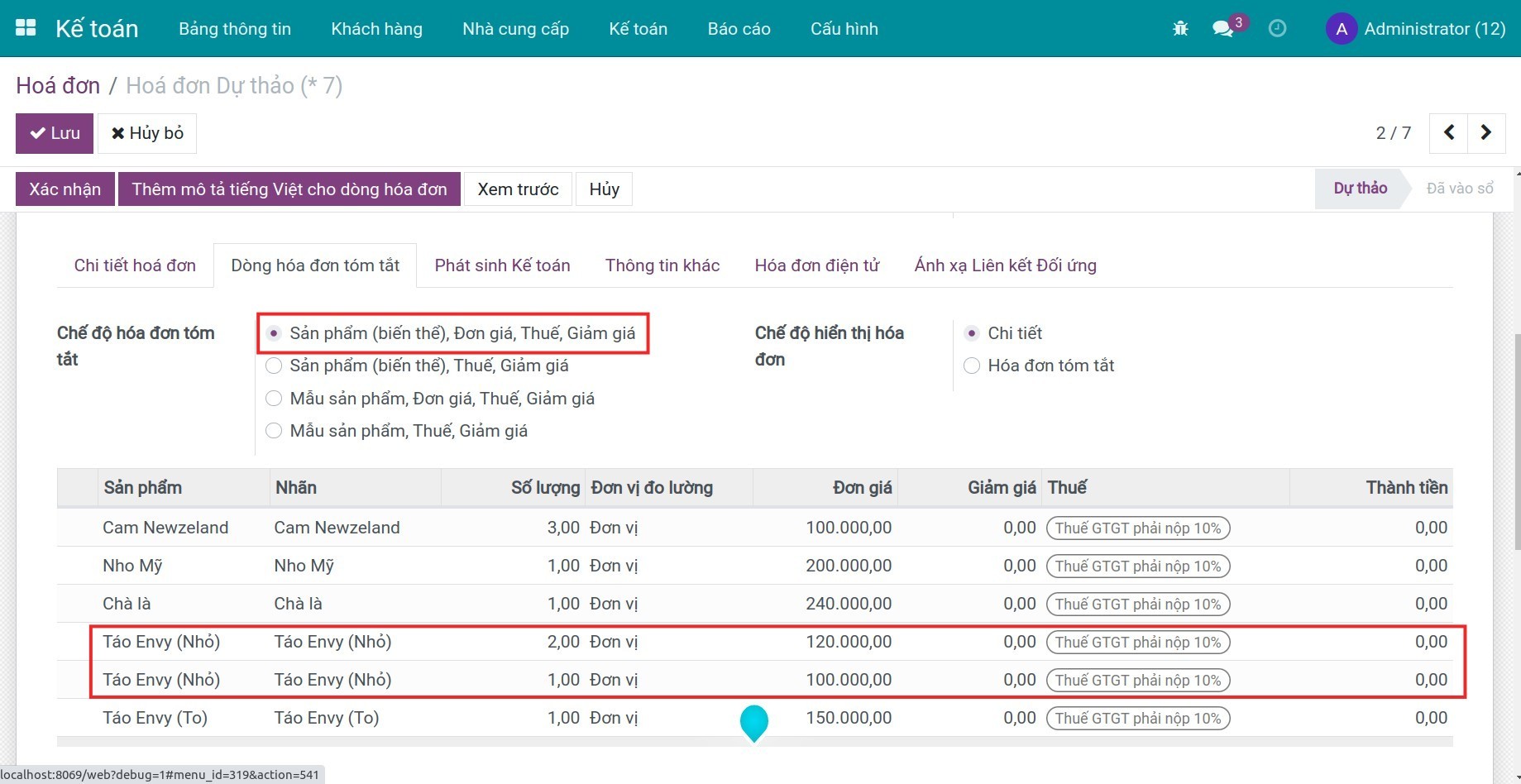
Sau khi cài mô-đun, trên giao diện hóa đơn xuất hiện thêm tab Dòng hóa đơn tóm tắt. Tại đây phần mềm cung cấp các tùy chọn về Chế độ hóa đơn tóm tắt và Chế độ hiển thị hóa đơn, cho phép bạn tích chọn và xem trước hóa đơn:
Chế độ hóa đơn tóm tắt:
- Sản phẩm (biến thể), Đơn giá, Thuế, Giảm giá: tích chọn trong trường hợp bạn muốn nhóm dòng hóa đơn theo biến thể sản phẩm, đồng thời tách thành dòng riêng khi Đơn giá hoặc Thuế hoặc Chiết khấu Giảm giá trên từng dòng ban đầu khác nhau.
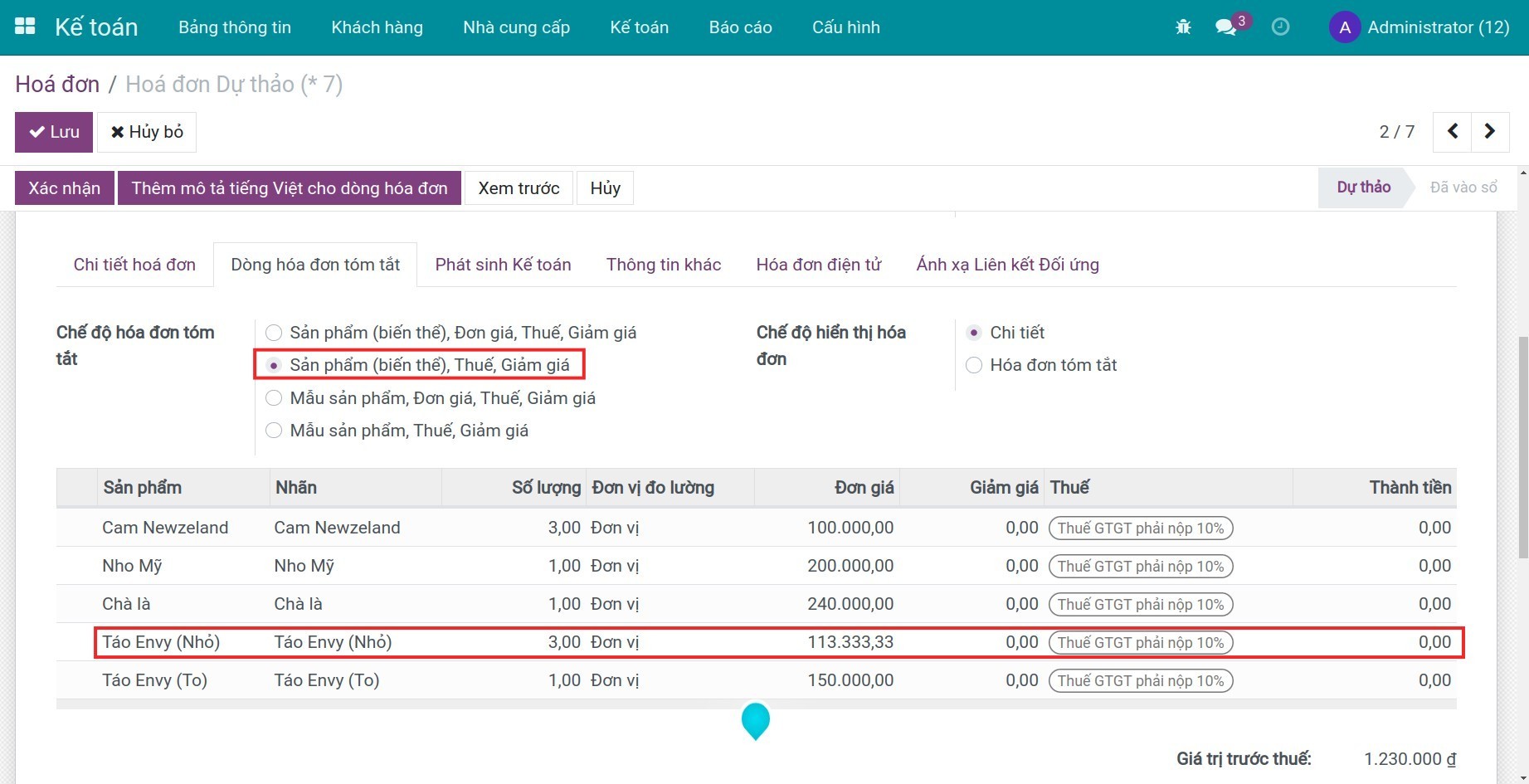
- Sản phẩm (biến thể), Thuế, Giảm giá: tích chọn trong trường hợp bạn muốn nhóm dòng hóa đơn theo biến thể sản phẩm, đồng thời tách thành dòng riêng khi Thuế hoặc Chiết khấu Giảm giá trên từng dòng ban đầu khác nhau. Phần mềm sẽ tự động tính Đơn giá trung bình theo công thức: Đơn giá = Tổng giá trên từng dòng ban đầu/Tổng số lượng. Ví dụ: trên hóa đơn có hai dòng biến thể sản phẩm Táo Envy (Nhỏ).
- Dòng 1: Giá là 120.000, Số lượng là 2.
- Dòng 2: Giá là 100.000, Số lượng là 1.
Sau khi nhóm dòng, phần mềm sẽ tính toán ra Đơn giá = [(120.000 * 2 + (100.000 * 1)] / (2+1) = 113,333.
- Mẫu sản phẩm, Đơn giá, Thuế, Giảm giá: tích chọn trong trường hợp bạn không muốn nhóm dòng hóa đơn theo biến thể sản phẩm, đồng thời tách thành dòng riêng khi Đơn giá hoặc Thuế hoặc Chiết khấu Giảm giá trên từng dòng ban đầu khác nhau.
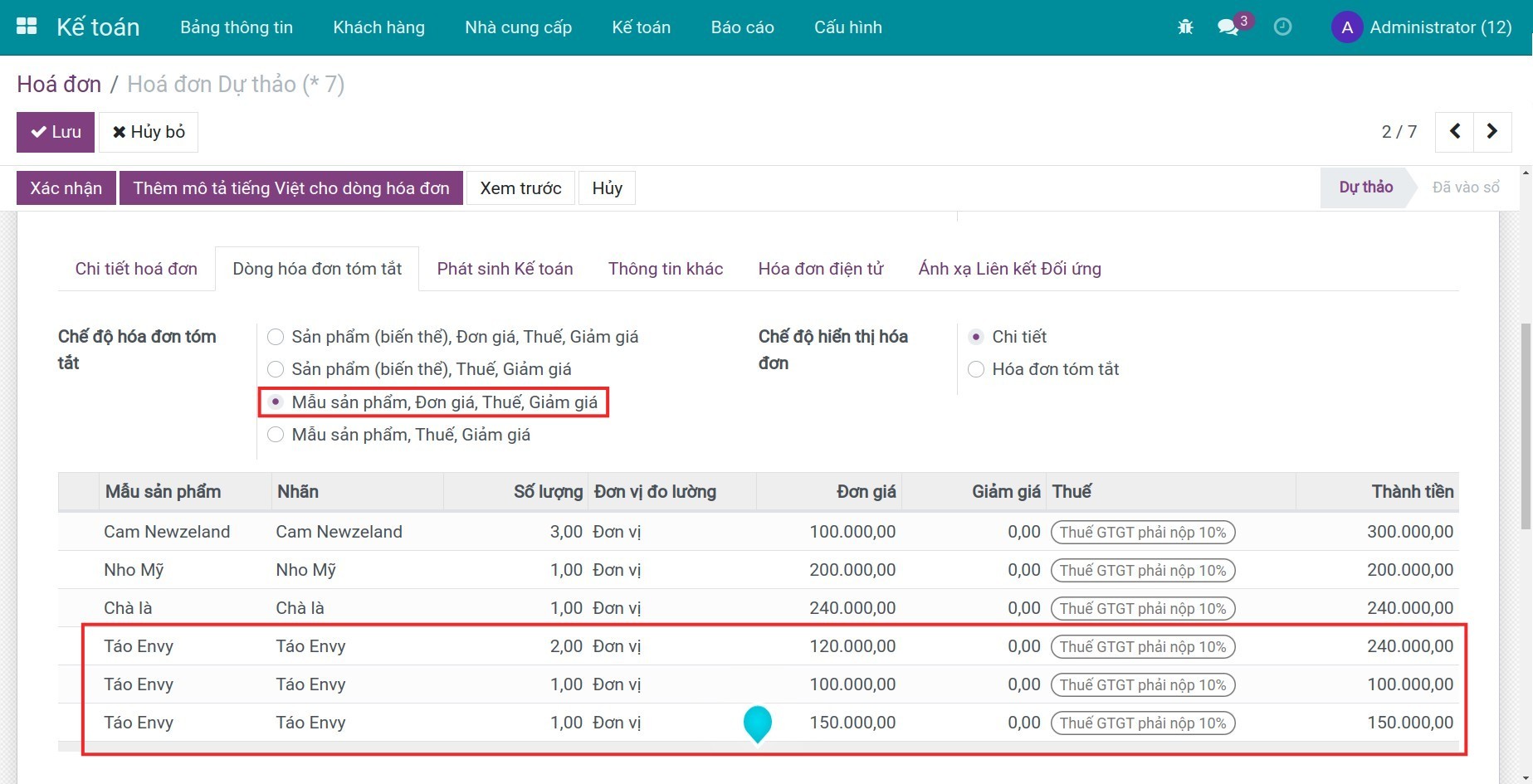
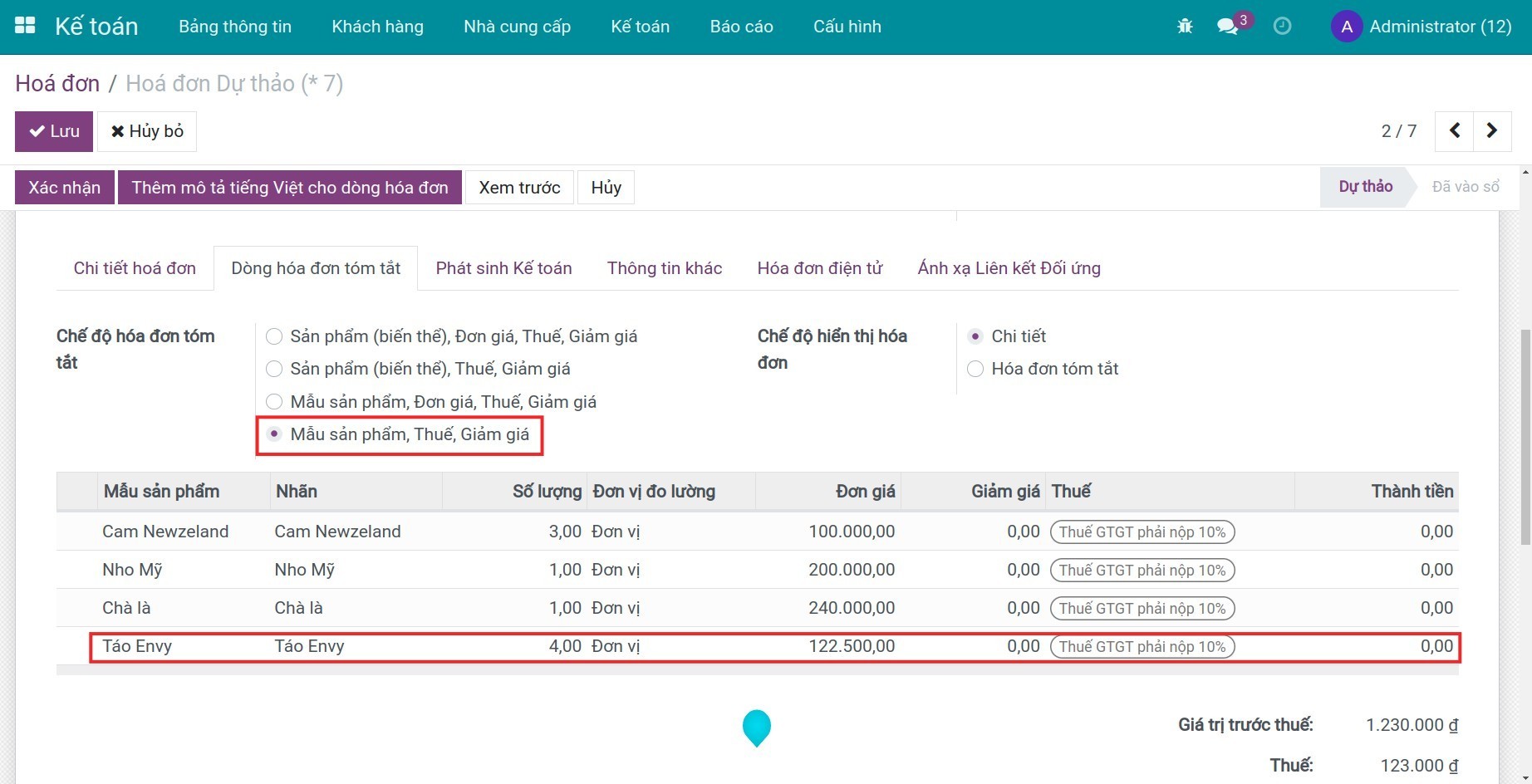
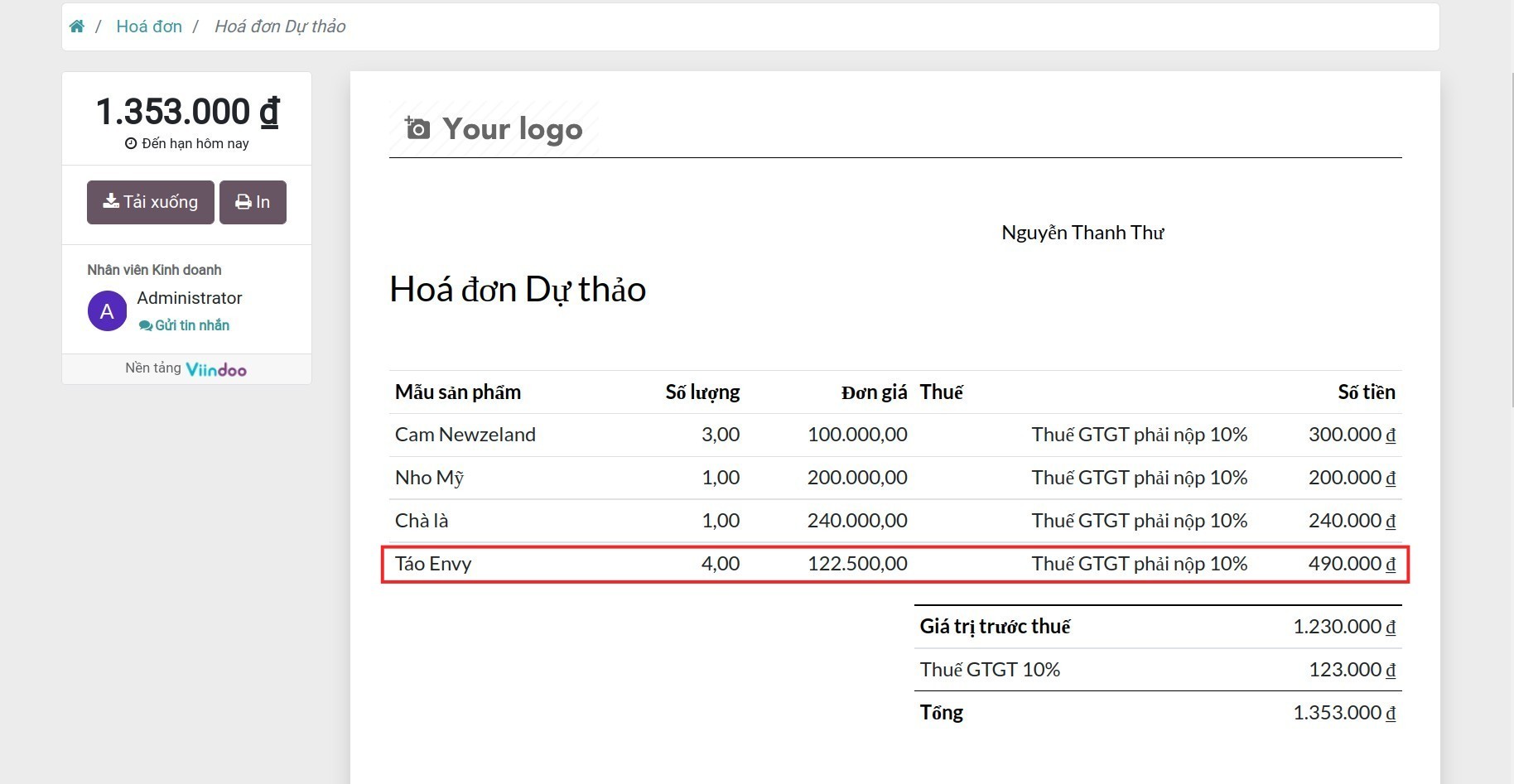
- Mẫu sản phẩm, Thuế, Giảm giá: tích chọn trong trường hợp bạn không muốn nhóm dòng hóa đơn theo biến thể sản phẩm, đồng thời tách thành dòng riêng khi Thuế hoặc Chiết khấu Giảm giá trên từng dòng ban đầu khác nhau. Phần mềm sẽ tự động tính Đơn giá trung bình theo công thức: Đơn giá = Tổng giá trên từng dòng ban đầu/Tổng số lượng. Ví dụ: trên hóa đơn có ba dòng sản phẩm Táo Envy.
- Dòng 1: Giá là 120.000, Số lượng là 2.
- Dòng 2: Giá là 100.000, Số lượng là 1.
- Dòng 3: Giá là 150.000, Số lượng là 1.
Sau khi nhóm dòng, phần mềm sẽ tính toán ra Đơn giá = [(120.000 * 2 + (100.000 * 1) + (150.000 * 1)] / (2+1+1) = 122.500.
Chế độ hiển thị hóa đơn:
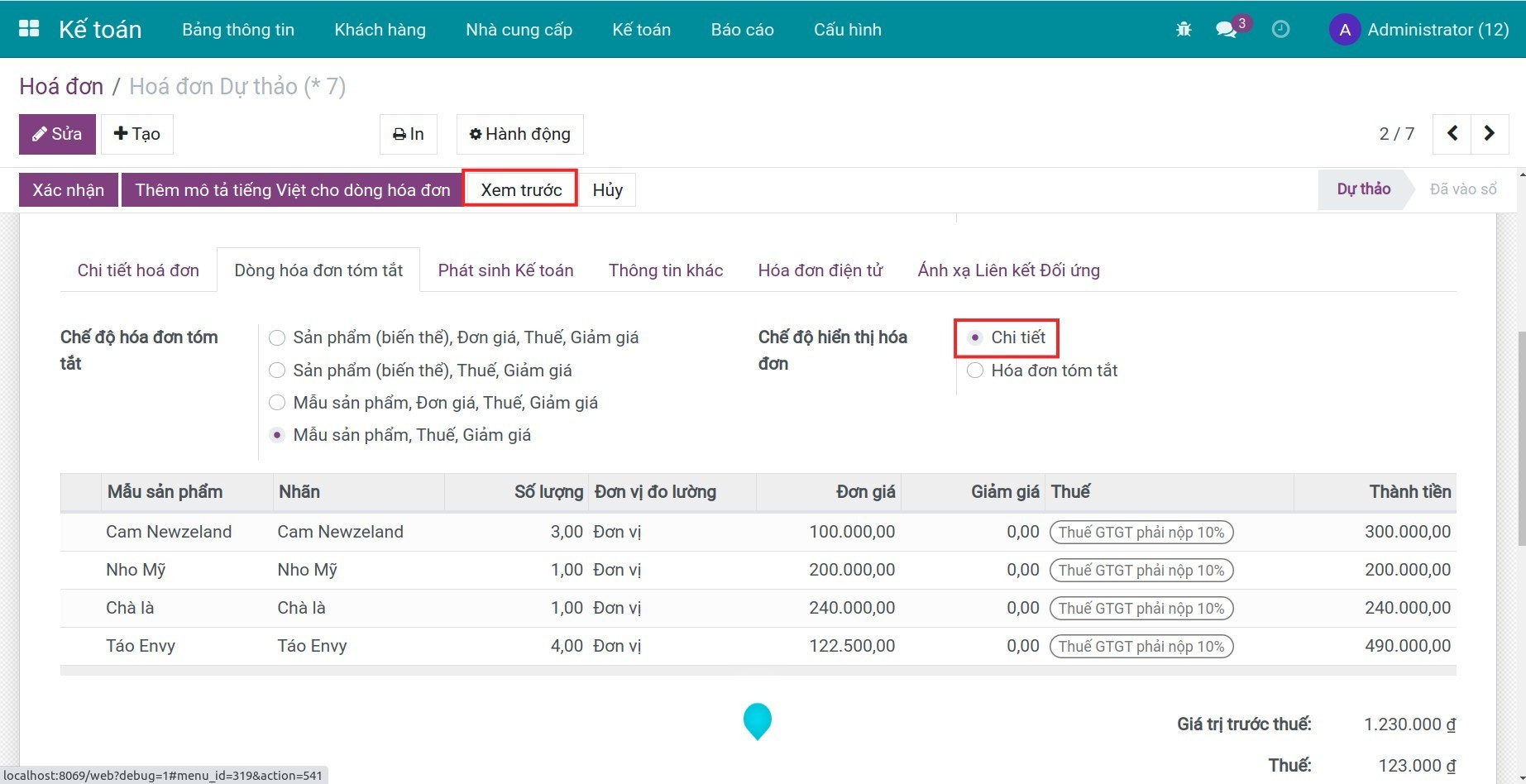
- Chi tiết: hiển thị hóa đơn theo chi tiết từng dòng hóa đơn (không nhóm dòng). Bạn bấm Lưu, sau đó bấm In > Hóa đơn để in hóa đơn hoặc Xem trước để xem trước hóa đơn.
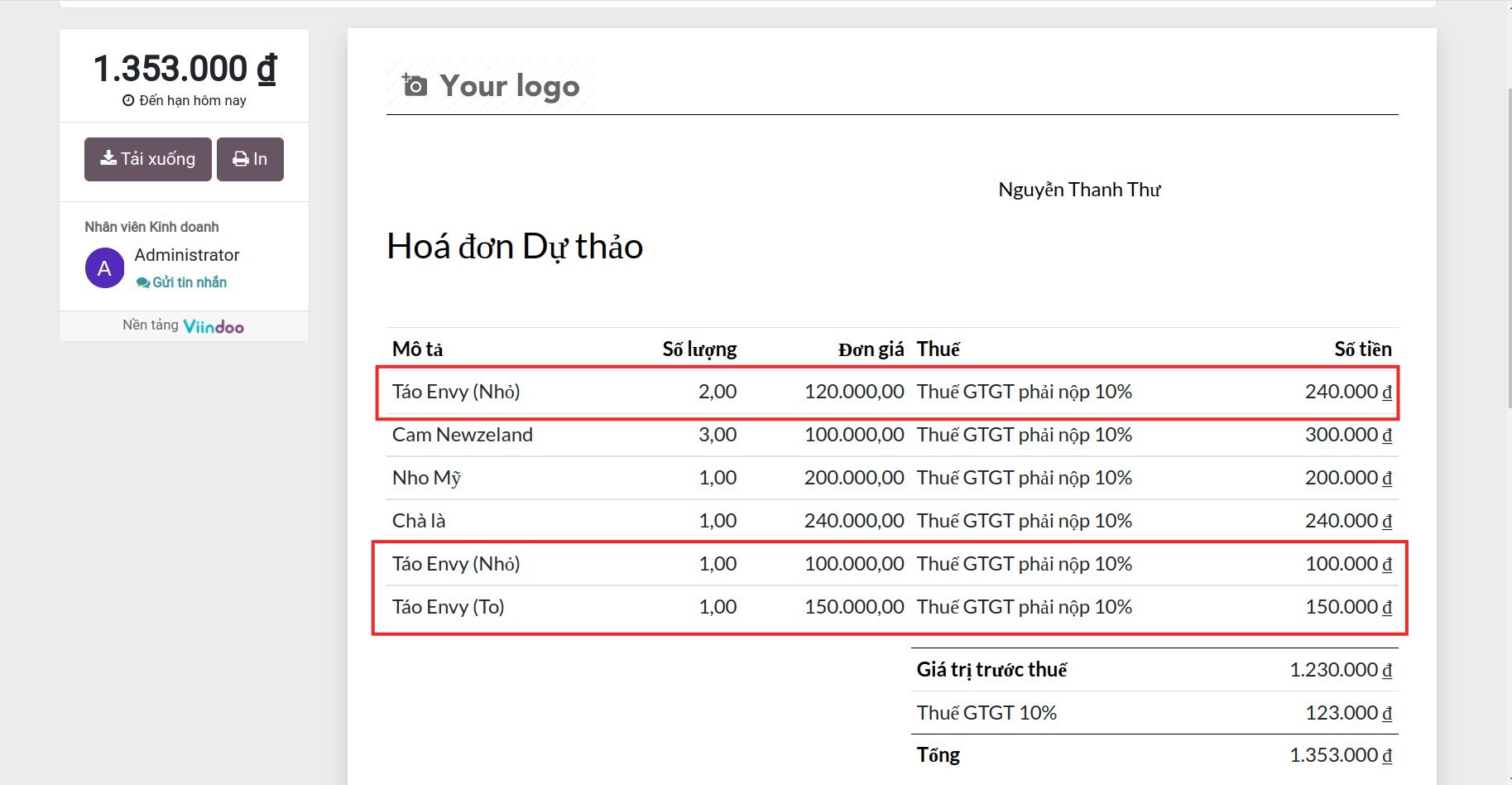
- Hóa đơn tóm tắt: hiển thị hóa đơn theo Chế độ hóa đơn tóm tắt mà bạn đã thiết lập. Tương tự, bạn bấm Lưu, sau đó bấm In > Hóa đơn để in hóa đơn hoặc Xem trước để xem trước hóa đơn.
Phần mềm này và các tệp liên kết ("Phần mềm") được sử dụng (chạy, tuỳ biến, chạy sau khi được tuỳ biến) chỉ khi bạn mua được giấy phép có hiệu lực từ tác giả, điển hình như qua các Ứng dụng Odoo, hoặc trong trường hợp bạn nhận được thoả thuận bằng văn bản từ tác giả của Phần mềm (chi tiết tại tệp COPYRIGHT).
Bạn có thể phát triển các phân hệ Odoo có sử dụng Phần mềm như một Thư viện (thường là phụ thuộc vào, nhập vào và sử dụng nguồn của nó) nhưng không sao chéo bất kỳ mã nguồn hay tài liệu nào thuộc Phần mềm. Bạn có thể phân phối những phân hệ này theo giấy phép mà bạn lựa chọn, miễn sao nội dung giấy phép đó tương tích với điều khoản của Giấy phép Phần mềm Độc quyền Odoo (ví dụ: LGPL, MIT hay bất kỳ loại giấy phép phần mềm độc quyền nào tương tự vậy).
Nghiêm cấm phát hành, phân phối, cấp phép lại hoặc bán bản sao của Phần mềm hoặc bản sao Phần mềm đã được sửa đổi.
Thông báo bản quyền và chấp thuận nêu trên buộc phải được bao gồm trong tất cả các bản sao hoặc các phần quan trọng của Phần mềm.
PHẦN MỀM ĐƯỢC CUNG CẤP "NGUYÊN TRẠNG", KHÔNG BẢO ĐẢM DƯỚI BẤT KỲ HÌNH THỨC NÀO, ĐƯỢC THỂ HIỆN RÕ RÀNG HOẶC NGỤ Ý, KHÔNG GIỚI HẠN ĐẢM BẢO VỀ CÁC BẢO ĐẢM NGỤ Ý VỀ KHẢ NĂNG THƯƠNG MẠI, PHÙ HỢP VỚI MỤC ĐÍCH CỤ THỂ VÀ KHÔNG VI PHẠM. TRONG MỌI TRƯỜNG HỢP SẼ KHÔNG CÓ TÁC GIẢ HOẶC CHỦ SỞ HỮU BẢN QUYỀN NÀO CHỊU TRÁCH NHIỆM VỀ BẤT KỲ KHIẾU NẠI, THIỆT HẠI HOẶC TRÁCH NHIỆM PHÁP LÝ KHÁC NÀO TRONG PHẠM VI HỢP ĐỒNG, CÁC THIỆT HẠI HOẶC CÁCH KHÁC, PHÁT SINH TỪ, NGOÀI HOẶC CÓ LIÊN KẾT VỚI PHẦN MỀM HOẶC VIỆC SỬ DỤNG HOẶC KINH DOANH KHÁC TẠI PHẦN MỀM.