Viindoo
Odoo Community
Odoo Enterprise

One Platform. Every Device On Your Floor.

viin_iot pairs your IoT boxes with the printers, scanners, scales, displays, and payment terminals attached to them - then hands each device to the Odoo app that actually uses it.

Buy the platform once, then turn on only the apps - POS, Manufacturing, Quality, Work Order Tablet - that put your hardware to work.
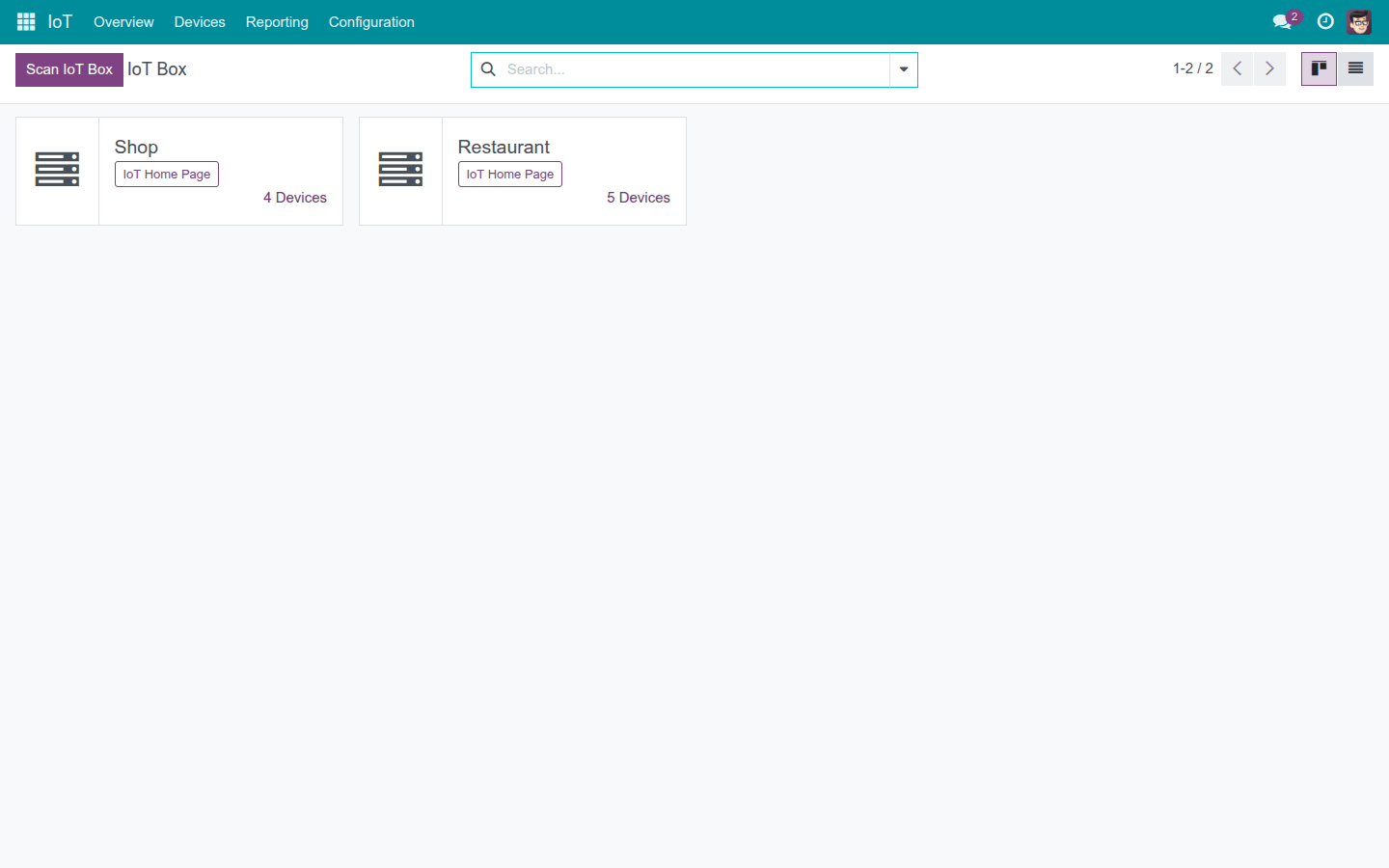
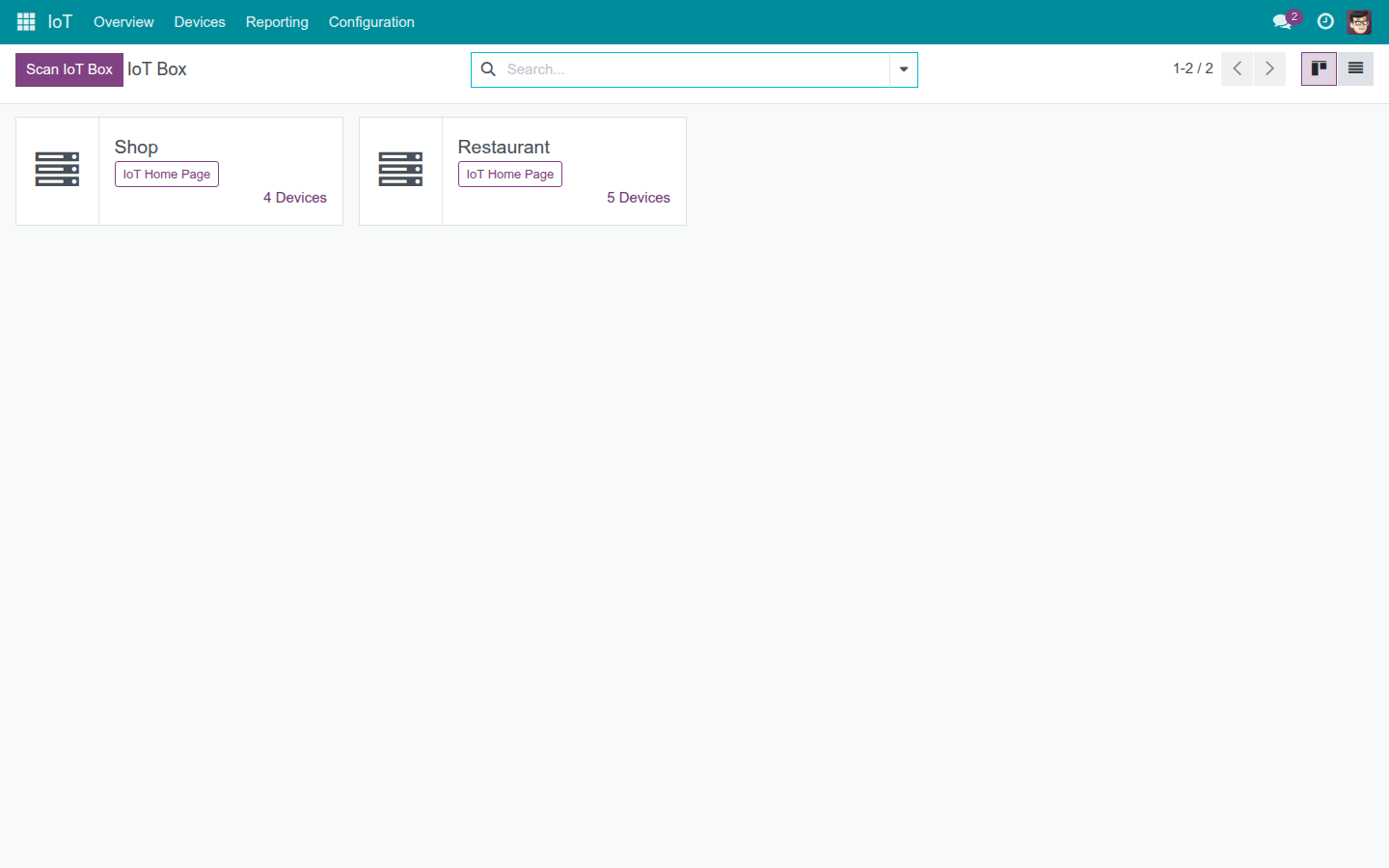
The IoT Overview dashboard showing every paired box

Key Features

📡

Overview

See every paired IoT box on a kanban dashboard, jump into its home page, its devices, or its logs from one screen.

🔌

Devices

Browse every peripheral device paired to a box - printer, scanner, scale, display, payment terminal and more - grouped by box or type, with live connected/disconnected status.

📋

Device Logs

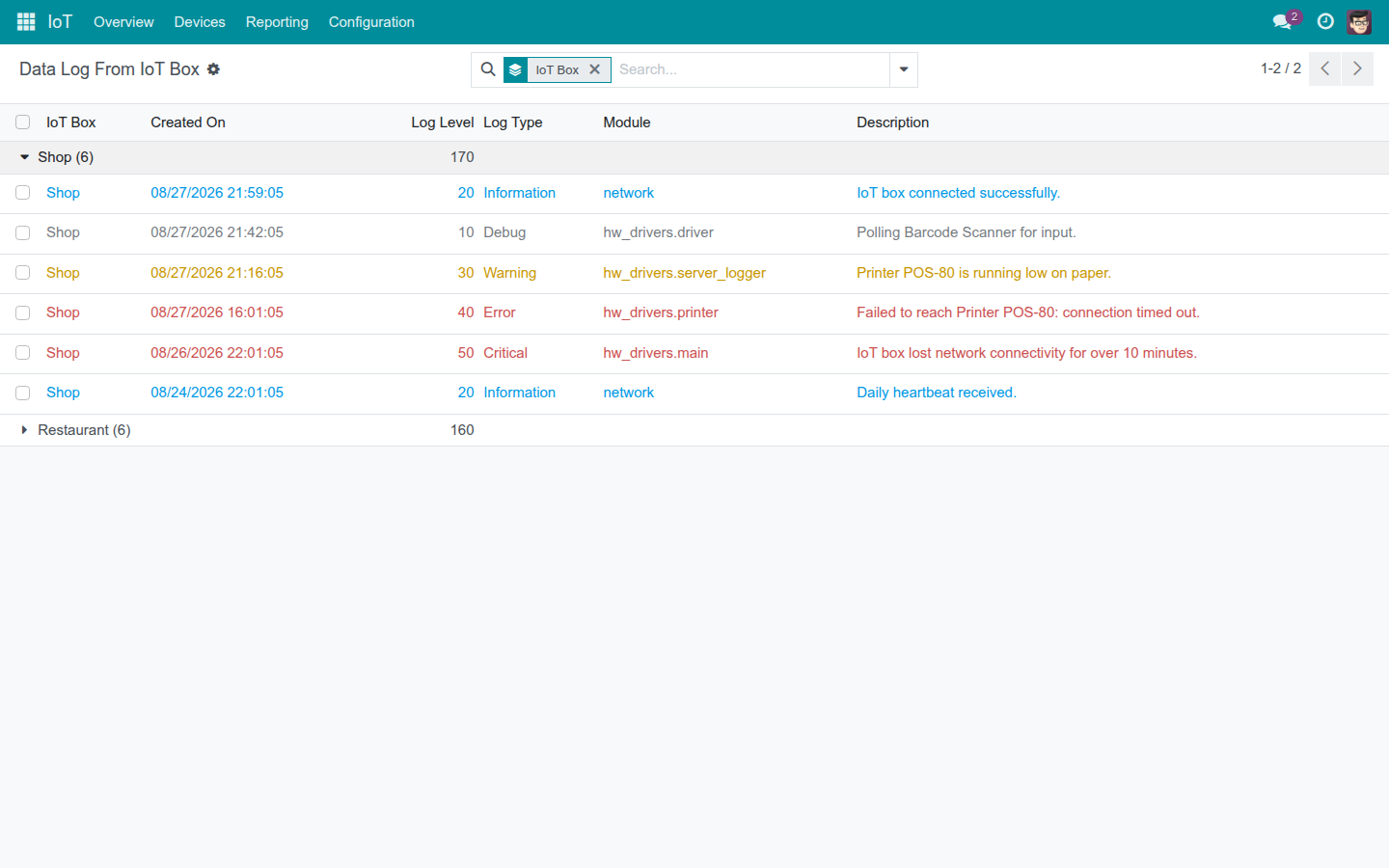
Read the raw diagnostic log stream every paired box sends, filterable and grouped by box or severity, so a support call starts from evidence instead of guesswork.

📦

IoT Boxes

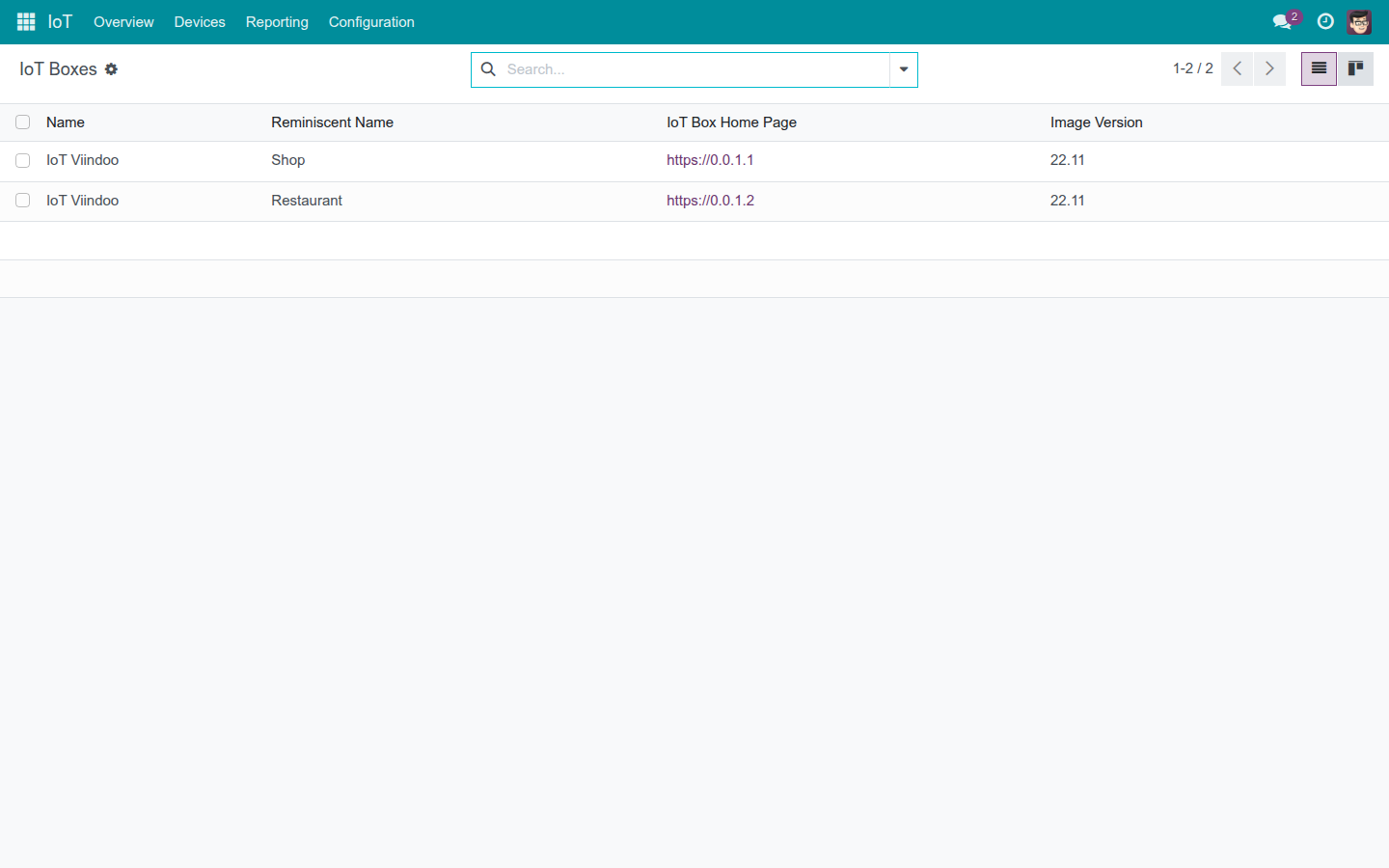
Administer the box fleet as a list-first register for an IoT admin - the same records Overview shows, ordered for an audit rather than a dashboard, including each box’s own credentials, which stay admin-only wherever they appear.

Settings

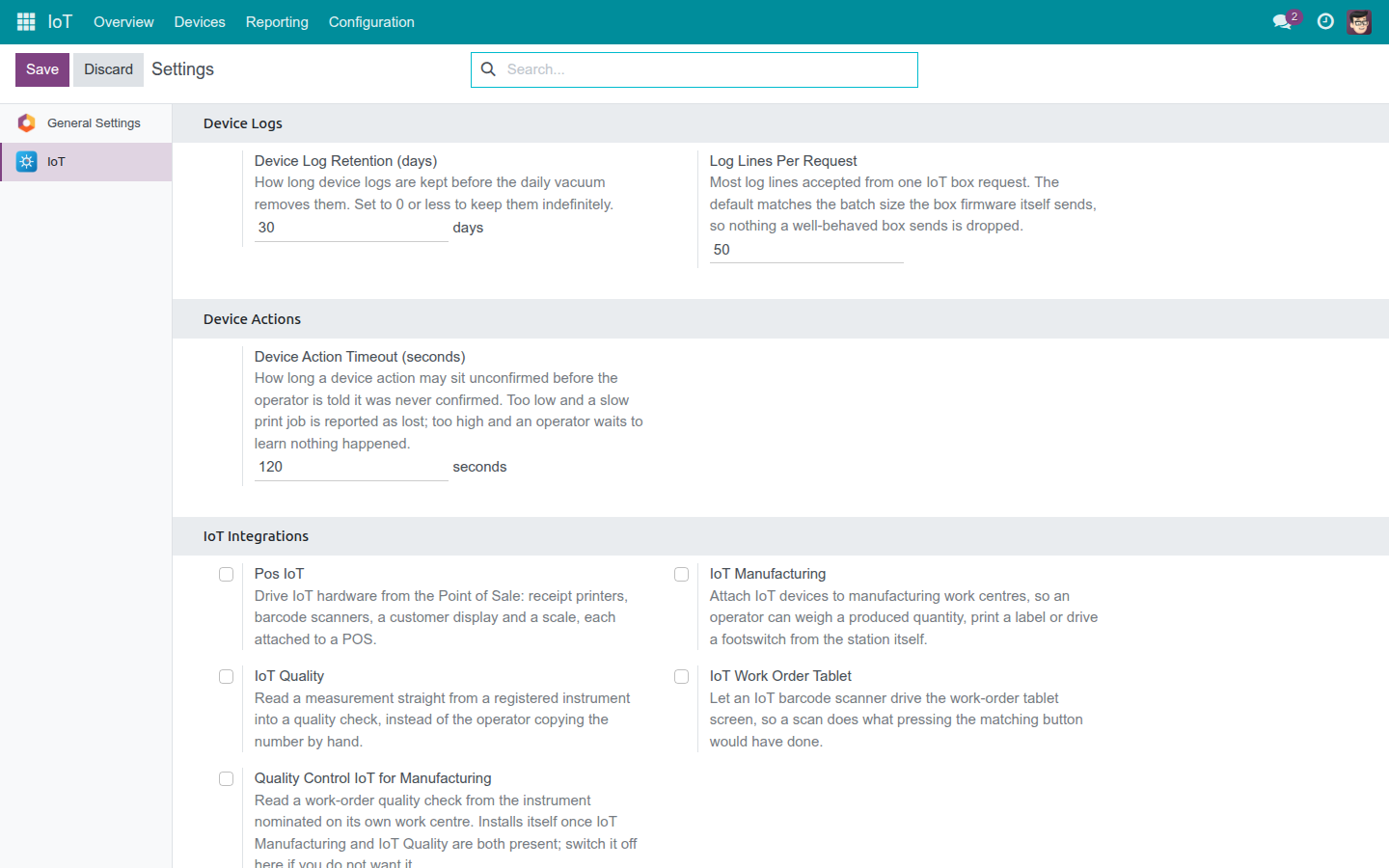
Tune how long device logs are kept and how long a device action may sit unconfirmed before the operator is told it timed out, then activate the five IoT bridge apps from one screen.

🏠

IoT Home Page

Open a paired box’s own local web UI in a new tab straight from its Overview card, once the box has reported an address.

🔍

Scan IoT Box

Guide an operator through opening the box image’s own network-discovery page to find a new box’s address - the first step toward pairing it, guided from inside Odoo.

Device Dispatch

Record every device command before it is sent and resolve it to exactly one outcome - Completed, Refused, or Never Confirmed - delivered once, so nobody is told a job succeeded when nobody confirmed it did.

Five Apps Stand On This Platform

viin_iot itself doesn’t ring up a sale, print a work order, or log a quality check - it’s the hardware layer underneath the app that does. Turn on the ones this business needs, each sold separately, each switched on from the same Settings screen:

Pos IoT - Drive IoT hardware from the Point of Sale: receipt printers, barcode scanners, a customer display, and a scale, each attached to a POS.

IoT Manufacturing - Attach IoT devices to manufacturing work centers, so an operator can weigh a produced quantity, print a label, or drive a footswitch from the station itself.

IoT Quality - Read a measurement straight from a registered instrument into a quality check, instead of the operator copying the number by hand.

IoT Work Order Tablet - Let an IoT barcode scanner drive the work-order tablet screen, so a scan does what pressing the matching button would have done.

Quality Control IoT for Manufacturing - Read a work-order quality check from the instrument nominated on its own work center; installs itself once IoT Manufacturing and IoT Quality are both present.

Settings screen switching on the five IoT bridge apps

From A Box On A Shelf To A Device Everyone Trusts

1

Pair the box

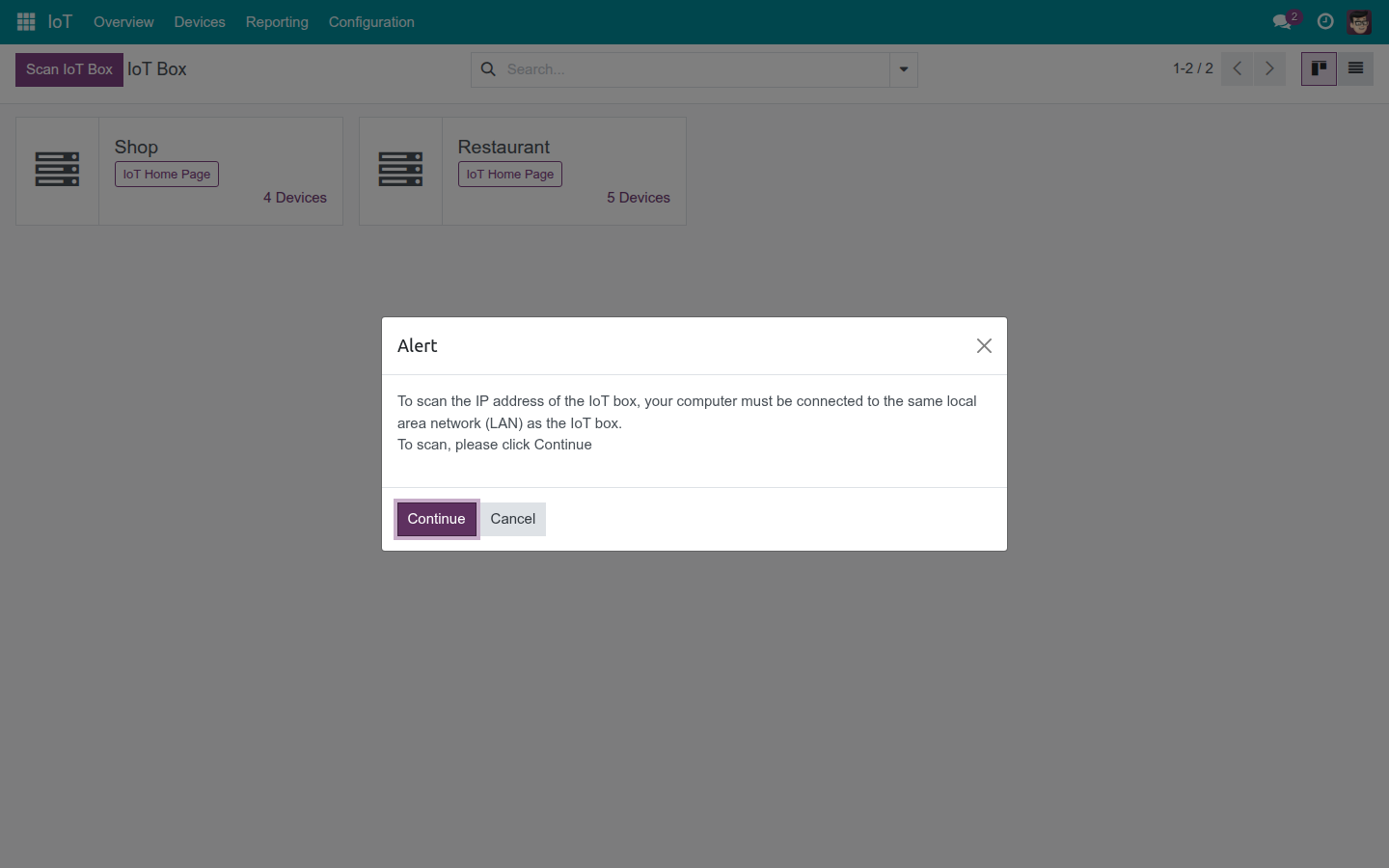
The Scan IoT Box confirmation dialog

An administrator (or anyone holding IoT Box Creator rights) scans for the box on the local network from Overview, then pairs it.

2

The devices show up

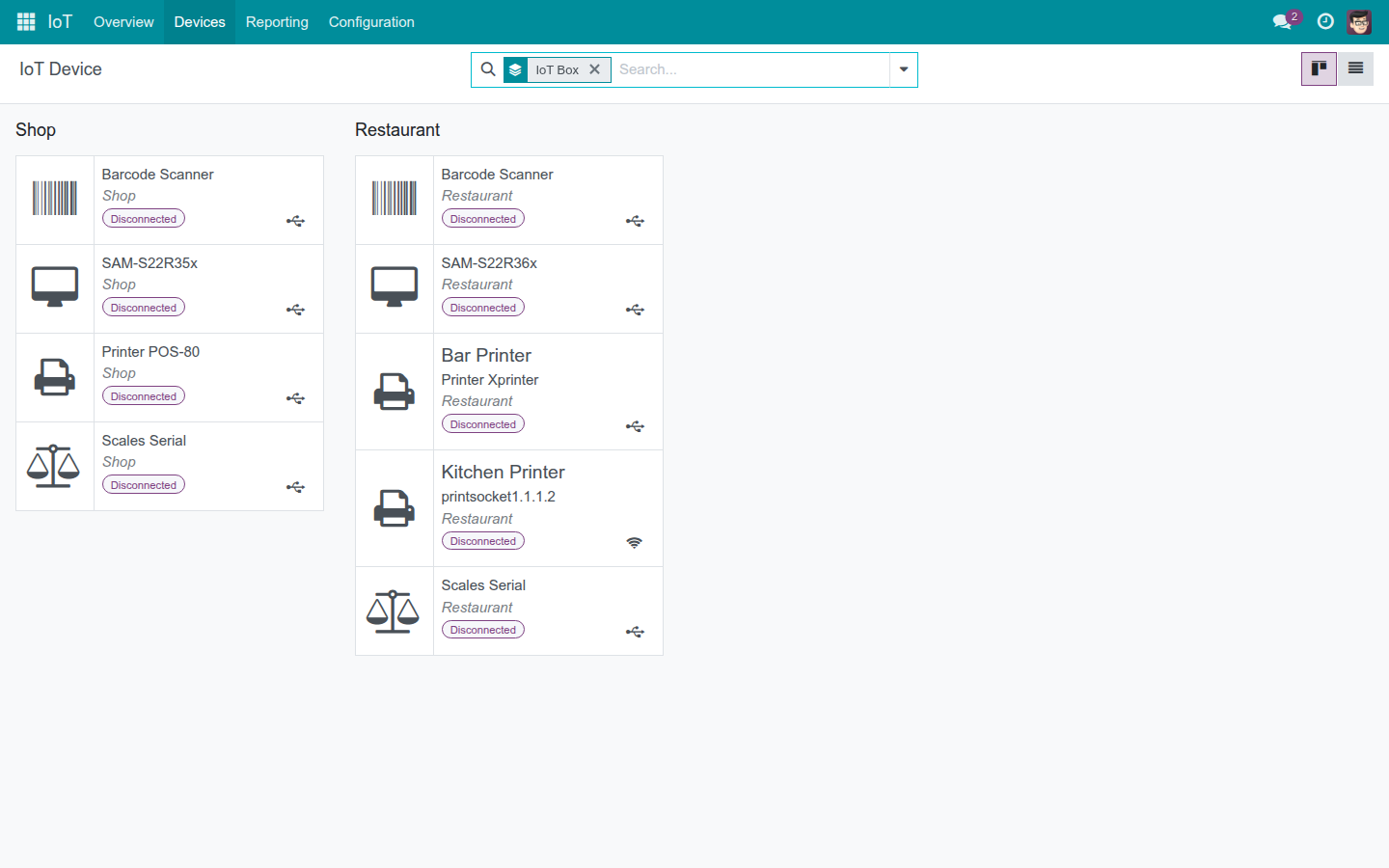
The Devices list grouped by box with live status

Printers, scanners, scales, and terminals attached to that box appear in Devices with live Connected / Disconnected status - no manual entry.

3

Turn on the apps that use them

Settings screen switching on the five IoT bridge apps

In Settings, an administrator switches on POS, Manufacturing, Quality, or Work Order Tablet - only the ones this business bought.

4

Everyone else just uses the hardware

A cashier, an operator, or a quality inspector - holding none of the IoT permission groups - prints a receipt, weighs a part, or logs a reading inside their own app. viin_iot dispatches the command underneath, waits inside the configured timeout window, and resolves it to Completed, Refused, or Never Confirmed.

5

If something needs a closer look

Device Logs list with real diagnostic rows

Device Logs holds the raw diagnostic stream every paired box sends, so troubleshooting starts from evidence.

See Every Paired Box At A Glance

Every IoT box you’ve paired shows up on one kanban dashboard. Open its own home page, browse its devices, or check its logs without leaving the screen.

The IoT Overview kanban dashboard

Browse Every Peripheral In One List

Printers, scanners, scales, displays, payment terminals and more - every device paired to a box, grouped by box or by type, each showing live Connected / Disconnected status, so you know what’s actually online before you send it a job.

The Devices list grouped by box with live status

Read The Evidence Before You Call Support

Every paired box streams its own diagnostic log back to Odoo. Filter or group by box and severity, so a support call starts from evidence instead of a guess.

Device Logs list with real diagnostic rows

Administer The Fleet Like A Register, Not A Dashboard

The same boxes Overview shows, laid out as a list built for an administrator auditing the fleet rather than glancing at a kanban - including each box’s own credentials, which never leave the administrator’s screen.

The IoT Boxes configuration list

Turn On Only The Apps This Business Needs

One screen tunes how long a device log is kept and how long a device action may go unconfirmed before an operator is told so - and switches on the bridge apps you actually use: POS, Manufacturing, Quality, Work Order Tablet, and Quality Control for Manufacturing.

Settings screen switching on the five IoT bridge apps

Open A Box’s Own Control Panel In One Click

Once a paired box has reported its address, open its own local web interface in a new tab straight from its Overview card - no separate login, no hunting for an IP address.

The Overview card carrying the box's own IoT Home Page link

Find A New Box Before You Pair It

Scan the box image’s own network-discovery page to find a new box’s address - the first step toward pairing it, guided from inside Odoo instead of a router’s admin page.

The Scan IoT Box confirmation dialog

Every Command Gets One Real Answer

Every device action is recorded before it’s sent and resolves to exactly one outcome - Completed, Refused, or Never Confirmed - delivered once, so nobody is ever told a job succeeded when nobody confirmed it did. A box that goes quiet isn’t ignored: a sweep checks every minute and reports the timeout as what it is, not as a silent failure. This runs behind the scenes; the module ships no dedicated screen for it.

Need help with the IoT platform?

Pre-Sales & Partnership

Talk to Viindoo before you buy.

viindoo.com/apps/modules/17.0/viin_iot

Technical Support

Already running it? Reach the support team directly.

apps.support@viindoo.com

Technical Requirement

  • Odoo version: 17.0
  • Editions: Community, Enterprise
  • Required apps: Discuss (mail), Web (web), Bus (bus) - standalone platform, no other paid Viindoo app required to install.
  • License: OPL-1

Give Your Floor One Platform For Every Device

Pair your first box today, then add the app that puts it to work.

Start a 15-Day Free Trial Book A Guided Tour